Updating Incorrect LPR Reads
OnThe Updating Incorrect LPR Reads process allows officers to manually correct license plate numbers that were misread by the OperationsCommanderdevice's camera. Its primary purpose is to ensure accurate enforcement and maintain reliable database records by fixing optical character recognition (OCR) errors directly in the field. This article is intended for OPS-COM administrators and field enforcement personnel using the legacy Android application,application.
Setup and Configuration
This correction feature is native to the LPR scanning module and does not require any specialized backend setup.
Admin Side: No manual setup is required. Enforcement officers simply need to be logged into the legacy Android application and actively conducting patrols using the LPR scanning tool.
Using this Feature
Enforcement personnel can seamlessly correct misread plates without having to exit their active patrol session.
Correcting a Plate Read
-
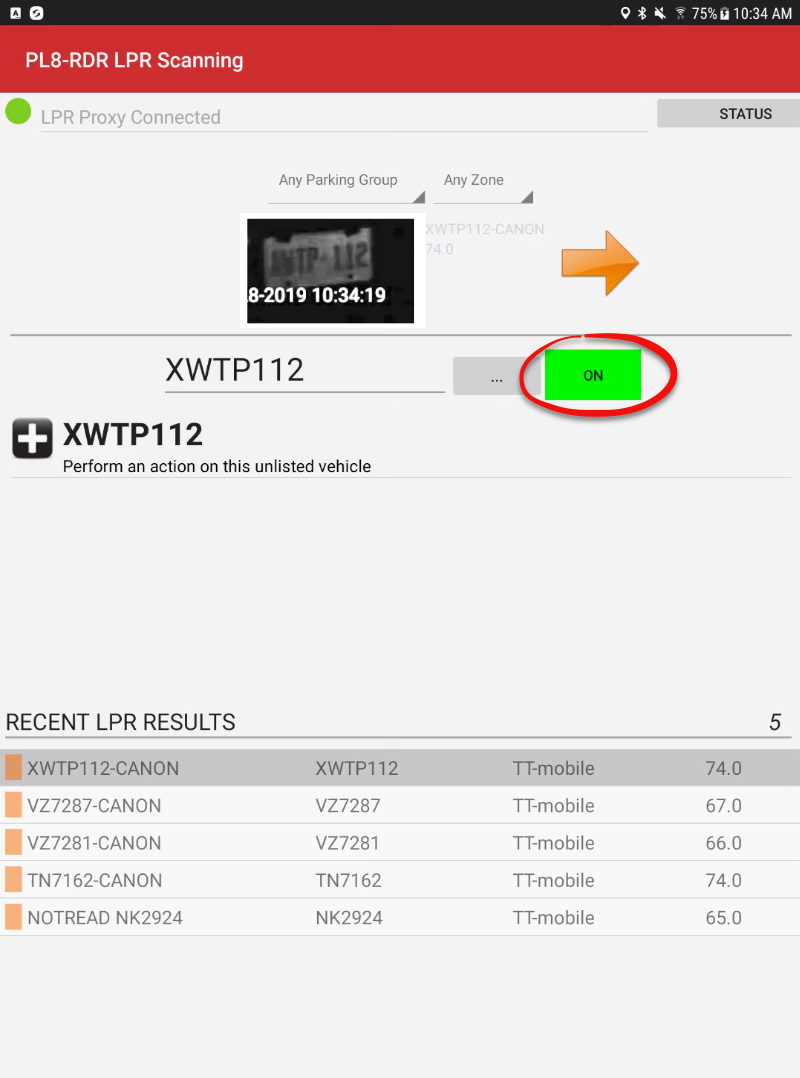
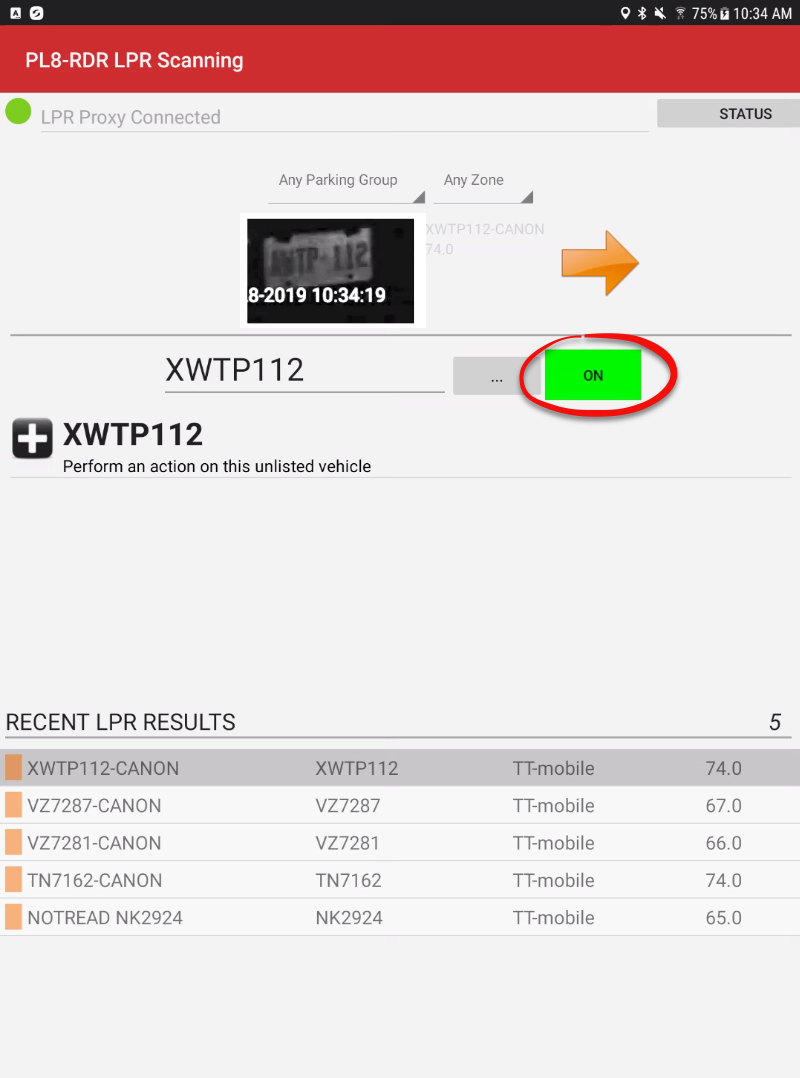
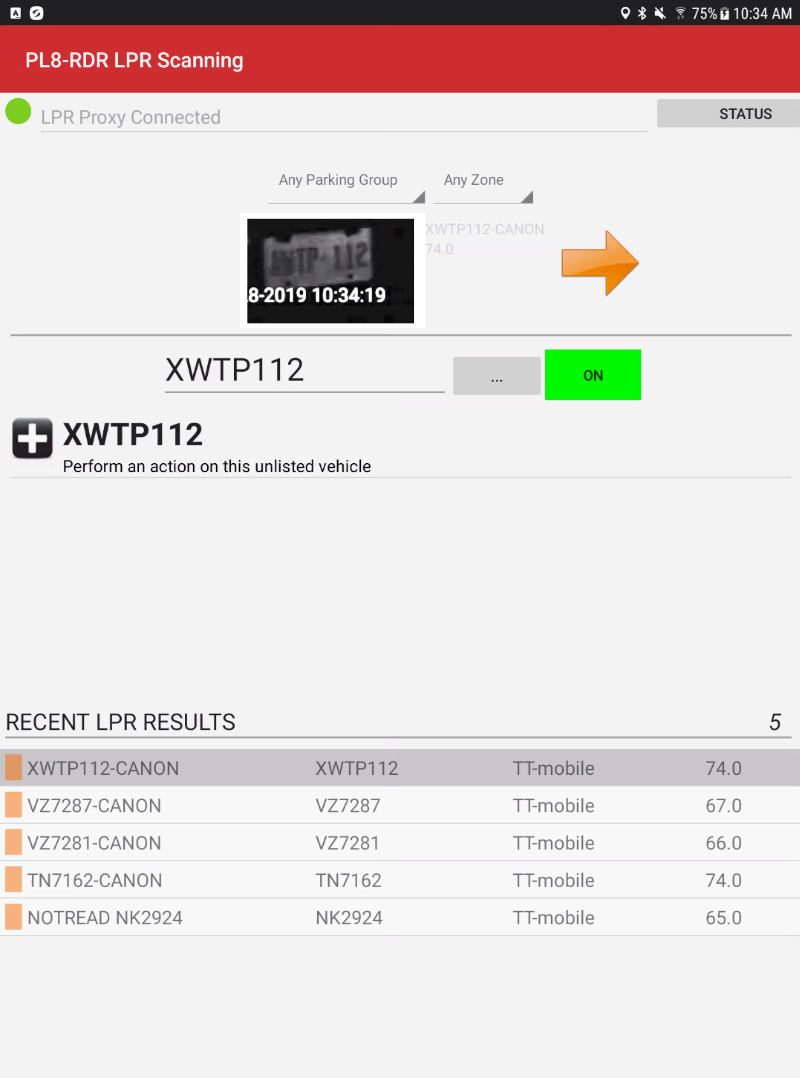
Tap the LPR Scanning menu item to open the PL8-RDR LPR Scanning window.
Whenpatrolling -
Locate the incorrectly read plate from the active list of plate reads
willgeneratedappear.
during your patrol.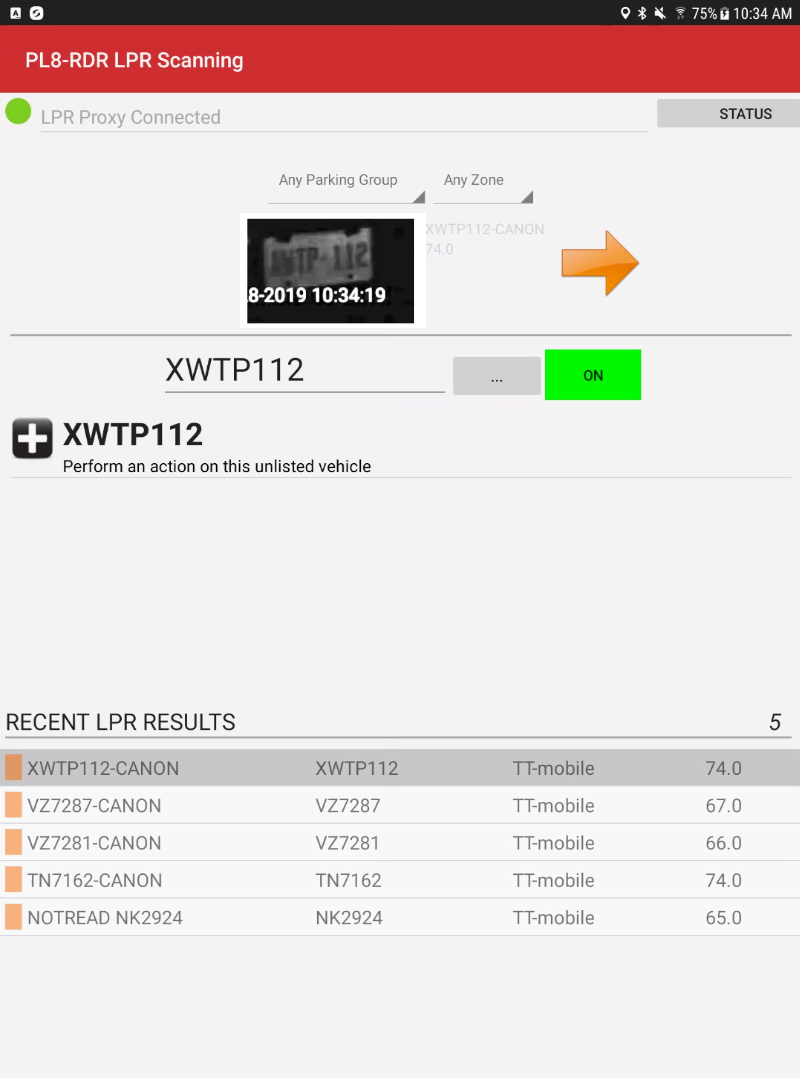
-
FindTap theplatetextthatfieldhas been incorrectly read. Enterof thefixincorrecttoplate and manually type theplate,correctinalphanumericthischaracterscase(e.g., if theplatecamera readas VZ7281,VZ7281, but the actual platewasisBVZT282.NoticeBVZT282, type the missing letters). -
Tap the Search & Update button. The record will refresh to display the updated, correct plate number.
-
Tap the red OFF button to toggle it back to the green ON state to resume your patrol.
Visual Cues and Status Indicators
-
Offline Mode Indicator: The moment you tap into a field to adjust a plate read, the LPR
modesystemgoesautomaticallyintoentersOFFanmodeofflinewhenstateadjustingtoplate reads.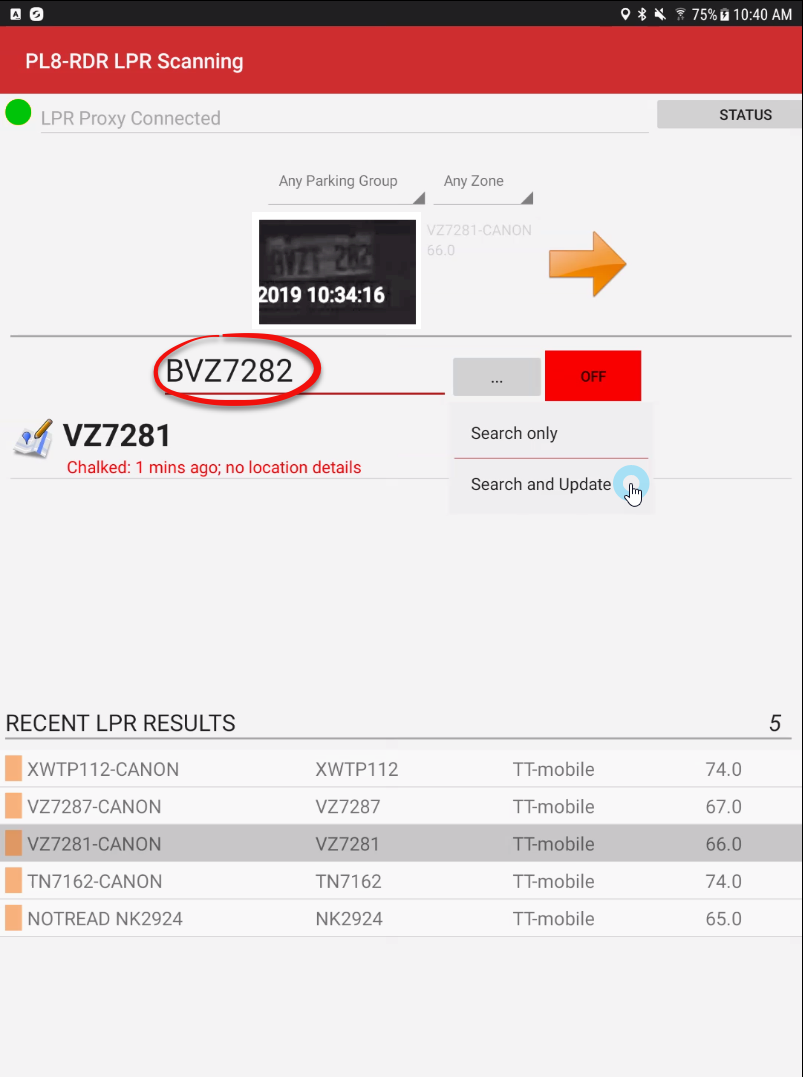
Selectprevent the camera from overwriting your work. This is indicated by the main scanning button changing from a green ON state to a red OFF state.
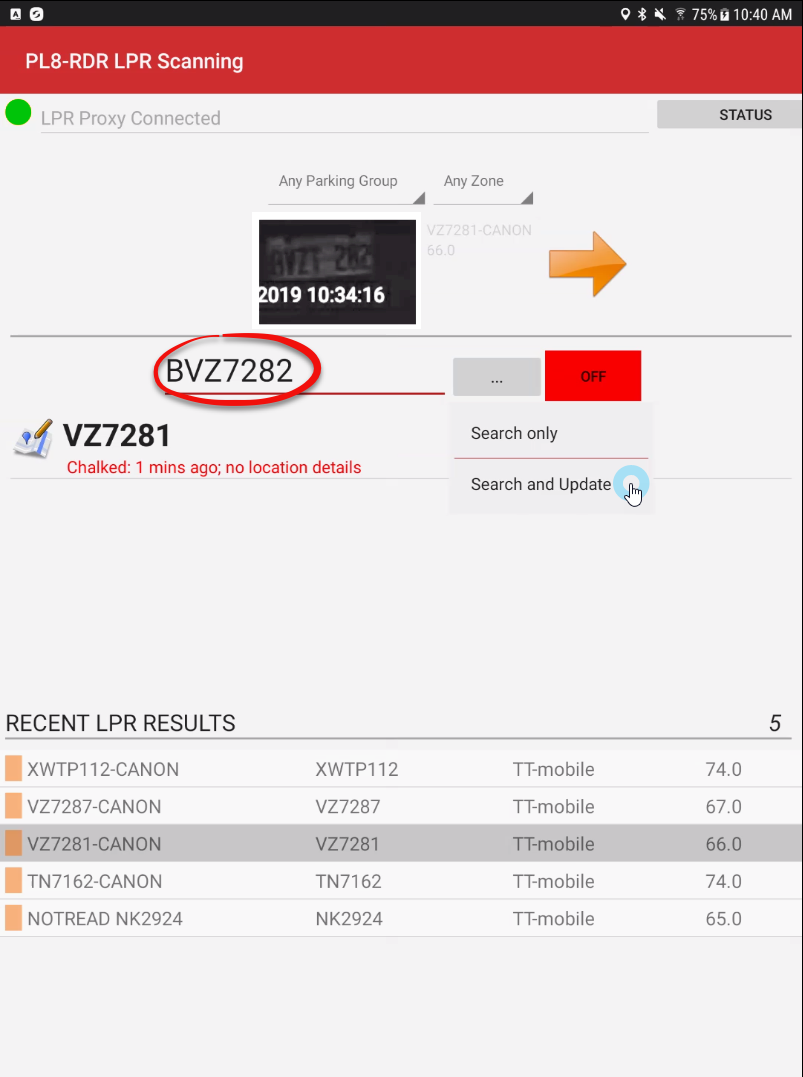
Database Synchronization Once you tap the Search & Update button. Noticebutton, the readcorrection willis changenot just local to theyour screen. The record is immediately updated plate which now includeswithin the missing B.
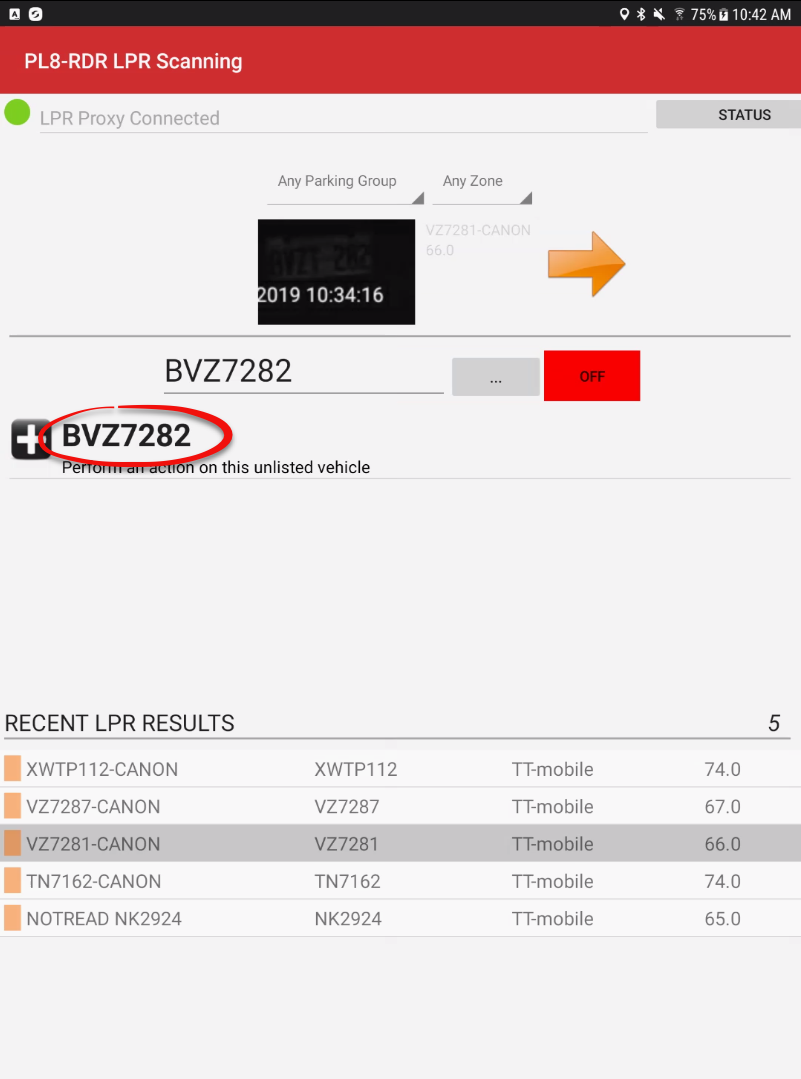
In thecore database the plate has been updated to now reference the updatednewly plate.corrected Atplate thisdata.
Best notPractices forgetand Considerations
-
Remember to resume scanning: Always remember to toggle the
off buttonscanner back to ONtoafter updating a plate. If you leave the button in the red OFF state, the system will not capture any subsequent plates as you continuepatrolling.
to move through the lot. -