Working in Low and Bright Light
Control
The Screen Brightness
Patrol Officers often find thatWorking in lowLow lightand situationsBright theLight Androidguide screenoutlines can be a little brighthow to workmanage comfortably with.
To adjust thedevice screen brightness swipeand optimize camera settings for nighttime patrols. Its primary purpose is to ensure field officers can operate their handheld units comfortably without eye strain and capture clear violation photos regardless of ambient lighting conditions. This article is intended for OPS-COM administrators and field enforcement personnel using the legacy Android application.
Setup and Configuration
Managing light settings is performed directly on the mobile device operating system and native camera application. It does not require any backend adjustments within the OPS-COM administrative portal.
Admin Side: Enforcement officers must familiarize themselves with their specific Android device's quick settings shade and native camera application preferences to make on-the-fly adjustments during their shift.
Using this Feature
Field personnel can quickly adjust their screen brightness for viewing comfort and modify camera settings to ensure optimal photo evidence collection in low-light environments.
Adjusting Screen Brightness
-
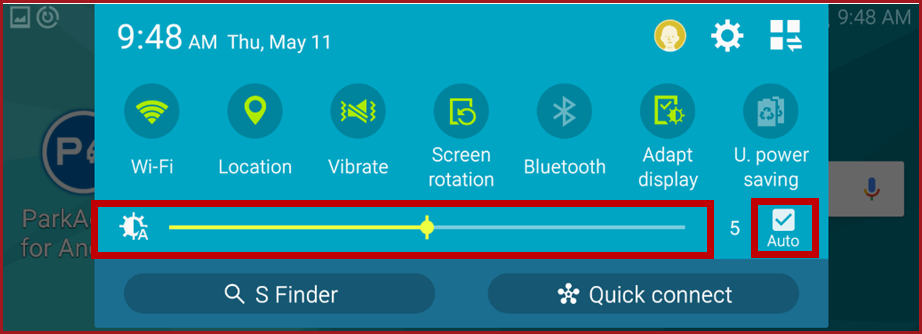
Swipe down from the top edge of the Android device screen to reveal the
followingquick settingsscreen.menu. -
YouDragcantheeitherbrightnessadjustslider left to manually dim the screen for low-light conditions, or right to increase brightnessmanuallyforwithdaylight visibility. -
Tap the
sliderAuto checkbox (oryouequivalentcanauto-brightnesssettoggle) to allow the device toauto adjust if that feature is available.Auto brightness willdynamically adjust the screen brightness based on available ambient light.(darker for low light and brighter for daylight or a lit room.
Taking Photos at Night
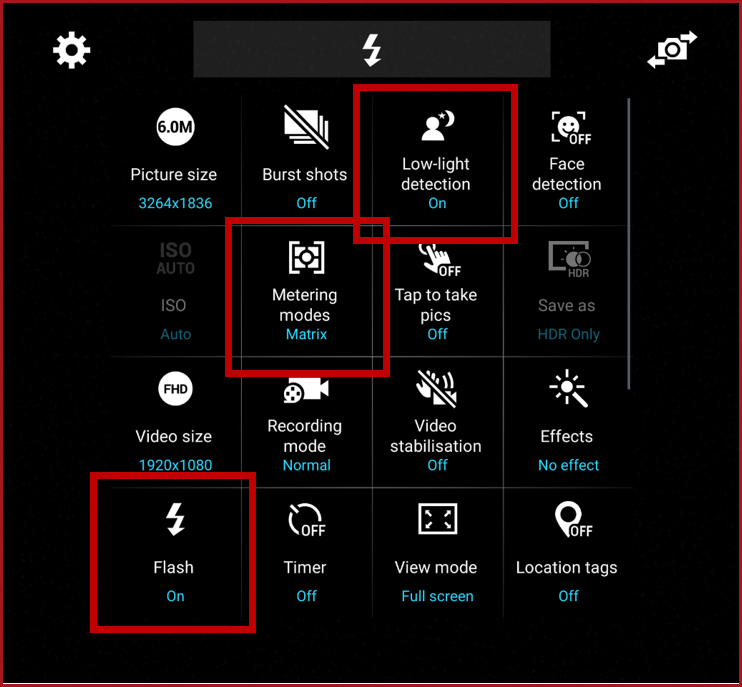
SomeTo tipscapture onthe takinghighest photosquality atphoto nightevidence (when working with the flash)camera flash in low-light situations, adjust the native Android camera settings:
-
Open your device's native camera settings menu.
-
Select Matrix for the metering option (rather than a centered reading).
-
Set the flash option to Always On.
-
Enable the Low Light Detection option if your device supports it.
Brightness Overrides Depending on the manufacturer, some Android handheld units feature a specialized brightness override within the camera settings. Enabling this can significantly improve image processing, yielding much better evidentiary photos during night patrols.
Best Practices and Considerations
InUtilize auto-brightness: Enable auto-brightness to preserve battery life. Manually leaving the screen at maximum brightness during a full shift will rapidly drain the device battery. Allowing the system to manage brightness automatically ensures optimal visibility while conserving power.
-
Test your camera
settingsconfigurations:setAlways take a few test photos in your patrol environment after modifying camera settings. Because native camera applications vary heavily between different Android tablet manufacturers, taking test shots ensures your matrix meteringto matrix rather than centered reading,and flashalwayssettingson,arelowproducinglightclear,detectionlegibleon.license Someplateunitscapturesdobeforehaveyouabeginbrightnessissuingoverrideactivethatviolations.will work very well and should help getting better images.
Example Options