Configure Tattile LPR Camera
For the Survision LPR Camera configuration, go to Survision LPR Camera Configuration
Connecting Wirelessly
The first step is to connect to your your PL8RDR device via wireless connection. To do so bring up your systems systems Network Settings by following the steps below
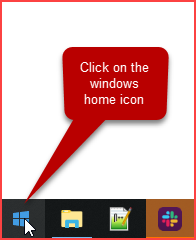
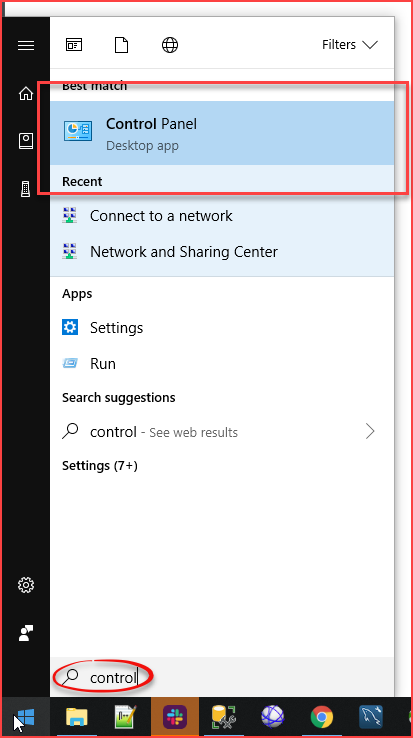
Click on the the Windows Home Button and start typing typing Control Panel. It should pop up under Best Match as you are typing.
Click on on Control Panel to access your your Computer's Settings.
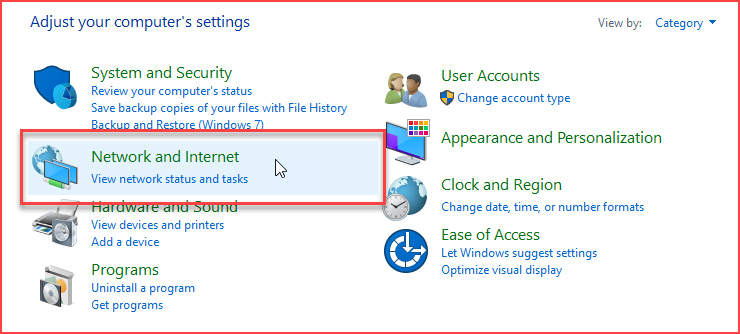
A list of all available configuration items will appear. Click on Network and Internet.
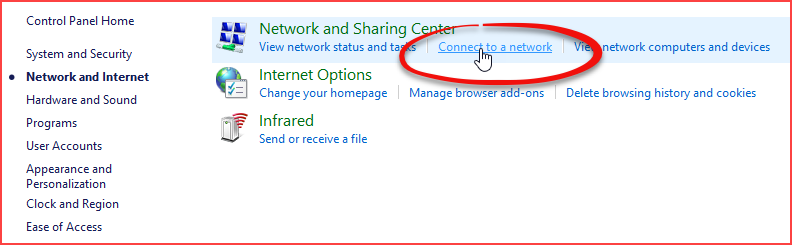
In In Network and Sharing Center settings click on on Connect to a Network.
Connect to pl8rdr.opscom
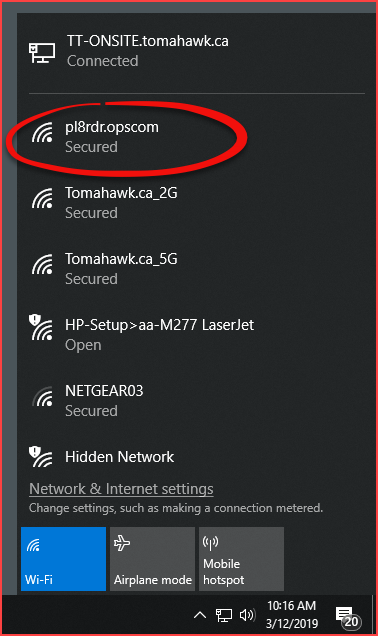
First make sure sure Wi-Fi is turned on by clicking the network icon at the bottom right of your screen. You will see a list of networks available to you. In this case we are looking for the the pl8rdr.opscom opscom network.
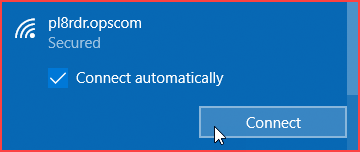
Clicking the the pl8rdr.opsom network will open a screen where you can click on on Connect Connect to join the network. You can also utilize the the Connect Connect automatically check box do avoid having to connect manually each time.
Since the network is secured a password/PIN is required to connect. Click on on Connect using a secure key instead to bring up a seperate password entry field.
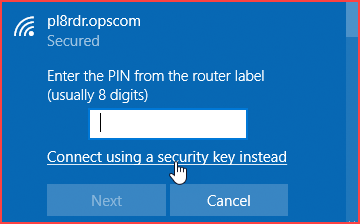
Enter the password into the empty field and click on on Next.
Note: The password is provided by OPSCOM. If you do not know your password please contact support@ops-com.com
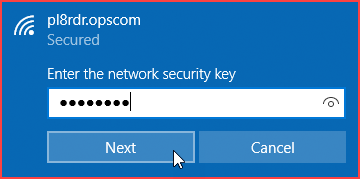
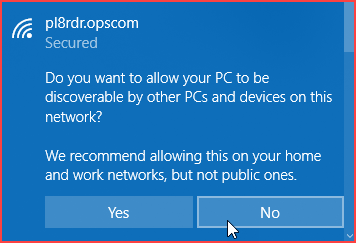
You will be prompted to allow your PC to be discoverable by other PCs on this network. Click Click No No as you do not want this connection to be open to other PC's.
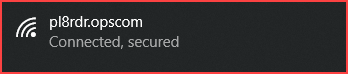
You will see the connection status below the the pl8rdr.opscom opscom network appear as as Connected.
Connect to the Camera
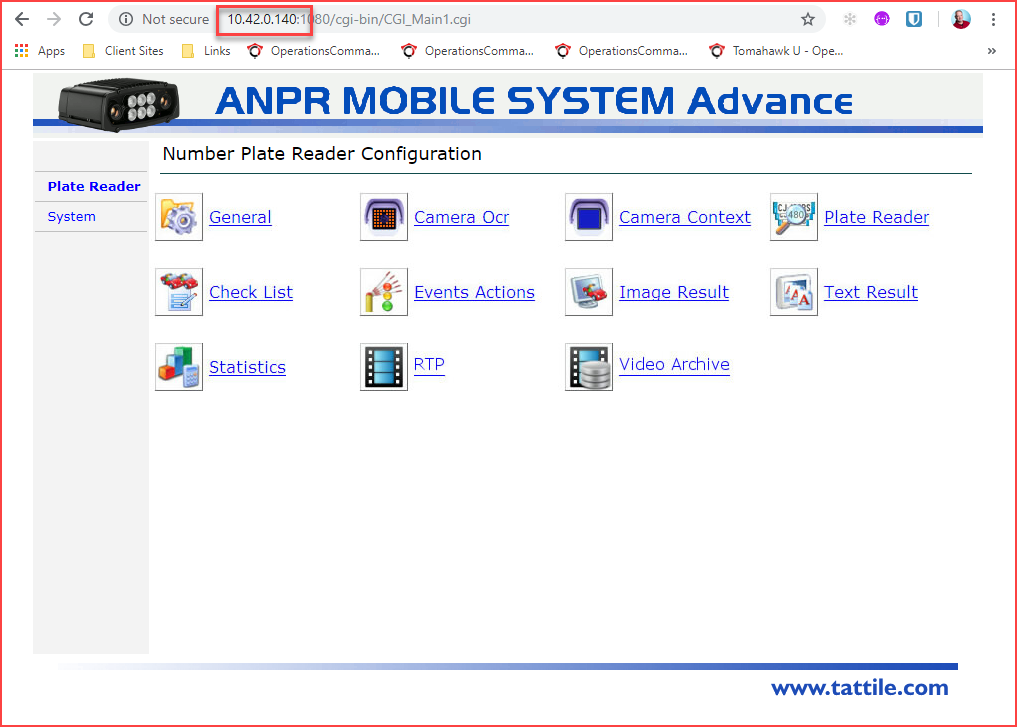
Now you can open a browser and enter the IP address of your camera in the go to field.
You will also need to follow the IP address with a port number. For mobile cameras the port number is 1080 therefore the URL would look like this:http://[IPAddress][colon][port number] as in the example below you can see the URL as http://10.42.0.140:1080
If you do not know the IP address of your camera see see How to Find the IP Address of your Camera found below.
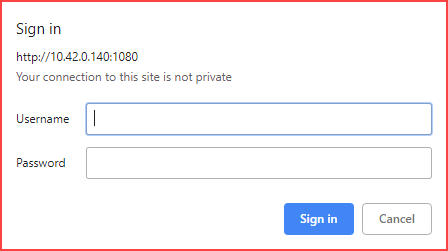
You will be prompted for a a Username and and Password.
| Username | Password |
|---|---|
| superuser | superuser |
The main main Number Plate Reader Configurations page will appear. Note the IP address and port number in the browser as well as the rest of the URL that will resolve automatically.
Naming Mobile Cameras
Under System → Network you can name the camera(s) appropriately.
- Mobile-L = Drivers side
- Mobile-R = Passenger side
How to Find the IP Address of your Camera
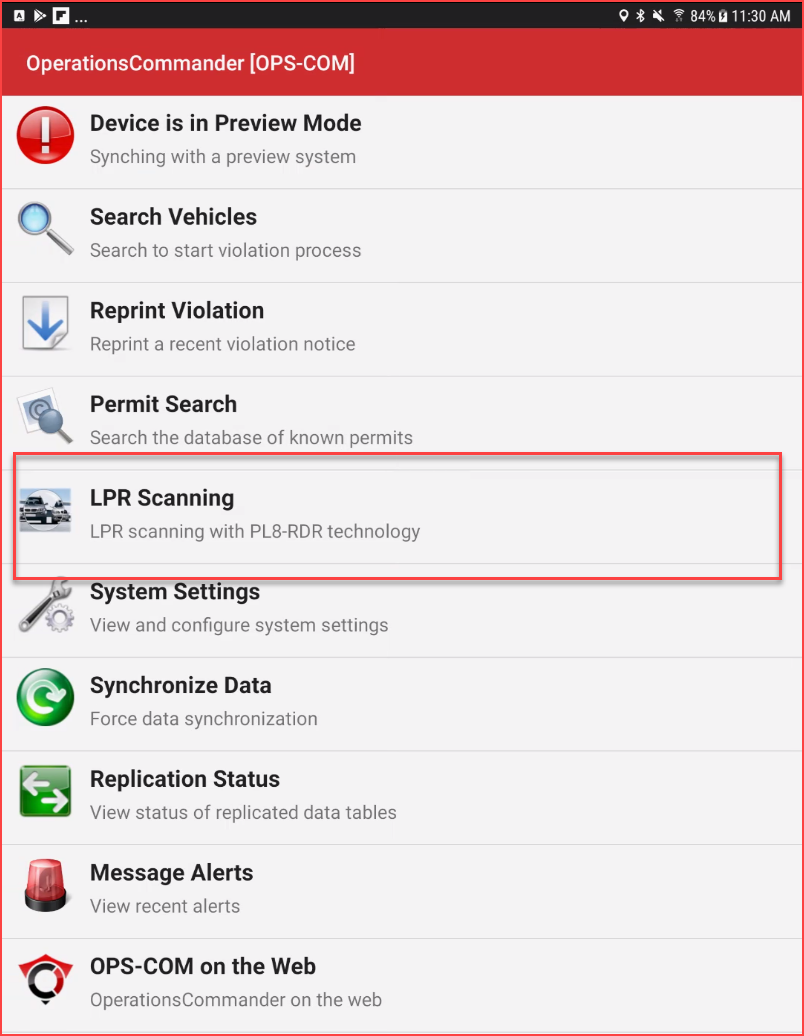
On the handheld unit go to main menu and tap on on LPR Scanning.
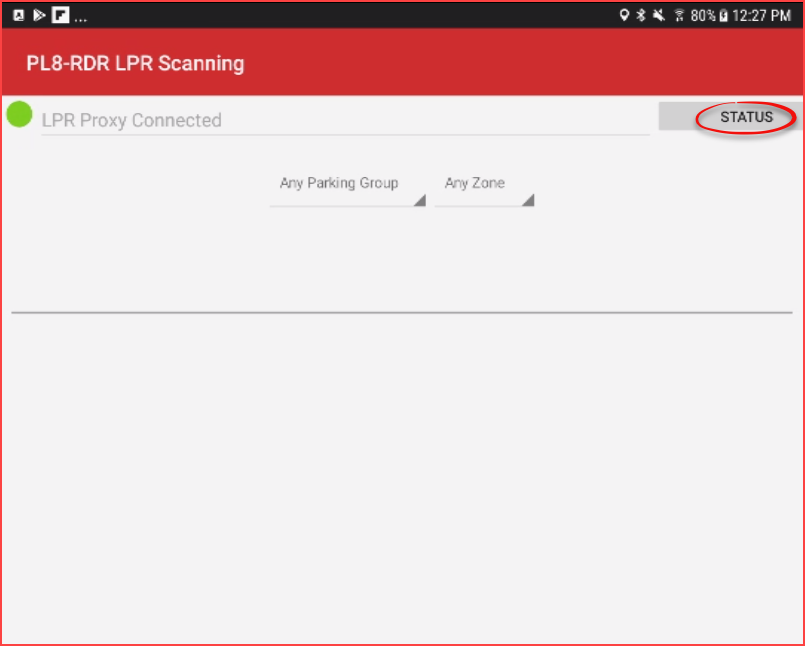
Once in the LPR screen tap on on Status near the top right of the screen.
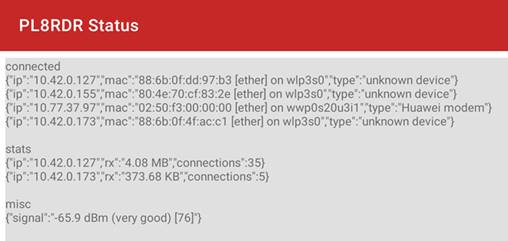
You will see a list of connected devices. The device device Type should be be Tattile camera wifi.
Please note that due to new cameras coming onto the market, your PL8RDR may list a camera as an unknown device.
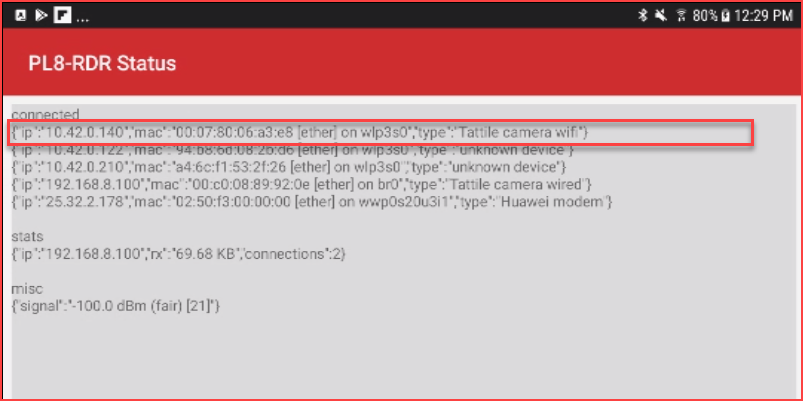
In this case the cameras IP address was was 10.42.0.140. Enter the IP address address for your device with port :1080 1080 into the browsers URL and hit hit Enter.

The below screen shot is taken after the cameras have read some plates.
Notice the "stats" entry which clearly lists the camera IP addresses.
Also note that sometimes the system is not able to determine which device is a camera.