
Locate Application Version (OPSCOM Enforce App)
The Locate OPSCOM Enforce App canVersion beguide downloadeddetails fromhow to easily find the current software version and unique handheld identifier for your mobile enforcement device. Its primary purpose is to help administrators and enforcement staff quickly verify that their handhelds are running the most up-to-date software, which is critical for troubleshooting and system compatibility. This article is intended for OPS-COM administrators and enforcement personnel.
Setup and Configuration
To ensure your enforcement device is running correctly, staff must download and maintain the application via official app stores.
User Side (Enforcement Staff):
-
Open the Apple App Store or
theGoogle PlayStore.Store on your handheld device. -
If in doubt you can searchSearch for the"OPSCOMEnforce"Enforce application. -
Tap the application to view its store details.
-
Tap the Update button if it is visible. If the button displays as Install or Open, you are either installing it for the first time or already running the latest available store version.
Using this Feature
Finding the version details does not require logging into the application, making it easily accessible for quick reference.
Locating the Version Details
-
Open the OPSCOM Enforce app
inon your handheld device. -
Remain on the
GoogleinitialPlayLoginorScreen.Apple -
Look directly below the LOGIN button and
whentheviewingusername/password fields to find the system details block.
Key Information Displayed
-
Handheld Identifier: A unique alphanumeric string (e.g., cfc6e8847133ab9e) located immediately below the LOGIN button that identifies your specific physical device.
-
Application Version: The current build of the
applicationappyouinstalledwill seeon thebuttondevicethat(e.g.,is13.7.291222).typically -
"Install"Database
willVersioninstead(DB):showThe"Update". This indicates that the handheld is running an oldercurrent version of theapplicationlocalwhichdatabase schema (e.g., v240610).
Best Practices and Considerations
-
Keep devices updated: Regularly check the app store to ensure enforcement handhelds are running the latest version of the application. Running outdated versions can
beleadupdated.to synchronization errors, connectivity drops, or missing features in the field. -
LocateProvide details for support: Always provide the Application VersionDetailsand
IdentifierLoginHandheldScreenUnderwhen submitting support tickets. This specific information allows theloginOPS-COMboxsupporttheteamversiontodetailsaccuratelyanddiagnosehandhelddevice-specificidentifierissuesaremuchclearlymorelisted.efficiently.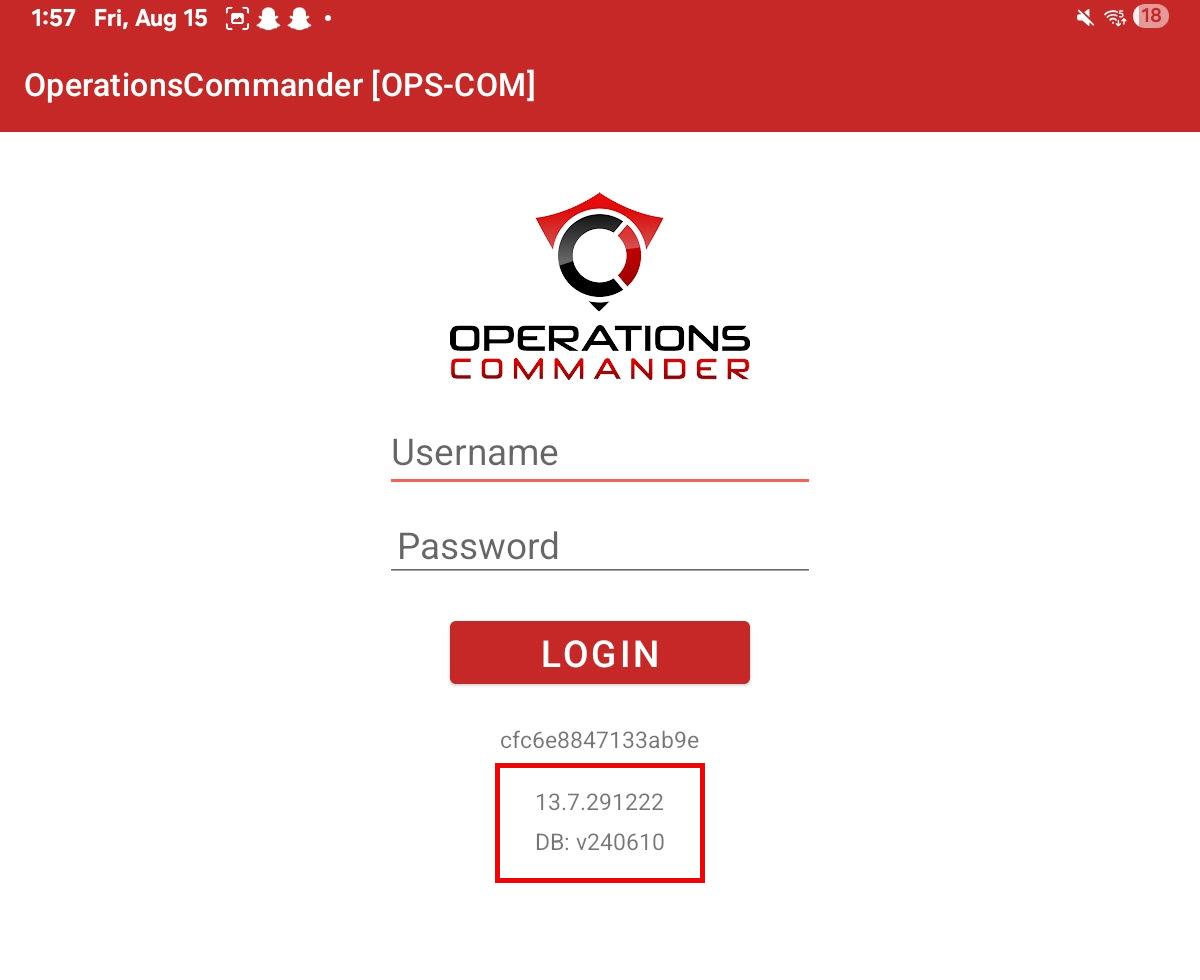
(This administrative article willis currently slated to be combined with a similarbroader relevanthandheld articletroubleshooting guide in thea future)future documentation update to centralize enforcement app resources.