Plate Capture using Hand Held
OPSCOMThe supportsPlate opticalCapture characterfeature recognitionutilizes ofOptical plates,Character whichRecognition allows(OCR) youto allow parking enforcement officers to search vehicle license plates using the camera on yourtheir mobile device. Its primary purpose is to expedite the vehicle lookup process in the field, reducing manual entry errors and streamlining ticketing workflows. This guide is intended for OPS-COM administrators and field enforcement personnel.
Setup and Configuration
The plate capture functionality is built natively into the OPS-COM enforcement application and requires minimal initial setup.
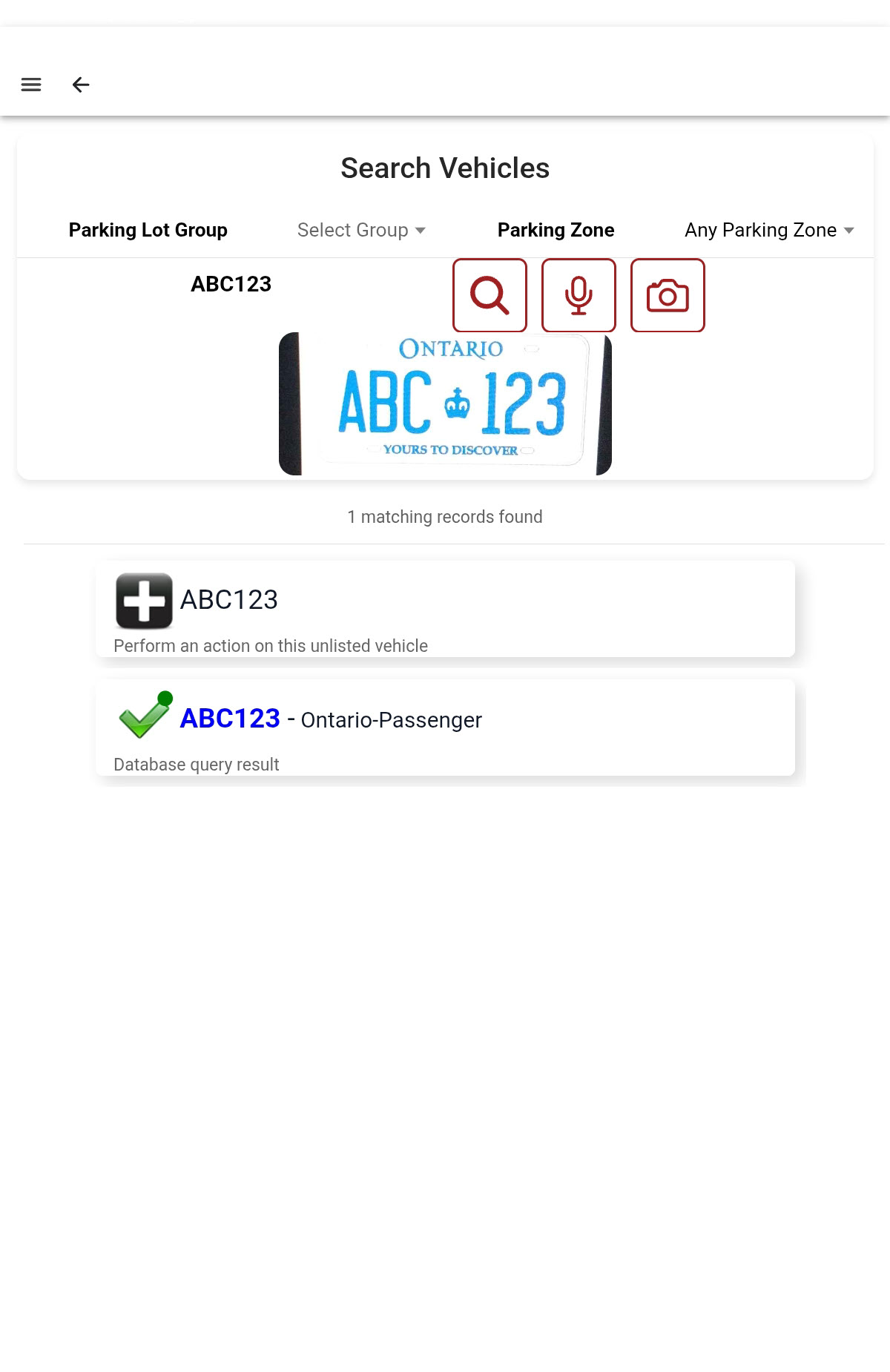
User Side:
-
Open the OPS-COM Enforce app on your handheld device.
-
Tap Search Vehicles.
-
Tap the camera icon.
-
Grant the requested device permissions to allow the application access to your camera (this notification will only pop up during the initial use).
Using this Feature
Enforcement personnel can use the OCR scanner to quickly look up vehicles instead of typing out plate numbers on the digital keypad.
Capturing a License Plate
-
Open the Vehicle Search page in the
Ionichandheldapp,application. -
Tap the camera icon to activate the scanner.
-
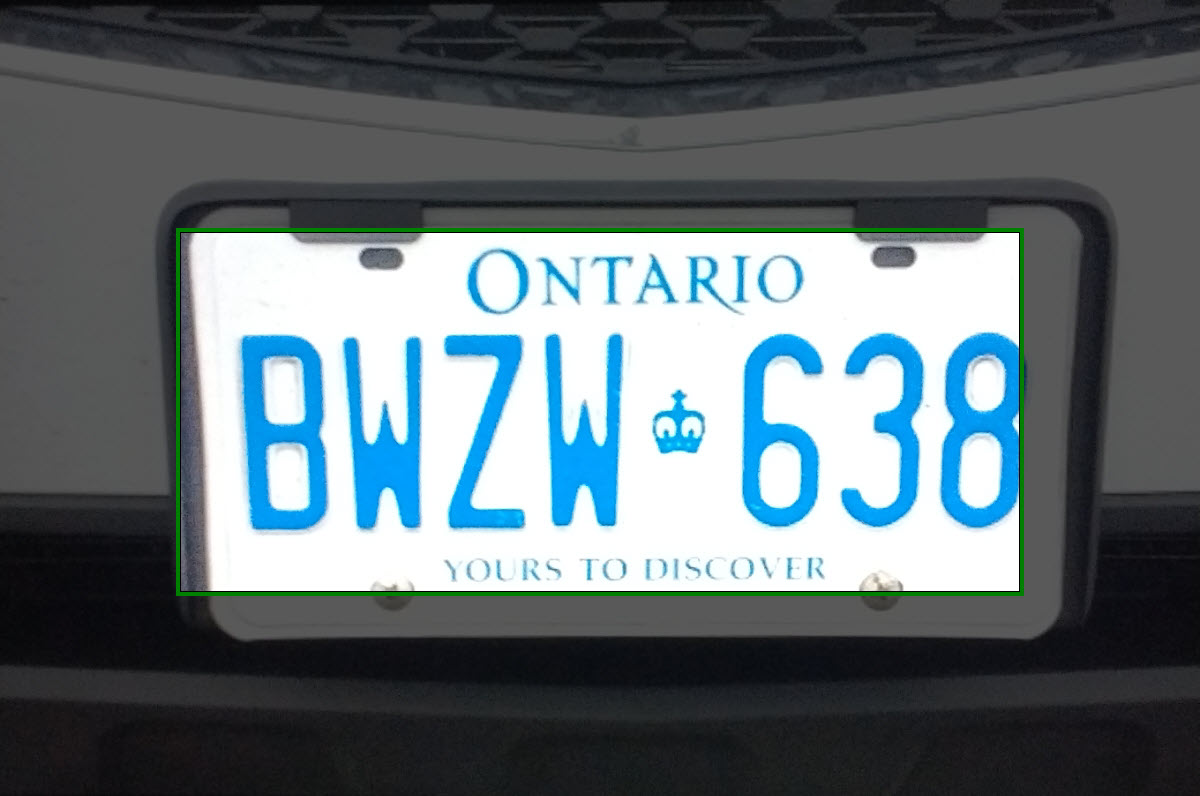
Position the device so the license plate is aligned directly within the green box located in the middle of the screen's field of view.
-
Tap and
tapHold the screen for 3 seconds to capture the image and save the read.
Best Practices and Considerations
-
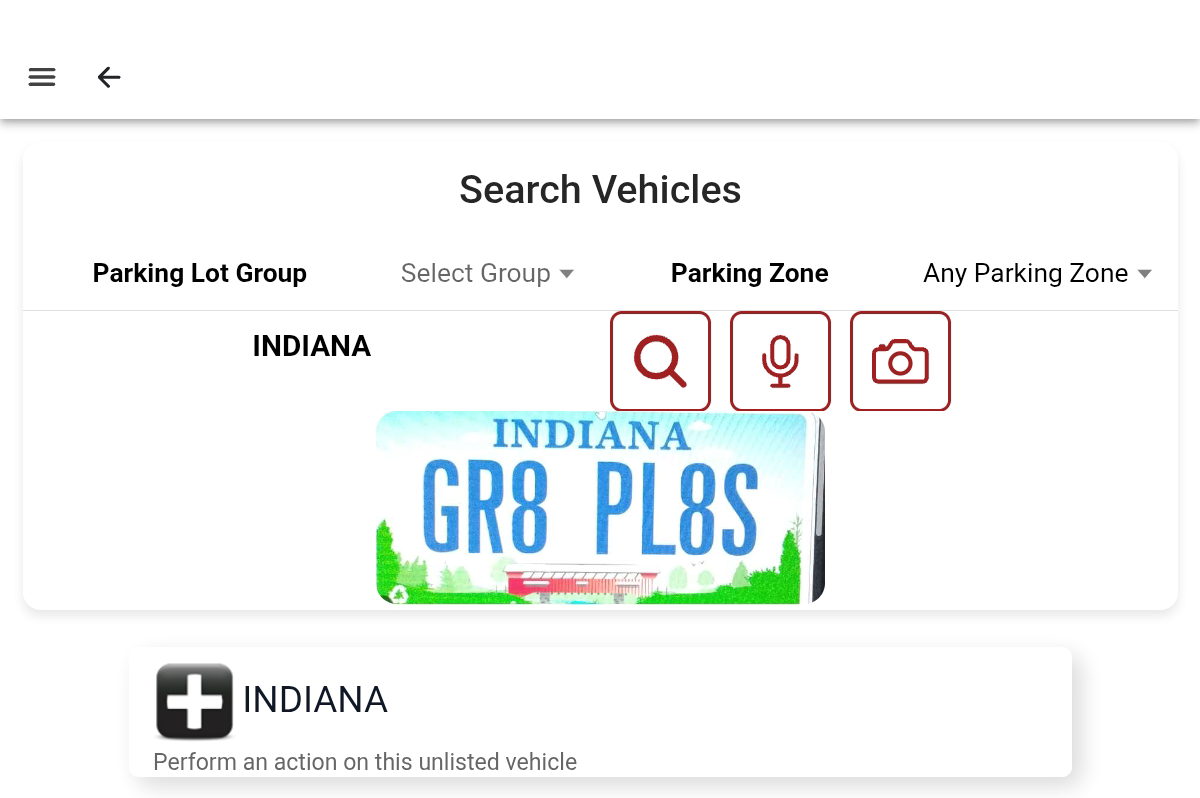
Isolate the primary plate characters: Ensure only the core plate number is captured within the alignment box. Avoid capturing extraneous text on the license plate, such as the state, province, or jurisdictional mottos. If the camera
iconcapturesinsteadheaderoftexttyping.(e.g., "Indiana" or "Ontario"), the read will likely be unsuccessful or inaccurate. -
Provide appropriate camera permissions: Make sure to allow access to the
devicesdevice'scamera,cameraawhennotificationprompted. If permissions are accidentally denied, the OCR feature willpopfailuptoaskinglaunch,aboutandthis.fieldOncepersonnelallowed,willthebecameraforcedopenstowithuseamanualgreentextboxentry until permissions are restored in themiddledeviceofsettings. -
Maintain optimal lighting and distance: For the
screen,mostthisaccuratebox is where the license plate will go in the camera's field of view. Once the plate and box are lined up, tap andreads, hold thescreendeviceforsteady,3avoidsecondssevere glare, and ensure the entire plate cleanly fills the green bounding box without cutting off any alphanumeric characters.
Check your scan results: If the search returns an incorrect plate or a "Not Found" error due to savedirt, shadows, or a complex plate background, simply reposition your camera to exclude any small text and Tap and Hold to try the read.scan again.
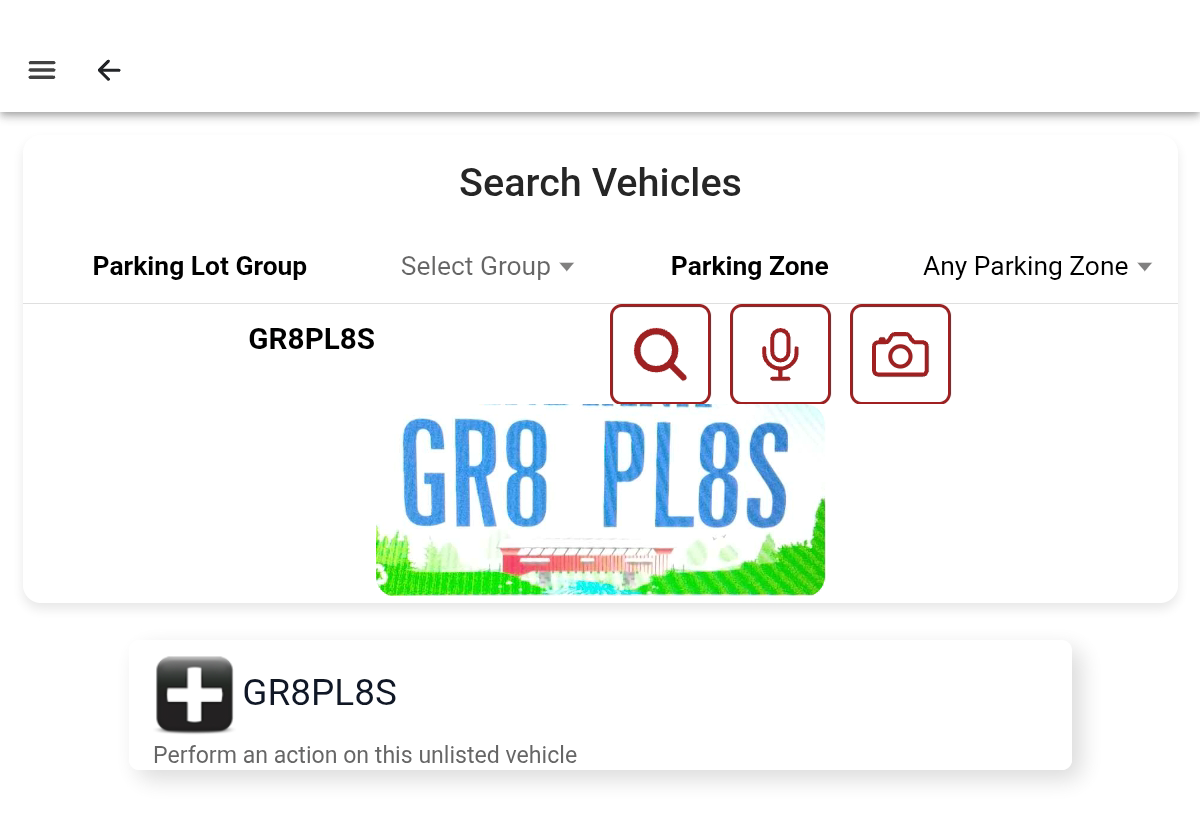
In the below picture, the camera captured the text at the top of the plate, in this case the state, Indiana.
Try again, but get only the plate number in the picture. See the picture below, where the read is successful.