
Configuring Multi-Factor Authentication on the User Portal
Multi-Factor Authentication (MFA) adds a crucial second layer of security to user accounts inby OPSCOM,requiring one-time passwords (OTPs) sent via email. Its primary purpose is to significantly enhancingenhance protection against unauthorized access.access Currently,to the primary method implemented is the use of one-time passwords (OTPs) sent via email.system. This article outlinesis howintended for OPS-COM administrators canresponsible configurefor MFAconfiguring atglobal security settings and managing the systemuser levellogin experience.
Setup and how users interact with this enhanced security feature on their portal.
Setup & Configuration
Implementing MFA involves administrator-side configuration within Systemthe Settingssystem settings and customizing the associated email template.
Admin Side Configuration
One-time passwords will not be available on the user portal until enabled within Systemthe Settings.global settings.
-
Hover over System Configuration and click System Settings.
OnNavigate to the User Profile
tab,tab.click-
Configure the Enable Multi-Factor Authentication
.setting to your desired state.
If thisthe MFA setting is not available for you to change, please have your primary Adminadministrator contact support@ops-com.com to have itthe turnedfeature on.
This is a ternary setting, meaning it has three different states, allowingenabled for flexibleyour control over MFA implementation:environment.
Email Template Configuration
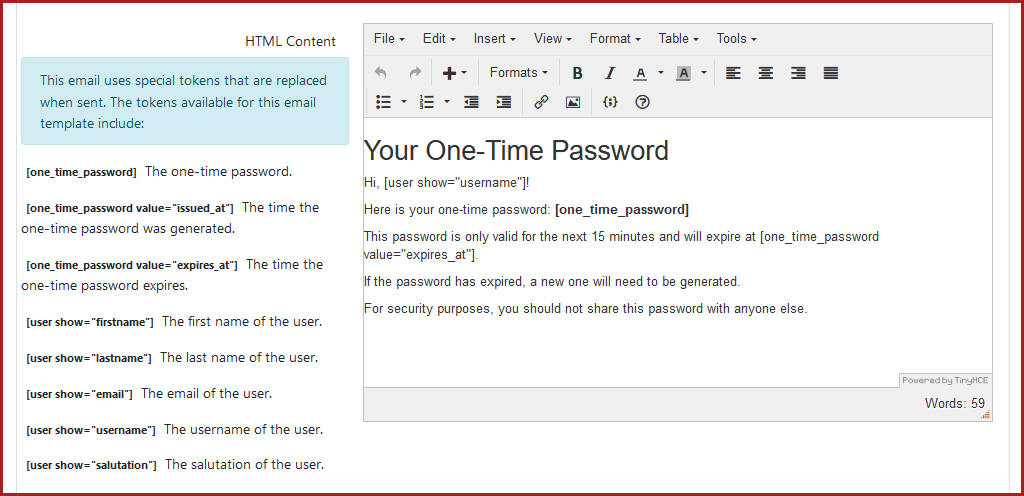
The content of the one-time password email sent to users is defined within a dedicated email template.
-
Hover over System Configuration, click Content & Designs,
and clickthen Email Templates. -
Locate and
editclick the One-Time Password Email Template.to edit its contents.
Here, administrators can defineDefine the message and brandinginsert ofany relevant organizational branding.
Utilize the email.available In additionshortcodes to generalinsert user-specific shortcodes, this template includes specific shortcodes forthe OTP details:
-
[one_time_password]: Inserts the randomly generated one-time password. -
[one_time_password value="issued_at"]: Inserts the time theone-timepassword was generated. -
[one_time_password value="expires_at"]: Inserts the time theone-timepassword expires.
One-time
Using this Feature
User-SideAdministrators can use the ternary setting to flexibly control how MFA is implemented across the user portal, while users manage their individual settings from their profile.
Available Configuration States
The Enable Multi-Factor Authentication setting has three distinct states:
User Management
Users can enable and manage their one-time password settings directly from their security pagepage. (formerlyFor detailed instructions on the passwordsuser page).experience, Referplease refer to thisthe Multi-Factor Authentication - User Portal wiki article to see the steps involved.article.
The state of thea user's one-time password verification is stored in the local storage of their session data. If thea localuser storageclears is cleared (e.g., clearingtheir browser cache),cache, or attempts to log in using a different web browser or device, the MFA verification will not persist and they will havebe to enter another one-time password. The MFA verification does not persist across different web browsers or devices, meaning the user will haveforced to enter a new one-time password if they try to log in using another browser or device.password.
Best Practices &and Considerations
-
SecurityExecuteEnhancementa gradual rollout::MFA significantly reduces the risk of unauthorized access, even if primary login credentials are compromised. It is highly recommended for all users. Gradual Rollout (Visible vs. Required):When introducing MFA, consider starting with the Visible setting to allow users to opt-in voluntarily. Onceaccustomed,your user base is accustomed to the feature, transition the setting to the Required state for all users if your organizational security policy mandates it.-
ClearVerifyCommunicationemail deliverability::Inform users about the MFA requirement, how to set it up, and how to log in using OTPs. Provide clear instructions and troubleshooting tips. Email Deliverability:Ensure that your system's email settings are correctly configured and that OTP emails are not being blocked by institutional spam filters. Usersneed tomust receive these emails promptly to successfully log in.-
Template Customization: Customize theCommunicate OTPemailexpirytemplatelimits:to include your organization's branding and any specific instructions for your users. User Training: Consider providing brief training or a guide for users on how to manage their MFA settings and log in with OTPs.OTP Expiry:Remind users thatOTPsone-time passwords are time-sensitive(and permanently expire after 15minutes)minutes.and that generatingGenerating a newonepasswordinvalidateswill automatically invalidate any previousones.ones, and this system default cannot be changed.-
Provide clear communication and training: Inform users about the MFA requirement, how to set it up, and how to log in using OTPs. Providing clear instructions and troubleshooting tips on your portal homepage reduces support tickets during the initial rollout.