
Email Headers and Footers
The Email Headers and Footers infeature OPSCOM allowallows administrators to define and manage reusable layout components for system-generated emails. ByIts customizingprimary thesepurpose elements,is you canto ensure consistent organizational branding, provide essential contact information, and apply uniform styling across all your automated email communications,communications. creatingThis article is intended for OPS-COM administrators responsible for managing system configuration and visual design.
Setup and Configuration
This feature is a professionalcore administrative tool used to design the visual wrapper for outbound system emails.
Admin Side: Administrators must have the appropriate system role permissions enabled to access the contents and cohesivedesign userconfiguration experience.menus.
Using this Feature
Administrators can use the following instructions to navigate the layout list and edit individual email components.
Editing Email HeadersLayout & Footers are managed through a dedicated section within System Configuration.Templates
-
Hover over System
Configuration,Configuration, then Contents &Design,Design, and click Email Headers & Footers.
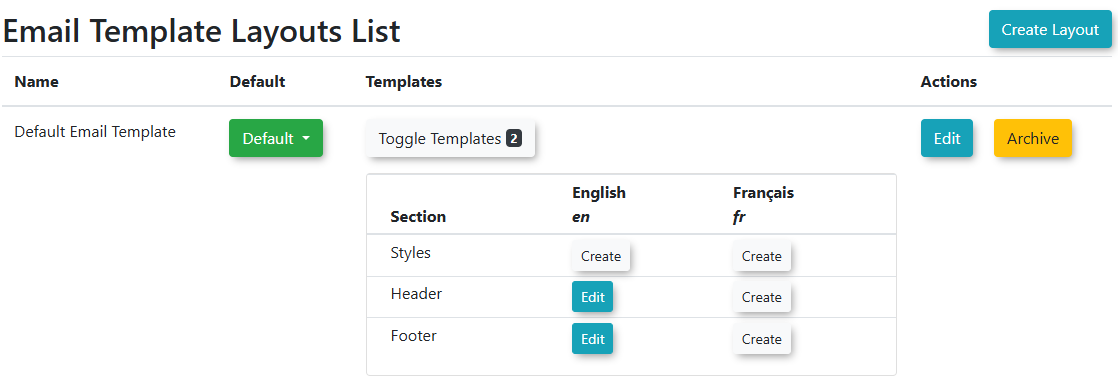
TheClick the EmailToggle TemplateTemplates Layoutbutton Listto page displaysdisplay the various sections of your email layoutslayouts.
Locate the specific section you wish to modify (e.g., Header, Footer, or Style). Fromand here,click youthe canEdit selectbutton next to it.
Add or modify text, insert images such as your organization's logo, or include inline styles directly within the HTML editor.
Click the Save Changes button to finalize your updates.
Click the Back button to return to the template list and edit other sections as needed.
Available Actions and Buttons
-
Toggle Templates: Click this button to reveal the underlying layout sections available for editing.
-
Edit: Click this button to open the HTML editor for a specific layout component.
-
Save Changes: Click this button to commit your modifications to the system database.
-
Archive Template: Click this button located in the top right corner of the editor to retire a layout template that is no longer needed.
-
Back: Click this button to exit the editor and return to the main layout list.
The Email Template Layout List page acts as a central repository for the individual components that make upwrap your emailmessages. layouts.
Editingchanges Email Layout Templates
ClickToggle Templates. Locate the correspondingSectionyou wishmade toeditthese(e.g.,foundational"Header"layout"Footer"templatesorwill"Style").globally ClickandtheimmediatelyEditaffectbuttonallforsystem email templates thatsection.are Within the editor, you can:Add or modify text.Insert images (e.g., your organization's logo).Includeinline stylesdirectly within the HTMLconfigured tocontroluseappearance (e.g., colors, fonts, spacing).
ClickSave Changes. You will see a message that your changes have been saved.You can also archive your template by clicking theArchive Templatebutton in the Top Right.Click theBackbutton to edit other sections.
Best Practices &and Considerations
-
ConsistentMaintainBrandingconsistent branding::Use email headers and footers to consistently display your organization's logo, branding colors, and contactinformationinformation. Uniform branding creates a professional and cohesive user experience across all automatedemails.communications. -
EssentialProvideInformationessential information::Ensure your footer contains crucial information such as your organization's name, website, and a general contact email or phone number. This gives users a clear path to reach out if they have questions about their parking portal activity. -
MobileDesignResponsivenessfor mobile responsiveness::When adding content and styling, considerConsider how your headers and footers will appear on mobiledevices.devices when adding content and styling. Use responsive design principles or simple layoutsfortobestensurecompatibility.the emails are easily readable on smaller screens. -
InlineTestStylingyour changes::While the editor allows inline styles, for more complex or sitewide styling changes, coordinating with OPSCOM Support for custom CSS in the "Style" template might be beneficial. Testing Changes: After making any modifications to headers, footers, or styles, alwaysAlways test the email templates that use theselayouts.layouts after making any modifications. Send a test email to yourself to ensure everything renders correctly in various emailclients.clients before relying on the system to send them to active users.-
GlobalManageImpactcomplex inline styling::RememberCoordinatethatwith OPS-COM Support for custom CSS in the Style template if you require complex or site-wide styling changes. While the provided editor allows for inline HTML styles, global CSS changesmade to these layout templates will affectallemail templates thatareconfiguredoftentobetterusemanagedthem.directly at the template level by our team.