
Email Templates
The Email Templates infeature OPSCOM allowallows administrators to customize the content and appearance of automated emails sent by the system. ByIts leveragingprimary availablepurpose is to enable the creation of dynamic, informative messages using shortcodes and a smart editor, you can create dynamic, informative, and engaging messages for various notifications, ensuring clear and consistent communication with portal users. This article is intended for OPS-COM administrators responsible for managing system communications and visual design.
Setup and Configuration
This feature is a core administrative tool used to manage outbound email content.
Admin Side: Administrators must have the appropriate system role permissions enabled to access the contents and design configuration menus. If your organization has multiple languages installed, you can click the Create button from the main template list to build localized versions of your messages.
User Side: This feature is strictly a backend administrative tool. End-users interact with the results of this configuration when they receive automated emails (e.g., password resets, appeal updates) in their personal inboxes.
Using this Feature
Administrators can use the following instructions to navigate the template list, edit default automated messages, and create custom templates for manual communications.
Editing Default Email Templates
To access and manage your default email templates:
-
Hover over System
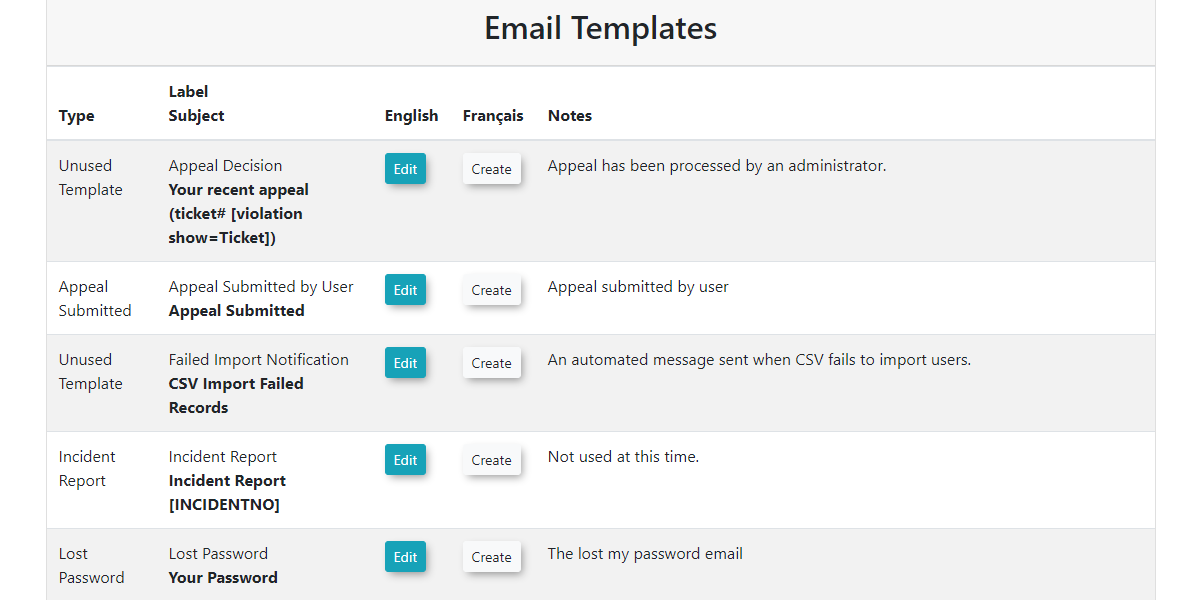
Configuration,Configuration, then Contents &Design,Design, and click Email Templates.to view the active list. AllLocate the
default email templates available in the system will be displayed.
The Email Templates interface allows you to edit existing templates, utilize dynamic shortcodes, and configure various fields to tailor your messages.
Editing Default Email Templates
Locate thespecific template you wish to edit in the list.-
Click the Edit button next to
it.the You will be takentemplate toaopen the dedicated editorinterfaceinterface.where-
canMake
makethe desired changes to theemailavailabletemplate.fields and content areas. -
Click the Save button to apply the changes.
Available Creating Templates for Other Languages
If you have other languages installed, you can click the Create button to create templates for these languages.
Email TemplateConfiguration Fields - What do they do?
When editing an email template, youadministrators willmust configure the following fields:
-
LabelLabel::ThisEnterfieldaisdescriptivehownameyoutowilleasily identifyyourthe email template within the system's list. -
TypeType::This is aA non-adjustable value that indicates the specific purpose or system trigger for this email template (e.g., "Appeal Submitted," "Password Reset"). -
LanguageLanguage::This field contains options to selectSelect the appropriate language for thetemplate,templatetypicallyifsupportingyour system supports options like French orEnglish.English. -
LayoutLayout::This allows you to selectSelect a pre-defined layout that surrounds your message. Layoutsincludedictate your email header, footer, and overall styling.You can create or adjust email template layouts underSystem Configuration,thenContents & Design,and clickEmail Headers & Footers. -
SubjectSubject::This isEnter the exact text that will appear as the subject line of the email message. -
HTML
ContentContent::Here you will writeWrite the main body of themessage.message here. Thissectionsmart editor supports rich text formatting, the insertion of images, and the use of shortcodes to create visually appealingandemails.dynamic emails. -
Text
ContentContent::This section isEnter asimple text editor for the message itself. It doesnotsupport shortcodes or any formatting. Thisplain text versionisofoftentheusedmessage. This serves as a fallback for strict email clients that do not render HTML. It does not support shortcodes or any formatting.
Using Shortcodes
Each email template has a specific set of available shortcodes that allow you can use to dynamically insert specificuser or event information into your message.
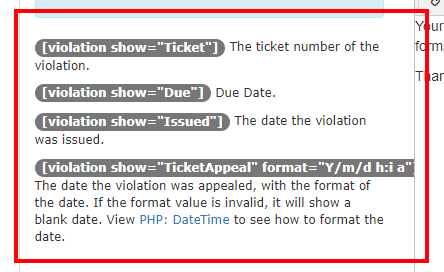
The shortcode tokens are typically displayed on the left side of the template editor.
- You can insert these directly into the HTML Content editor on the right side. For example, the
emailtemplate for"AppealanSubmitted by User"appeal might offershortcodes to automatically include details like[ticket_appealed_date]or[ticket_number], allowing you to craft messages without manually knowing these specifics. You can insert these shortcodes into thesmart editoron the right side.. The systemwillautomaticallyreplacereplacesthetheseshortcodeshortcodes with the appropriate information when the email issent to the desired user.The smart editor also provides formatting capabilities, allowing you to add images, format text,generated andarrangesent.yourCreating
messagesandmuchUsinglike a word processor.
Custom Email Templates
Administrators can create and store frequently used emails that are not tied to specific system triggers. These templates can be used to automatically populate the email body when manually drafting a message to a user.
Creating a Custom Template
-
Click the Create
button.button on the main templates page. -
Enter a descriptive name into the Label
.Custom templates are assigned an internal type code beginning withcustom.field. -
Compose the message using the HTML Content and Text Content fields.
-
Click the Save
.button.
Using Custom Templates in Compose Email
WhenNavigate draftingto the compose email page to draft a manual email to a user via the Compose Email page:user.
UseSelect your new template from the Load Template sectiondrop-down to view all available custom templates.
Select a templatemenu to automatically populate the email contents.
The Compose Email interface will highlightComplete any highlighted required fields thatin mustthe be completedinterface before you can clickclicking the Send Email button.
Tip: Unlike system-defined default templates, custom templates include a Delete button,button on their configuration page, allowing you to quickly remove them from the system when they are no longer needed.
Best Practices &and Considerations
-
Utilize Shortcodes Fully:Maximize the use ofavailableshortcodes: Utilize shortcodes fully to make your emails dynamic, personalized, andinformative,informative.reducingAutomating data entry reduces manual effort and prevents potentialerrors.typographical errors in critical communications. -
ConsistentMaintainBrandingconsistent branding::Use email layouts(configured in the Email Headers&and Footers)section to maintain consistent branding(logos, colors, contact info)across allyoursystem-generated emails. Consistent logos, colors, and contact info create a professional appearance. -
ClearPopulateSubjectbothLinescontent sections::Craft clear and concise subject lines so users can immediately understand the purpose of the email. Review Both HTML and Text Content:Always ensure both the HTML Content and Text Content sections are populated and convey the message clearly. Thisprovidesguarantees compatibility for all emailclients.clients, even those that strip out HTML formatting.-
Test
Templatesall templates after editing::After making changes to an email template, send a test email to yourself or a testaccountaccount.to verifyVerify that all shortcodes are rendering correctly, the formattingisbehaves as expected, and the message is clear. -
Language-SpecificManageTemplateslanguage-specific templates carefully::If your system supports multiple languages, ensure you create and maintain separate templates for each language. Verify Custom Templates:When using the Load Templatefeature,feature for manual emails, remember that custom templatesshowdisplay for all users regardless of the selectedlanguage;language, so ensure the correct version ischosen.chosen before sending.