Managing Convenience Fees

The Managing Convenience Fees infeature OPSCOM allowallows administrators to add an additional flat-rate charge directly to user payments, managed entirely within the OPSCOM system. ThisIts featureprimary providespurpose is to provide flexibility to offset processing costs, incentivize certain payment methods, or cover administrative burdens, distinct from any external transaction fees. This article is intended for OPS-COM administrators responsible for financial configurations and system pricing strategies.

Setup and Configuration

This feature is a core administrative tool used to establish additional charges applied to specific transactions or payment methods.

Admin Side: Administrators must have the appropriate system role permissions enabled to access the payments configuration menus and manage fee settings.

You can only use convenience fees imposedif byyour externalsystem is currently configured to use Bambora or Worldline as your hosted payment providers.provider.

User Side: End-users do not interact directly with the backend configuration of these fees. However, this fee amount is visible within the user portal and is added to their grand total before the final checkout screen.

Difference Between Transaction Fees andversus Convenience Fees

It'sIt is crucial to understand the distinction between these two types of fees:fees before configuring your system:

  • Transaction FeesFees:: These are charges applied directly by your payment provider (e.g., a credit card processor) for processing a payment. They are independent of OPSCOM'sOPS-COM internal settings. Depending on your setup, OPSCOMsettings and end-users may not be directly aware of these fees as they are managed solely by the payment provider.

  • Convenience FeesFees:: These are additional charges that are managed and applied directly through OPSCOM. For example, your OPSCOM system can add a $5 convenience fee onto a payment.OPS-COM. This fee amount is visible within OPSCOM and is added to the grand total before being sent to the payment provider.

It is possible for a system to utilize both Convenience Fees (managed by OPSCOM) and Transaction Fees (managed by the payment provider), but recognizing their distinct origins and management is important.


Using this Feature

TheAdministrators Feescan Pageuse allowsthe youfollowing instructions to setnavigate upthe management interface to seamlessly add and configure various convenience fees. 

Accessing the Management Interface

  1. YouHover canover onlySystem Configuration, click Payments, then Fees.

Setting Up Fees

  1. Click the Add Fee button.

  2. Configure the fee parameters based on your specific use Conveniencecase feesor if you have Bambora/Worldline as your payment provider.scenario.

  3. Click the Update button to save the new convenience fee.

Fee LimitationsLimitations: 

Before configuring, understand these limitations:

  • Applied Once Per OrderOrder:: Fees are applied once per fee typetype, per order. This means ifIf a fee is set for permits, only a single fee is applied to the entire order, regardless of whether it contains one permit or five permits.
  • Flat Rate OnlyOnly:: Fees are currently restricted to a flat rate. There is no percentage-based fee option available at this time.
  • Grand Total SentSent:: Fees are not sent to the payment provider as a secondary item. Only the grand total (item base price +plus the convenience fee) is sent for processing.

Configuration

Fee Examples and Setup
Scenarios

Administrators can configure fees to accommodate a variety of operational scenarios:

Admin Collected Fee for Collecting Cash and Cheques (Deterrent Fee)

  • Scenario:

    The administrator wants to encourage online payments. A fee is set up as a deterrent when users pay with cash or cheque,cheque coveringto cover the increased administrative burden.

  • burden of manual processing.

    • SetupSetup:: The fee would apply to all item types but only to payment types of Cash and Cheque.Cheque.

Admin Collected Fee for Permits

  • Scenario:

    Permits are sent to a third party for enforcement, and that third party charges $0.50 per permit they enforce. The client wishes to pass this exact cost onto the user.

    • SetupSetup:: The fee would apply to all payment types, but only to Permits and Temp Permits.Permits. The setup would specify $0.50 as the fee amount.

Admin Charges a Convenience Fee to Cover an OPSCOMOPS-COM Collected Transaction Fee

There

  • Scenario: There'sis an agreement with the payment provider that all permits will incur a $2.95 transaction fee paid to OPSCOM.fee. The client still wants to receive the full $150 for a purchased permit, so they set up a convenience fee to coveroffset this cost.
    • SetupSetup:: The convenience fee will be charged when selecting the specific payment type that incurs the $2.95 transaction fee. For example, theThe setup would apply to the relevant payment provider and define the convenience fee as $2.95.95.

Admin Includes the Transaction Fee in the Price of the Item (No Fee Setup in OPSCOM)

  • Scenario:

    An agreement exists where all permits incur a $2.95 transaction fee paid to OPSCOM.fee. However, the client chooses to absorb this fee by increasing the item's price.base Ifprice instead of adding a permitseparate costsline $150,item.

    then $2.95 of that will be sent to OPSCOM, leaving the client with $147.05.
    • SetupSetup:: There is no specific setup for fees in this scenario within OPSCOM,OPS-COM, as the fee is already embedded in the item's base price. If you want to inform users that a transaction fee is included in the final amount, you will need to update a relevant footer message (e.g., in email templates or on the user portal) stating this.


Setting Up the Fees

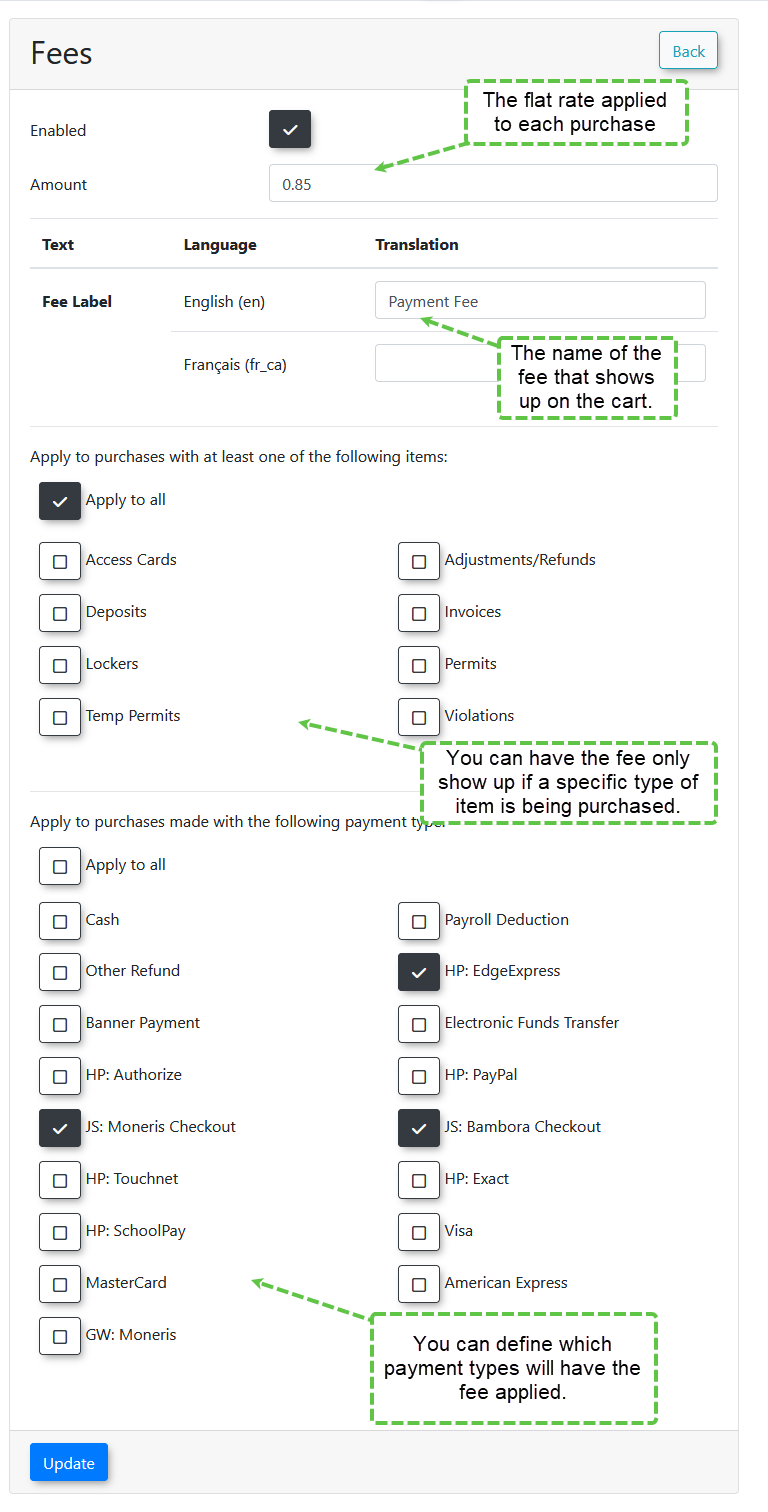
You can access the Fees page to accommodate any of the scenarios above.

  1. Hover over System Configuration, then Payments, and click Fees.
  2. Click Add Fee and follow the diagram below.
  3. Click the Update button to save.
3791d194-e0da-433d-bf84-b470d263c958.png

Best Practices &and Considerations

  • ClarityEnsure clarity for Usersusers:: Clearly communicate any convenience fees to your users before they complete a transaction. TransparencyFull transparency regarding extra charges builds trust.trust with your user base.

  • StrategicApply Applicationfees strategically:: Use convenience fees strategically.strategically to align with your overall pricing strategy. They can be highly effective tools to deter manual cash payments, offset third-party costs, or cover transaction fees,fees.

    but ensure they align with your overall pricing strategy.
  • FlatRemember Ratethe Limitationflat rate limitation:: Remember that fees are a flat rate, not percentage-based. Plan your fee amounts accordingly.accordingly to ensure they adequately cover costs regardless of the total cart value.

  • ImpactUnderstand the impact on Grandthe Totalgrand total:: Be aware that OPSCOMOPS-COM adds the convenience fee to the item's price to form the grand total. This combined total beforeis sendingwhat itis ultimately sent to the payment provider.provider for authorization.

  • ExternalDistinguish Transactionexternal Feestransaction fees:: Distinguish between OPSCOM'sinternal convenience fees and any external transaction fees imposed by your payment gateway. Understand exactly where each fee is applied and how it impacts your final revenue.

  • ReportingPlan for reporting:: Consider how convenience fees will be reported and accounted for in your financial reconciliation processes. Ensure your accounting team is aware of how these fees alter total transaction amounts.