
Managing Recurring and Onetime System Tasks
OPSCOMThe Scheduled Tasks feature utilizes both recurring and onetime system tasks to automate various back-endbackend processes, such as data synchronization, report generation, orand system clean-up. ThisIts articleprimary guidespurpose OPSCOMis to allow administrators on how to access, monitor, enable, and disable these critical systemautomated tasks,functions, ensuring the efficient operation and maintenance of the OPSCOMenvironment. environment.This article is intended for OPS-COM administrators responsible for backend system maintenance.
Setup and Configuration
This feature is a core administrative tool and does not require complex initial configuration to access.
Admin Side: Administrators must have the appropriate system role permissions enabled to access the Tools menu and view system task logs.
Using this Feature
Administrators can use the following instructions to access task logs, monitor execution times, and toggle automated tasks on or off.
Accessing System Tasks
ClickHover over Tools
(the Toolbox),thenand click View System TaskLogs.Logs.OnReview the Scheduled Tasks page,
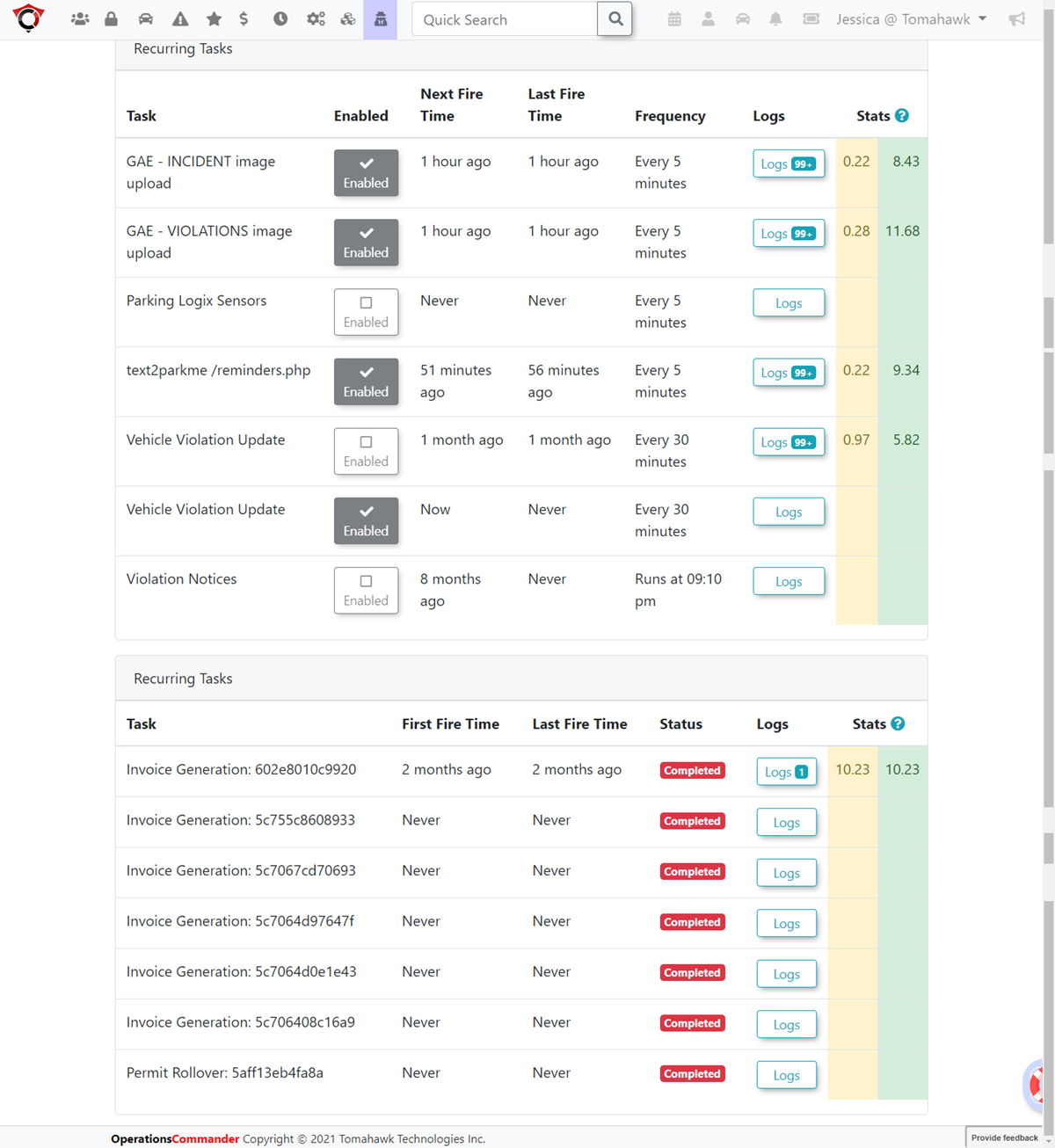
there are two sections, Recurring tasks and Onetime tasks. From this screen we can see stats on when the task has run and how long it took to run. We can also enable or disable tasks from running.
The Scheduled Tasks pagewhich is divided into two main sections: Recurring tasks and Onetime tasks.
Key Information Displayed
For each task listed,listed on the page, the system provides several key metrics to help administrators canmonitor viewbackend its status, statistics, and manage its execution.performance:
Key Information Displayed
-
Task
NameName::The name of the automated system task. -
Last
RunRun::The timestampofindicating the last time the task was executed. -
Next
RunRun::The scheduled timestamp for the next planned execution of the task. -
Average
DurationDuration::The average amount of time it takes for the task to complete its execution. -
Enabled
StatusStatus::Indicates whether the task is currently active and configured torun.run automatically.
Available Actions &and Buttons
-
Enabled
CheckboxCheckbox::ClickEnable the Enabled checkbox next toanyatask totoggleits status.Enable(check the box) aspecific task to allow it to run according to itsschedule.schedule, Disableor(uncheckdisable thebox) a taskcheckbox to prevent it from running.
-
LogsLogs:Button:- Click
theLogsthis buttonfornext to any task to view a pop-upwindow. Thiswindowprovidescontaining detailed information and historical logs about the task's past executions, including success/failurestatusstatuses and specificoutput.output
- Click
Please be aware,aware that there are often other module-specific settings that maymust be important to setconfigured correctly before enabling anya related system task.
Best Practices &and Considerations
-
Monitor
TasktaskLogslogsRegularlyregularly::PeriodicallyAdministrators should periodically review theLogslogs for critical system tasks to ensure they arerunning successfully andcompleting without errors.ThisProactive monitoring helpsin proactive identificationidentify andresolution ofresolve potentialissues.backend data issues before they impact daily operations. -
Understand
TasktaskImpactimpact before enabling::FamiliarizeAlways familiarize yourself with the purpose and function of each system task before enabling or disablingit,it.asThesetheytasks can significantly affect data integrity, system performance, or other automated processes. -
ScheduledScheduleMaintenancemaintenance appropriately::Coordinate the scheduling of heavy onetime tasks with periods of low systemactivityactivity.toRunningminimizeresource-intensive automated processes during off-peak hours minimizes any potential impact on the end-user experience.