
Stripe Payment Provider Setup
This feature shows how to integrate with Stripe to process credit card payments directly within the system. Its primary purpose is to provide a secure and seamless checkout experience for users while simplifying financial reconciliation for operations. This article is intended for OPS-COM administrators responsible for financial setup.
Setup and Configuration
Admin Portal
To begin the integration, an administrator must setup a payment type in OPSCOM, with will be linked to their Stripe account. This is handled through the central administration portal where you will input your unique credentials.
Hover over System Configuration > Payments, then click Setup Payment Types.
Click "Add Type"
Click the Payment Provider drop-down menu and choose Stripe.js from the available options.
Once the provider is selected, you can name the payment type, select applicable user types, and then go to the settings tab.
Now, you have to get the API keys for your Stripe account, and setup webhooks, which can be found on the stripe dashboard, which you should be logged into, from a previous step. Your Publishable Key, and Secret Key, can be found and copied here. You can click on these values to copy them, and paste them into the payment type settings in OPSCOM.
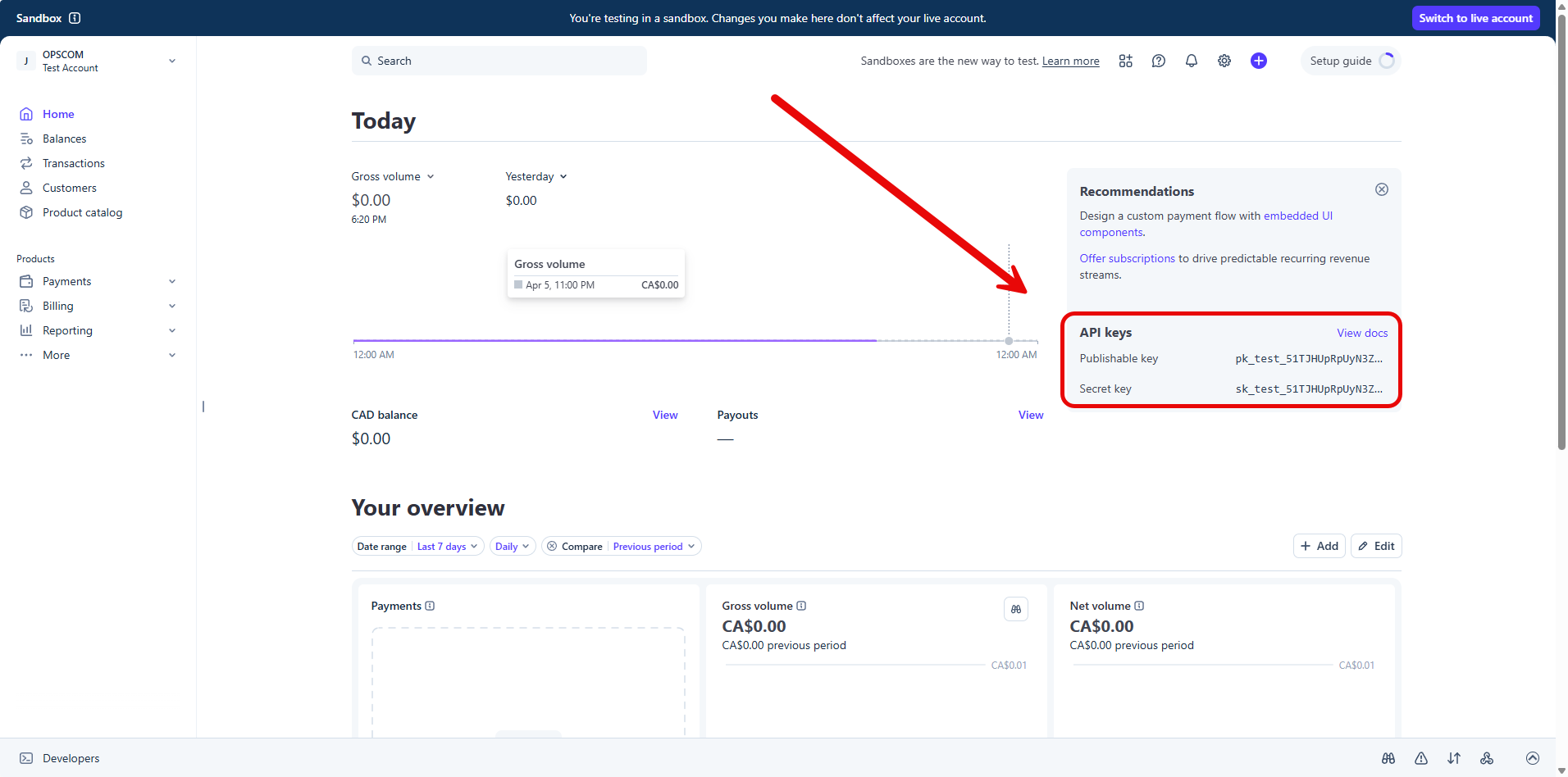
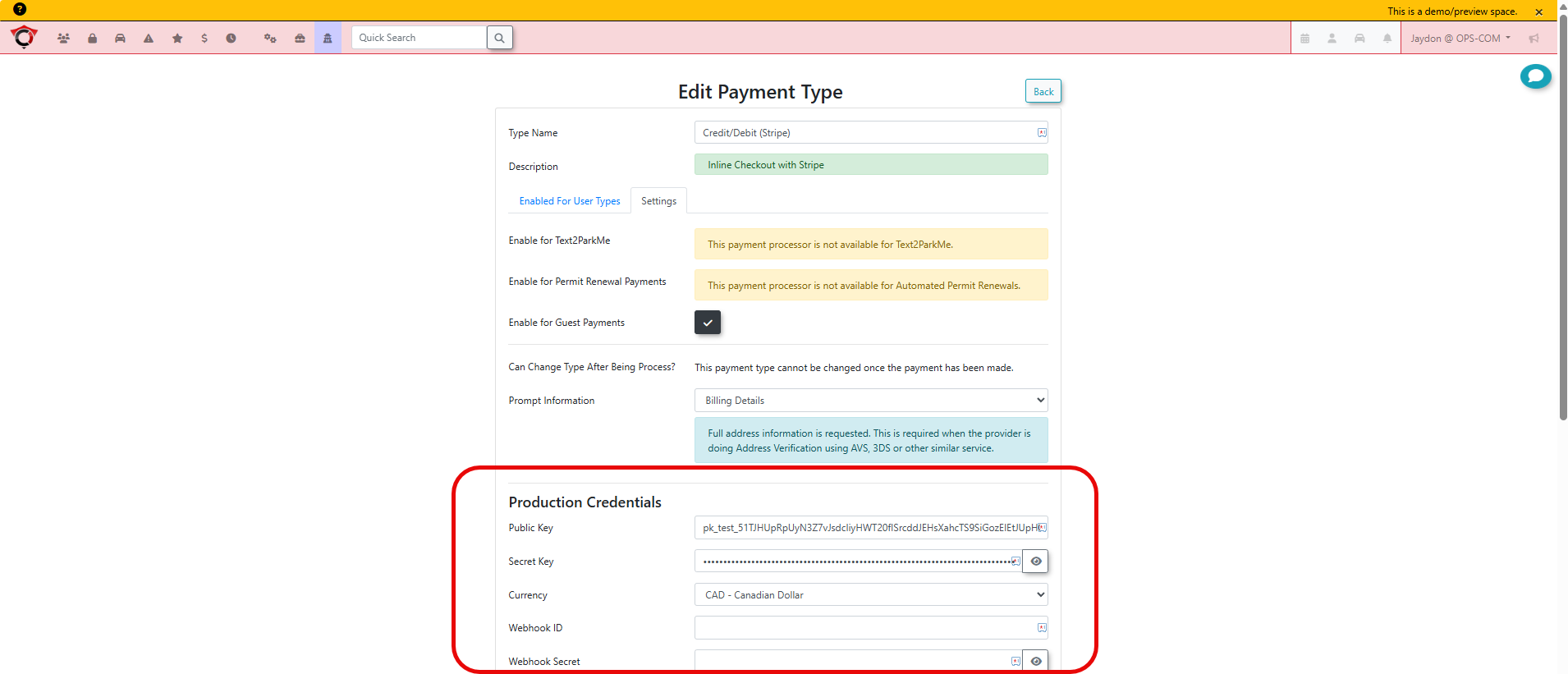
You must provide your unique identification keys. Enter your Stripe public key into the Publishable Key field and your Stripe secret key into the Secret Key field. Only enter the Testing Credentials until you are ready for your users to have access to this.
Take this time to ensure that the Currency setting is correct, in the payment type settings. (the default is US dollars) The next steps will be about populating the Webhook ID and Webhook Secret fields, in OPSCOM, with the correct information from your Stripe dashboard.
Third-Party Webhook Configuration
Webhooks are essential for Stripe to notify OPSCOM regarding payment successes or refund completions. Without these, the system WILL NOT communicate any transaction information to OPSCOM.
| Sub-section | What it covers |
|---|---|
| Register Your Endpoint | Step-by-step Stripe Dashboard instructions to create an event destination, select event types, and enter the OPS-COM webhook URL |
| Retrieve Your Signing Secret | How to reveal and copy the whsec_ secret, and destination ID into OPS-COM |
| Test Your Endpoint | Stripe CLI commands to forward live test events locally before going live |
| Secure Your Endpoint | Signature verification explanation and IP allowlisting recommendation |
| Manage Event Delivery | Delivered/Pending/Failed status descriptions and how to manually resend events |
Register Your Endpoint
To begin receiving notifications, you must define where Stripe should send transaction data. In your Stripe Dashboard, Click on Developers (bottom left) and select Webhooks.
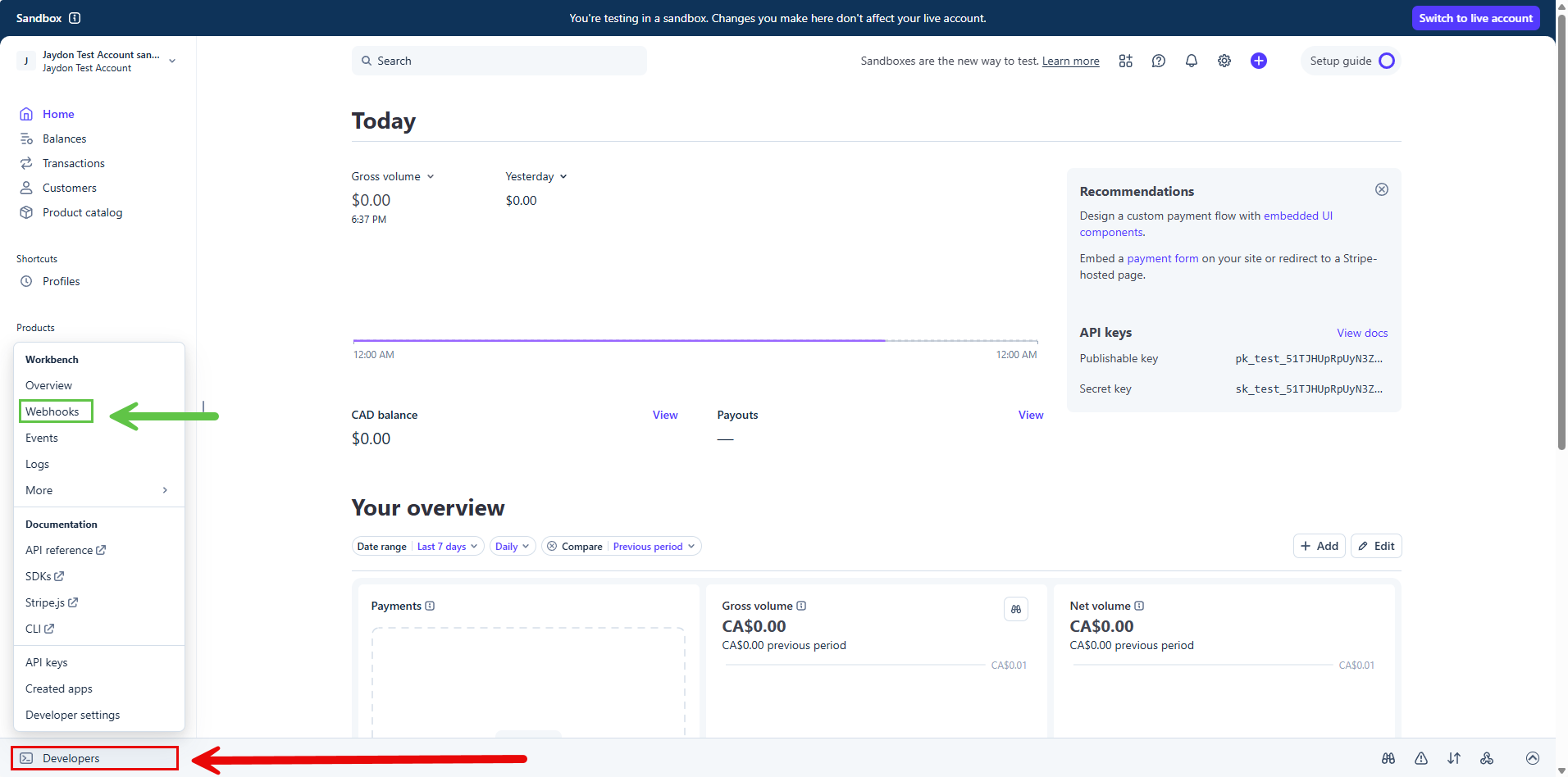
Click the Add Destination button to open the configuration window.
You must select the specific event types the system needs to process. For a standard setup, ensure you select payment_intent.succeeded for successful payments, payment_intent.payment_failed for failed payments, and payment_intent.canceled for canceled payments. Now click Continue.
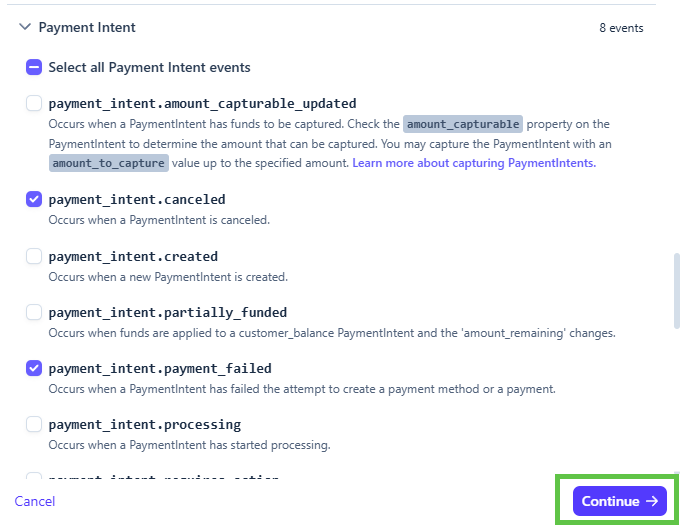
Select "Webhook endpoint", and click continue again.
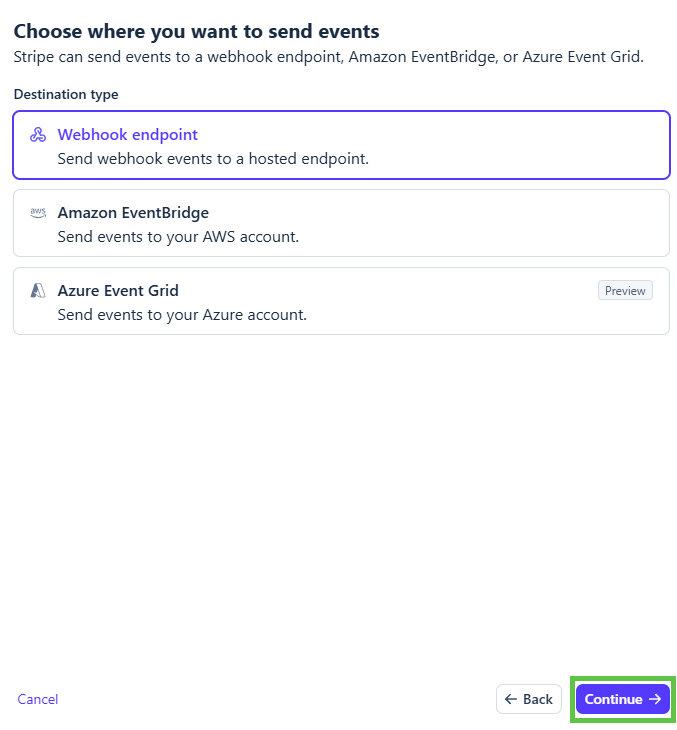
Give the webhook a descriptive name, and in the Endpoint URL field, enter the specific URL provided by OPS-COM, in this format:
https://(clientID).ops-com.com/api/system/payments/stripe/callback)
Retrieve Your Signing Secret
Once the endpoint is created, Stripe generates a unique security key to verify that the data sent to your server is authentic. On the summary page for your newly created webhook, locate the Signing secret section.
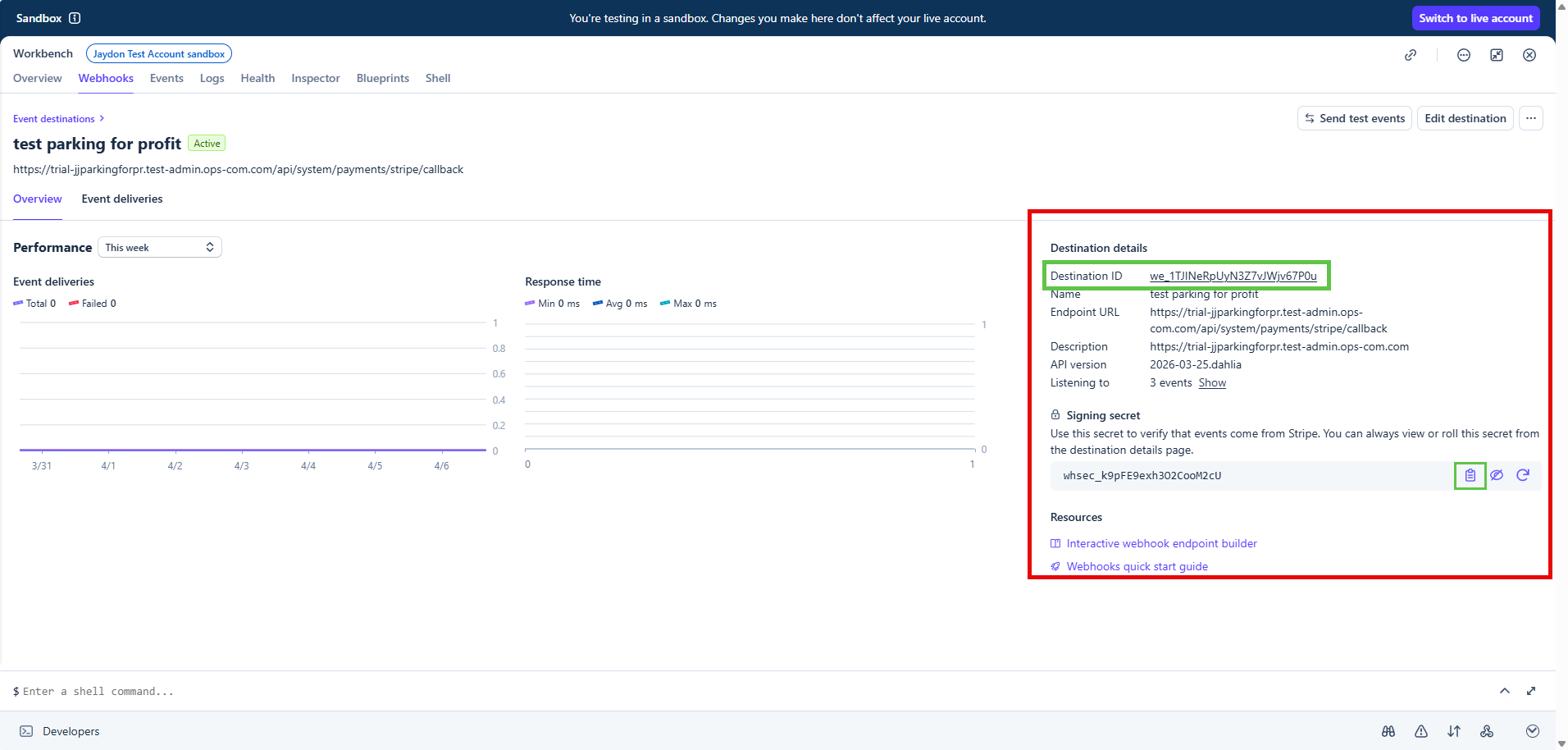
Click Reveal to display the string, which typically begins with the prefix whsec_.
Copy (highlighted in a green box in the picture above!) this entire string and navigate back to your OPS-COM Payment Gateway settings. Paste the secret into the Webhook Secret field. This handshake ensures that OPS-COM only processes legitimate requests from Stripe and ignores any unauthorized attempts to alter transaction data.
Once the endpoint is saved, you'll see the Signing secret, and Destination ID provided by Stripe. Return to your OPSCOM configuration and paste the Signing secret into the Webhook Secret field, and the Destination ID into the Webhook ID field to ensure all incoming data is securely verified. Ensure your
Ensure that your Webhook Secret is correctly matched between Stripe and OPS-COM to prevent "Pending" status errors on completed payments.
User Experience and Handheld Use
Web Portal Transactions
Users will interact with the Stripe interface during their standard checkout process. When they reach the final stage of a transaction, they simply click the Pay with Credit Card button to open the secure payment form. After they enter the credit card details into the form, they click the Submit Payment button to complete the purchase.
OPS-COM for Android
For administrators or staff using handheld units in the field, the process is optimized for touch interaction. Tap Checkout to open the payment summary within the app. From there, tap Select Payment Method and choose Stripe. To prevent accidental charges, the final step requires you to tap and hold the Process Payment button to finalize the transaction.
Managing Transactions and Reports
Administrators can review all processed payments and manage financial returns through the standard reporting interfaces. Hover over Financial Management and click Transaction Reports then Recent Payments to view a live list of activity.
Within this report, the Status column displays the current state of each payment, while the Payment Date indicates exactly when the transaction occurred. If you need more detail, click the View Details icon next to a specific transaction to see the full Stripe receipt.
If a correction is needed, click the Refund Payment button to initiate a return of funds. You will then click the Confirm Refund drop-down menu and choose Full Refund to finalize the reversal.
You can quickly find a specific transaction by using the search bar to enter a user's name or a specific receipt order ID/Confirm Code.
Best Practices and Considerations
- Deployment Testing Organizations should always keep Live Mode disabled during the initial deployment until all testing is verified with test credit card information. It is highly recommended to process a single, small test transaction in Live Mode using a real card before making the payment option available to the general public.
- Security Requirements Maintaining the security of your financial environment is critical. You should never share your Stripe Secret Key or Webhook Secret with anyone or store it in plain text outside of the secure administration configuration screens.
- Change the signing secret periodically, and only subscribe to required event types.