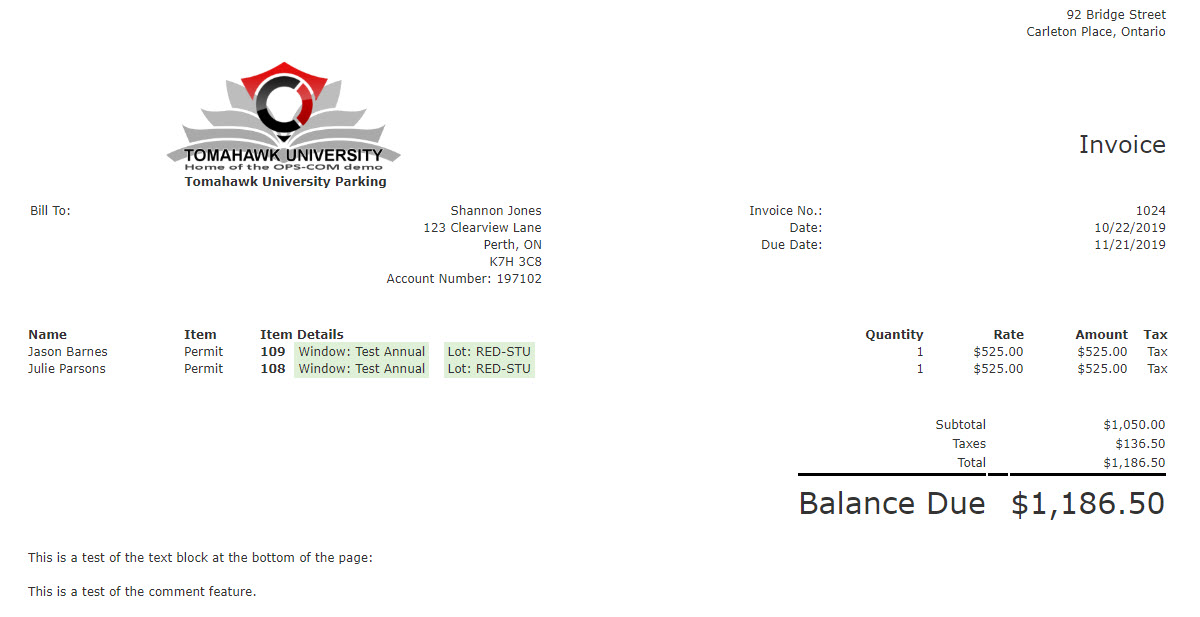
The Invoice Template
Editing
The Invoice Template feature allows administrators to fully customize the templateemail and PDF invoices sent to companies for outstanding permits. Its primary purpose is to ensure that billing communications accurately reflect your organizational branding while dynamically generating all necessary financial details using shortcodes. This article is intended for OPS-COM administrators.
Setup and Configuration
To accessConfiguring the template,invoice gotemplate toinvolves adjusting the meta data that dictates how the email is identified and formatted before it reaches the recipient.
Admin Side:
-
Hover over System Config
menuand clickonEmailTemplates.Templates
. -
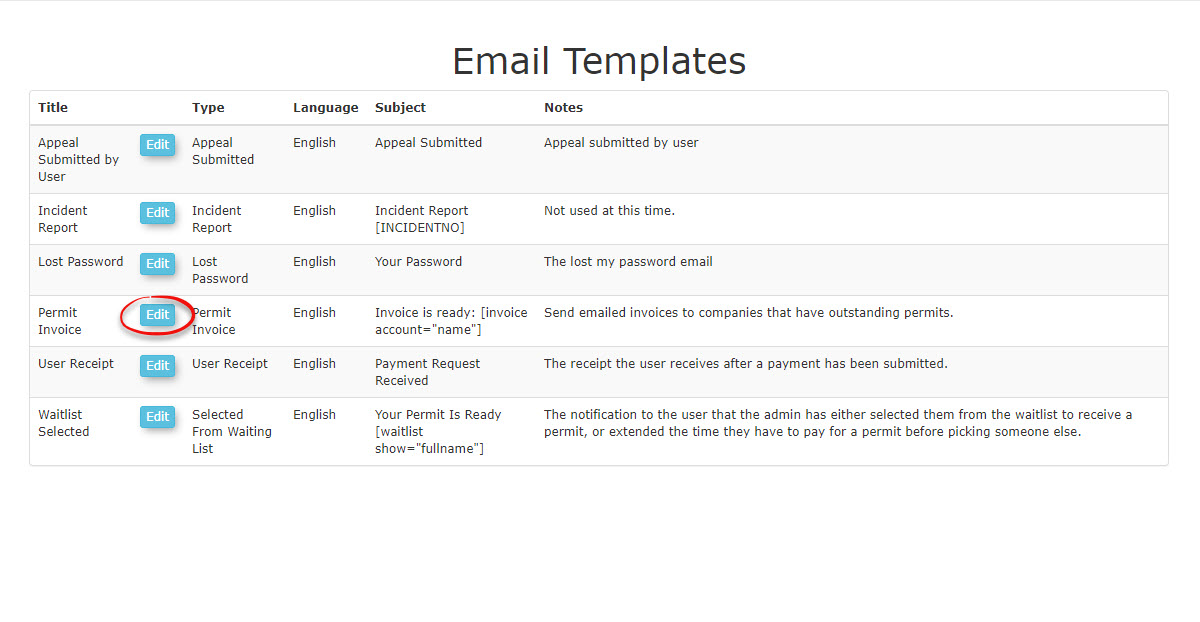
The screen will refresh with a list of possible templates to edit. In our case, we want to click onClick the Edit buttonfornext totemplate.
template configuration form.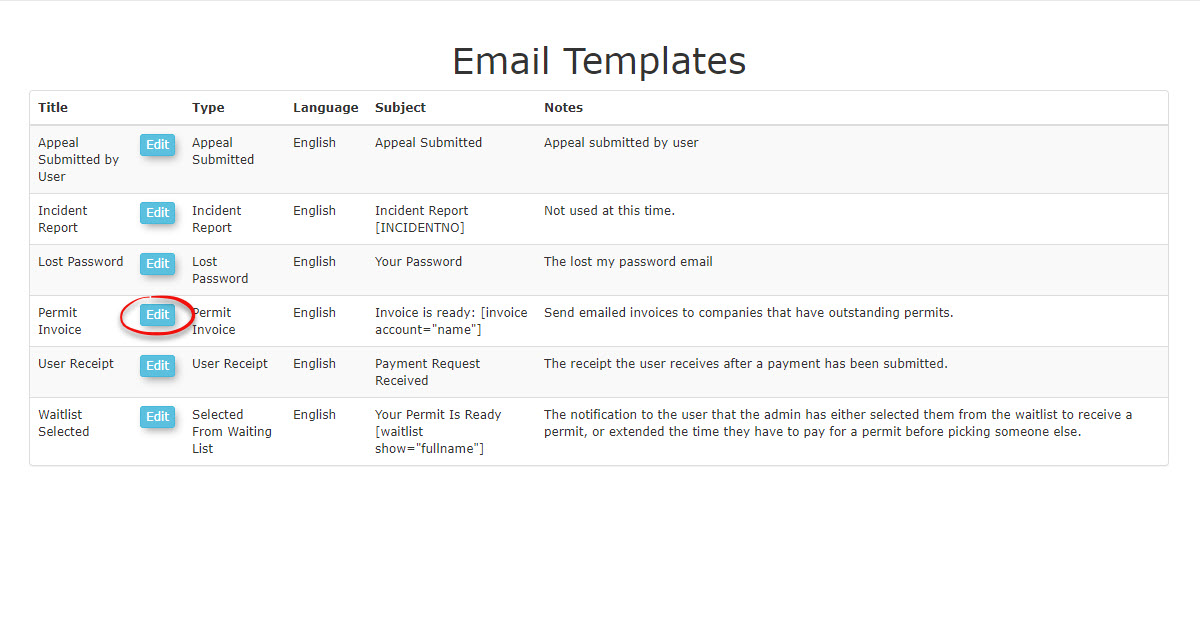
-
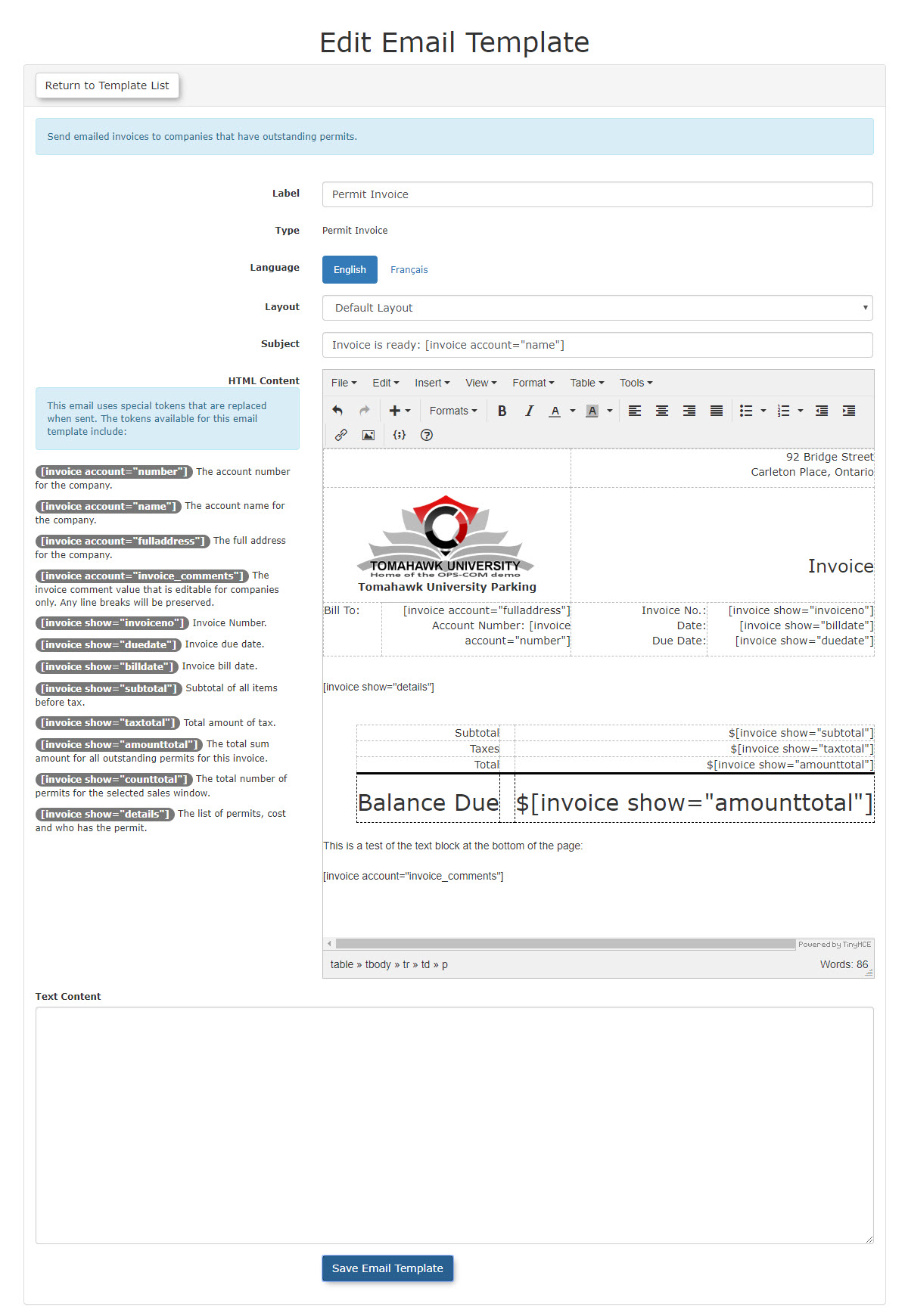
The screen will refresh with the complete Template form as seen below.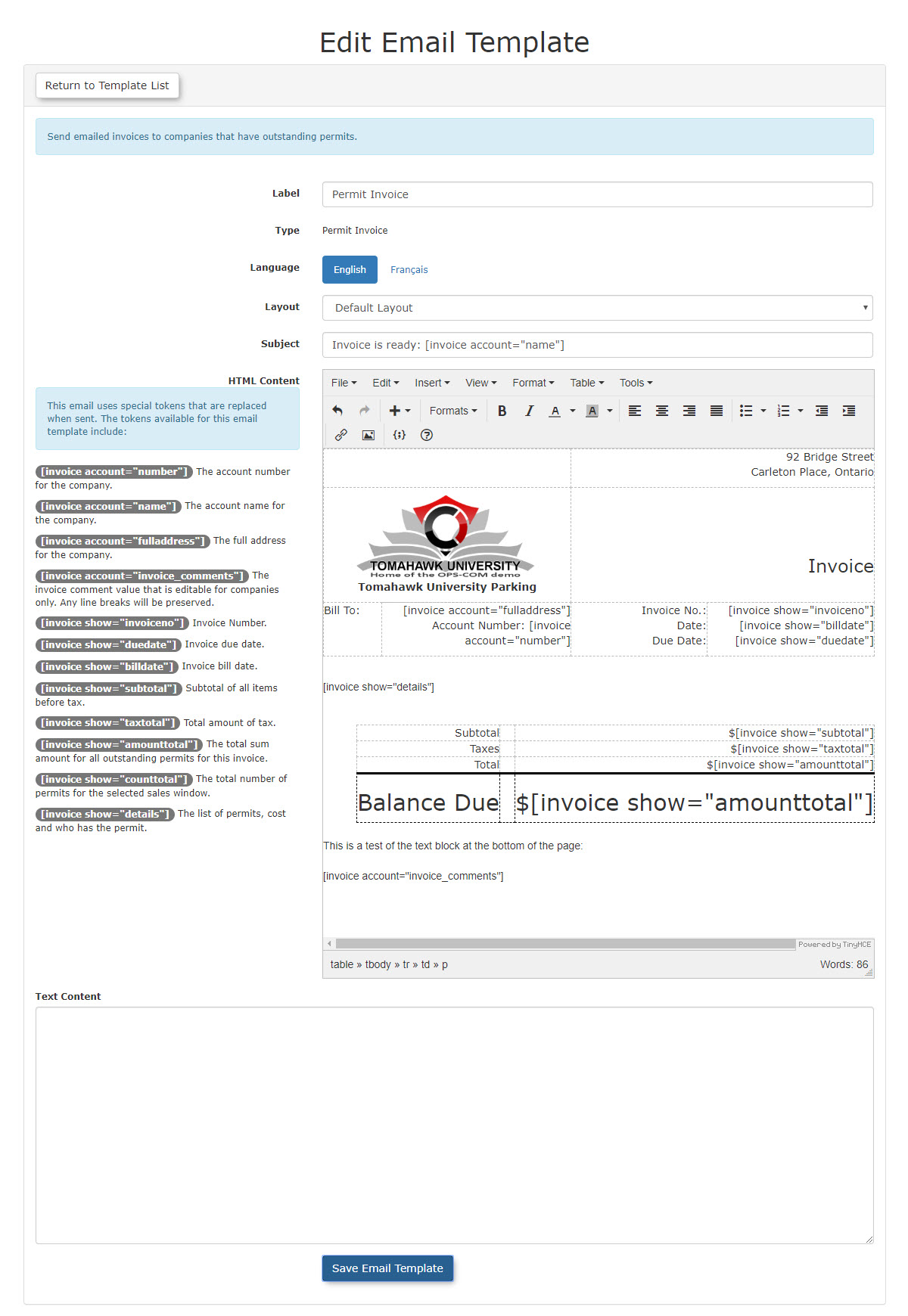
The form contains 4 areas:At the top,Meta Datafor this specific template.On the left,Enter alist of possibleShort Codesthat can be used on this template form.On the right, the actualTemplate.At the bottom, aText Content field(This field can be configured for a plain text version of theMeta DataLabel -Enter adescriptive name forthisinternalTemplate.
reference in theType -LabelThisfield.field -
fills.Language -Choose the appropriate language
offrom thetemplate.Layout -LanguageChoosedrop-down menu. -
Select the default
layout.
layout from theSubject -LayoutThisdrop-down menu. -
Enter the text that will appear as the
EmailemailSubject.subjectNotelinethatin the Subject field.
You can successfully use of short code is permittedshortcodes in thisthe field.Subject Infield thisto case,dynamically wepersonalize arethe callingemail. For example, inserting [invoice account="name"] will automatically call up and display the specific account name for the company being invoiced.
invoiced directly in the subject line.
User Side: End-users do not interact with the setup or configuration of administrative email templates.
ShortUsing Codethis List
Feature
The template form interface contains four primary areas: Meta Data at the top, a list of available Short Codes on the left, the actual visual Template on the right, and a Text Content field at the bottom (used for configuring a plain text version of the invoice).
Administrators interact with the visual template editor to place static branding and dynamic shortcodes.
Available Shortcodes
The template allows the use of special tokens, or short codes,shortcodes, to accurately pull live information from the database toand appear onpopulate the invoice when sent.
These include:function similarly to a standard mail merge.
-
[invoice account="number"]: The account number for the company.
-
[invoice account="name"]: The account name for the company.
-
[invoice account="fulladdress"]: The full address for the company.
-
[invoice account="invoice_comments"]: The invoice comment value that is editable for companies only. Any line breaks will be preserved.
-
[invoice show="invoiceno"]: The unique Invoice Number.
-
[invoice show="duedate"]:
InvoiceThe invoice due date. -
[invoice show="billdate"]:
InvoiceThe invoice bill date. -
[invoice show="subtotal"]:
SubtotalThe subtotal of all items beforetax.
Taxes. -
[invoice show="taxtotal"]:
TotalThe total calculated amount of tax. -
[invoice show="amounttotal"]: The total sum amount for all outstanding permits for this invoice.
-
[invoice show="counttotal"]: The total number of permits for the selected sales window.
-
[invoice show="details"]: The comprehen
Thesive list of permits,costcosts, and whohasholds the permit.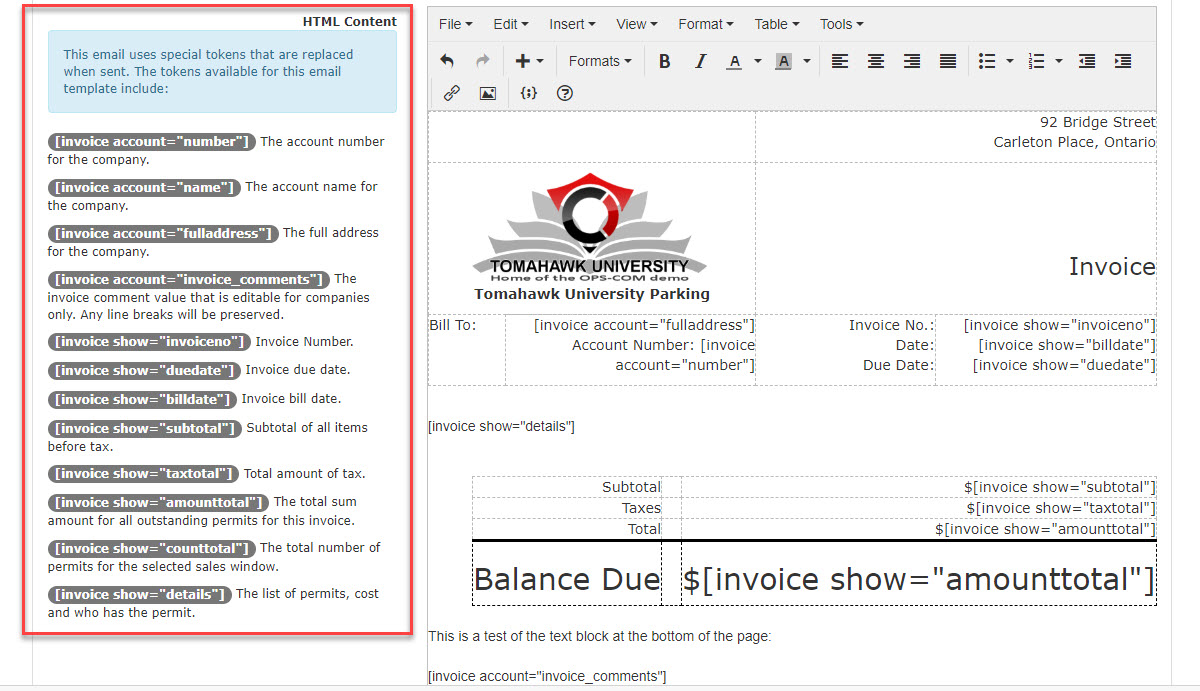
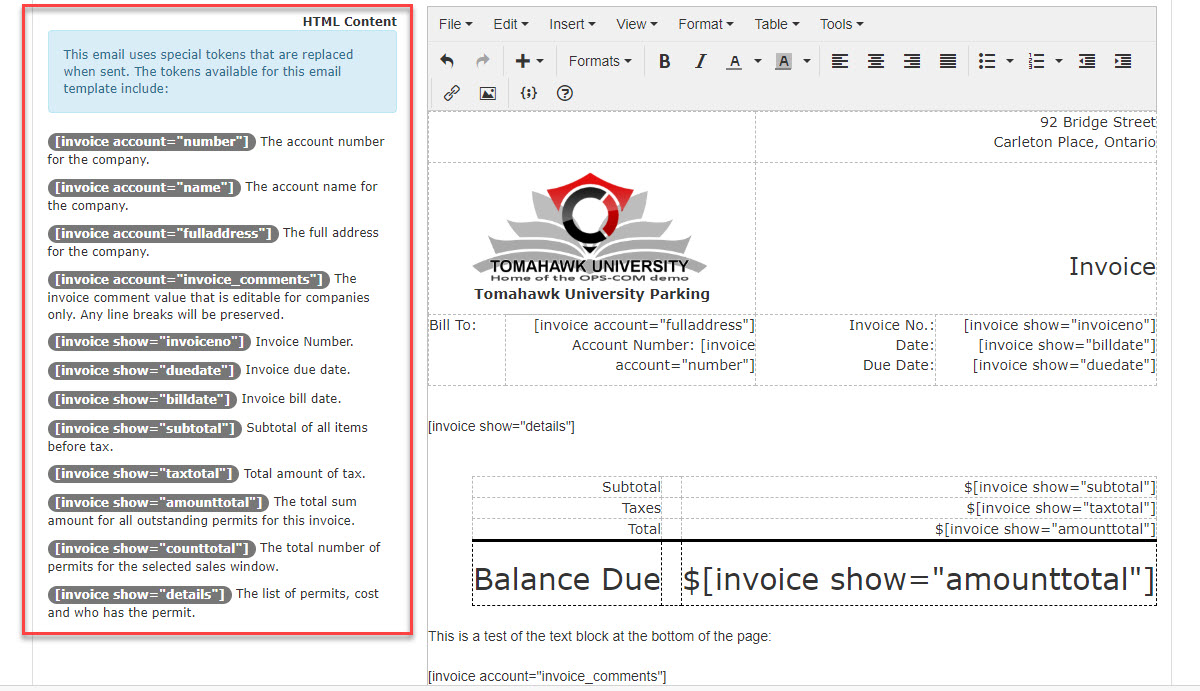
These tokens can be placed anywhere onCustomizing the
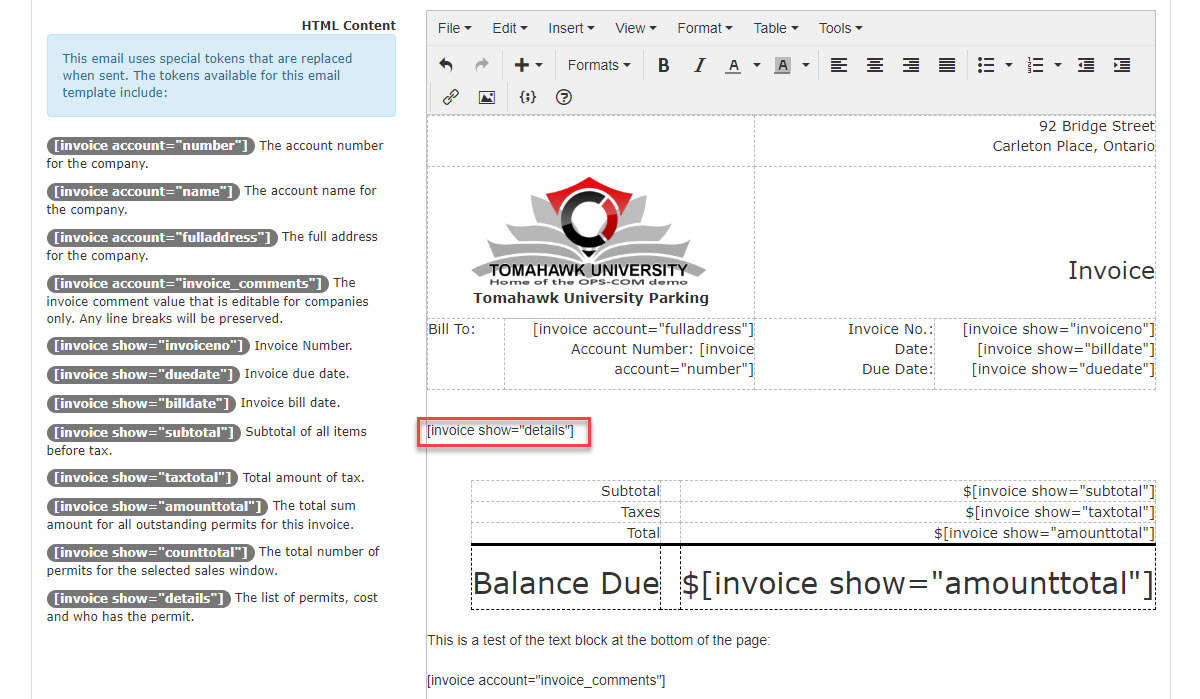
templateTemplate and will pull data from the system, similar to a mail merge functionality.For example, in the Bill To: area, the system will retrieve the Full Address of the Company as well as the Company Account Number using these two short code tokens:[invoice account="fulladdress"] The full address for the company.[invoice account="number"] The account number for the company.
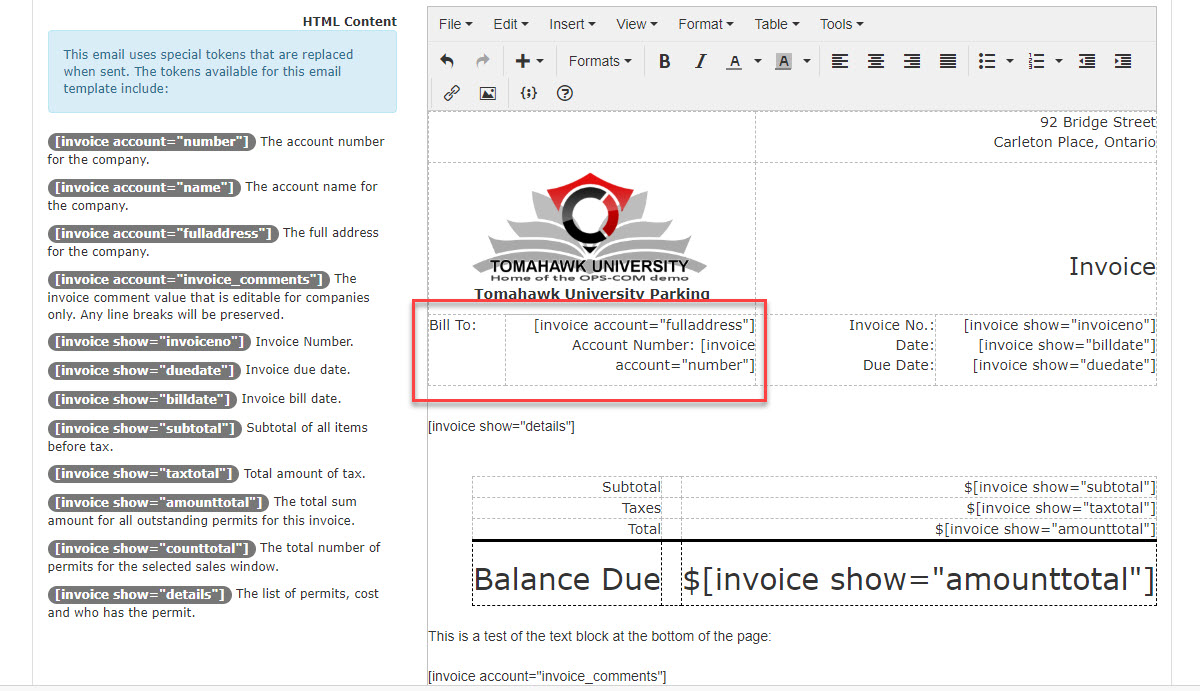
The Template
There are aseveral number ofkey areas on the template that canshould be actively edited by the admin.admin Toto addensure proper branding toand thedata templatedelivery:
-
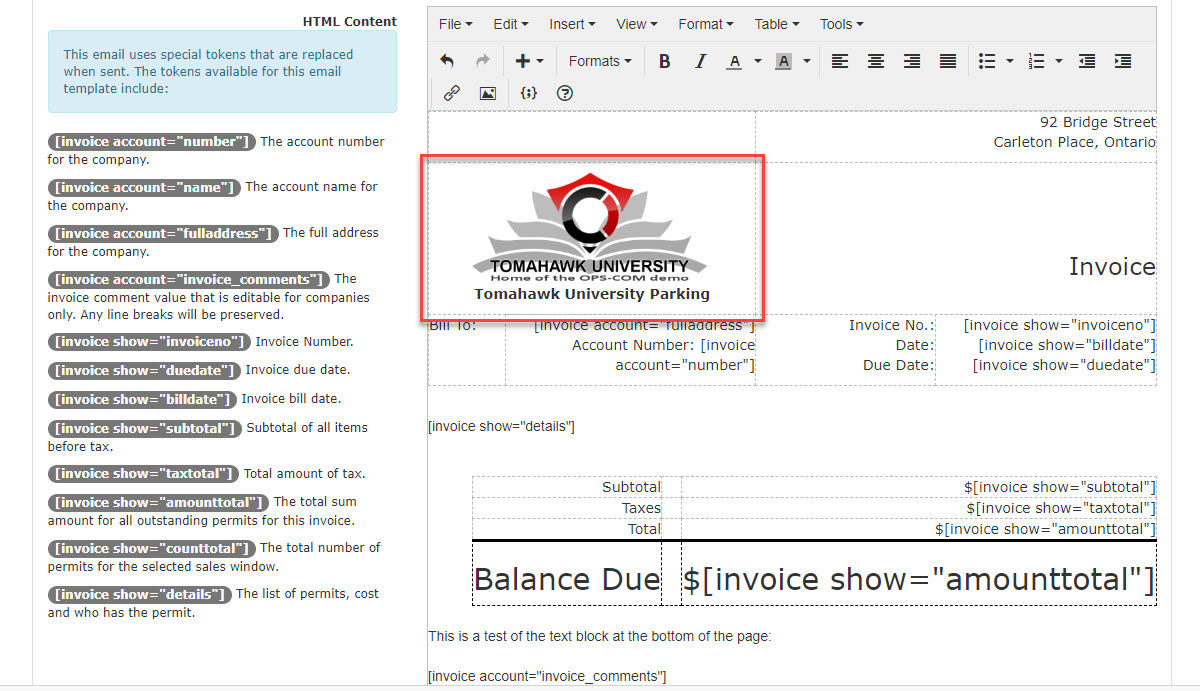
two areas that will be of concern.TheCompany Logo Field:ThisisReplacewheretheyouplaceholderwouldbyplaceinserting yourcompanyorganization's logo.Using a .JPEG or .PNG file format is recommended.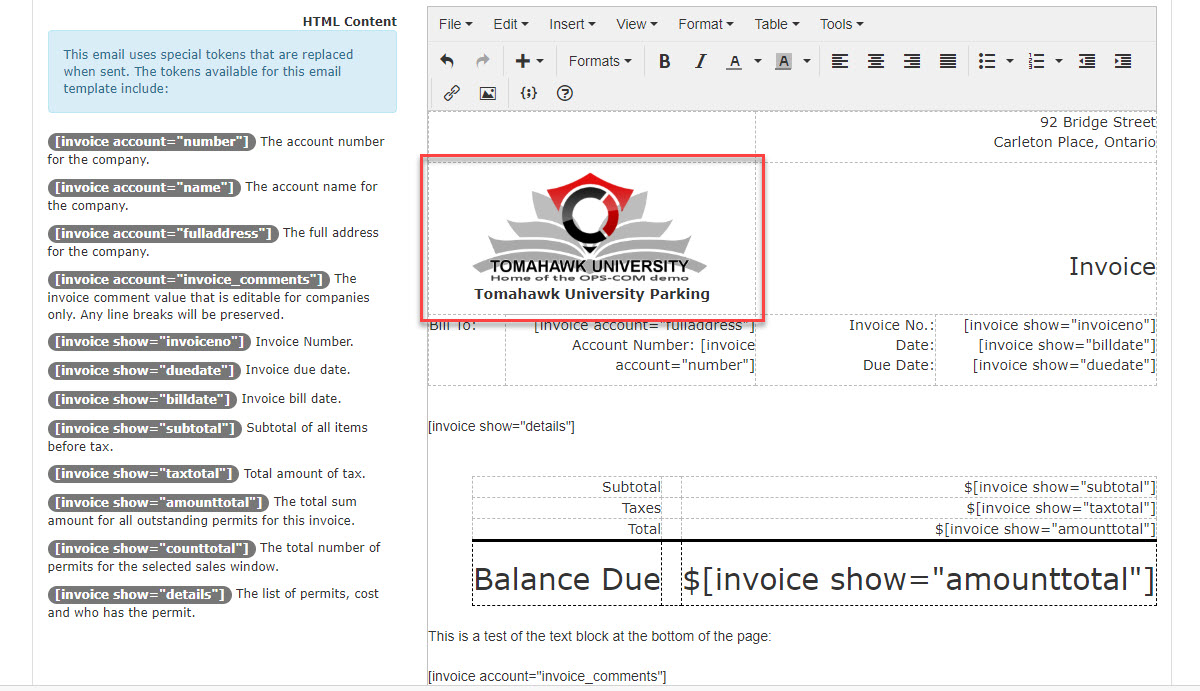
-
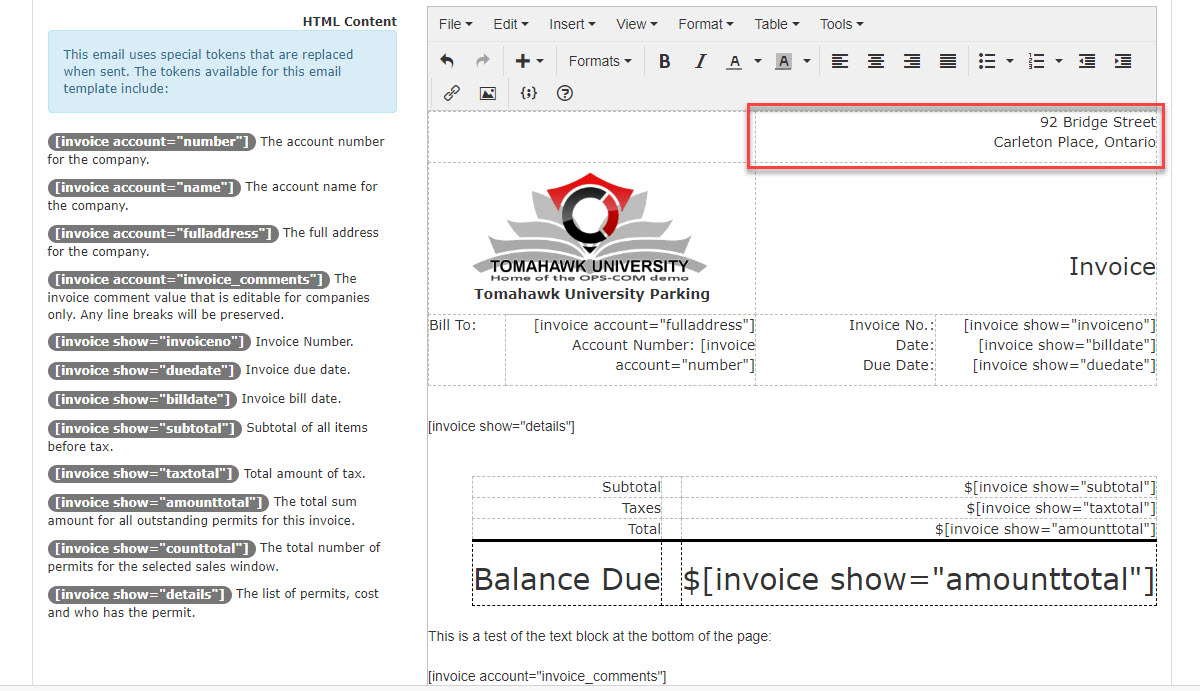
YourCompany Address:
Enter yourcompanyphysical organizational addresshere.so it clearly appears on the generated document.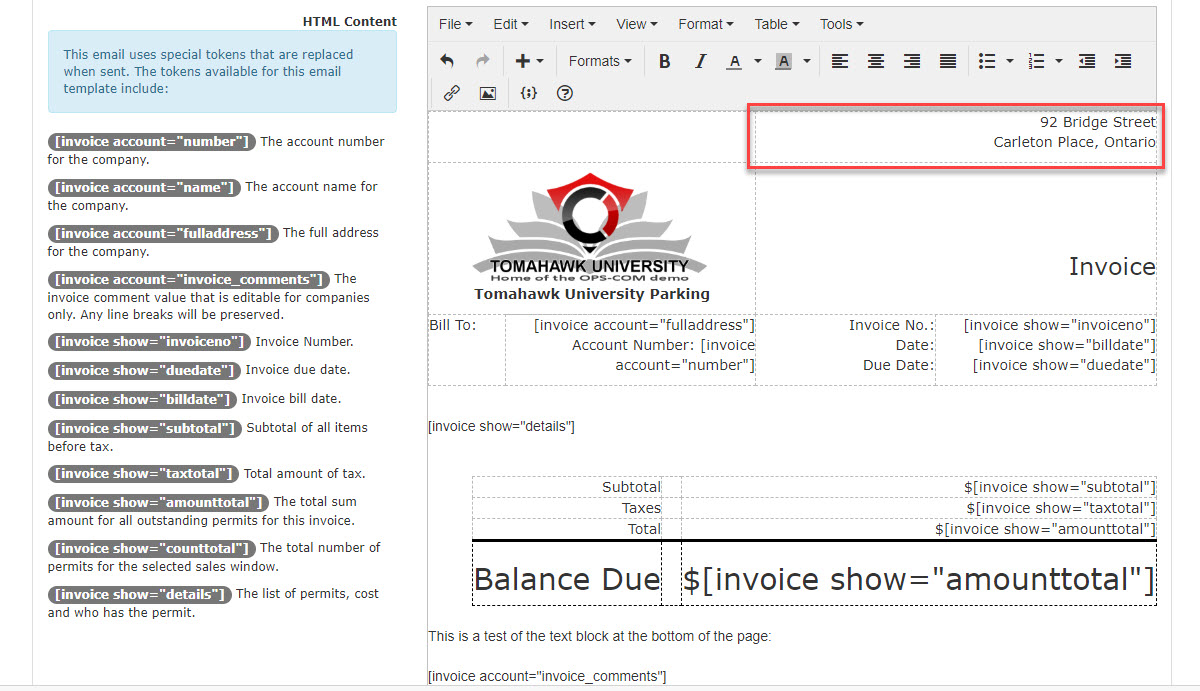
-
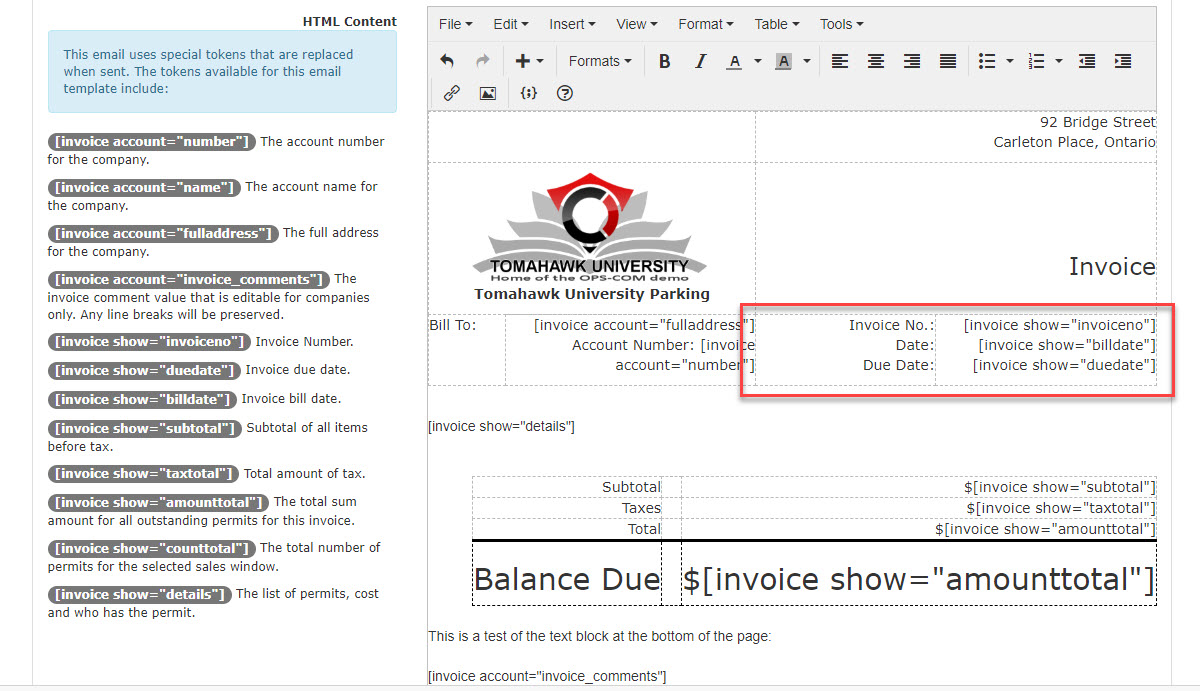
Invoice Identification:
InthisInsertsection use short codeshortcodes to pull in theInvoice Number, Billing Date, and Due Date.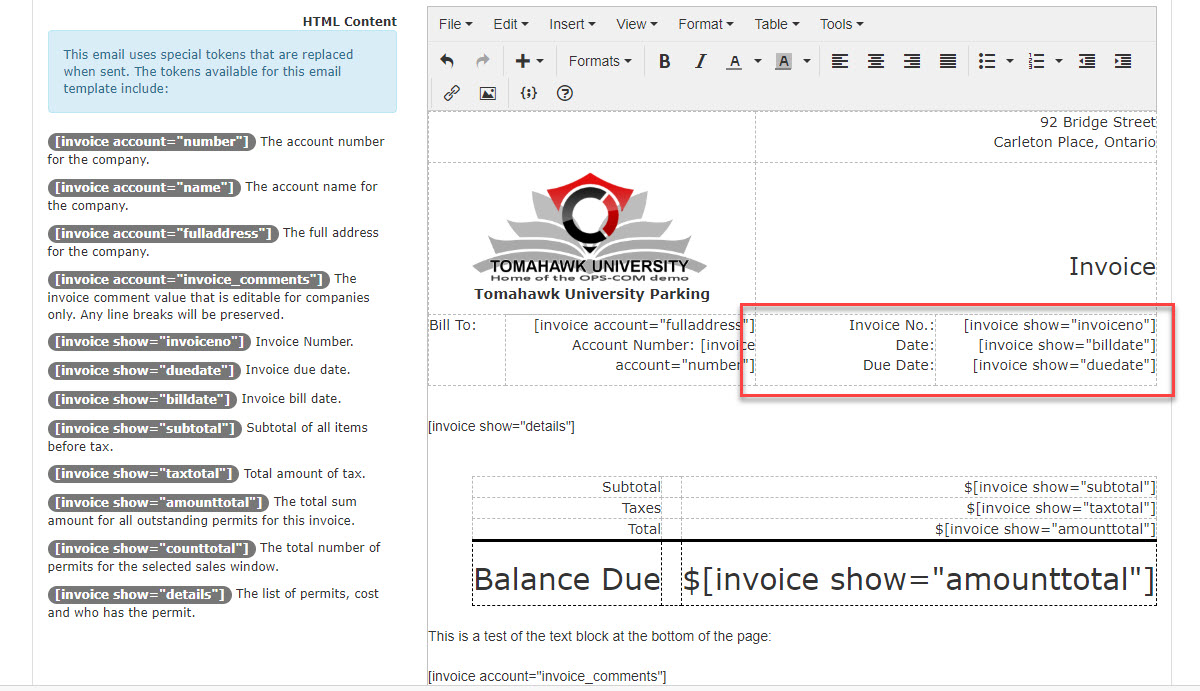
Invoice Details:The short code[invoice show="details"invoiceno"]pulls,in[invoice show="billdate"], and [invoice show="duedate"]. -
Invoice Details: Insert the
list[invoiceofshow="details"]permitsshortcode.thatWhen generated, this willappearautomaticallyonexpand to list theInvoice. (See a sample of the Invoice below)These include:Parker's
Name
Name, Item type beingPaidpaid for (e.g., Permit, Accesscard,card),etc.)
Item number (Permit Number)
, SalesWindow
Window, LotNameQuantityCost
Name, Quantity, and Cost.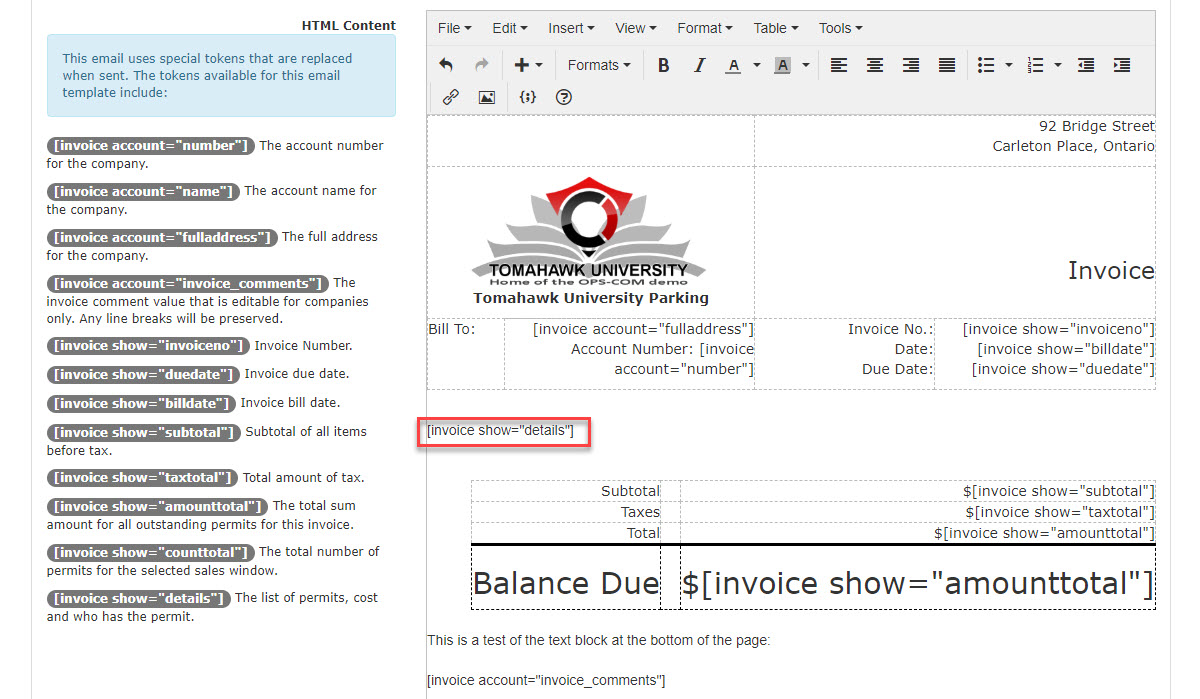
-
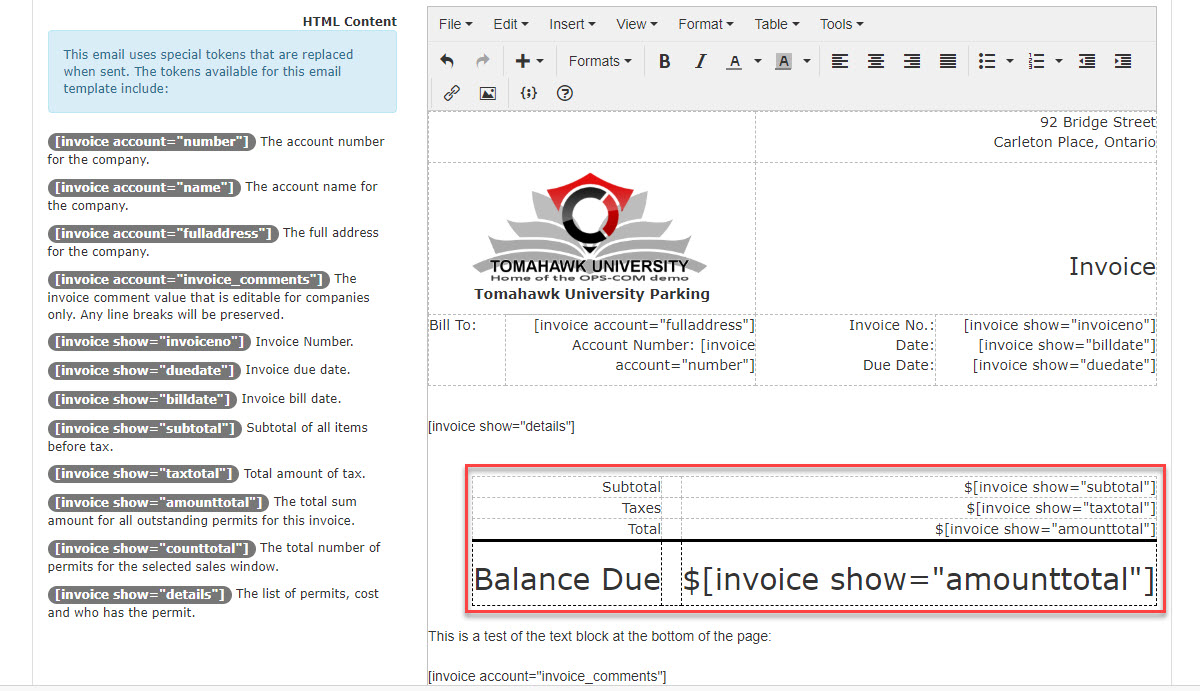
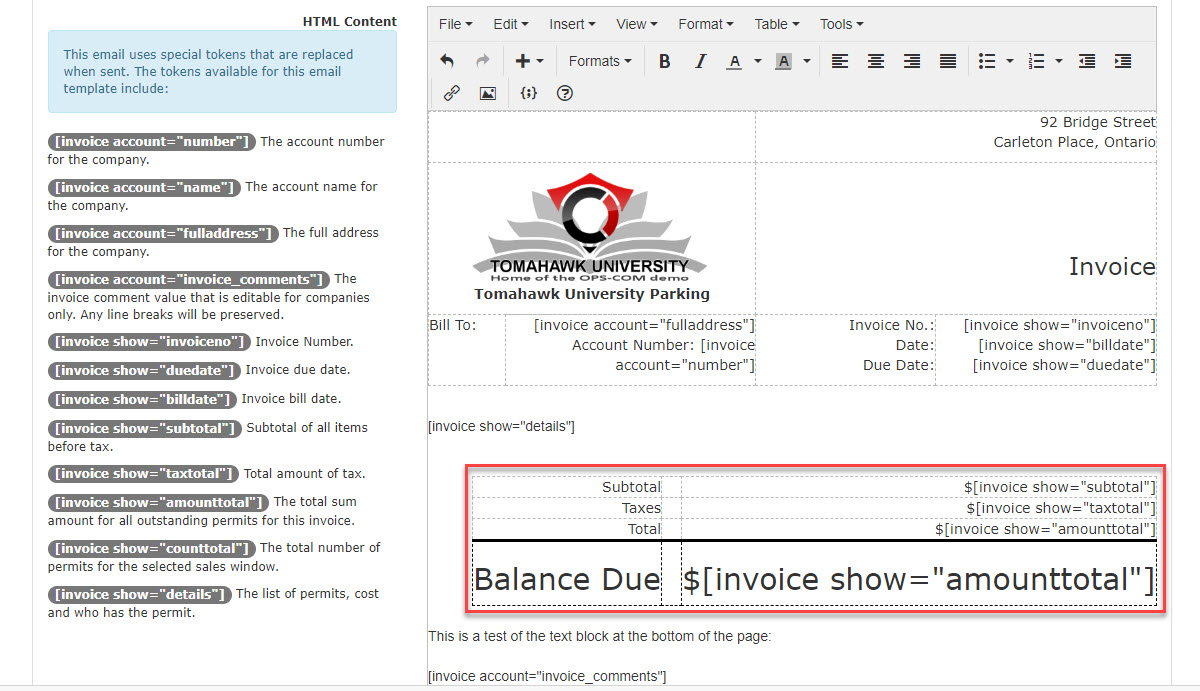
Payment
InformationInformation:(BillingInsertCost):In this section use short codeshortcodes to dynamically pull in the billinginformationcost information, such as theSubtotal,[invoiceCalculatedshow="subtotal"],Taxes,[invoice show="taxtotal"], andTotal[invoiceBilling Amount.show="amounttotal"]
.
Best Practices and Considerations
-
YouOptimizemayyouralsologowishformat:toUsingaddacommentsJPEGtoor PNG file format is highly recommended for your company logo. These formats ensure the highest quality rendering when the system generates the attached PDF version of the invoice.Comments -
beVerify
addeddata placement: Always test your shortcodes by generating a sample invoice. This ensures the system retrieves and formats the intended data (such as the company's full address and account number) exactly where you placed the tokens. -
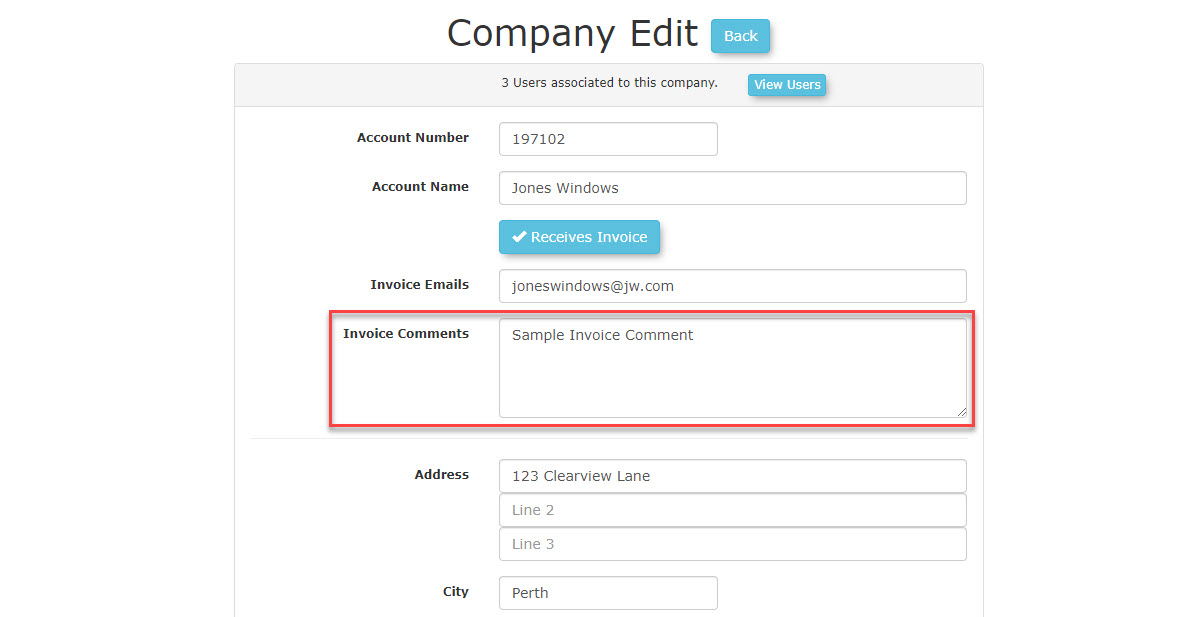
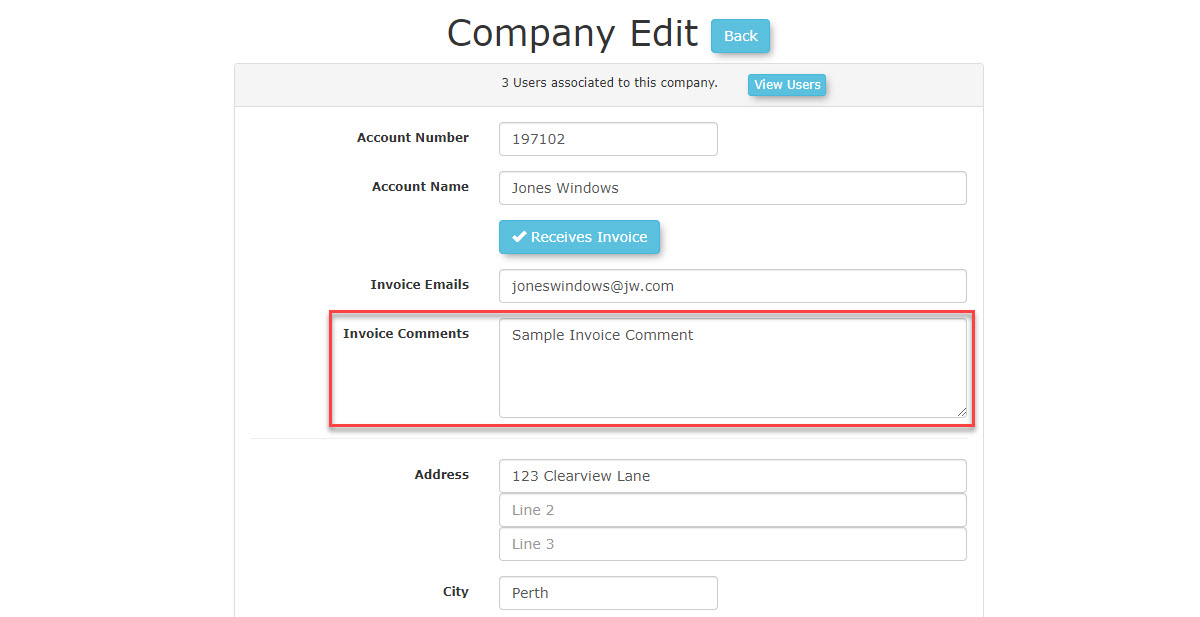
Leverage company comments: Add specific billing instructions or notes in the company configuration. Using the [invoice account="invoice_comments"] shortcode allows you to pass these targeted messages directly onto the finalized invoice, maintaining clear communication with corporate clients.
The Email with PDF attached:Here is a sample of what the resulting email would look like. There is also a .PDF version of this invoice attached to the email.