
Company Permit Report
The Company Permit Report allows administrators to quickly generate a list of permits assigned to specific corporate entities or business accounts. Its primary purpose is to help track company-issued parking allocations, audit active sales windows, and export data for external billing. This article is intended for OPS-COM administrators.
Setup and Configuration
The Company Permit Report is a standard reporting feature within the permit management module and requires no specialized system setup to run. However, administrators must have the appropriate reporting and permit management permissions assigned to their user role to access this page. Ensure that company accounts and their associated permits are accurately configured within the system to yield reliable search results.
Using this Feature
Administrators can use this report to filter corporate permit data by date range or specific company name, and then export the results for spreadsheet analysis.
Accessing and Running the Report
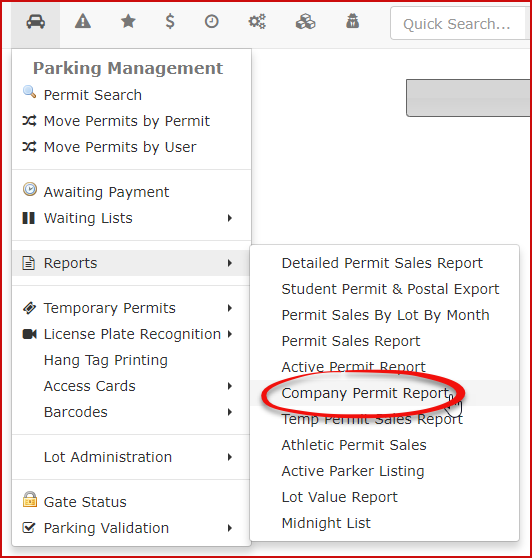
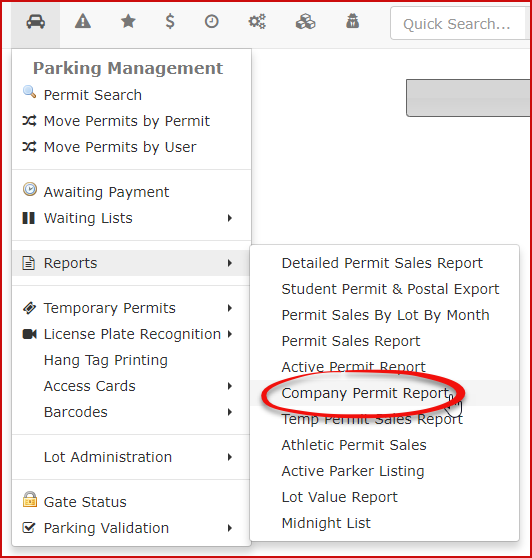
InParking Management, hoverHover over Permit Management and click Reports then Company Permit Report.
TheCompanyFilter
PermittheReportscreen will display. You can filterreport by entering specific dates in the Processed On/or ActiveonOndatesdateorfields.by-
Enter the name of the specific organization you are looking for in the Company text box (e.g., "Jones Windows").
-
Enable the
checkShowboxarchivedifpermitsyou wantcheckbox toshowincludearchivedhistorical, expired, or inactive permits in your search results.In -
case we are looking for 'Jones Windows'. Enter this inClick the
company box and clickSearch.Thebuttonactiveto execute the query and display the results onfield is the date that the sales window is active for.
-
Click the Export button to download the generated report as a .CSV file for use in external spreadsheet software.

When filtering your search dates, note that the Active On field specifically represents the date that the permit sales window is active for, rather than the date the permit was processed by the system.
Available Actions and Buttons
-
Search: Click this button to run the report based on your selected date, company, and archive parameters.
-
Export: Click this button to instantly create a .CSV
file.file of your on-screen results for external record-keeping or financial auditing.
Best Practices and Considerations
-
Leverage exports for corporate billing: Organizations should use the Export feature to generate .CSV files when invoicing corporate clients. This provides a clean, easily manipulated spreadsheet of all active permits currently billed to a specific company account for a given month or semester.
-
Audit archived permits: Use the Show archived permits checkbox annually to review historical company permit usage. This data can help forecast future parking demand for your corporate clients and assist in negotiating future lot allocations.