Invoiced Permits Report - Billing Summary by Date by Lot
The Permit Invoicing
Setup and Configuration
This feature is a standard component of the permit and financial management modules and requires no specialized system setup to operate. However, administrators must have the appropriate financial, reporting, and user management permissions assigned to their user role to search for invoices and trigger email communications.
Using this Feature
Administrators can use this tool to search for specific billing records, export financial data, or re-send lost invoices directly to a user's email.
Searching for an Invoice
-
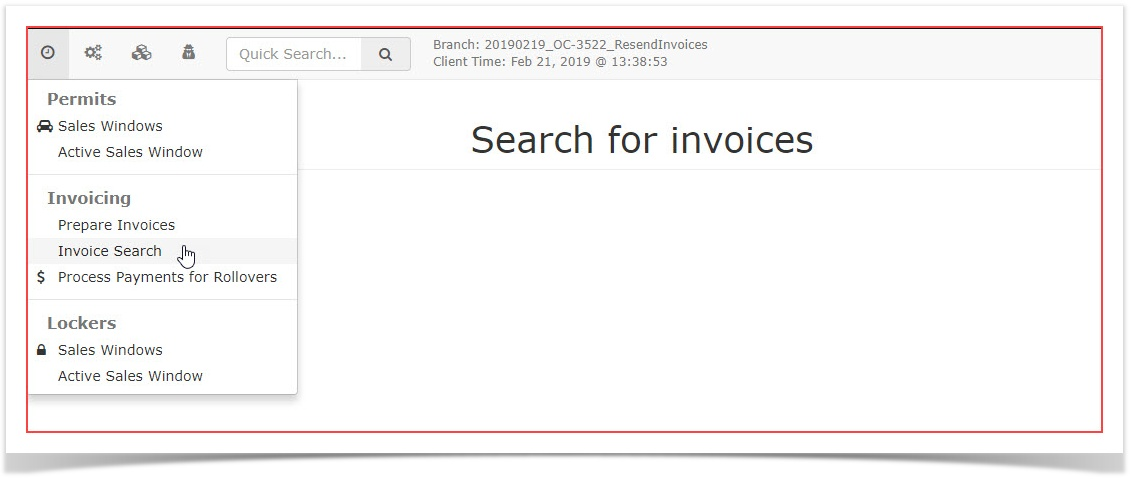
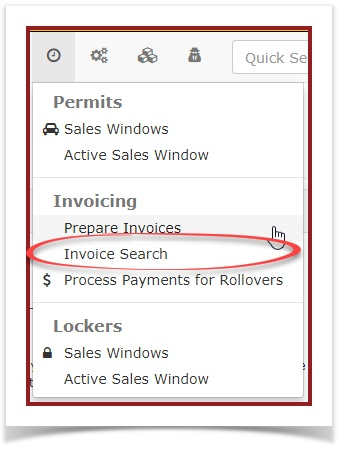
ClickHover over Allocations>and click Invoice Search.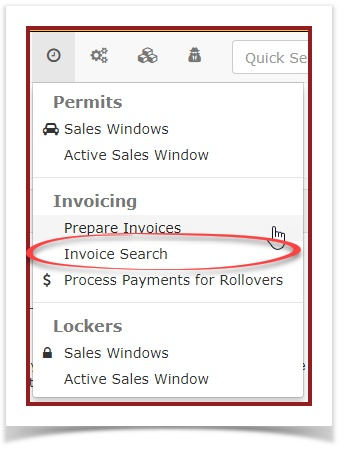
-
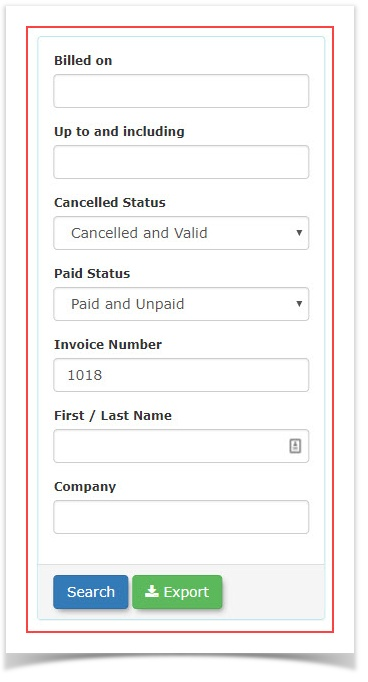
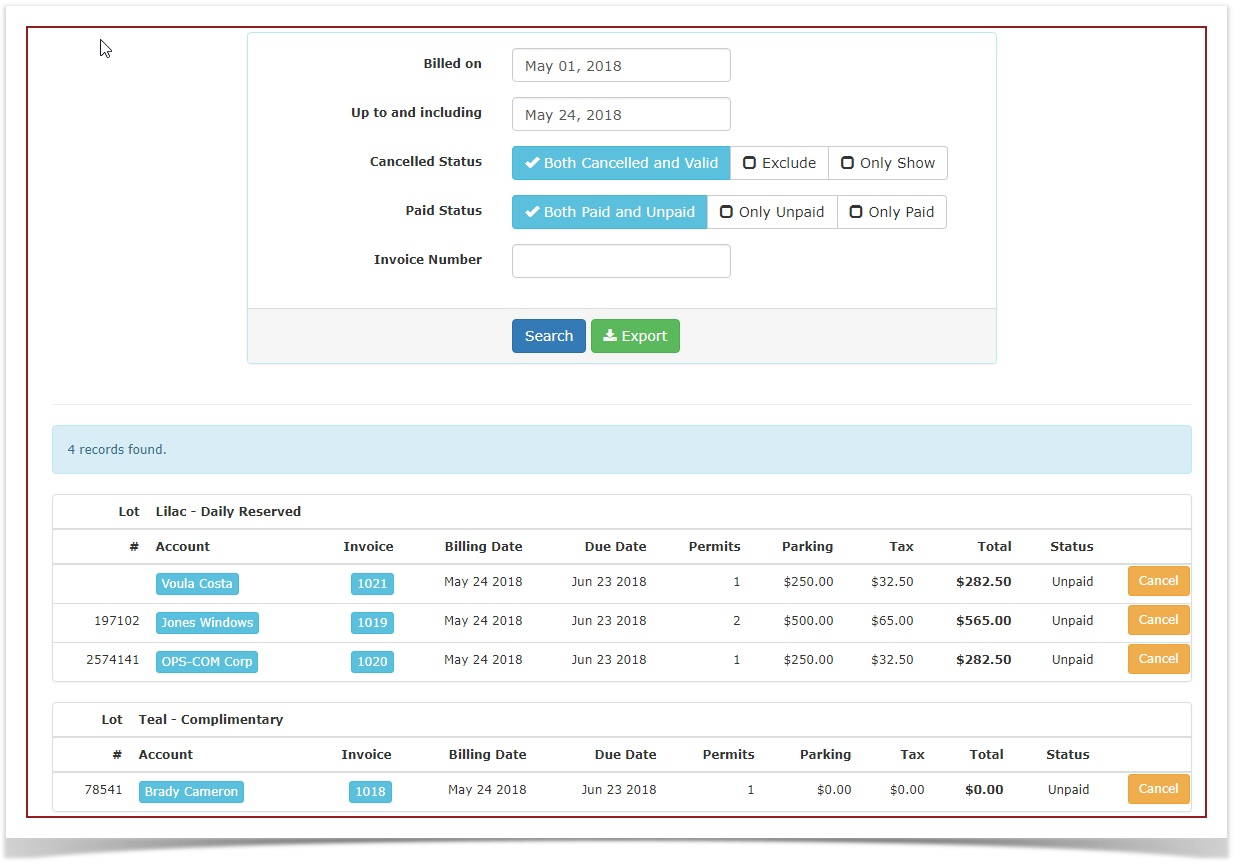
The 'Search for Invoices' screen displays. You can search forEnter a specific invoice number or select a date range using the provided calendar fields on the Search foranInvoicesinvoicescreen.issued -
aEnable
rangeorofdisabledates.theYoucheckboxescantoalsoinclude or eliminate canceledorand paid invoices fromtheyour search parameters.In this case we are searching for a date range.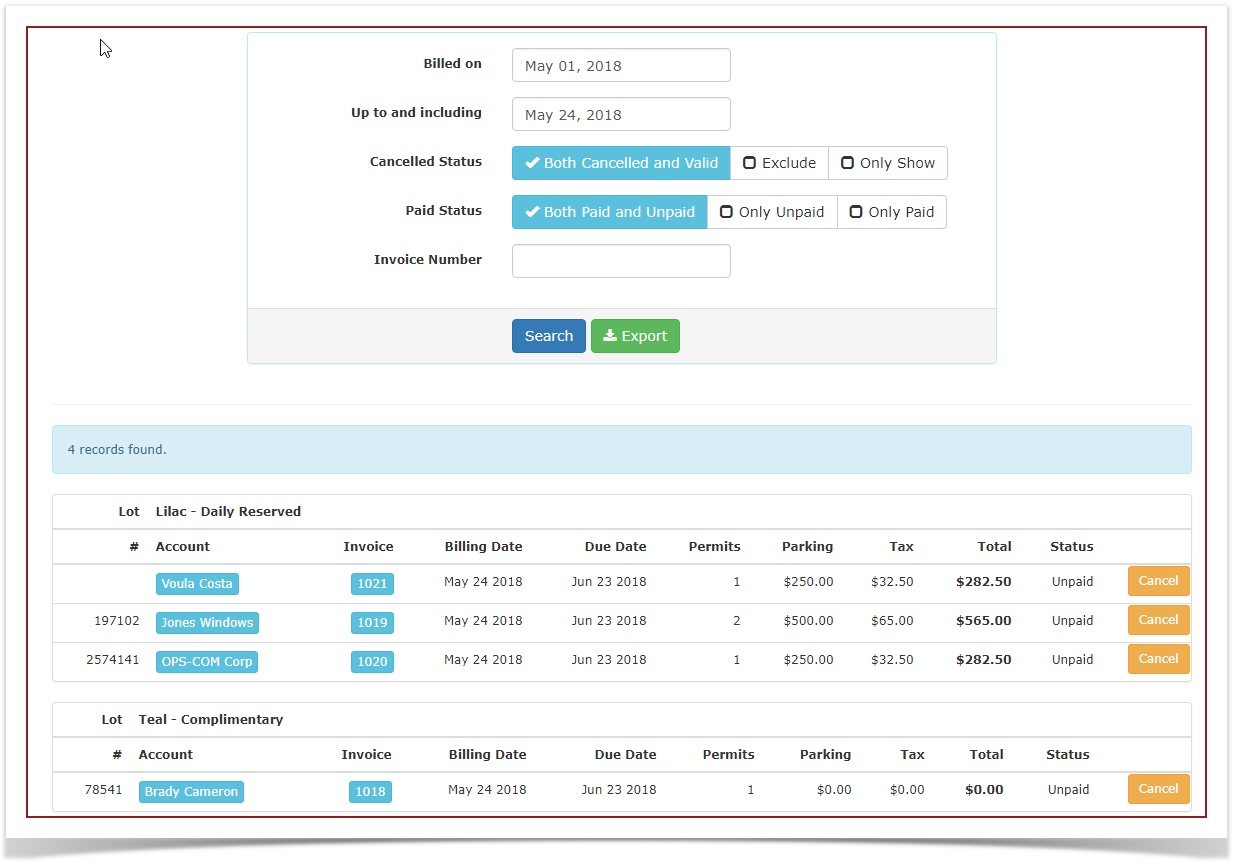
-
Click
ontheanSearch button to generate the results. -
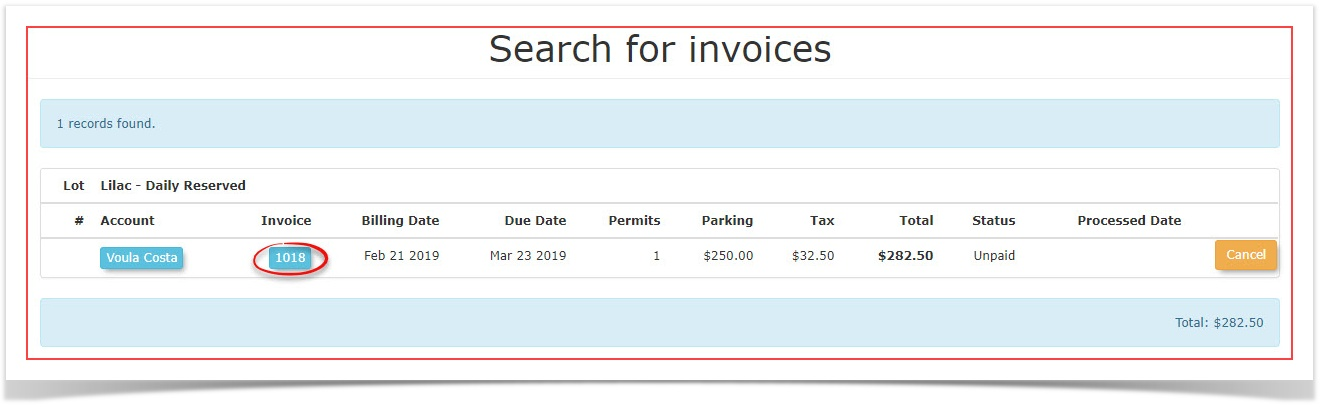
Click a specific invoice number from the generated list to
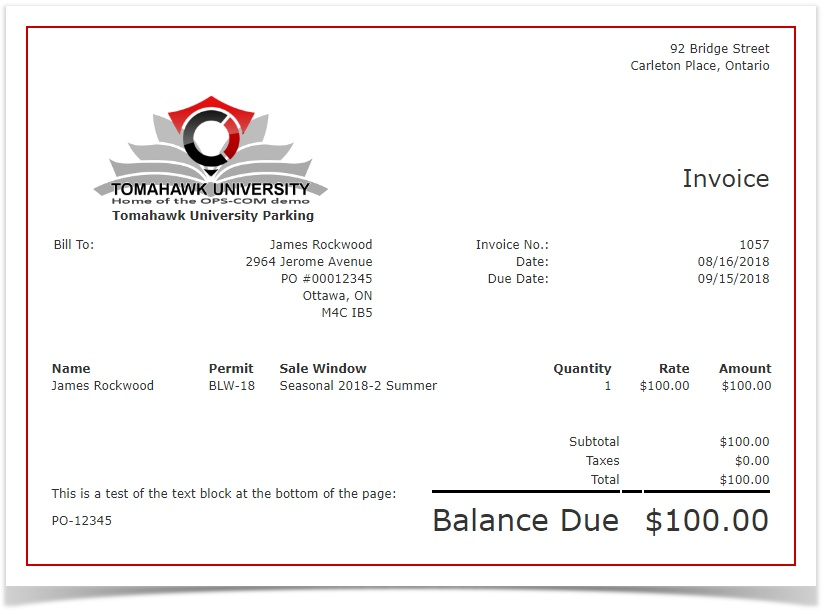
seeopen acopypreview of the invoice that will be sent to the client.Note:If you wish to print this you can right click and print it out of your browser. You can also print to a PDF if required.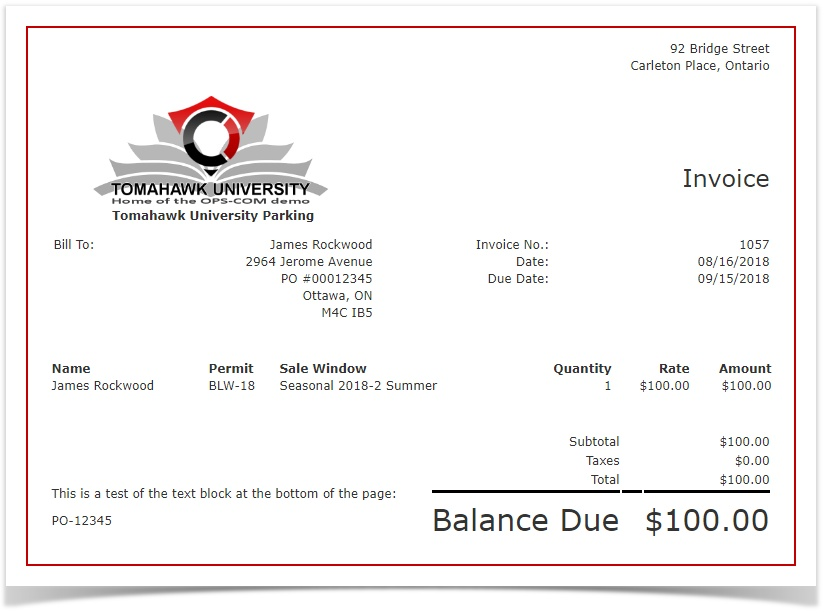
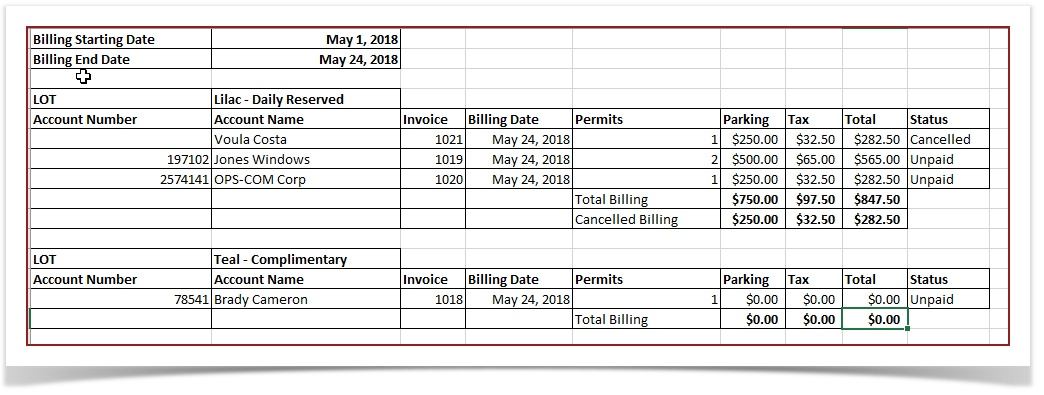
You can also export this report to Excel. This will show you the revenue for a selected date range by Lot.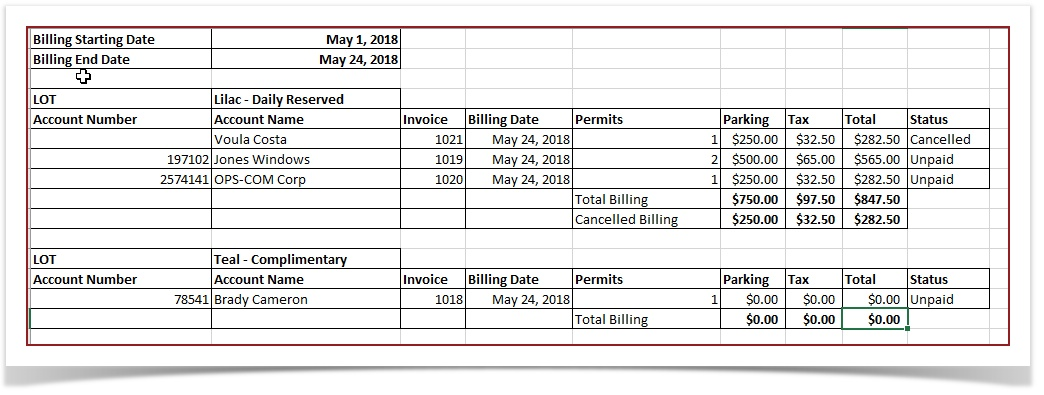
Exporting Invoice Data
-
Perform an invoice search using a specified date range.
-
Click the Export button or the Excel icon above the search results to download the report. This will generate a spreadsheet displaying the revenue for the selected date range grouped by lot.
Re-Sending an Invoice
-
Perform an invoice search using a specified date range.
-
Click the Export button or the Excel icon above the search results to download the report. This will generate a spreadsheet displaying the revenue for the selected date range grouped by lot.
WhenAdministrators docan we use this?
It is also possible to re-send an invoice if thea client requests a second copy sent.If for example the clientor mistakenly deleted the email, the admin has the ability to search up the original invoiceemail. and send it again.
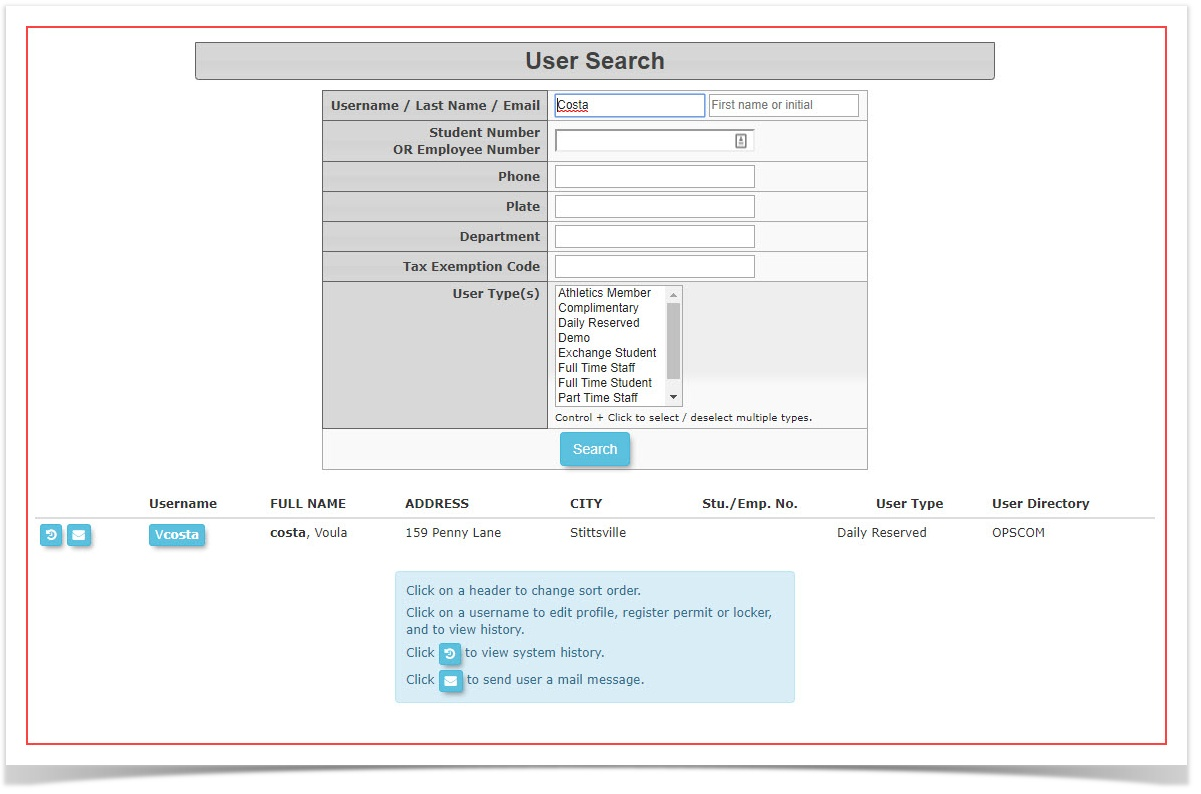
In our sample here we are looking for an invoice for Voula Costa.
To do so there are two different methods. YouThis canfindbethedoneinvoice in theuser's profile under Historyor you can search for the invoice through theSearch Invoiceutility.Firstly let's search the user in question: In this case using the last nameCosta.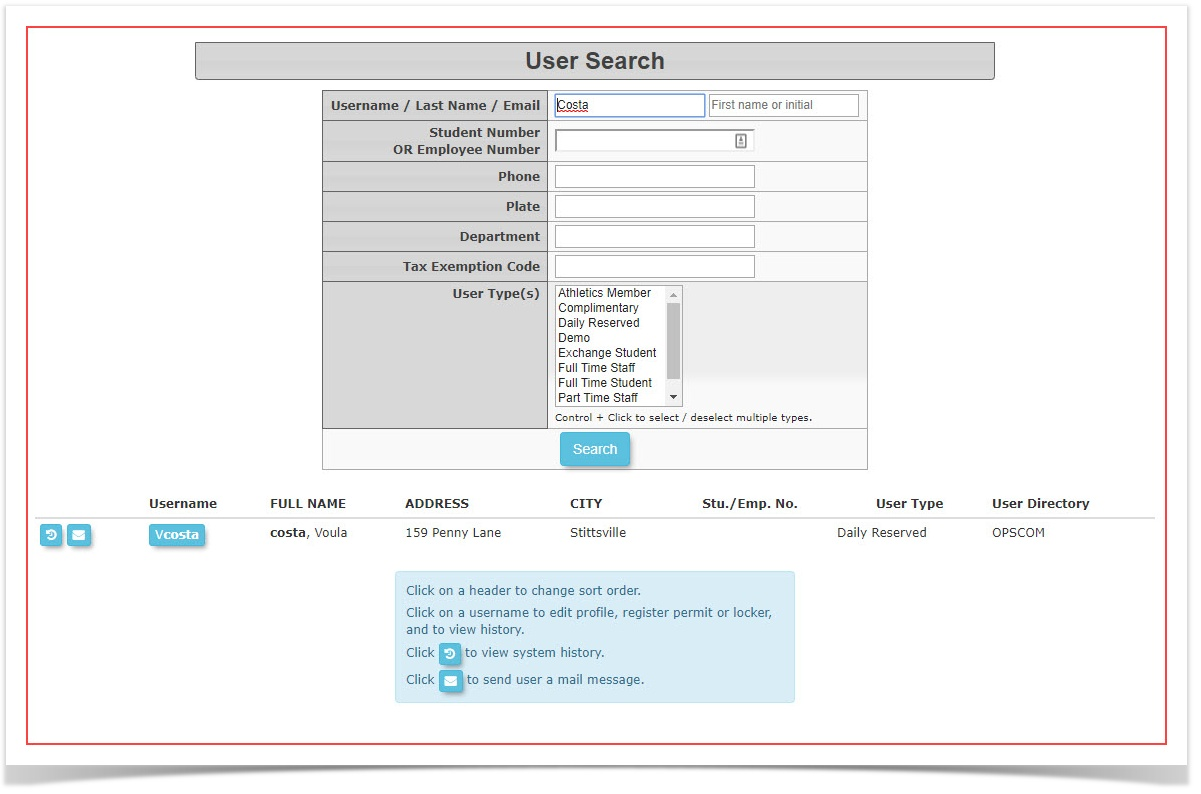
Click on theusernameto access the user's profile.
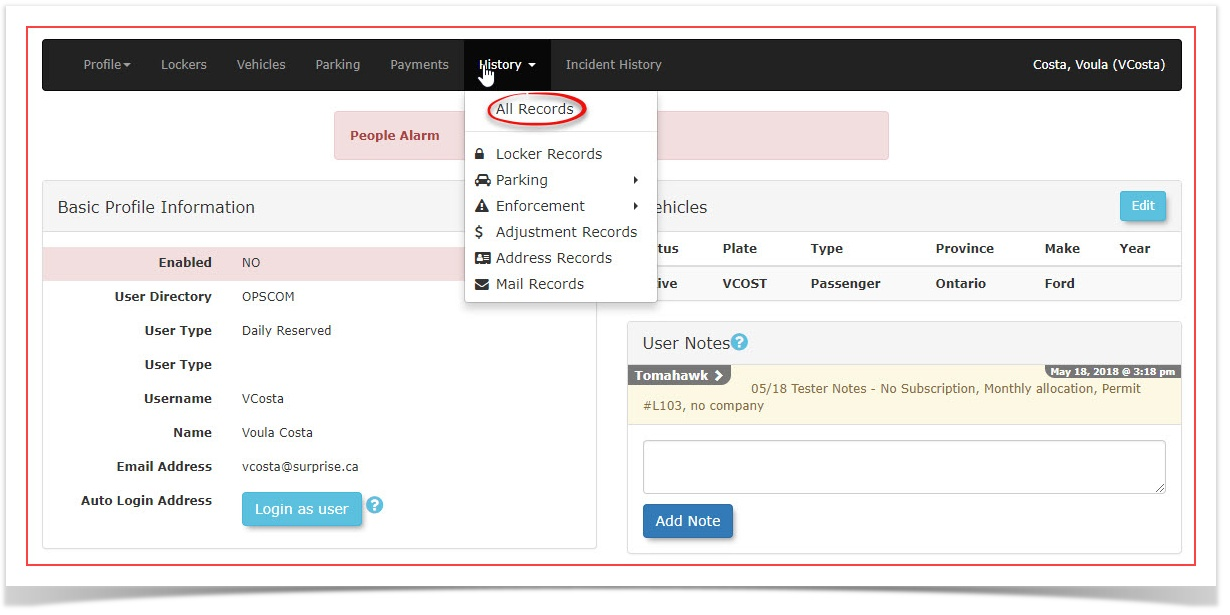
Once invia the user's profilehoveror the global invoice search tool.Method A: From the User Profile
-
Search for the user using their last name and click their username to access their profile.
-
Hover over
onAll Records to access the list ofthisthe user's transactions.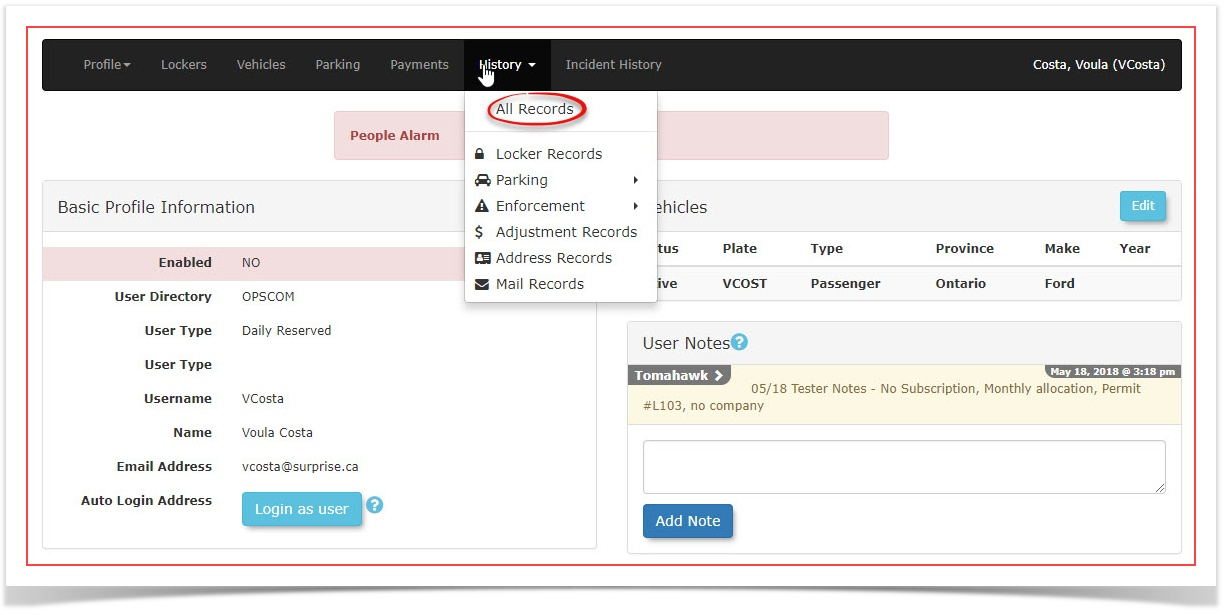
-
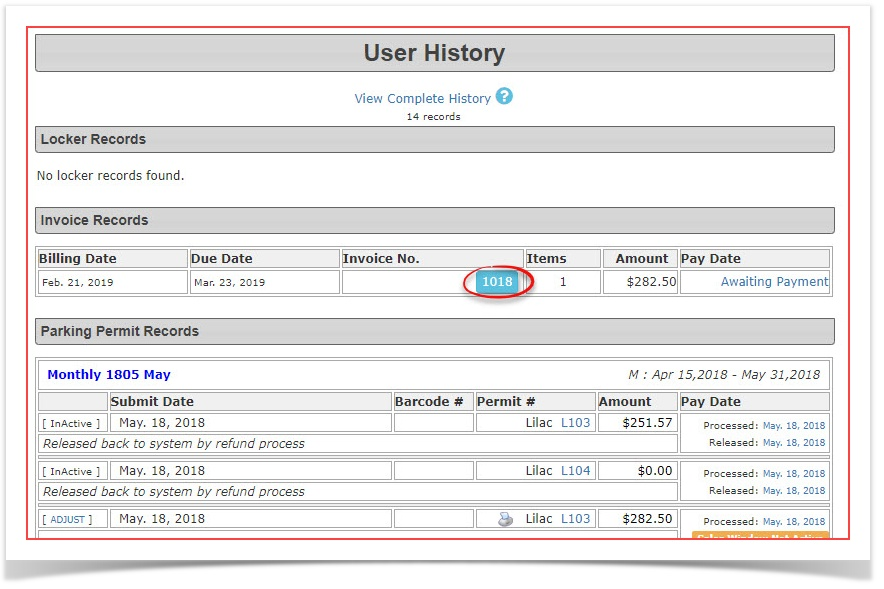
Locate and click
onthe specific invoice numberthatyou wish toresend.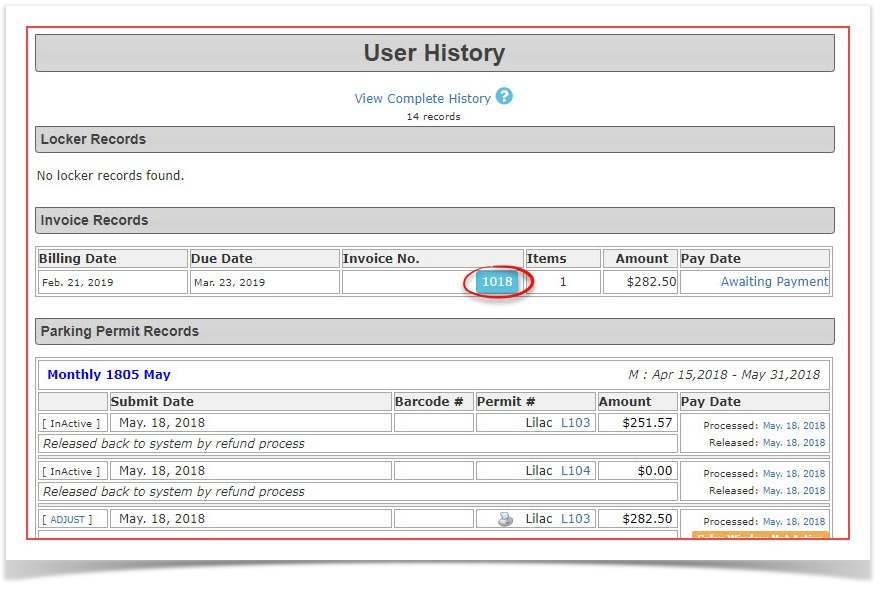
-
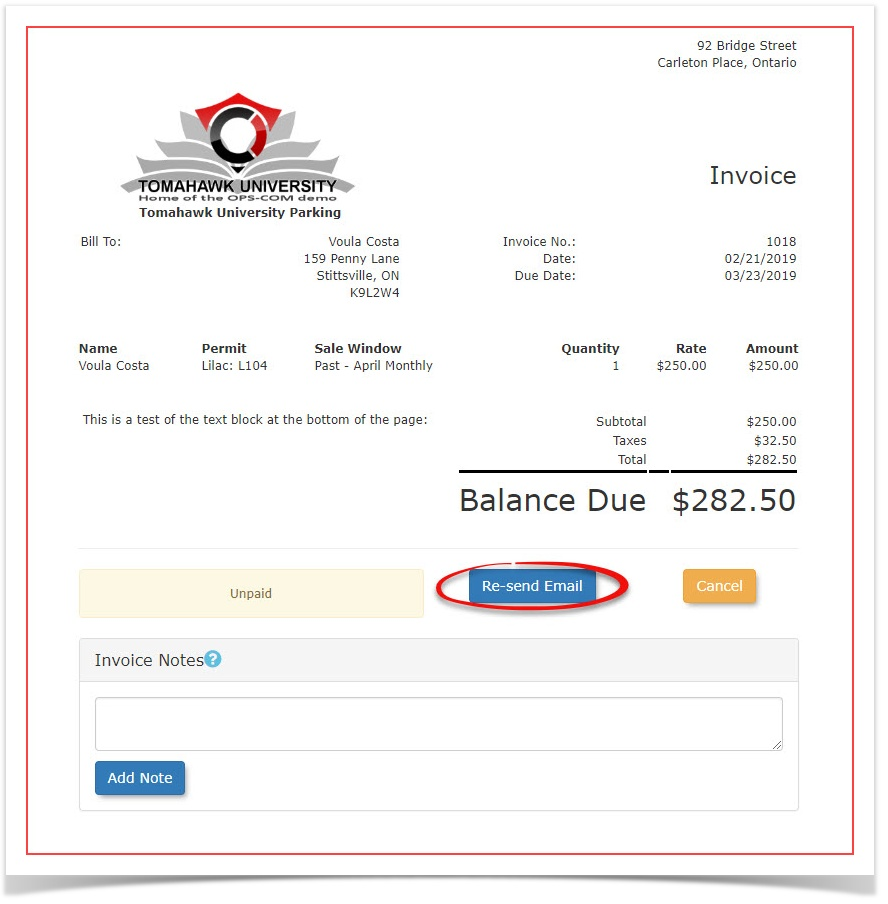
Once in the invoice preview you will noticeClick the Re-Send Emailbutton.buttonClicklocated onthis button to re-send the invoice.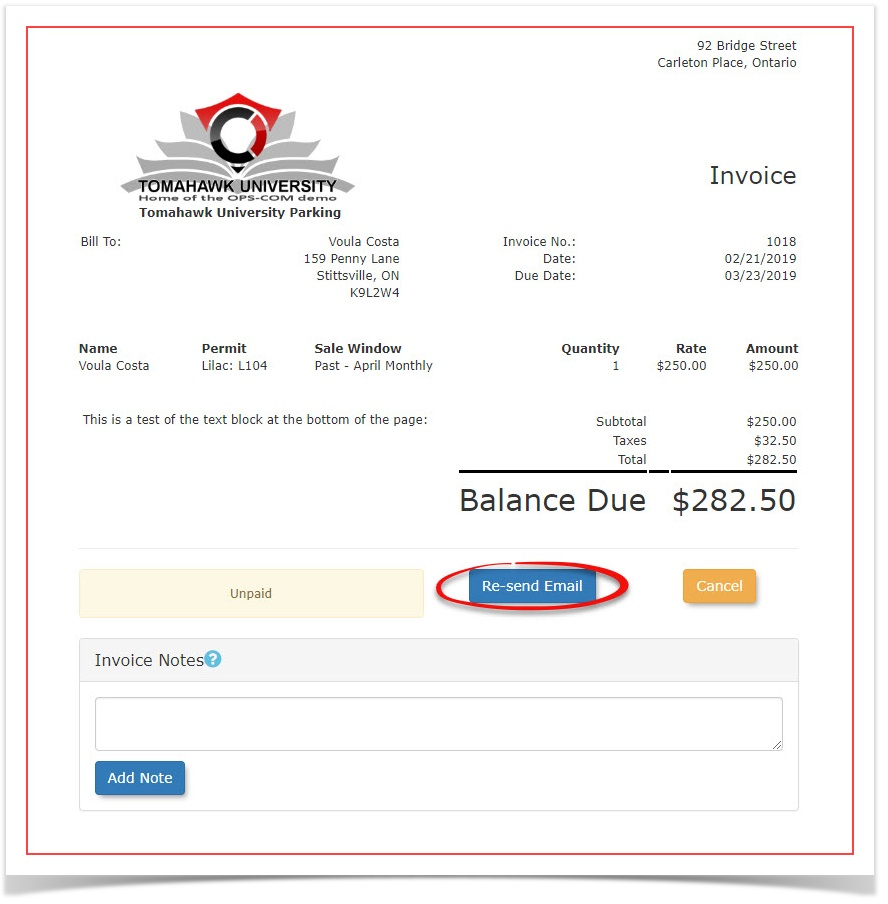
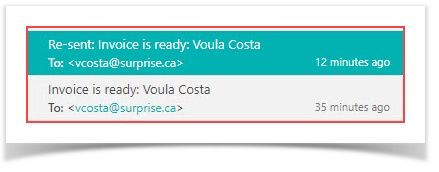
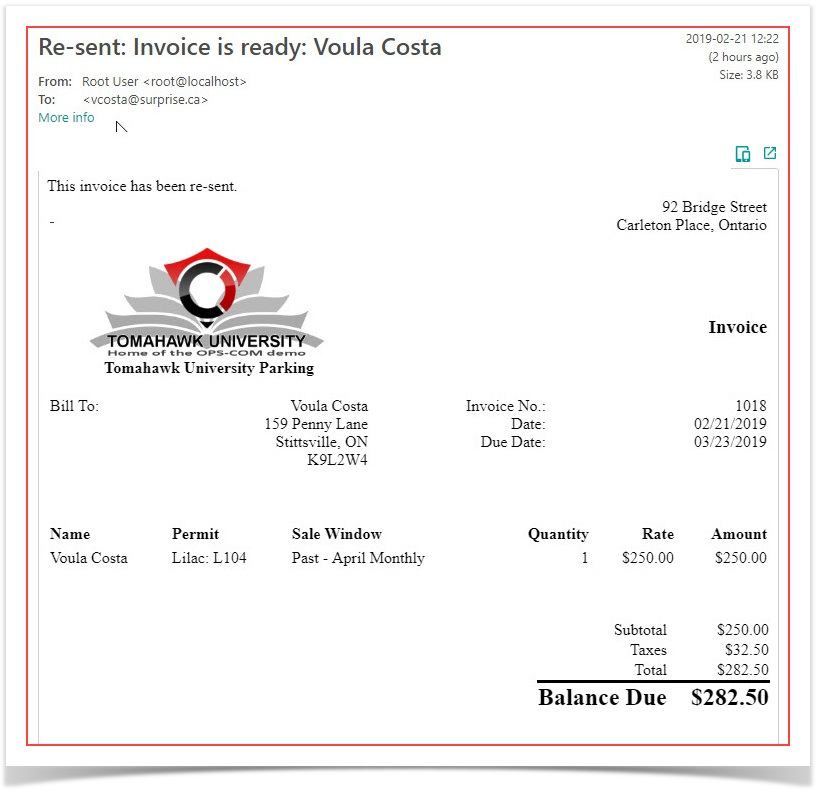
The invoice will be re-sent. In the sample below there is an original invoice send as well as a re-send. Notice the email title for the re-send has a prefix added indicating this is aRe-sentinvoice.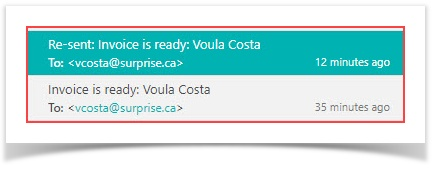
As mentioned above you can also findthe invoiceyoupreviewwishscreen.to
resendusingMethod B: From the Invoice Search
tool.To-
Hover over Permits and click
onInvoice Searchin the drop down menu.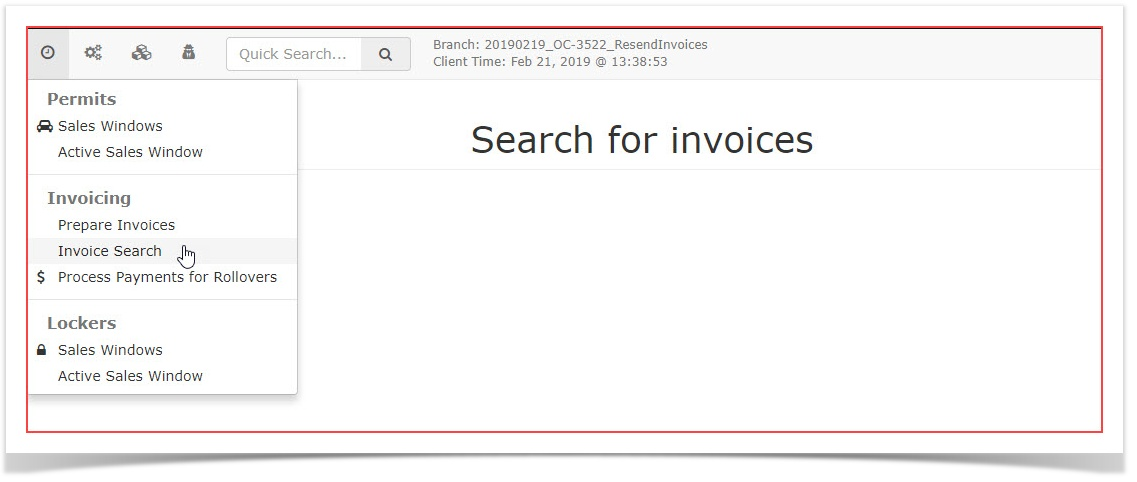
-
InEnter the specific invoice number into the search criteria windowenter theInvoice Numberin questionand clicksearch.theInSearchthis caseInvoice Number 1018.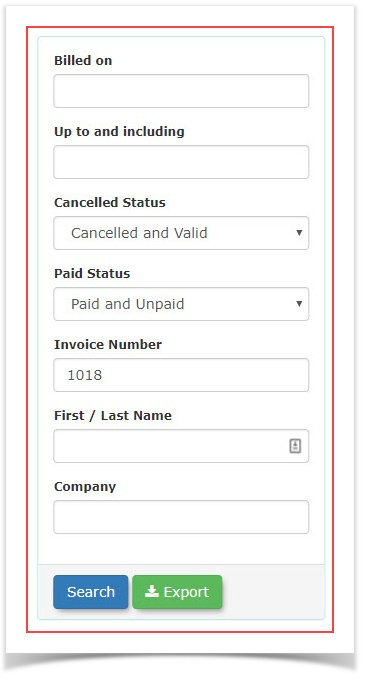
-
FromClick theresultinginvoice number from the searchresult click on theInvoice Numberresults to access theInvoicepreviewPreview Window.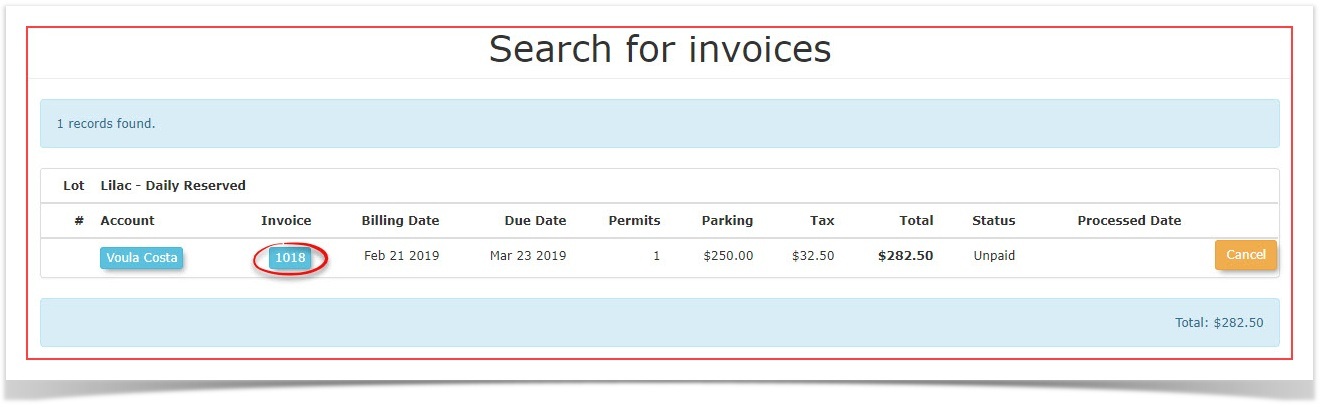
-
The process after this point is identical tostep 6 and 7above. The Re-Sent Invoice will look identicalClick theoriginalRe-SendinvoiceEmailformat: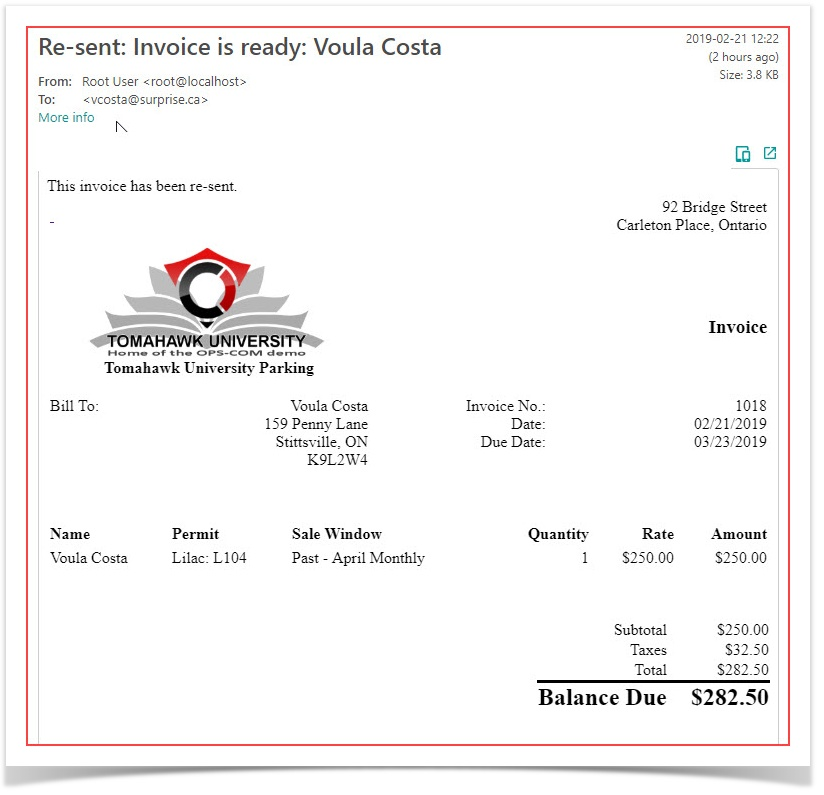
do so access thetool under thePermitsmenu.When an invoice is re-sent using either method, the system automatically adds a prefix to the subject line of the email. This visual cue helps both the user and the administrator quickly identify that the message is a re-sent copy rather than a new charge.
Printing
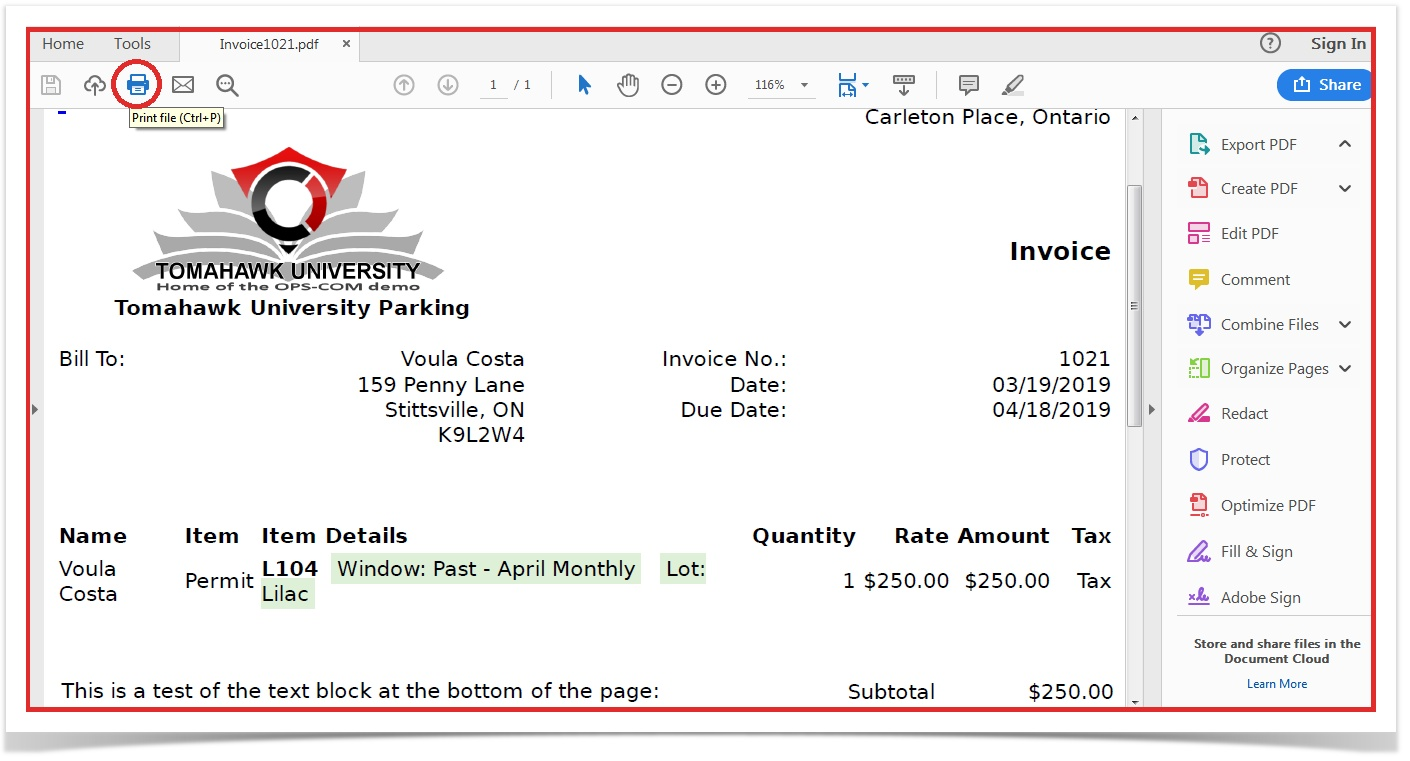
Froman Emailed PDF InvoiceIf a user or administrator needs to print the physical PDF copy of an emailed invoice, specific steps should be followed to prevent formatting errors.
-
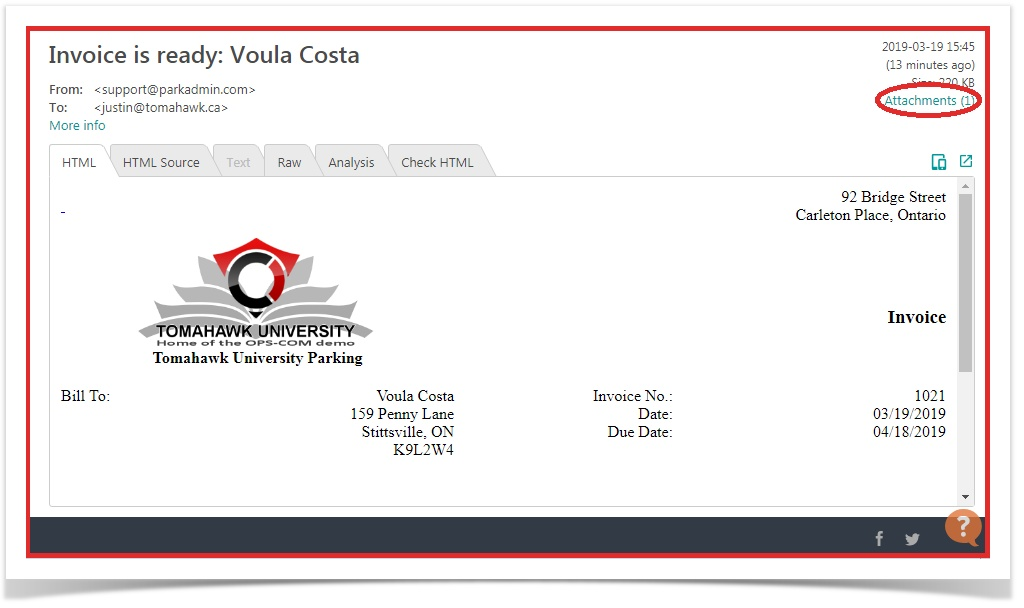
It is importantNavigate tonotethethatemailincontainingorderthetoinvoiceprintandthisclickPDFthedocumentattachmentyou should follow these next stepslink. -
YouClickmustthefirstDownloadnavigatebutton tothe email of the invoice in the client email where you will find an attachments link circled below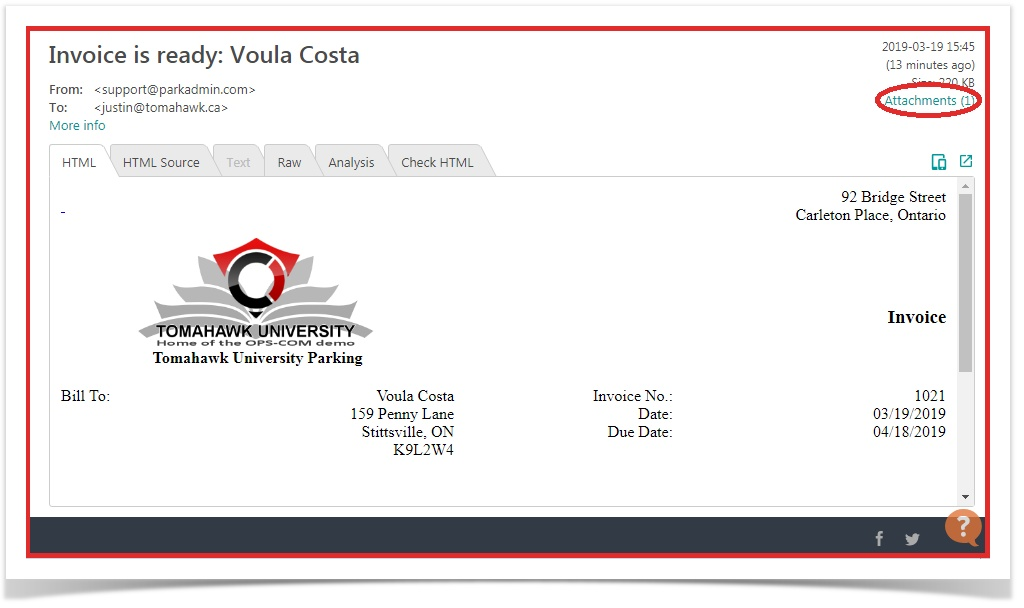
After opening the attached PDF file you will be brought tosave the fileopenedto your local computer, rather than viewing it in the web browser.-
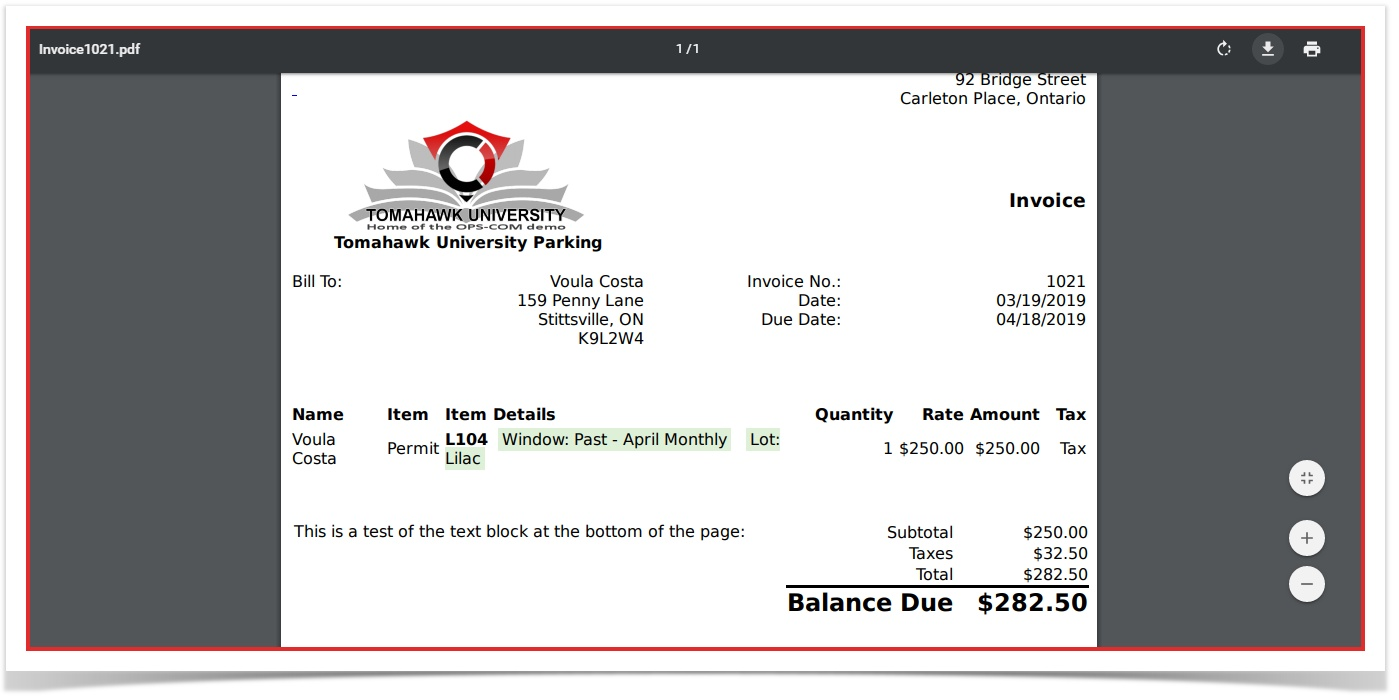
-
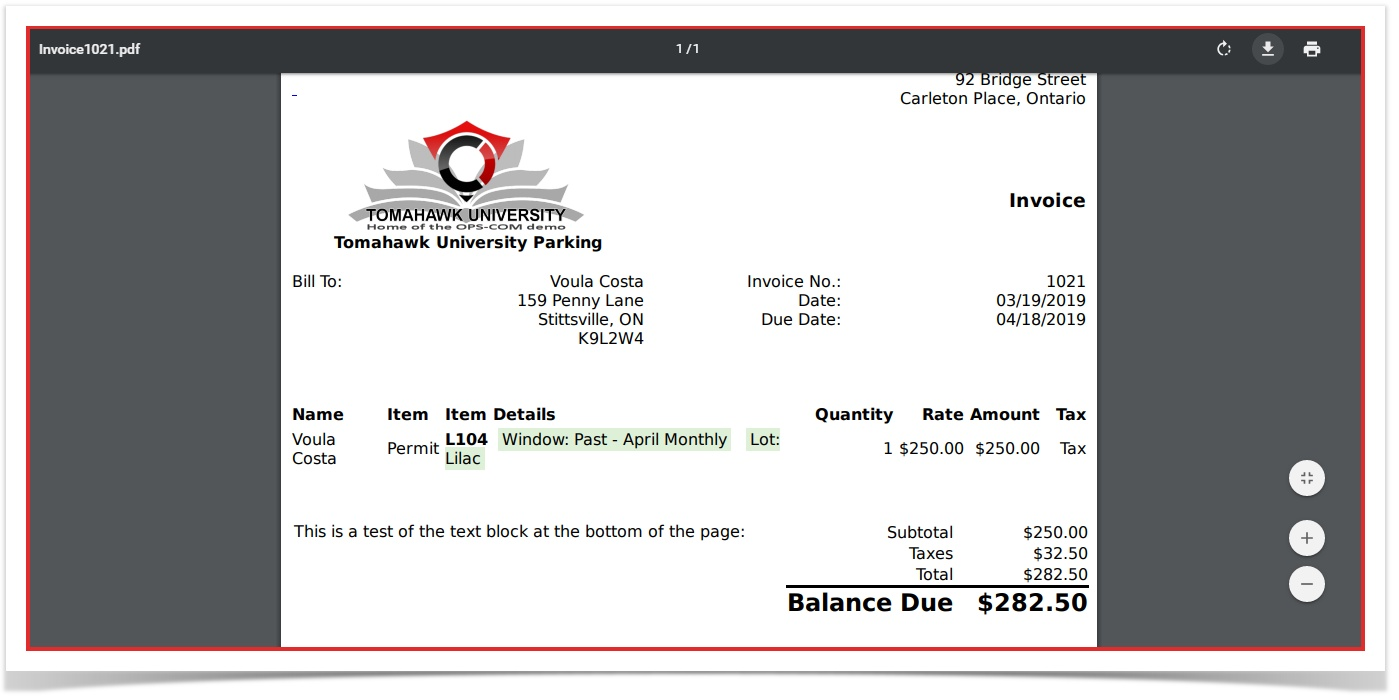
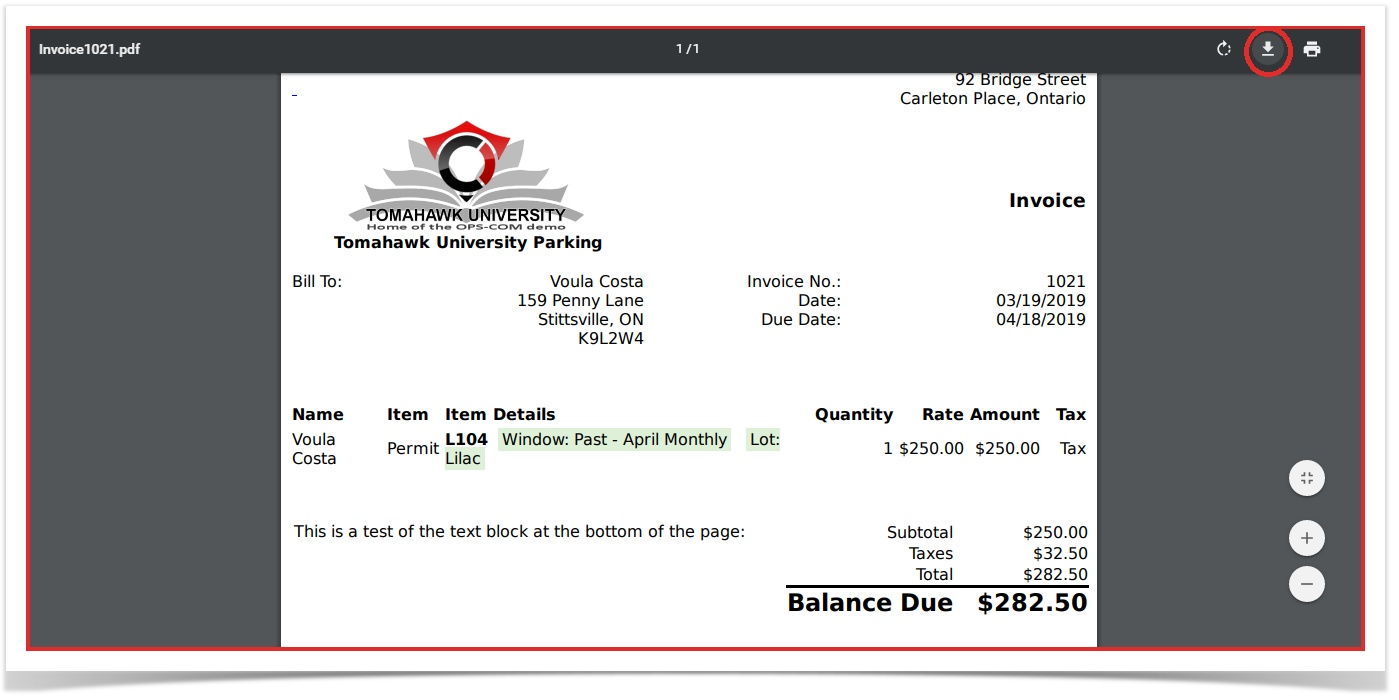
If you print form here you will receive a cut off version of this PDF. In order to prevent this you should download the file by pressing this button: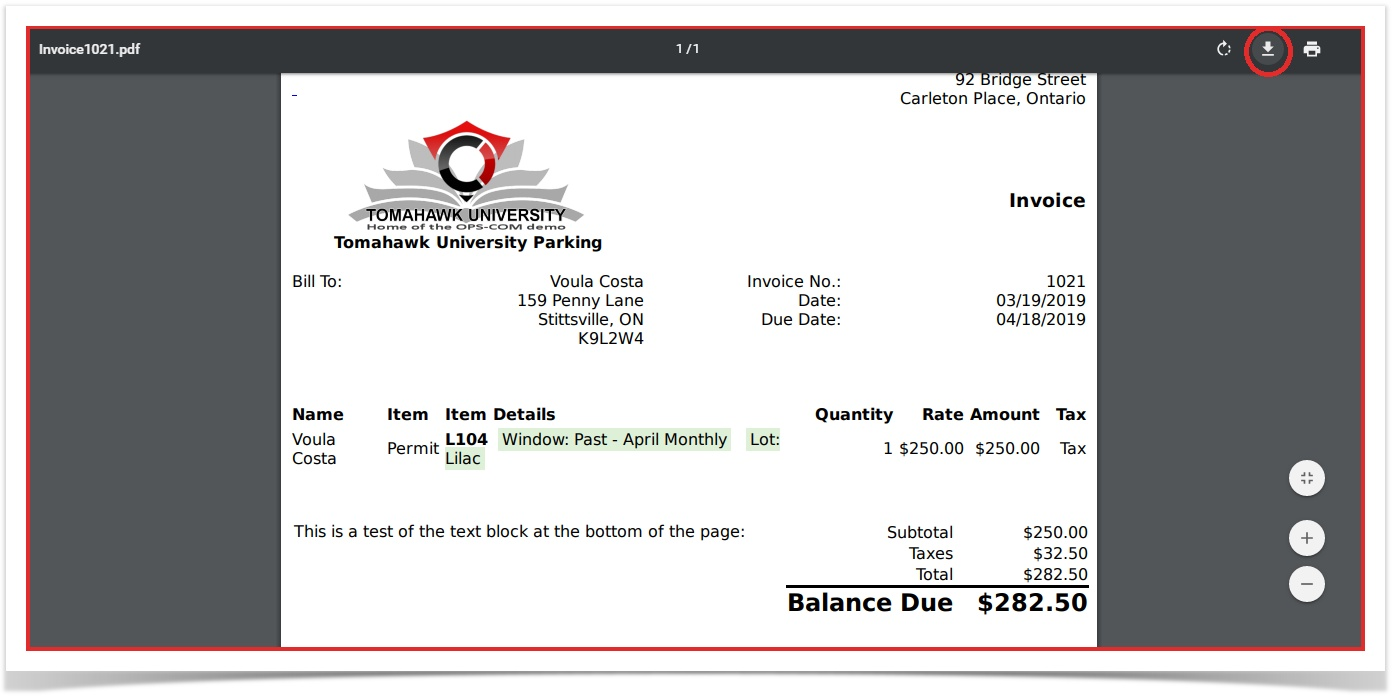
Save it to your preferred location and open it with the PDF reader of your choosing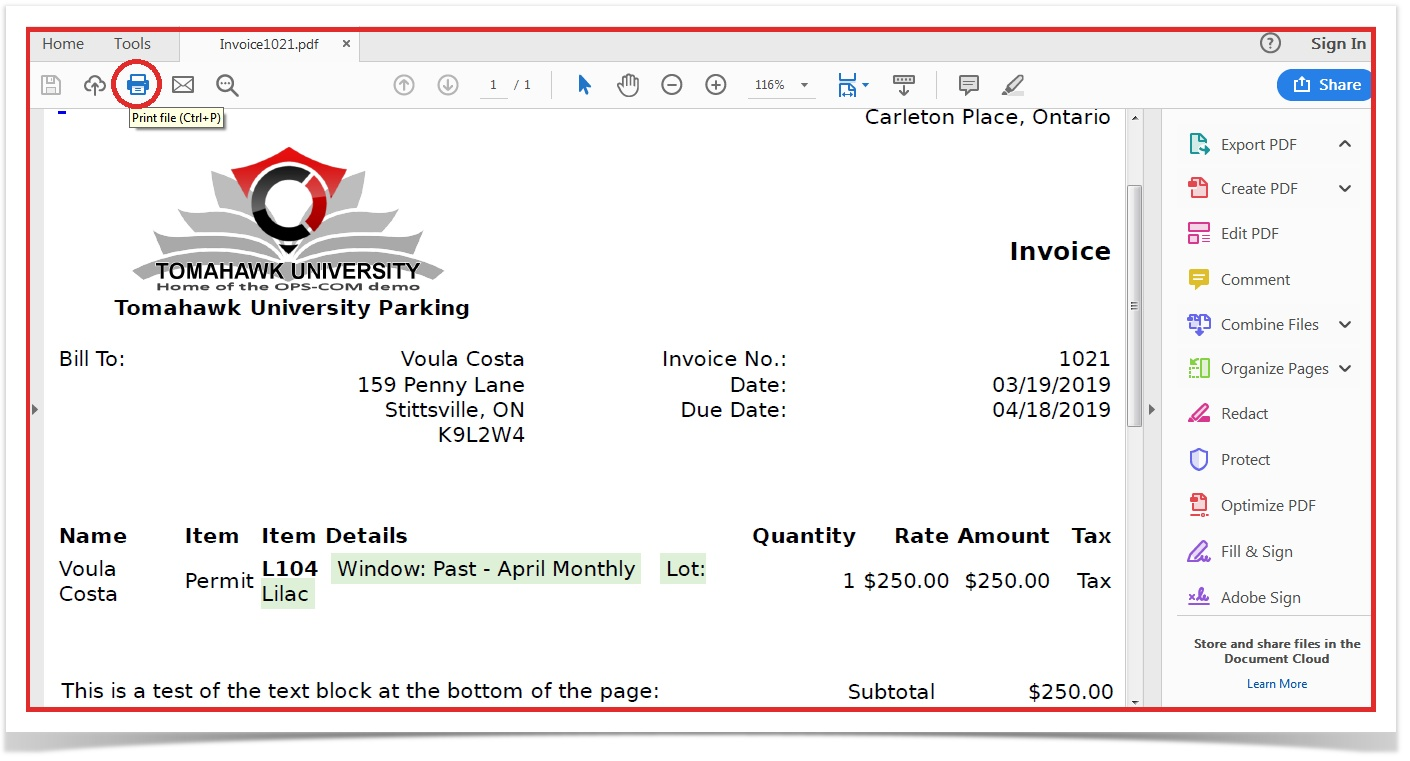
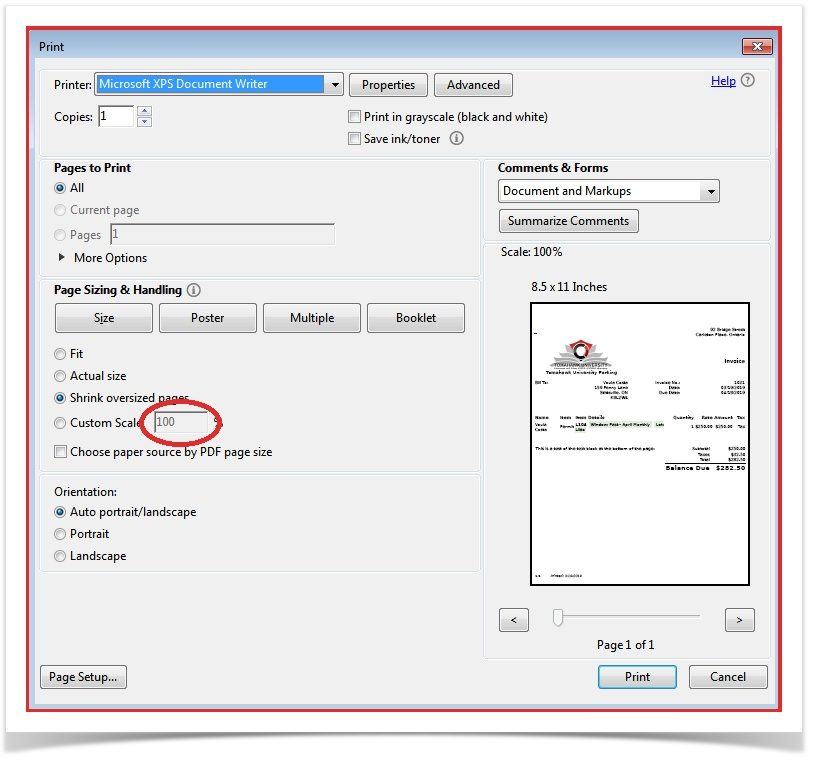
From here you just printPrint the invoicelike you would a normal documentdocument, ensuringthatthe print scale in your settings is set to 100%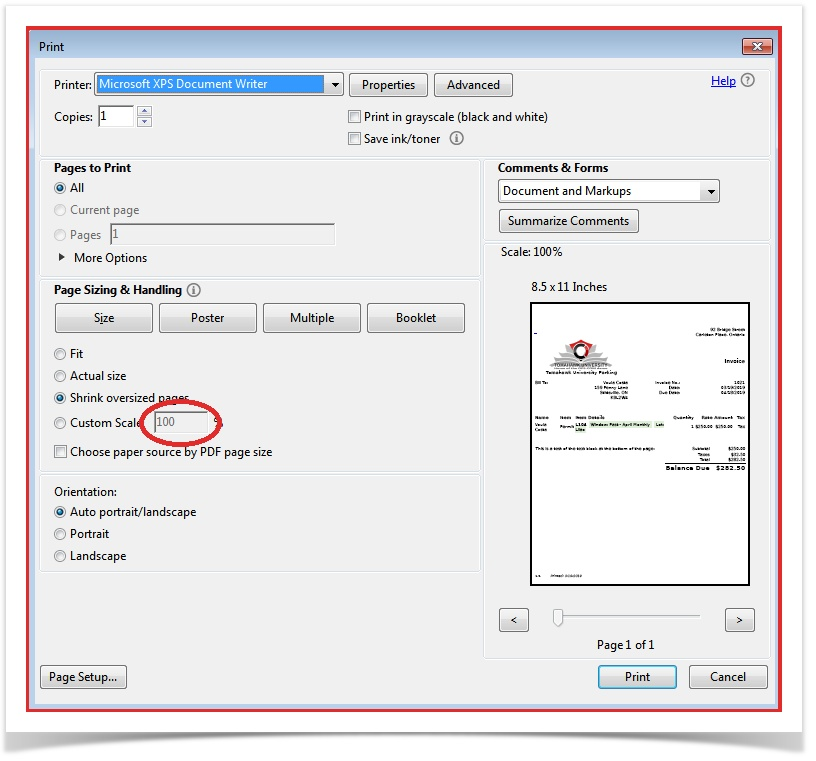
Best Practices and Considerations
-
Avoid browser printing: Always download the PDF invoice before printing it. Printing directly from a web browser's built-in PDF viewer frequently results in cut-off margins, missing text, and scaling issues.
-
Verify contact information: Always verify that the email address on the user's profile is current and accurate before clicking the Re-Send Email button. If the original invoice was lost because the email address was outdated, the re-sent copy will also fail to deliver until the profile is updated.
-
Leverage exports for revenue tracking: Use the date range search and Excel export function at the end of a billing cycle to quickly reconcile lot-specific revenue against your primary accounting software.
-