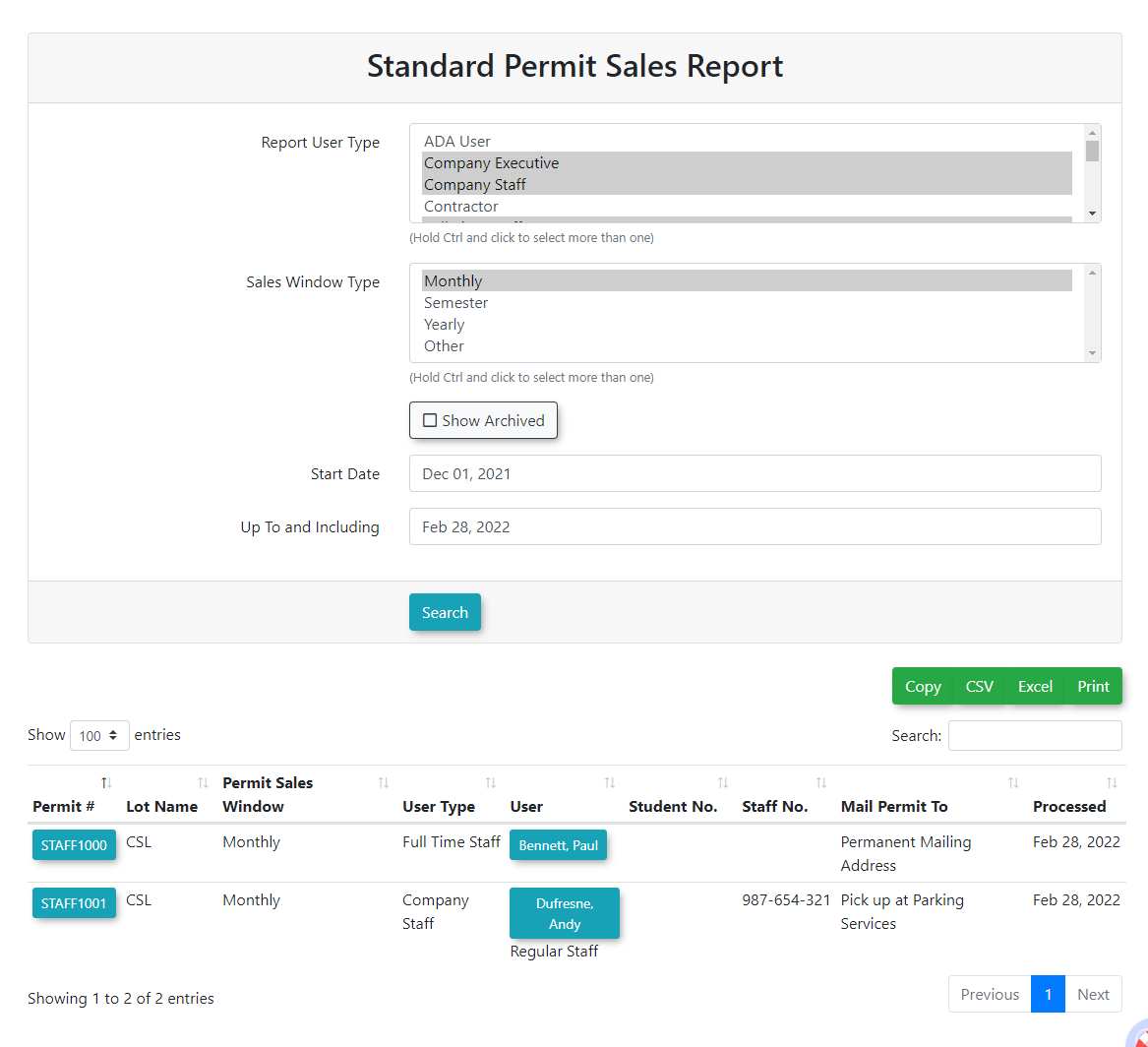
Permit Sales Report
InThe Permit Sales Report allows administrators to generate a customizable summary of permit transactions based on specific user and allocation types. Its primary purpose is to help track revenue, monitor permit distribution trends, and audit both active and historical sales over a defined date range. This article is intended for OPS-COM administrators.
Setup and Configuration
This report is a standard feature within the Permit Management module and requires no specialized system setup to run. However, administrators must have the appropriate reporting and permit management permissions assigned to their user role to access the page and generate the data.
Using this Feature
Administrators can use this tool to filter and review permit sales data based on specific operational parameters and export the results for external analysis.
Generating the Report
-
Hover over
ParkingPermit Management,hover over theclick'Permit ManagementReports' icon, andclickselect'Reports'then 'Permit Sales Report'.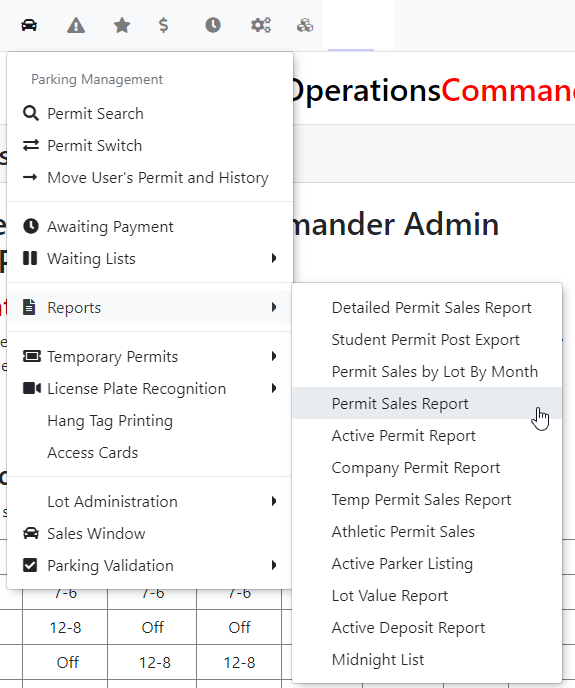
-
The'Permit Sales Report' screen will display.Select the desired usertype(s)types and allocationtype(s)typesyoufromwantthe provided lists to include in the report.Hold -
and click to select more than one.Enable the
checkShowboxarchived sales checkbox if you want the report toshowincludearchivedhistoricalsalesdata,(thissuchincludes allas released or switchedpermits).permits. -
Choose the desired timeframe using the start date and end date
andcalendarclickfields. -
Click the
'Create Report'button.buttonThetoreportgenerate the data, which will displayunderdirectly below the search criteria.
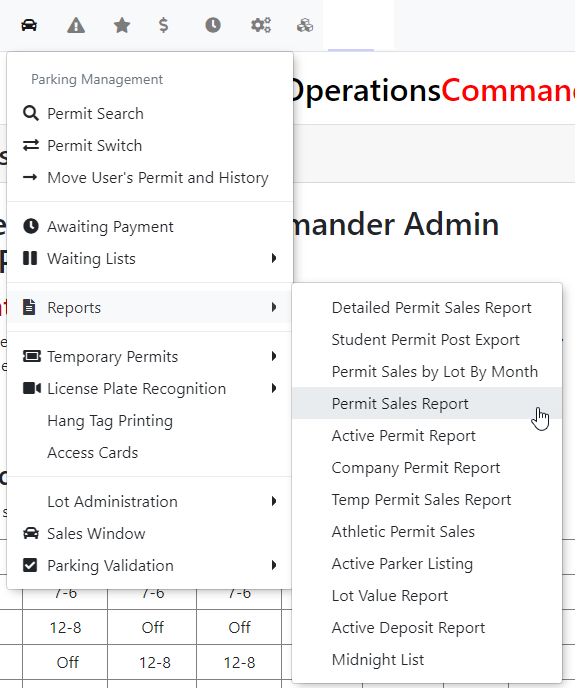
When selecting user or allocation types from the list menus, you can quickly highlight multiple non-consecutive options by holding the Ctrl key (or Cmd on Mac) on your keyboard while you click.
Key Information Displayed
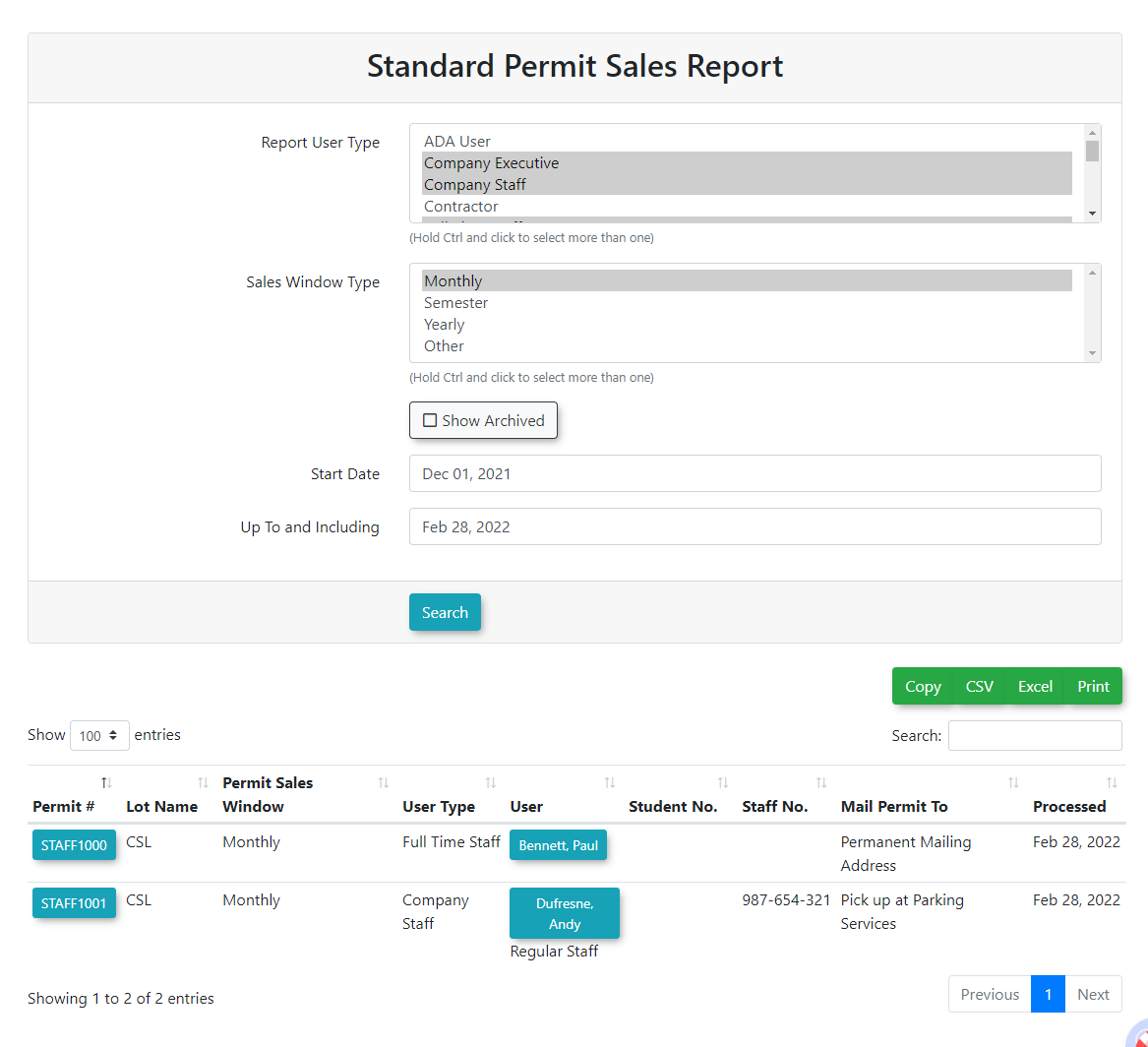
Once generated, the report displays a data table summarizing the permit sales that match your selected criteria. This provides a quick on-screen review of the total transactions, grouped by the parameters you defined in the search fields.
Available Actions and Buttons
-
Create Report: Click this button to execute your search query and populate the
'data table on the screen. -
View Details in
ExcelExcel:'Click this button to export thetable.generated data into a spreadsheet for external formatting and granular financial analysis.
Best Practices and Considerations
-
-
Leverage Excel exports: Organizations should use the View Details in Excel feature for complex data manipulation. While the on-screen table provides an excellent quick overview, exporting the raw data allows administrators to build custom pivot tables and cross-reference sales with external accounting software seamlessly.