
Summary Report by Officer
1.The Summary Report by Officer provides administrators with a high-level overview of parking violations issued by specific ticket writers within a defined date range. Its primary purpose is to help management track officer productivity, monitor enforcement trends, and audit ticket issuance volume across the patrol team. This article is intended for OPS-COM administrators.
Setup and Configuration
This report is a standard feature within the violations module and requires no specialized system setup to run. However, administrators must have the appropriate reporting and violations management permissions assigned to their user role to access this page. Ensure that your field staff are accurately configured as ticket writers within their user profiles to guarantee their activity is properly categorized in the final report.
Using this Feature
Administrators can use this tool to filter violation issuance data by specific personnel and export the results for performance reviews or team audits.
Accessing and Generating the Report
-
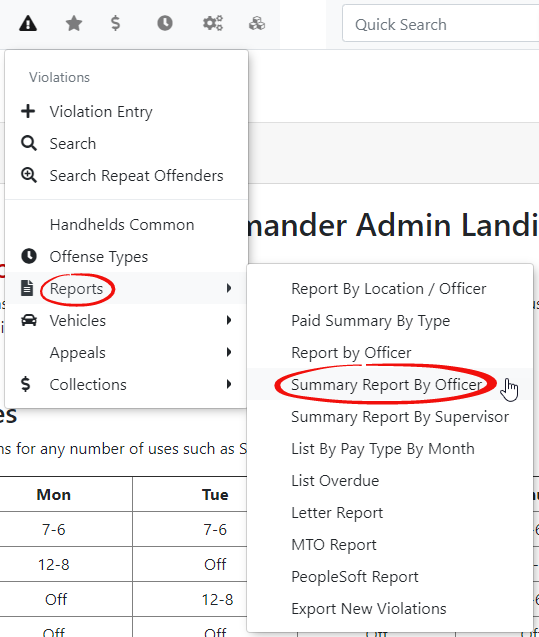
Hover over
theicon and, hover overReports.Reports,Clickandonclick Summary ReportbyByOfficersOfficerinfrom thedropdrop-down menu.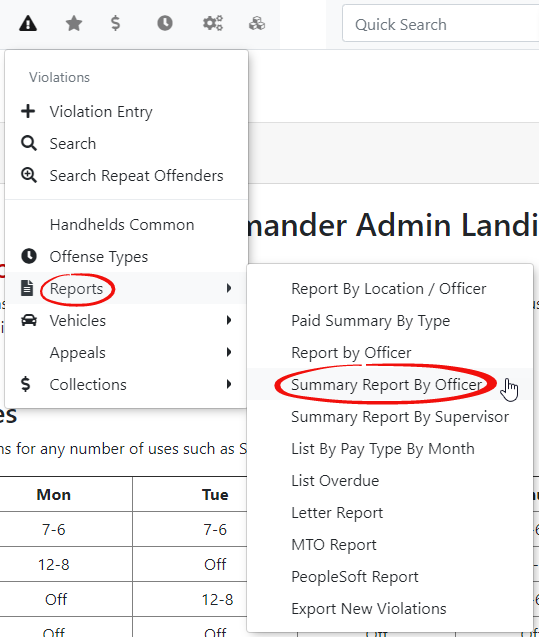
-
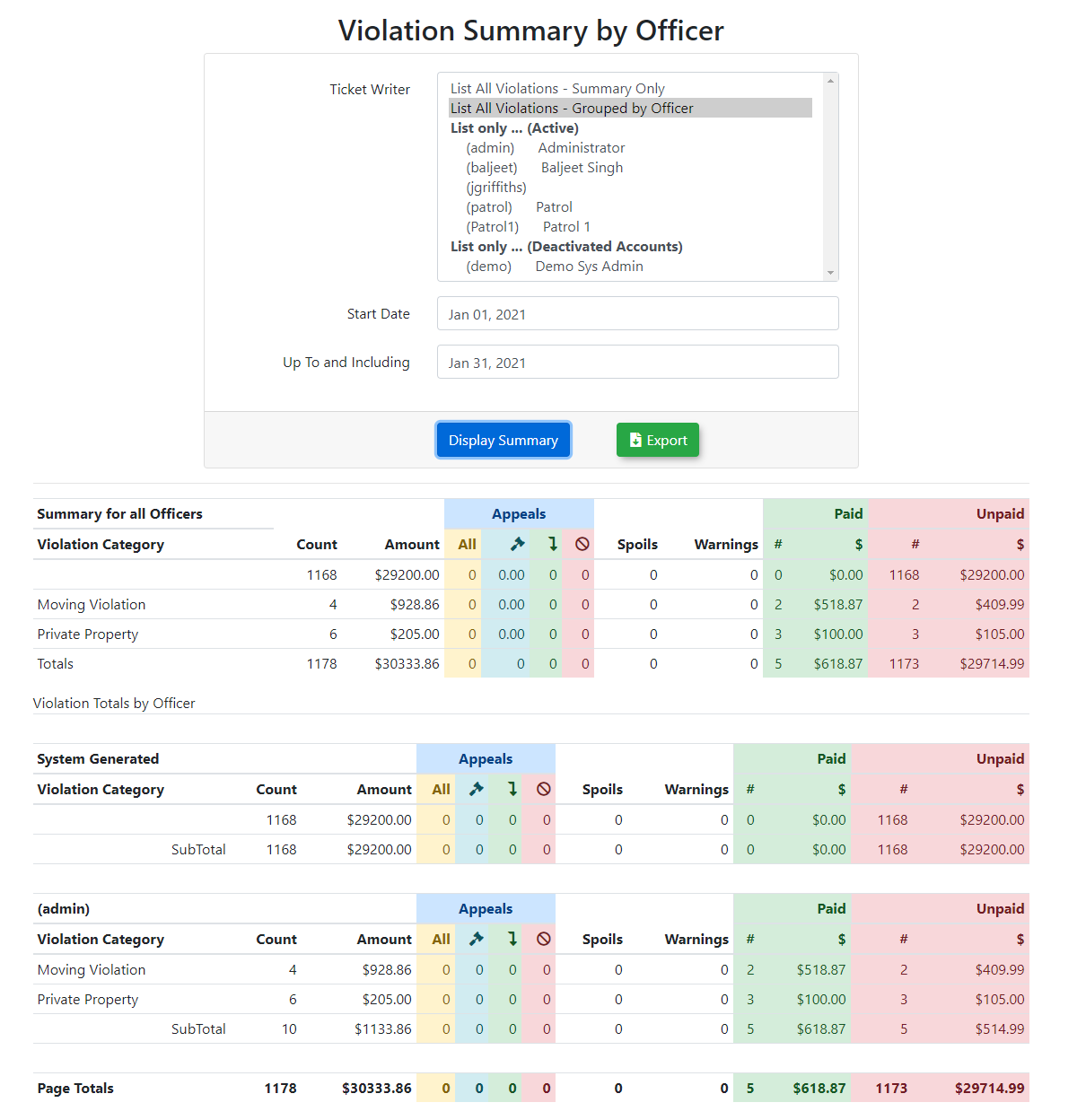
2.SelectThethe desired Ticket Writer from the drop-down menu on the Violation Summary by Officerscreenscreen.is displayed. Select yourTicket Writeranddate parametersfor the search.
You can search for an individualofficersofficer, or selecteitherone of the full list options: Summary Only (for a cumulative total) orGroup led -
Enter the desired date parameters for the search.
-
Click the Display Summary
andbutton to generate the reportwill appearat the bottom of the screen.
Key Information Displayed
-
Ticket Writer: The
reportnamecanofalsothebeenforcementexportedstafftomemberExcel.whoToissueddothesoviolations,clickor a consolidated summary depending on the dropdown selection. -
ExportIssuance Totals:button.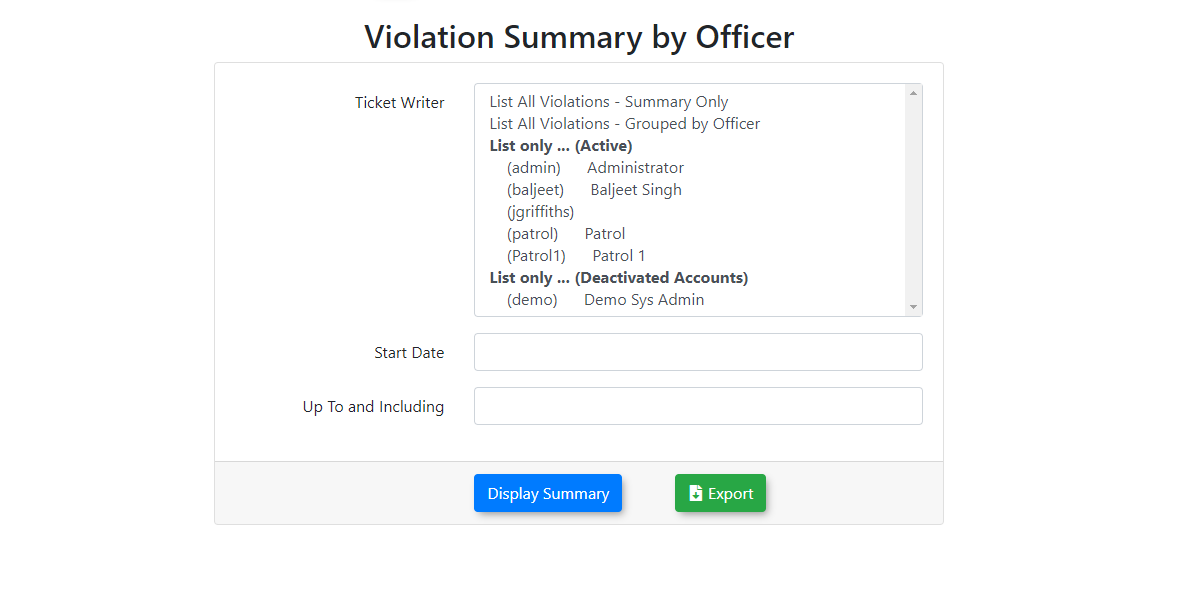
The
reportdata table will display the total number of violations recorded by the selected user(s) during the defined date range.
Available Actions and Buttons
-
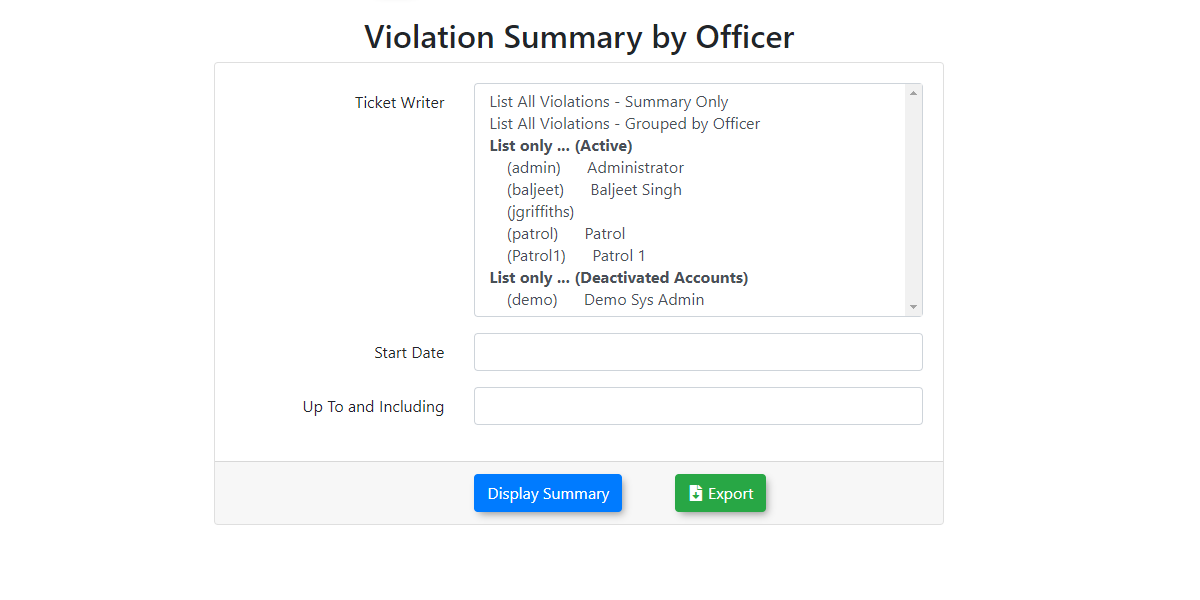
Display Summary: Click this button to execute the query and view the results on the screen based on your
searchcriteria. -
Best Practices and Considerations
-
Monitor team performance: Organizations should use the By Officer group setting on a monthly basis to compare enforcement productivity across the entire team. This helps management quickly identify highly active officers and those who may require additional deployment guidance.
-
Leverage exports for reporting: Always use the Export button to save historical productivity data. Because this report is frequently used for staff performance reviews, having an archived Excel spreadsheet ensures you retain an accurate record of activity if an officer's system profile is later modified or deactivated.