Towed Vehicles Report
Using the Report
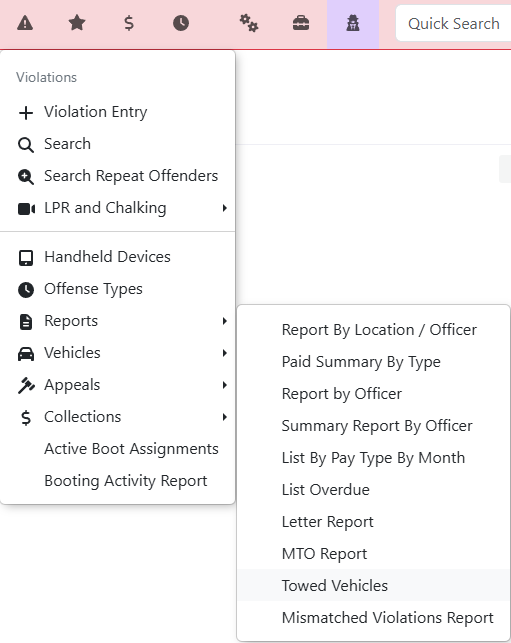
Hover over Violations and then Reports, then click Towed Vehicles.
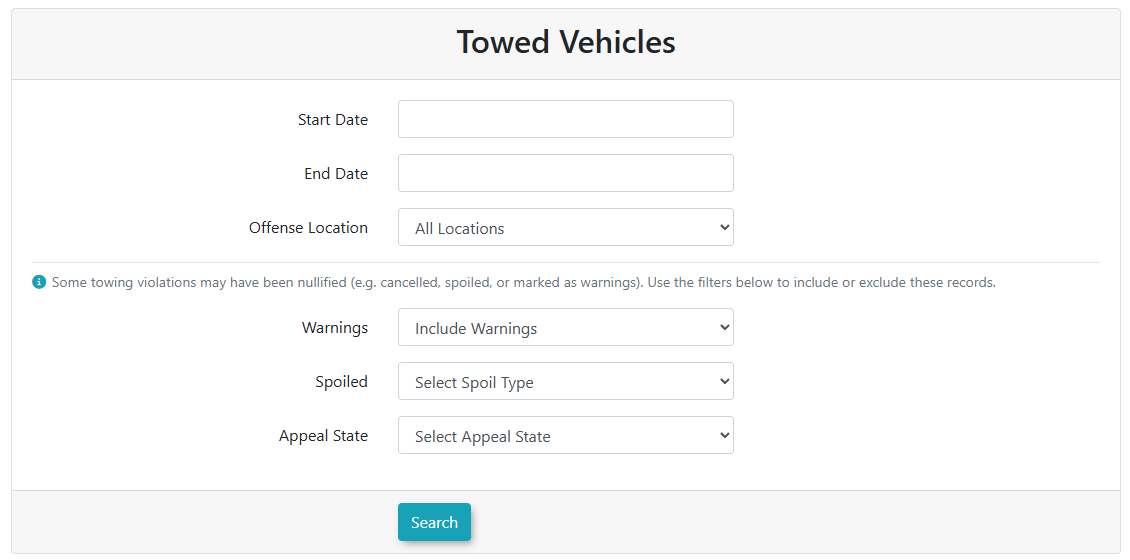
The Towed Vehicles screen is displayed. Select your parameters for the search.
Search Criteria include:
-
Start Date and End Date: Set the date range you wish to report on (up to and including the end date).
-
Offense Location: Filter the results to a specific lot or area, or select "All Locations".
-
Warnings: Choose to hide, include, or show only warnings that resulted in a tow.
-
Spoiled: Filter by specific "Spoil Types" to include or exclude nullified records.
-
Appeal State: Filter based on the current status of the violation appeal (e.g., Pending, Upheld, Canceled).
Click Search to view the report results onscreen.
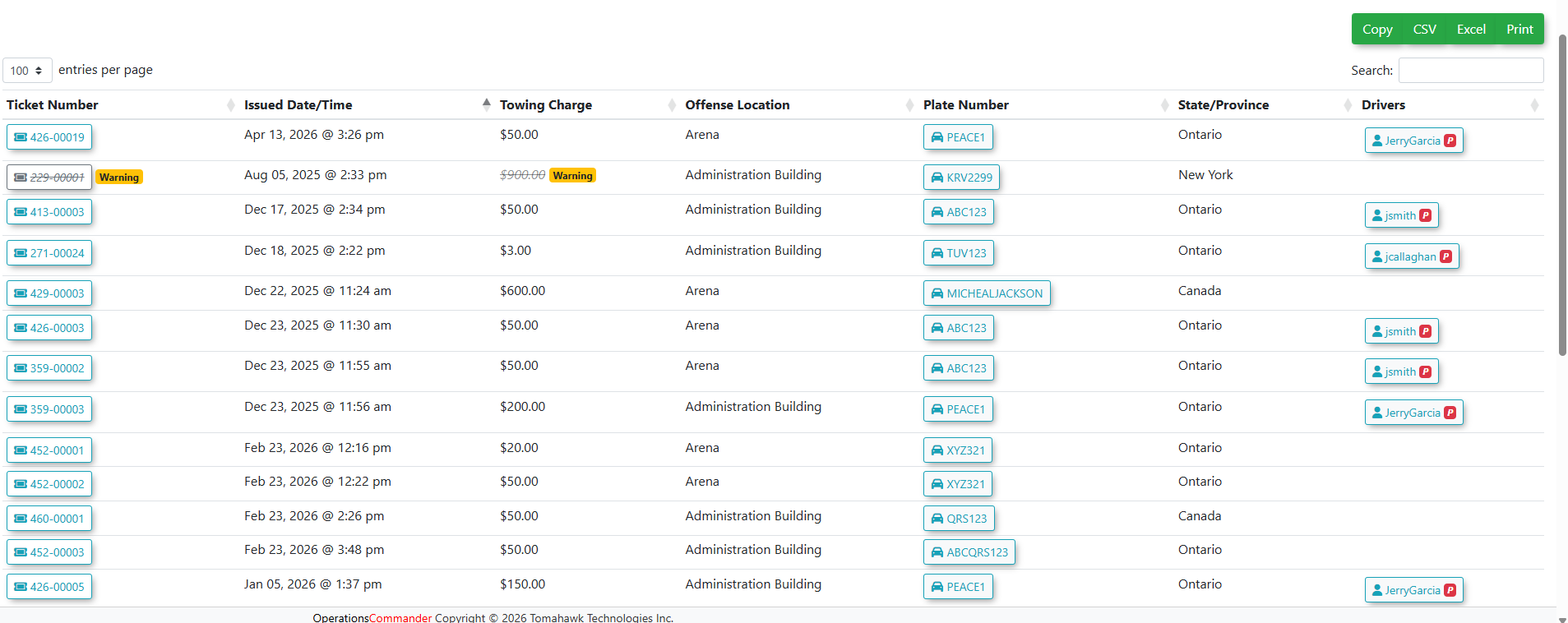
The report will appear at the bottom of the screen. The results will only include violations where the "Vehicle Towed" flag is set.
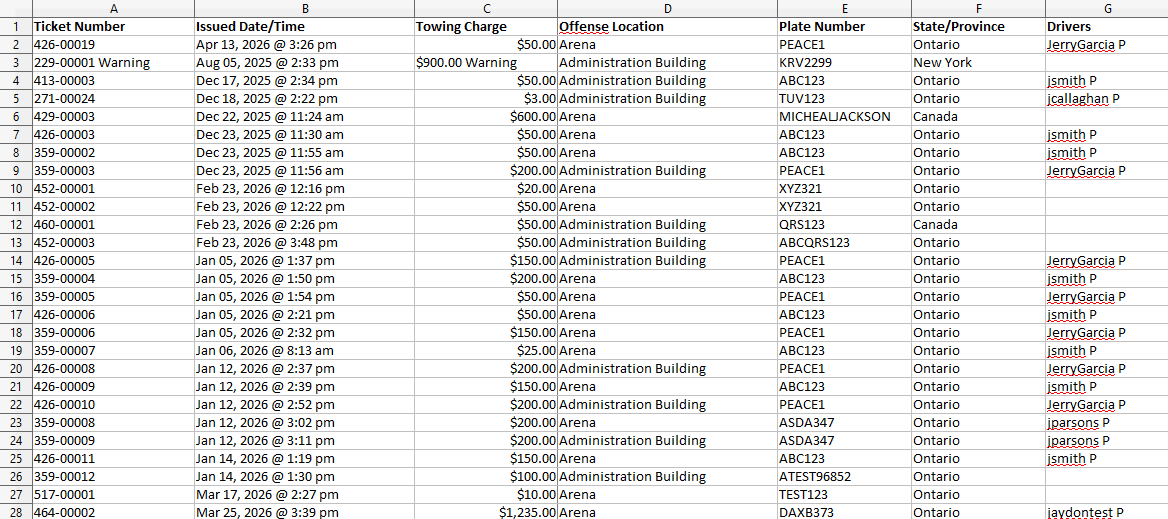
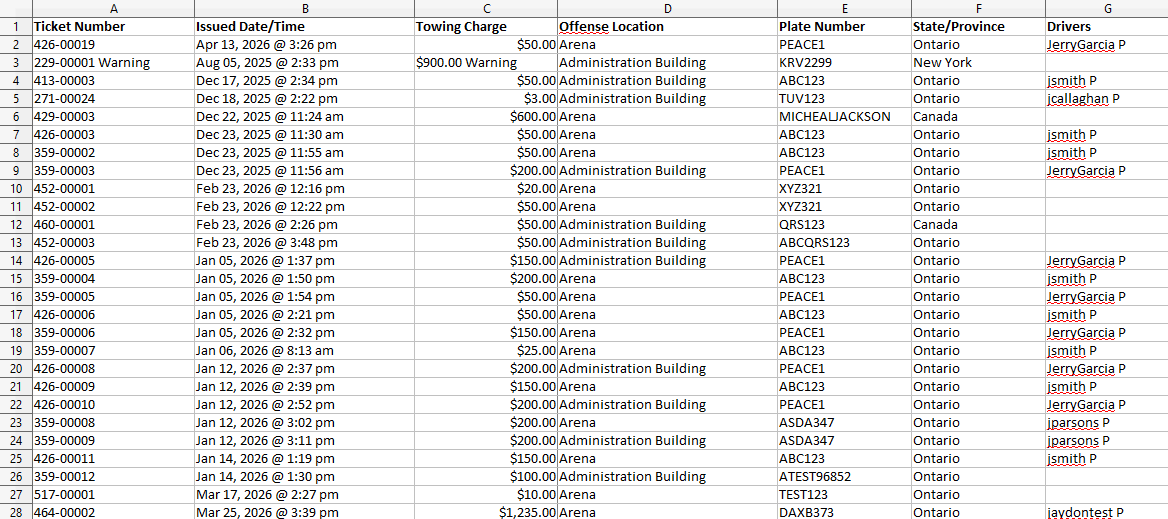
The report displays:
-
Ticket Number: Click the ticket number to view full violation details.
-
Issued Date/Time: The exact timestamp the violation was recorded.
-
Towing Charge: The specific fee associated with the tow.
-
Offense Location: The zone where the vehicle was towed from.
-
Plate Number: The license plate of the towed vehicle.
-
State/Province: The registered region of the vehicle.
- Drivers: Displays the name of the user associated with the vehicle plate (if an account exists in the system).
Exporting the Report
As this report uses the standard data-tables template, you have several options to export and manage the data. Use the buttons located at the top right of the results table:
-
Copy: Copies the table data to your clipboard.
-
CSV: Downloads the results as a comma-separated values file.
-
Excel: Downloads the results as a formatted Excel spreadsheet.
-
Print: Opens a printer-friendly version of the report.