Violations by Officer Report
The Violations by Officer Report allows administrators to generate a detailed list of citations issued by specific patrol staff within a defined timeframe. Its primary purpose is to help management audit individual officer performance, review ticket categories, and track specific violation details like warnings or spoiled tickets. This article is intended for OPS-COM administrators.
Setup and Configuration
This report is a standard feature within the violations module and requires no specialized system setup to run. However, administrators must have the appropriate reporting and violations management permissions assigned to their user role to access this page. Ensure that your field staff are accurately configured as ticket writers within their user profiles so their activity is properly captured in the report.
Using this Feature
Administrators can use this tool to filter violation issuance data by specific personnel, date ranges, and ticket statuses, and then export the results for performance reviews or external audits.
Generating the Report
-
Hover over Violations and click
Reports,Reports then Report by Officers.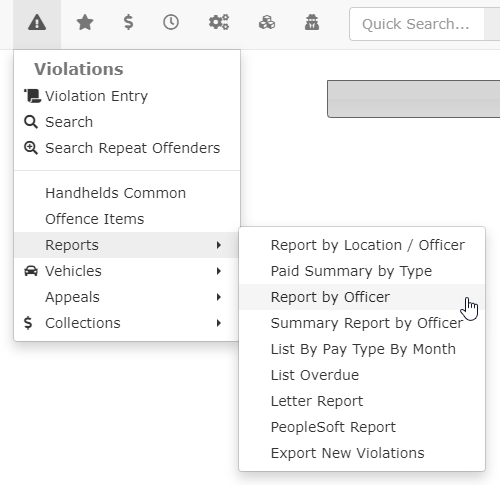
-
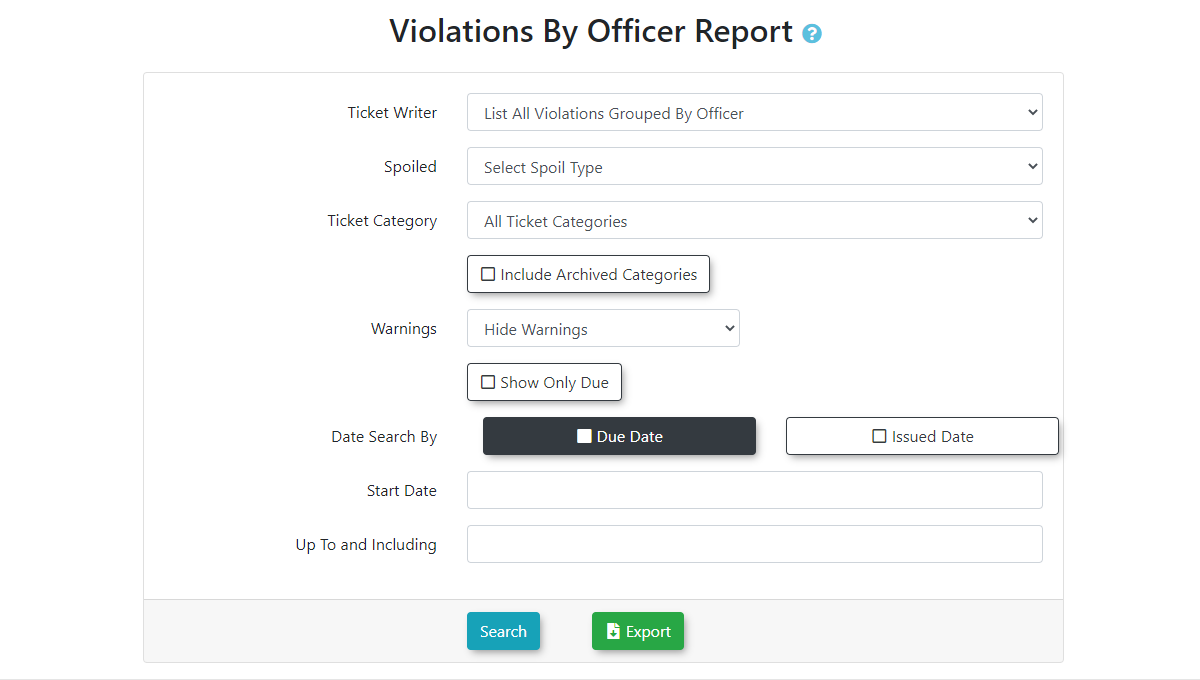
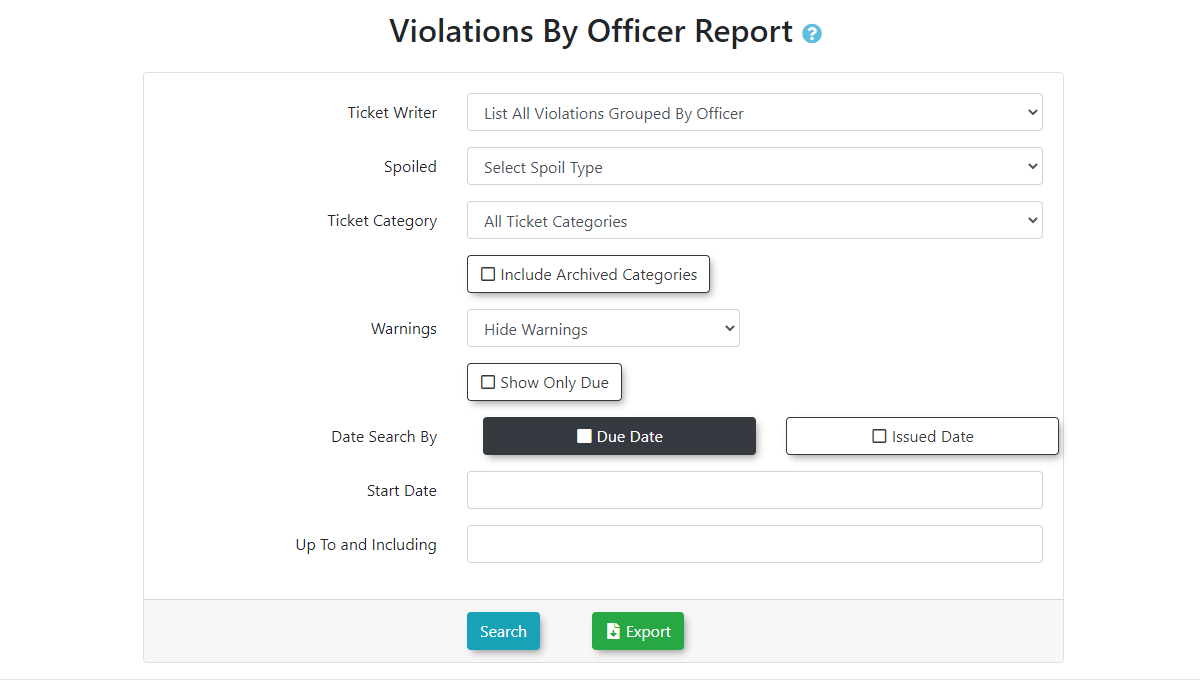
theTheViolations by Officerscreen is displayed.Selectyour parameters forthesearch.desiredSearchofficerCriteriafrominclude:Ticket
Writer:WriterYoudrop-downcan select a specific officermenu, orListchoose to list all violations grouped byofficerSpoiled:officer.Select -
spoiled stateTicket Category:Select a specific
ticketspoiledcategorystatesuchfromasthe Spoiled drop-down menu, if applicable. -
Select a specific citation type from the Ticket Category drop-down menu (e.g., Private
PropertyProperty). -
Enable the Include Archived
Categories:CategoriesToggle the item oncheckbox to apply this filter to your search. -
Select the
searchappropriatefilter
option from theWarnings:WarningsSelectdrop-down menu to hide, include, or strictly showwarningswarningonly
tickets. -
Enable the Show Only
Due:DueTogglecheckboxtheifitemyouononly want toapplyseetheunpaid,searchactivefilterDateviolations.Search -
Select either
theDue Date ortheIssued Date
from the Date Search By drop-down menu. -
Set the reporting date range using the Start Date and Up To and
Including:IncludingSetcalendar fields. -
Click the
date range you wish to report onYou can then clickonscreenonscreen.or
Selecting to downloadsearch by Issued Date rather than Due Date is generally recommended when strictly auditing an officer's daily patrol productivity, as ticket due dates can fluctuate significantly based on appeal statuses and grace periods.
Key Information Displayed
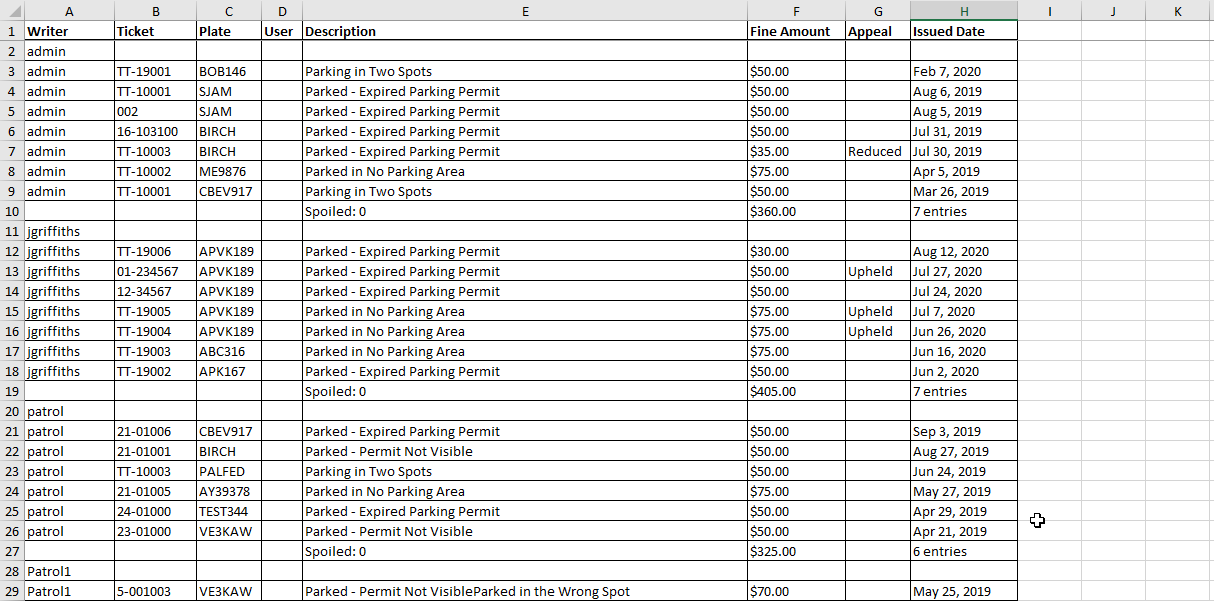
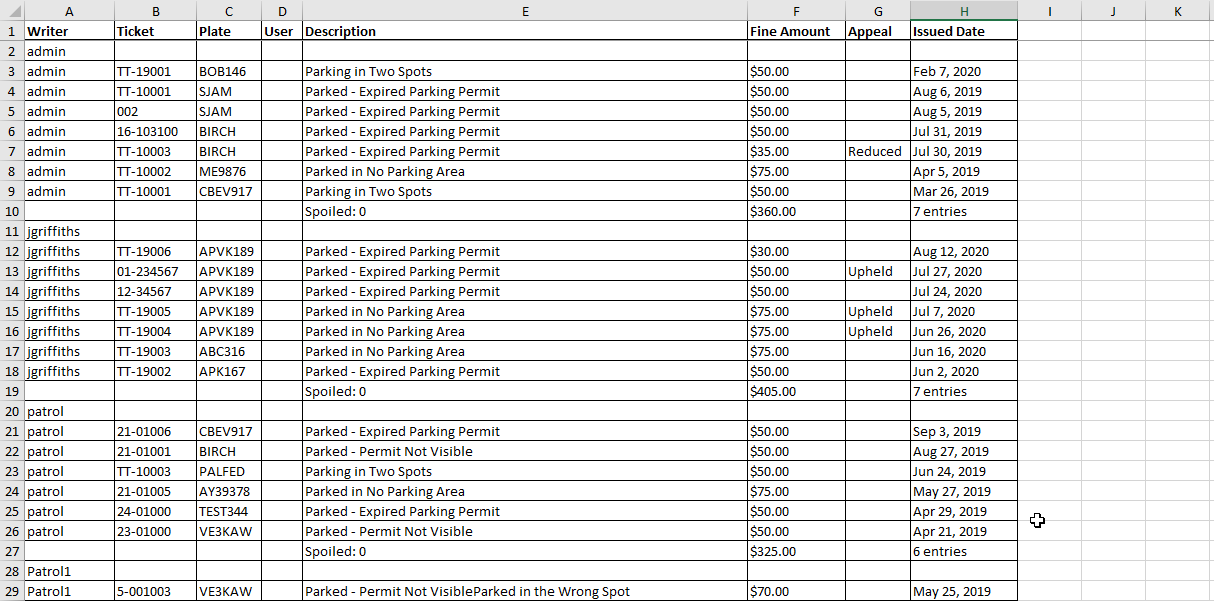
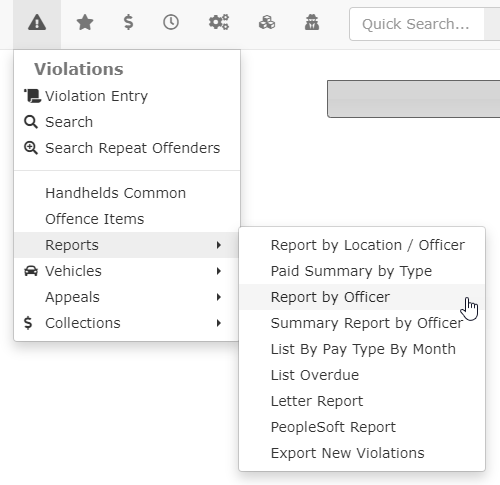
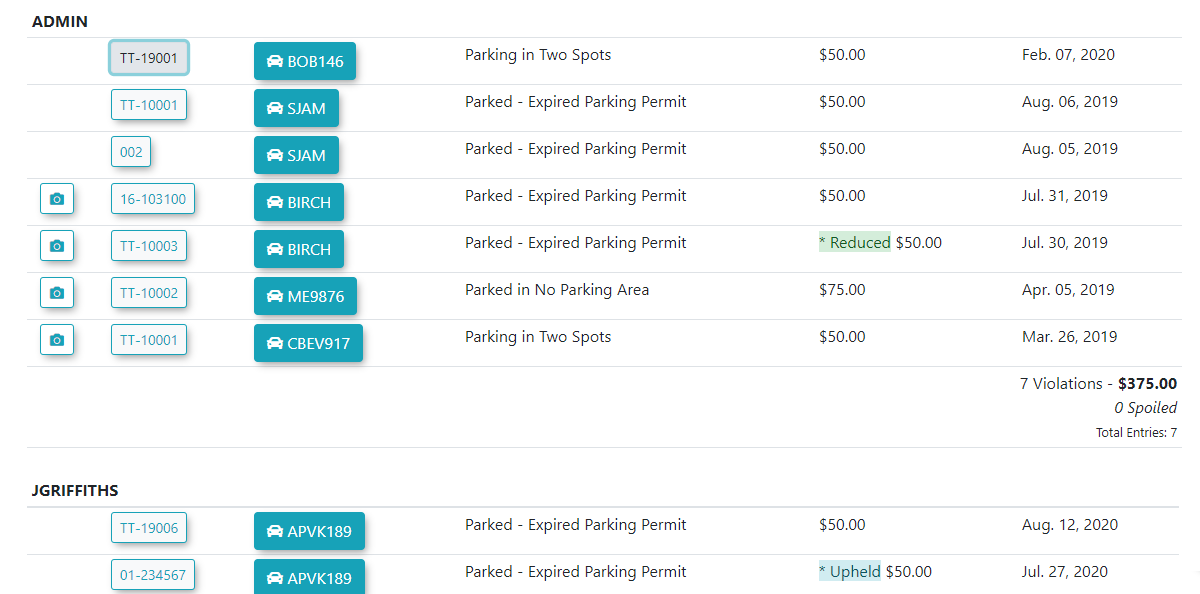
The generated onscreen report displays a data table listing each ticket that matches your search criteria. It includes critical details such as the violation number, license plate, user description, fine amount, appeal status, and issued date.
Available Actions and Buttons
-
Violation Number: Click the hyperlinked ticket number within the report
astableantoexcelopendocument.a detailed view of that specific violation. -
-
TheSearch:reportClickwillthisappearbutton to execute your query and display the results at the bottom of the screen.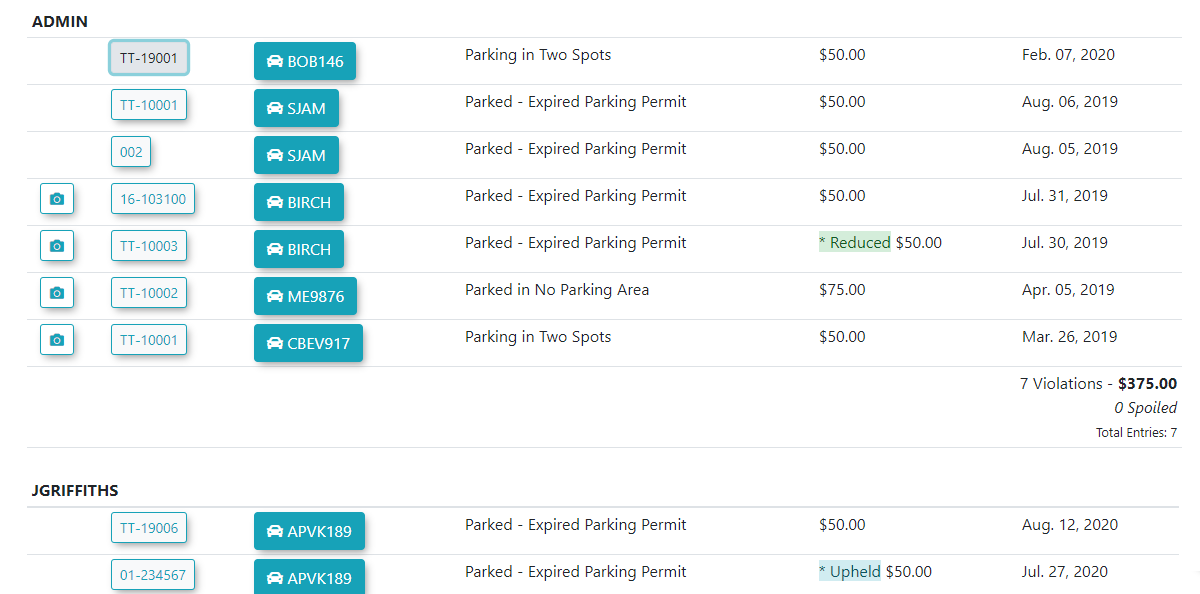
-
IfExport:you wish to view more information about each violation, click onClick theviolationExportnumber. If you wishbutton toviewdownload thepicturesonscreenassociatedreportwithdataa violation click on theCameraicon.Exporting the ReportYou can export the information toas a .csvCSVfilefile, allowing you to manipulate andmanipulateformat the data in Excel.Click
Best Practices and Considerations
-
Audit spoiled tickets regularly: Management should routinely run this report filtered by the Spoiled state. This helps identify officers who may be frequently voiding tickets or making entry errors, which could indicate a need for additional system training.
-
Preserve historical productivity data: Always use the Export button to
downloadsavethehistoricalfile.enforcement data for performance reviews. Saving these files externally ensures you maintain accurate records for personnel files or legal auditing purposes, even if an officer's system profile is later modified or deactivated.