
Apply Temp Permit to User Vehicles
This article explains how to configure and issue a single temporary parking permit that applies to multiple vehicles on a user's profile. This feature streamlines the permitting process for administrators managing users who need temporary access for more than one registered vehicle. This guide is intended for OPS-COM administrators.
Setup and Configuration
Before issuing a temporary permit for multiple vehicles, you must configure the specific lot to allow this functionality.
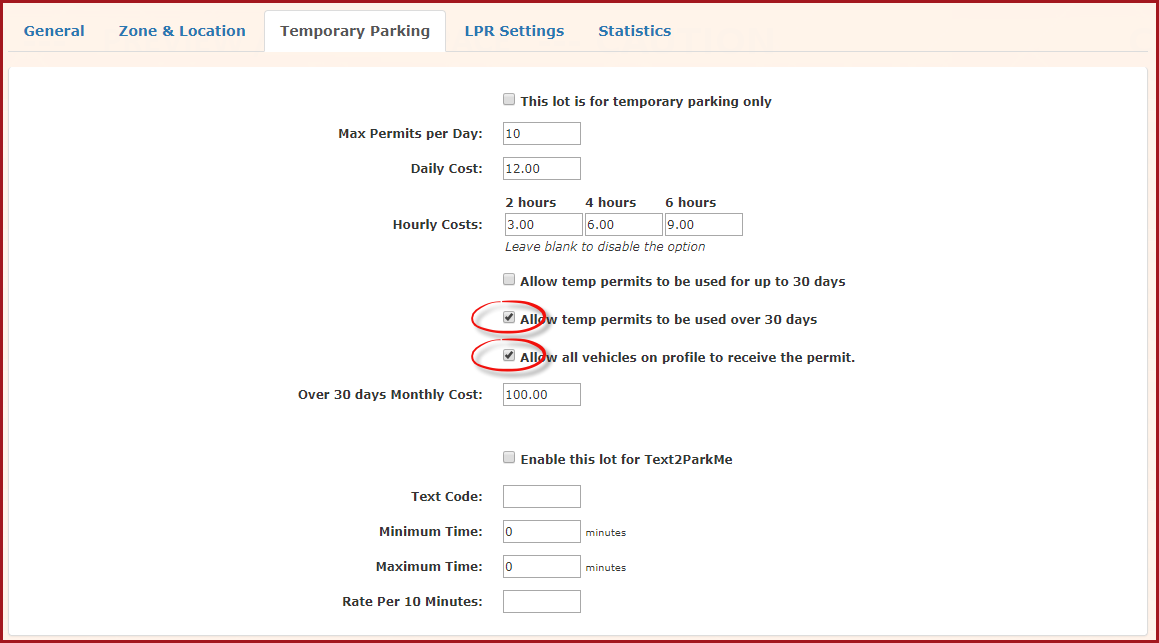
Using this Feature
Once the lot is configured, administrators can issue the multi-vehicle temporary permit directly from the user's profile.
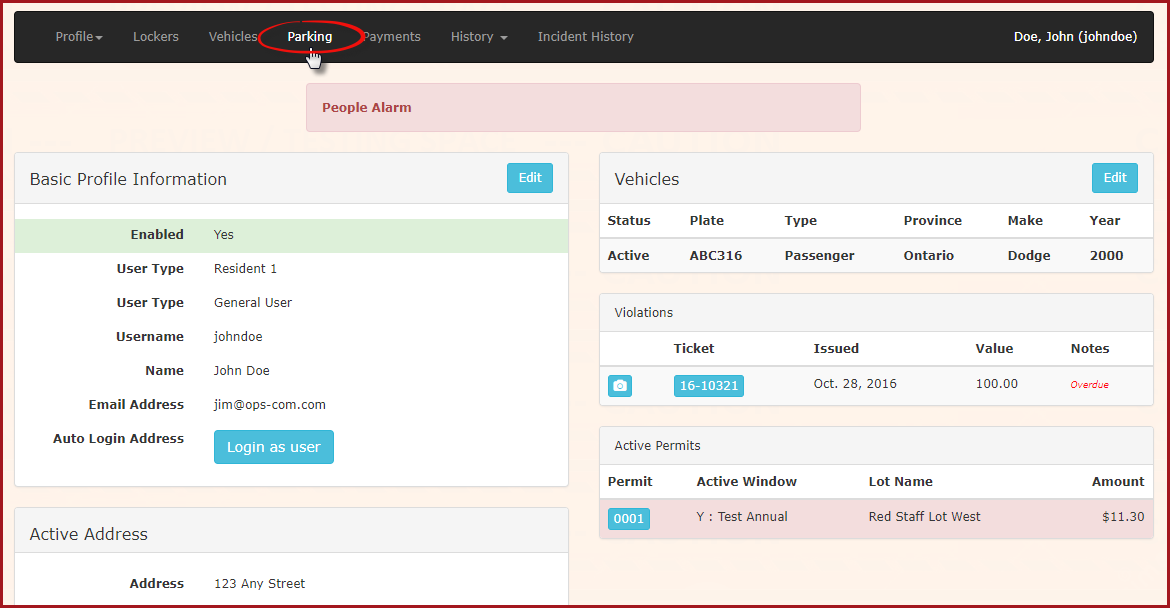
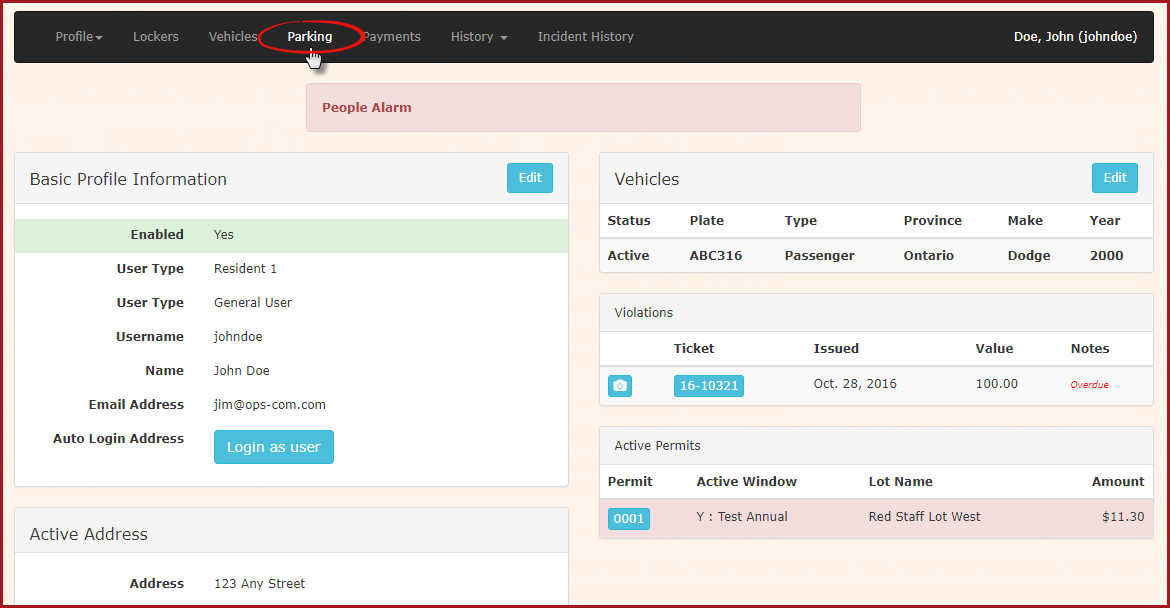
- Navigate to the desired user's profile and click the Parking tab.
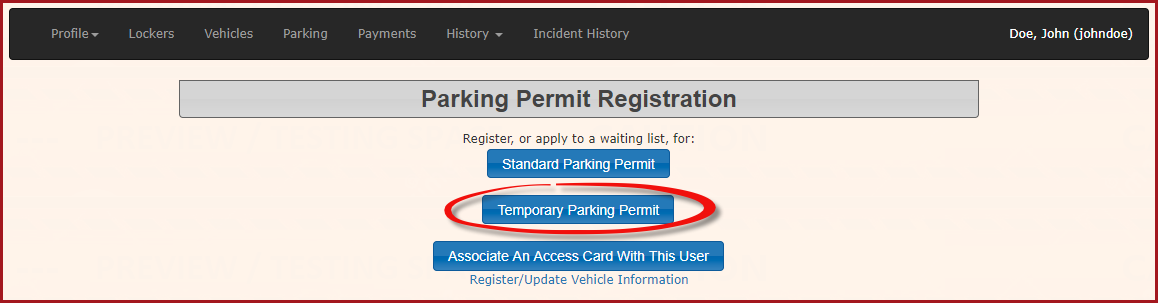
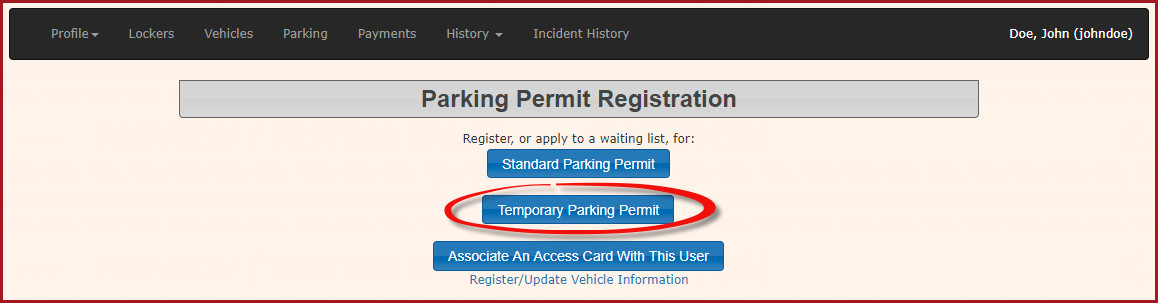
- Click the Temporary Parking Permit button.
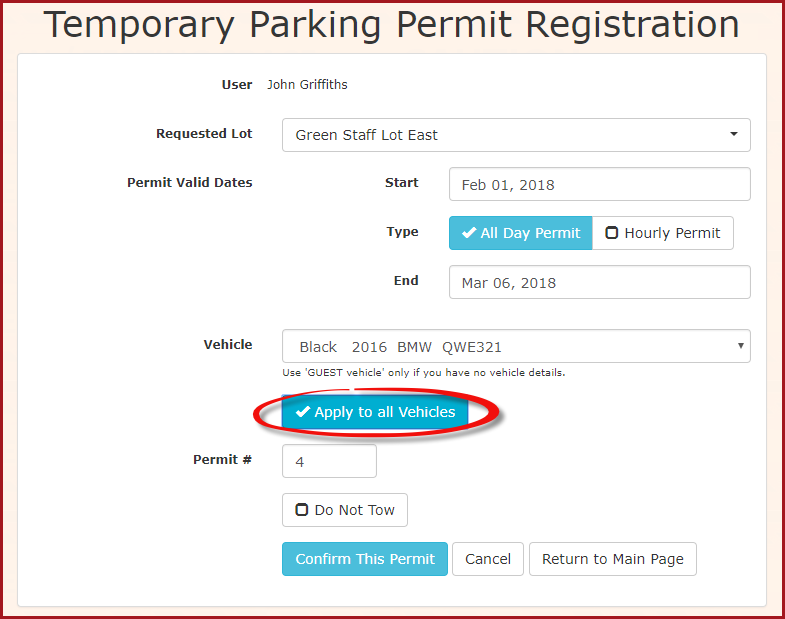
- Select the configured lot within the Temporary Parking Permit Registration window.
- Set the start date and end date.
- Click the Apply to all Vehicles button.
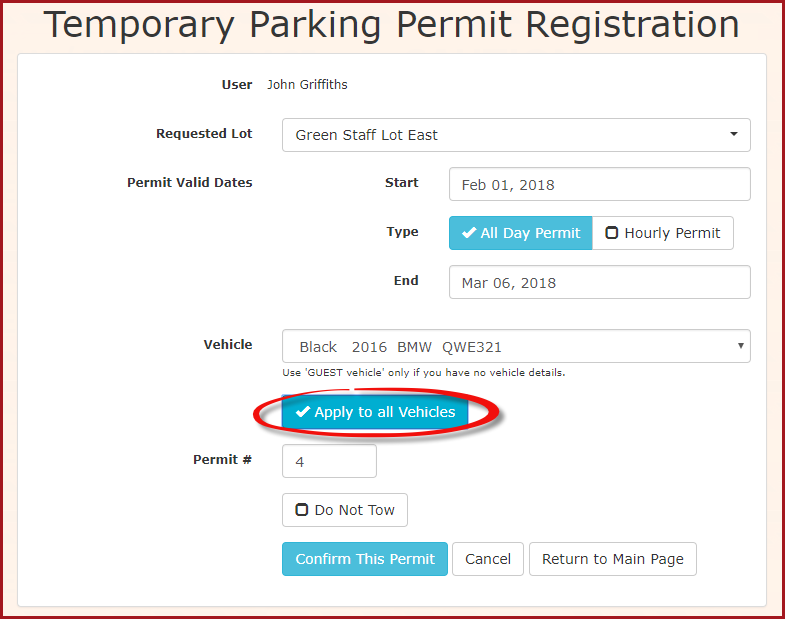
- Click the Confirm This Permit button to proceed to the confirmation window.
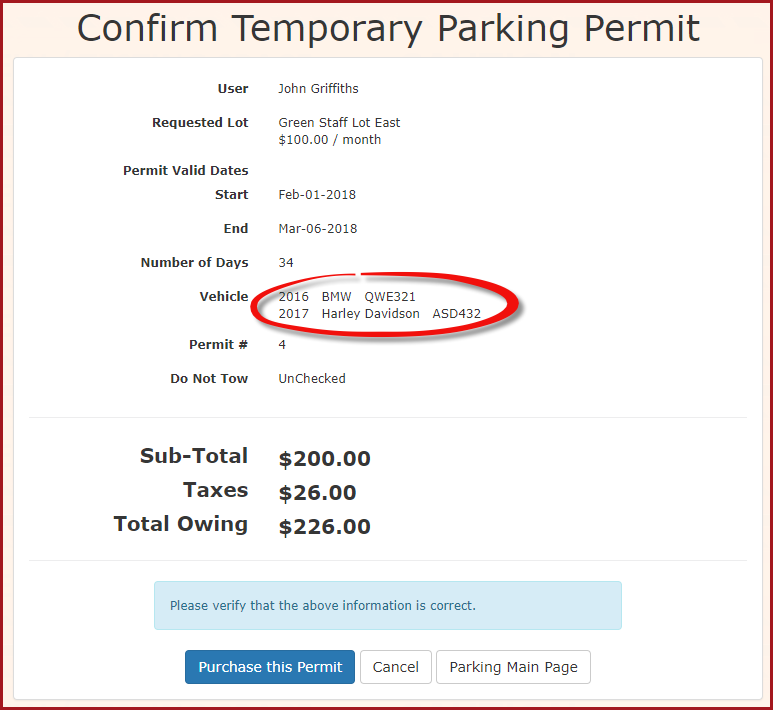
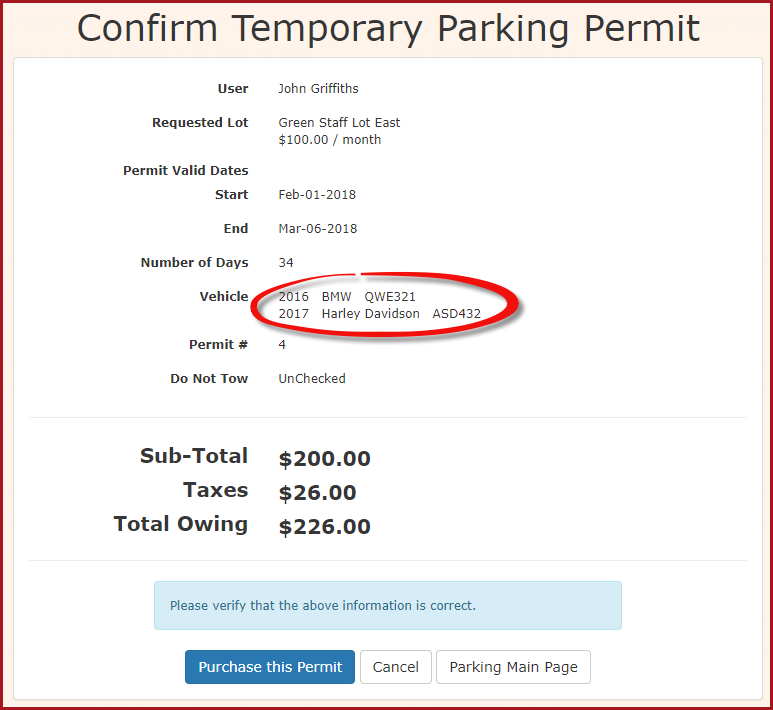
- Verify that all intended vehicles are listed, then click the Purchase this Permit button.
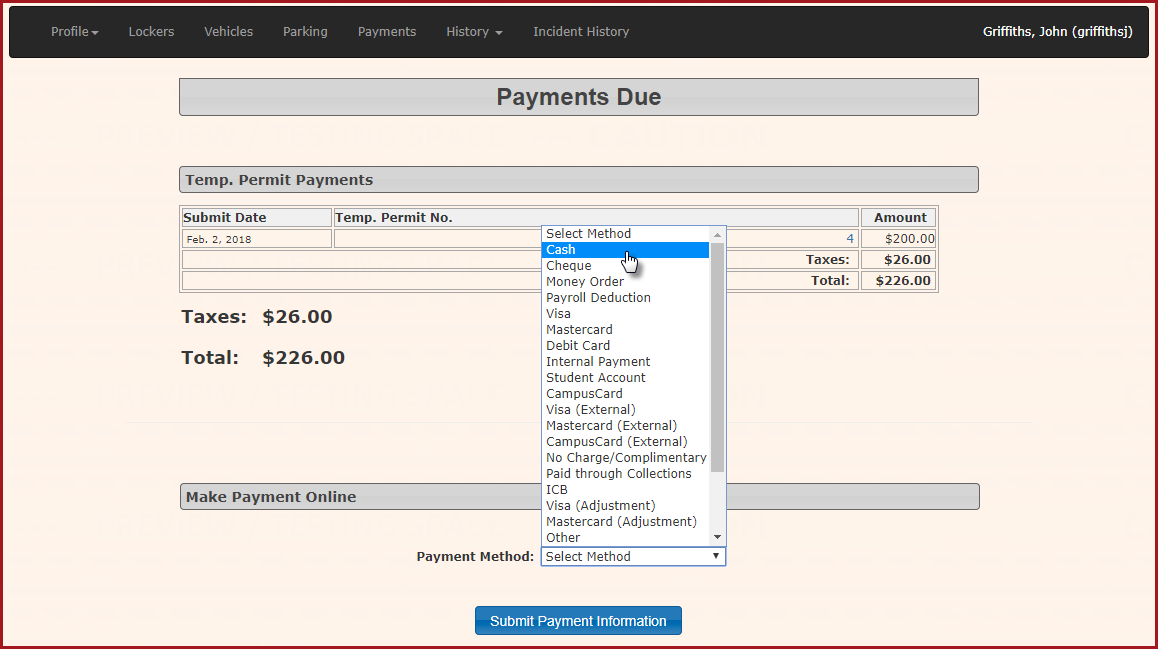
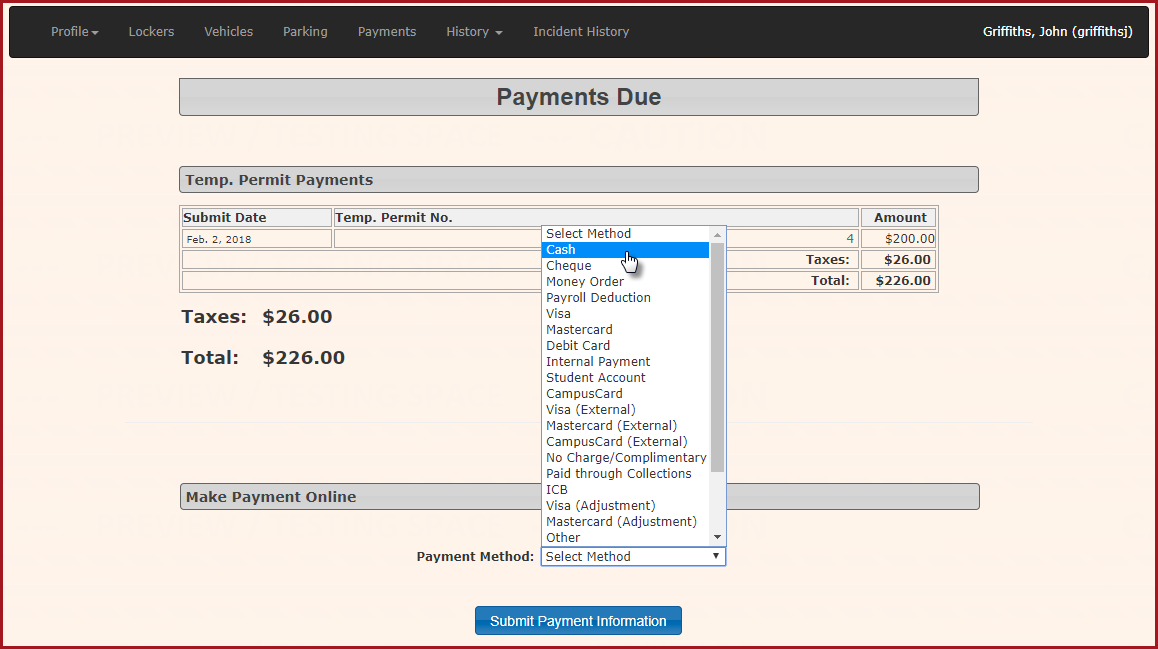
- Select the method of payment on the payment screen then click the Submit Payment Information button.
- Select Confirm Payment Information to proceed.
- Click the Process Manually button to finalize the transaction.
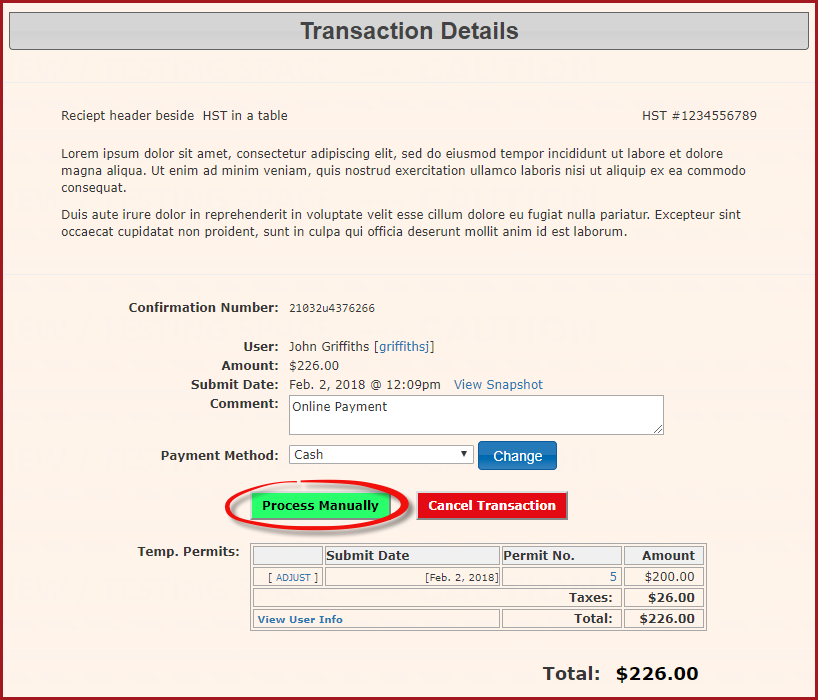
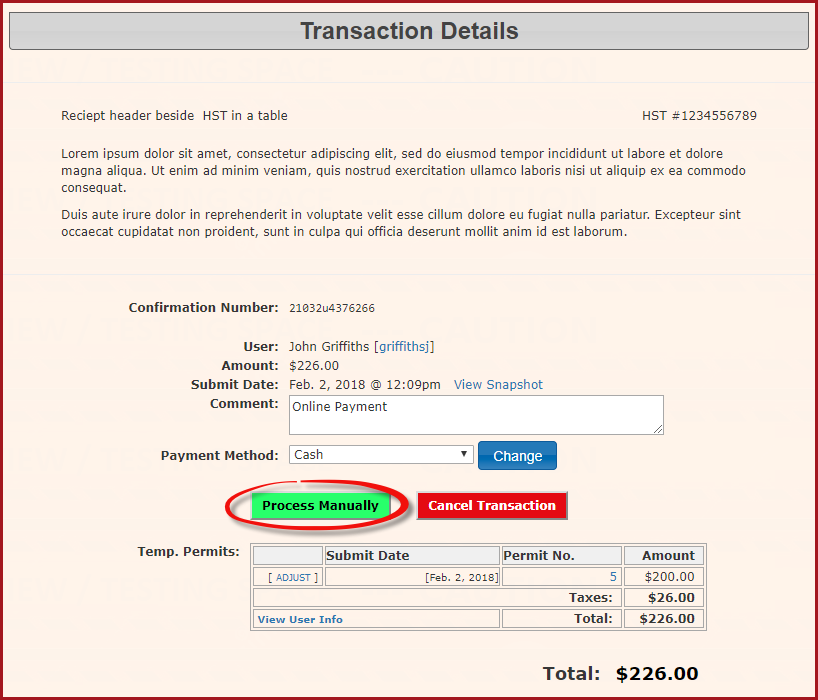
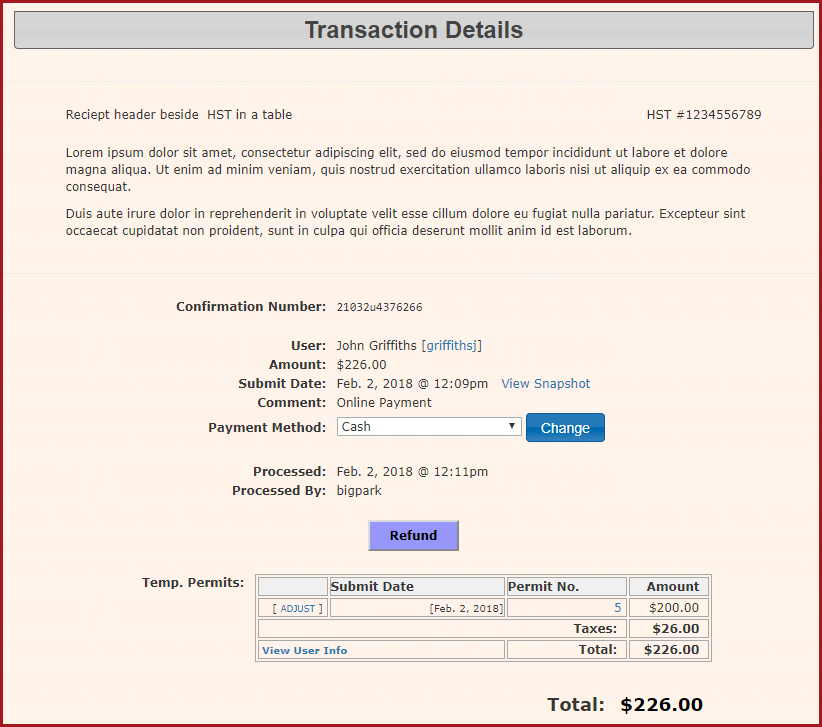
Upon completion, you will be taken to the Transaction Details screen, where you can view a final record of the purchase.
Best Practices and Considerations
Date Range Requirement: The selected date range between the start date and end date must be for a period longer than 30 days. If the duration is 30 days or less, the Apply to all Vehicles button will not activate.
-
Vehicle Verification: Always review the vehicle list on the confirmation screen before clicking Purchase this Permit to ensure the user has all necessary vehicles properly registered to their profile.
-
Lot Configuration: Remember that the multi-vehicle option is lot-specific. If you expect administrators to use this feature across different areas, ensure all relevant lots are updated under their respective Temporary Parking tabs.