Athletics Module
Accessing the
The Athletics Module
The athletics module is a stand-alone moduleinterface thatdesigned hasspecifically itsfor ownregistering specificathletic URL.facility Itmembers, managing their vehicles, and issuing parking permits. Its primary purpose is notto foundstreamline the administration of athletic users in anya dedicated portal separate from standard campus or municipal parking operations. This article is intended for OPS-COM administrators responsible for athletic parking management.
Setup and Configuration
The Athletics Module operates independently of the standard administrative portal and cannot be accessed through the typical OPS-COM navigation menus. No specialized system setup is required, but administrators must know the specific URL to log in.
To access the module, usenavigate to your typicalstandard admin portaladministrative URL, but insteadreplace /admin with /athletics: https://[client_ID][.parkadmin.com/athletics](https://.parkadmin.com/athletics)
Using this Feature
Administrators can use this module to perform the entire lifecycle of usingan /admin,athletics useparking theprofile, followingfrom URL:initial registration to permit printing.
https://'client_ID'.parkadmin.com/athletics
Registering an Athletics Member
and Vehicle
-
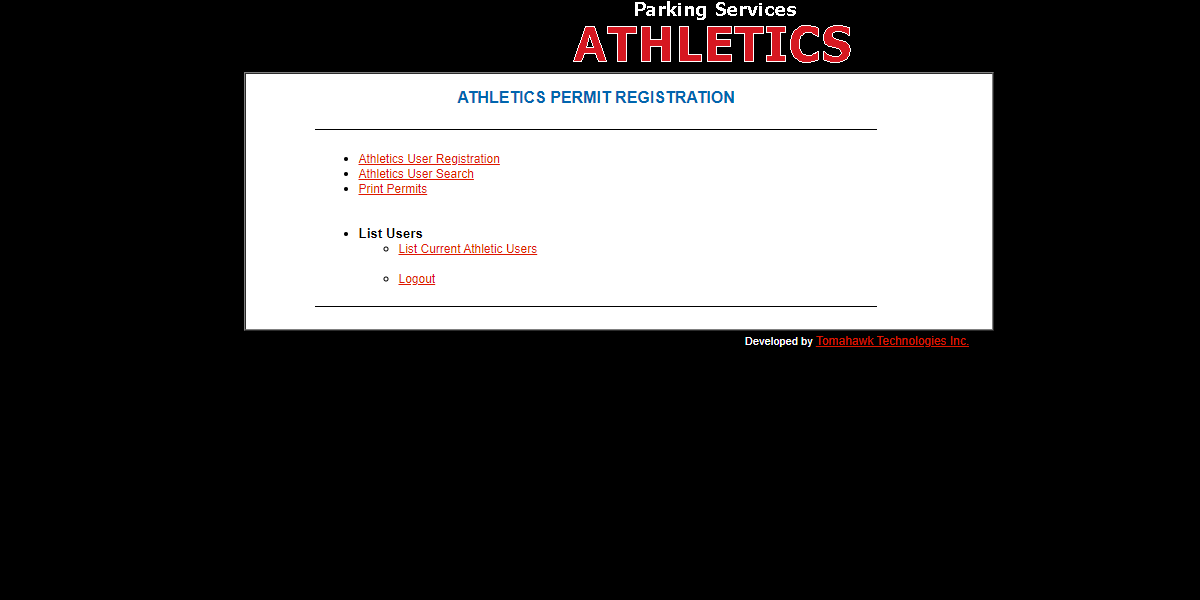
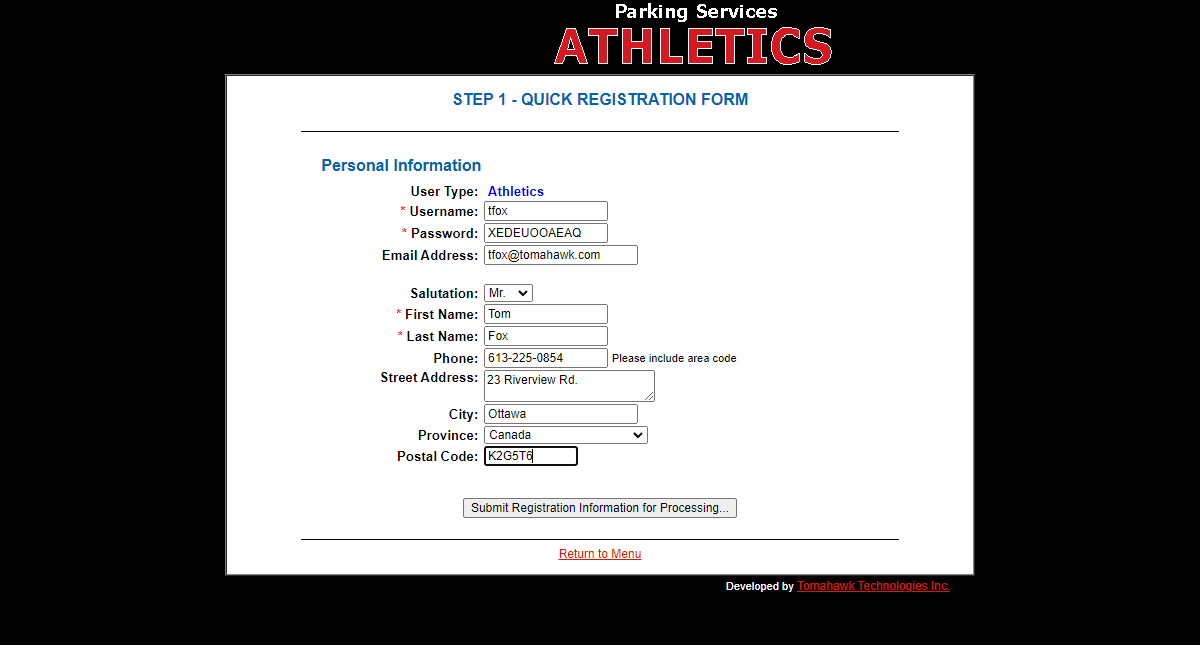
To register an Athletics Member, click onClick Athletics User Registration.Theon the main module page to open the quick registrationformform.will -
where you can enterEnter the new user's
information.information into the provided fields. -
Click the Submit Registration Information for Processing
to continue.button.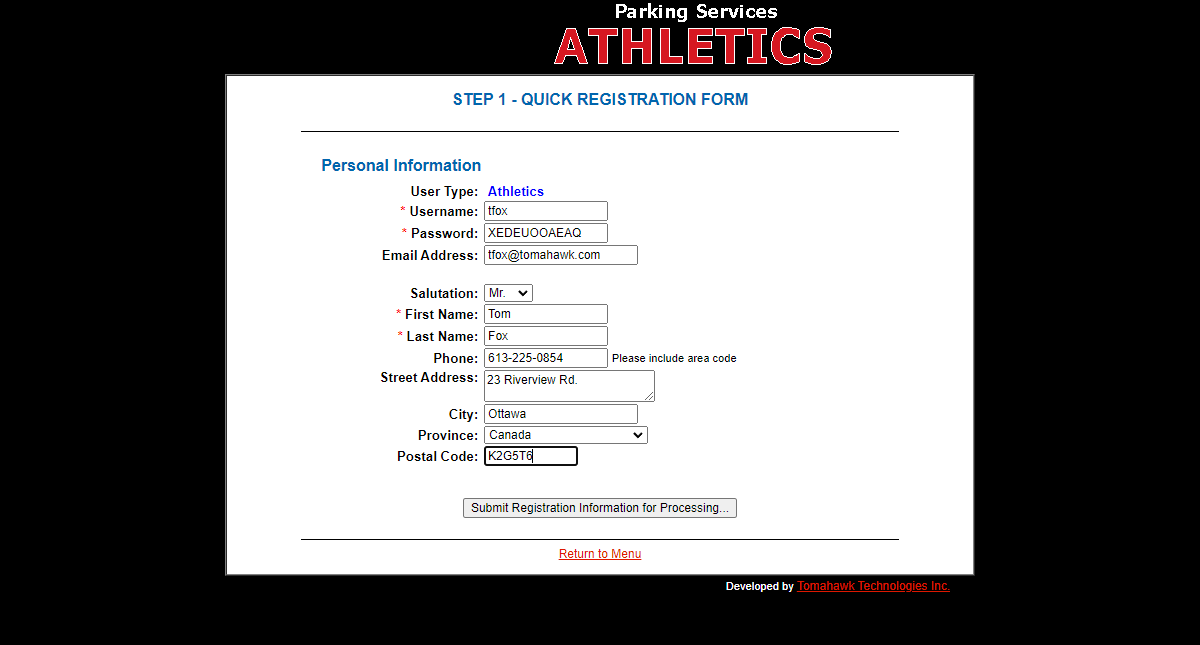
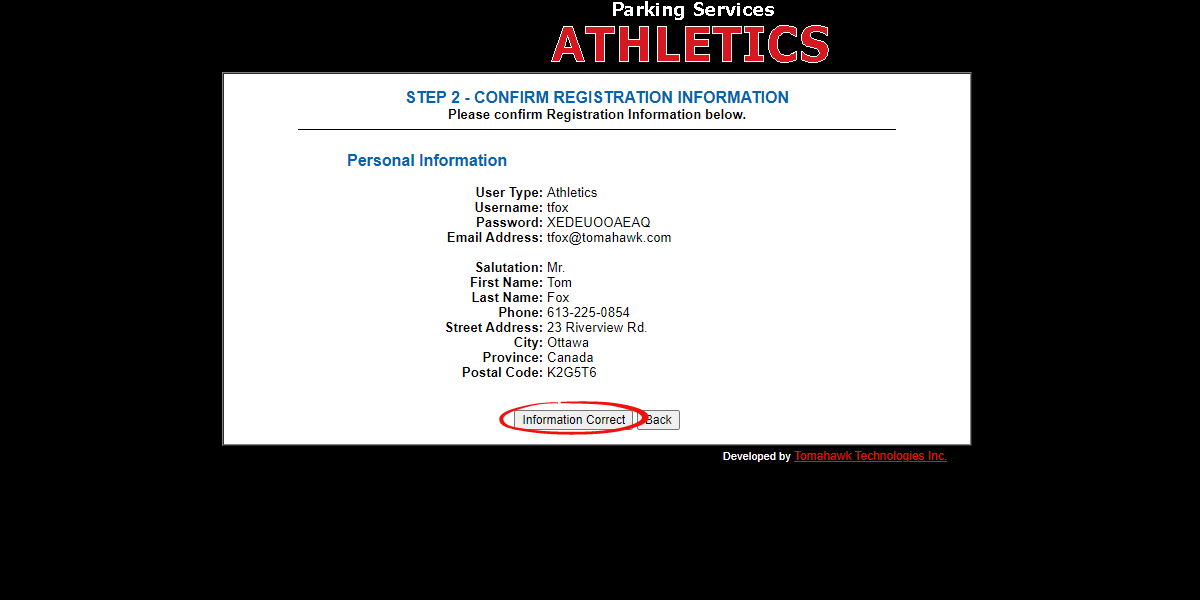
-
ReviewAthe confirmation screenwill appear.If all information is correct,and clickonthe Information Correctto continue.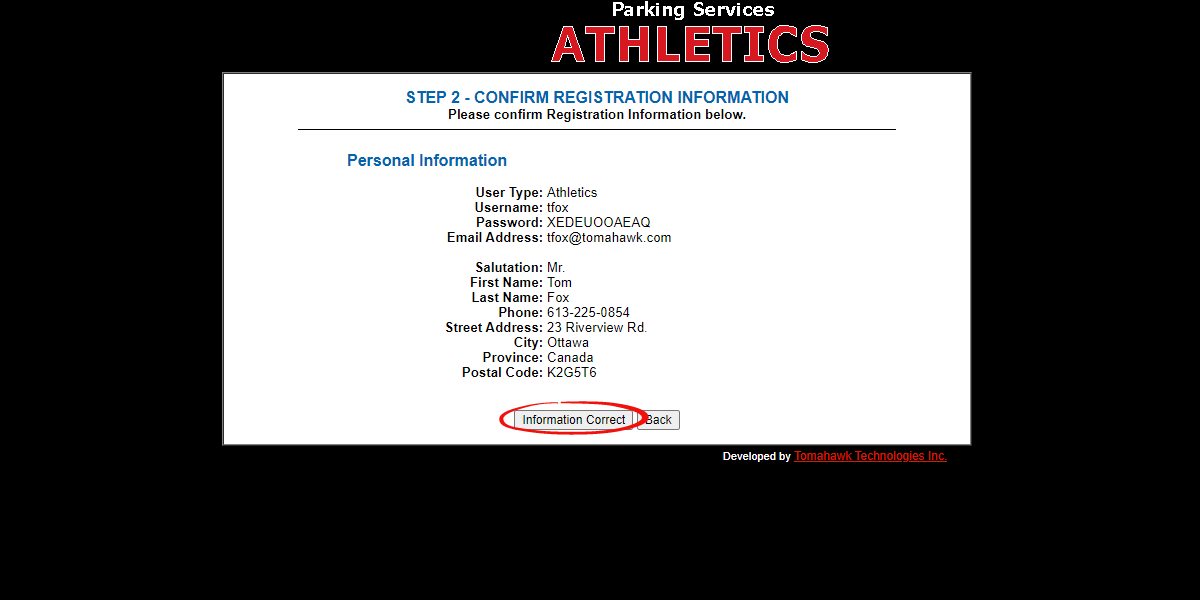
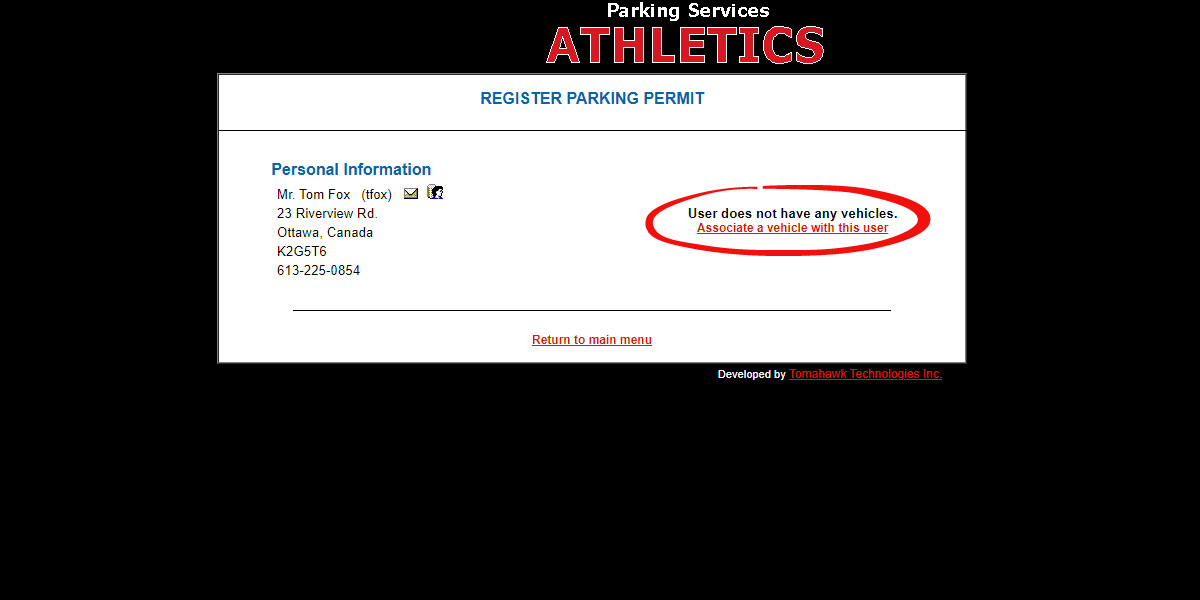
Registering the User's VehicleThe user information will now appear, providing a promptbutton toassociate a vehicle with the user's information.proceed.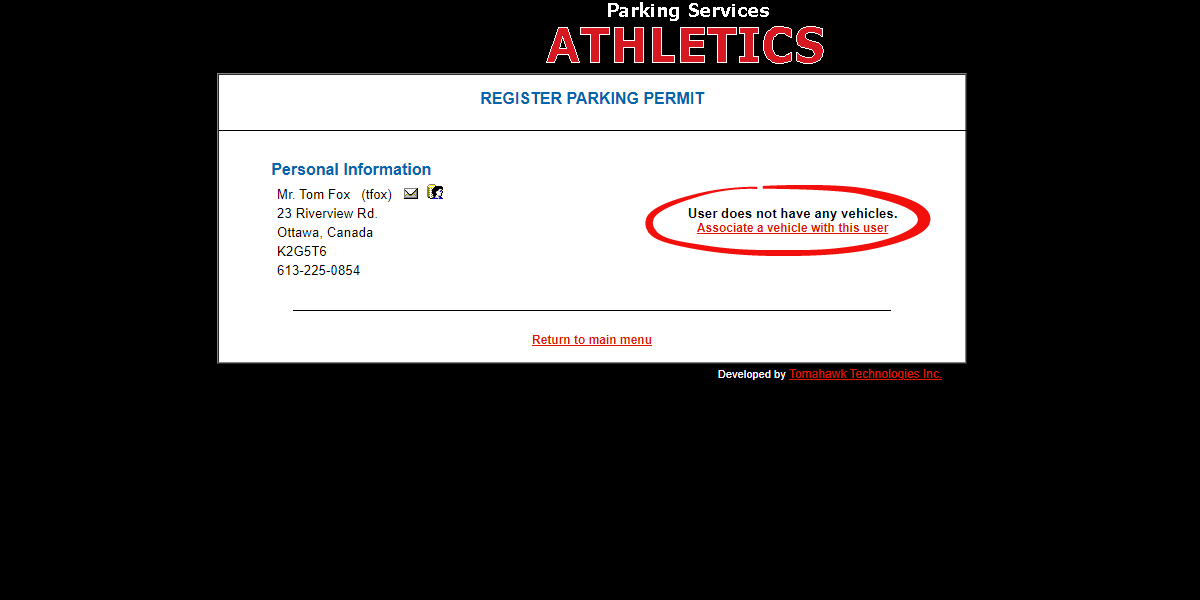
-
Click
onthe'Associate a vehicle with thisuser'usertolinkaddwhenthe user's vehicle information.prompted. -
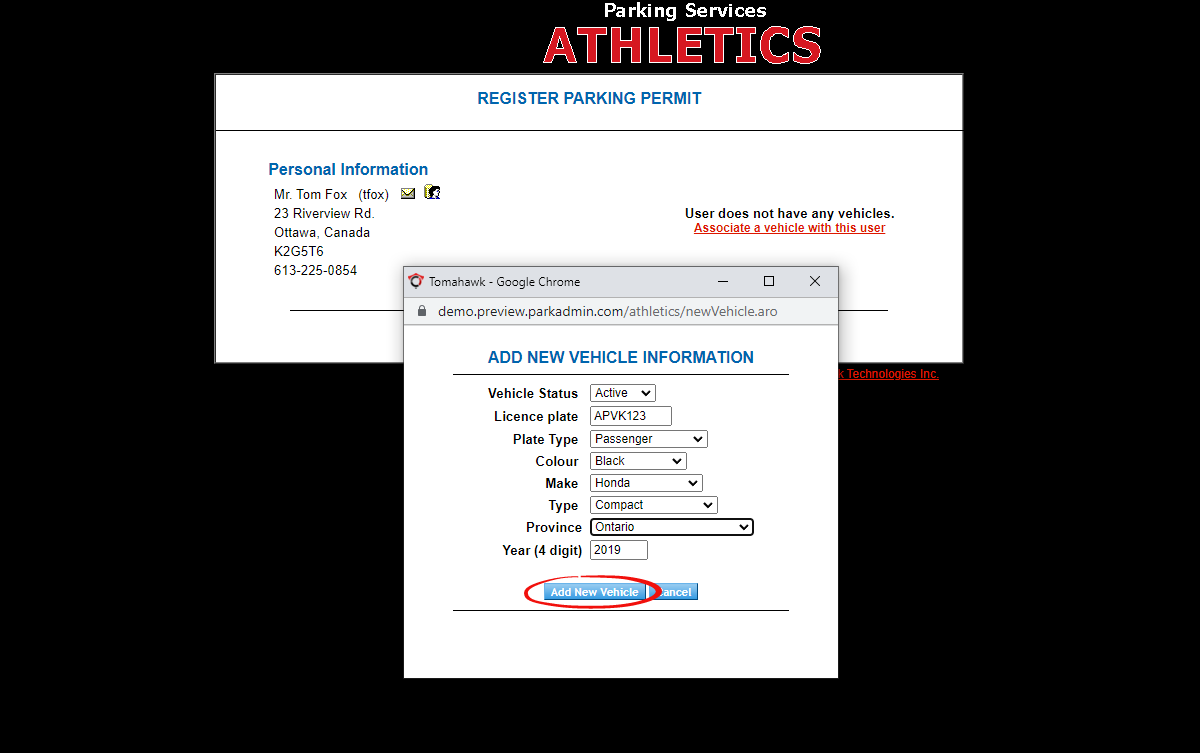
Once you have filledFill in theform,requiredclickvehicle details on the form. -
Click the Add New Vehicle
.button to save the vehicle to the user's profile.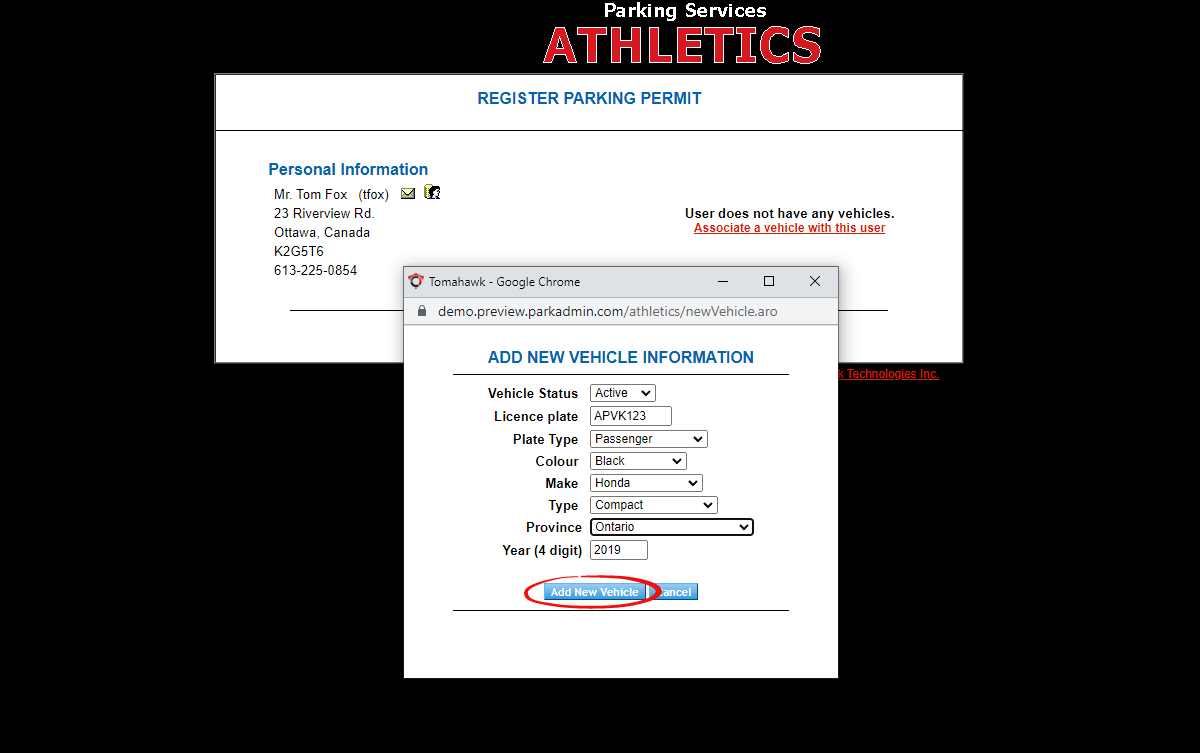
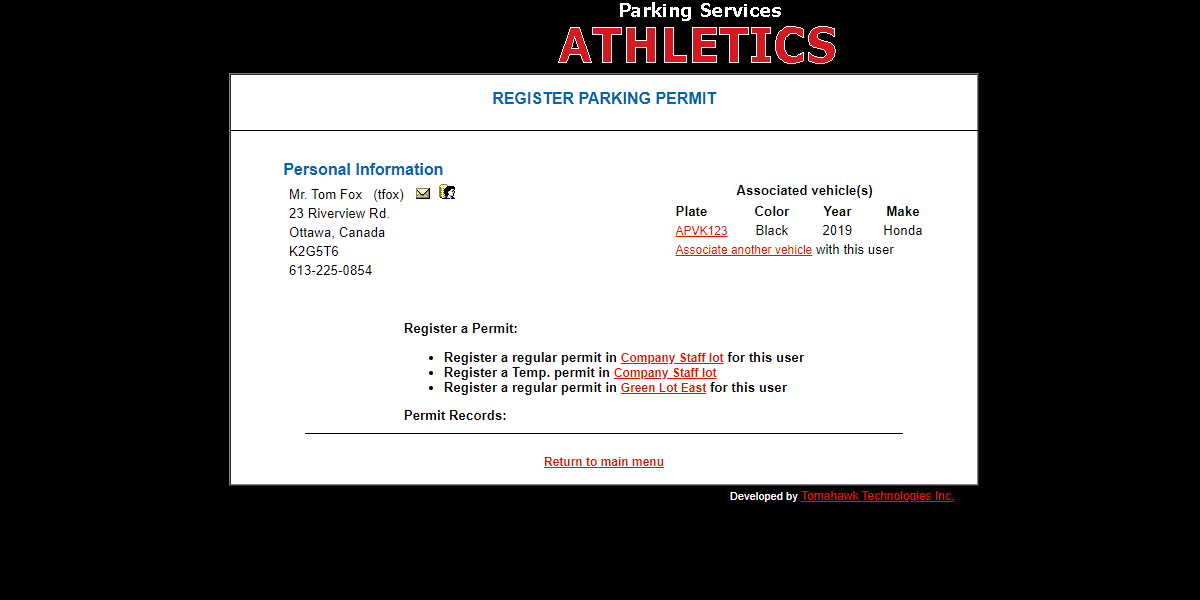
Purchasing a Permit
-
TheReviewuser'sthe updated user informationwillscreen,be updated with the vehicle, and the adminwhich will nowbedisplayablethetoassignedassignvehicle.a -
Select the desired permit
to the user.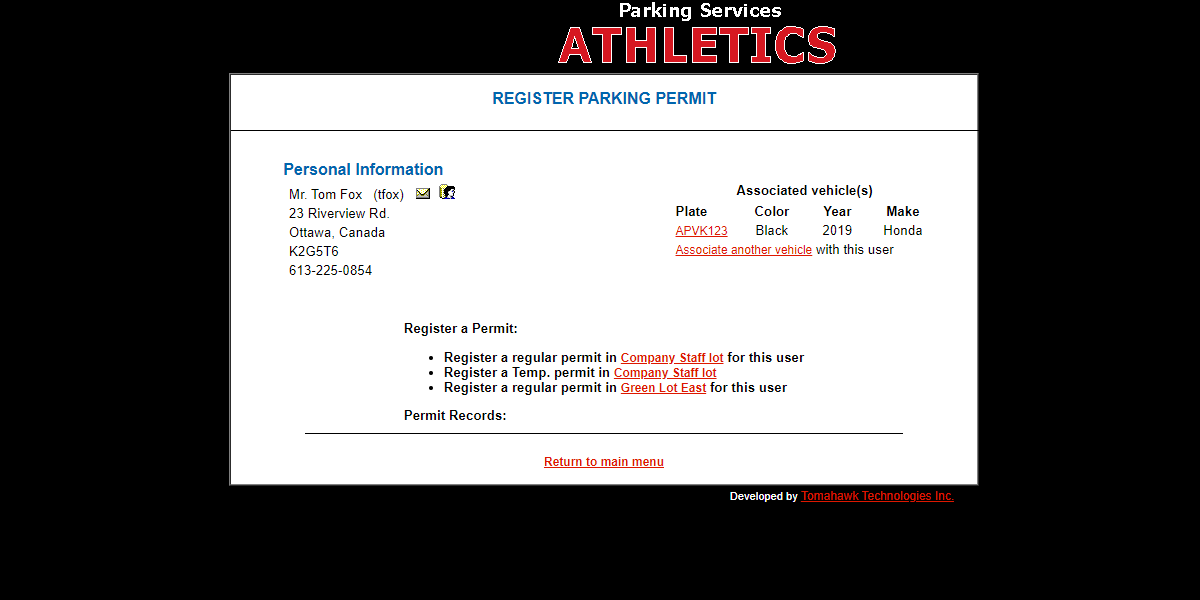
In our example, we will issue a permit in the(e.g., Company StaffLot.Lot) from the available options. -
Click
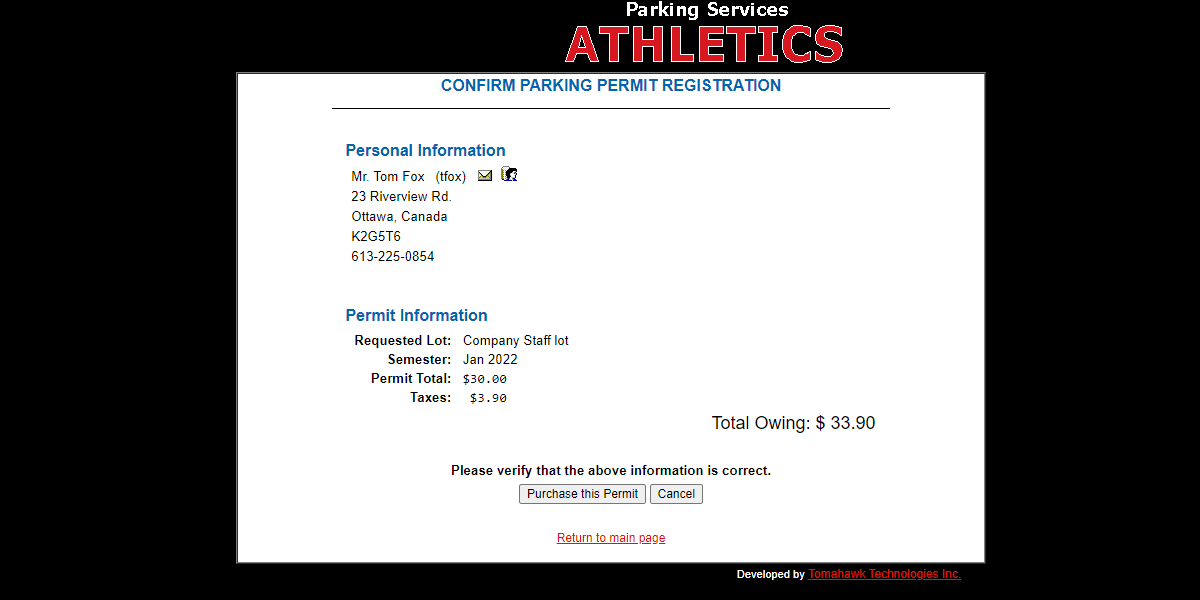
andonthe Purchase this Permit button to complete thepurchasetransactionprocess.
generate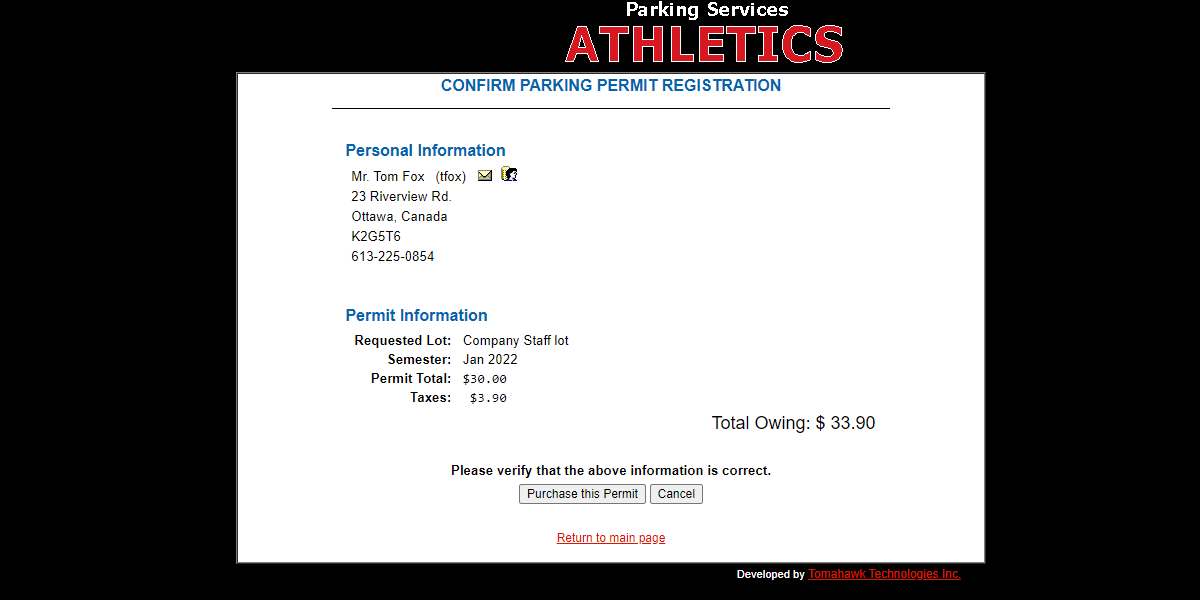
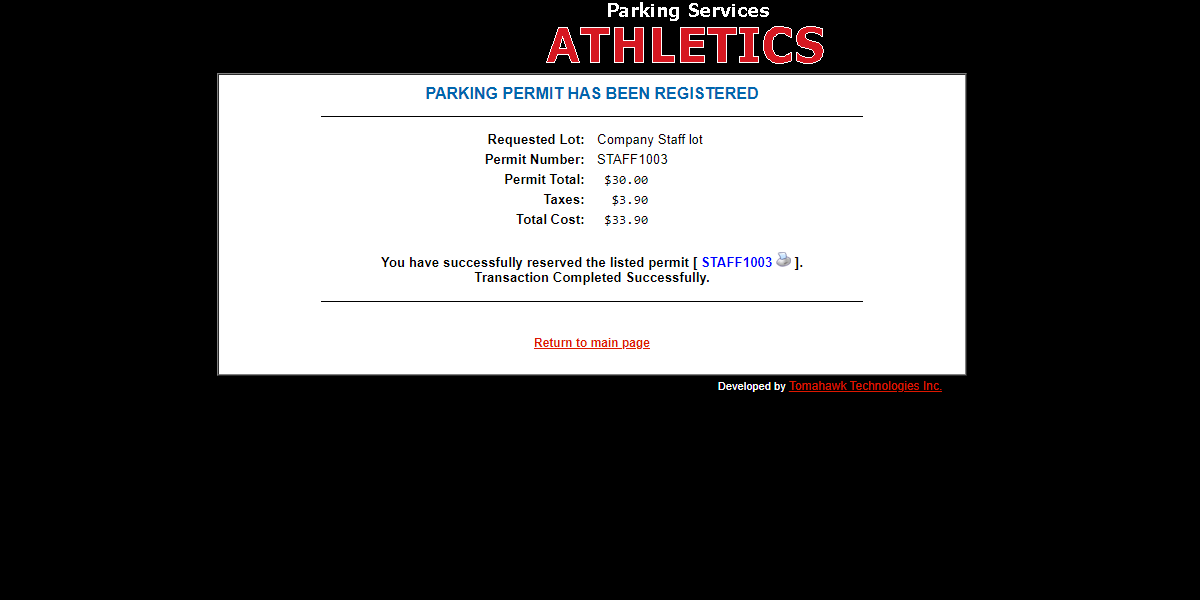
aAconfirmation messageconfirmingon theregistration will be shown onscreen.The
Athletics User Search
From
-
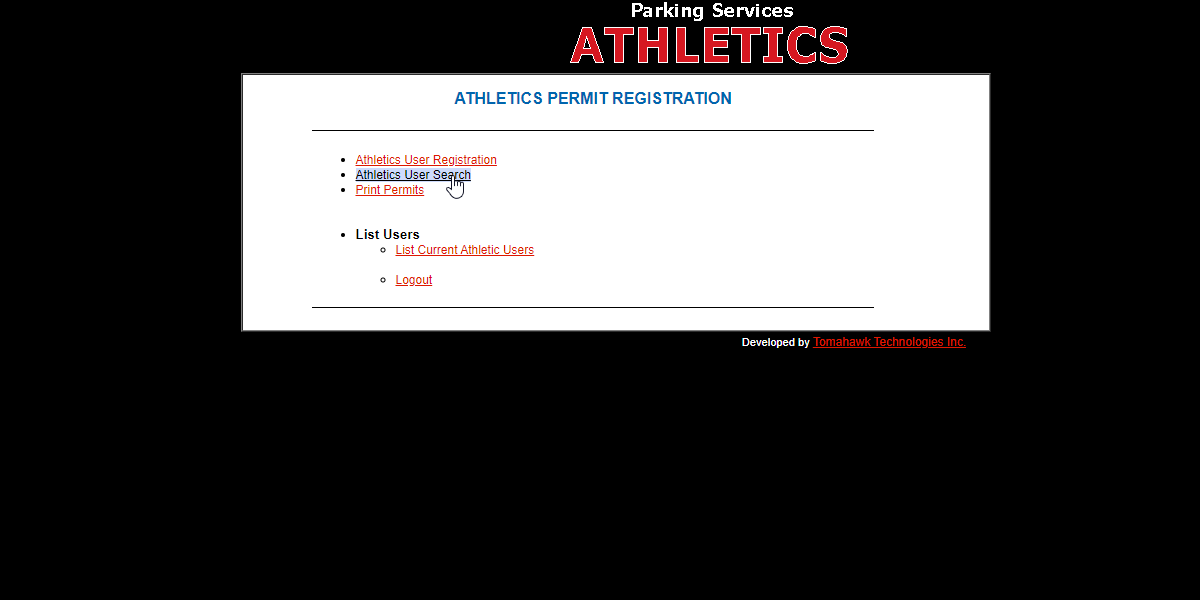
Click Athletics User Search from the main module page to
begin.locate existing members.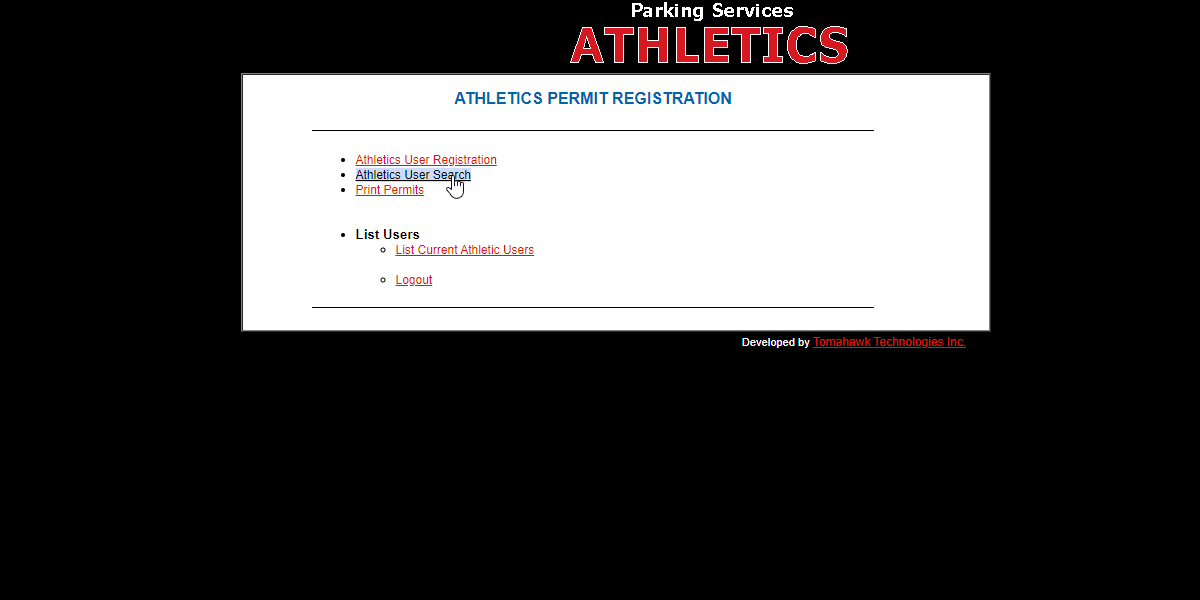
-
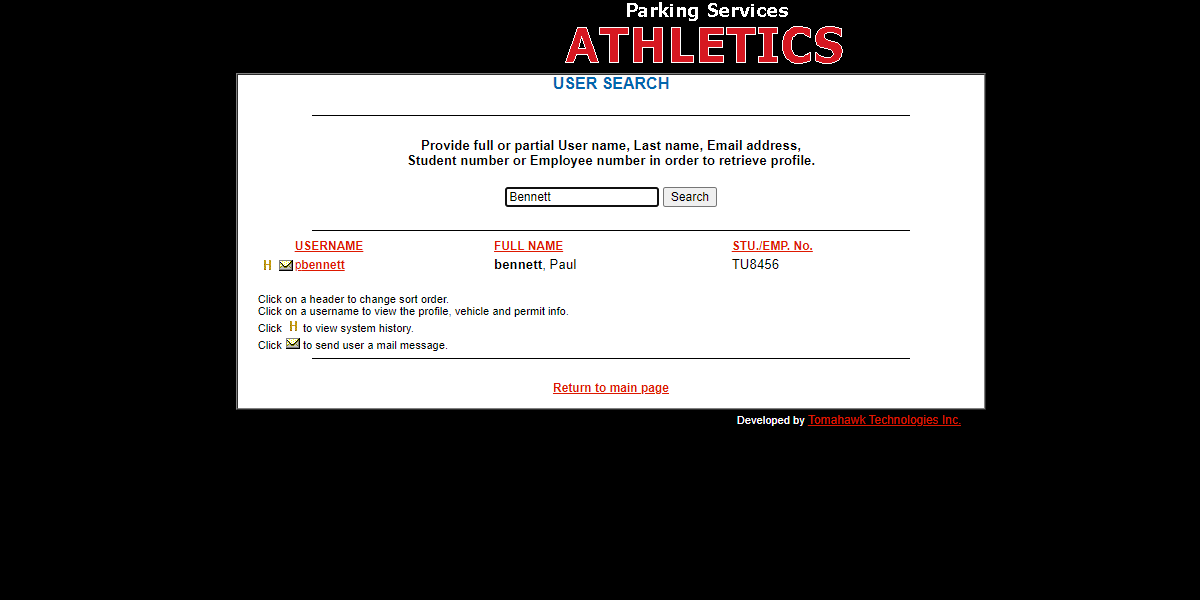
Enter
theyour desired search criteriasuggestedintoonscreentheandprovidedclickfields. -
Click the Search button to
proceed.generate a list of matching users.
Only users who have been assigned the user type Athletics will appear in this search.
FromAvailable thisActions page,& severalButtons options(User are available:Search):
UserhistoryH
canIcon:be viewed by clicking onClick the goldH.H icon to view the specific user's historical profile data.AnEnvelope Icon: Click this icon to open an email
candraftbeaddressedsentdirectly to theuseruser.by-
onUsername: Click the
envelopeuser'sicon.hyperlinked Additionalnameinformationtoon a user can be viewed by clicking onopen theirusername.complete, detailed profile information.
List Current Athletics Users
-
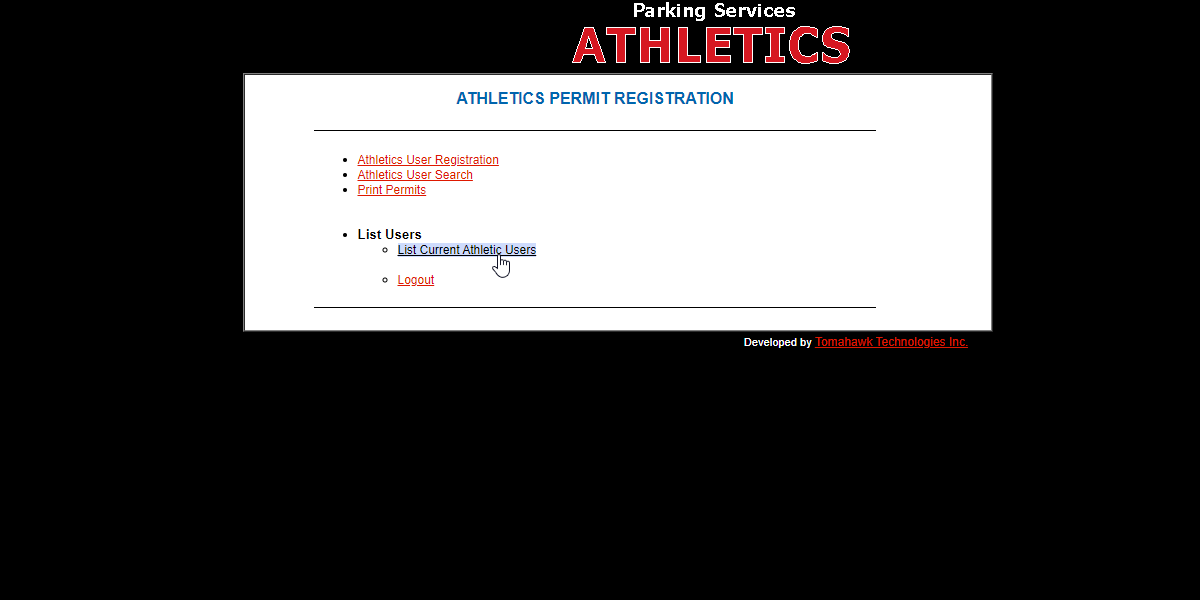
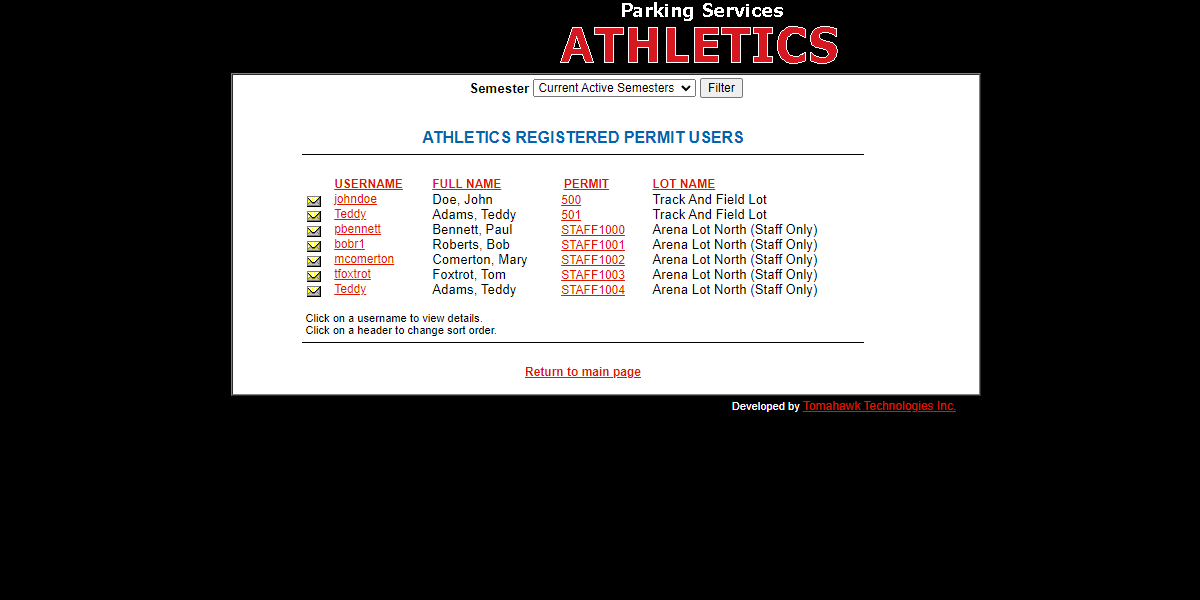
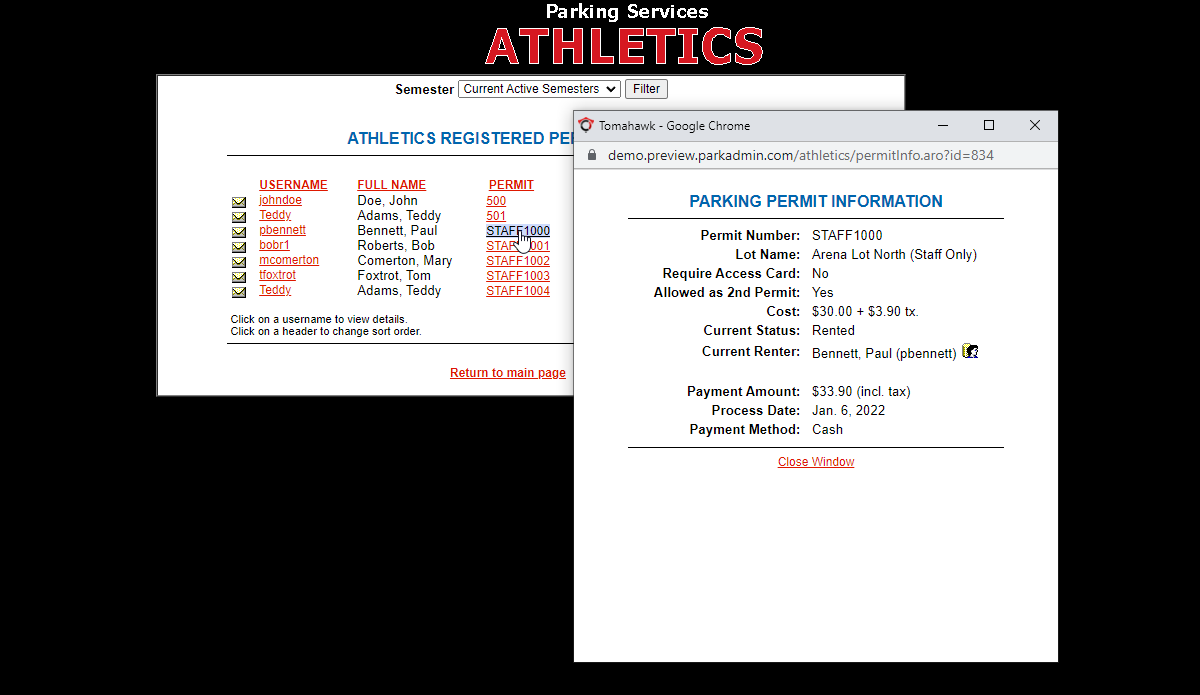
Click List Current Athletic Users to view an active directory of all members assigned the Athletics user type.
-
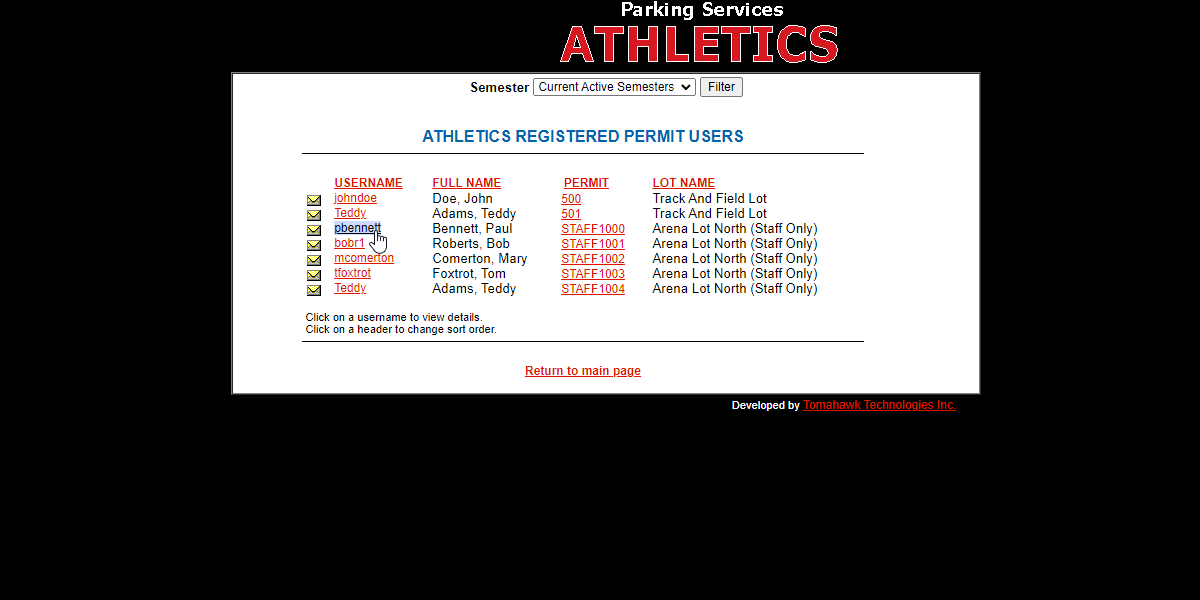
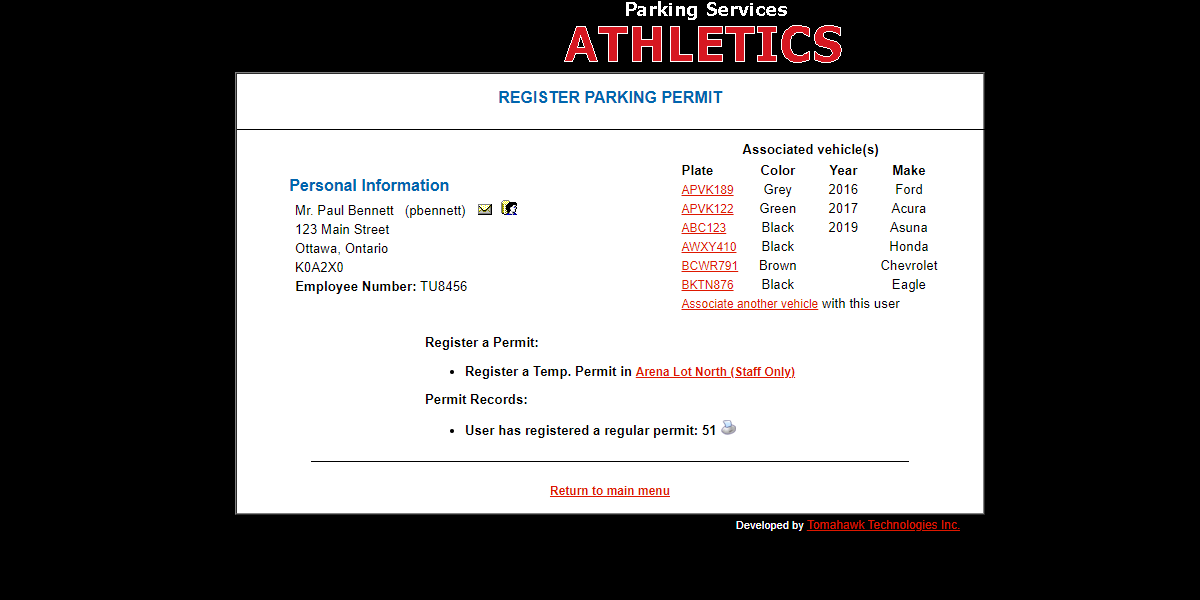
Click a specific username to view a detailed breakdown of their profile and associated vehicles.
-
Click a specific permit number to trigger a pop-up window displaying detailed permit information.
-
Click a specific vehicle plate number to view additional registered details about that vehicle.
Permit Printing
Click List Current Athletic Users to view an active directory of all members assigned the Athletics user type.
Click a specific username to view a detailed breakdown of their profile and associated vehicles.
Click a specific permit number to trigger a pop-up window displaying detailed permit information.
Click a specific vehicle plate number to view additional registered details about that vehicle.
-
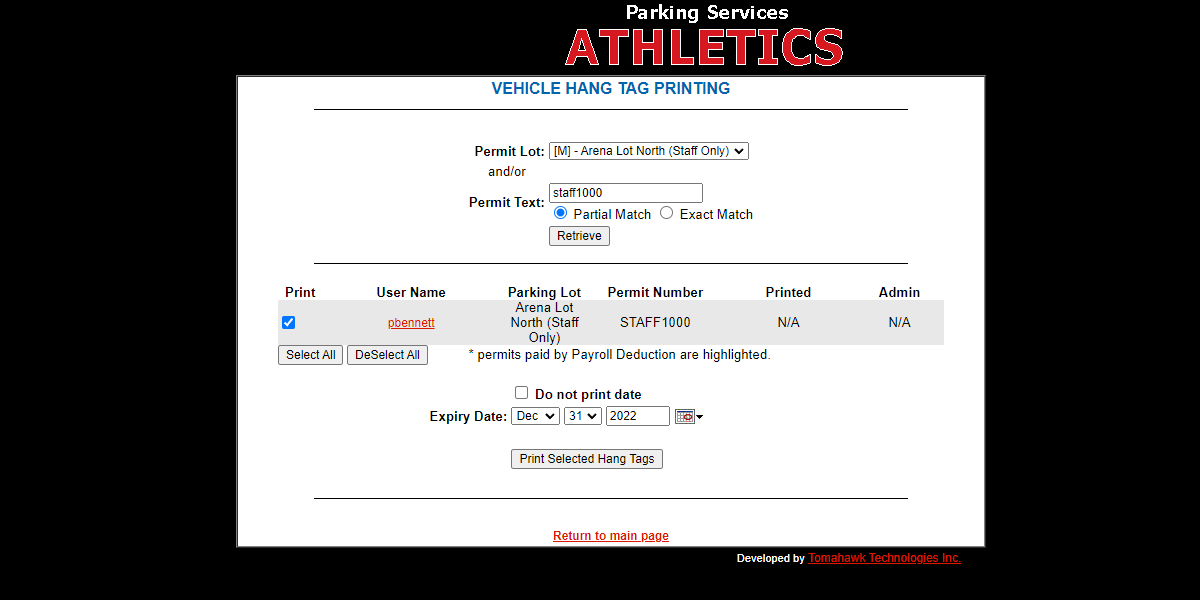
ItClickisPrintpossiblePermitsforfromantheadminmaintomoduleprintpage or directly from a user'spermitdetailedinformation.profile screen.To -
Select the appropriate Permit Lot
andfrom the drop-down menu. -
Select the specific Permit Text (permit number)
andfromclicktheondrop-down menu. -
Click the Print Selected Hang Tag button to
completegenerate a printable version of theprocess.permit.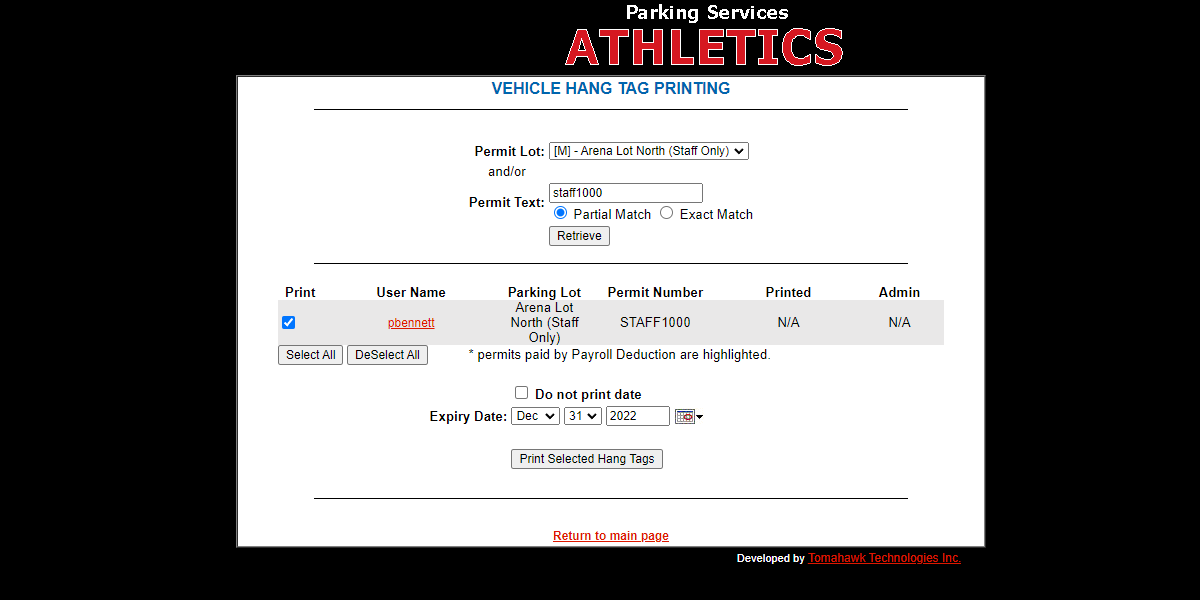
ListBest AthleticsPractices Usersand Considerations
-
ToLoggetoutasecurely:listAdministratorsofmustallalwaysusers who have been assignedclick theuserLogtypeOutAthleticsbuttonforwhenusefinished working in the Athletics Module. Because this interface operates on a distinct URL outside the main admin portal,clickexplicitlyonclosingListyourCurrentsessionAthleticensuresUsers.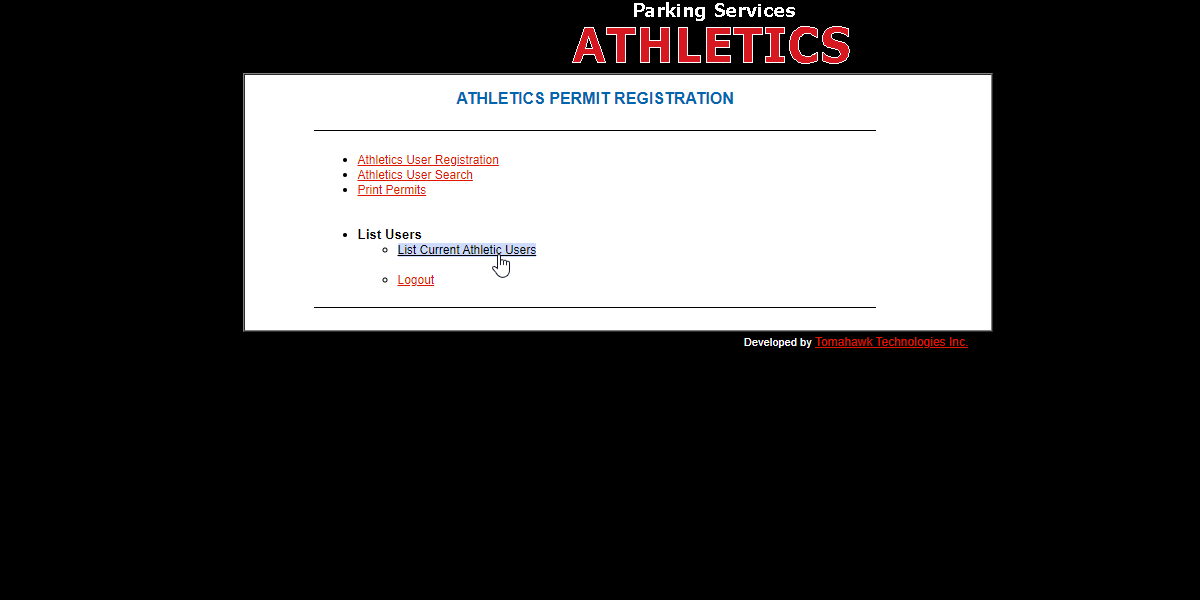
A list of all current Athleticsunauthorized userswillcannotappear.access member data.Further -
Verify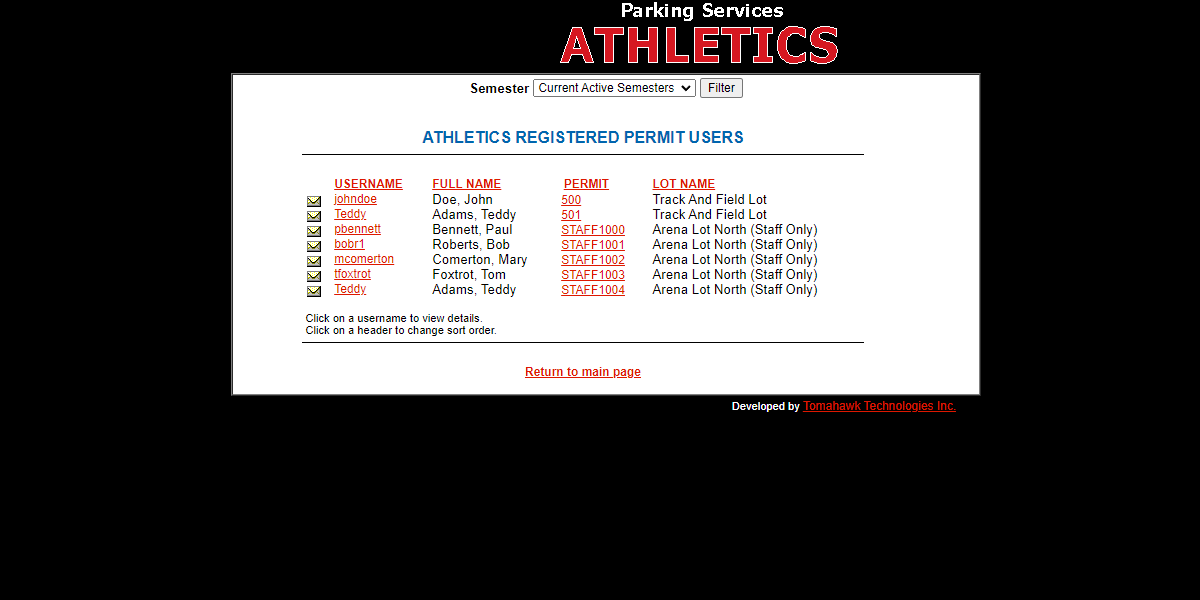
dataTobeforeseeissuing:aAlwaysuser'sensuredetails,theclickcorrectonvehicletheirisusername.actively
associated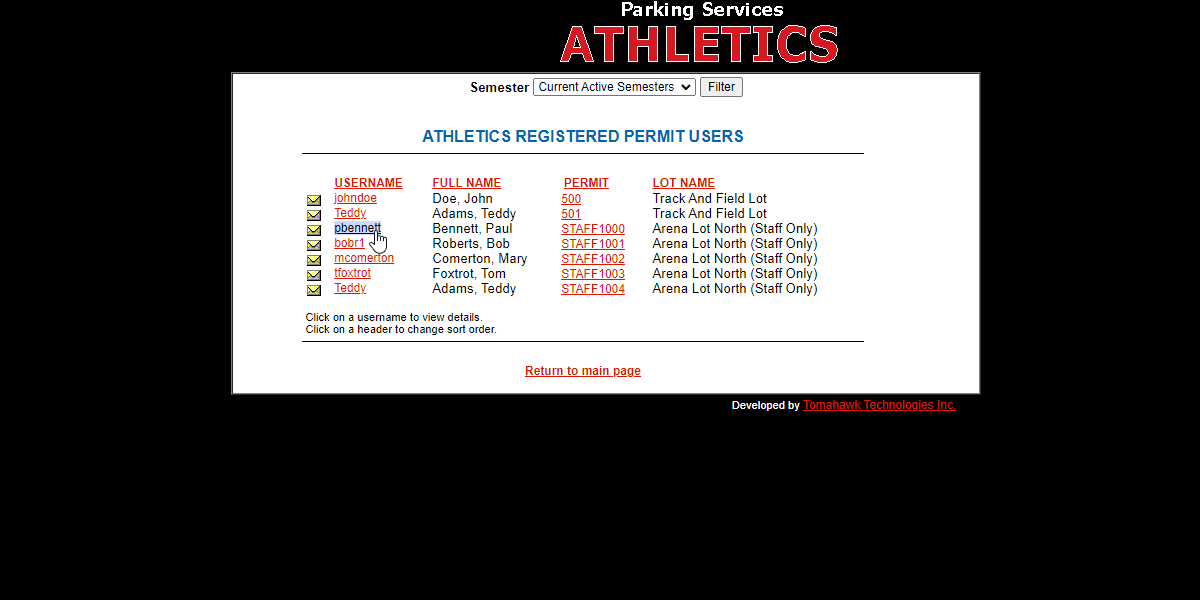
profileThe screen will refresh and display a detailed view ofwith the user'sinformation.
Issuing an athletics permit toAbeforelist of allclicking thevehiclespurchaseassociatedbutton.theanuserincomplete profile canberesultseeninhere.incorrectAdditionalcompliancedetailsenforcementonoraunwarrantedvehiclecitationscan be viewed by clicking onin thevehiclephysicalplate number.lots.Also from this page:A new vehicle can be added to the user's profile.Permit hang tags can be printed.
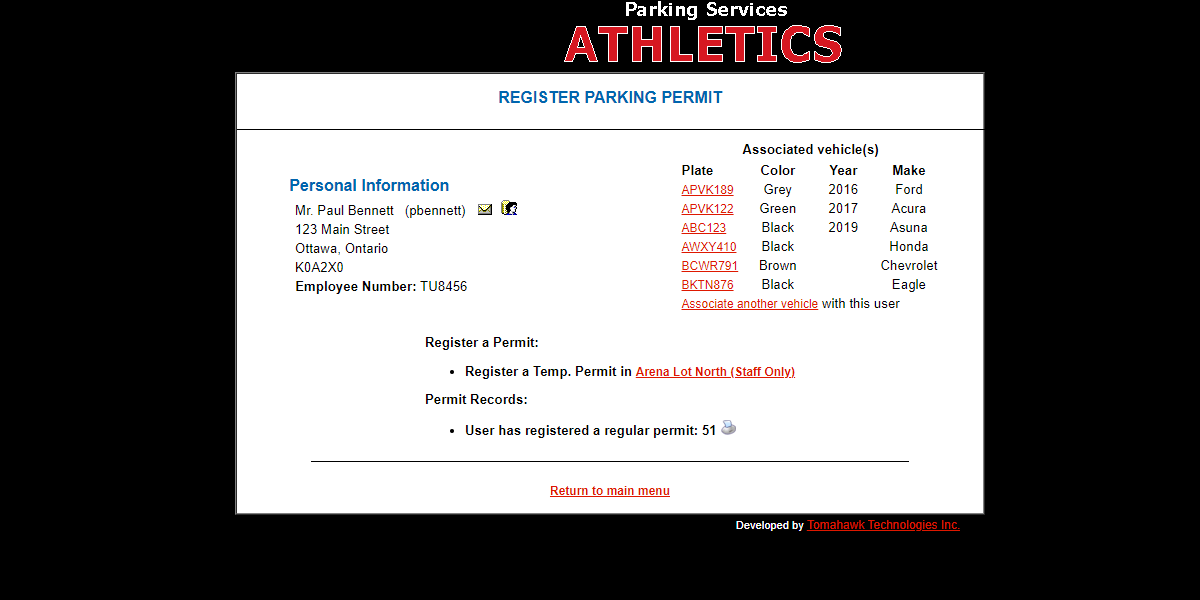
By clicking on the permit number inCurrent Athletics Users, a pop-up will appear with permit details.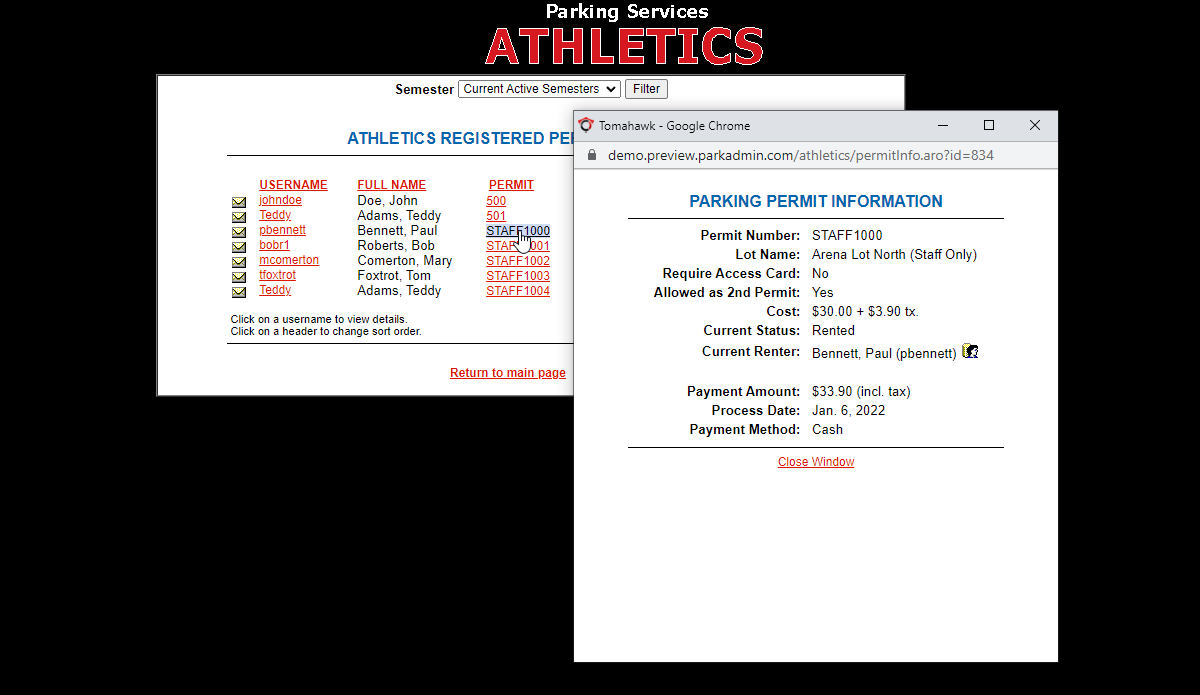
Click "Log Out" to exit the Athletics module.