
Auto Email Notifications for Warnings
ThereThe isAuto nowEmail theNotifications optionfor Warnings feature allows administrators to haveautomatically adispatch warningemail letter sentnotices to thoseusers who have received a violation marked as a warning. ViolationsIts markedprimary aspurpose ais warningto haveefficiently hadcommunicate theirzero-dollar fineinfractions amountto waived.users without requiring manual email processing by administrative staff. This article is intended for OPS-COM administrators.
Setup &and Configuration
To use this feature, administrators must enable the sendingglobal ofsetting, warningconfigure notices:the email template, and ensure the corresponding system task is active.
GotoHover over System Configuration
,thenand click System Settings,.and-
Scroll down to locate the Violations sub-menu.
-
Enable the
setting namedSend Notices For Warnings.checkbox. -
Click the Save Settings
.button.
Enabling the Global Setting
Once enabled, warning notices will be sent when
Configuring the systemEmail taskTemplate
-
TheHoveredit the layout of the warning letter:Go toover System Configuration>and click>then-
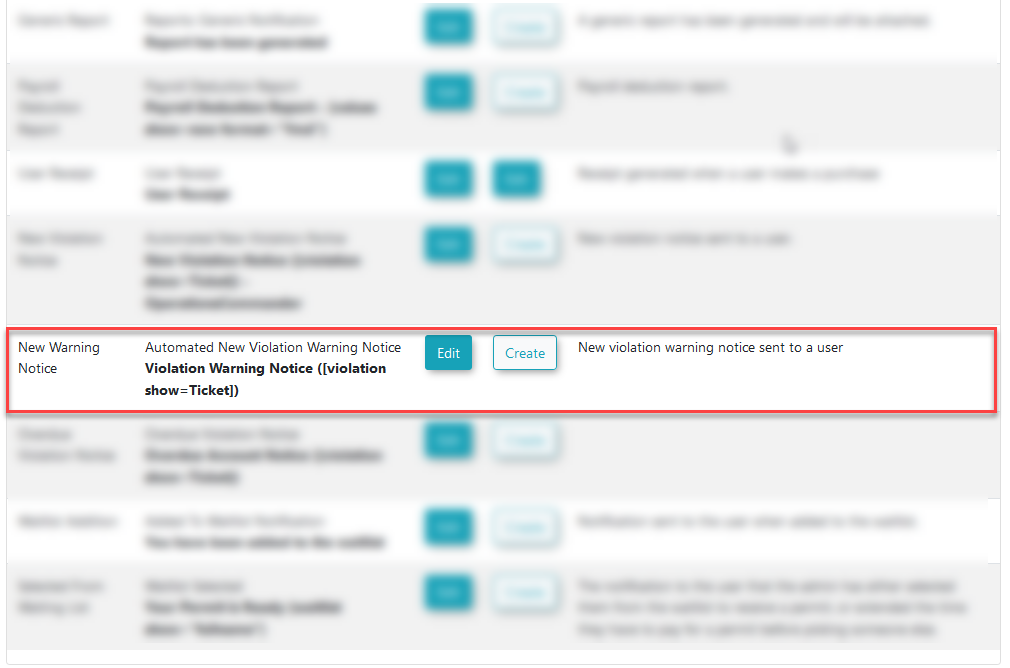
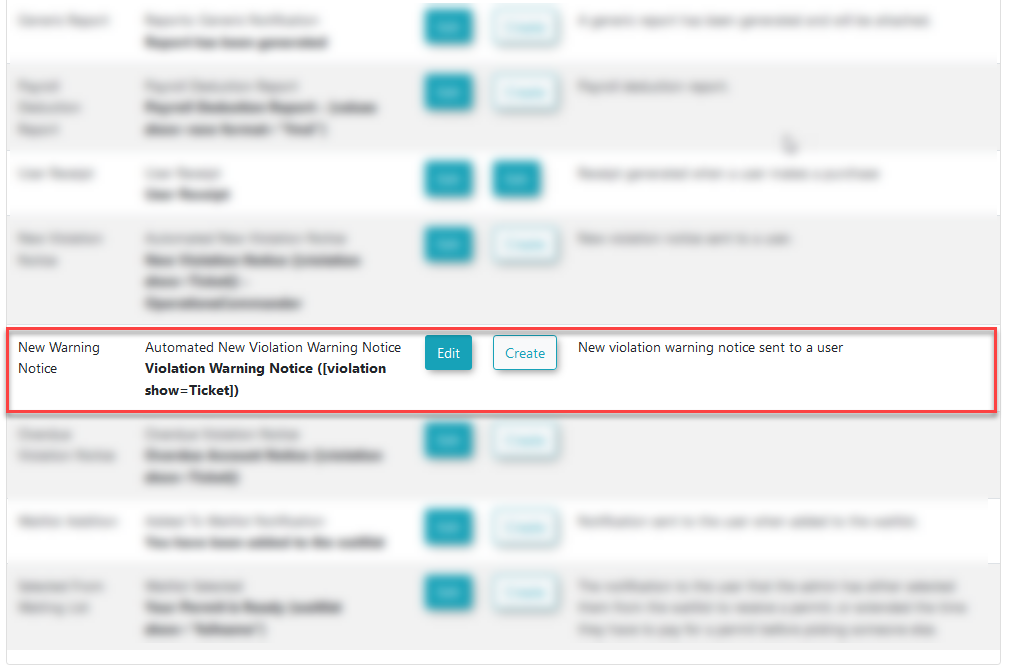
Click the Edit
onbutton next to the New Warning Notice template.
-
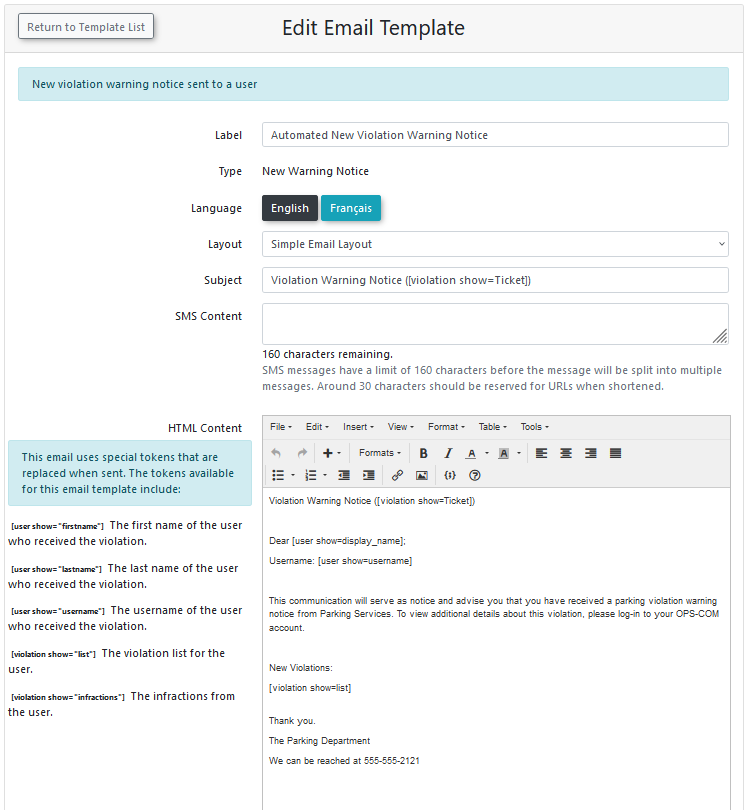
HereAdjust the layout and content of thenoticewarningislettersetupasforneeded and save your changes.
Template

Enabling the email to be sent out to users with warning violations.
System Task
For the warning notices to be sent out,out automatically, the associated system task must be run.active.
GotoHover over Tools
>and click View System Task Logs.-
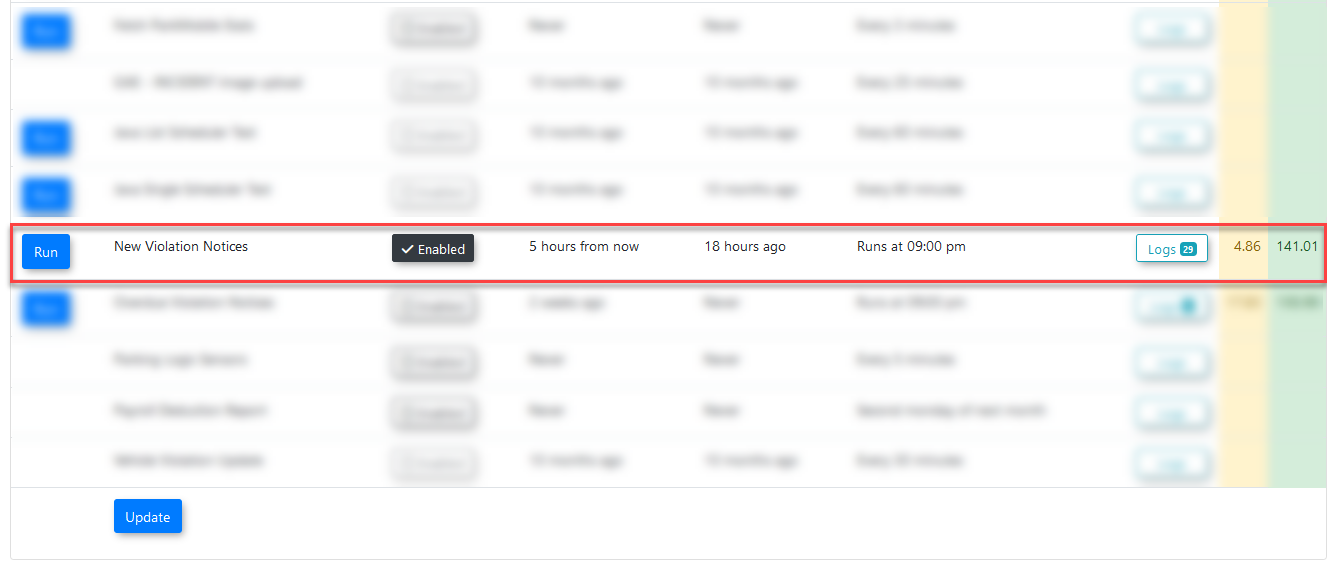
Ensure the
Using this Feature
Once configured, the system handles the distribution of warning notices automatically based on the scheduled system task. No daily manual intervention is required.
BestAvailable PracticesActions &and ConsiderationsFunctionality
-
Running Tasks Manually: Like other system tasks, the New Violation Notices task is set to run at a scheduled
timetime.whileHowever,it is enabled. Itadministrators canalsoexecutebe runit immediately bypressingclicking therunRunbutton.button next to the task on the system task logs page.-
Output Filtering: While the
settingSend NoticesforFor Warnings setting is enabled,thisthe system task will include warning violations in its email output.WhenIfdisabled,you choose to disable this setting later, the task will revert to onlysendsending notices out for standard violations issued with a fine. Thetask frequencycan be adjusted, however it must be updated manually on our end in the database. Please contact us atsupport@ops-com.comfor help.
Best Practices and Considerations
-
Protecting Field Staff: We strongly recommend keeping a longer delay for the task frequency.
,asDelayingit’sthe automated warning emails is intentionally designed to prevent unsafe situations where field staffmaymight beapproachedapproached, pressured, orpressuredconfronted by a user immediately after issuing aviolation.violation in the lot.