
Cancelling a Violation
How
The Cancelling a Violation feature allows administrators to cancelformally dismiss an issued parking ticket within the system using the internal appeals workflow. Its primary purpose is to help correct enforcement errors or process an approved appeal, effectively voiding the ticket and removing any associated financial penalties from the user's account. This article is intended for OPS-COM administrators.
Setup and Configuration
There is no specific system setup or configuration required to use this feature. Cancelling a violation is a standard administrative action available to users with the appropriate violation management and appeals permissions enabled on their account.
Using this Feature
Administrators can manually cancel an active ticket by accessing the appeals section within the specific violation record.
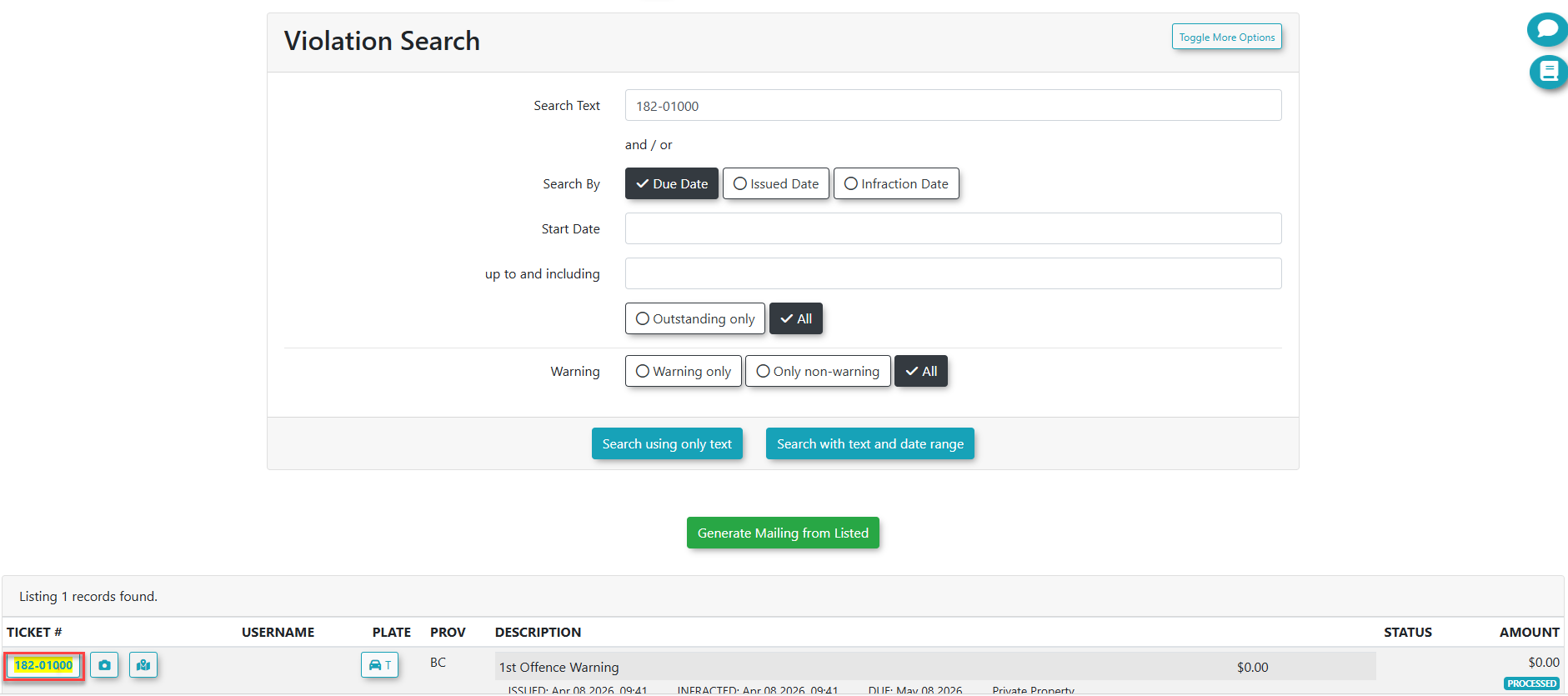
1. Hover over Violations, selectand click Search
.
2. Enter the violationspecific beingticket cancellednumber into the Search Text field,field.
3. selectClick the Search using only text. Inbutton.
4. Click on the Ticket Number oflink from the search results to open the violation being cancelled
details.
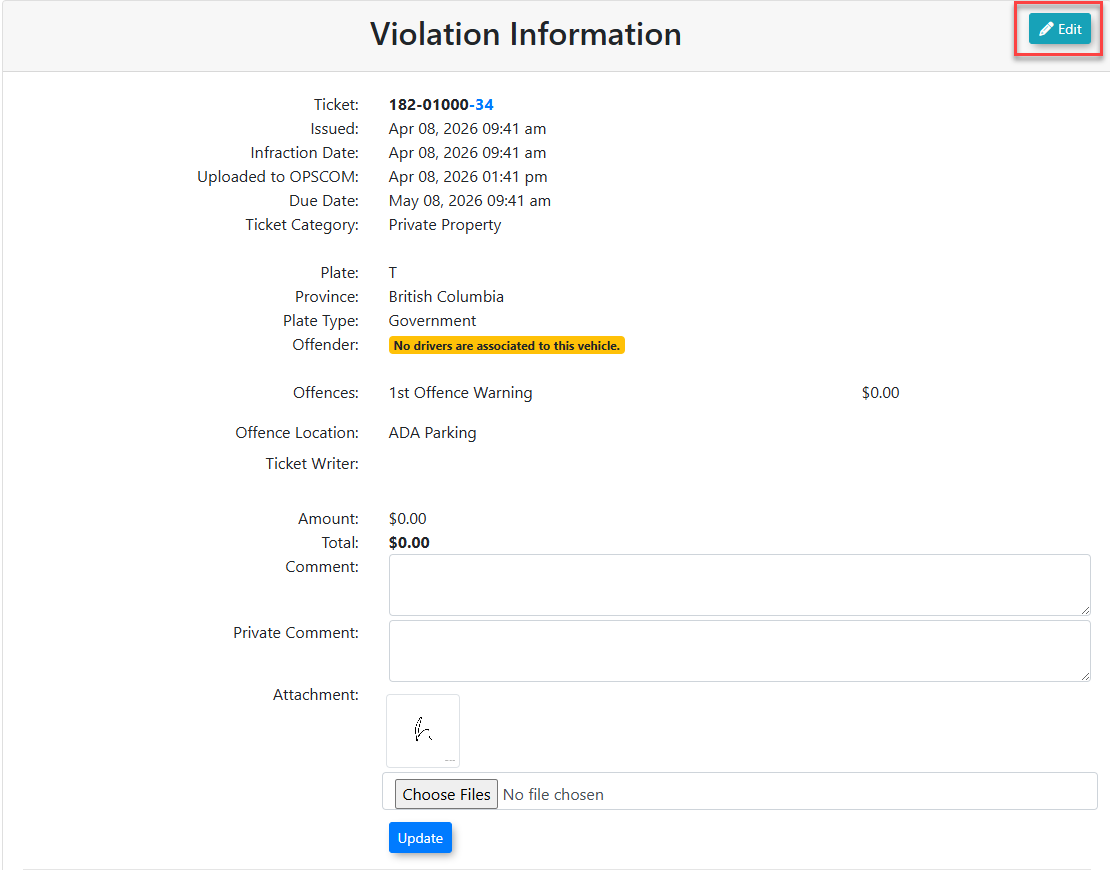
4.5. Click on the Edit button
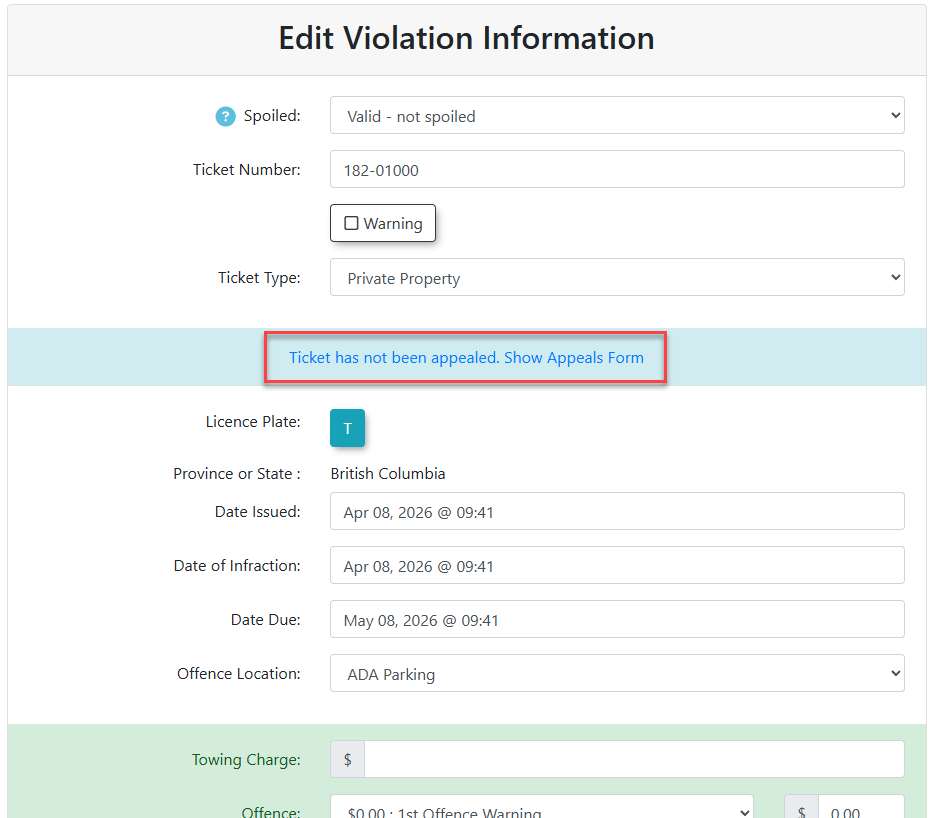
5.6. Click on the Show Appeals Form link.link to reveal the administrative action fields.
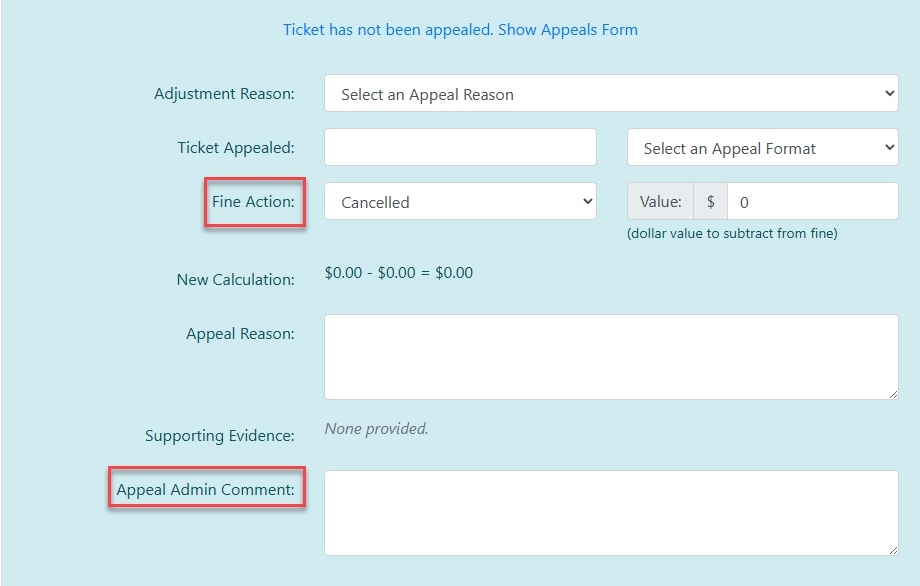
6.7. Select Cancelled inClick the Fine Action fielddrop-down menu and enterchoose Cancelled.
8. Enter the reason for the cancellation into the Appeal Admin Comment field.
7.8. Click onthe Update this Violation button to finalize the status change.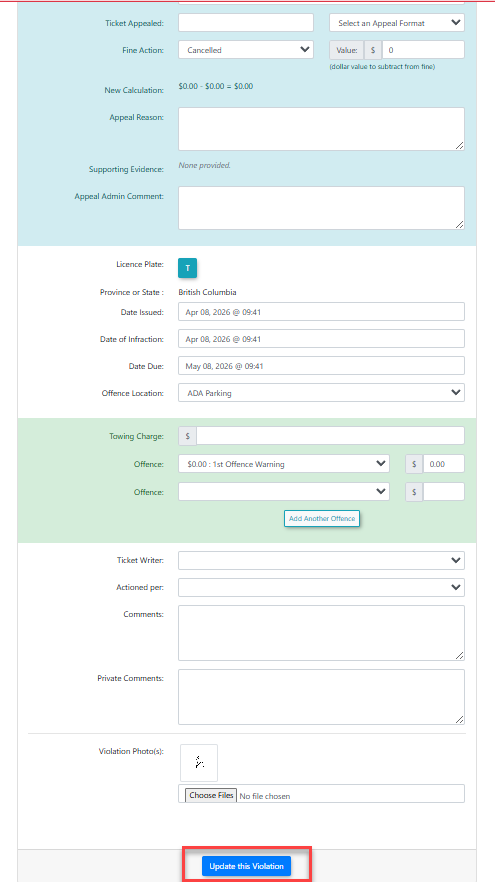
Visual Cues and Status Indicators
-
AConfirmation Message: Upon successful completion of the steps above, a pop-upwithmessageshowwilla messagedisplay in the top right corner of your screen stating that the "Violation has been updated."

Best Practices and Considerations
Appeals Form Utilization: Even if a user did not formally submit an online appeal through their user portal, administrators still utilize the Show Appeals Form section to process a backend cancellation. This ensures the administrative decision and reasoning are officially recorded in the system.
-
Audit Trails: Always provide a clear and detailed reason in the Appeal Admin Comment field when cancelling a ticket. Documenting the specific reason for the dismissal (e.g., successful appeal, valid permit verified, officer error) creates a reliable audit trail for future reference.
-
Financial Impact: Remember that cancelling a violation immediately removes the financial liability from the user. Ensure you have the proper authorization or documentation before updating the fine action to prevent unauthorized dismissals.