
Cancelling an Invoice
ThisCancellingarticle explains how to cancel an Invoice
existing Ifinvoice within the OPS-COM system. This feature allows administrators to invalidate an issued invoice to make necessary adjustments—such as removing users or modifying permits—before re-issuing a corrected version. This guide is intended for OPS-COM administrators responsible for company wouldbilling likeand usersfinancial removedmanagement.
Setup changes& madeConfiguration
There is no specific module setup required to use the invoice hascancellation beenfeature. issued,It is a standard administrative tool available to staff with the invoiceappropriate mustbilling firstand bepermit cancelledmanagement from the Invoice Search page.permissions.
The page can be found under the menu tree:
Permits -> Invoice Search
If not removed using
Using this page, the invoice will appear twice as revenue for the month it was issued and both invoices will be due for payment. Invoices cannot be removed directly from the user's payment tabs. Feature
To cancel an invoice, firstadministrators findmust use the invoicededicated usingsearch page. Invoices cannot be removed or cancelled directly from a user's individual payment tabs.
Cancelling the invoiceInvoice
-
Hover over Permits and click Invoice Search.
-
Enter the
cancelnecessary search criteria to locate the specific invoice. -
Click the Cancel button located next to the invoice record
thatyoushouldwishbetocancelled.void. -
Accept the confirmation prompt in the pop-up window to finalize the cancellation.
Invoices cannot be cancelled if they have already been paid for.paid. To cancel an invoice that has alreadya beecompleted paidpayment for,associated with it, you must first access the transaction records and cancel the payment mustitself bebefore cancelledattempting first.to cancel the invoice.
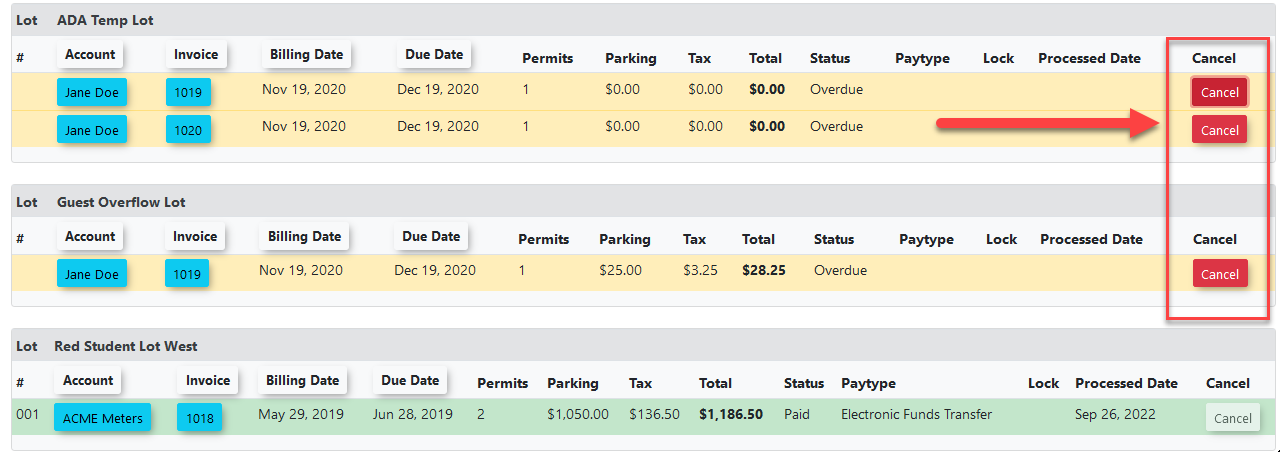
Visual Cues & Status Indicators
-
ThisOncewilltheopencancellationaisconfirmation prompt in a pop-up window.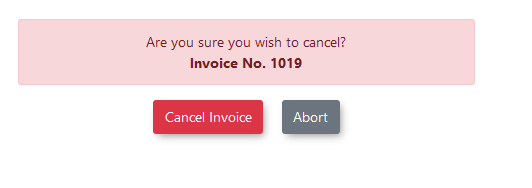
Confirmconfirmed, the invoiceshould be cancelled to mark it as cancelled.The invoicewillnowautomatically update and appear ascancelledCancelled on the invoice report.
Best Practices & Considerations
-

-
MakeRe-issuing an Invoice: After cancelling the invoice, make any required changesrequiredto the permits andusers,users.andYou can then re-issue the invoice through thepreparePrepareinvoicesInvoices page. The companyshouldwill be listed as an optiontofor re-issue the invoiceissuance as long as the changes made are not further back than a year.
