
Clearing Items Awaiting Payment - Midnight List
IfThe enabled,Midnight thereList isand aits Systemassociated tasksystem thattasks willallow administrators to view and automatically clear allunpaid permits thatand arelockers sitting in user'suser cartsshopping withoutcarts. anyIts paymentsprimary orpurpose promisesis to payfree onup them.unpaid Permitsinventory thatby have been rolled over (renewed) or permits assigned through managed waitlist are excluded from this process. Additionally, Zero dollar items will not be able to be cleared this way. Instead, use the Mark Items as Paid functionality to clear these payments.
Viewing Permits without Payments
ClickParking Management, hover overReports,and clickMidnight List.On the report you can see all users with permits in their cart that do not have a payment associated. You can do the following from this report:
Seereturning items tobetheclearedsystem Emailafter a specified timeframe. This article is intended for OPS-COM administrators responsible for inventory management and system configuration.Setup and Configuration
To automate the
affectedclearingusersprocess, Clearyoutheirmustflag to take them offconfigure thelisttimeframe for both permits andupdatelockersthewithinlist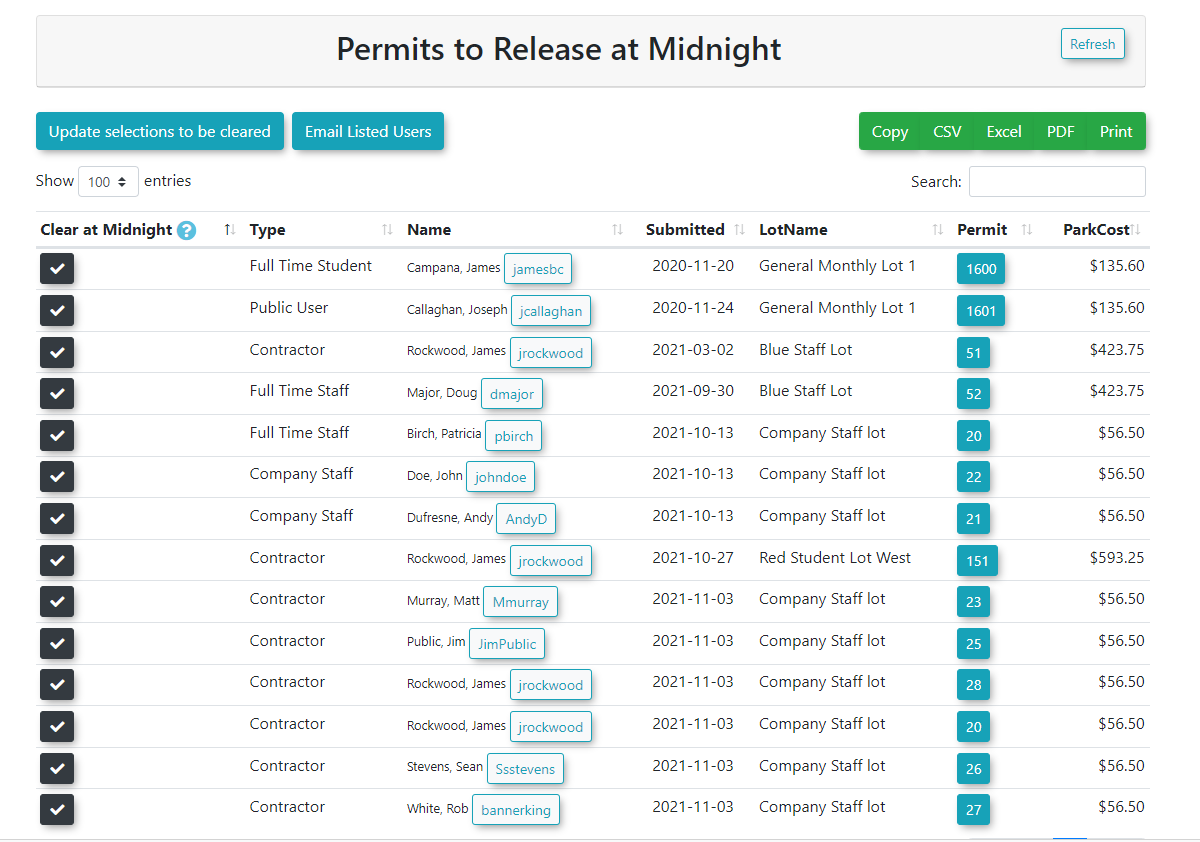 your
your
Viewing Lockers without Payments
ClickLocker Management, and clickMidnight List.On the report you can see all users with permits in their cart that do not have a payment associated. You can do the following from this report:
See items to be clearedEmail the affected usersClear their flag to take them off the list and update the list
Setting Up to Automatically Clear Permits
-
Hover over System Configuration, click System Setting, and then click Permits.
-
Click to enable the Clear Unpaid Permits toggle.
-
Click Payments.
-
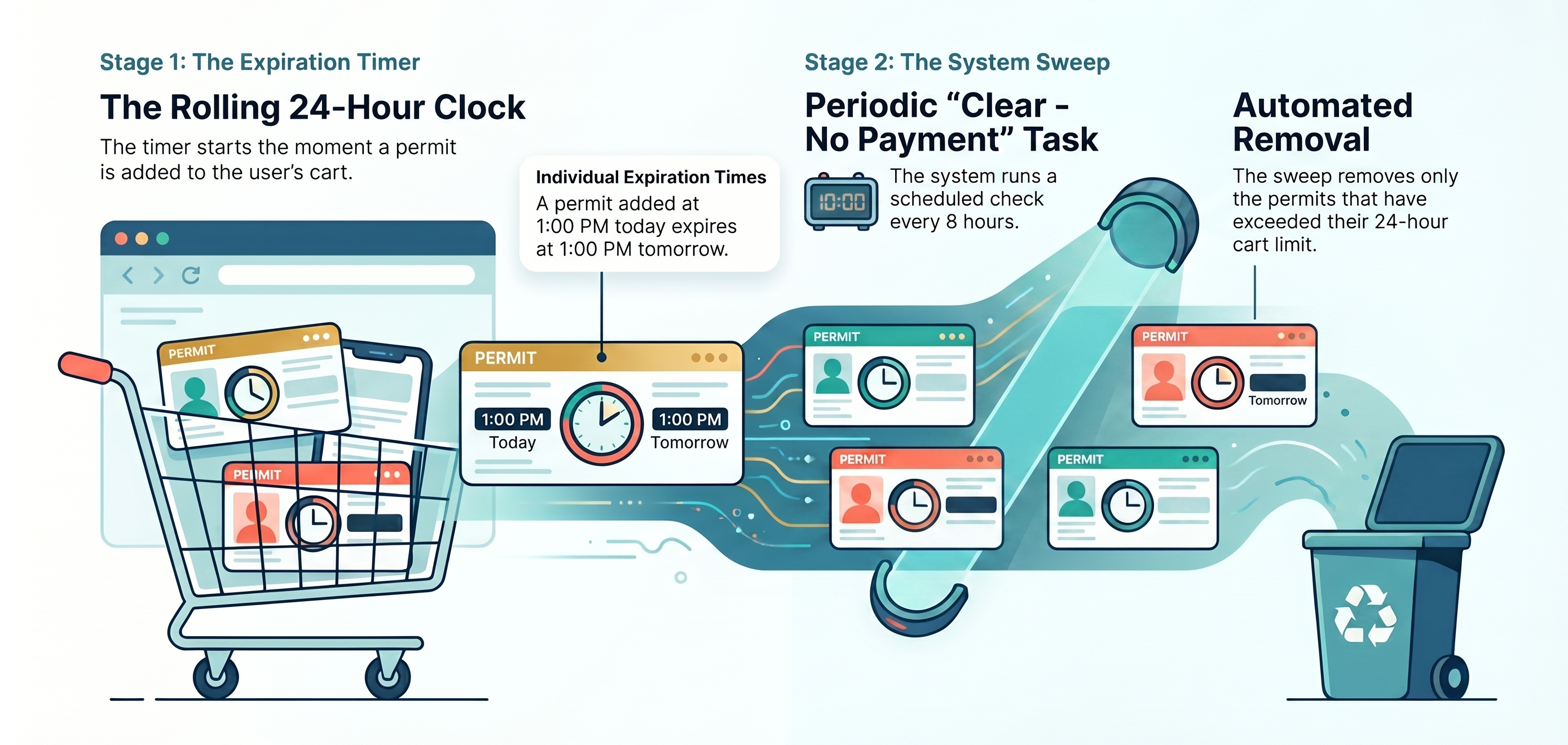
Enter the desired number of hours into the Clear Payments After X Hours field using numbers only.
-
Toggle on the Clear - No Payment scheduled task. Instructions for this can be found on the Scheduled Tasks wiki page.
Setting Up to Automatically Clear Lockers
-
Hover over System Configuration and click System Settings.
-
Click Lockers.
-
Click to enable the Clear Unpaid Lockers at Midnight toggle.
-
Enter the desired number of hours into the Clear Payments After X Hours field using numbers only.
-
Toggle on the Clear - No Payment scheduled task.
If you do not see the settings mentioned below,above, please contact support@ops-com.com to have them enabled for you. You will need the permission of your Primary Admin.
Using this Feature
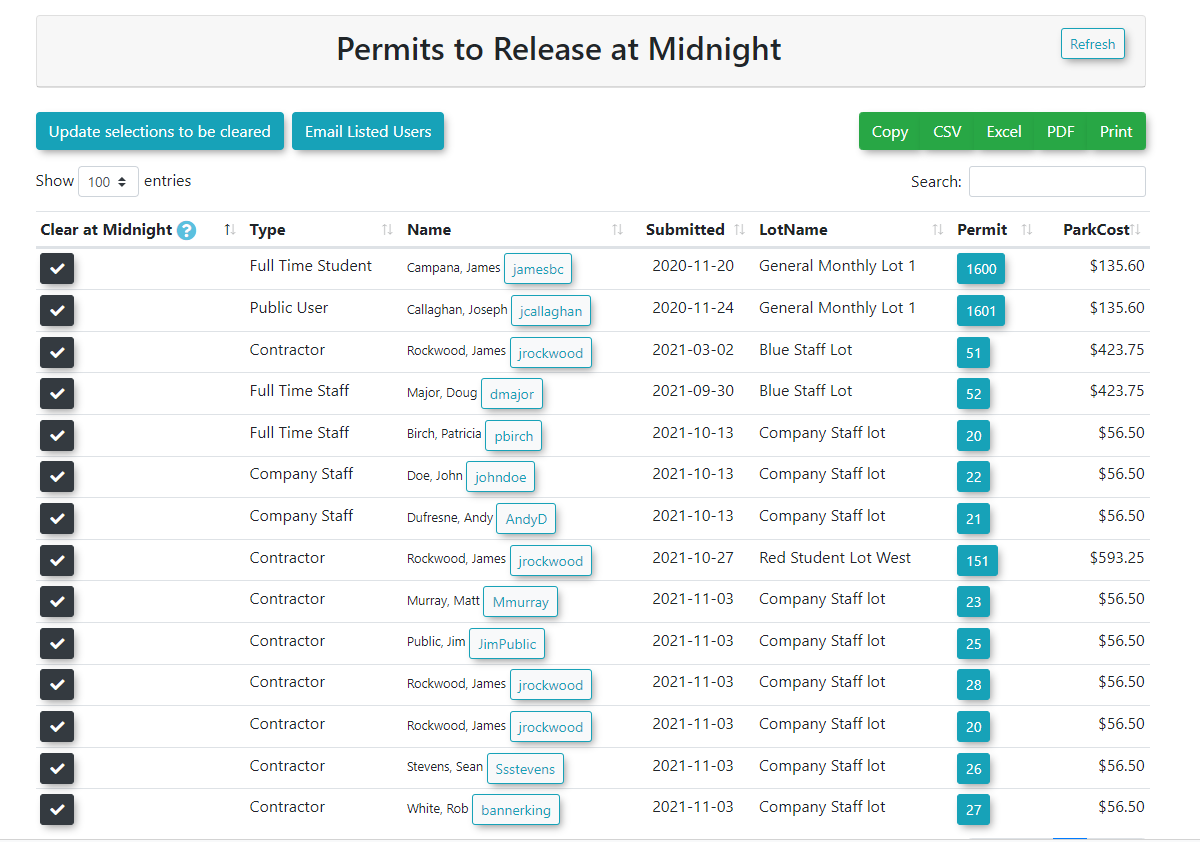
Administrators can manually review the Midnight List for both permits and lockers to see which items are pending removal.
Viewing Permits without Payments
ClickSystem Configuration, hoverHover over
SystemParkingSetting,Management, click Reports, and then click Midnight List.-
Review the report displaying all users with permits in their cart that do not have an associated payment.
Viewing Lockers without Payments
-
Hover over Locker Management and click
PermitsMidnight List. Clickto toggleClear Unpaid Permitson.ClickPayments.ChangeReview the
ClearreportPaymentsdisplayingAfterallXusersHourswithvaluelockerstoin their cart that do not have an associated payment.
Available Actions
From either Midnight List report, you can perform the numberfollowing ofactions:
-
want to allowSee items to
remainbe cleared: View the specific inventory sitting in the user's cart.Use numbers only FollowEmail the
instructionsaffectedinusers:thisSendwikiaarticlecommunication totoggleusersonreminding them to complete their purchase.-
Clear their flag: Remove the user from the Midnight List and update the queue.
Best Practices and Considerations
-
Excluded Inventory: Permits that have been rolled over (renewed) or assigned through a managed waitlist are excluded from the automated clearing process. These must be managed manually.
-
Zero Dollar Items: Zero-dollar items cannot be cleared using the Midnight List task. Instead, you must use the
ClearMark-ItemsNoasPaymentPaidscheduled task. ClickSystem Configuration, and hover overSystem Settings.ClickLockers.Click to toggleClear Unpaid Lockers at Midnighton.Change theClear Payments After X Hoursvalue to the number of hours you want to allow items to remain in thea user's cart.Use numbers onlyFollow
Setting Upfunctionality to Automaticallyclear Clearthese Lockersspecific withouttransactions Payments
from If you do not see the settings mentioned below, please contact support@ops-com.com to have them enabled for you. You will need the permission of your Primary Admin.