
Editing Incidents
The Editing Incidents feature allows administrators to modify existing incident reports, add new information, and manage the case status. Its primary purpose is to ensure that records remain accurate, detailed, and up-to-date as investigations progress. This article is intended for OPS-COM administrators, dispatchers, and security personnel.
Setup and Configuration
There is no specific module configuration required to edit incidents. However, administrators must have the appropriate incident editing permissions assigned to their user role to view the edit options and make changes to the records.
Using this Feature
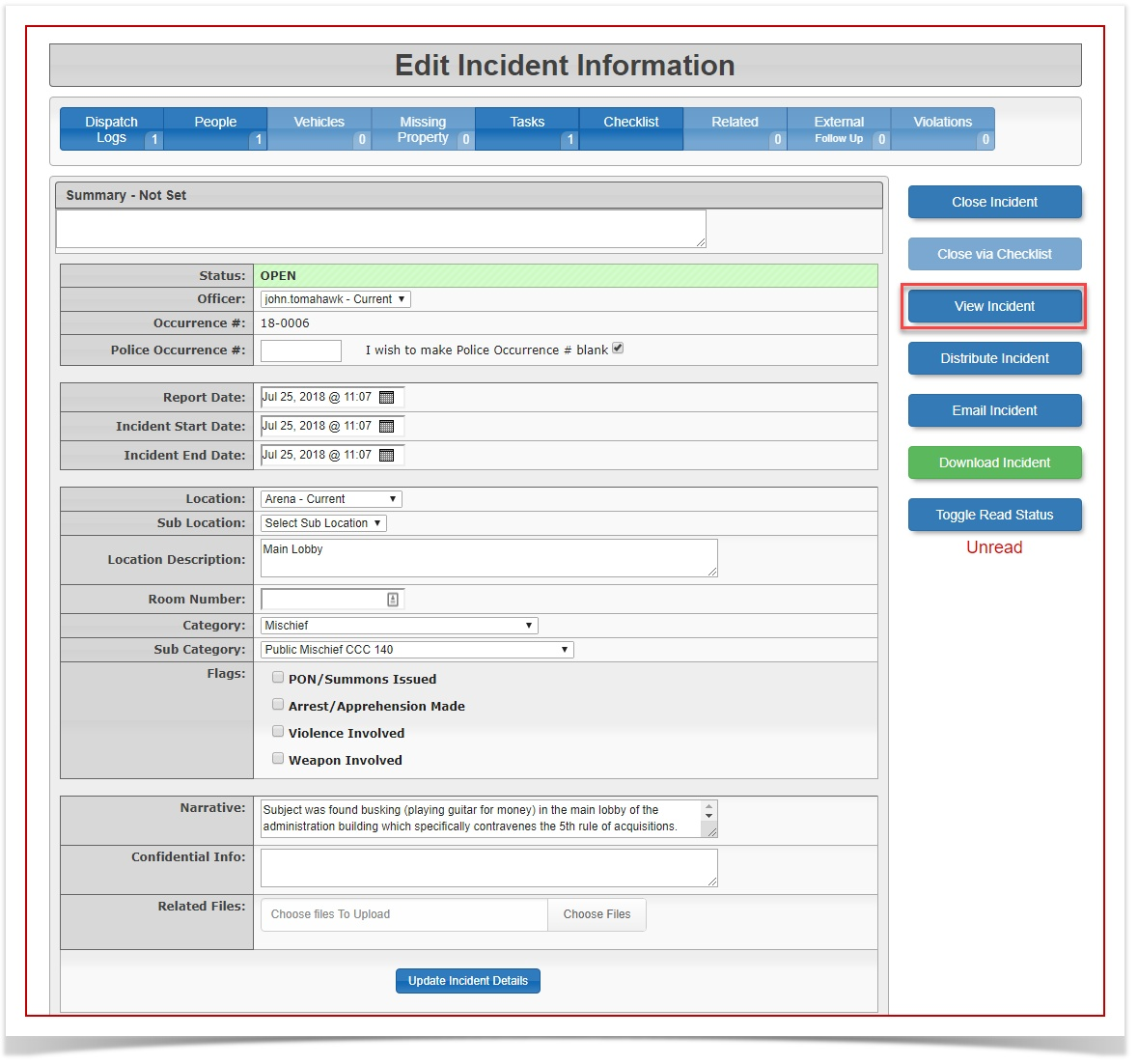
Administrators can quickly update incident details directly from the main incident information page.
Modifying an Incident
FromNavigate to the Incident Information
page,pageselectof the'specific record you wish to modify.-
Click the Edit Incident
'button
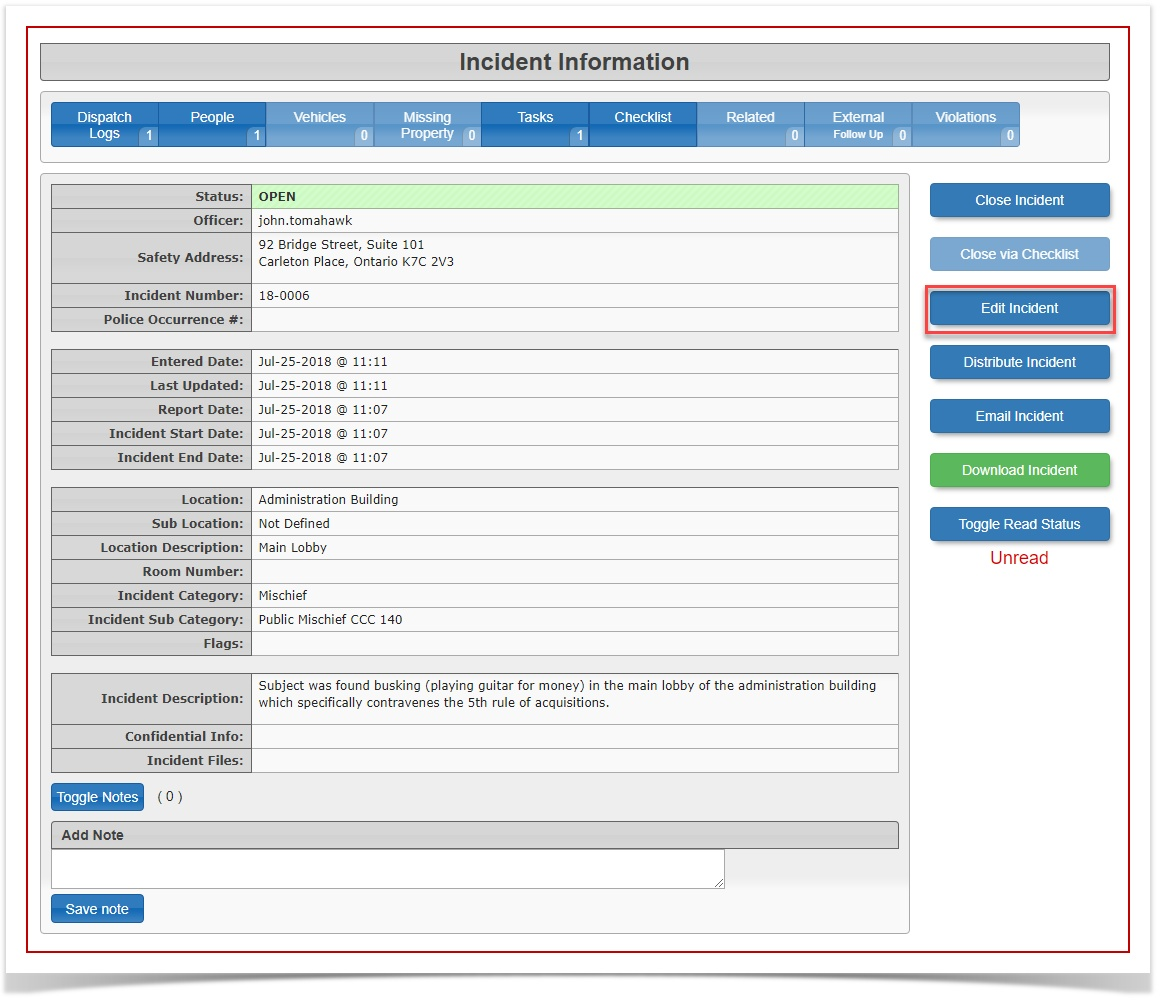
-
Enter or change any
newnecessaryinformation,informationthenwithinselectthe'provided fields. -
Click the Update Incident Details
'
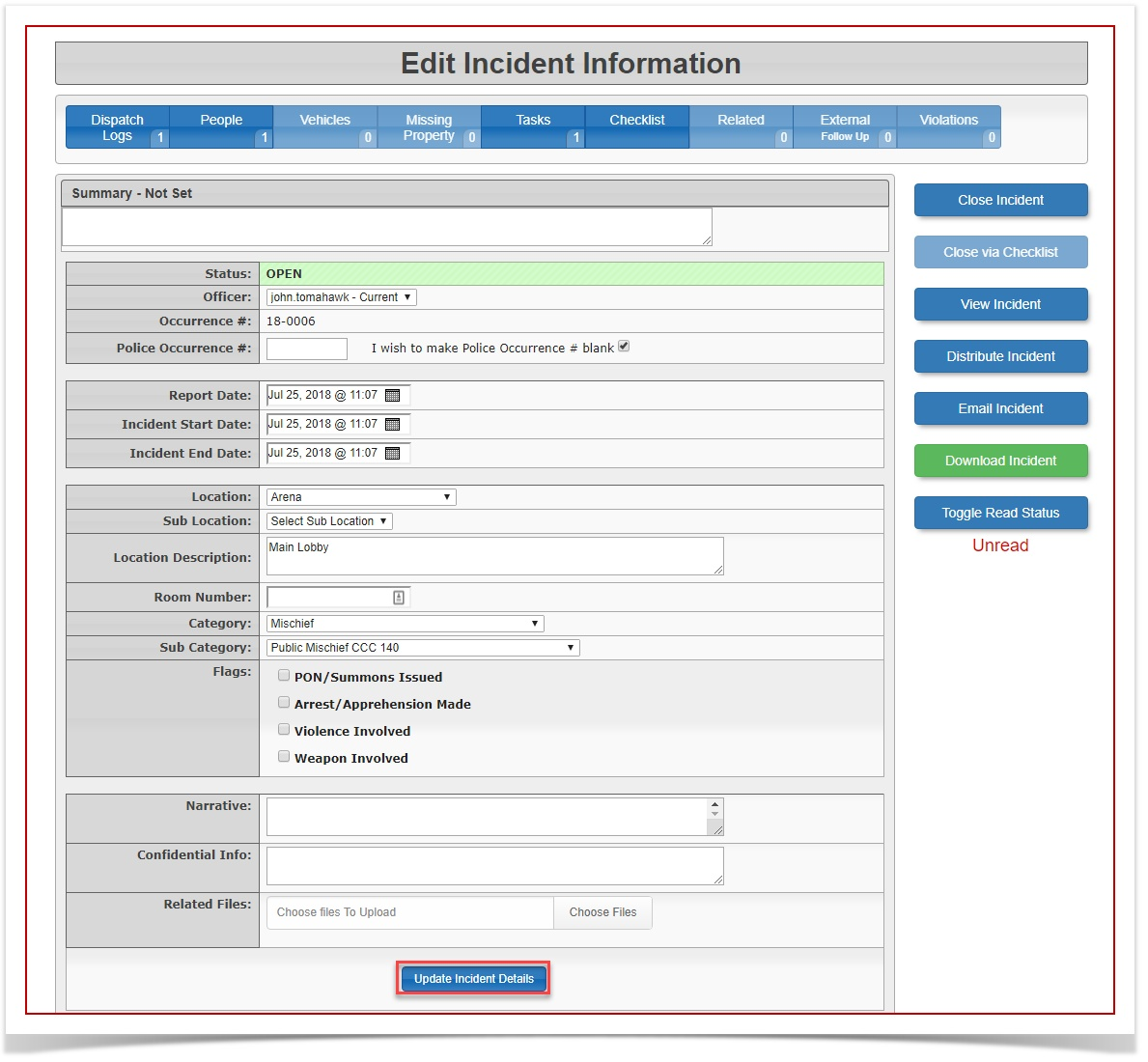
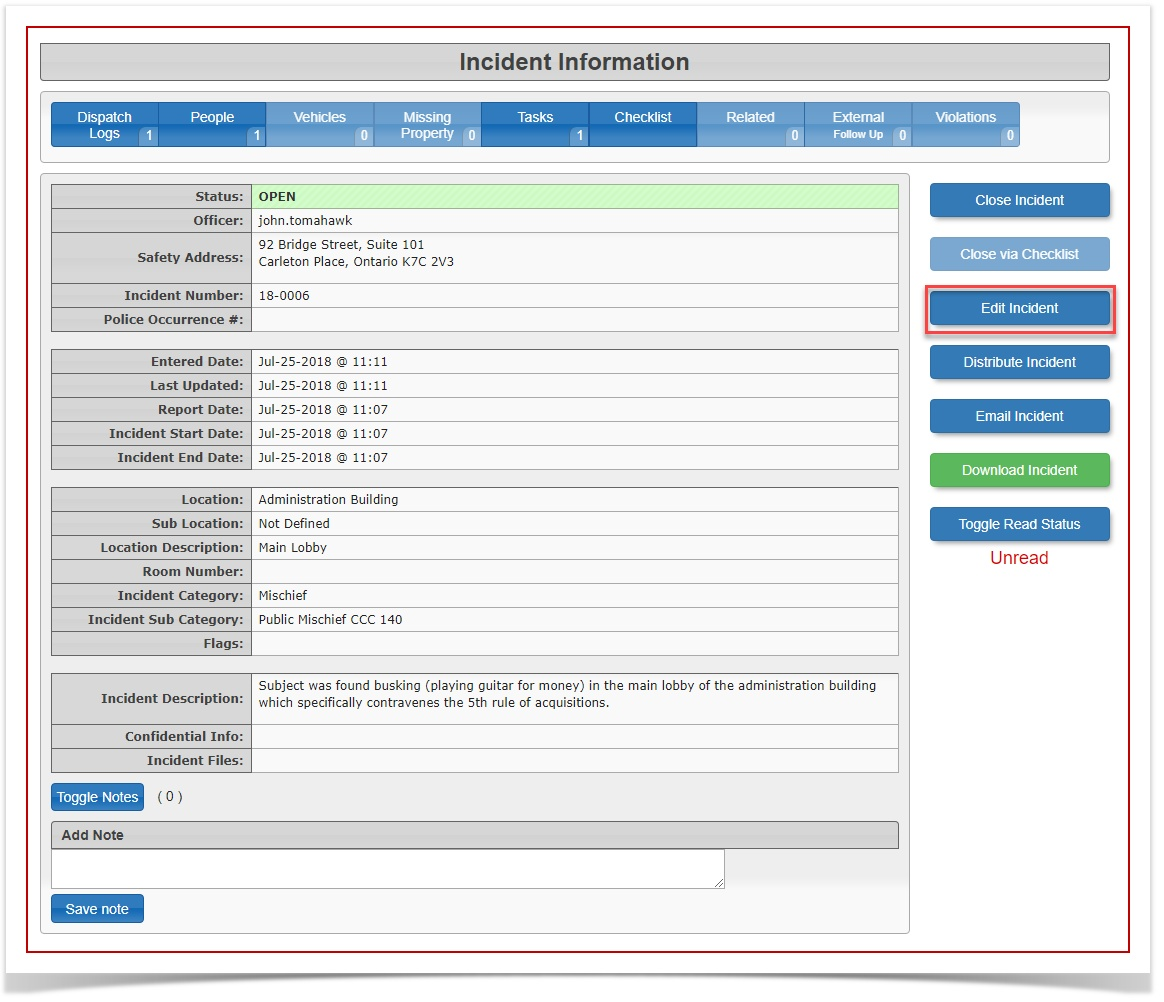
Select'Click the View Incident
'button to exit editing mode and return to the main incident summary view.
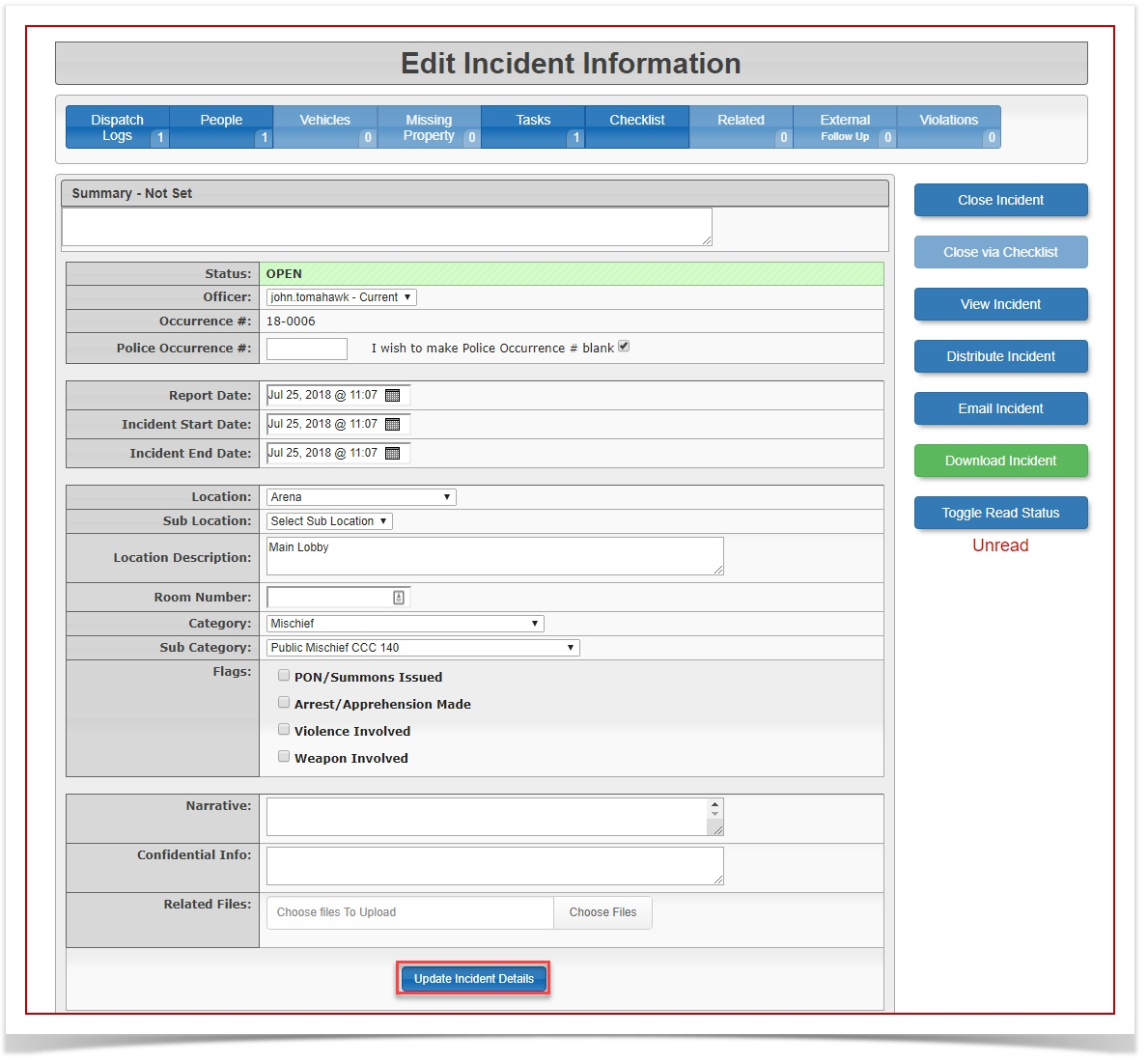
Available Actions and Buttons
several
-
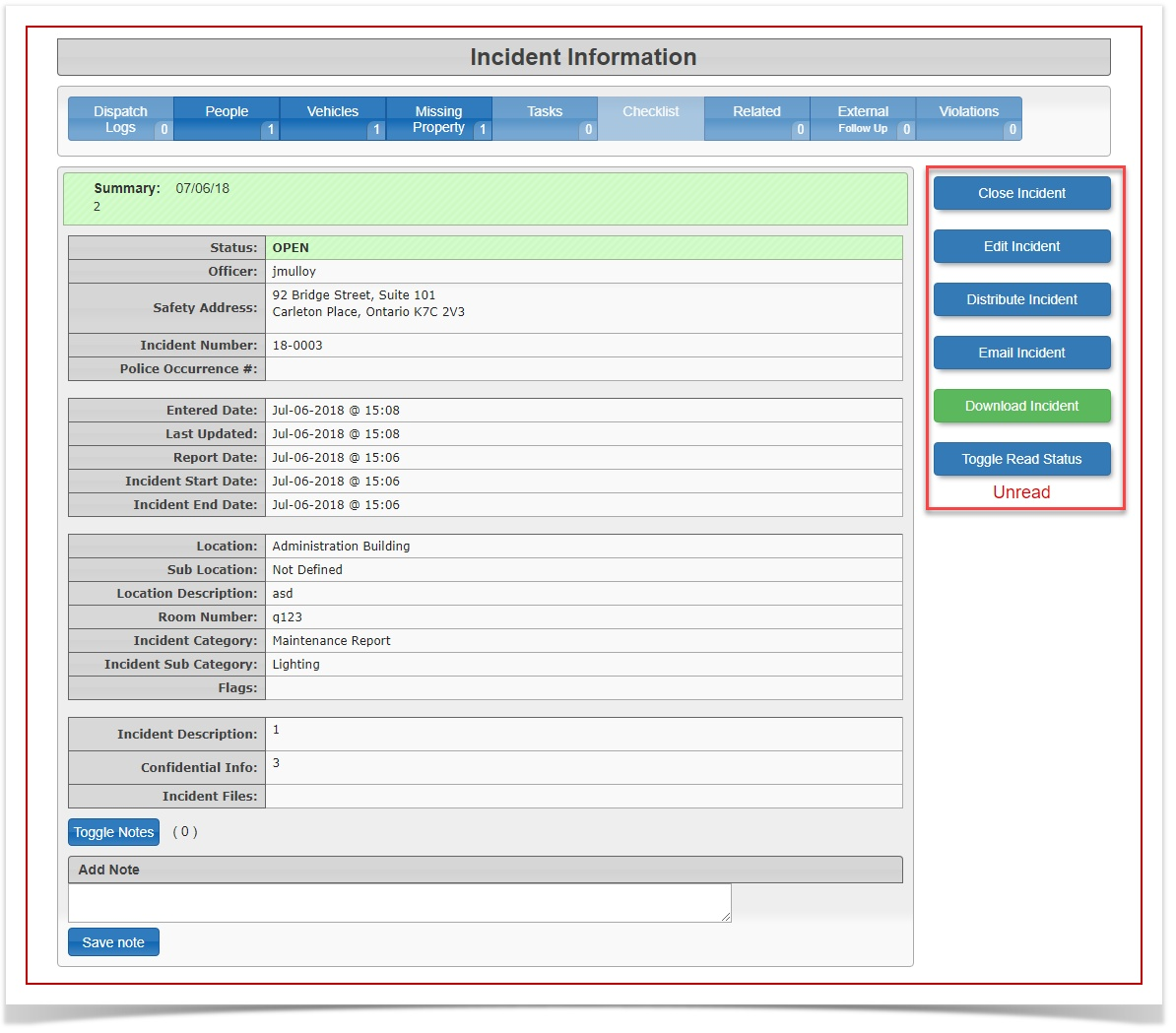
Close Incident-/SelectOpen Incident: Click this button to toggle the incident status betweenClosedclosed andOpen.
open. -
Edit Incident:
- SelectClick this button to toggle between viewing the incident and actively editingtheitsincident.
details. -
Distribute Incident:
- SelectClick this button to create a distributionreport.reportThisforlocksauthorizedtherecipients.incident -
being edited.Email Incident:
- SelectClick this button to generate and send an emailaboutregarding the incident. -
Download Incident:
- SelectClick this button to download a PDF copy of theincident.incidentThisforlocksoffline filing or external use. -
Toggle Read Status: Click this button to change the read status of the report from unread to read, or vice versa.
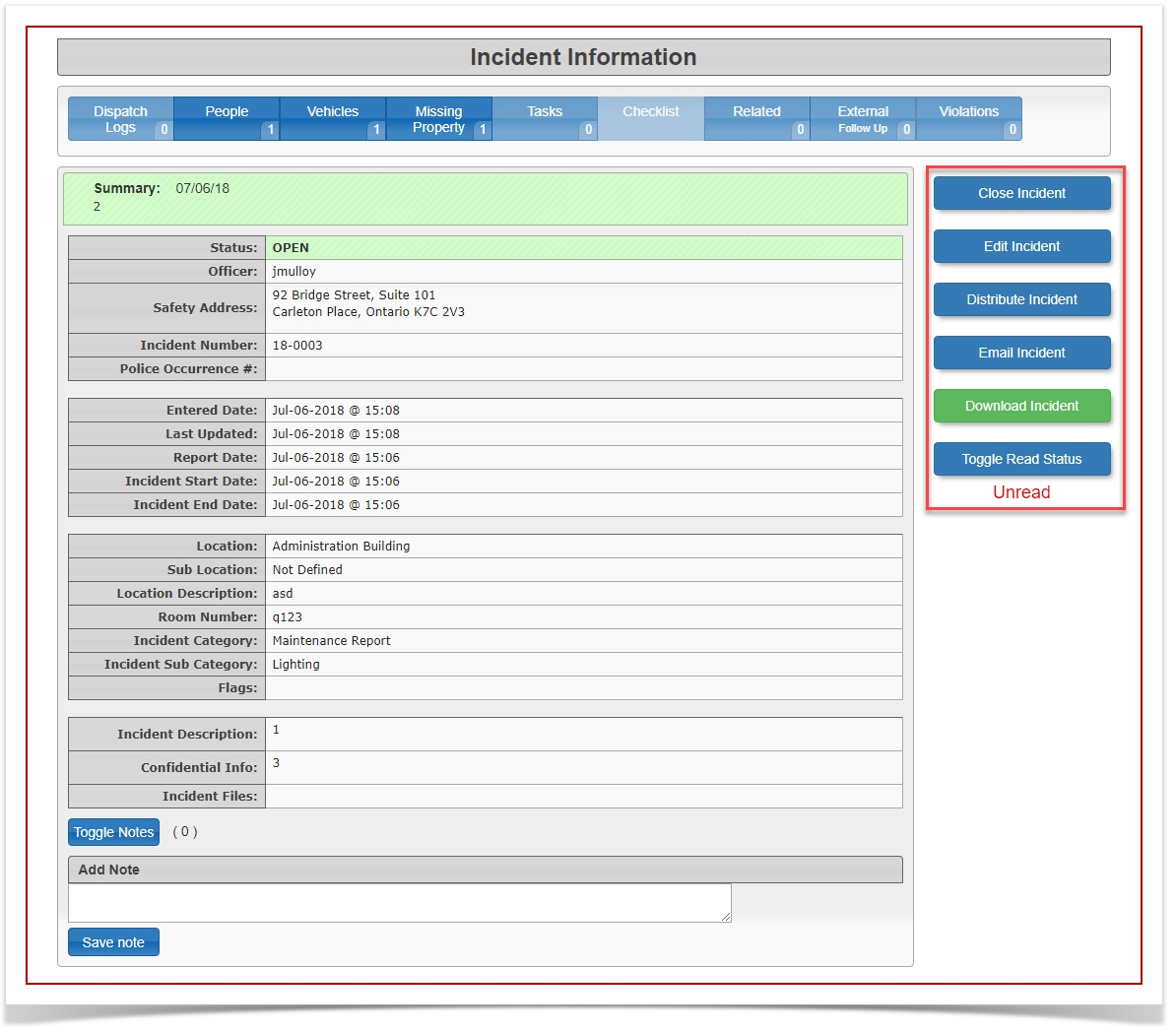
Clicking the Distribute Incident or Download Incident buttons will automatically lock the incident from being furtheredited edited.Togglefurther. ReadEnsure Statusall -details Selectare thisfinal, buttonaccurate, and completely resolved before executing these actions.
Best Practices and Considerations
-
Verify before locking: Organizations should establish a business rule requiring investigators to
togglethoroughly review thereadincidentstatusreportfrombefore'unread' to 'read'downloading or'readdistributing it.'toBecause'unread'these actions lock the record, premature distribution can result in incomplete or inaccurate permanent files. -
Maintain accurate statuses: Always close an incident once the investigation is fully resolved and all checklist items are complete. This keeps your active open incident queues clean and ensures reports correctly reflect your team's current workload.