
Enhanced Admin Security: Multi-Factor Authentication (MFA) with OperationsCommander
The OperationsCommander team has added a critical security layer for our Admin users: Multi-Factor Authentication (MFA)! Thisprovides isa Phasecritical 2layer of our MFA project; in Phase 1, we successfully delivered MFAsecurity for allOPS-COM user-sideadministrator accounts. Phaseby 2 provides Primary Admins with three flexible control options (Hidden, Visible, or Required) and enables Admin Users to securely log in usingrequiring an email-delivered One-Time Password (OTP). ThisIts primary purpose is to significantly strengthensstrengthen account protection,protection addressingand aprevent keyunauthorized securityaccess requestto sensitive system data. This article is intended for OPS-COM administrators.
Setup and Configuration
The MFA feature offers three distinct configuration levels for your organization's administrative portal. Currently, modifying your site's overall MFA setting requires assistance from clients.our team. If you wish to adjust your configuration, please contact support@ops-com.com.
Available Configuration Options
Using this Feature
Depending on your organization's configuration, you will interact with the MFA prompt during the standard login process or when performing critical account updates.
Authenticating a Login
When MFA is set to Visible or Required, the system will prompt you to authenticate your identity after entering your username and password.
-
Enter your standard administrator credentials on the login screen.
-
Check your associated email inbox for the automatically generated One-Time Password (OTP).
-
Enter the OTP into the provided MFA prompt on the screen to access the administrative portal.
Mandatory Security Actions
Regardless of your site's overall MFA configuration level (Hidden, Visible, or Required), an OTP is always mandatory when performing the following security-sensitive actions:
-
Admin Account Creation
-
Password Changes
You will receive an MFA email code for these actions, regardless of the system setting. If you don't receive the code, your email address may be missing or incorrect—please contact your administrator system admin for help.
There are 3 settings for the MFA functionality.
This setting is currently only configurable with the helps of support. If you wish to change the options on your site, contact support@ops-com.com
Here is how the prompt will look for your admin users:
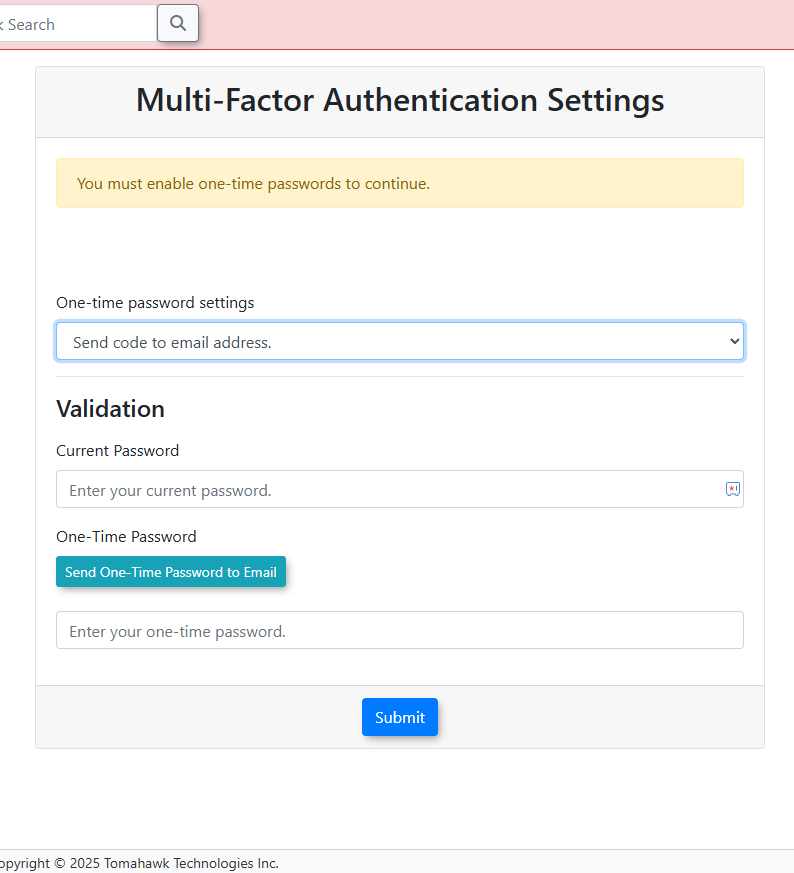
Note: In OperationsCommander, the MFA email is a required security communication, and will be sent out to all users, even if they have unsubscribed from all email categories, on their user profile.
Originally requested on this community item!
Best Practices and Considerations
-
Enforce Maximum Security: Organizations should use the Required setting as their standard business rule. Mandating MFA for every administrative login provides the highest level of protection against compromised credentials and unauthorized system access.
-
Verify Email Addresses: If an administrator does not receive their MFA code, their email address may be missing, outdated, or misspelled on their user profile. They must contact a primary system administrator to have their profile updated before they can log in.