
Feature Overview - Rollover/Renew Permits
PermitThe rollovers,permit alsorollover referredand renewal feature allows administrators to astransition renewals,active describepermits the process of transitioningfrom an existing permit from its current, expiring validitysales periodwindow to a subsequent, new salesone. window.Its Thisprimary procedure effectively establishes a new duration for which the permit remains valid and involves the requisite charge for this extended period. Thispurpose is crucialto for maintainingmaintain continuous parking access for patrons,patrons especiallywhile thoseseamlessly on payroll deduction or with credit cards on file that can be automatically charged. It's designed to manage active permits from a current sales window into a future sales window, establishing a new duration for whichautomating the permitbilling remains valid and involving the requisite charge for this extended period. For instance, consider a monthly permit holder. Their permit is initially configured within a January sales window, granting validity from January 1st to January 31st, at a cost of $100process for the month.extended Invalidity lateperiod. January,This thisarticle is intended for OPS-COM administrators managing recurring permit canbilling.
Setup rolledand overConfiguration
Before executing a February sales window. This action sets the permit's new valid period from February 1st to February 28th, with an additional charge of $100 applied to the permit holderrollover, foryou themust monthconfigure of February.
The rollover process in OPSCOM involves several key steps and configurations:
Sales Window Setup: Before any rollover can be performed, ensure youra new sales windowhasand ensure your system is properly set up to handle automatic payments and notifications.-
Configure a new sales window with a start date equal to or greater than the end date of the previous sales window. Detailed instructions can be found on the Permit Sales Window Management page.
-
Navigate to System Settings then Permits and toggle the Show Permit Renewal
InitiationStatus to Users:Administratorssettinguseto control visibility on thePermit Renewals utility to select which sales windows andusertypes will be included in the rollover.portal. -
PermitReviewSelection & Exclusions: Administrators can review and select specific lots and even individual permits to include or exclude from the rollover process. Payment Processing: For users withyour paymentsubscriptionsgateway(payrollsettings.deduction, EFT, credit card) set up, payments can be processed automatically as part of the rollover.User Notifications (Implicit): While not explicitly detailed as a setup, users with payment subscriptions can have their payments processed automatically, implying a streamlined experience. Users who need to make manual payments will be required to do so to secure their permit.Prevention: Both administrators and users have options to prevent specific permits from rolling over.
-
To ensure a smooth permit rollover, you'll need:
A new sales window set up correctly.Refer to the Sales Window wiki articleto learn more.Permits marked as renewable in the previous sales window.
Before attempting rollovers, please follow the steps in these wiki articles to ensure you have activated the correct Sales Window and that you have your information correctly set up for automatic payments.
For parkers with subscriptions, automatic payments can be processed as part of the rollover. This applies to patrons who pay by payroll deduction or credit card.
For Credit Card Payments: Forprocess automatic credit card processing on rollover, the user must have a valid credit card registered in the system, and it must be set as their Prime Credit Card. Note thatrenewals, your payment gateway must allow the direct charging of client cards;cards (this won'twill not work with hostedhosted-only paymentspayments). only.
Automatic Permit Payments on Rollover/Renewal
Parkers with subscriptions setup in their account
Patrons who pay by payroll deduction or through credit card purchases canmust also have a valid card saved as their Prime Credit Card.
Navigate to the Email Templates page to customize the Payment Success and Payment Failure templates to ensure accurate communication is sent to users upon renewal.
Using this Feature
The rollover utility allows you to move users in bulk, manage individual exceptions, and process payments processed automatically as part of the rollover process.simultaneously.
Performing Permit Rollovers
To beginInitiating a rollover:
-
Hover over Permits
(Clock icon)and click Sales Window. -
Click the Rollover button to open the Permit Renewal
page.page.
Before a rollover can be performed you must make sure thatSelect the newcurrent expiring sales window in the From Sales Window drop-down menu.
Select the target sales window you are rolling intopermits hasinto.
Select the endspecific dateuser of your previous sales window.
Select Rollover Options
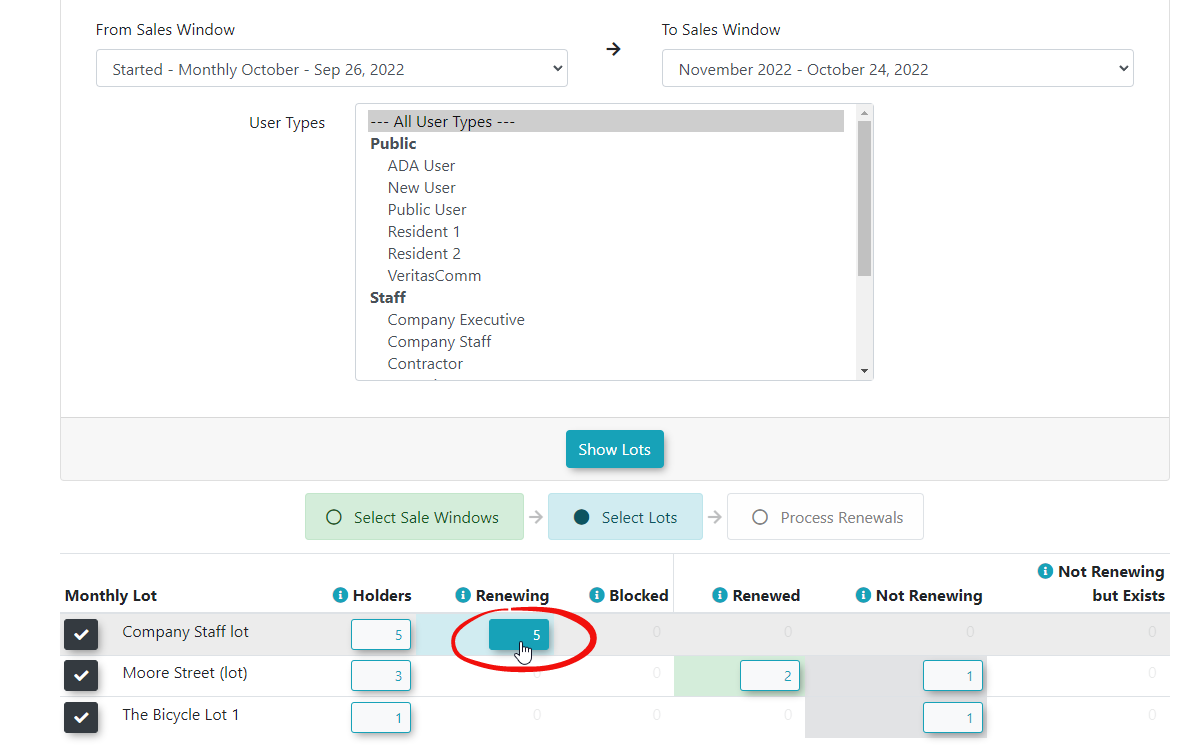
From the permit Renewal window select the current sales window you are rolling overfrom(From Sales Window) on the left side of the form.Then select the Sales Windowtypes you wish toroll the permits into. In our example we are rolling permits from the October Sales Window to the November Sales Window.Select what user types we wish to roll over,process, orsimplyleave it as the defaultofAll UserTypes.Types.-
Click
onthe Show Lots button tolistgenerateall lots that can be rolled over in the selected Sales Window. Thea list of eligible lotswill appearbelow the search form.
Managing Individual Permits for Rollover
You can choose to include or exclude specific permits from the rollover.rollover batch before processing.
-
To see the list of permits you can toggle for renewability, click eitherClick the Holders or Renewingbutton.button next to a specific lot to view a list of its associated permits. -
ATogglelisttheofrenewable status for any individual permitsin that lot will appear, allowing you to toggle whether they should be renewable or not. For example,(e.g., ifpermitsaSTAFF1000specificandpermitSTAFF1001holderareis notrenewing, they shouldn't roll over.returning). -
Click the Update Permits button to save your changes.
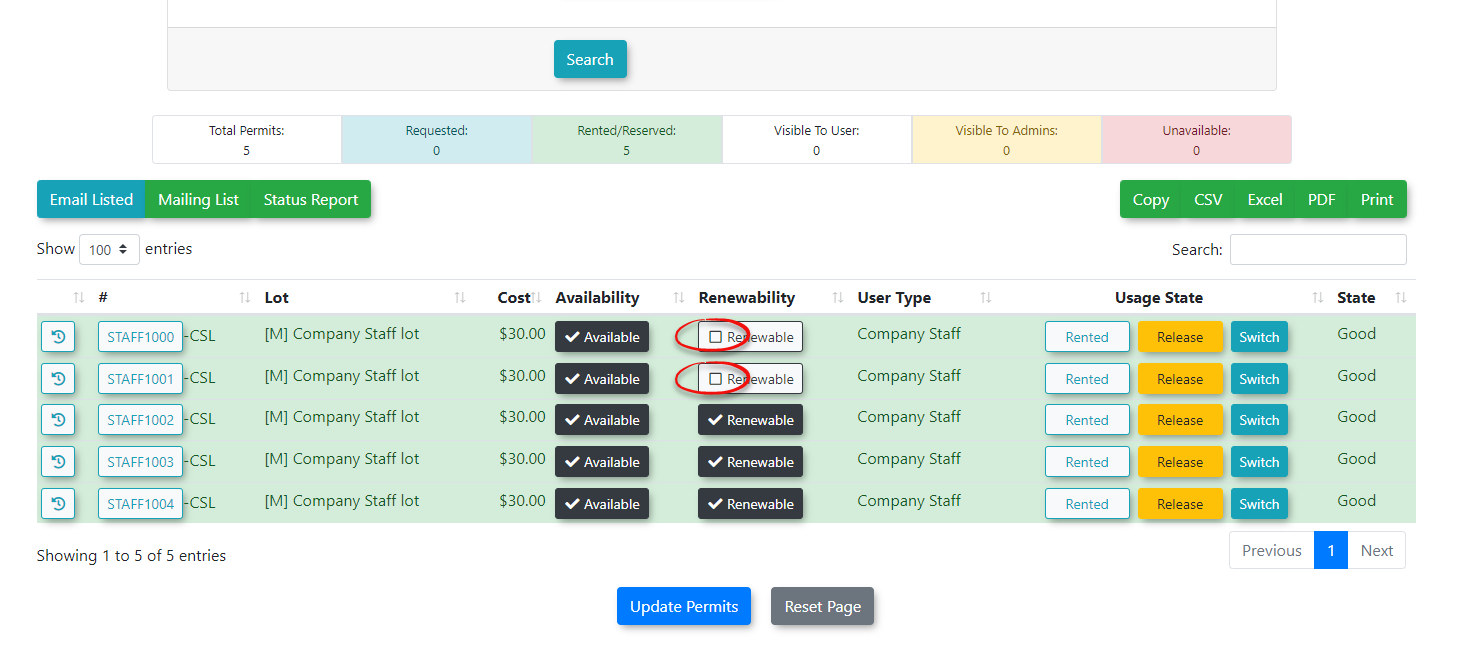
6. Click Update Permits to save your changes.
Here's the logic for permit rollover states:
| State | Current Permit Renewing (prevent rollover = 0) |
User exists in target Sale Window | Permit exists in target Sale Window | Notes |
|---|---|---|---|---|
| Renewing | True | False | False | Neither the user, nor the permit exists, but the current permit is set to be renewed. |
| Blocked | True | False | True | The permit exists in the target sale window, but the user doesn't. This means anywhere for any permit in the lot. If the user has multiple permits and some of them renewed, then they technically are not blocked. If the user has been given a different permit, they also are not blocked. |
| Renewed | True | True | N/A | The user is considered renewed when they exist in the target sale window. Just like the note for blocked, it's not intended to be good for users with multiple permits. |
| Not Renewing | False | False | N/A | The user was not found in the target sale window and their permit is also not renewing. This is the expected scenario. |
| Not Renewing, but Exists | False | True | N/A | The user WAS found and their permit is not renewing. This could use some investigation to make sure that the user is supposed to have that permit or not. |
Once you've completed this process for all lots you want to include in
Processing the rollover,Rollover
-
Permitsto continue. The screen will refresh and updateVerify the
permit counts. Permits you toggled for rollover will appear as rolled over, while those marked as not renewing will remain in the "Not Renewed" column and will be available for new users.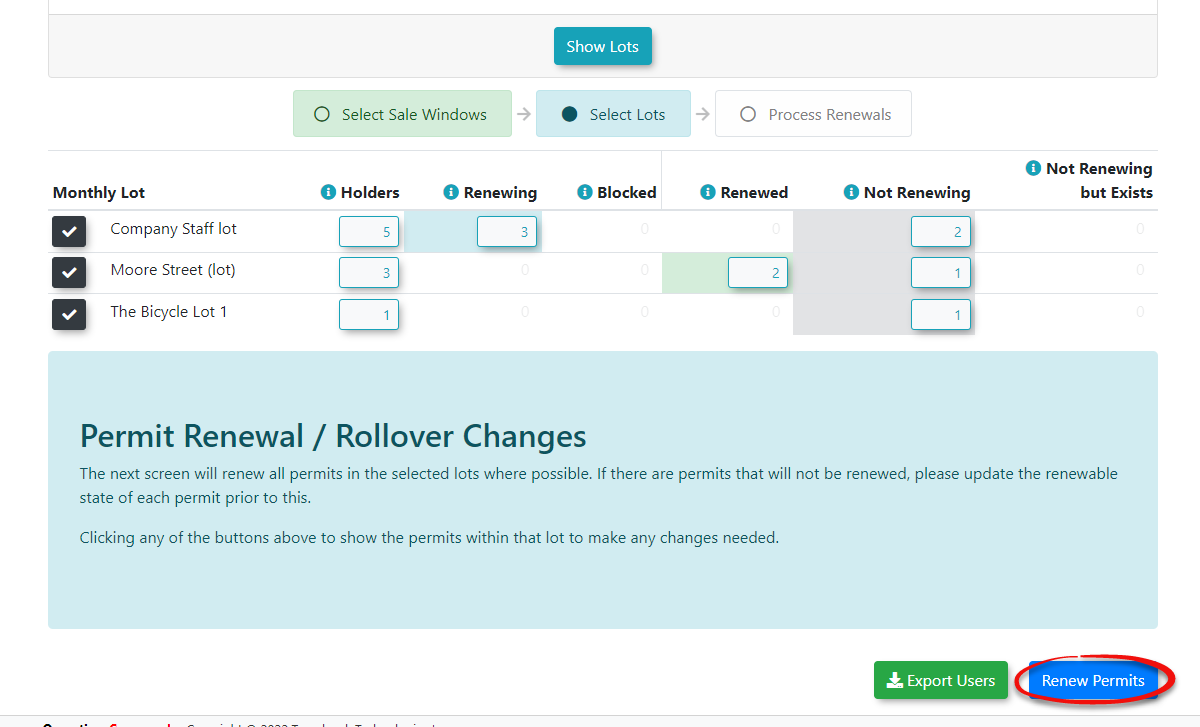
Permit ProcessingThe system automatically rolls over permits paid through gateway payment types like Mastercard, Visa, or Payroll Deduction. Users whose permits are rolled over but don't have an active payment subscription will need to make a payment to secure their permit. These Parkers will see the permit show up in their cart on the User Portal as unpaid. However, if a user has apayment subscription set up, their permit will be rolled over, and the payment will be processed automatically.TheProcess Payment optionwill be automaticallyis toggledon, and theCredit Card Typewill appearon for userswhosewithpaymentsautomaticcanpaymentbesubscriptionsprocessed(e.g.,automatically.PayrollIfDeduction,someonePrimeisn'tCreditcontinuingCard).to -
in a lot, simply uncheckUncheck the
correspondingcheckbox under Rollover for any user you wish to excludethem.entirely. -
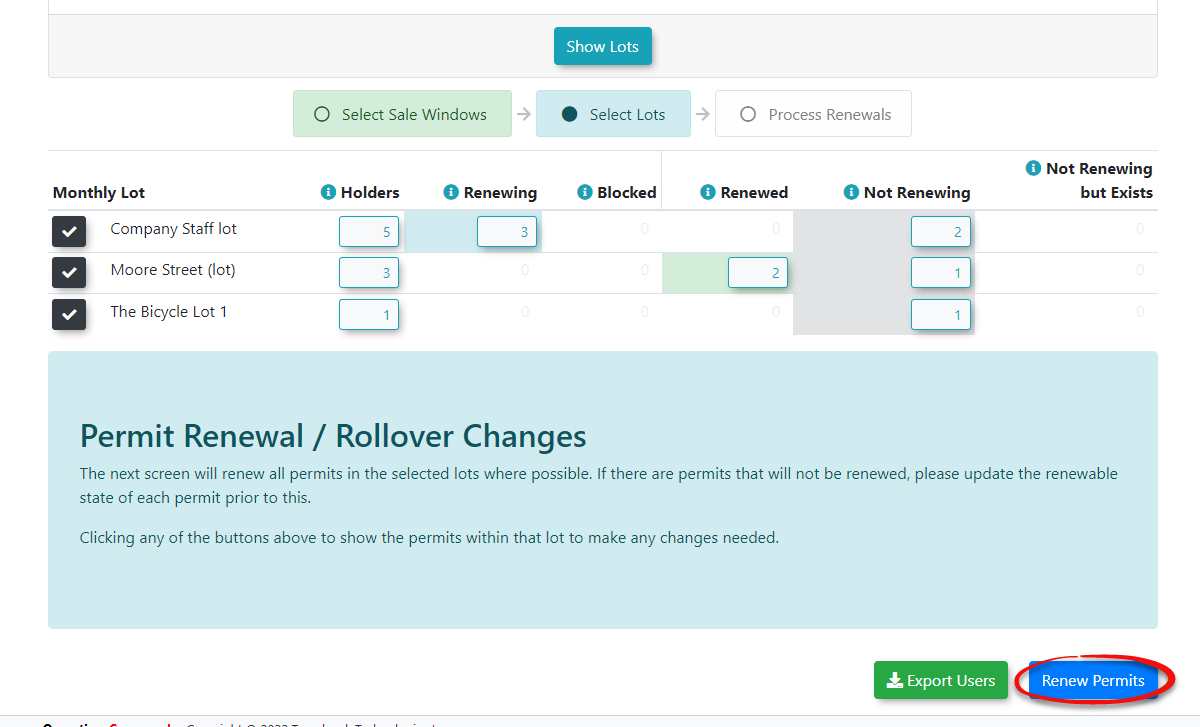
Click
Rollover Permitsto complete the process. Remember, you'll need subscriptions set up for payroll deductions, EFT, or credit card payments. You can prevent permits from rolling over by setting their renewable flag.Exporting Users to RolloverAfter clickingthe Rollover Permitswe can also choosebutton toexportfinalize the process.
Exporting Rollover Data
-
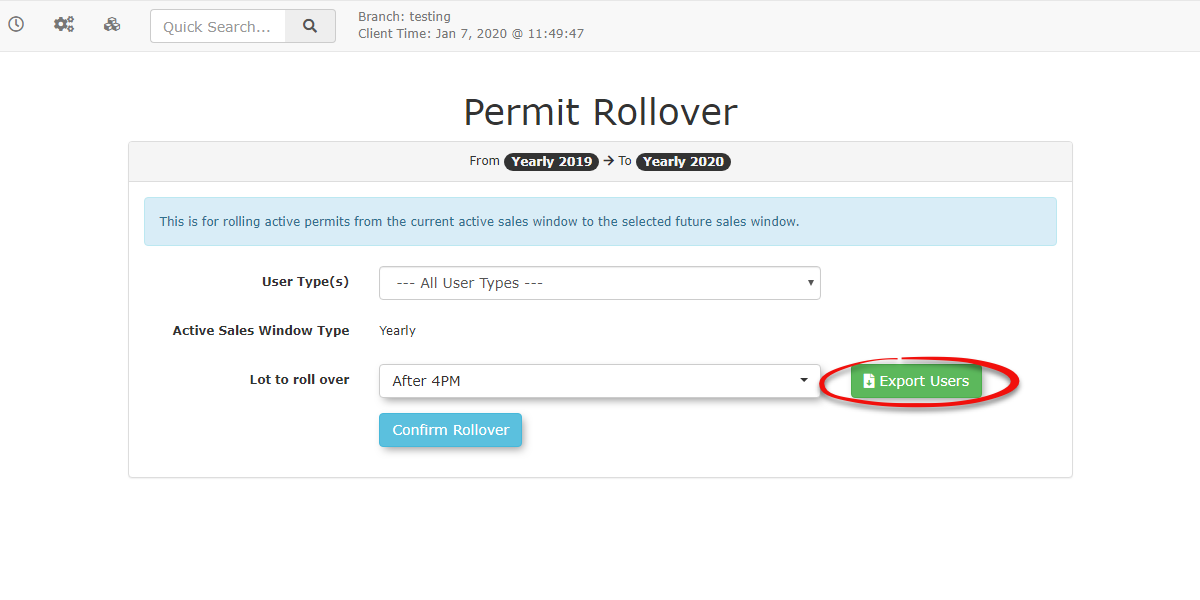
Click the Export Users button on the Permit Rollover page to download an
excelExcel spreadsheet of alltheusersthat areassociated with the selected lotweforhaveexternalselected.reconciliation.To
Best Practices and Considerations
ThisSales willWindow openDates: Ensure your new sales window is configured accurately. A rollover cannot be performed unless the new sales window has a newstart windowdate that generatesis equal to or greater than the excelend document for us to open depending on the browser you are using. You may be warned that the file is corrupt in some way however you should still be able to view the output in Excel's protective view.
Automated User Notifications
To streamline the renewal experience and reduce manual support inquiries, OPSCOM now includes automated email triggers that fire upon the completiondate of the rolloverprevious task.
User-Facing Notifications
When the system task processes the rollover, users are automatically notified based on the outcome of their transaction. These templates can be customized via the Email Templates page:
Payment Success:If the payment (Credit Card, Payroll, etc.) is successful, the user receives a confirmation email along with their digital receipt.Payment Failure:If a payment is declined (e.g., expired card, insufficient funds), the user receives a failure notification advising them of the error so they can take manual action to secure their permit.Audit Trail:A record of these emails is associated directly with the user’s account profile, allowing administrators to verify communication history if a patron claims they were not notified.
Administrative Alerts for Email Failures
In the event that a user’s permit is processed but they have an invalid or missing email address, the system ensures the administrator is kept in the loop.window.
The administrator who initiated the rollover will receive a summary email containing a list of all users who did not receive their receipts or alerts. This administrative digest includes:
Direct Links:Clickable links to the affected user accounts.Transaction Details:Links to the specific payments via confirmation codes for quick reconciliation.
Important Technical Notes
- Task Processing
Delay:Delays:Please note that theThe rollover action is executed by a background system task. Emails are not sent the instant you click the button; therewill beis ashortbrief delay between clicking Rollover Permits and the dispatch ofthe success/failureuser notifications.
Permit Renewal Status on User Permits
Whether a user can see the permit renewal status or not is controlled by a system setting called Show Permit Renewal Status to Users. This setting is found under System Settings>Permits.
To assist in keeping this process as simple as possible, there are tooltips and popups on the admin side at the Rollover State dropdown and at various places on the user side where there are references to renewing, not renewing, and permit renewal status. Further, the terminology around Permit Renewal Status is translatable.
Tips for a Smooth Rollout
-
ConfigureAdministrativeTemplates:Before performing your next rollover, visit theEmail Templatespage to update the wording for the two new permit renewal templates. Verify Admin Email:Alerts: Ensure your administrator account has a valid emailaddress,addressasattachedthisto it. If a user’s permit iswhereprocessed but they have an invalid or missing email address, the system will send a "Failure to Deliver" summarywilltobethesent.administrator who initiated the rollover.-
CheckManualPayment Gateways:Payments:RememberUsersthatwhoseautomaticpermits are rolled over but do not have an active payment subscription (like a saved creditcardcard)receiptswillonlyhavetriggertheifpermityouradded to their cart as unpaid. They will need to log in and make a manual paymentgateway supports direct charging (as opposedtohosted-onlysecurepayments).their permit.
Audit Trails: A record of all success and failure emails sent during the rollover process is associated directly with each user’s account profile, allowing administrators to verify communication history if a patron claims they were not notified.