
Feature Overview - Rollover/Renew Permits
The permit rollover and renewal feature allows administrators to transition active permits from an expiring sales window to a new one. Its primary purpose is to maintain continuous parking access for patrons while seamlessly automating the billing process for the extended validity period. This article is intended for OPS-COM administrators managing recurring permit billing.
Setup and Configuration
Before executing a permit rollover, you must configure a new sales window and ensure your system is properly set up to handle automatic payments and notifications.
-
Configure a new sales window with a start date equal to or greater than the end date of the previous sales window. Detailed instructions can be found on the Permit Sales Window Management page.
-
Navigate to System Settings then Permits and toggle the Show Permit Renewal Status to Users setting to control visibility on the user portal.
-
Review your payment gateway settings. To process automatic credit card renewals, your gateway must allow the direct charging of client cards (this will not work with hosted-only payments). Users must also have a valid card saved as their Prime Credit Card.
-
Navigate to the Email Templates page to customize the Payment Success and Payment Failure templates to ensure accurate communication is sent to users upon renewal.
Using this Feature
The rollover utility allows you to move users in bulk, manage individual exceptions, and process payments simultaneously.
Initiating a Rollover and Selecting Options
-
Hover over Permits and click Sales Window.
-
Click the Rollover button to open the Permit Renewal page.
-
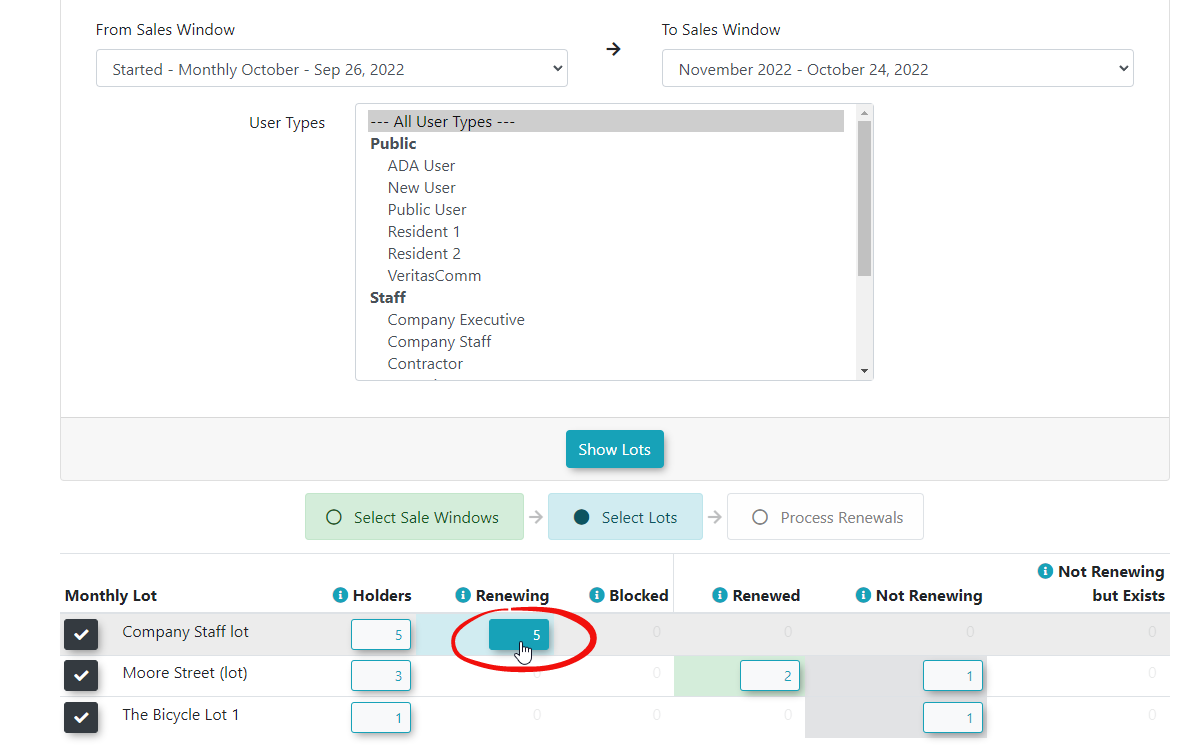
Select the current expiring sales window in the From Sales Window drop-down menu.
-
Select the target sales window you are rolling permits into.
-
Select the specific user types you wish to process, or leave it as the default All User Types.
-
Click the Show Lots button to generate a list of eligible lots below the search form.
Managing Individual Permits
You can include or exclude specific permits from the rollover batch before processing.
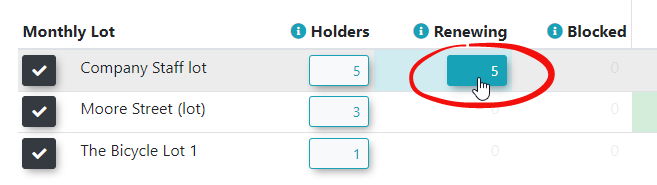
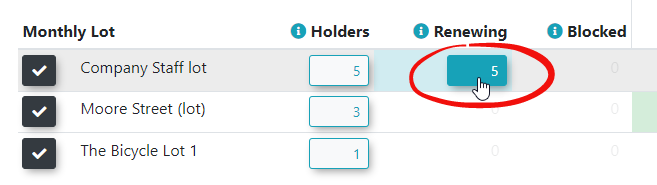
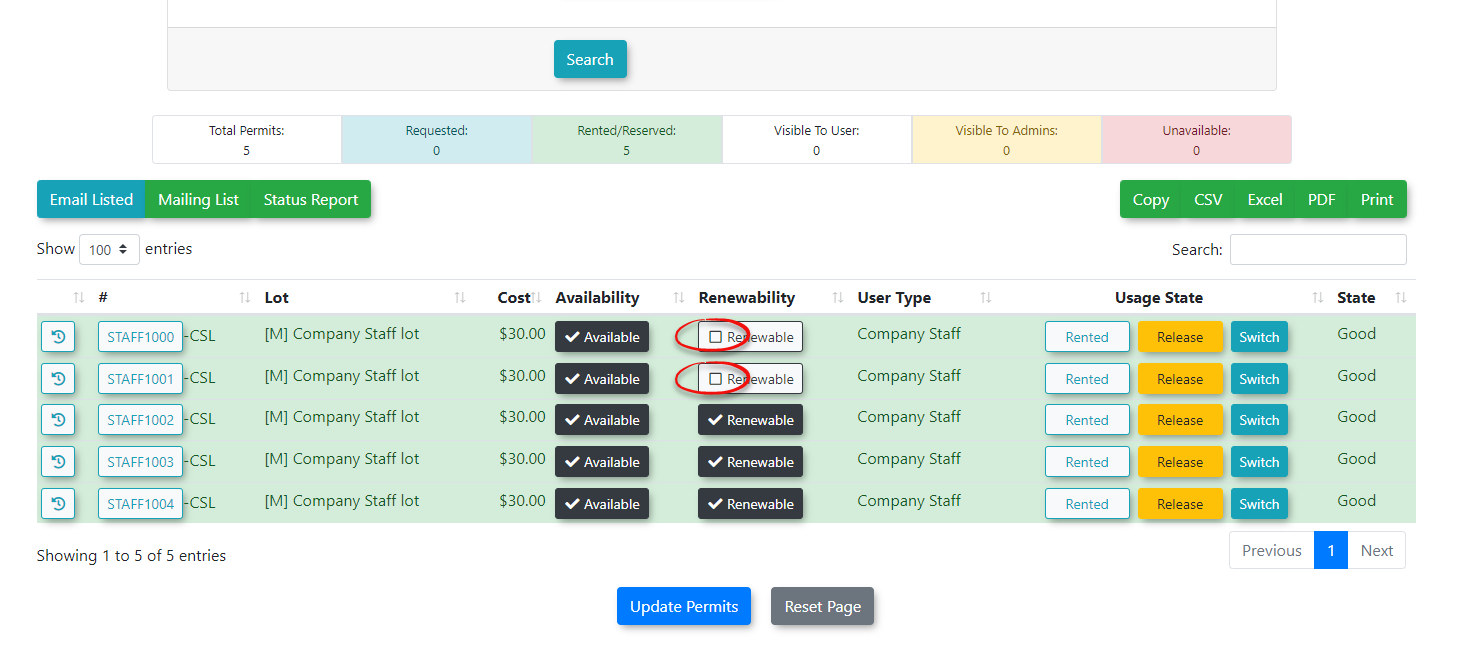
Click the Holders or Renewing button next to a specific lot to view a list of its associated permits.
2. Toggle the renewable status for any individual permits (e.g., if a specific permit holder is not returning).
Click the Update Permits button to save your changes.
1.
3.
Here's the logic for permit rollover states:
| State | Current Permit Renewing (prevent rollover = 0) |
User exists in target Sale Window | Permit exists in target Sale Window | Notes |
|---|---|---|---|---|
| Renewing | True | False | False | Neither the user, nor the permit exists, but the current permit is set to be renewed. |
| Blocked | True | False | True | The permit exists in the target sale window, but the user doesn't. This means anywhere for any permit in the lot. If the user has multiple permits and some of them renewed, then they technically are not blocked. If the user has been given a different permit, they also are not blocked. |
| Renewed | True | True | N/A | The user is considered renewed when they exist in the target sale window. Just like the note for blocked, it's not intended to be good for users with multiple permits. |
| Not Renewing | False | False | N/A | The user was not found in the target sale window and their permit is also not renewing. This is the expected scenario. |
| Not Renewing, but Exists | False | True | N/A | The user WAS found and their permit is not renewing. This could use some investigation to make sure that the user is supposed to have that permit or not. |
Processing the Rollover
-
Verify the Process Payment option is toggled on for users with automatic payment subscriptions (e.g., Payroll Deduction, Prime Credit Card).
-
Uncheck the checkbox under Rollover for any user you wish to exclude entirely.
-
Click the Rollover Permits button to finalize the process.
Exporting Rollover Data
-
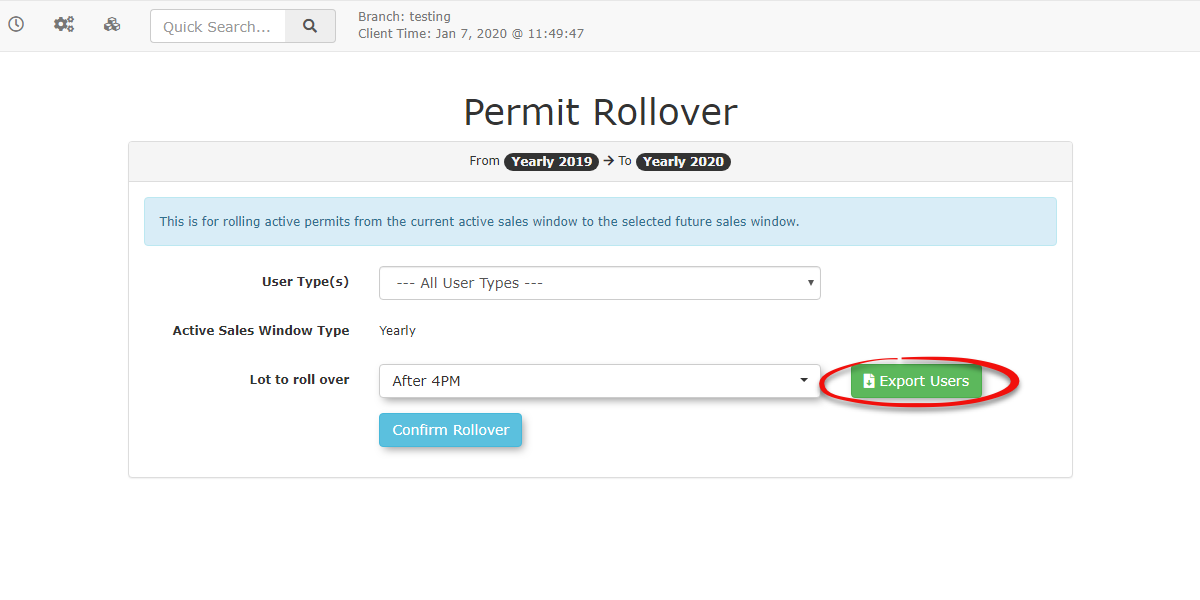
Click the Export Users button on the Permit Rollover page to download an Excel spreadsheet of all users associated with the selected lot for external reconciliation.
Best Practices and Considerations
Sales Window Dates: Ensure your new sales window is configured accurately. A rollover cannot be performed unless the new sales window has a start date that is equal to or greater than the end date of the previous sales window.
Task Processing Delays: The rollover action is executed by a background system task. Emails are not sent the instant you click the button; there is a brief delay between clicking Rollover Permits and the dispatch of user notifications.
-
Administrative Alerts: Ensure your administrator account has a valid email address attached to it. If a user’s permit is processed but they have an invalid or missing email address, the system will send a "Failure to Deliver" summary to the administrator who initiated the rollover.
-
Manual Payments: Users whose permits are rolled over but do not have an active payment subscription (like a saved credit card) will have the permit added to their cart as unpaid. They will need to log in and make a manual payment to secure their permit.
-
Audit Trails: A record of all success and failure emails sent during the rollover process is associated directly with each user’s account profile, allowing administrators to verify communication history if a patron claims they were not notified.