
Flex Permits
This feature is currently under development and has not yet been released. The wiki article serves as a placeholder outlining the intended future functionality.
Introduction
Flex permits allow clientsadministrators to specify variable prices for a parking lot, with the possibility of assigning a different price for every hour.hour This allows more options forof the week. Its primary purpose is to provide advanced customization of permit prices, making it highly useful for situationsdynamic likepricing scenarios such as making permits more expensive during peak hours.
This article is intended for OPS-COM administrators.
Setup and Configuration
Flex permits are counted as a type of temptemporary permit, asfunctioning ansimilarly additionto standard hourly permits. Administrators manage these settings directly within the lot editor by defining time slots and applying them to a weekly grid.
Admin Side:
-
Hover over Parking Management, hover over Lot Administration, and click Pricing & Lot Admin.
-
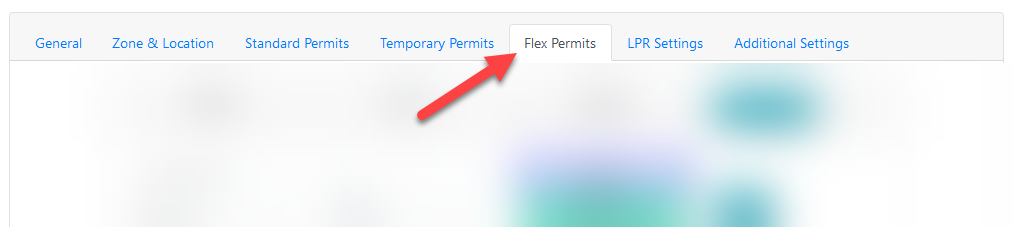
Click on the lot you wish to edit and select the Flex Permits Tab.
-
Enable the Enable flex permits checkbox to allow the use of flex permits for this lot. If disabled, users will not have the option to select flex permits, even if the grid is filled out.
-
Click the Add New button to create a new price category.
-
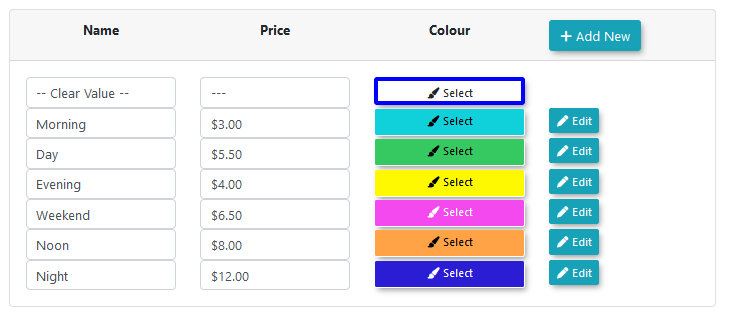
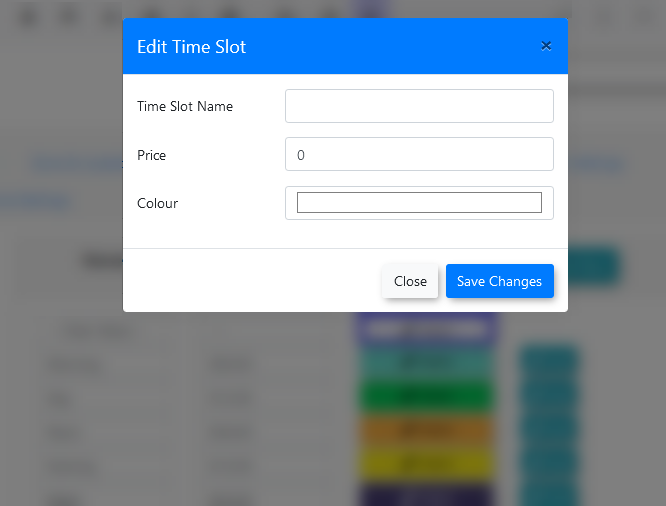
Fill in the Name (a user-friendly identifier) and Price fields, pick a Colour to represent this price, and click the Save Changes button.
-
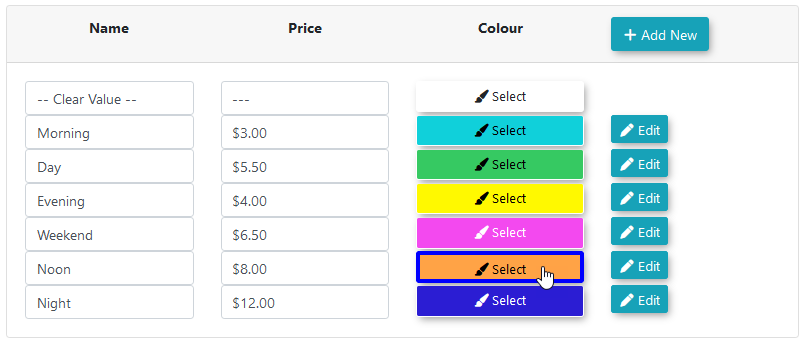
Click one of the selectable colours in the Options section to make it your active color (indicated by a blue outline).
-
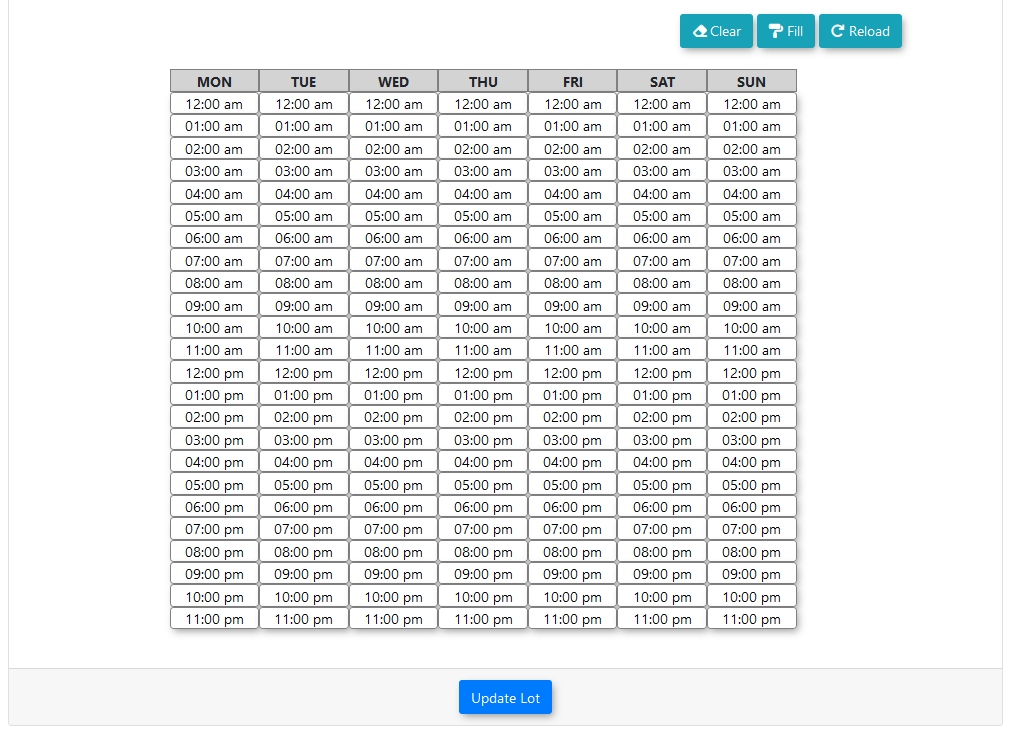
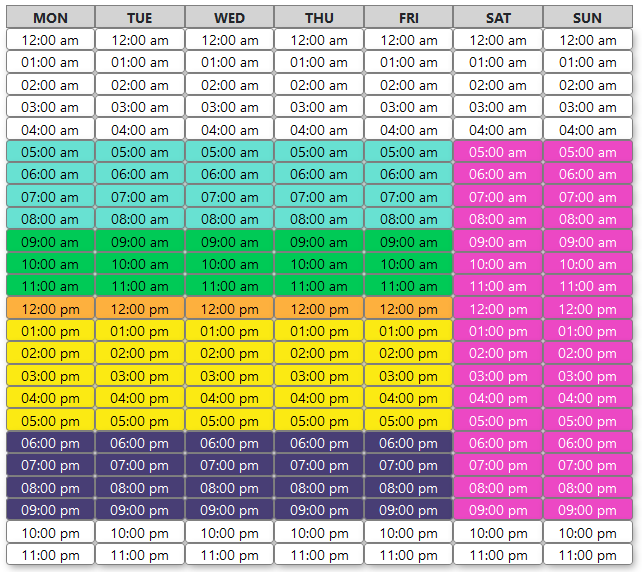
Click and drag your mouse across the appropriate cells in the Hourly Cell Grid to assign that specific hourly price to times in the week.
-
Click the Update Lot button to save the cell price layouts to the
existingdatabase.daily
Time Slot Limitations: Once a time slot price category has been created by an administrator, there is currently no way to delete it. Additionally, any sections left blank (using the default option) on the hourly cell grid will automatically be set to free.
User Side: End-users do not interact with the setup or configuration of flex permits. They functionwill mostsimply similarlysee the available flex permit options and price ranges when booking from the portal, real-time map, or guest checkout.
Using this Feature
Once configured by an administrator, users can purchase flex permits through standard booking channels. The final price is dynamically calculated using the prices associated with each specific hour selected within the booking.
User-Side Portal Bookings
Real-Time Map & QR Code / Guest Checkout
-
Real-Time Map: The flex permits cost range will be listed under rental costs. Clicking to book a permit will take the user directly to the guest checkout page (the same destination as scanning a physical QR code). If enabled, the user does not need to be logged in to access this page.
-
Guest Checkout: Flex permit prices for the day will be displayed to the left side of the page. Because guest checkout permits are intended for immediate bookings, the day and time will be strictly limited to the current date. Upon filling in the vehicle information and timeframe, the user can click the Make Payment button to be redirected to the payment gateway.
Best Practices and Considerations
-
Choose one pricing method: It is intended for a site to choose between hourly permits and flex permits and not use
preventsboth,both.althoughWhile clients are not technically restricted from using both at the sametimetime,ifkeepingtheythemchooseseparateto.Flexend-userPermits TabFlex permits and related sections can be accessed on the lot edit page, from the new flex permits tab.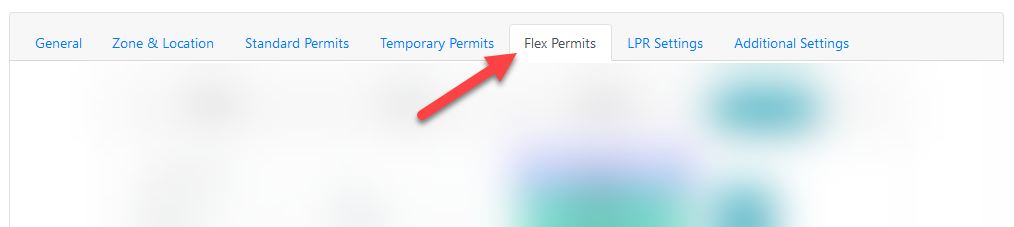
The page consists of three sections:An options sectionA time slot section, used for defining pricesconfusion.-
AnUnderstandhourlyprorationgrid, used to assign prices to hours in the week
OptionsA list of options related to flex permits.
There is only one option for flex permits.Enable flex permitslimits:- this will enable the use of flex permits for this lot.If not enabled, users will not have the option to selected flex permits for this lot, even if the hourly grid is filled out.
Time SlotsFlex permits are controlled by a grid of customizable timeslots, which are configured for each lot from the lot edit page.The time slot section is located below the options section.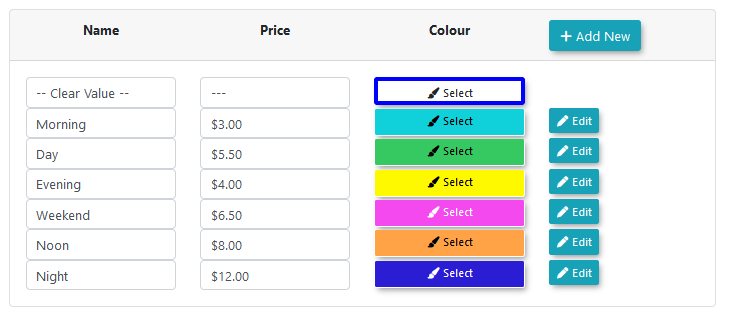
Time slots created by the admin are located here.Name- a user-friendly name to identify what the slot should be used forPrice- the price of booking a permit for the selected hourColour- the colour that the time cells in the week grid will be marked with when they are assigned this price
Time-slot CreationClick the add new button to bring up the add time slot modal.Fill in the required fields and press save changes to save the new time slot.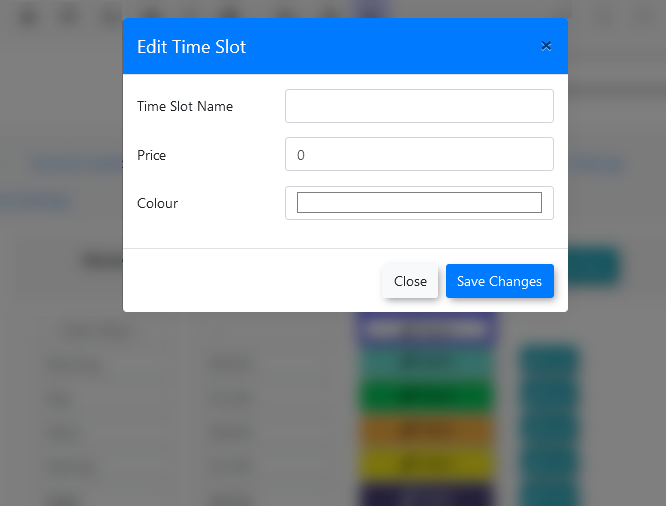
The time slot selection menu will reload and the saved item will appear.The modal will also be brought up when editing the details of an existing time slot.Once a time slot has been created, there is no way to delete it .Hourly Cell GridBelow the time slot section, the hourly cell grid can be found. This is a representation of each hour within the week.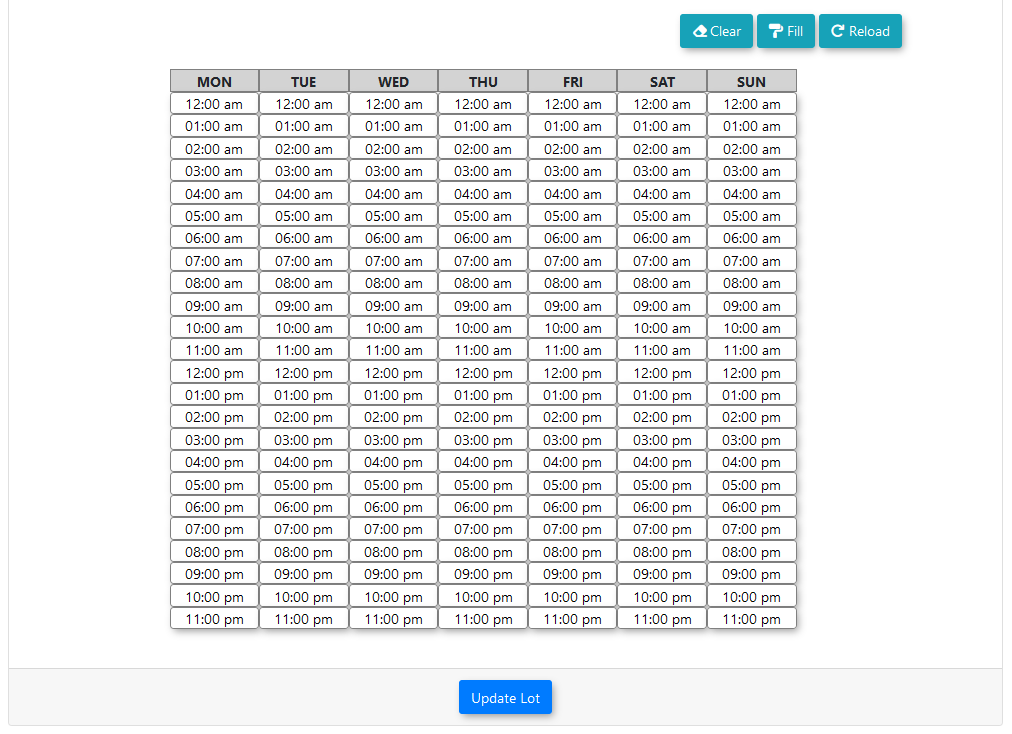
Here, each hour time slot within a week can be assigned a specific cost. When a user books a permit for a number of hours, the final price will be calculated using the prices associated to each hour selected within the booking.Above the cell grid, several buttons can be found.Clear- will clear the grid of all filled cellsFill- will fill in the grid with the selected colourReload- will reload the grid data stored within the database, erasing any changes that were made
Hourly Price AssignmentTo fill in the cell grid, first select one of the prices to assign to cells on the grid.This can be done by clicking on the one of the selectable colours.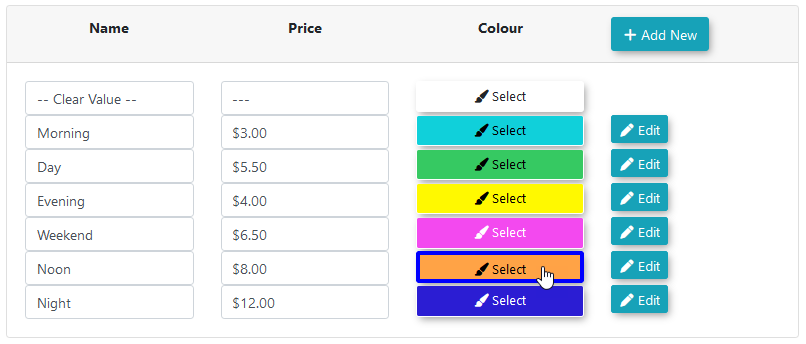
This will change the active colour to the colour selected, as indicated by the blue outline.Cells on the grid can now be filled in by clicking and dragging the mouse across the cells.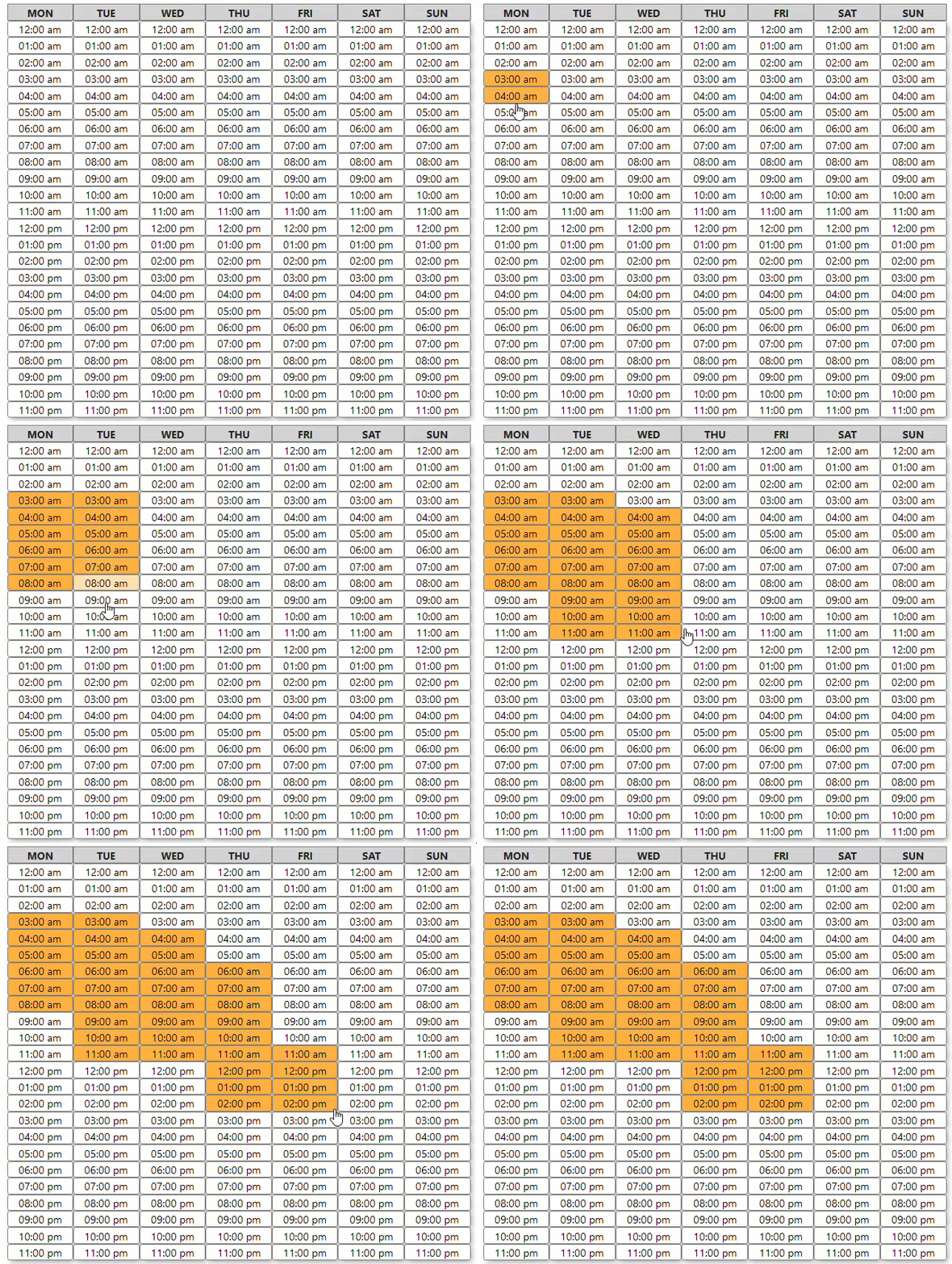
The grid can be filled in using any number of time slots.Note that any sections left blank (using the default option) will be set to free.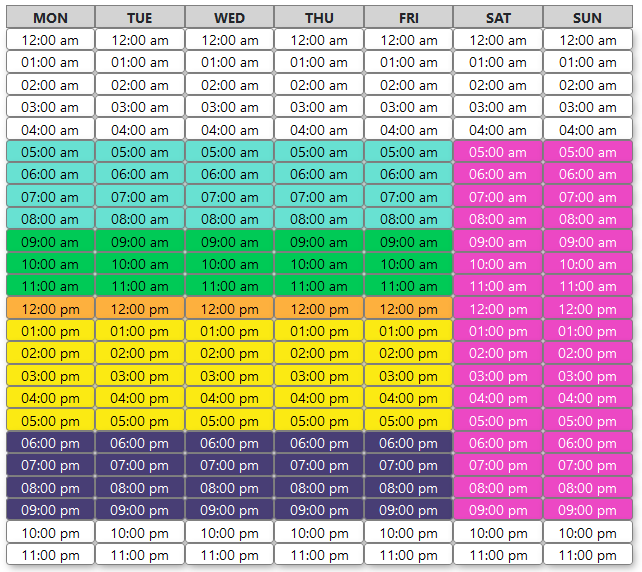
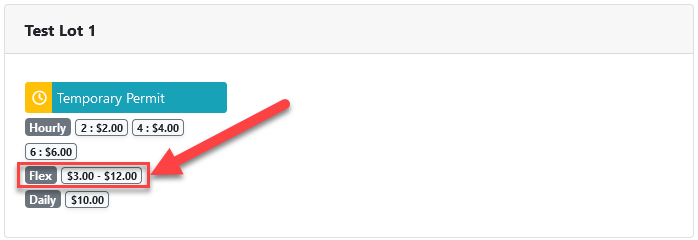
Cell price layouts will only be saved upon clicking the update lot button.User-Side PermitsOnce the flex permits have been filled in, they will begin to appear for sale on the user side.On lots where flex permits are enabled, the permits page will show a preview of flex permits as a price range.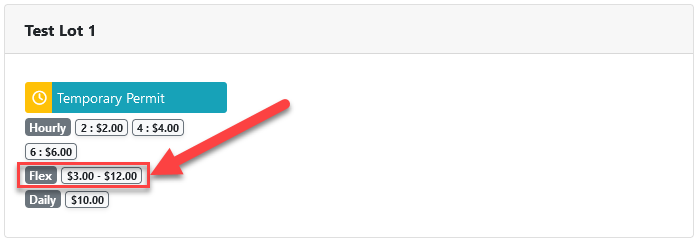
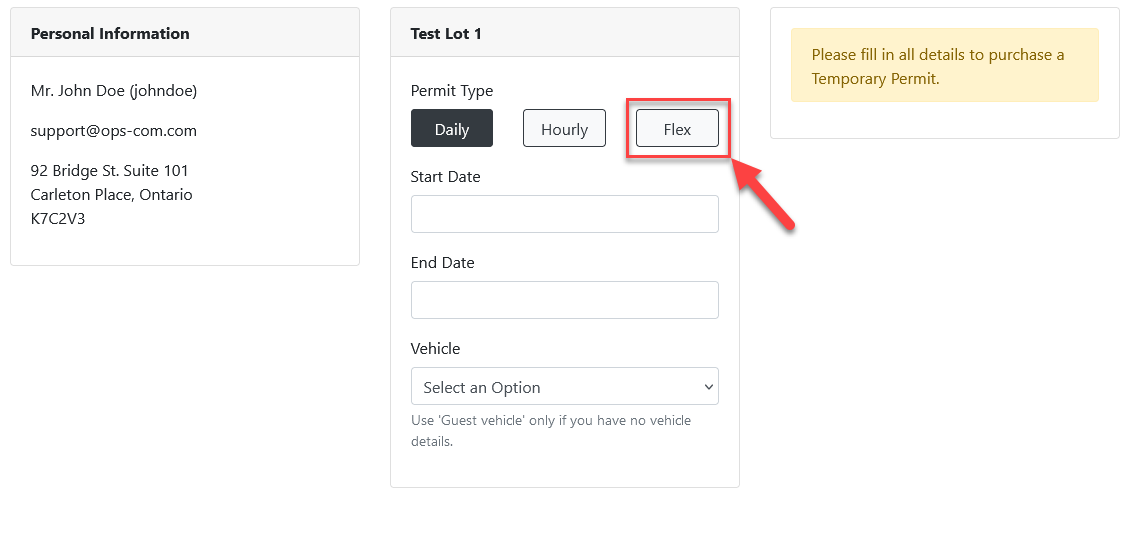
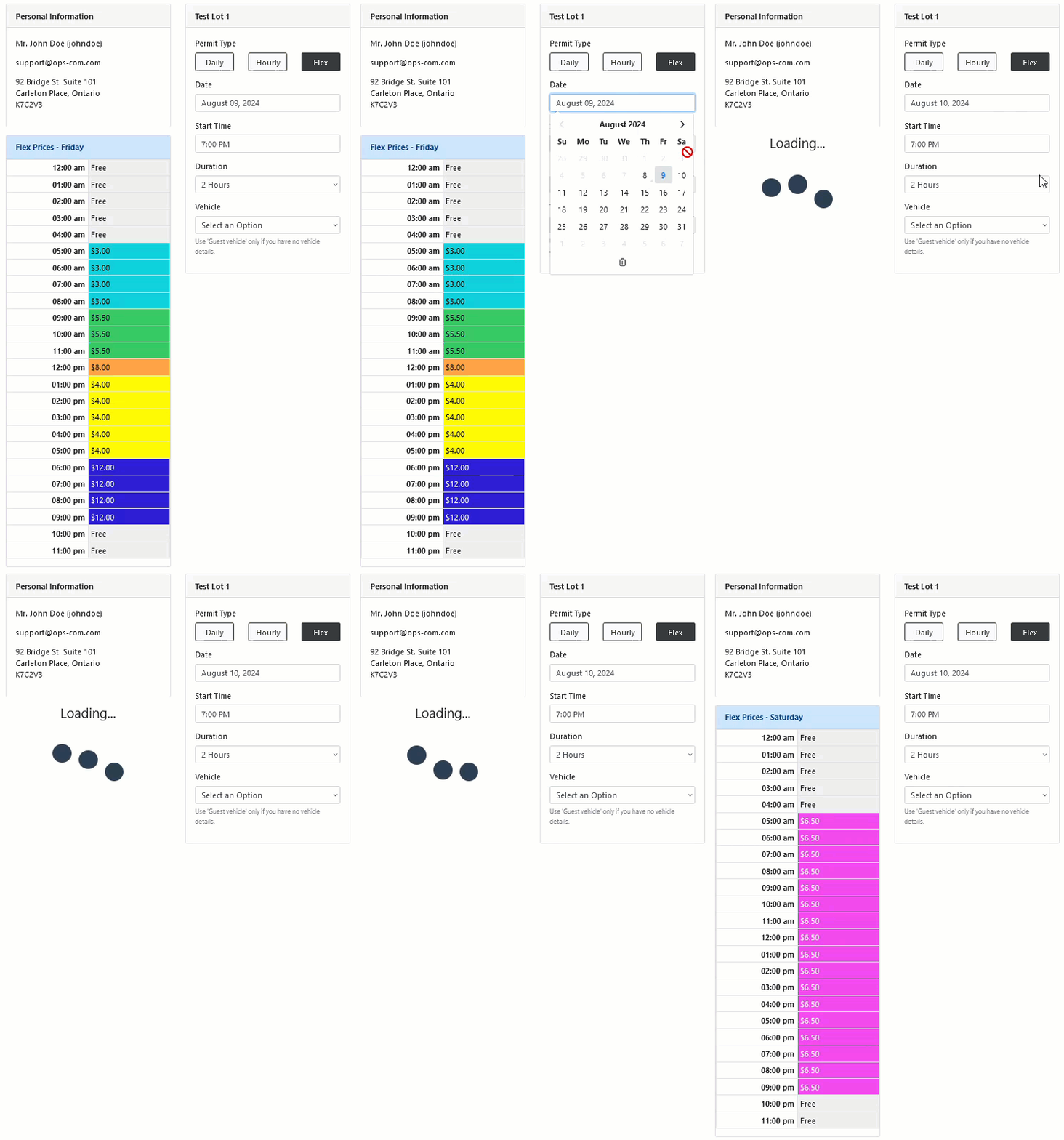
Flex permit options will now be available as a separate option to the page.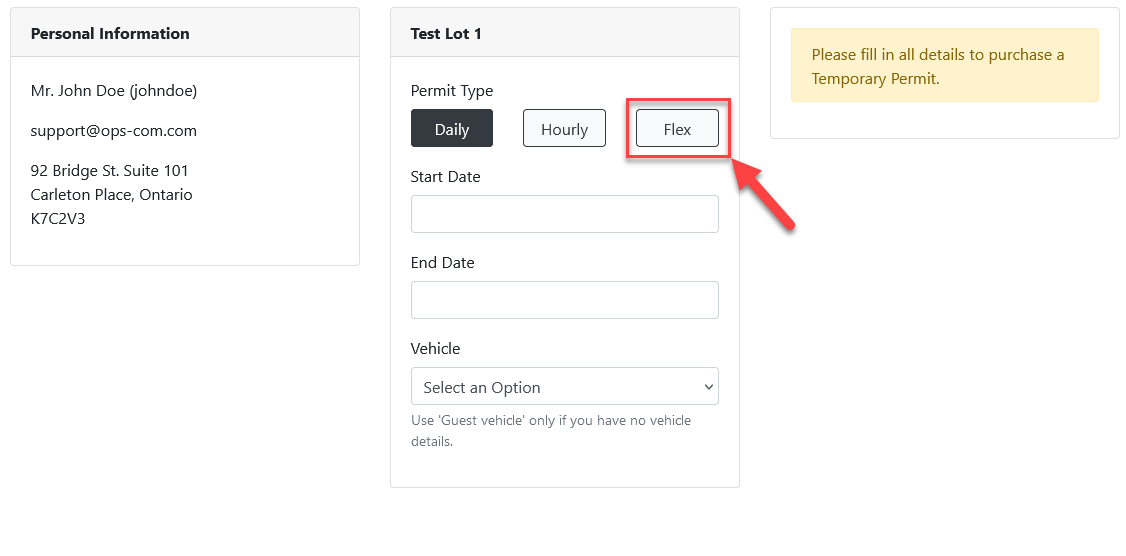
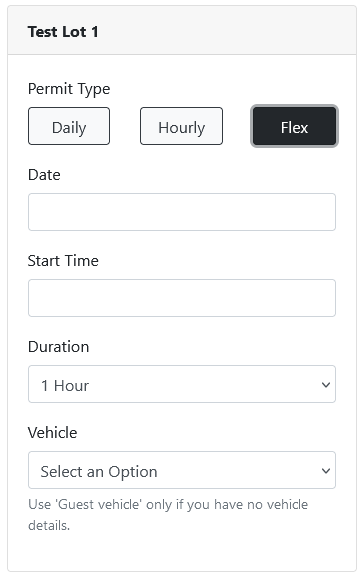
Selecting the flex option will show the input requirements to book a permit.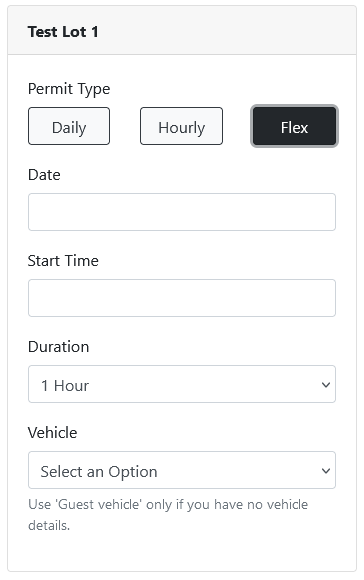
Flex permit inputs:Date- the day the permit is being booked for.Start Time- The time the booking will start at.- Flex permits are limited to booking on the
hour.hourTheyand do not currently supportproration,proration.meaningThis means if a user arrives during the middle of an hour, they must pay for the entire price ofthethat hour.
- Flex permits are limited to booking on the
-
DurationUtilize grid management tools:-Use thenumberClear,ofFill,hoursand Reload buttons tobookquickly manage thepermithourlyfor.cell- grid.
AThepermitClearcanbuttonberemovesbookedallforfilleda limit of 12 hours. Ifcells, thebookingFillwouldbuttongo beyondpopulates theboundsentireofgrid with theday,currently selected colour, and theuserReloadwillbuttonberevertsrequiredthe grid data topick a shorter duration.
Vehicle- like normal for temp permits,theuserlastcansavedeitherdatabaseselectstate.a vehicle on their account or enter a new plate as a guest vehicle.

If the user selects one of the other options after selecting flex, the flex prices box should disappear again.Selecting flex again should make it reappear.
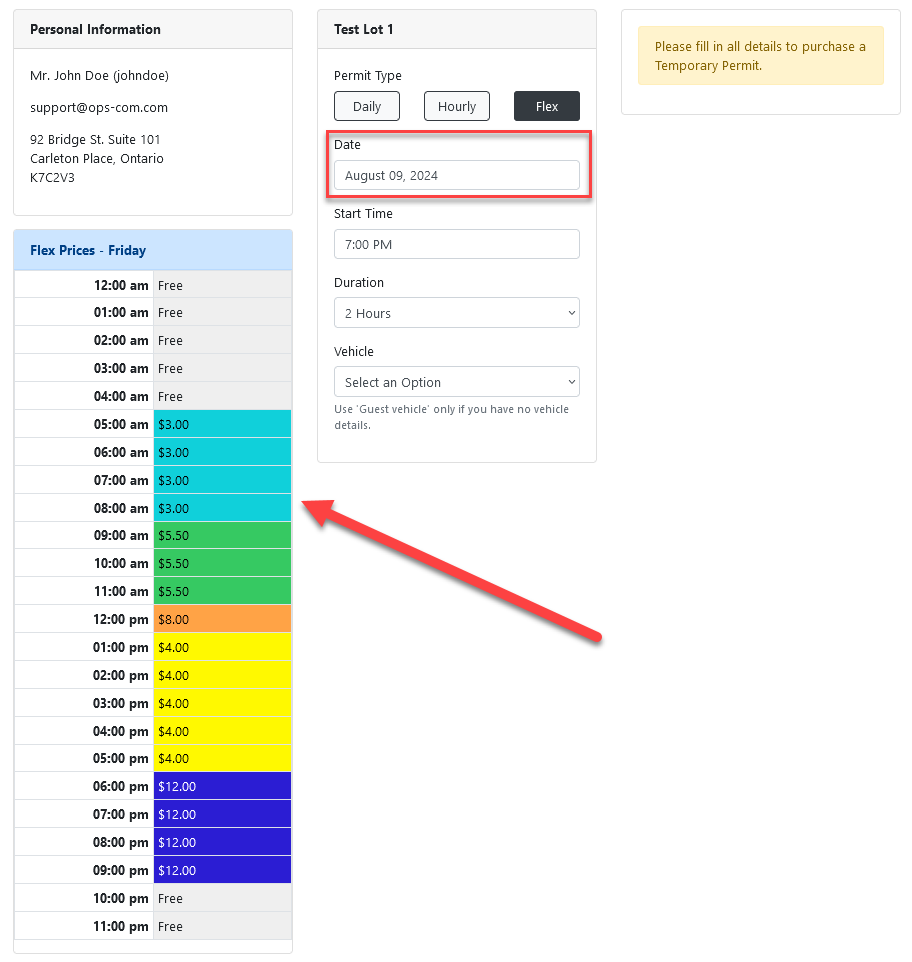
Selecting a different day will cause the flex prices box to reload with the new day's prices.
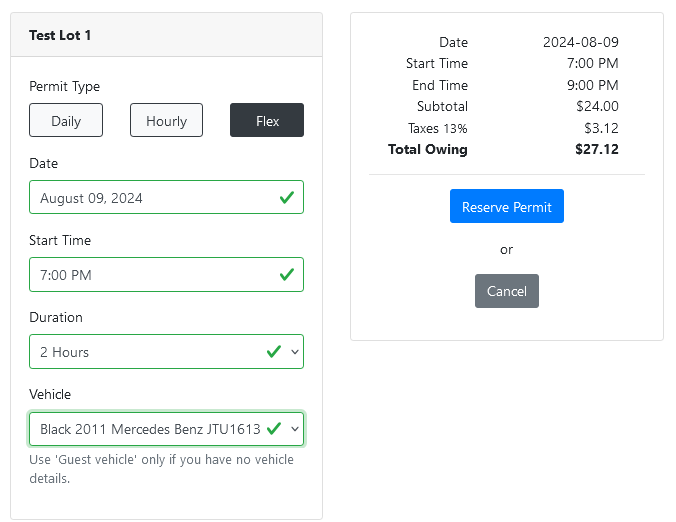
The cost of the permit will be calculated using the prices of each hour in the selected range added together.
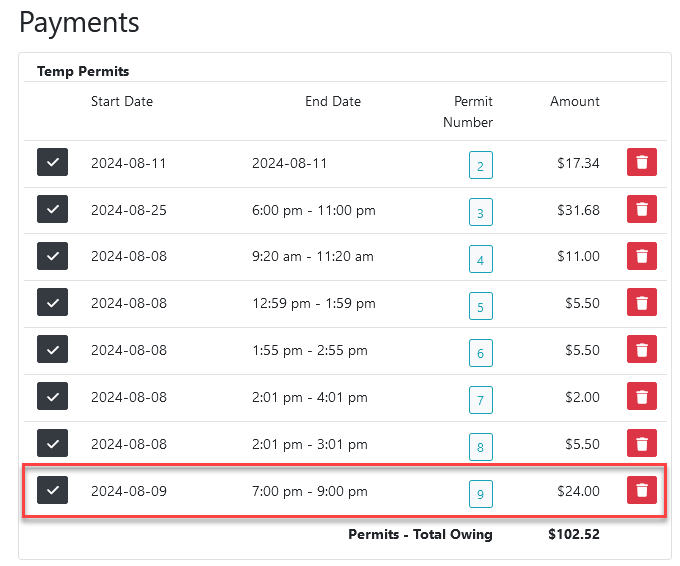
Pressing to reserve the permit, the permit will be added to the user's cart.
Real-Time Map
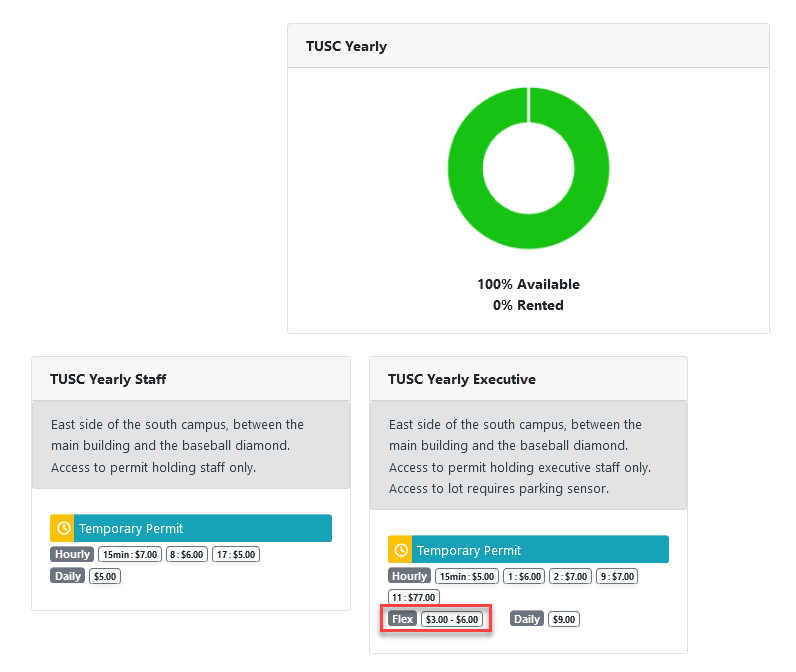
On the real-time map, the flex permits range of cost will be listed under rental costs.
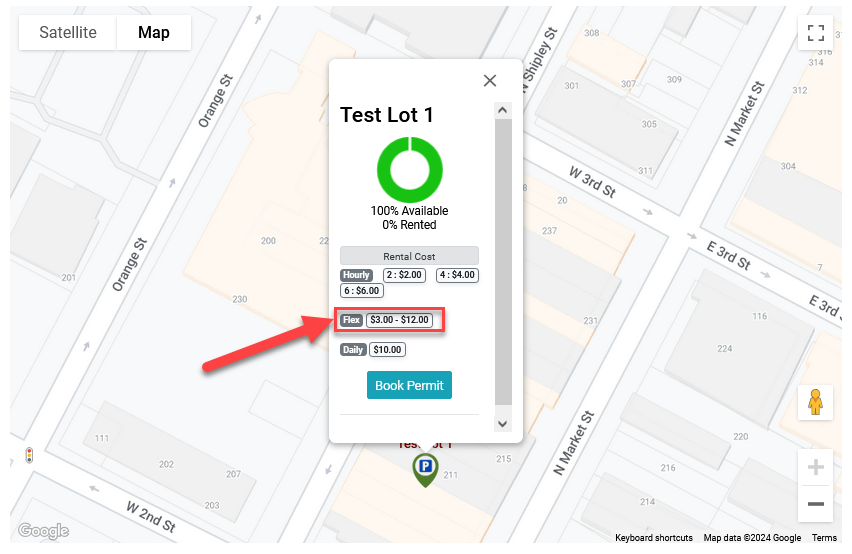
Clicking here to book a permit will take the user to the guest checkout page, the same place as if they had scanned a QR code to access the lot.
If enabled, the user does not need to be logged in to access this page.
In the case where a lot group is used as an icon in place of a single lot, it will also show the range on the lot groups page.
QR Code / Guest Checkout
Similar to the standard temp permit checkout, the flex permit prices for the day will be displayed to the left side of the page.
As guest checkout permits are intended for immediate bookings, the day and time will be limited to the current date.
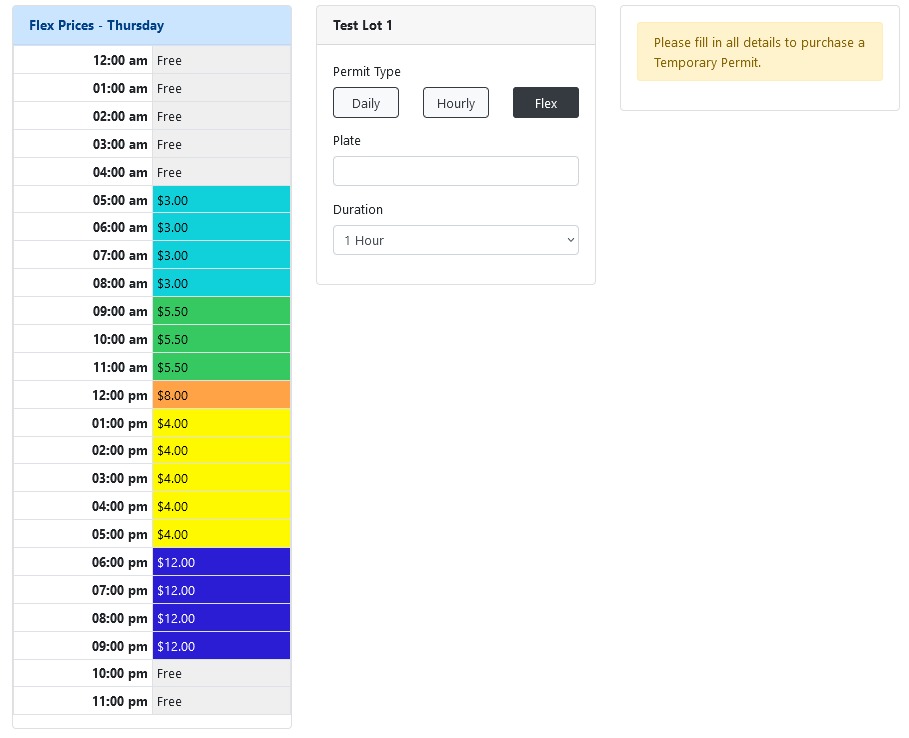
Upon filling in the information, the permit cost will be calculated and the user will be able to checkout immediately.
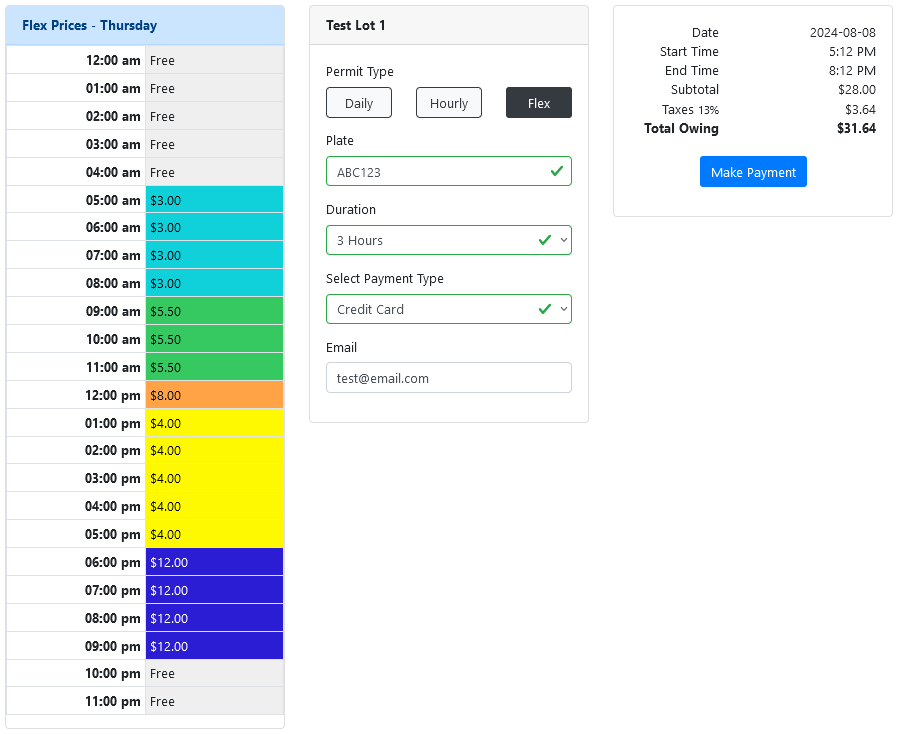
Clicking on make payment, the user will be redirected to their selected payment gateway to make a payment.