Incidents Summary Report by Category
1.The Incident Summary Report by Category allows administrators to filter and view incident records based on specific incident classifications. Its primary purpose is to help security and administrative teams track and analyze event trends across various categories within a specified timeframe and location. This article is intended for OPS-COM administrators responsible for security reporting and incident management.
Setup and Configuration
The Incident Summary Report by Category is a standard reporting feature within the incident management module and requires no specialized system setup to run. However, administrators must have the appropriate incident viewing and reporting permissions assigned to their user role to access this page.
Using this Feature
Administrators can use this report to generate a high-level overview of incidents grouped by category, with the ability to drill down into specific sub-category reports for more detailed information.
Running the Report
-
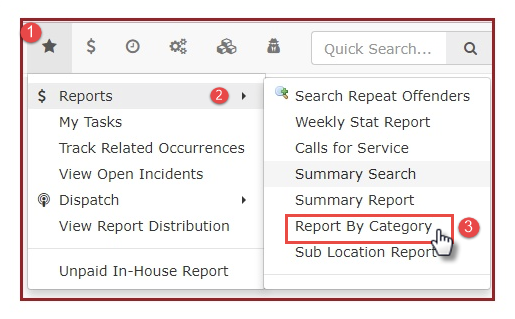
Hover over the Incidents icon, click
byBy Category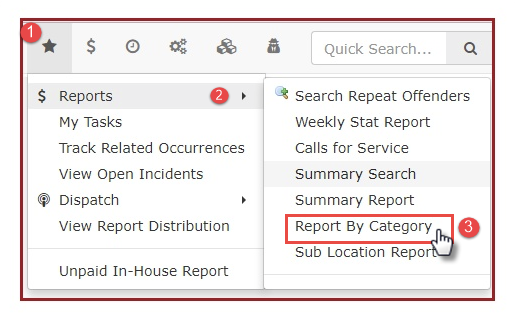
-
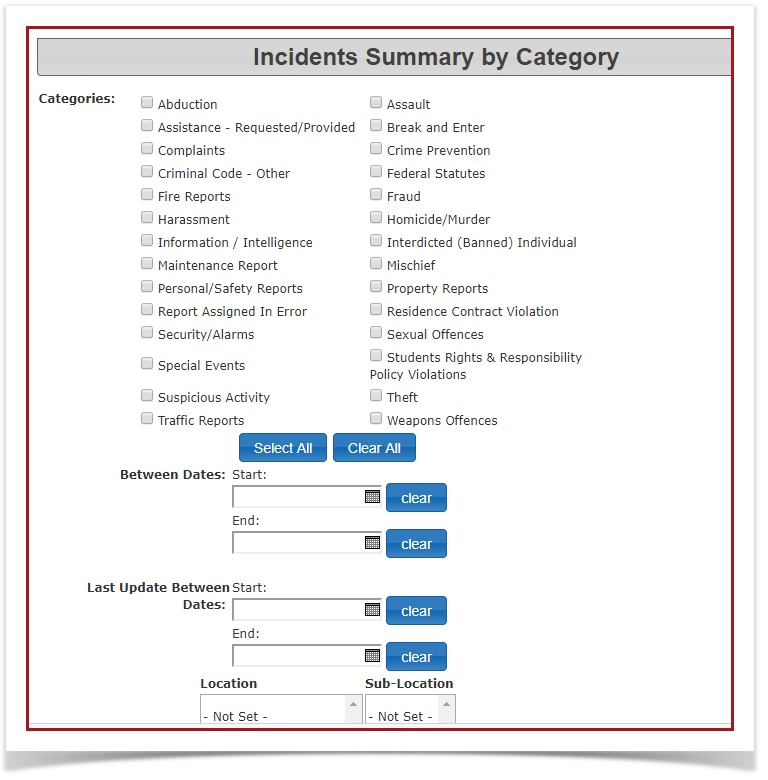
2.EnableThisthewillcheckboxestake younext to theIncidents Summary by Categoryscreen. Select the selection boxes beside thespecific categoriesthatyou want to include in yourreport,report.select -
dates that you want the report to include, select location and/or select the sub-location.Select the desired date range to narrow the reporting window.
-
Select a specific location and sub-location from the drop-down menus if you wish to filter the results geographically.
-
Click the Search Incidents button at the bottom of the screen once you have
selectedsetallyourofcriteria.the
You do not need to select an option in allevery sections,single onlysection or filter. Only apply filters to the onesspecific criteria you want to investigate; leaving a filter blank will simply include all data for that you specifically want information on. parameter.
Key Information Displayed and Available Actions
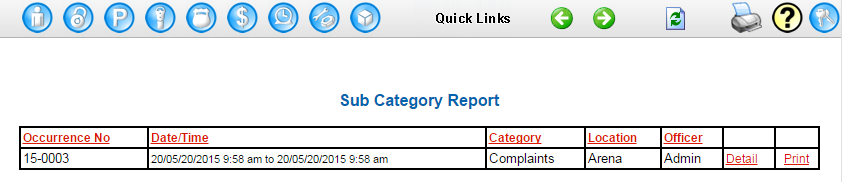
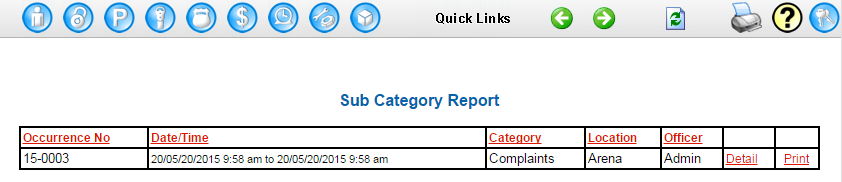
3.ThisOnce the search is executed, a results table will bring up a tableappear at the bottom of the page that providesproviding an overview of the incidents that have occurred in each categoryselected basedcategory.
-
yourSub-Category
ReportsearchReports:criteria (sample below). From here you can selectClick any of thelinks listed as alinked sub-category names within the results table togetgenerate a deeper Sub-CategoryReport.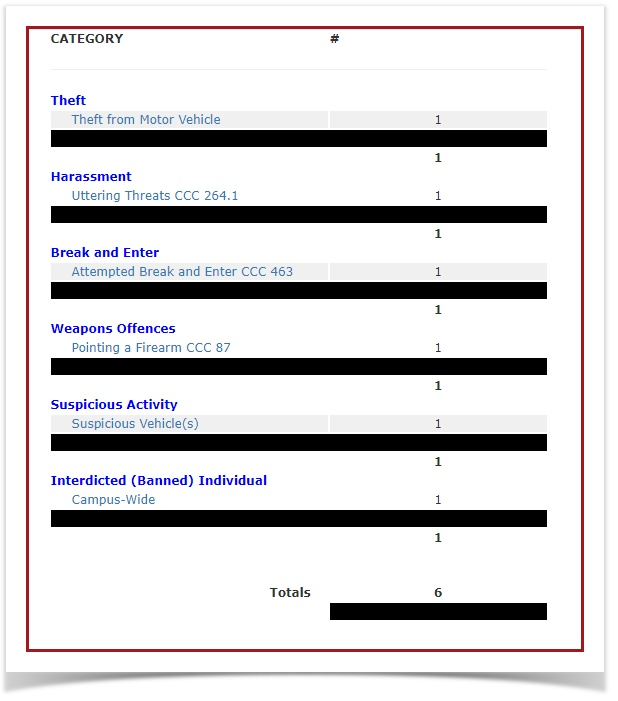
4. Incontaining the individual incident records. -
Sort Data: Click the column headings within the Sub-Category
Report,Reportadministratorstocanautomatically sort the table data byselectingthat specific metric. -
View Details: Click the
column headings. Administrators can select theDetails link located beside a particular incident toview/open, view, or editdetailsthewithinfull incident profile.
Best Practices and Considerations
-
Standardized Categorization: Organizations should ensure that
incident.field officers consistently apply the correct categories and sub-categories during initial incident entry. If incident types are logged inconsistently, this report will not provide an accurate reflection of security trends. -