
Incidents Summary Report
The Incident Summary Report allows administrators to generate a comprehensive list of all incident records within a specified time frame. Its primary purpose is to provide a broad overview of security events and facilitate data exports for external analysis or record-keeping. This article is intended for OPS-COM administrators responsible for incident management and reporting.
Setup and Configuration
The Incident Summary Report is a standard reporting feature within the incident management module and requires no specialized system setup to run. However, administrators must have the appropriate incident viewing and reporting permissions assigned to their user role to access this page.
Using this Feature
Administrators can use this report to generate a high-level overview of incident occurrences over a defined period and quickly export the resulting data.
Running the Report
-
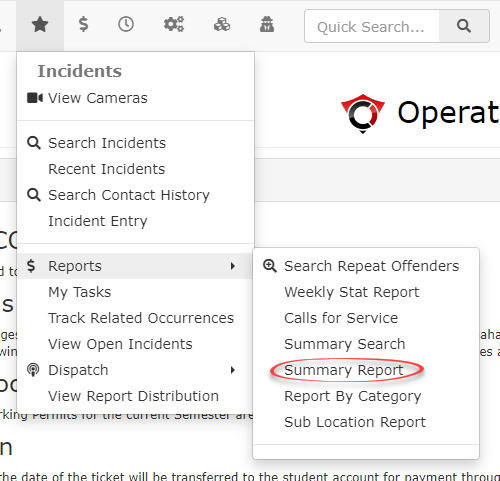
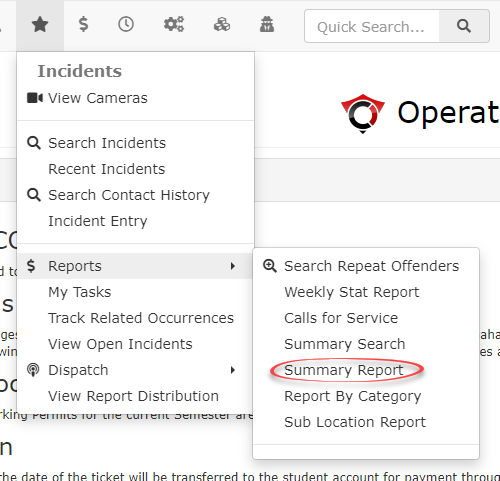
Hover over the Incidents icon, click Reports,
thenand select SummaryReport.Report. -
-
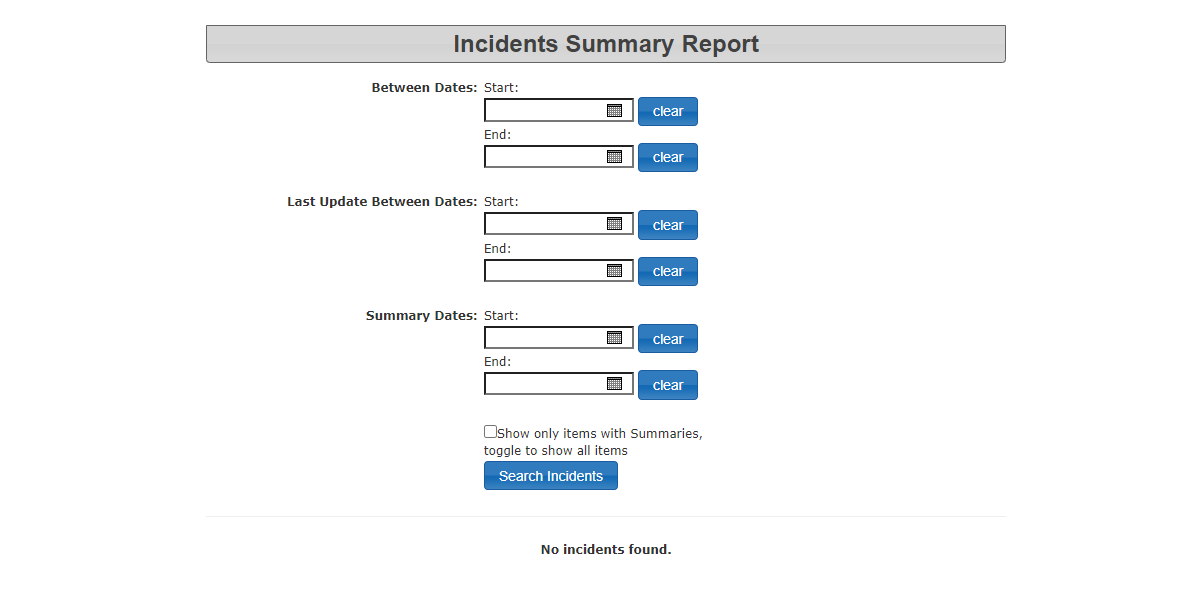
Disable the Show only items with Summaries checkbox if you wish to include all incident records in the results, even those that currently lack a summary. -
ThisClick the Search Incidents button at the bottom of the criteria section to generate the report.
Key Information Displayed and Available Actions
Once the search is executed, the results will takedisplay youin toa table at the bottom of the Incident Summary Report page. Here you can get a summary of all incidents that have been recorded within a specified time frame.
-
Enter thestart dateandend dateDetails:for the report that you want to create and select the button at the bottom for"Search Incidents".If you wish to include incidents that do not have a summary in the results, uncheck theShow only Items with Summariescheckbox.This will bring up theIncident Summary Reportat the bottom of the screen. You can exportClick thisinformationlinkto an Excel file by selecting the"Export to Excel"button.You can also get the details of an individual incident by selecting the"Details"buttonlocated to the right oftheaparticularspecific incidentthatto open its full profile, allowing youwantto review the complete narrative, view dispatch logs, or make necessary edits toreview.the record. -
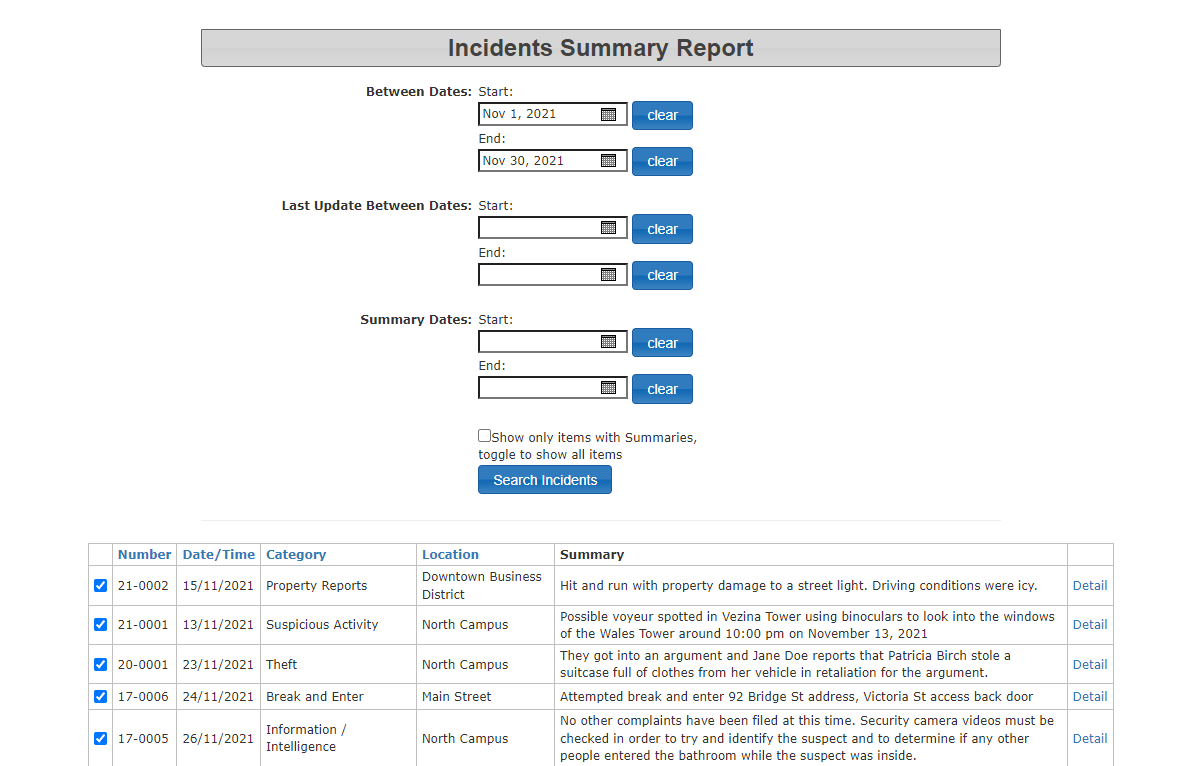
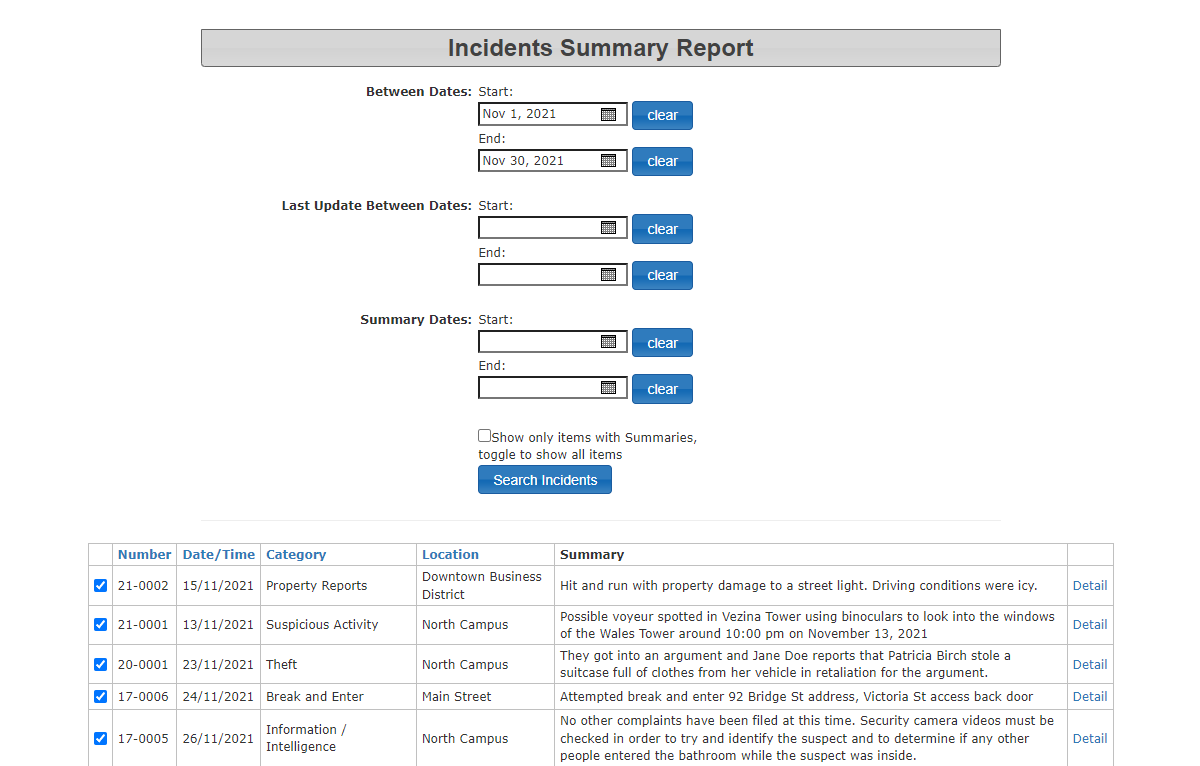
By default, the system filters the report to only show incidents that contain a completed summary. Ensure you toggle the checkbox if you are auditing incomplete reports or need a raw count of all events.
Best Practices and Considerations
-
Require Incident Summaries: Organizations should establish a business rule requiring officers to write comprehensive summaries before officially closing an incident. This ensures the default view of the Incident Summary Report is consistently populated, highly informative, and actionable for administrators.
-
Leverage Data Exports: Use the Export to Excel feature when you need to combine OPS-COM incident data with other departmental statistics for comprehensive monthly, quarterly, or annual security reviews.