Invoice Search
The Invoice Search feature allows administrators to locate, view, and export billing records within the system. Its primary purpose is to help administrators manage company invoices, audit payment statuses, and generate targeted revenue reports. This article is intended for OPS-COM administrators responsible for financial management and company billing.
Setup and Configuration
The Invoice Search tool is a core administrative feature that requires no additional system setup or configuration.
Using this Feature
Administrators can use this tool to filter and locate specific invoices, view copies of the billed documents, and export financial data for external reporting.
Searching for an Invoice
-
TheHoverpageovercan be found under the menu tree:- Permits
->and click Invoice Search.
- Permits
-
This will openEnter theinvoice search page.There are a list ofdesired search criteriapresented(suchthatascandateberanges,usedpaid status, or cancelled status) to filter theresultsresults.returned. -
search options can be found by clickingClick the
toggleToggle More Options button in the top right of themenu.
search menu to reveal additional search filters if necessary.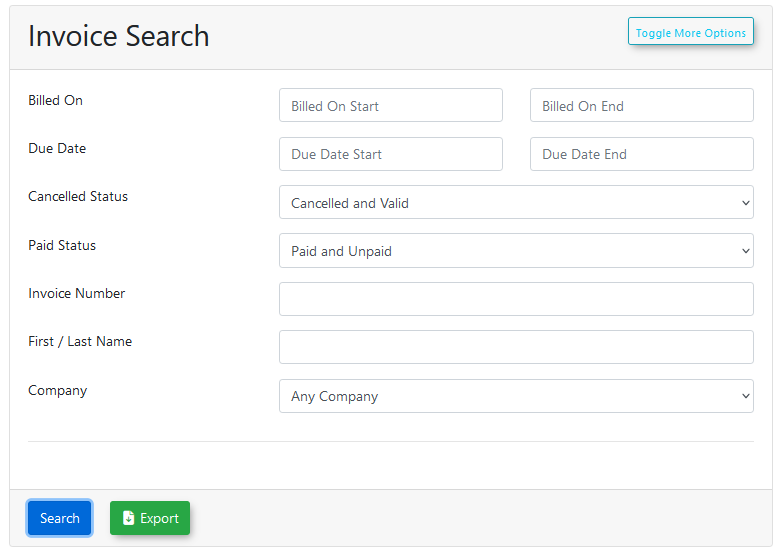
-
PressClick thesearchSearch button tofindgenerateinvoicesthe list of matchingtheinvoices.entered -
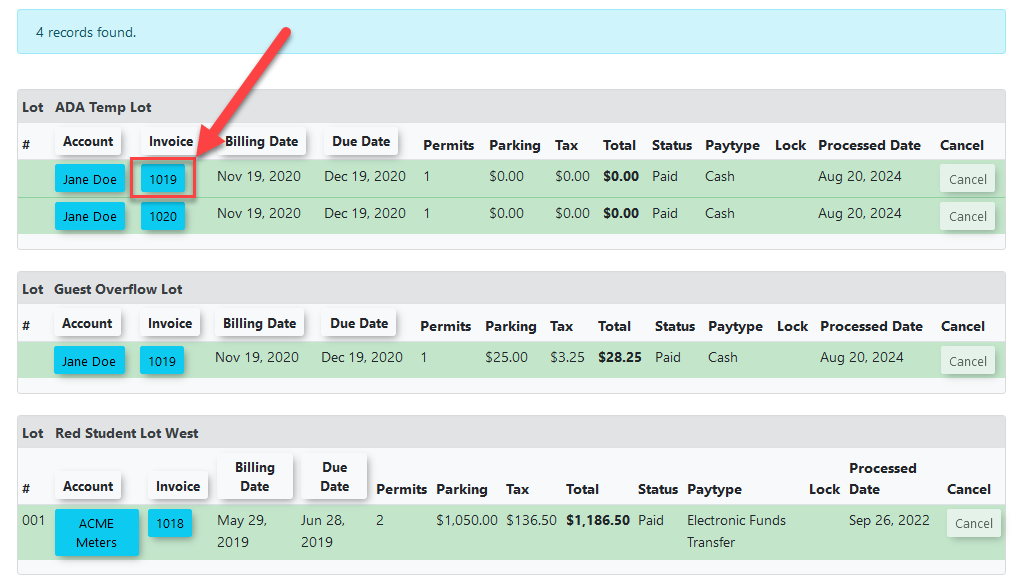
Click
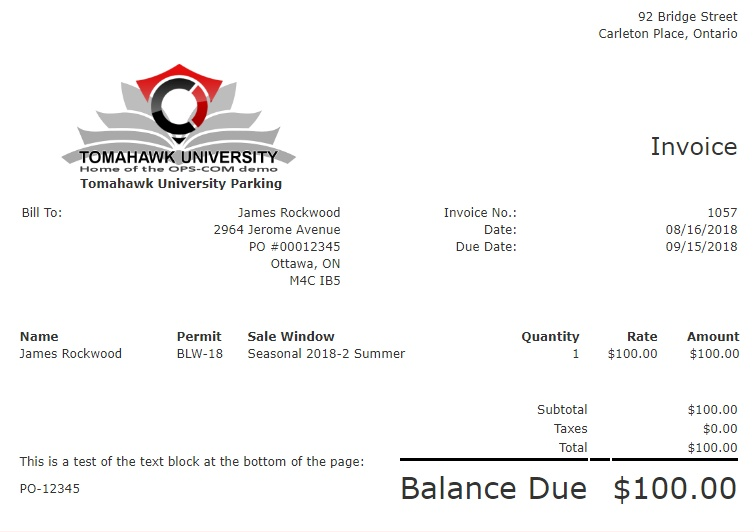
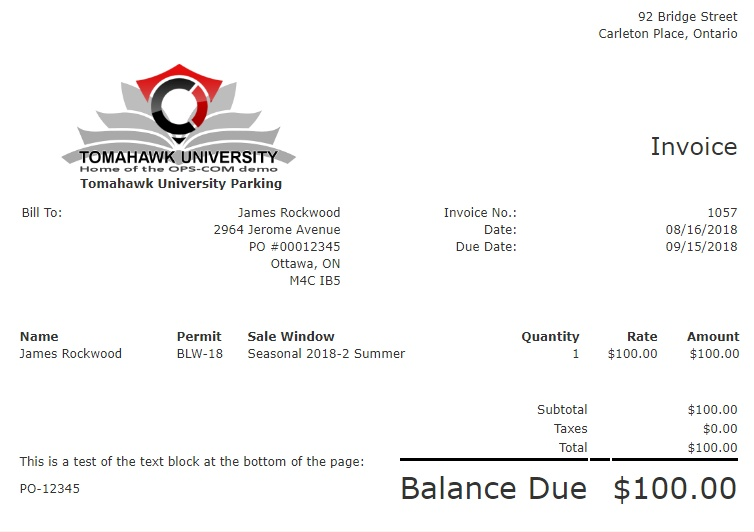
ontheinvoicespecificnumberInvoicelistedNumber within the results list to viewthat invoice.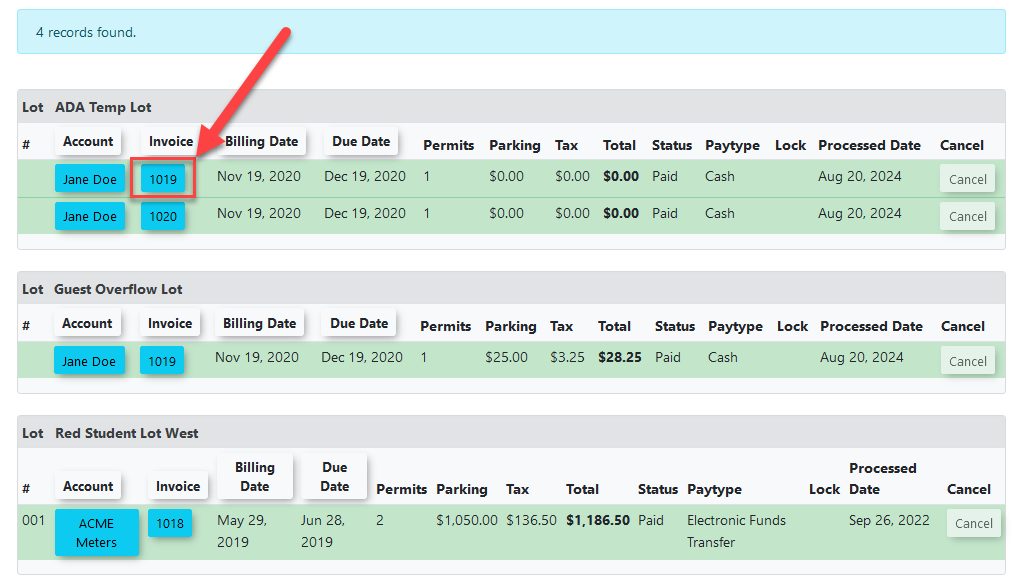
This will opena copy of the actual invoice sent to theuser.user or company.
Available Actions and Buttons
-
-
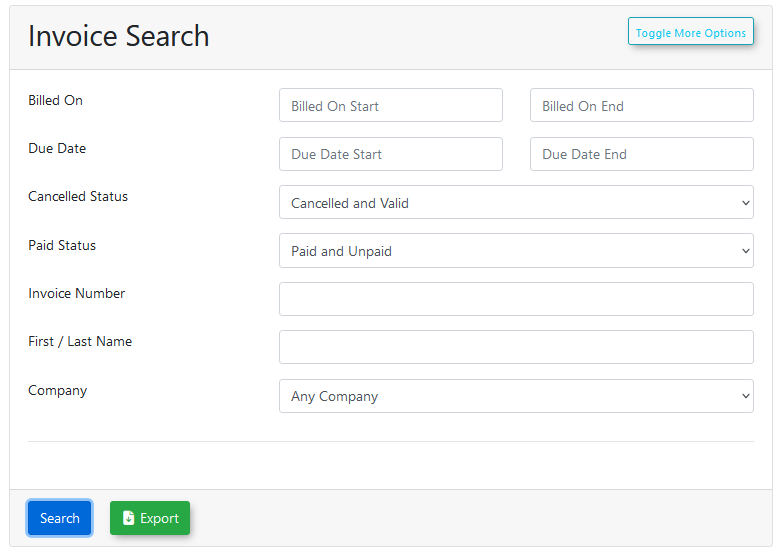
TheSearch: Click this button to execute the query based on your entered parameters. -
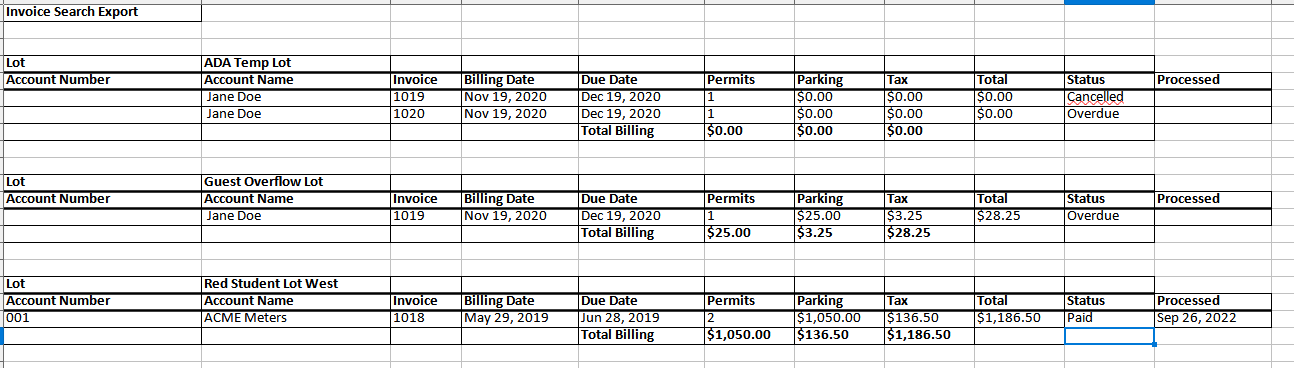
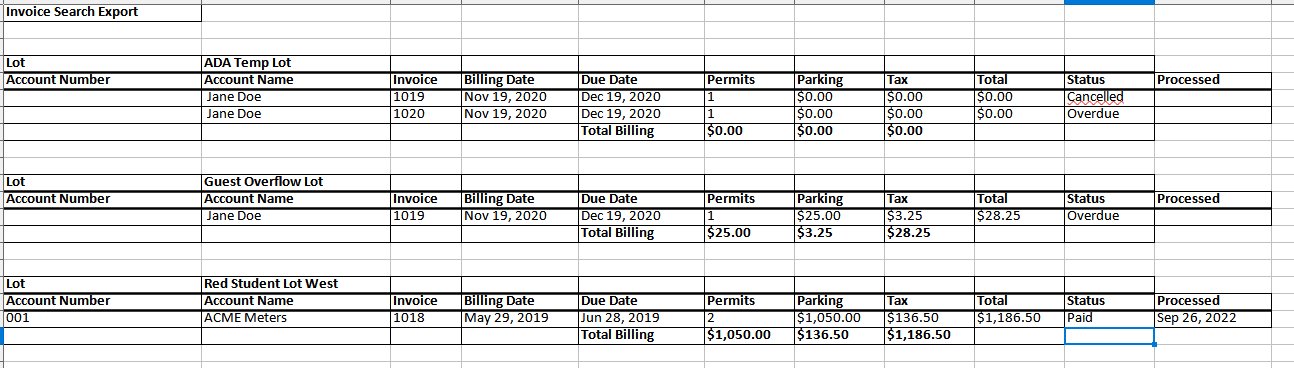
Export: Click this button (located next to the Search button) to export the current search results
can also be exportedto an Exceldocumentdocument.using
The exported document generated by the Export button will specifically display the revenue for athe selected date range organized by lot.
lot, making it an excellent tool for lot-specific financial auditing.
Best Practices and Considerations
-
-
Managing Invoices: From the search results, you can locate invoices that need to be re-issued or voided. If you discover an invoice with errors, you must use the search page to locate it before you can proceed with Cancelling an Invoice.
-
Auditing: Regularly use the "Paid Status" and "Cancelled Status" filters to audit outstanding balances and ensure that your financial records are up to date.