
My Incident Tasks
Accessing
The yourMy Incident Tasks feature provides a centralized dashboard for administrators to view and manage tasks assigned specifically to them. Its primary purpose is to streamline workflow and ensure timely follow-up on active security or operational events. This guide is intended for OPS-COM administrators who are part of an incident investigation or response team.
Setup and Configuration
ToAccessing accessthe yourtask tasks,dashboard clickrequires no special system setup or configuration. It is a core component of the incident management module. However, for a task to appear on Incidents,this thenlist, clickan Myadministrator Tasksmust be actively assigned as a primary investigator, case manager, or individual task owner within an active incident report.
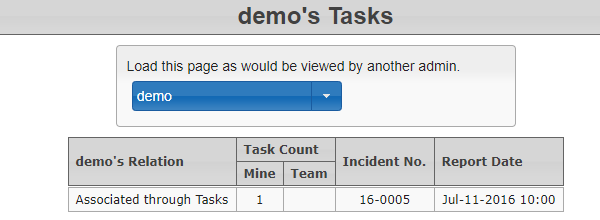
Toyou vieware tasks,a clickCase onManager or Shift Supervisor, you can use the blue drop-down menu, to view the tasks assigned to other administrators on your team. This allows you to easily monitor the workload and progress of ongoing investigations.
Using this Feature
Administrators can use this page to filter, view, and directly access the incident reports containing their assigned tasks.
Accessing Your Tasks
-
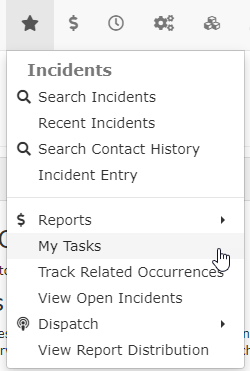
Hover over Incidents and click My Tasks.
-
Click the blue drop-down menu and select your name
.to populate the list of tasks assigned to your account.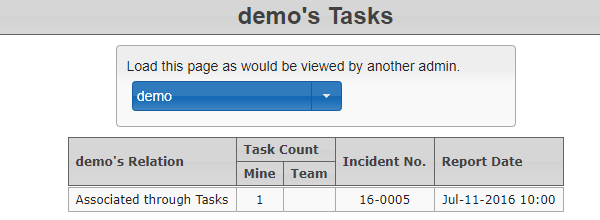
-
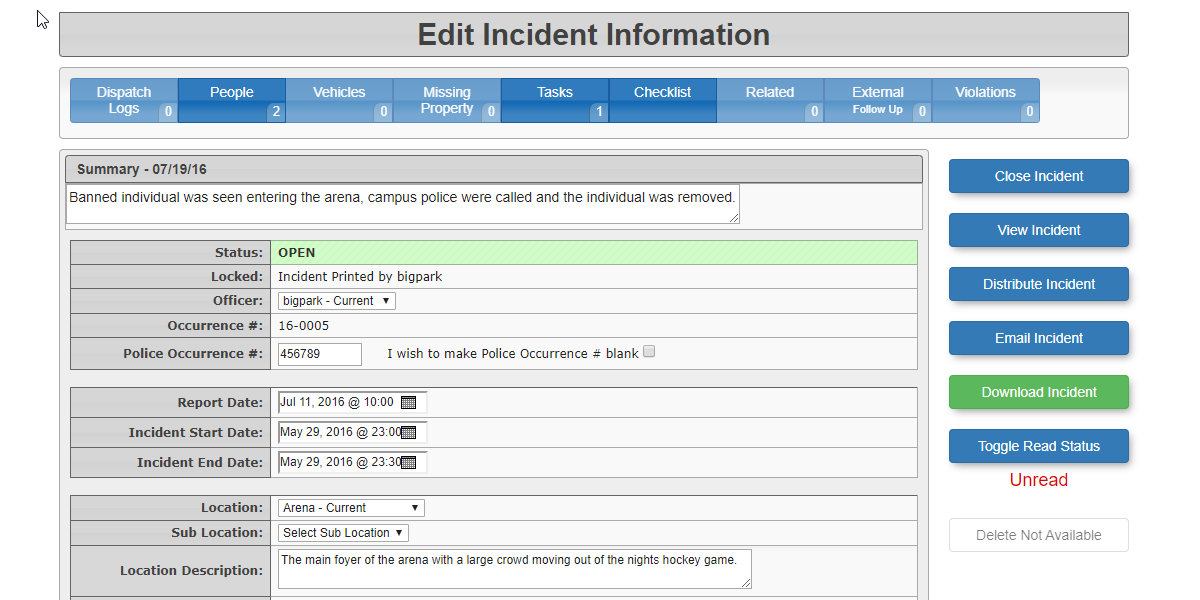
Click
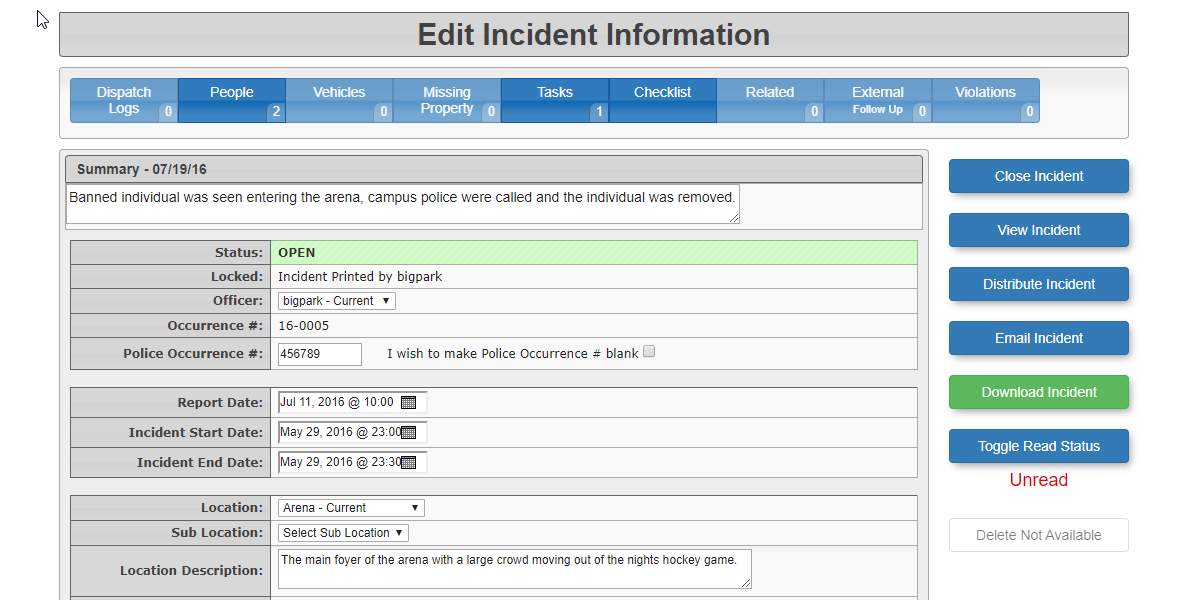
onthethespecific Incident Number from the results table todisplayopen theIncidentdetailed incident information page and review the task requirements.
Key Information Displayed
Once your name is selected, the task table will display:
-
Relation: Indicates whether the task is assigned directly to you (Mine) or to a group you are a part of (Team).
-
Incident No.: The unique identifier for
moretheinformation.related incident. -
Best Practices and Considerations
-
Routine Monitoring: Administrators should make it a habit to check the My Tasks dashboard regularly to ensure critical investigative steps or follow-ups are not missed.
-
Update from the Source: Always update the task status and add relevant comments directly within the incident report after completing an assignment. This ensures the primary investigator and case manager have real-time visibility into the investigation's progress.