
Paying a Violation
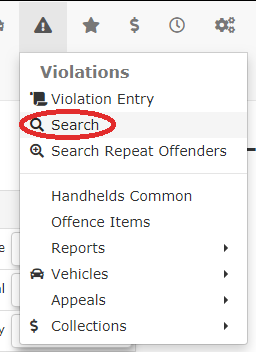
ClickViolationsthenSearch.
2.The Paying a Violation Searchfeature screenallows displays.administrators Enterto manually process fine payments on behalf of users directly from the violationadministrative numberportal. inIts theprimary Searchpurpose Textis field.
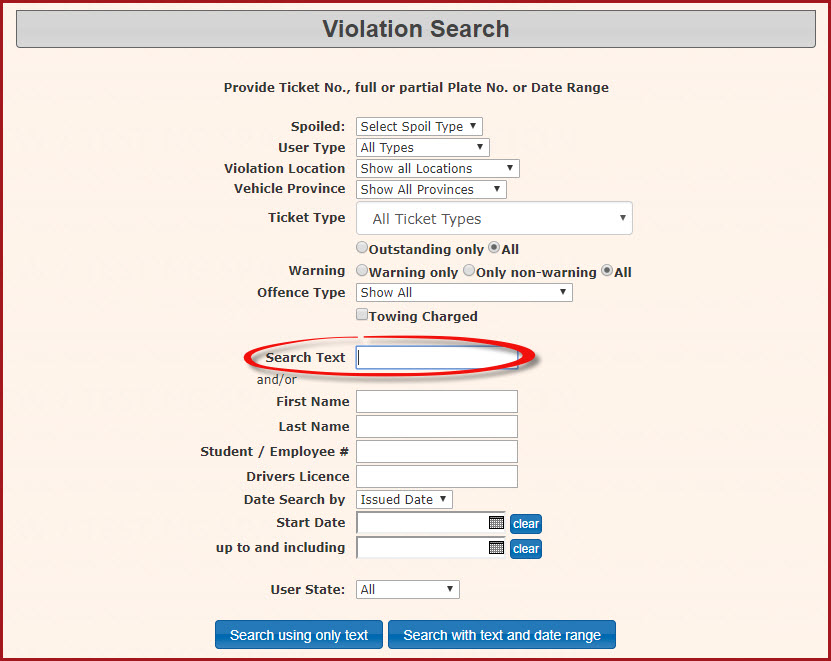
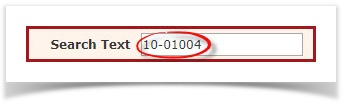
In this case we are looking for Ticket Numeber 10-01004
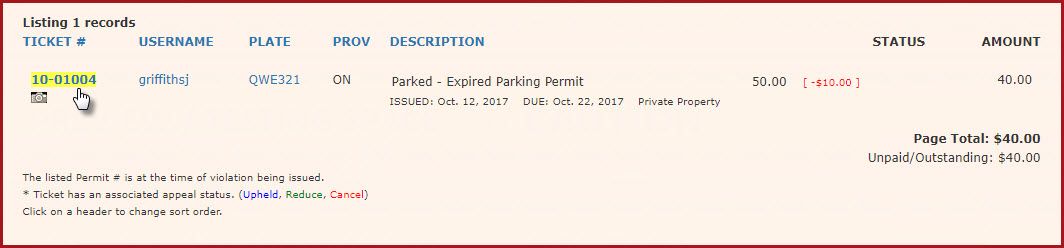
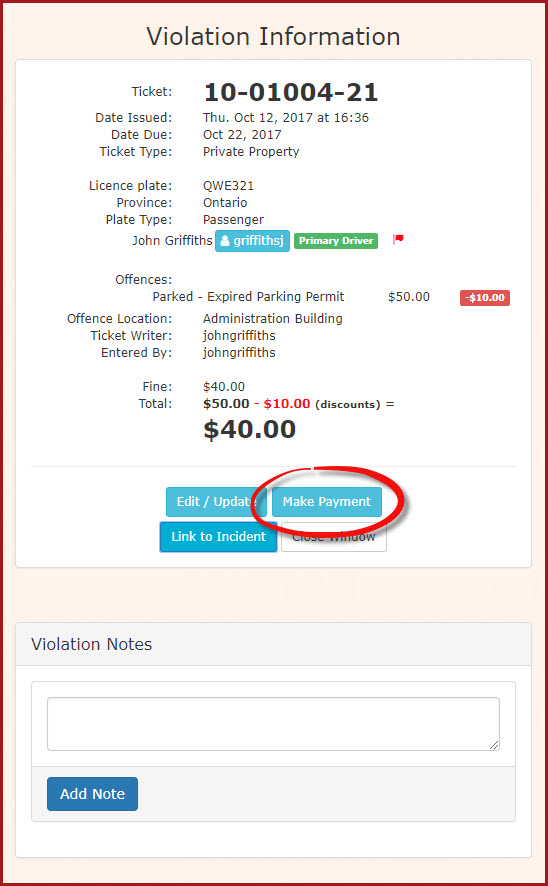
3. In the search results. click on the ticket number to seehelp thefacilitate Violationin-person Information.
4.transactions, ensuring Fromaccurate thereconciliation Violation information window click 'Make Payment'.
5. The Payment Due screen forwithin the user's profileaccount willand display.the Note:system's Iffinancial thererecords. areThis morearticle thanis oneintended itemfor OPS-COM administrators.
Setup and Configuration
There is no specific system setup or configuration required to beuse paidthis feature. Processing a payment manually is a standard administrative action available to users with the Adminappropriate payment processing and violation management permissions enabled on their account profile.
Using this Feature
Administrators can selectlocate byan checkboxunpaid violation and guide it through the manual checkout process in just a few steps.
-
Hover over Violations and click Search.
-
Enter the specific violation number into the Search Text field.
-
Click the specific ticket number link in the search results to view the Violation Information window.
-
Click the Make Payment button.
-
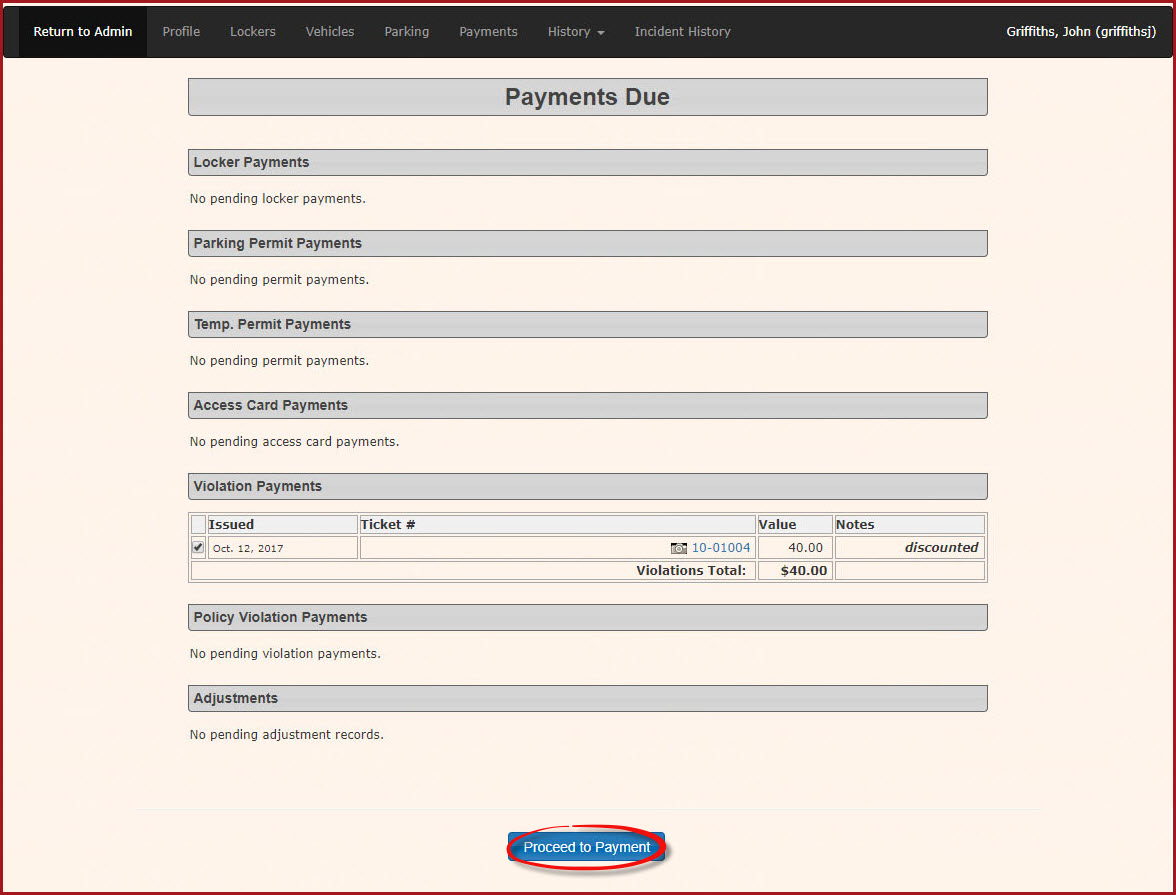
Select the items the user wishes to
pay.pay by enabling the corresponding checkboxes on the Payment Due screen. -
6.Click theClick'Proceed toPayment.'Payment button.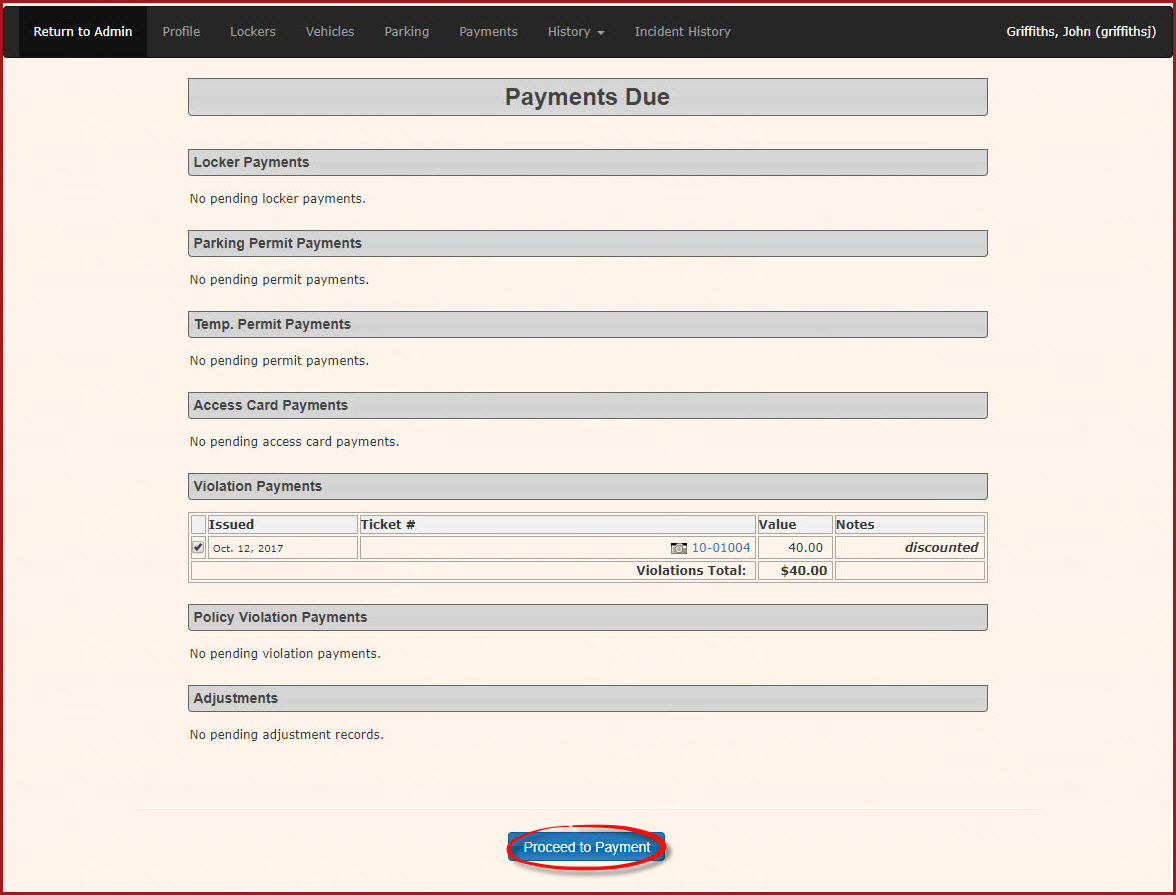
-
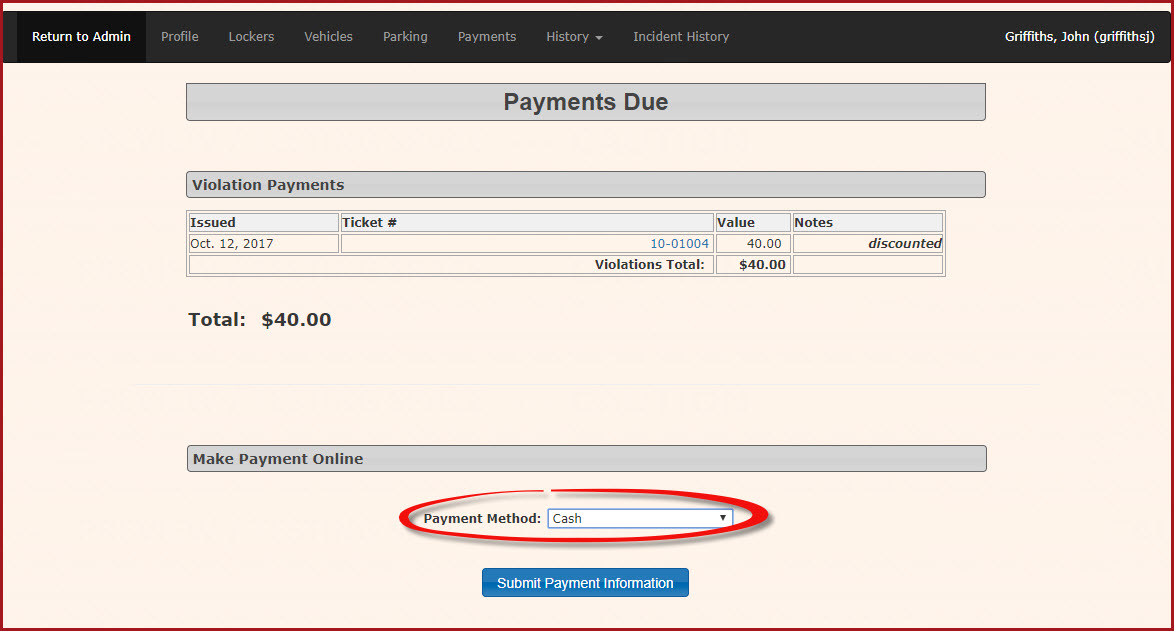
7. The screen will refresh with the specific purchase information you requested.Select the payment type you wish to process the itemwith.withIn our case we are processing a(e.g., cashtransaction.transaction). -
8.Click theClick.button.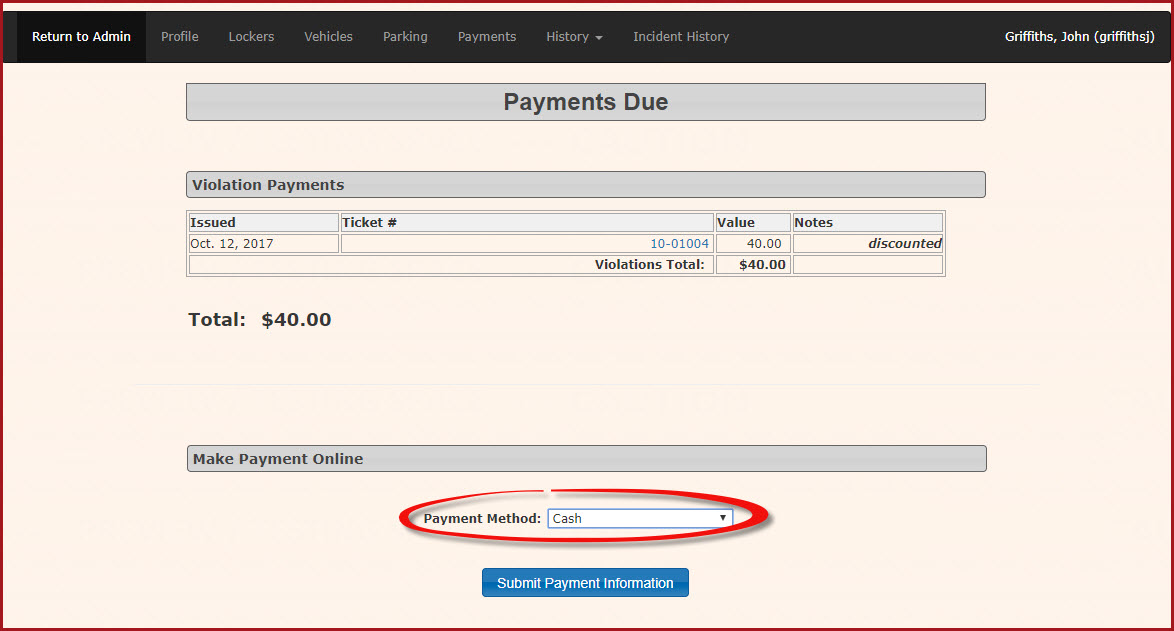
-
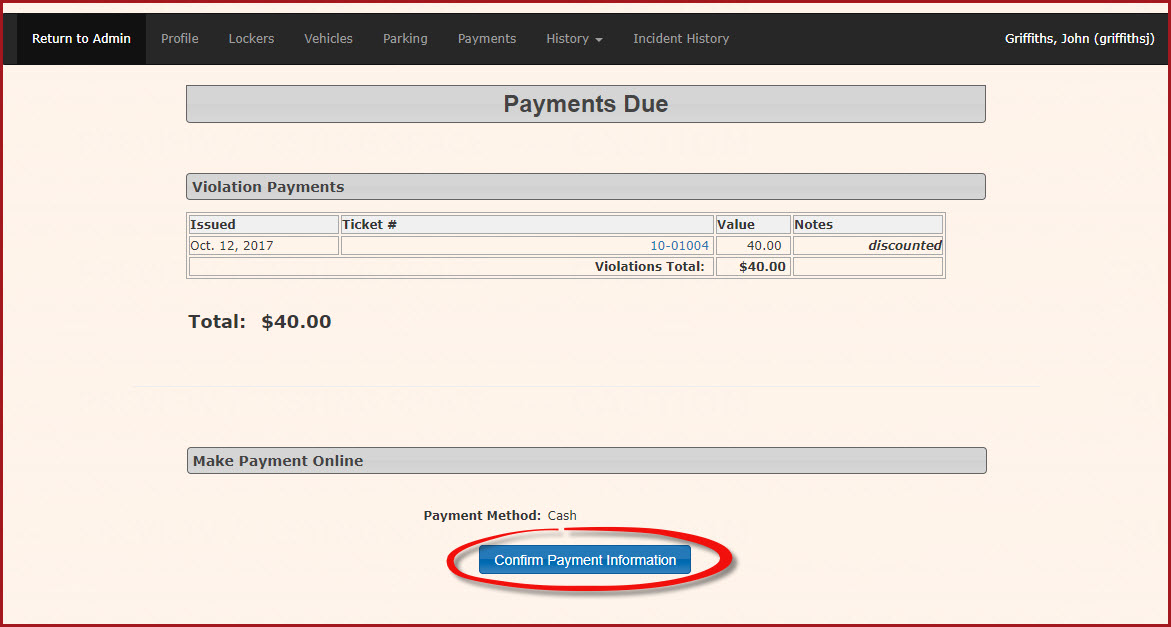
9. The screen will refresh with a confirmation screen.Click the'Confirm Payment Information'button on the confirmation screen to continue.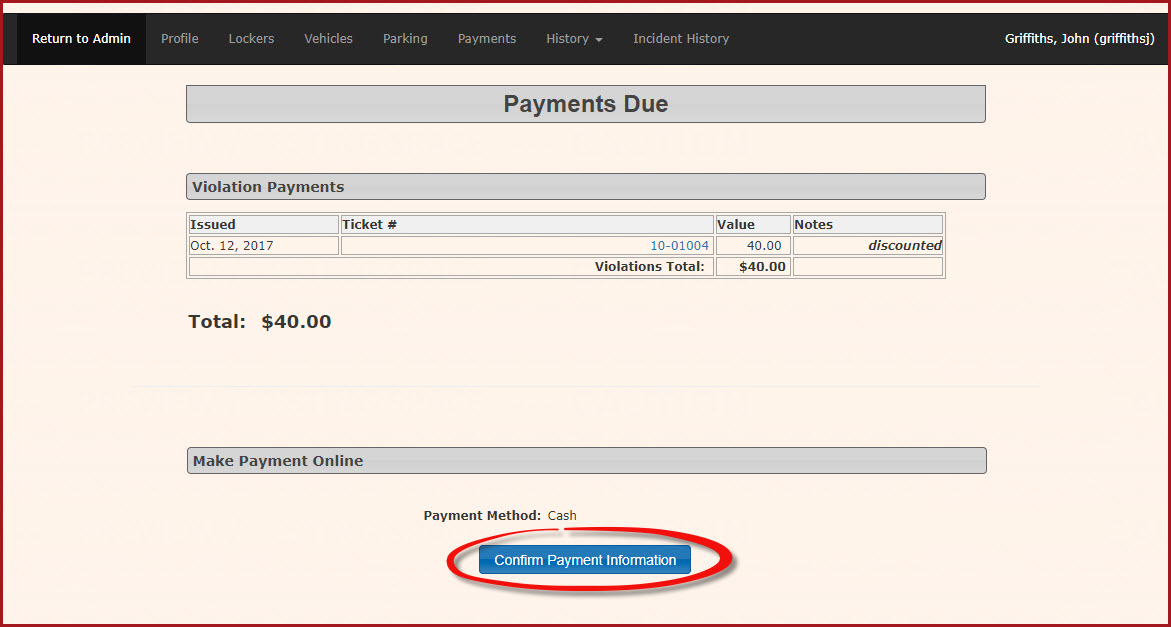
-
10.ClickThethe Process Manually button on the Transaction Details windowopens.toThisfinalize the payment.
Key Information Displayed
Once the system processes the payment, it will listreturn the item/s being paid for. Click 'Process Manually' to complete the transaction. You may also choose 'Cancel Transaction' to back out of this action.
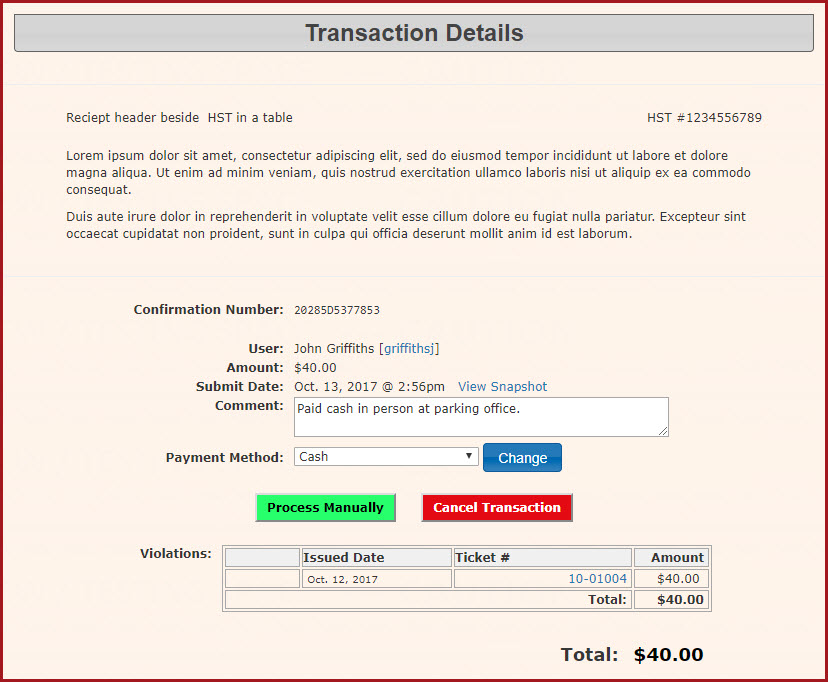
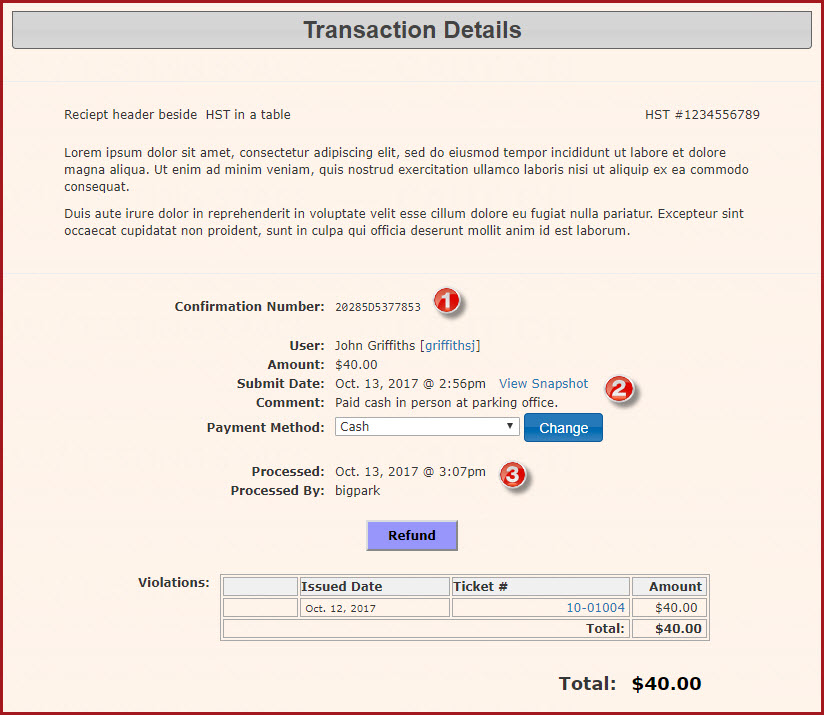
11. The system will process the payment and returnyou to the final Transaction Details page. ThereSeveral are severalkey pieces of information thatare canrecorded beand seendisplayed here.here:
-
The unique confirmation number of the
transactiontransaction. -
The core violation information (including the User's Name,
Amountthe amount of the fine,Thethe dateSubmitted,submitted,Commentstransaction comments, andPaymenttheType)payment type). -
The specific Date Processed and the name of the
Adminadministrative user who processed thepaymentpayment.
Visual Cues and Status Indicators
-
User History Status: Once the payment has been
madesuccessfullyyoucompleted,cannavigatingsee into the user's history will visually show that the violation has been paid and its status is now marked as processed.
Best Practices and Considerations

-
Transaction Cancellation: If you make an error or the user changes their mind before the final step is completed, you can click the Cancel Transaction button on the Transaction Details window to safely back out of the action without recording a payment or altering the violation's unpaid status.