
Preventing Permit Rollover after Cancellation
PurchaseThis article outlines how to stop an active permit from automatically renewing during the rollover process. Its primary purpose is to allow administrators and end users to cancel future recurrences of a permit aswhile maintaining the current active status until expiration. This guide is intended for OPS-COM administrators.
Setup and Configuration
There is no specific configuration required to use this feature. The ability to prevent permit rollovers is a standard function available to both administrators and end users within their respective portals.
Using this Feature
The process for preventing a permit from rolling over can be completed by an Administratoradministrator foron anybehalf user.of a Locateuser, or by the permitend onuser directly through their portal.
Administrator Side
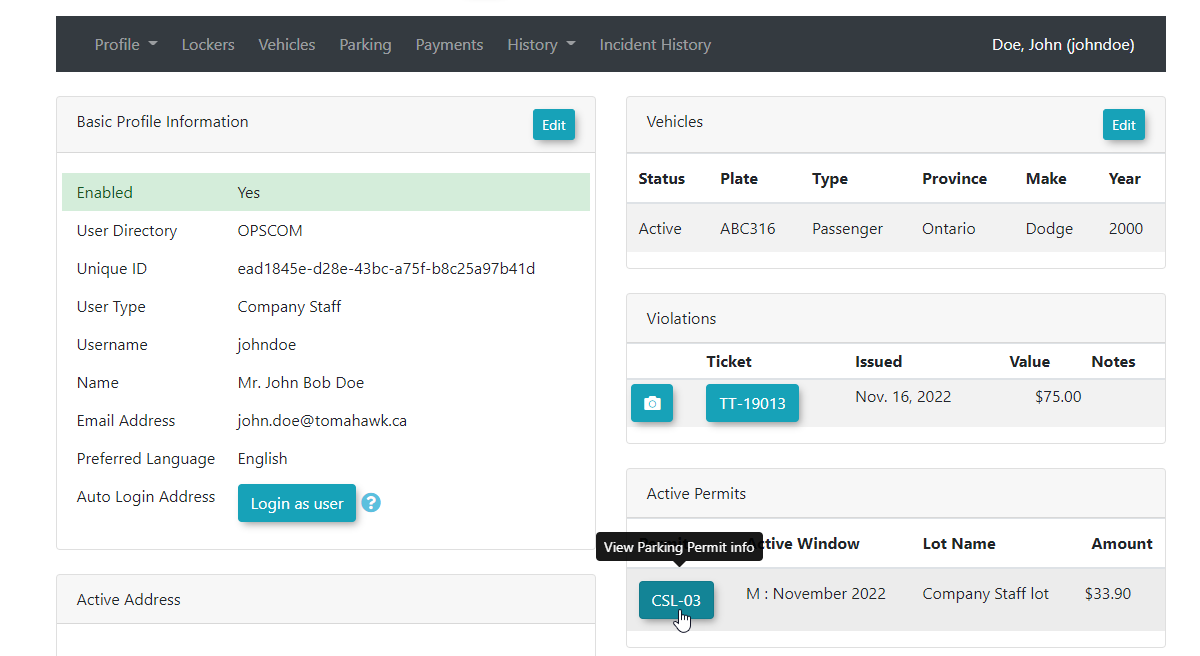
2. clickClick the permit button associated with the active permit to reveal the Parking Permit Information window.
3. ChangeClick the Rollover State todrop-down menu and choose Prevent Rollover.
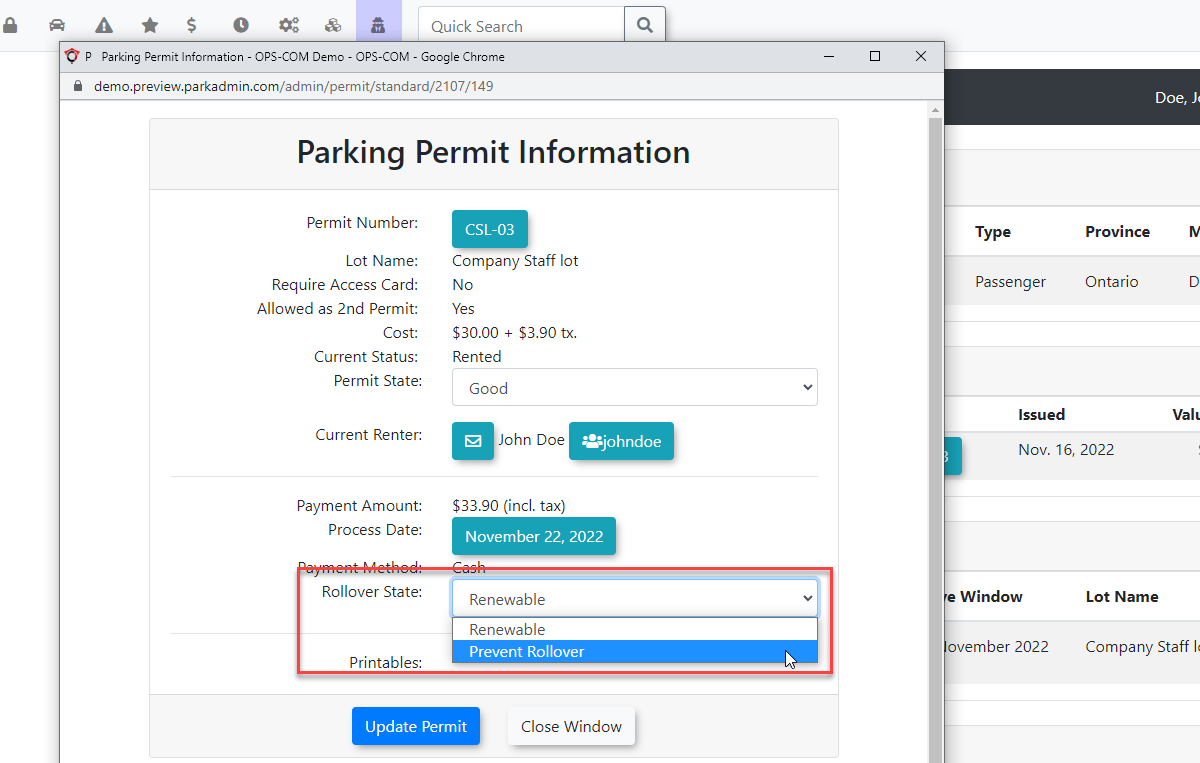
4. Enter a comment to explain why you are changing the state.state is being changed. This field is mandatory.
Click the Update Permit.
A message will displaybutton to let you know you have changedapply the flag.
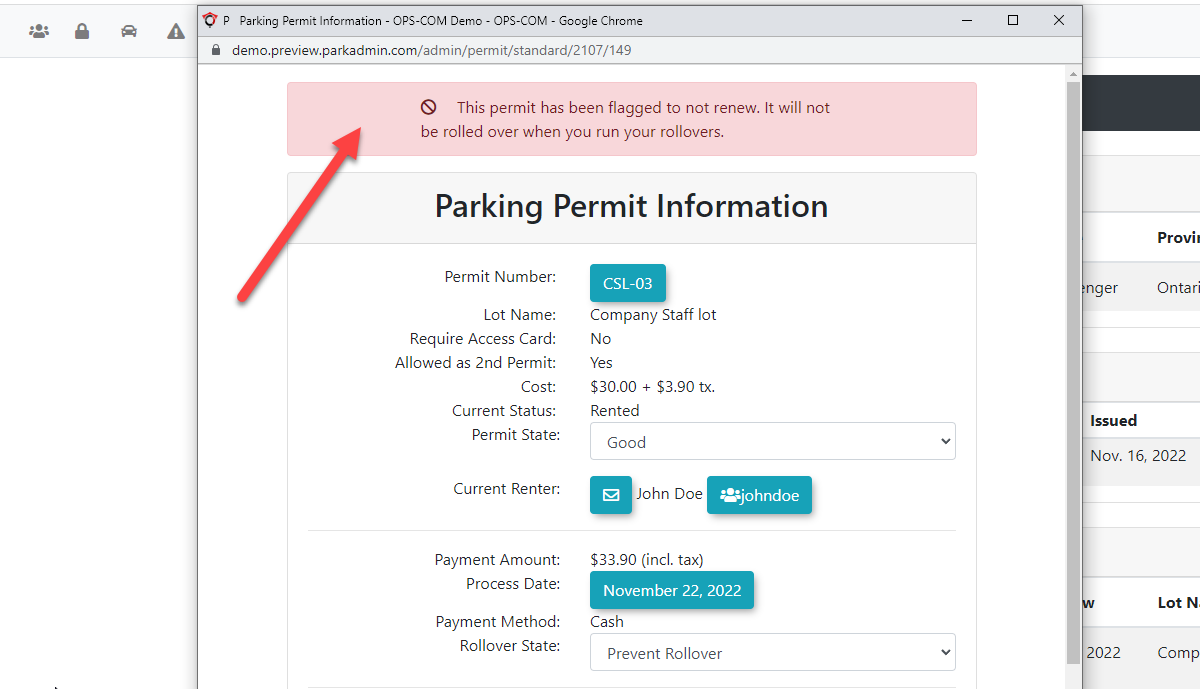
You should also add notes to indicate why the flag was changed.
changes.
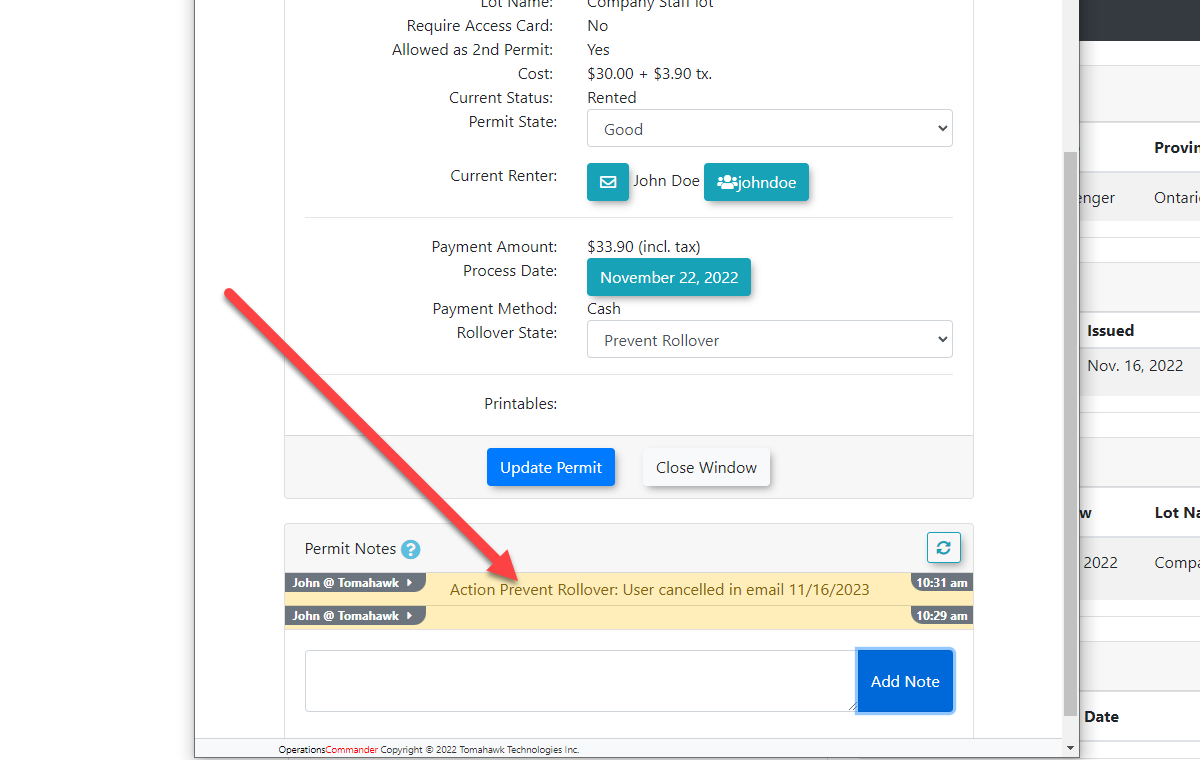
6. Review the confirmation message that appears, verifying the flag has been changed.
User Side
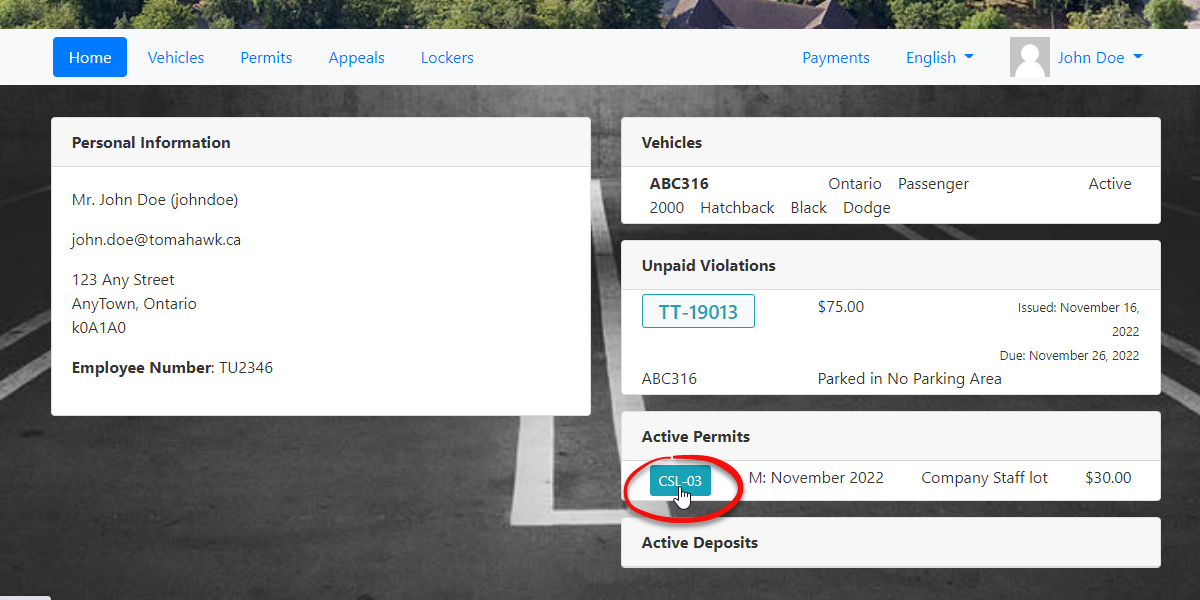
The1. process is almostLocate the same for the user portal. An end user can set their permit to not renewing. Simply find theactive permit on the User Dashboard.
2. click onClick the permit button.
button to open the permit details.
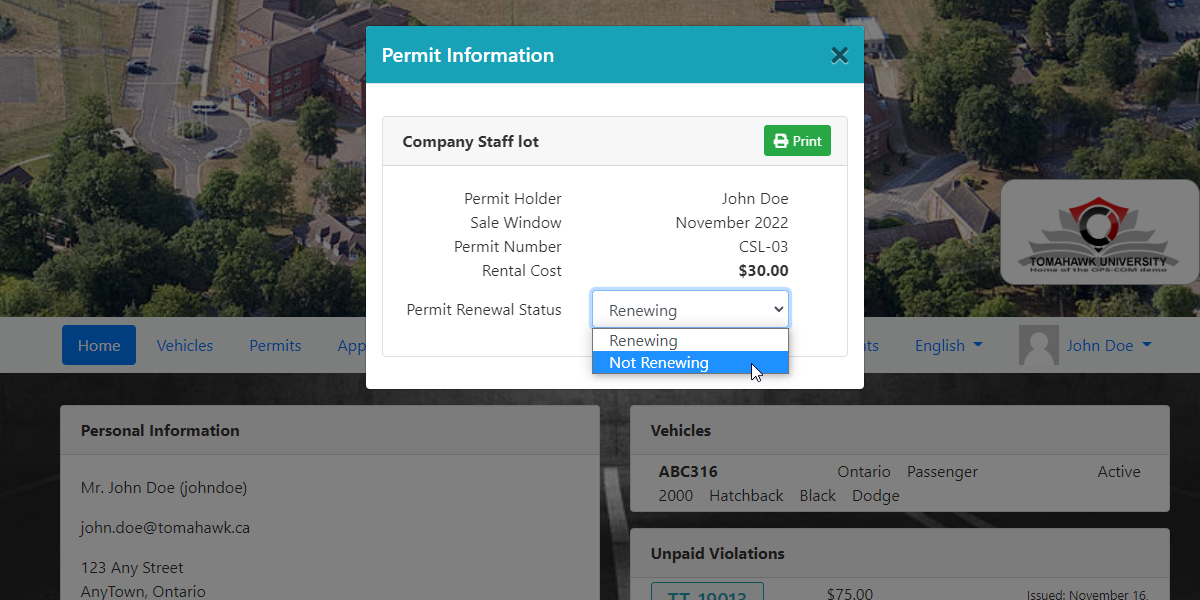
Select3. Click the drop-down menu in the Permit Information window and choose Not Renewing from the dropdown list in Permit Information.
.
Feature Results
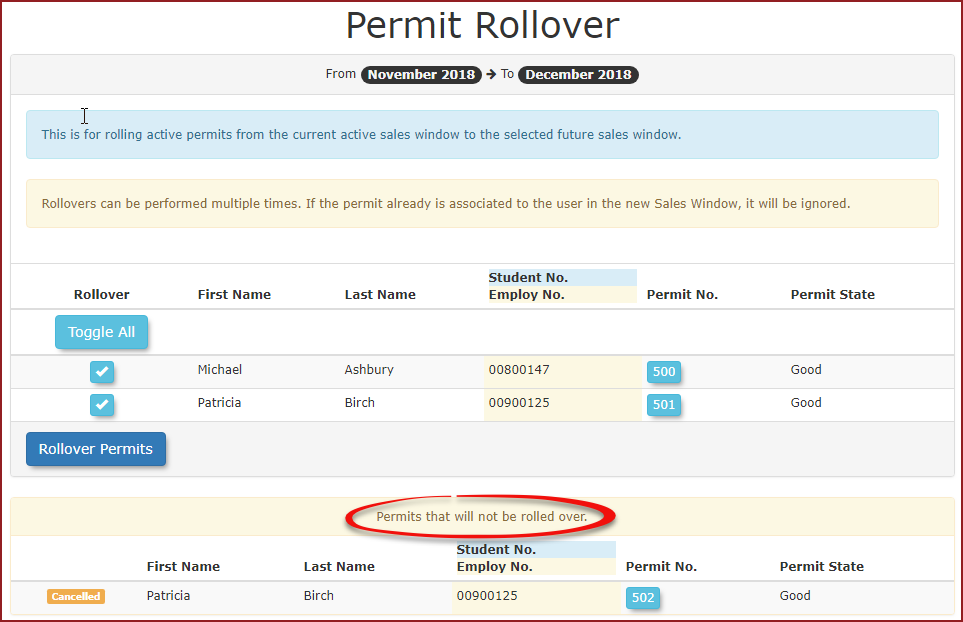
When youadministrators process permit rollovers for the rollovers,upcoming thisseason permitor month, permits that have had their state altered will notbe showexcluded up infrom the list.main processing queue. Instead, itthese permits will show upappear in a separate list calledtitled "Permits that will not be rolled over."over
.
Best Practices and Considerations
-
Mandatory Comments: Always provide a clear and detailed comment when changing the rollover state. Because this action is mandatory for administrators, using it to accurately document the reason for cancellation (e.g., user request, account closure) ensures a reliable audit trail.
-
Additional Notes: In addition to the mandatory comment on the permit state, it is best practice to add a general note to the user's profile detailing the cancellation for quick administrative reference.
-
Processing Awareness: When running batch rollovers, always review the Permits that will not be rolled over list to ensure no permits were flagged for cancellation by mistake.