
Printing Permit from Home Setup
This article provides OPSCOM administrators with the necessary instructions to configure theThe Permit Printing from Home feature. This functionalityfeature allows end-users to generate and print a physical copy of their parking permit directly from the user portal. TheIts setupprimary involvespurpose creatingis ato provide administrators with the tools to configure printable permit template using system messagingtemplates and thenenable enablingself-service aprinting system-wideto setting.streamline permit distribution. This article is intended for OPS-COM administrators.
Setup &and Configuration
Configuring this feature is a two-part process. First,Administrators must first enable the feature must be enabled inwithin the system settings.settings Second,and then customize the templatesassociated forprint permitPdf and permitTempPdf must be customized, if desired.templates.
GotheHover over System Configuration and click System Settings.
SelectClick the Permits tab.
ClickEnable the Enable User Permit Printing checkbox.
Admin Side:
Click the Save Settings. button.
LocateLocating the Permit Print Template
Templates:
The printable permits are generated from astandard system message. messages.
-
GoHovertoover System Configuration,thenclick Content and Design, and then click Pages and Content Blocks. -
SelectClick the Messages tab. -
EditLocate and edit the messages where the System Location column islabledlabeledpermitPdf, andpermitTempPdf
These two pages above, permitPdf and permitTempPdf are used to customize the content of either a(for regular printed permit,permits) orand apermitTempPdf (for temporary printed permit, respectively.permits).
Define
User Side:
Once the Templateglobal Contentsetting is enabled, users will see a new option to print their active permit directly from the user portal interface. For a detailed guide on the user-facing process, please refer to the Printing Your Parking Permits Made Easy! article.
Using this Feature
Administrators interact with this feature primarily by designing and updating the system message templates that generate the final PDF document.
Use the content editor on the permitPdf and permitTempPdf messages to design the layout of your printable permit. You can freely use a combination of text, images (like your organization's logo), and specific shortcodes to dynamically pull in live permit and user information.
Available Shortcodes
The following shortcodes can be usedinserted within the message body to display dynamic permit information:
-
[permitpdf user=fullname]-: Displays the full name of the user. -
[permitpdf vehicle=all]-: Displays a comma-separated list of up to three associated vehicles. -
[permitpdf vehicle=1]-: Displays the first vehicle on the permit. You can also specifically usevehicle=2orvehicle=3. -
[permitpdfpermit=permit=expiry]-: Displays the permit's exact expiry date. -
[permitpdf permit=permitno]-: Displays the unique permit number. -
[permitpdf permit=lotshortname]-: Displays the short name of the associated lot. -
[permitpdf permit=lotname]-: Displays the full name of the associated lot. -
[permitpdfpermit=permit=location]-: Displays the location associated with the permit.
To
Defaultquickly Template Content
Below is a sample of what should beuse the default message content;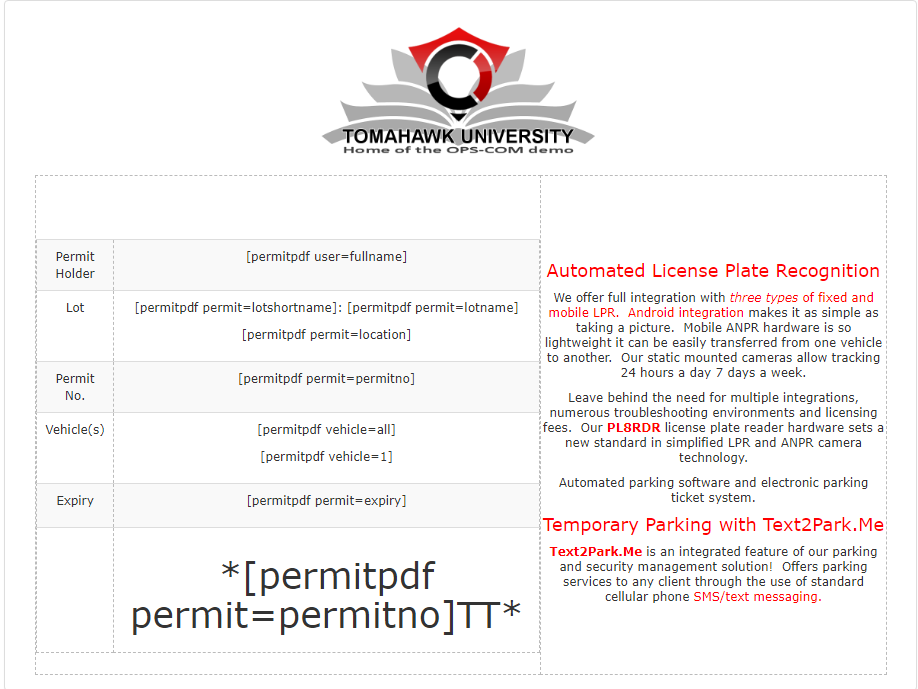
To use our recommended template,default template provided by the system, you can leave the content editor body as the default text,text. butHowever, beensure sureyou actively edit the document to change any placeholder logos or generic company names to match your own.specific organizational branding.
User Portal Guide
Once enabled, users will see an option to print their permit from the user portal. For a detailed guide on the user-facing process, please refer to the Printing Your Parking Permits Made Easy! article.
Best Practices &and Considerations
-
Always test your template before deploying.deploying: AfterAfter creating your message, print it out to ensure the layout, shortcodes, and any images appear correctly on a physical page. Virtual PDFs can sometimes render slightly differently than printed paper, so physical testing prevents scaling or cutoff issues.
-
Include clear display instructions for the user.user: It is highly recommended to add text to the template that explicitly instructs the user on how to display the permitpermit. Clear instructions (e.g., "Please display this permit face-up on the driver's side of your dashboard"dashboard so it is fully visible through the windshield"). significantly aid your enforcement team in the field.
Always test your template before deploying.deploying: AfterAfter creating your message, print it out to ensure the layout, shortcodes, and any images appear correctly on a physical page. Virtual PDFs can sometimes render slightly differently than printed paper, so physical testing prevents scaling or cutoff issues.
Include clear display instructions for the user.user: It is highly recommended to add text to the template that explicitly instructs the user on how to display the permitpermit. Clear instructions (e.g., "Please display this permit face-up on the driver's side of your dashboard"dashboard so it is fully visible through the windshield"). significantly aid your enforcement team in the field.