
Printing the Certificate of Parking Infraction
Create
The Certificate of Parking Infraction (commonly known as Form 1111) Templatefeature allows administrators to generate and print official legal notices for specific parking violations. Its primary purpose is to produce a properly formatted PDF document that includes all required auto-filled information and officer signatures for legal processing. This article is intended for OPS-COM administrators responsible for violation management and system configuration.
Setup and Configuration
IfBefore ityou alreadycan exists,generate a certificate, you must ensure the Form 11 template willis becreated foundwithin underyour system settings and determine if you require digital signatures from your enforcement officers.
Create and Edit the Form 11 Template
-
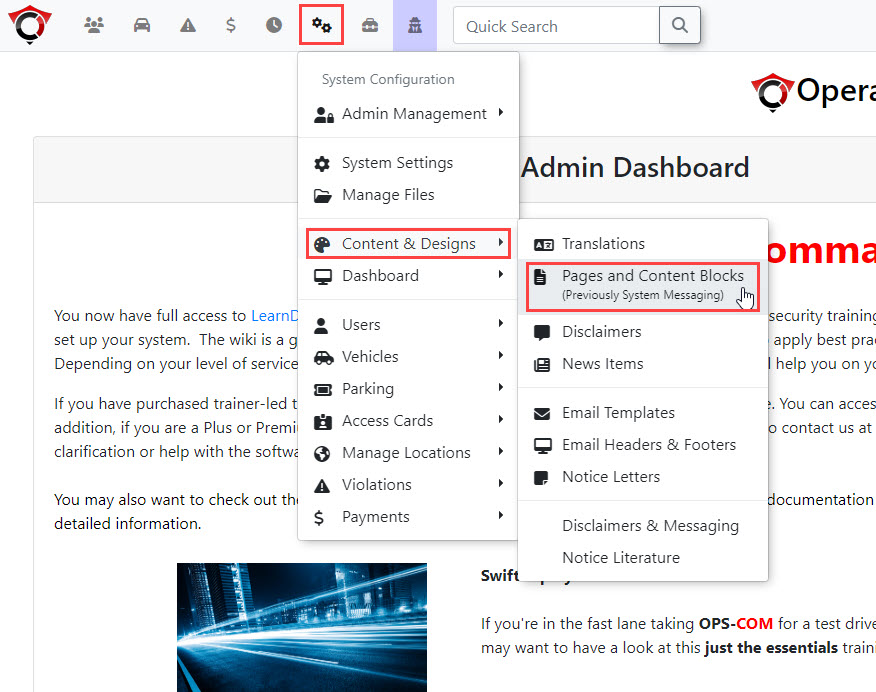
Hover over Content & Designs
menu,andinclick Pages and ContentBlocks:Blocks.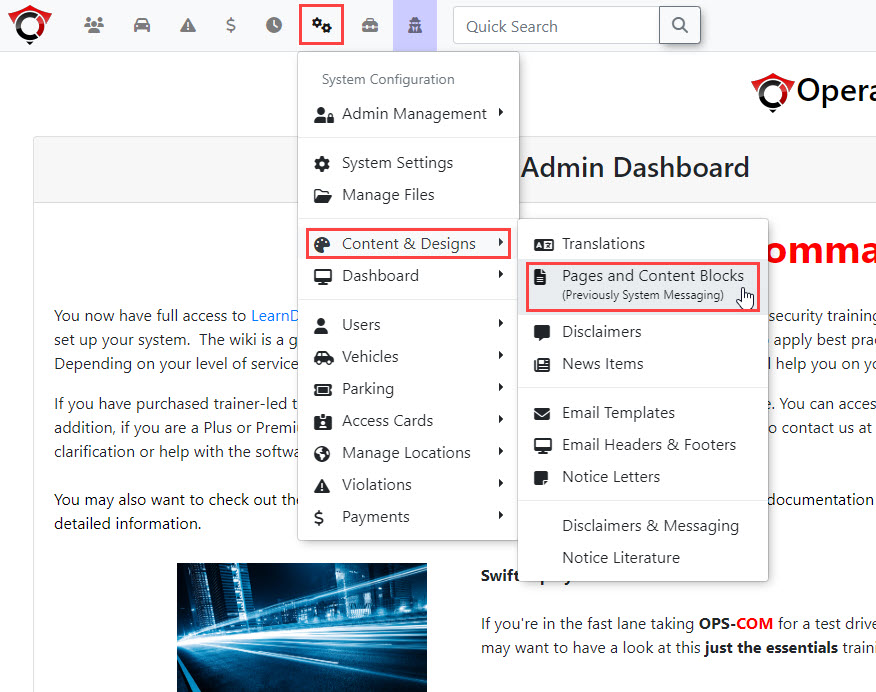
-
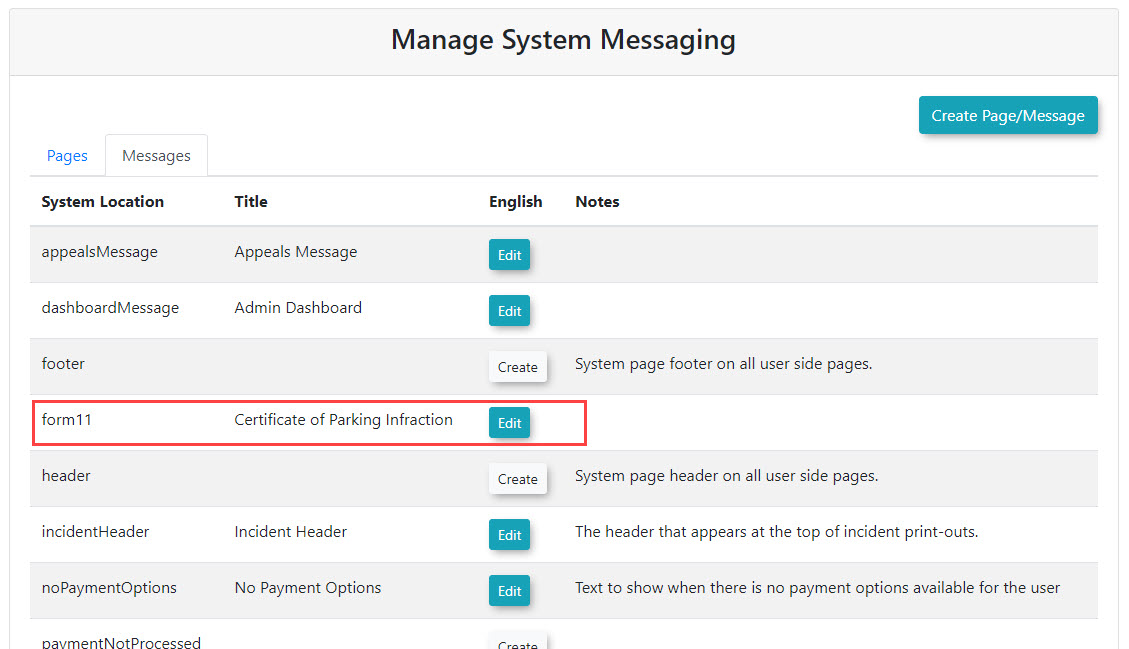
It will be found underClick the Messagestab.tabTheand look for the item with the System Location valueisof"form11":form11.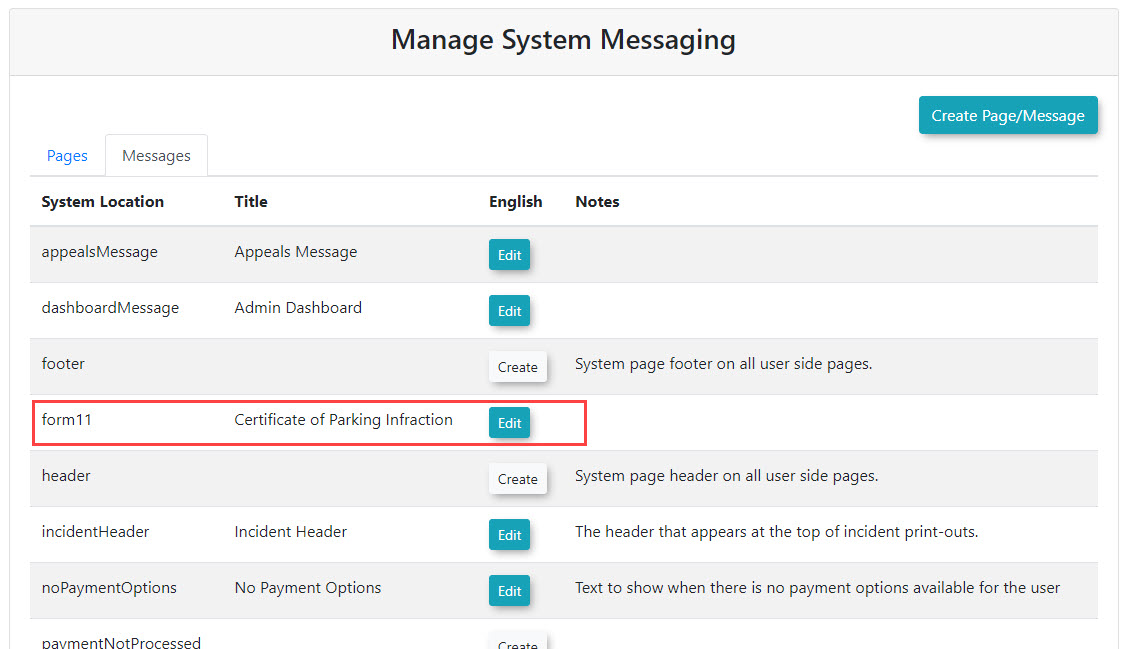
-
If the template
doesn'tdoesalreadynot exist,itclickcanthebe created by clicking "Create Page/Message".MessageSetbutton. -
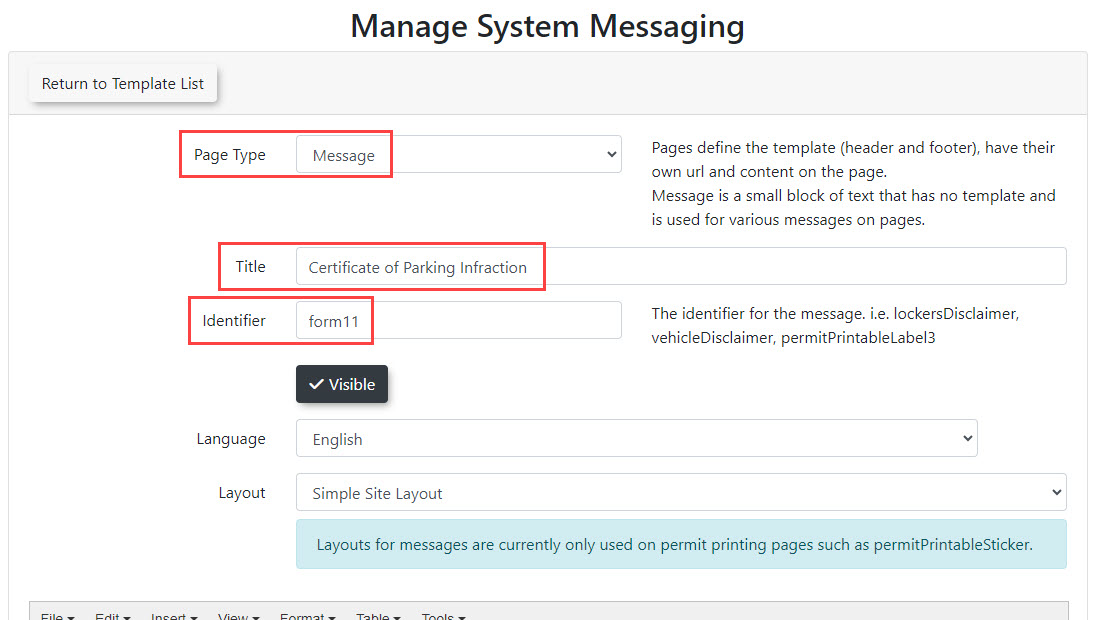
Select Message from the Page Type
todrop-down"Message",menu.and -
Enter form11 into the Identifier
enter "form11". (Be sure to click "Save Messaging" once done.)field.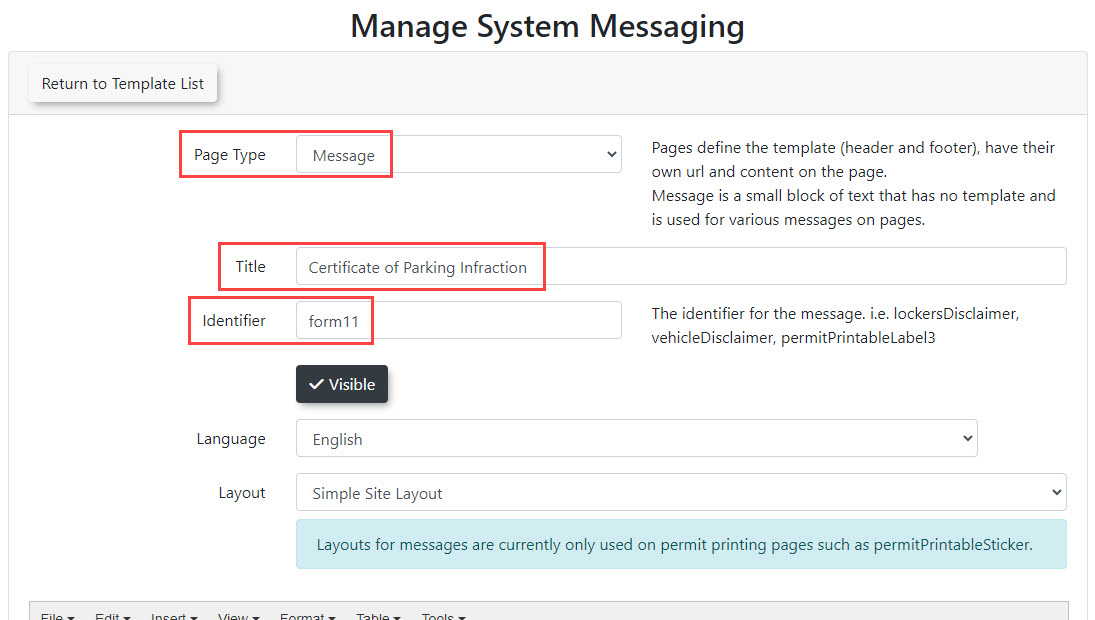
-
The content ofClick theform can be edited in Pages and Content Blocks. Locate "form11" under the Messages tab and click "Edit". On this page is a text editor where the content of the form can be set. (Be sure to click "SaveMessaging"Messagingonce done.)button.Although
Edit Form 11
Print Form 11
To downloadedit andan printexisting Formtemplate, 11 for a violation, first findclick the violationEdit onbutton next to the Violationform11 Searchentry page and click onin the violationMessages number:

Underaccess the Actiontext menu, click "Generate (title of form)":editor.
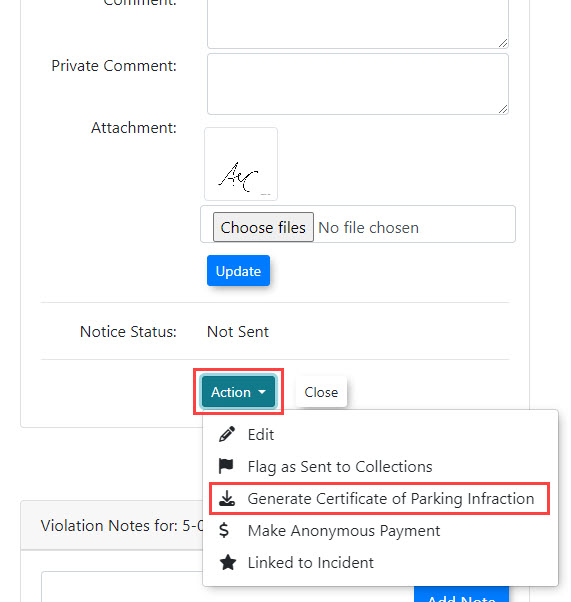
The form will be downloaded as a PDF, which can then be printed.
Adding a Digital Signature
Requirement
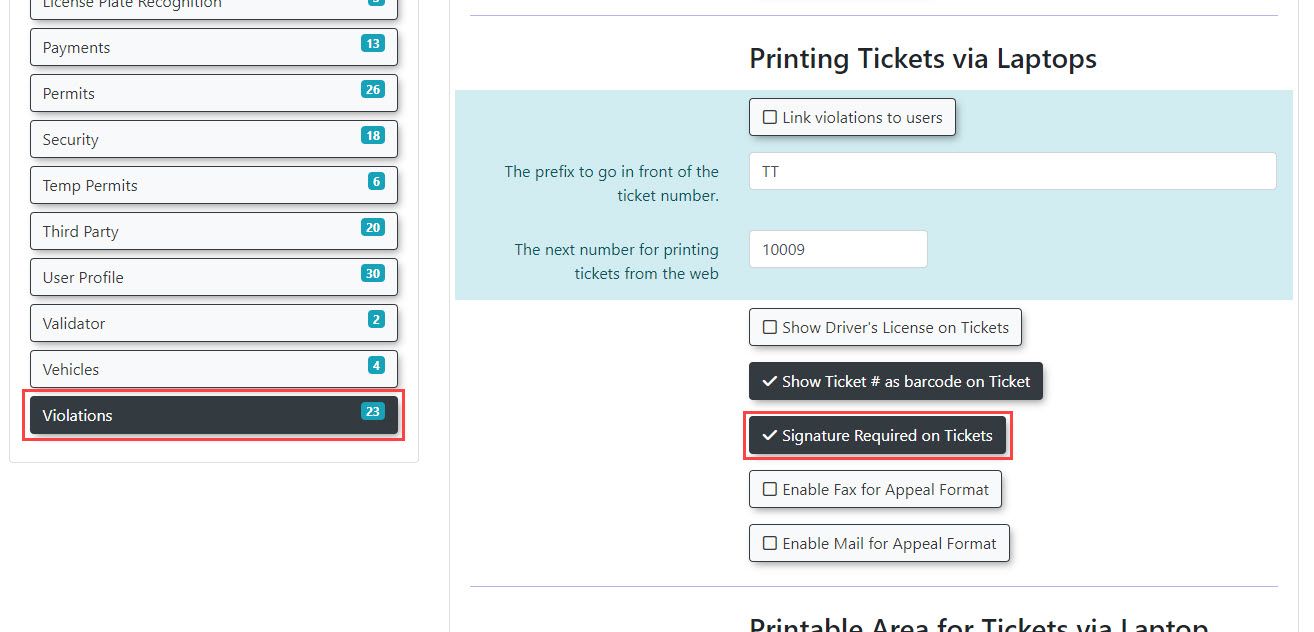
ThereYou iscan anconfigure optionthe system to addrequire enforcement officers to capture a digital signature when writingissuing a violationticket on antheir enforcementhandheld handheld.devices.
-
optionHover
isoverenabled,SystemtheConfigurationpatrolandisclickrequiredSystem Settings. -
Click Violations to
signopen the violationonsettings menu. -
Enable the
handheldspecificscreen.
Save your configuration changes.

Using this Feature
Once configured, administrators can begenerate enabledthe document from the web portal, and officers can apply their signatures in Systemthe Settings under Violations:field.
Handheld Signature Capture (Android)
-
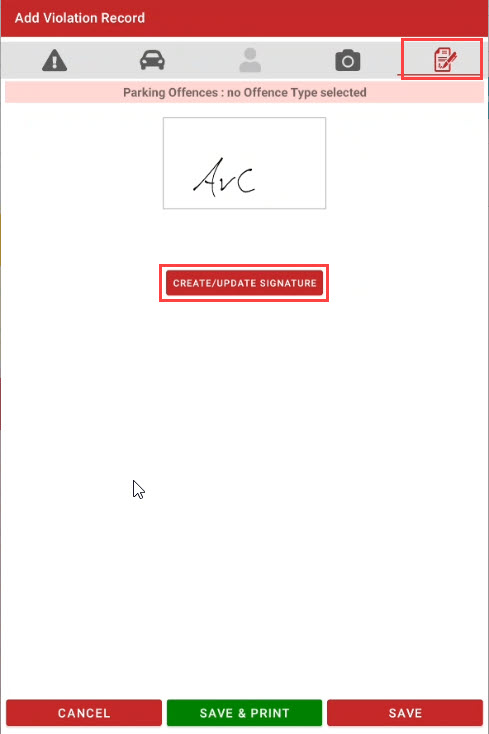
Visual Cues & Status Indicators: When
thisthe digital signature setting is enabled, a new signature tab will appear when writing a violation onaanhandheld:OPS-COM Android handheld unit.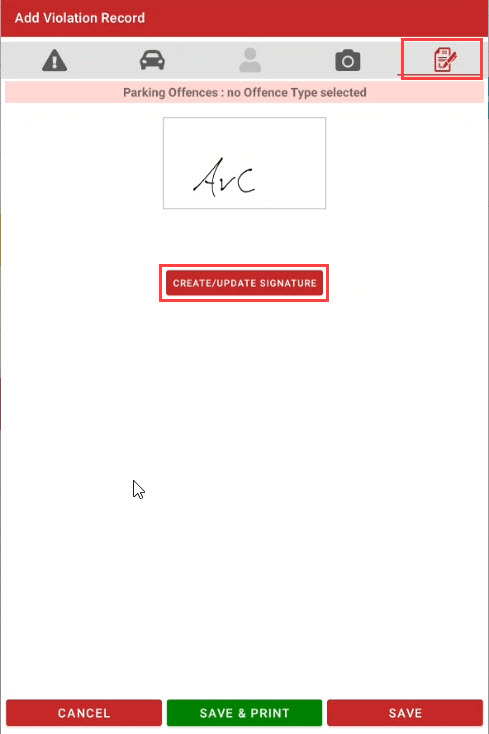
-
Available Action: The patrol officer must tap the signature tab and physically sign the device screen to proceed. When the ticket is uploaded to the server, this timestamped signature is sent with the other violation images and will
showautomaticallyupdisplay on the printed Form11:11.
Print Form 11
-

-
Locate the specific violation and click the Ticket Number to open the details page.
-
Click the Action drop-down menu and choose Generate (title of form) (e.g., Generate Form 11).
-
Open the downloaded PDF file to view, save, or print the final Certificate of Parking Infraction.
Best Practices and Considerations
Form 11 Content Configuration: Although it is possible for administrators to edit the Form 11 template text manually, it is strongly recommended to request the initial form content configuration directly from OPS-COM support. The layout is highly specific and relies on complex shortcodes to accurately auto-fill dynamic legal information such as dates, license plate numbers, and fine amounts.
-
Signature Verification: Always verify that the digital signature appears clearly on the final downloaded PDF. The timestamped signature serves as a crucial piece of evidence confirming the specific Provincial Offences Officer who issued the ticket.