
Public-Facing Lot Pages
This article outlines how to create and configure custom public-facing pages that display parking lots for user booking. This feature allows OPS-COM administrators to provide a streamlined, branded parking selection and purchase experience.
Setup and Configuration
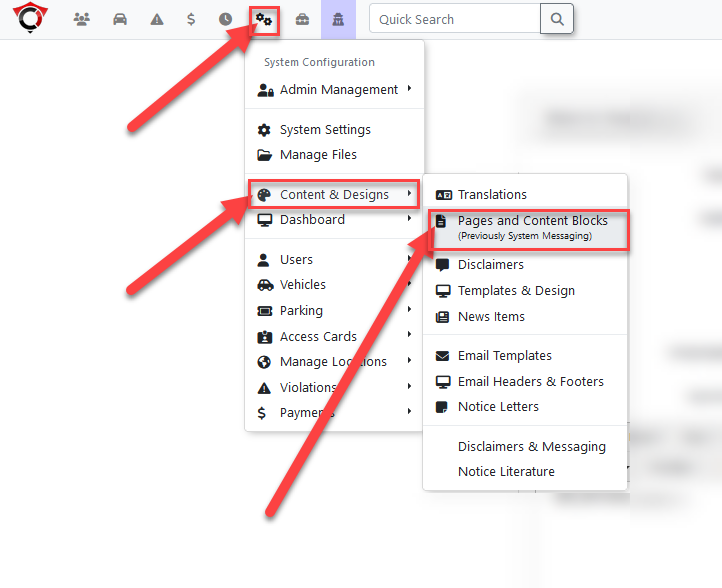
Custom pages are managed through the Pages and Content Blocks section.
Shortcodes must be typed exactly as they appear in the documentation, or they will not function correctly.
Using this Feature
The public-facing lot experience consists of two distinct subpages: the Lots List and the Lot Detail.
Lots List Page
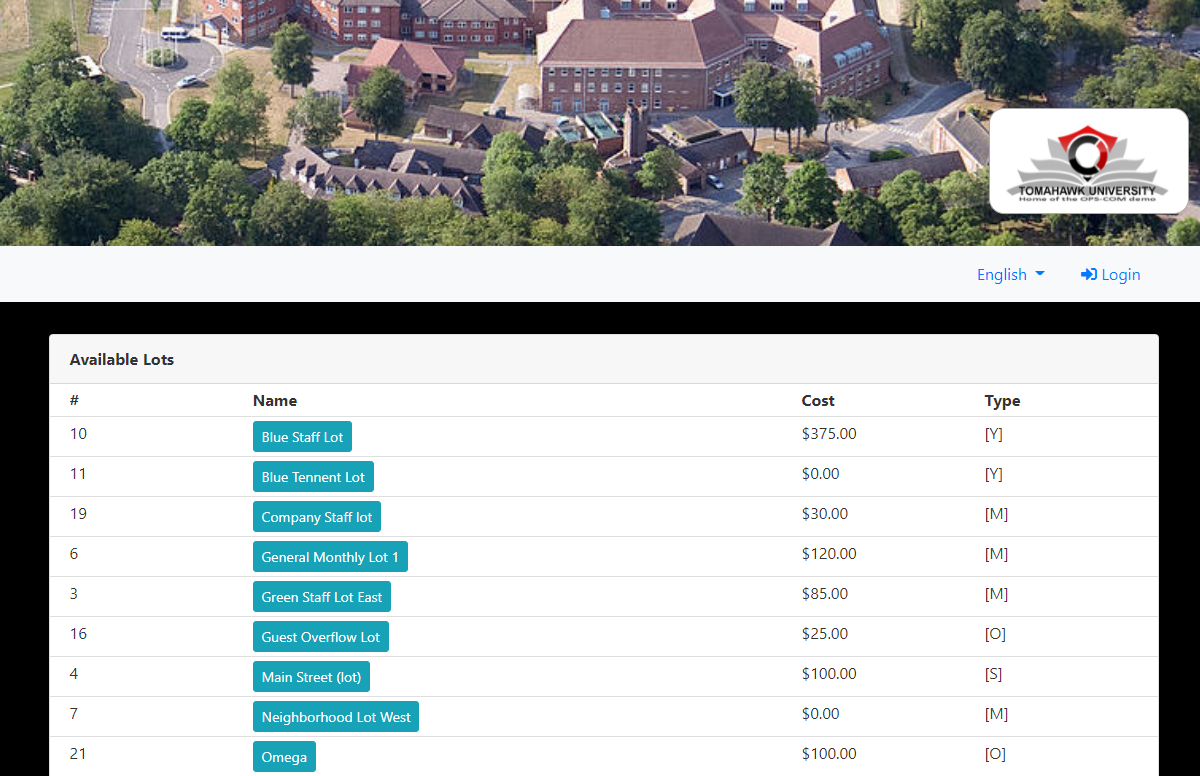
The Lots List page displays all available parking lots to the user. You can place this module on any custom page.
-
Path Configuration: When creating the page, the path you assign will be reflected in the URL. For example, if you set the path to /lots, the module will display at
yourdomain.com/lots. -
Shortcode Options: Use the [lots_list] shortcode to display the list. You can modify this shortcode using the following options:
| Shortcode Option | Description |
| [lots_list include_hidden=1] | Includes lots that are otherwise set to be hidden from the user. |
| [lots_list only_text2parkme=1] | Restricts the list to show only lots with Text2ParkMe enabled. |
You can chain options together in a single shortcode. For example: [lots_list include_hidden=1 only_text2parkme=1].
Lot Detail Page
The Lot Detail page provides specific information for a single selected lot. This page is coded to function specifically when the path is set to --lots-detail, which dynamically fetches information for the selected lot ID.
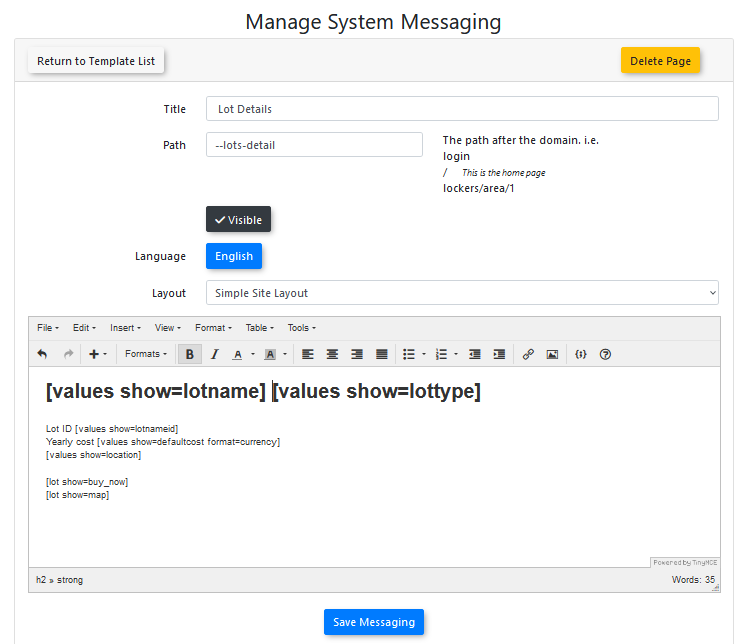
Use the following shortcodes to customize the layout of your Lot Detail page:
| Shortcode | Description |
| [values show=lotname] | Displays the name of the lot. |
| [values show=lottype] | Displays the initial of the lot type. |
| [values show=lotnameid] | Displays the lot ID. |
| [values show=defaultcost format=currency] | Displays the cost to rent a permit for the lot. |
| [values show=location] | Displays the address or location description. |
| [values show=textcode] | Displays the Text2ParkMe code for the lot. |
| [values show=ratePer10Min format=currency] | Displays the Text2ParkMe rate for the lot. |
| [lot show=buy_now] | Displays the purchase button. Redirects unauthenticated users to the login screen. |
| [lot show=map] | Displays a map based on the lot's stored latitude and longitude. |
| [lot show=photo] | Displays the photo assigned to the lot. |
User-Side Results
-
The Lot List Page: Once configured, users will see a clean, indexed list of all available parking lots based on the parameters defined in your [lots_list] shortcode.
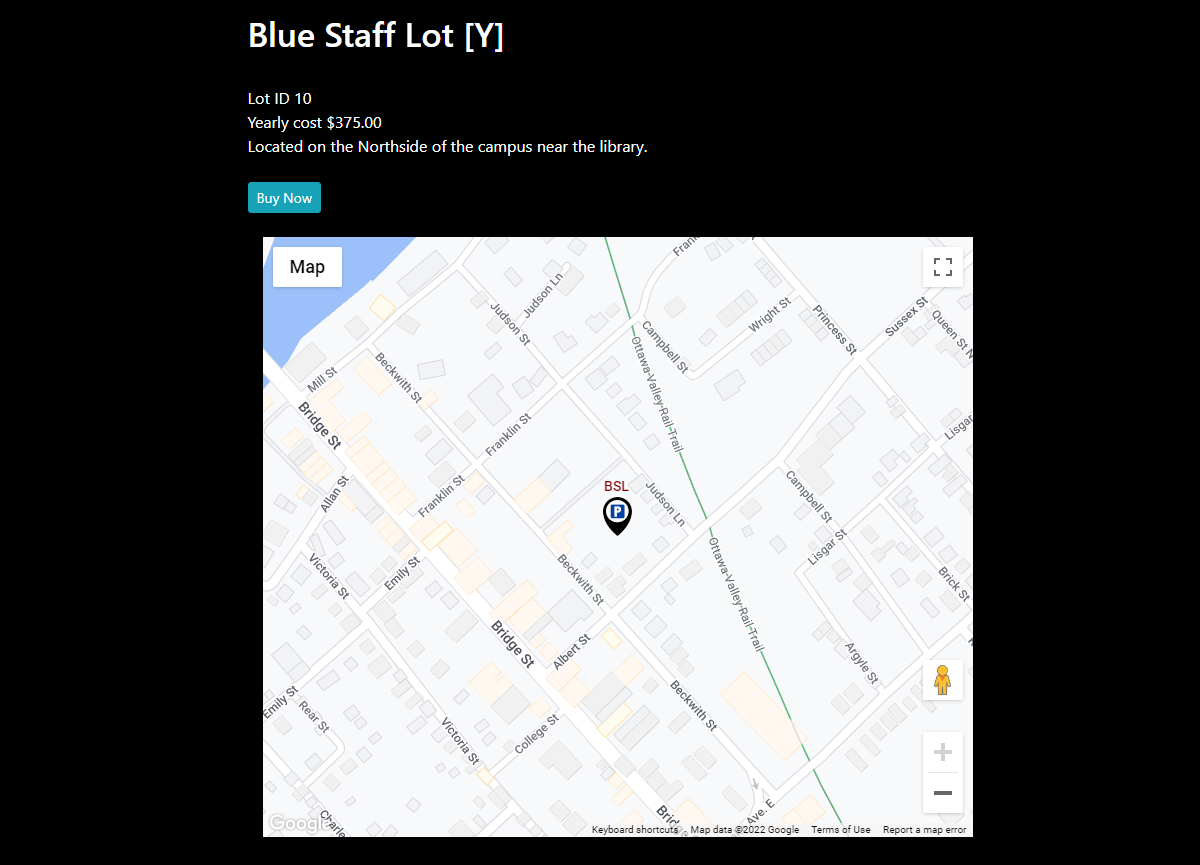
- The Lot Detail Page: When a user selects a specific lot, they are directed to the detail view where they can review location information, pricing, and view a map or photo of the lot before clicking Buy Now to proceed to the purchase process.
Best Practices and Considerations
-
Page Design: While the Lots List is a fixed module, the Lot Detail page is highly customizable. Ensure your Lot Detail page includes the permit cost and the [lot show=buy_now] button to provide a clear path to purchase for users.
-
Photo Configuration: If you choose to display photos, ensure they are correctly assigned to each lot via the Lot Administration page.
-
Pathing: Remember that the Lot Detail page must be set with the path --lots-detail to ensure the system correctly passes the lot ID required to fetch and display accurate information.