
Public-Facing Lot Pages
Overview
This
Withinarticle theoutlines system, there is the optionhow to create aand configure custom lotspublic-facing page,pages which willthat display a list ofparking lots that users can book from.
The page consists of two subpages:
featureLots List - Contains the list of lots on the systemfortheusertobooking.chooseThisfromallows - OPS-COM
Lot Detail - Contains detailed information pertainingadministrators totheprovidelotaselectedstreamlined,bybrandedtheparkinguserselection and purchase experience.
Setup
Setting up theseCustom pages requiresare themanaged use of shortcodes within the system.
Page Setup
The custom pages can be setup fromthrough the Pages and Content Blocks page.section.
-
ItNavigatecan be found underto System Configuration,→select Content & Designs,→and click Pages and Content Blocks.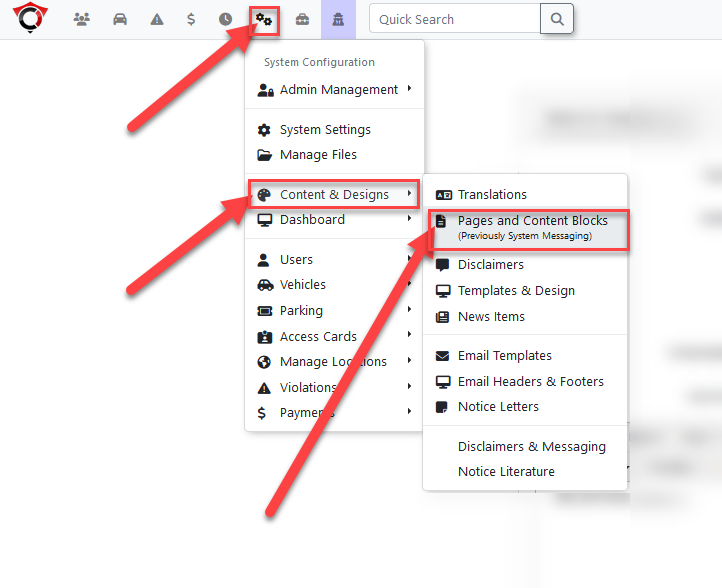
-
The pages and content blocks section,Create orsystemeditmessaging,aallowspage to serve as your Lot List or Lot Detail page. -
Insert the
setupappropriateofShortcodecustom user pages.ShortcodesA shortcode is a bit of text that has been coded to return a specific value when placed withininto the body of the pagelayout.The value it returns can be anything from single variable,layout toa module laid out within a template, like a table or a form.A shortcode looks like this:[lots_list]In this case,render theshortcodedesiredreturns a list of the lots in the system.functionality.By
Pages and Content Blocks
Lot List Page
The first subpage that must be created is the page where the list of lots will appear.
It does not need to have a dedicated page, and the lot list can be placed on any custom page that is wanted.
In this example, the lots list will be placed on a custom page.
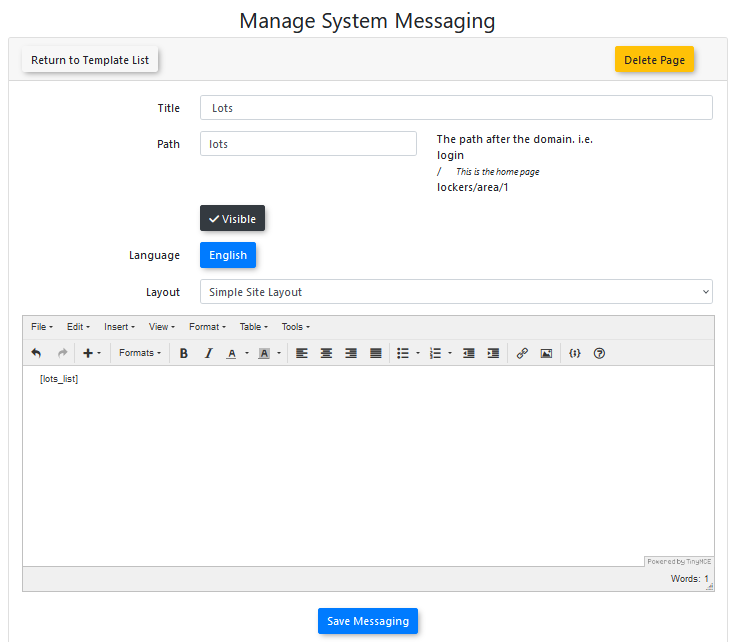
The path that is chosen here is what the path will be in the url. This would make the lots_list module show up when the address has /lots at the end of the base URL.
The lots list is a module, meaning its appearance is fixed and cannot be modified further. Only its location on the site can be customized.
Lot List Shortcode
The shortcodesShortcodes must be typed exactly as they appear,appear in the documentation, or they will not work.function correctly.
There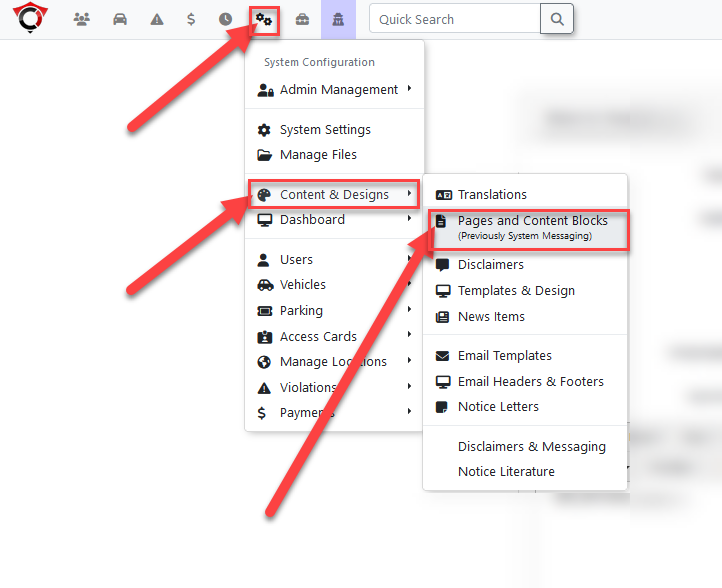
Using onlythis oneFeature
The codepublic-facing relevantlot experience consists of two distinct subpages: the Lots List and the Lot Detail.
Lots List Page
The Lots List page displays all available parking lots to the lotuser. listsYou page:
|
|
|
|---|
|
|
|
|---|---|---|
|
|
|
Additional options are modifiers that can be added to the base shortcode to influence the output. Multiple can be chained together at once. For instance, both additional options can be included in the lot list shortcode by writing it like this:
-
Path Configuration: When creating the page, the path you assign will be reflected in the URL. For example, if you set the path to /lots, the module will display at
yourdomain.com/lots. -
Shortcode Options: Use the [
lots_listlots_list]include_hidden=1shortcodeonly_text2parkme=1]to display the list. You can modify this shortcode using the following options:
Lot Detail Page
The specific lot detail page is set up a bit differently from the lot list page, in that it is coded to only work if the path is set as --lots-detail.
This will make the details for the individual lot that is selected appear for the path /lots/{id}, with the id supplied being passed to the page to fetch the correct lot information.
The information that goes on this page can be customized to include anything from the relevant shortcodes, but should at least include the permit cost and buy now button.
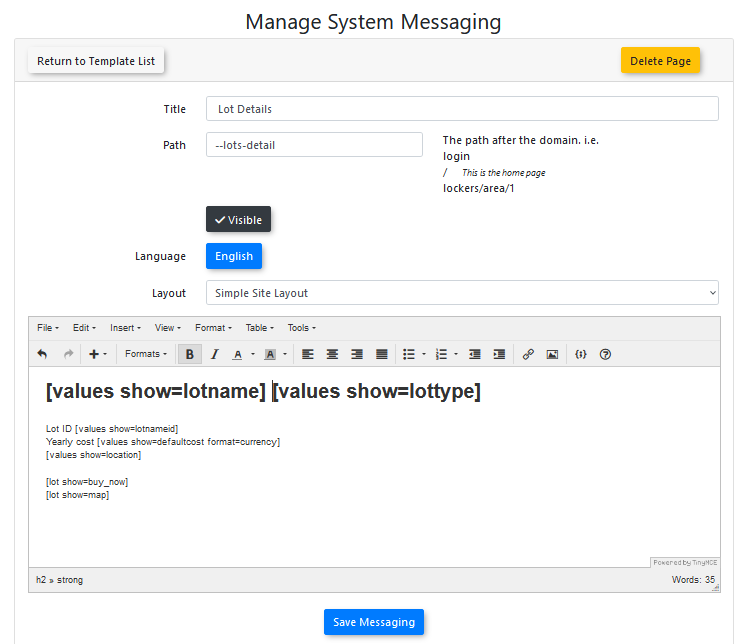
Lot Details Shortcodes
Here is a list of the shortcodes that are related to the lot details page.
The shortcodes must be typed exactly as they appear, or they will not work.
| Shortcode Option | Description | ||
| [lots_list include_hidden=1] | Includes lots that are otherwise set to be hidden from the user. | ||
| [lots_list only_text2parkme=1] | Restricts the list to show only lots with Text2ParkMe enabled. |
You
Lot Detail Page
The Lot Detail page provides specific information for a single selected lot. This page is coded to function specifically when the path is set to --lots-detail, which dynamically fetches information for the selected lot ID.
Use the following shortcodes to customize the layout of your Lot Detail page:
| Shortcode | Description |
||
[values show=lotname] |
Displays the name of the lot. |
||
[values show=lottype] |
Displays the initial of the |
||
[values show=lotnameid] |
Displays the |
||
[values show=defaultcost format=currency] |
| ||
| Displays the | ||
|
| ||
|
| ||
|
|
||
| [values show=location] | Displays the |
||
| [values show=textcode] | Displays the Text2ParkMe code for the lot. | ||
| [values show=ratePer10Min format=currency] | Displays the Text2ParkMe rate for the lot. | ||
| [lot show=buy_now] | Displays the purchase button. Redirects unauthenticated users to the login |
||
[lot show=map] |
Displays a |
||
[lot show=photo] |
Displays the photo |
User-Side Results
-
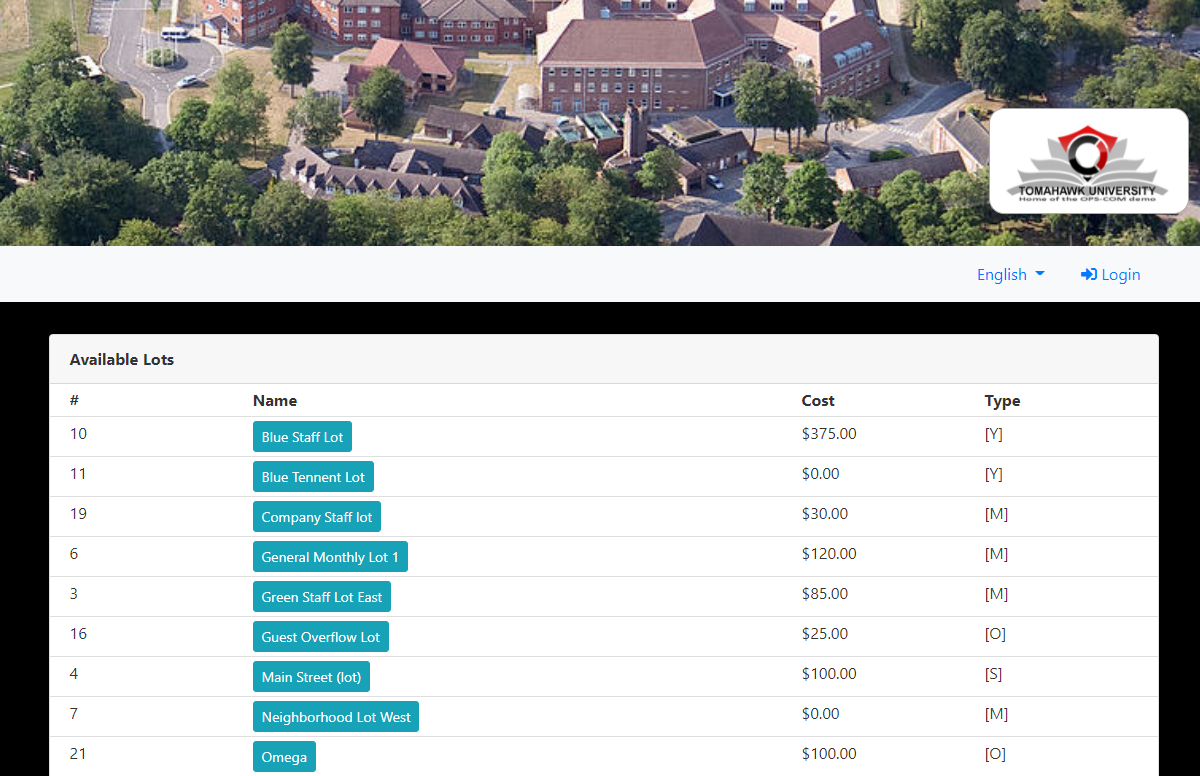
The Lot List Page
Page: The Lot List Page
TheOnce lotconfigured, users will see a clean, indexed list fromof theall exampleavailable appearsparking lots based on the websiteparameters likedefined this:in your [lots_list] shortcode.
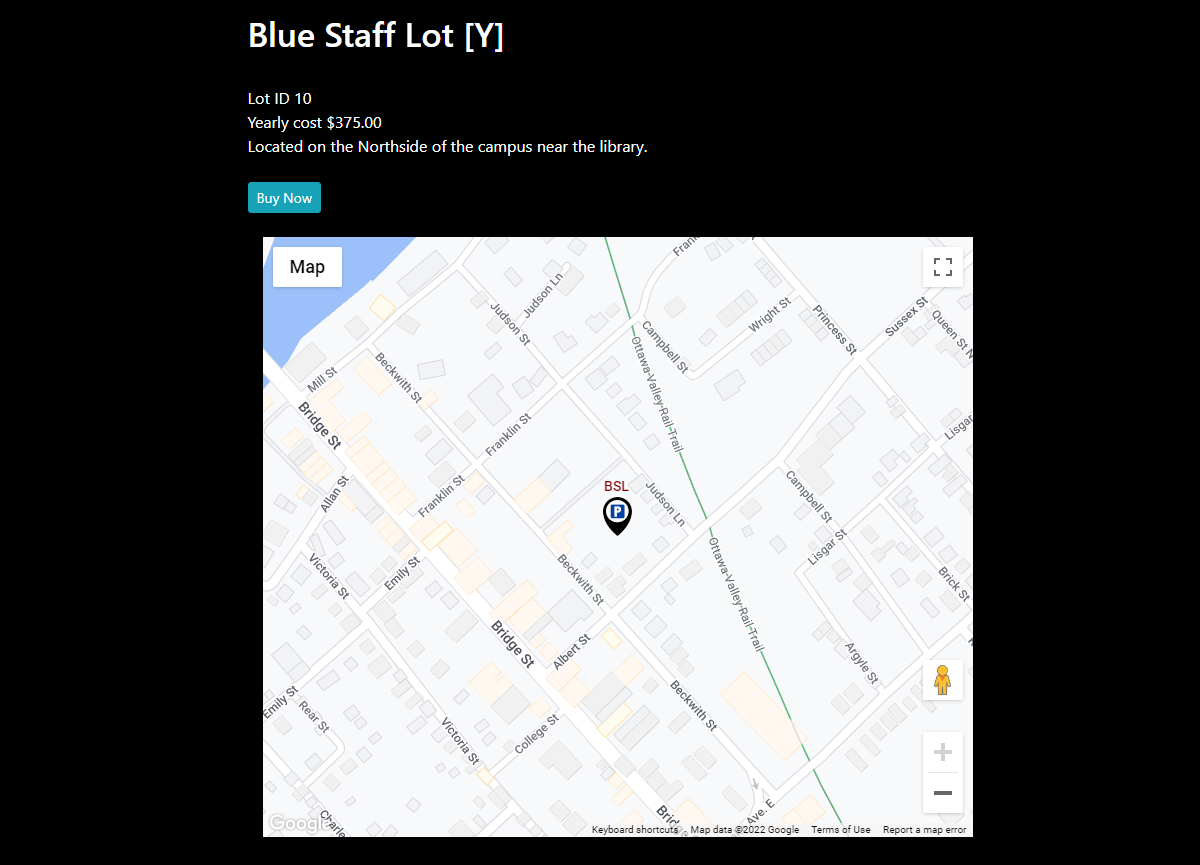
- The Lot Detail
Page
Page: TheWhen a user selects a specific lot, they are directed to the detail view where they can review location information, pricing, and view a map or photo of the lot detailbefore pageclicking fromBuy Now to proceed to the examplepurchase wouldprocess.
appear on the website like this:
Best Practices and Considerations
-
Page Design: While the Lots List is a fixed module, the Lot Detail page is highly customizable. Ensure your Lot Detail page includes the permit cost and the [lot show=buy_now] button to provide a clear path to purchase for users.
-
Photo Configuration: If you choose to display photos, ensure they are correctly assigned to each lot via the Lot Administration page.
-
Pathing: Remember that the Lot Detail page must be set with the path --lots-detail to ensure the system correctly passes the lot ID required to fetch and display accurate information.