Re-Sending an Invoice
The Re-Sending an Invoice
Infunctionality someallows cases,administrators itto quickly generate and deliver a duplicate copy of a billing statement to a client. Its primary purpose is to assist users who may behave necessary to re-send an invoice.
For example, if the client mistakenlyaccidentally deleted theor email,misplaced the admin can search up thetheir original invoice email. This guide is intended for OPS-COM administrators responsible for account management and sendbilling itsupport.
Setup and Configuration
Resending an invoice is a core administrative function that requires no special system setup or configuration. The feature is accessed directly through standard search modules within the administrative portal.
Using this Feature
Administrators have two options for locating and resending an invoice to a user. You can locate the document by navigating through the specific user's transaction history or by searching for the document directly using the global invoice search tool.
ThereIf area twoclient differentreports methodsnot throughreceiving whichtheir thisinitial caninvoice, beadvise done.them to check their spam or junk email folders before you issue a duplicate copy.
ThroughHover over User Management and click User Search.
-
Enter the user's
history. Through the search invoice page.
Resending via User Search
Through User Search
The user search can be found under the menu tree:
User Management -> User Search
Once on the user search page, enter the user information and searchinitiate the user.search.
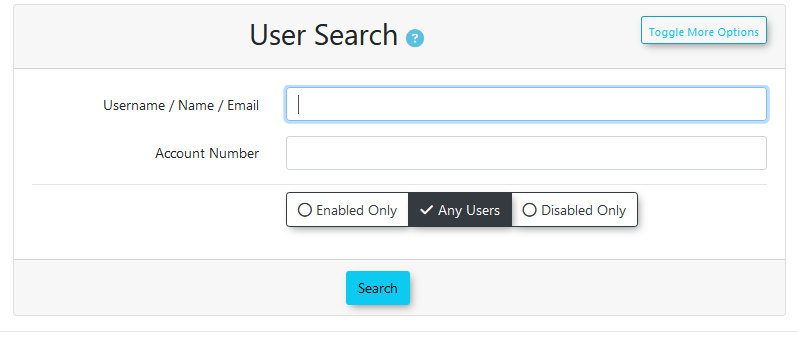
InClick the username within the results section, click on the usernamesection to access the user's profile.

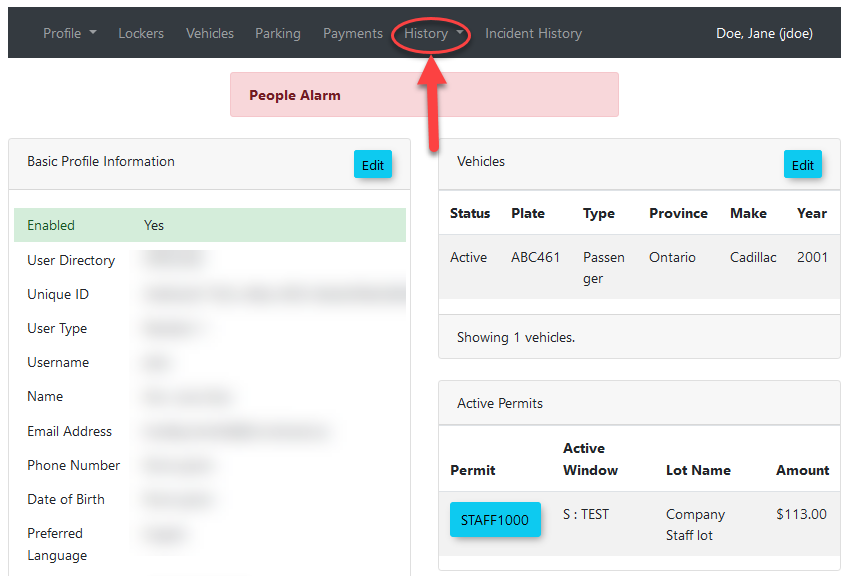
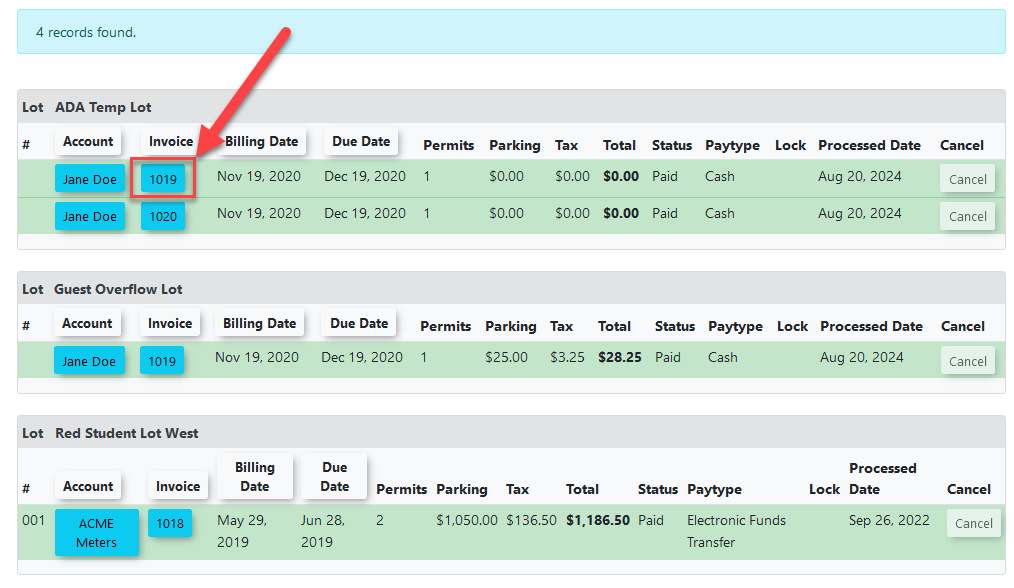
OnceHover onover the user's profile, hover over History tab and navigate through the menuclick History -> All Records to access the complete list of thisthe user's transactions.
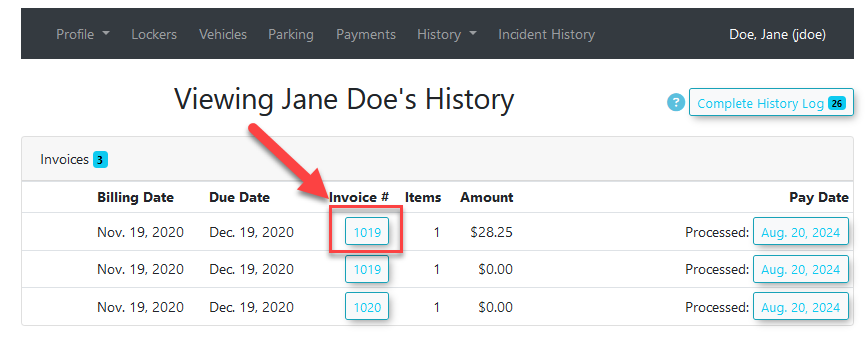
Locate and click onClick the specific invoice number that needs to be re-sent.
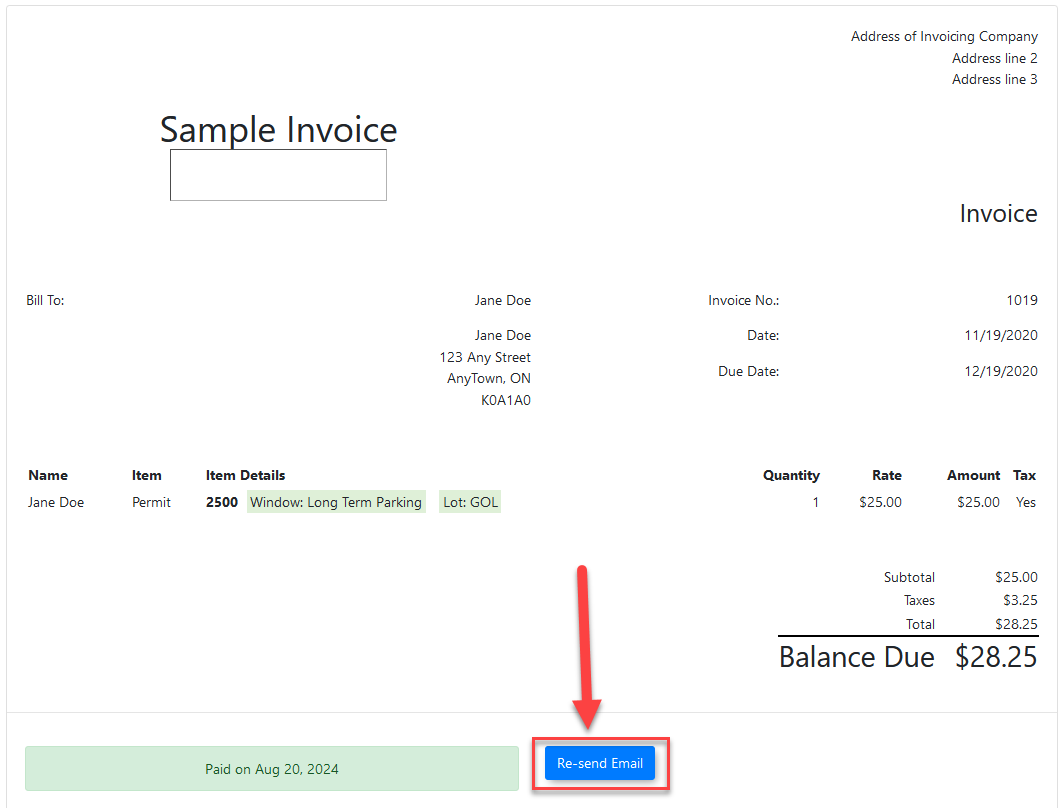
This willto open the invoice preview page.
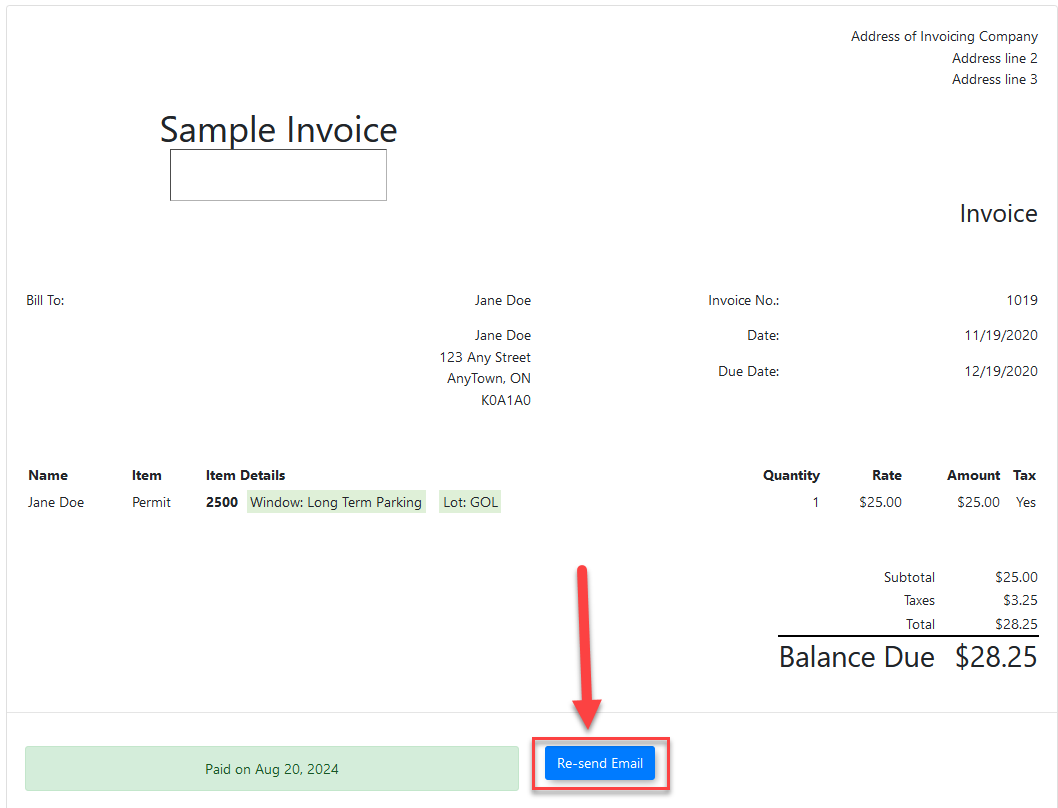
Once in the invoice preview page, locateClick the Re-send Email button.
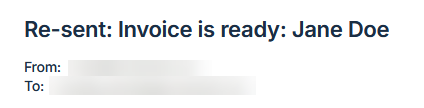
The invoice email will be re-sentimmediately resent to the user.user,
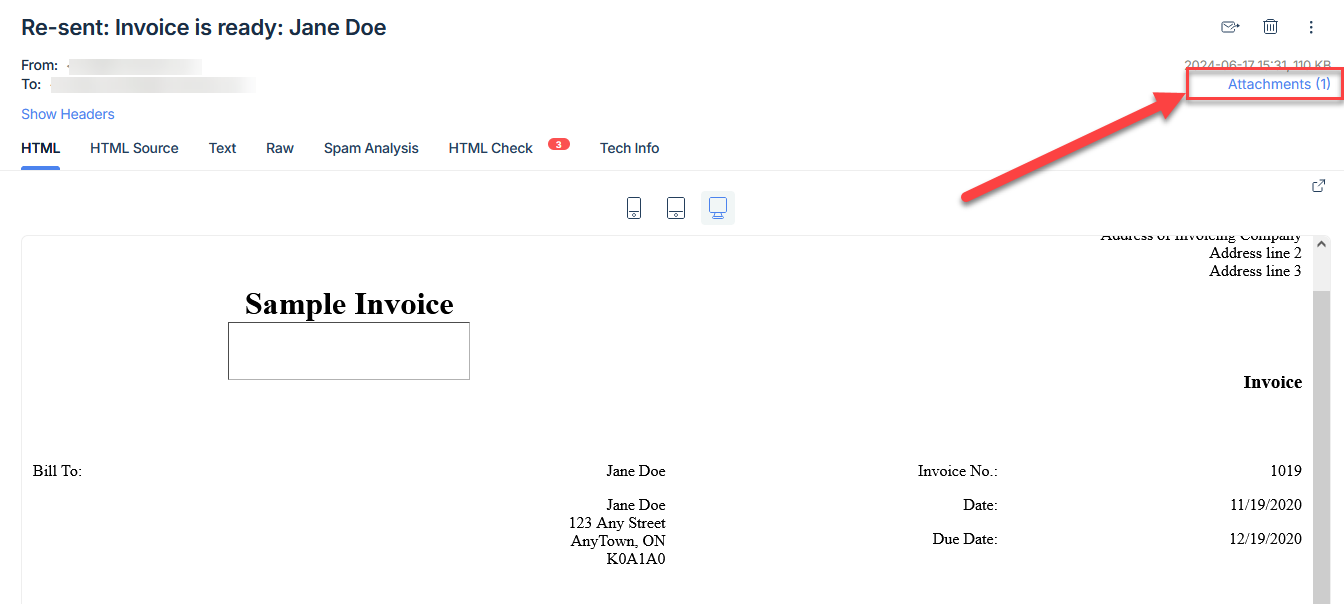
Thethe titlesubject line will indicate that it is ana invoiceresent that has been re-sent.invoice.
ThroughResending via Invoice Search
The
-
TheHoverpageovercan be found under the menu tree:- Permits
->and click Invoice Search
.
This will open the invoice search page.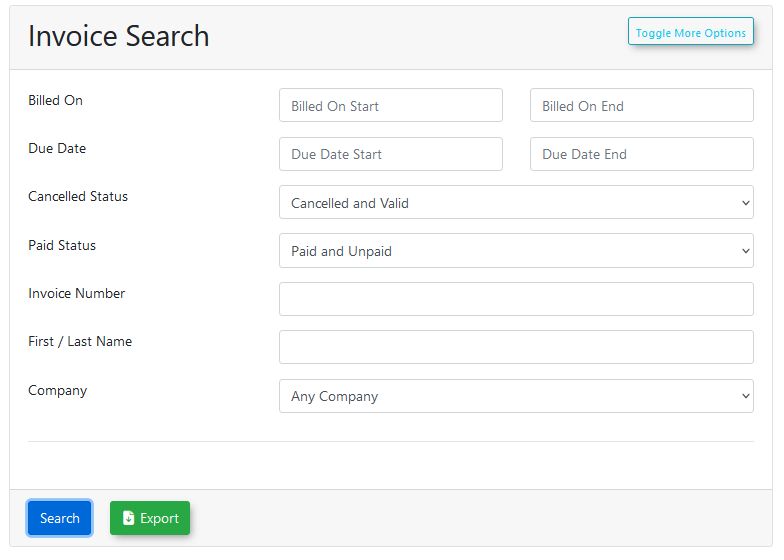
- Permits
-
Enter the necessary search criteria and
click search.Locateinitiate the search. -
Click the target invoice number
withinfrom the generated resultsandlistclick on it.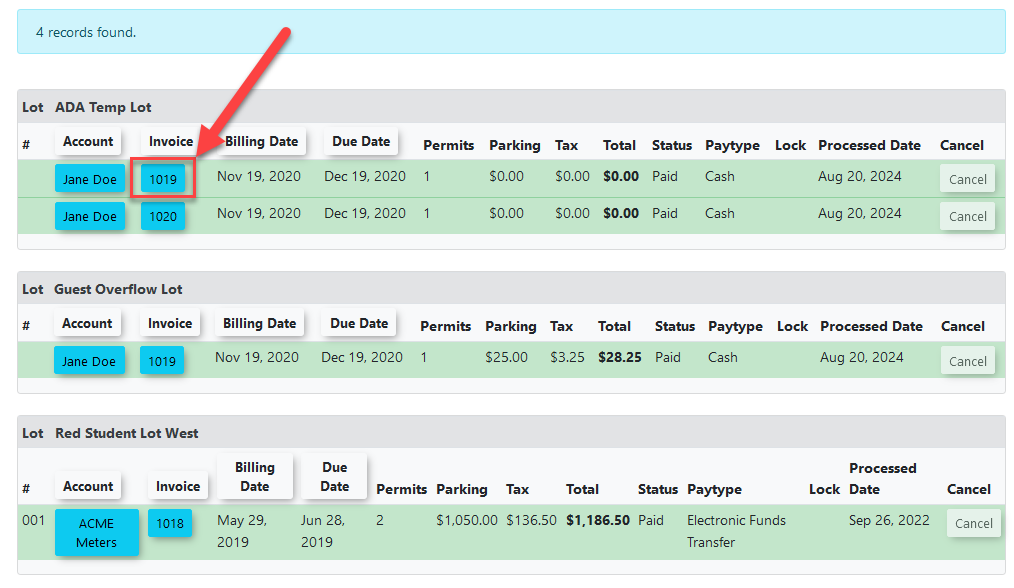
Like with the previous method, this willto open the invoice previewwherepage. -
Click the
re-Re-sendemailEmail buttoncantobe found.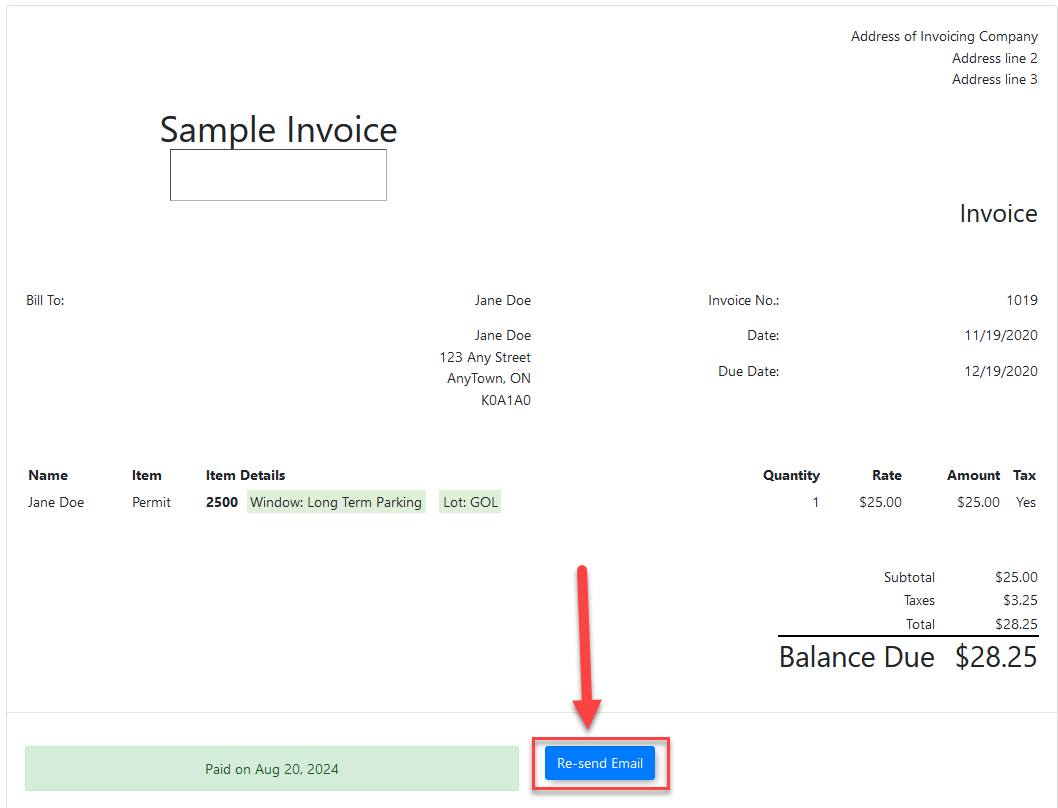
This will re-sendissue theinvoiceduplicate email to the user.
Printing
Best PDFPractices and Considerations
-
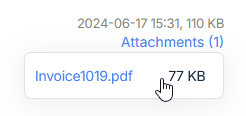
previewerAAlways download PDFofattachmentstheto a local disk before printing. Printing a PDF invoicecan be printeddirectly fromtheaemailwebthatbrowser'swasbuilt-insent. -
Instruct users to verify their print scale settings. When opening the
wheredownloadedattachments are stored.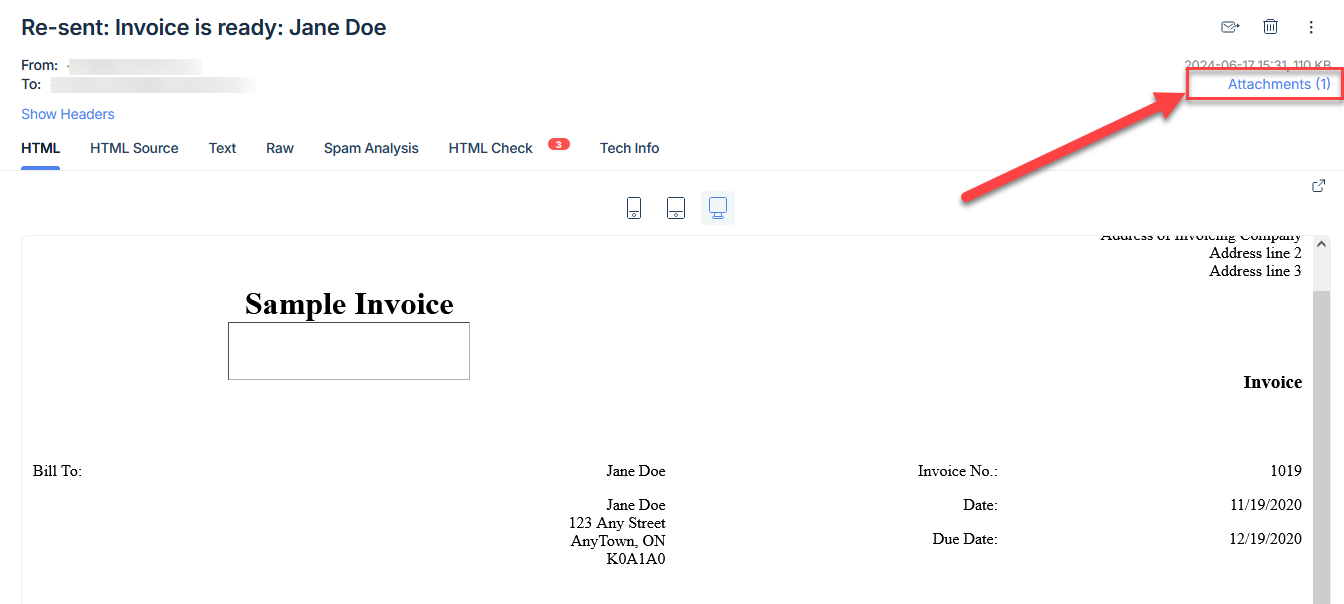
In this example, the attachments are locatedfile intheatop right.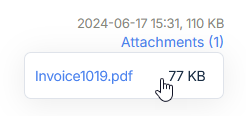
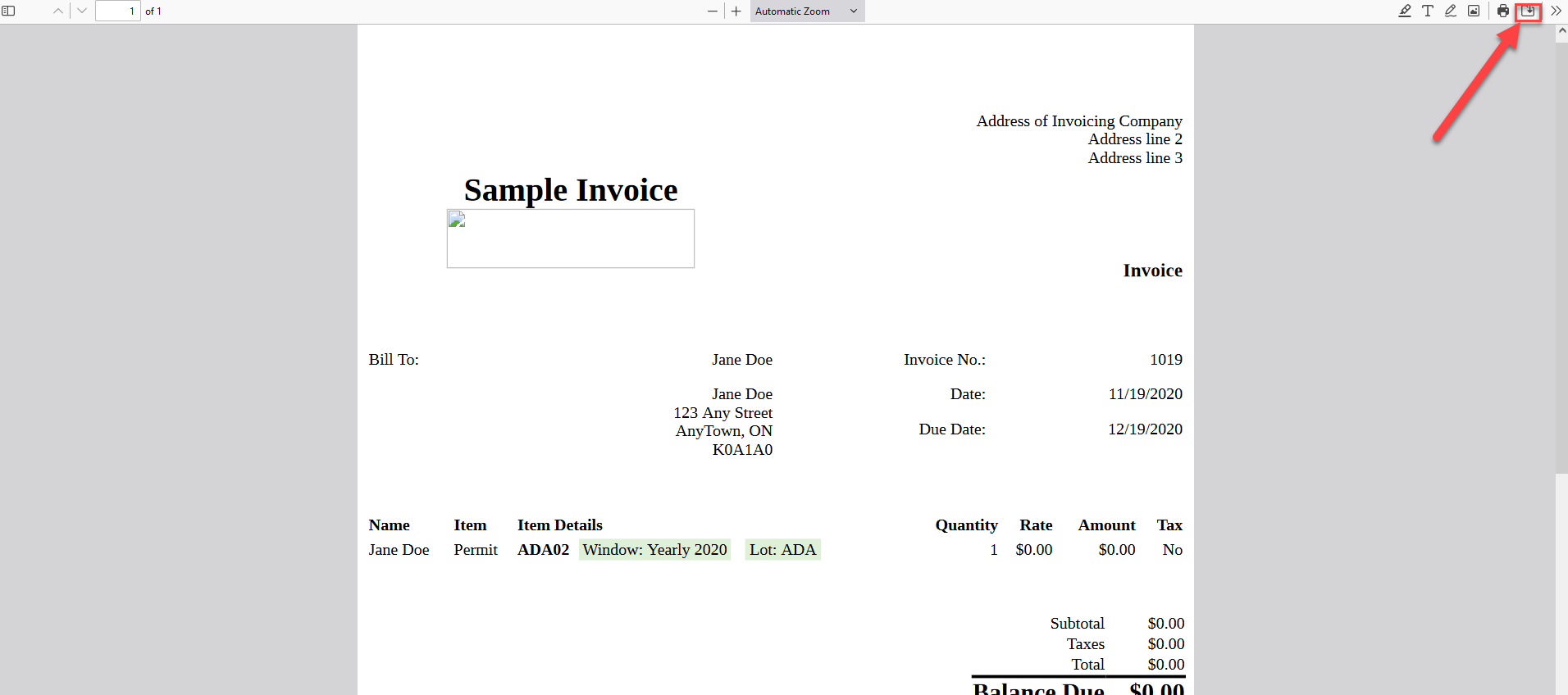
usersDownload thestandard PDFwhenreader,prompted.Aftermustthe file has been downloaded, the PDF will automatically open, likely in the web browser.Printing directly from this page will result in the printout being cut-off. To prevent this, first download the PDF to your computer disk.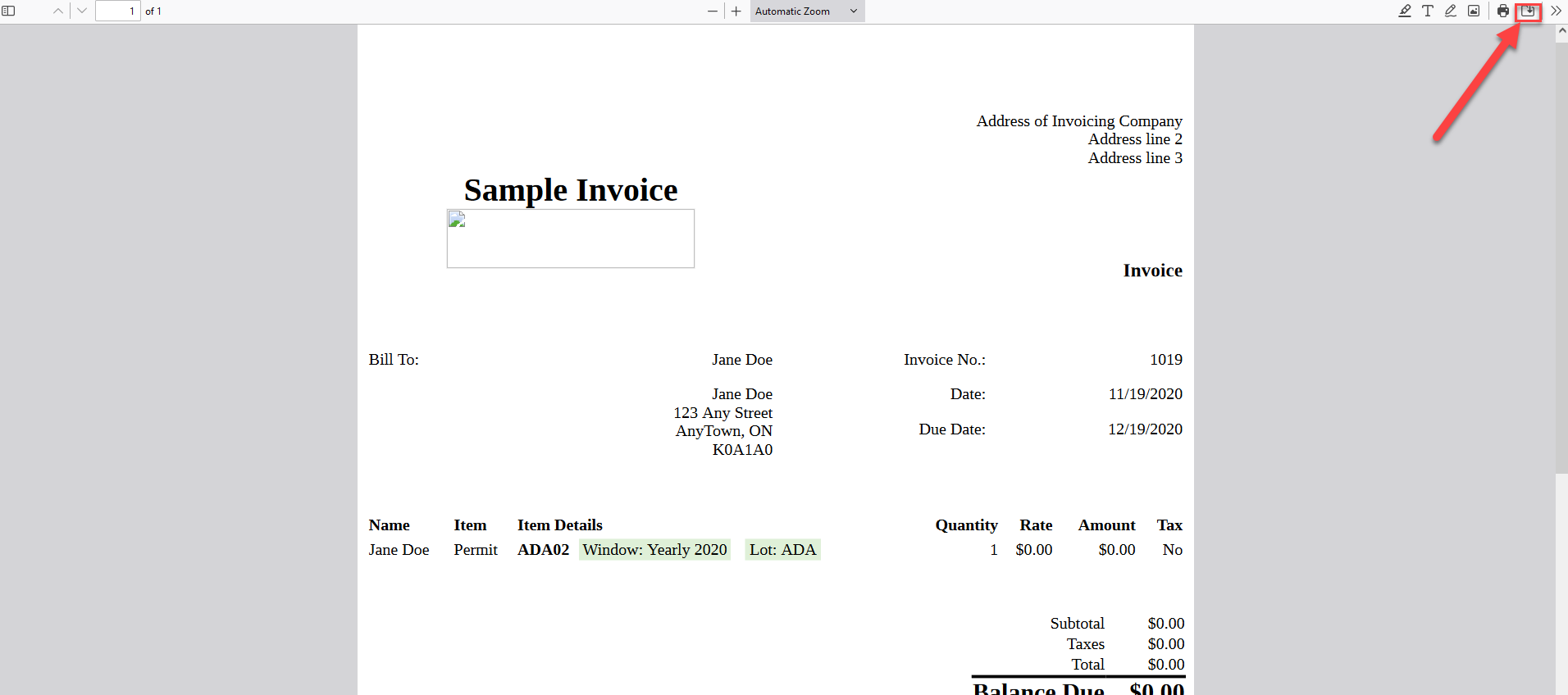
Save the file to the preferred location and open it with any PDF reader.From here, print the PDF like a normal document while ensuring thatensure the print scale is set to 100%.This will preventin theprintoutprintfromdialogbeingboxcut-off.to guarantee proper formatting.