Recent Incidents Summary Report (Last 30 Days)
1.The Recent Incidents Summary Report provides a quick, pre-filtered overview of all security and operational events logged within the past 30 days. Its primary purpose is to allow administrators to monitor recent activity, track ongoing cases, and identify immediate trends without having to manually configure search dates. This article is intended for OPS-COM administrators responsible for day-to-day incident management.
Setup and Configuration
The Recent Incidents report is a standard feature within the incident management module and requires no specialized system setup to run. However, administrators must have the appropriate incident viewing permissions assigned to their user role to access the page.
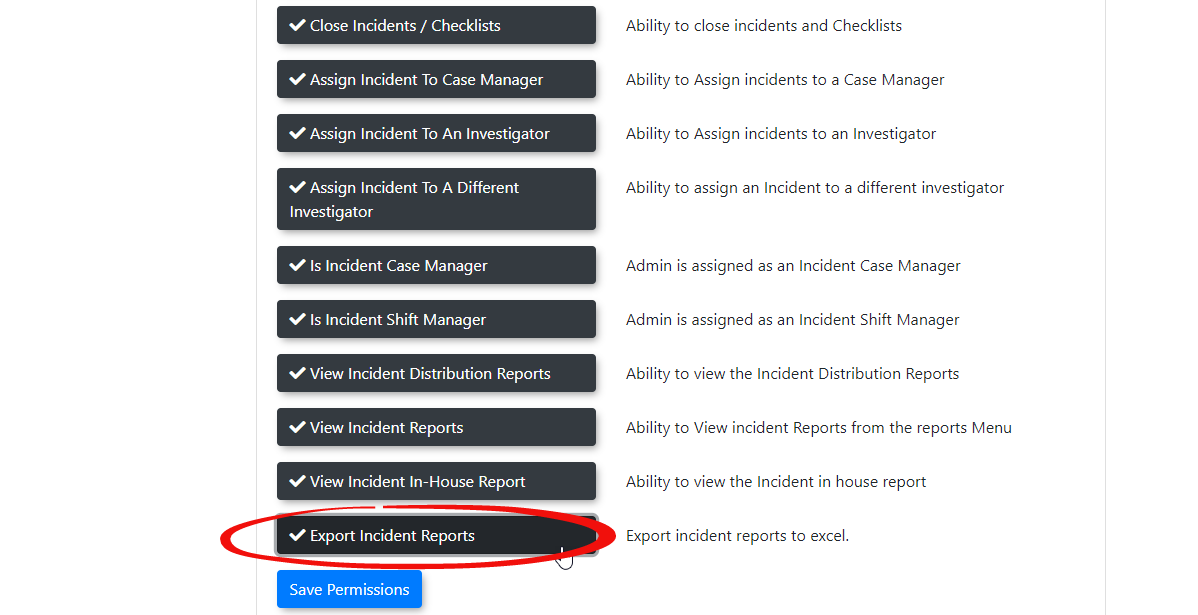
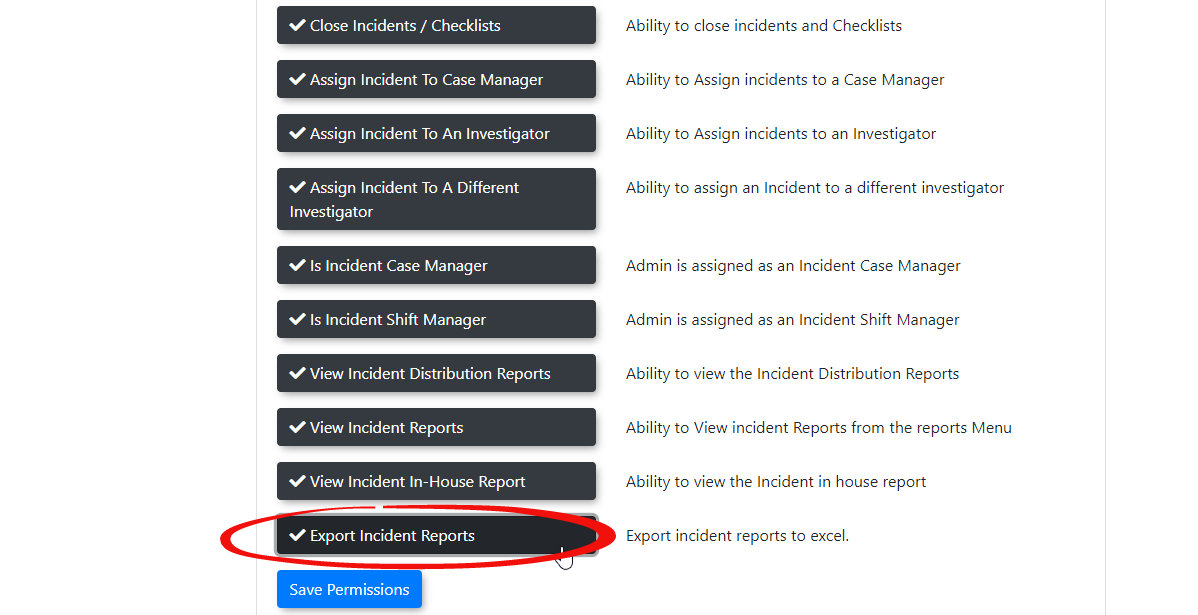
Additionally, the ability to download this report requires explicit authorization. To grant this access, ensure the export permission is specifically enabled on the administrative role for any user who needs to extract this data.
Using this Feature
Administrators can use this page to quickly pull up a list of the last 30 days of activity and navigate directly to detailed incident forms.
Accessing the Report
-
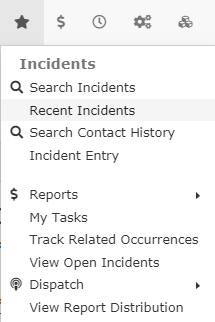
Hover over the Incidents icon and
selectclick Recent Incidents.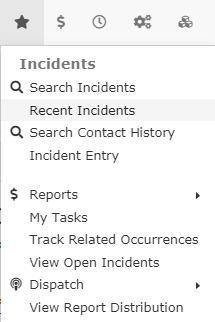
-
Review2.theThis will bring up apopulated tableofcontaining all incidentsthat have beenrecorded in the previous 30 days.
Available Actions and Buttons
-
You can get the details of an individual incident by selecting the "ViewIncidentsIncidents:"Click this button located to the right oftheaparticularspecific incidentthatto open the detailed profile, allowing youwantto review the narrative or make necessary updates. -
Column Headings: Click any column heading within the table to
review.You can alsodynamically sort thetabledisplayed data byselectingthat specific metric (e.g., date, status). -
Export: Click the
thecolumnexportheadingicon or button tosortdownloadby.
report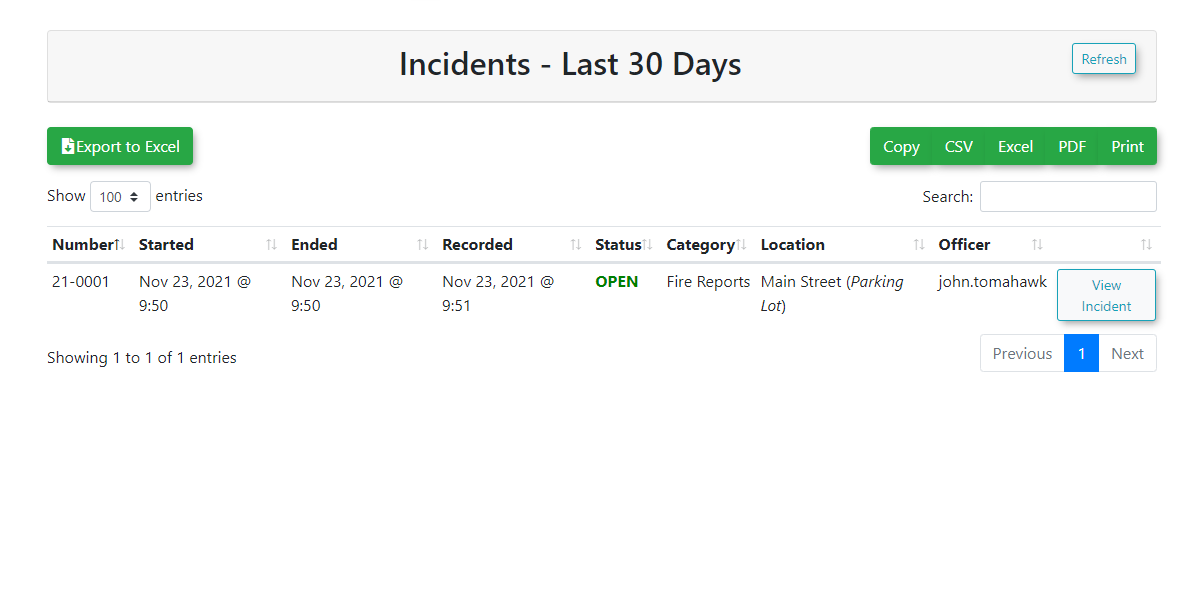
Note: The abilitydata toexportan Excel spreadsheet for external analysis. Note that this option is only visible if your administrative role has the required export permission.
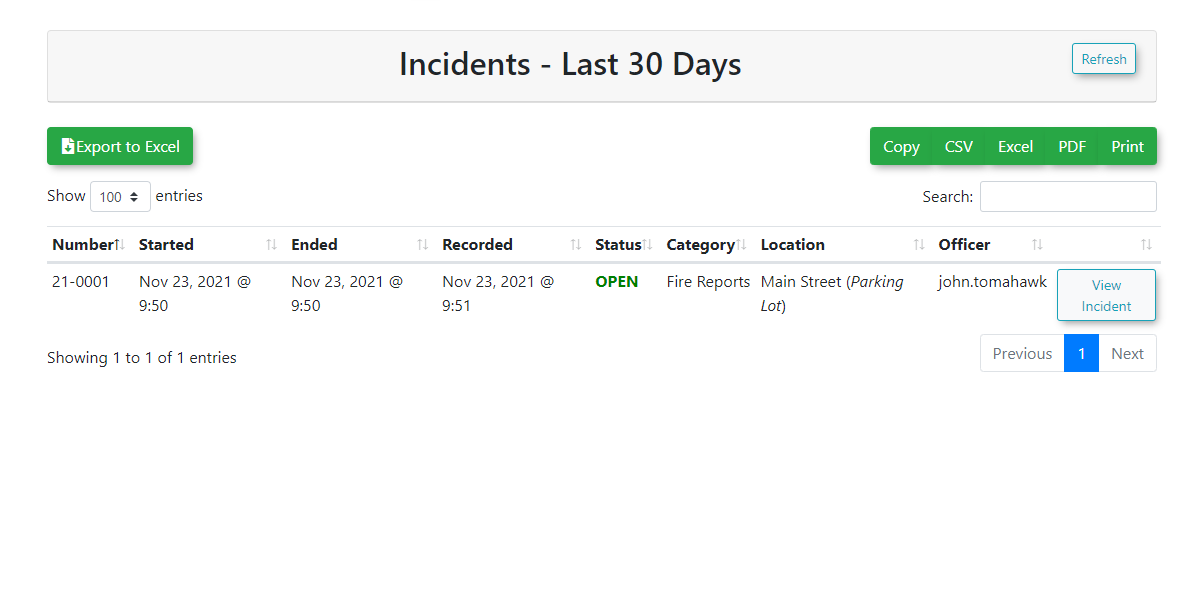
This specific report is hardcoded to excelonly isdisplay nowdata from the immediately preceding 30 days. If you need to view historical incidents beyond this timeframe, you must use the standard Incidents Summary Report where you can manually define a permissioncustom thatdate range.
Best Practices and Considerations
-
Daily Review Routine: Administrators should establish a regular routine to review the recent incidents dashboard. This ensures the security team remains fully aware of recent events and can
befollowgivenup on pending or newly opened cases promptly. -
Restrict Export Permissions: Organizations should limit the Excel export permission to
admins.senior
administrators or management. Incident reports frequently contain highly sensitive or confidential information; controlling who can download the raw data helps maintain privacy and organizational compliance.