
Refundable Parking Deposits
The Refundable Parking Deposits feature allows administrators to associate mandatory deposit fees—such as those for access cards or physical hang tags—with specific parking lots. Its primary purpose is to ensure that required deposits are automatically included in the total cost during the permit purchasing process and to track assigned inventory numbers. This article is intended for OPS-COM administrators.
Setup Deposit Options
Setup and manage your Deposit options.
Apply Deposit TypesConfiguration
NowBefore thata yourdeposit can be charged during a permit sale, administrators must apply the pre-configured deposit types are in place, they can be applied to specific lots. To do so, go to the appropriate parking lots.
Admin Side:
-
Hover over Parking Management
Menuand, hover over Lot Administration,thenand clickonPricing and Lot Admin.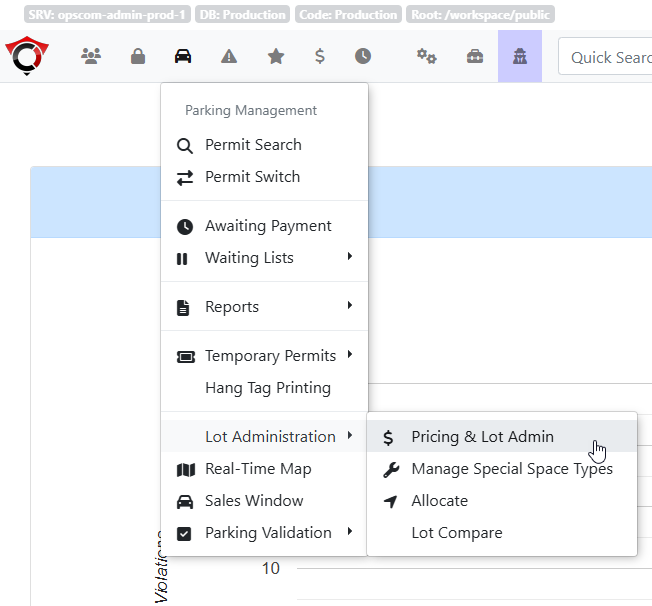
-
Once inPricing and Administration, selectClick the specific lot name you wish to apply the deposittoto.by -
onClick the
lot name.
Once inLot Administration, select the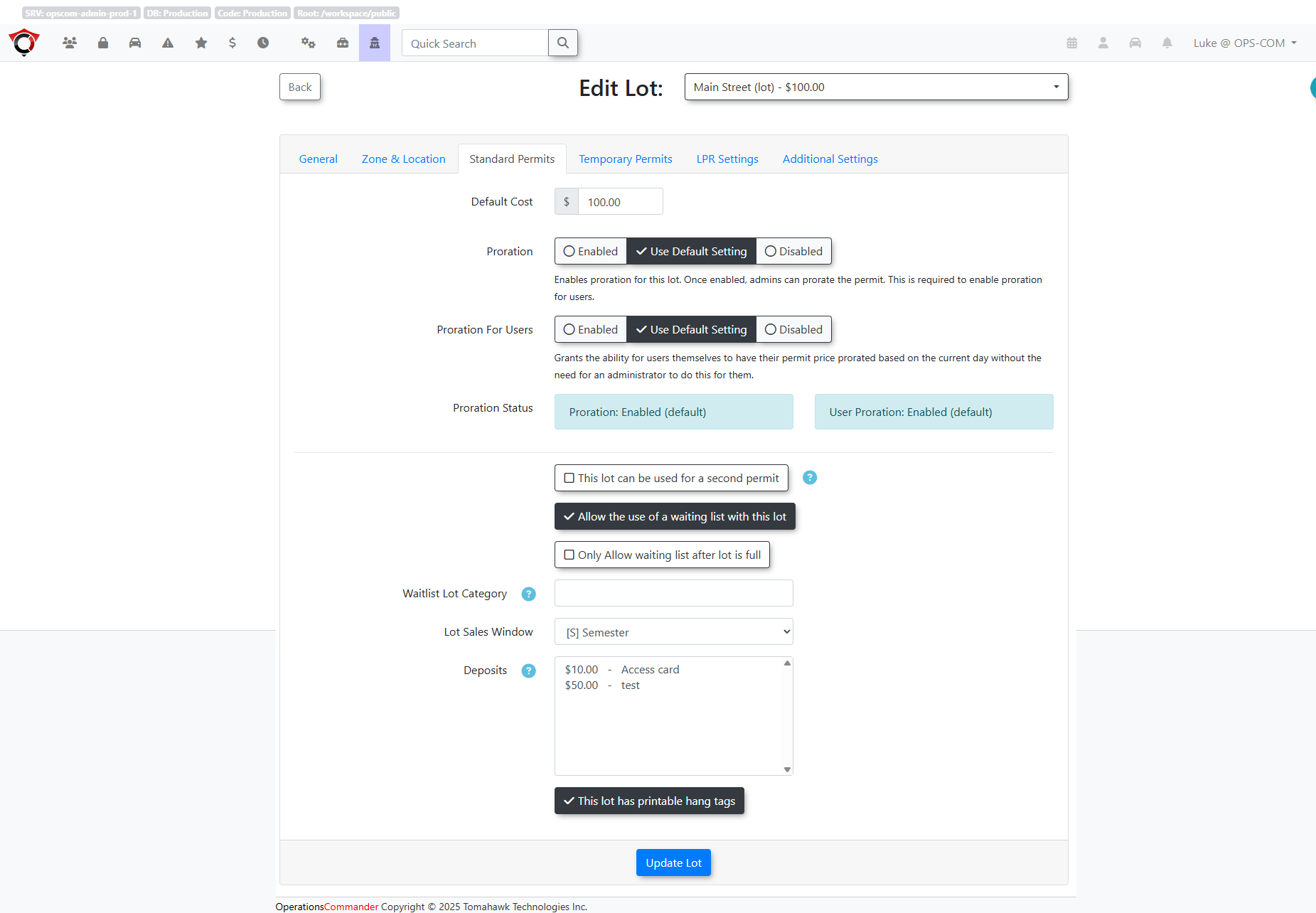
-
From the list ofDeposits, clickClick the deposit you wish toapply.applyYoufromcantheselectDepositsmorelist.than one deposit type by holdingHold the Ctrl or Shift keyand selecting the deposits you wishtoapply.select multiple deposit types simultaneously. -
Save your lot configuration changes.


Once thea deposit type is successfully associated towith a lot, it will thenautomatically be included in the purchase of a permit in that lot for adminsadministrative transactions only.
Let'sUser haveSide: aEnd-users lookdo atnot interact with the setup or configuration of refundable deposits.
Using this Feature
Administrators can use the following instructions to process a permit purchasesale that includes a mandatory deposit and accurately record the assigned physical inventory.
Processing a Permit with depositsa inDeposit
-
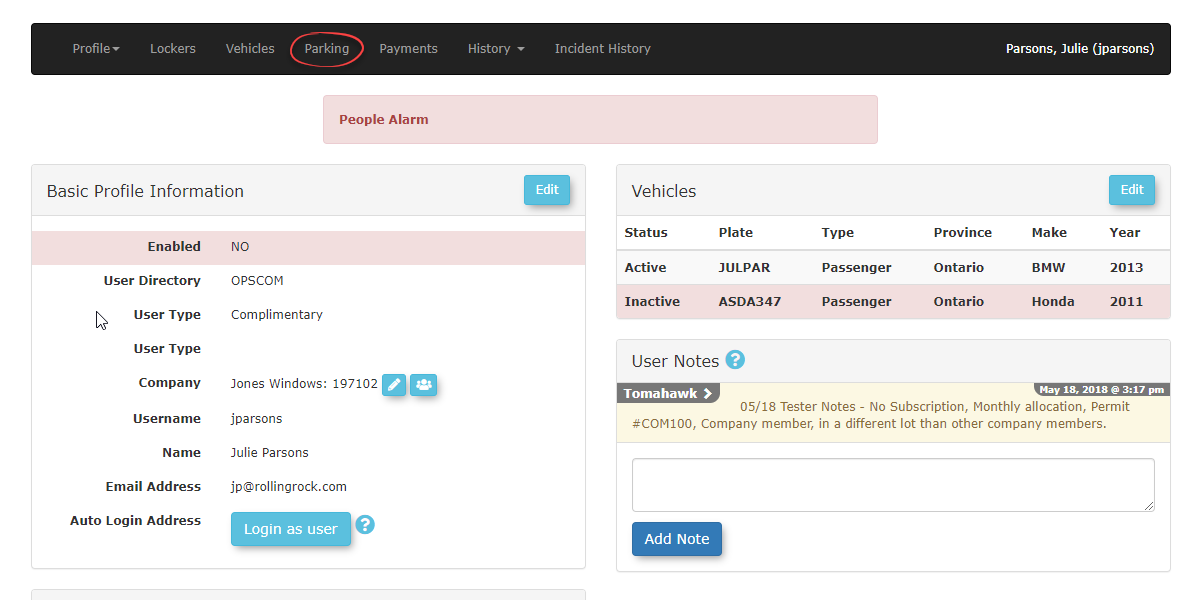
Navigate to a user's profile and
selectclick the Parking tab.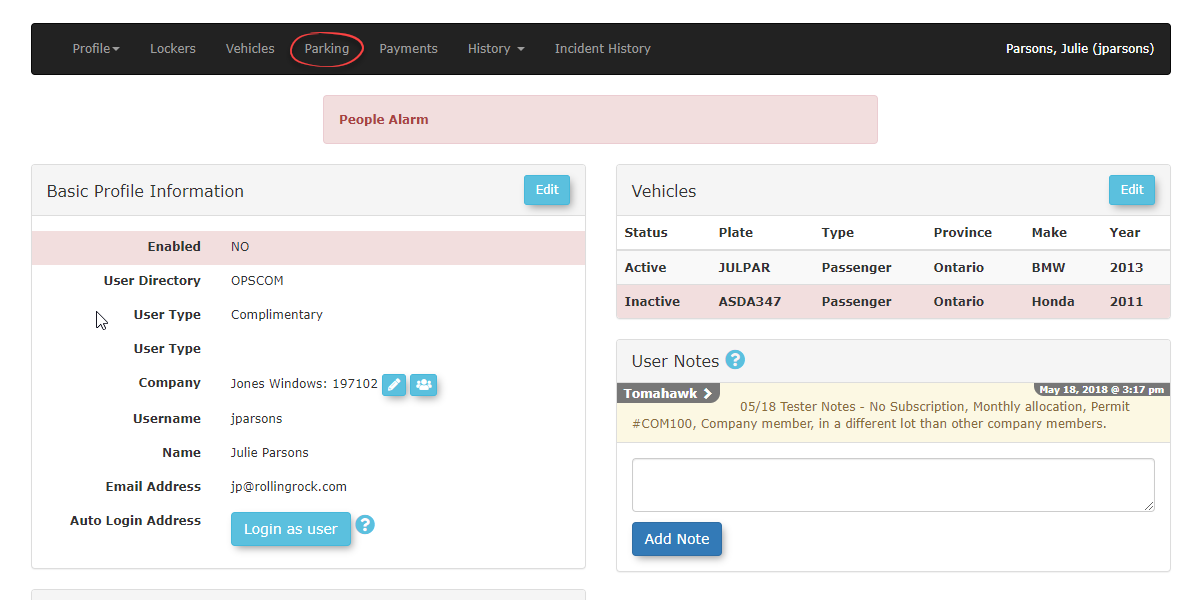
-
Click
onthe Standard Parking Permit link to begin the permit purchasing process. -
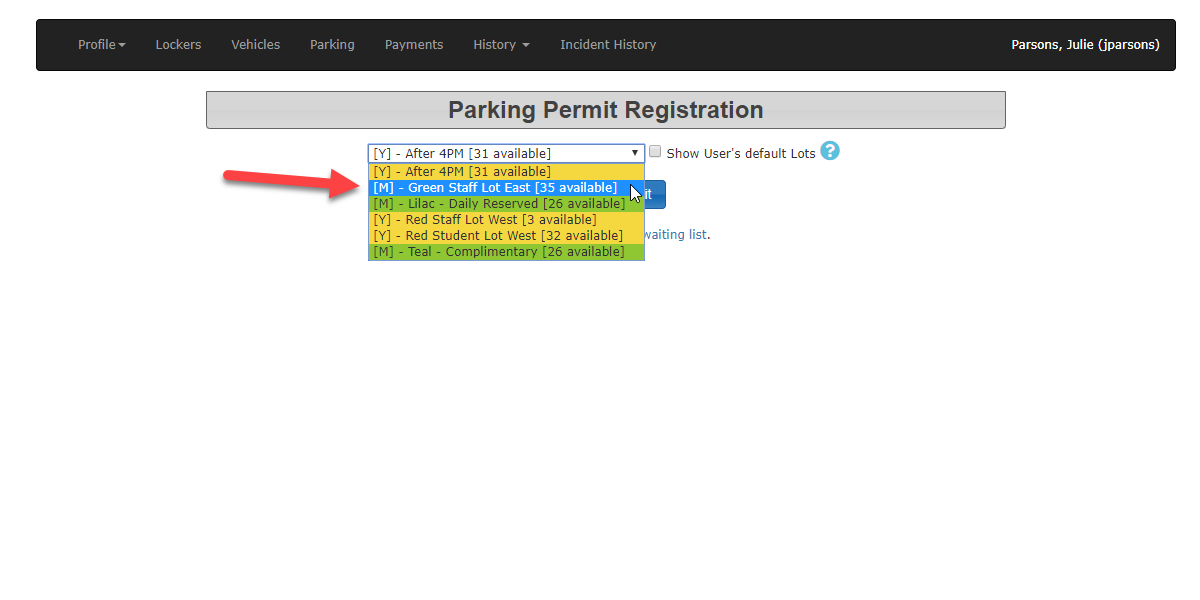
Select the lot you wish to register the client
to.toIn(ensurethisitcaseiswe select theGreen Staff Lot East.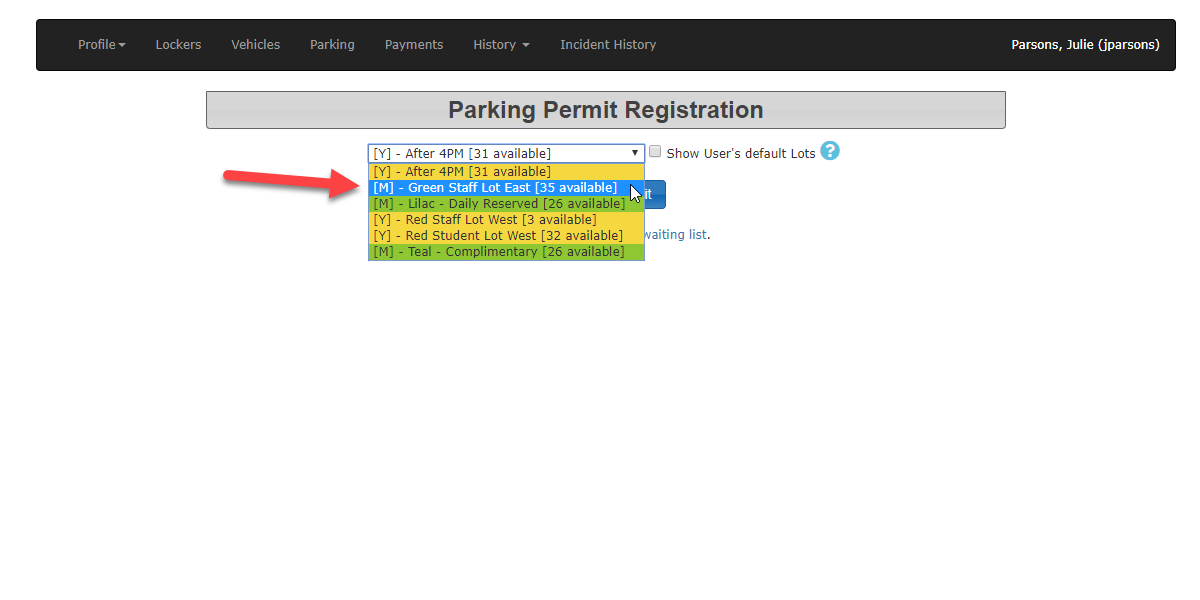
Once thea lotisconfiguredselected,withclickaondeposit). -
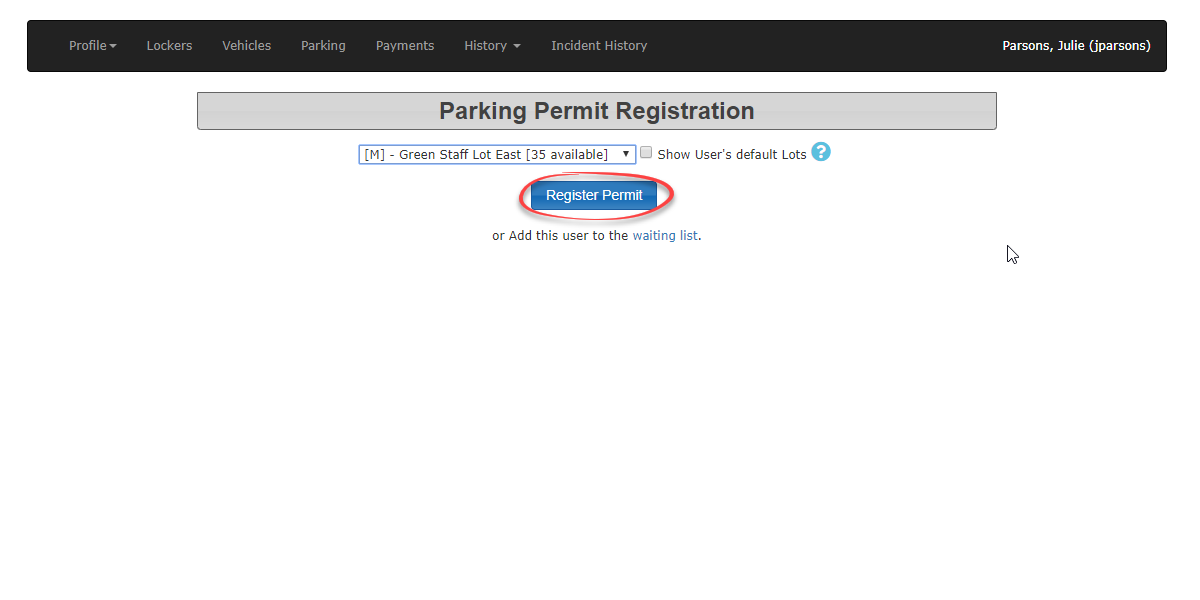
Click the Register Permit
.button.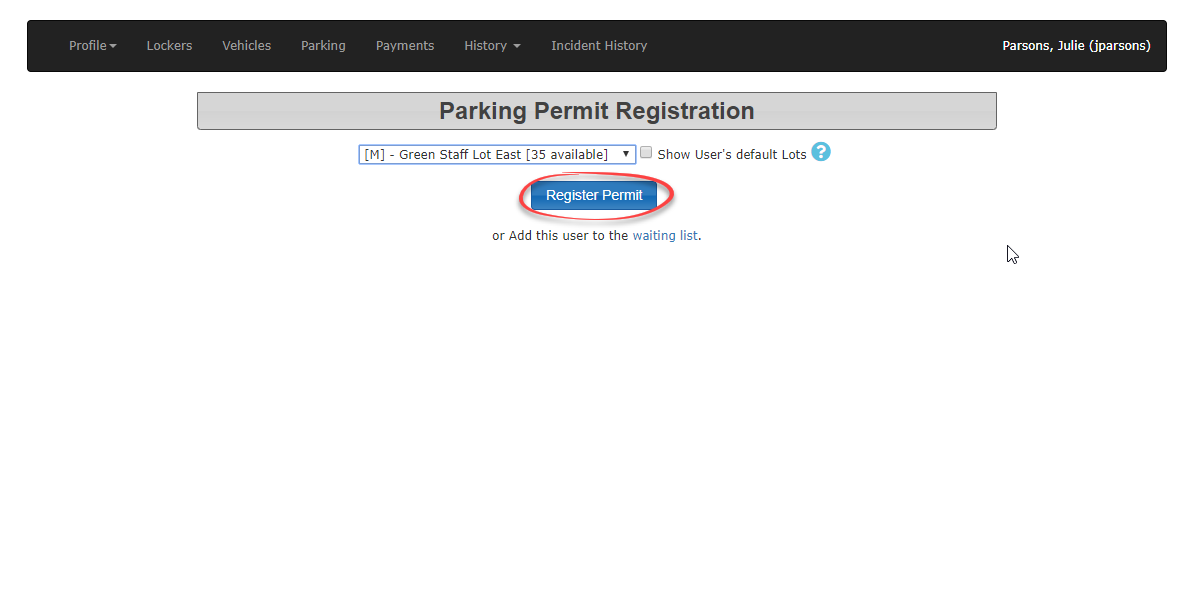
-
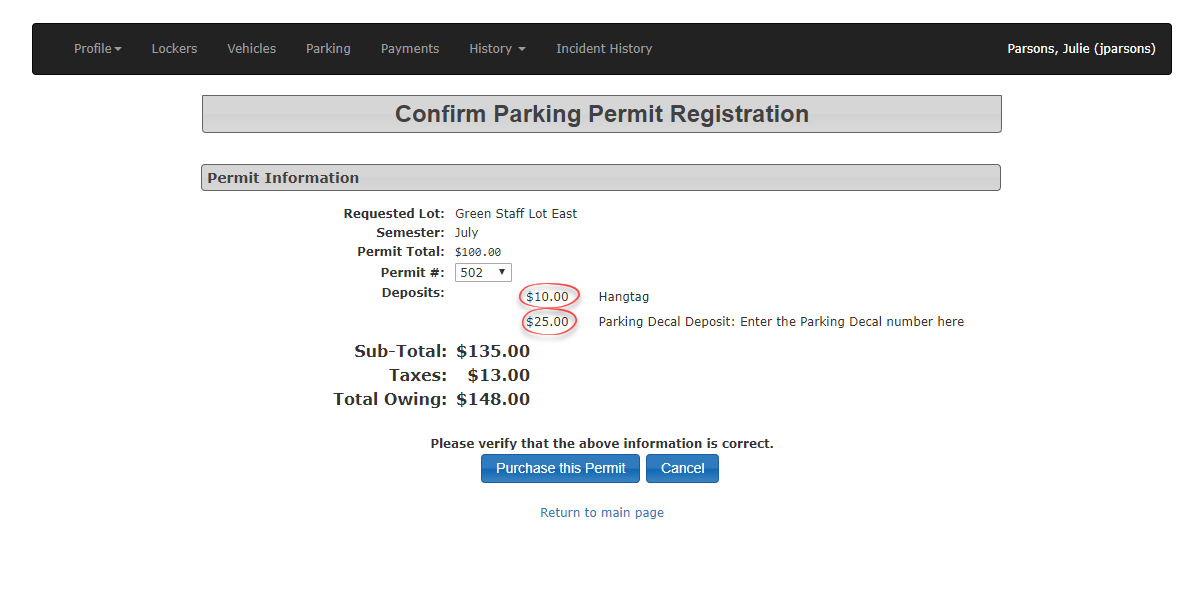
TheReview the Confirm Parking Permit Registrationwindowwindow.willVerifyappear. Notethat thetworequired deposits are included and listed correctly in the Total Owing costs.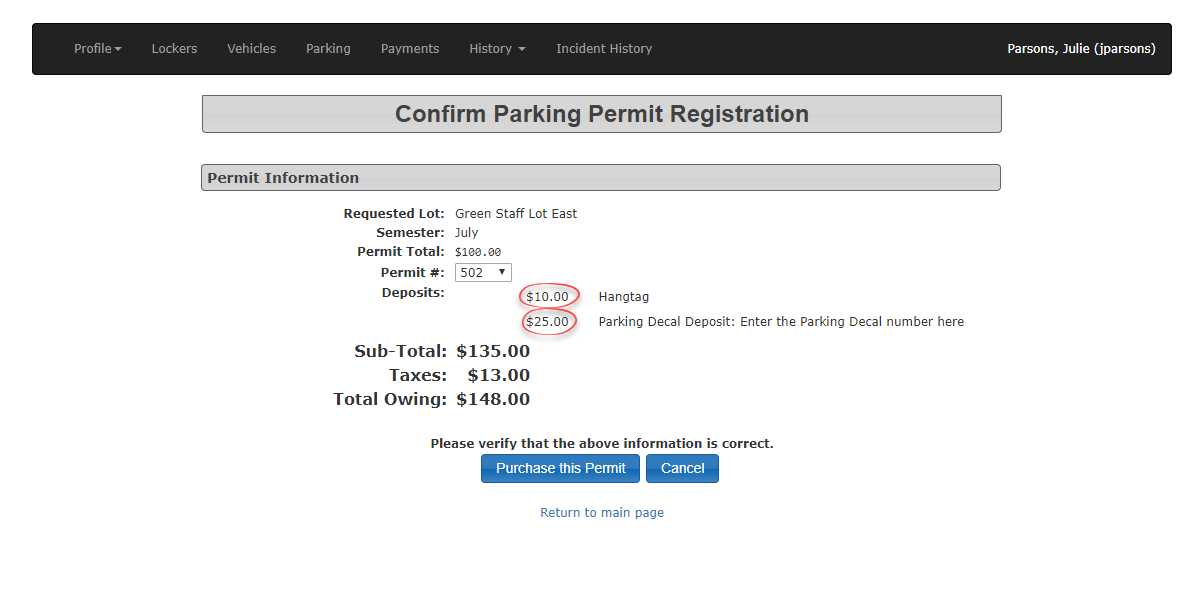
-
Click
onthe Purchase this Permit button to begin the payment process.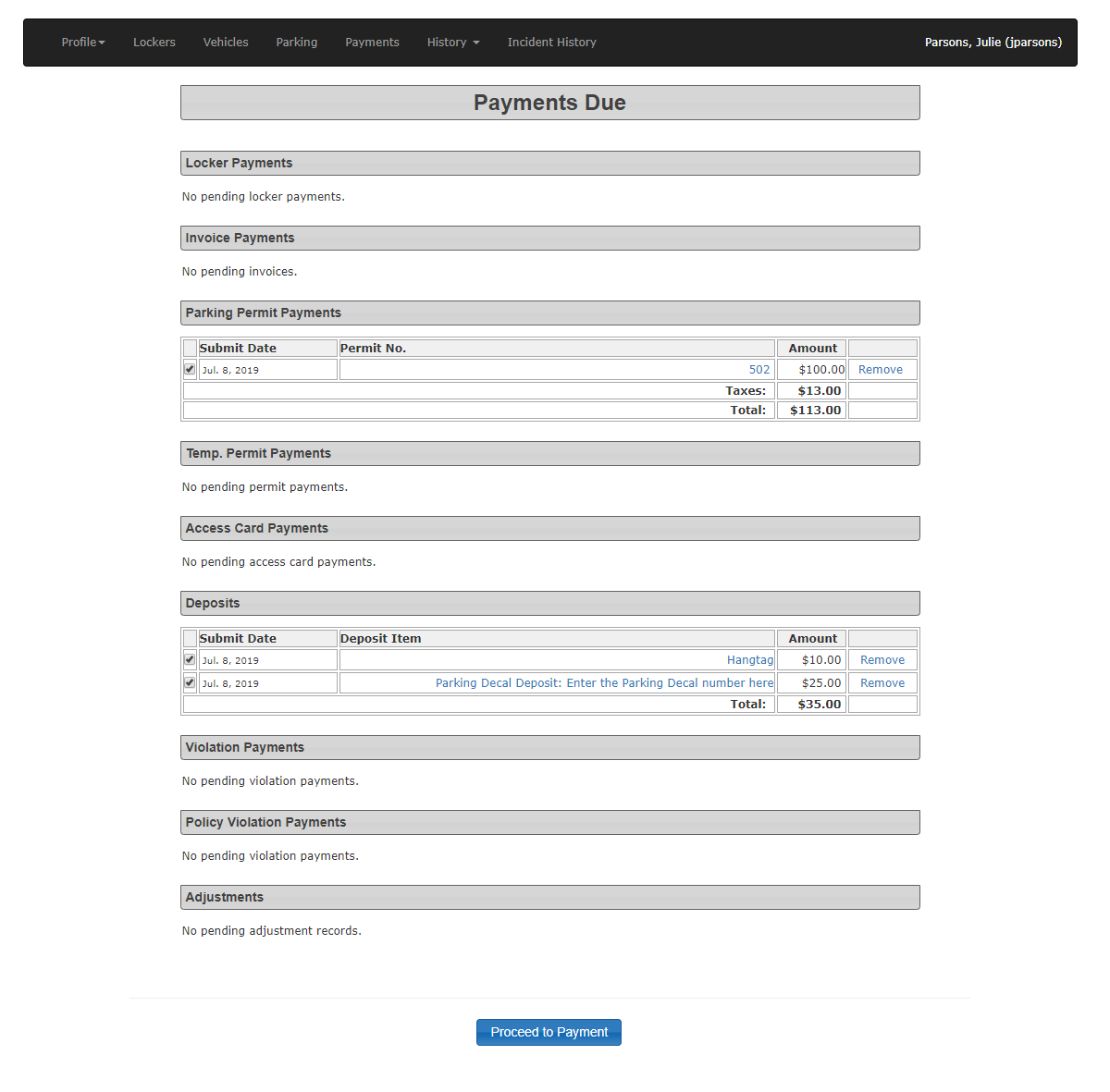
Editing Assignable Text (Access Cards and Hang Tags)
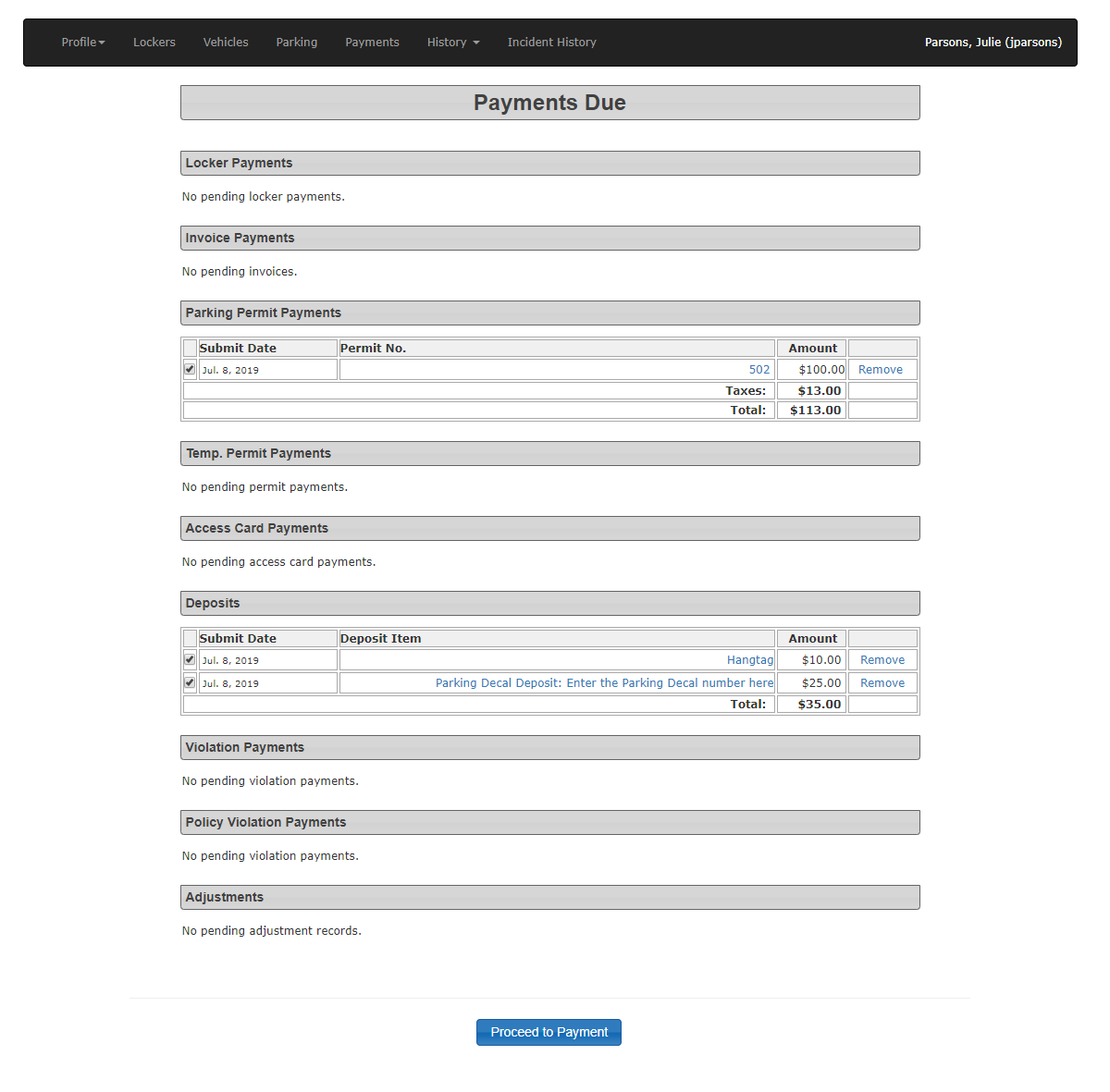
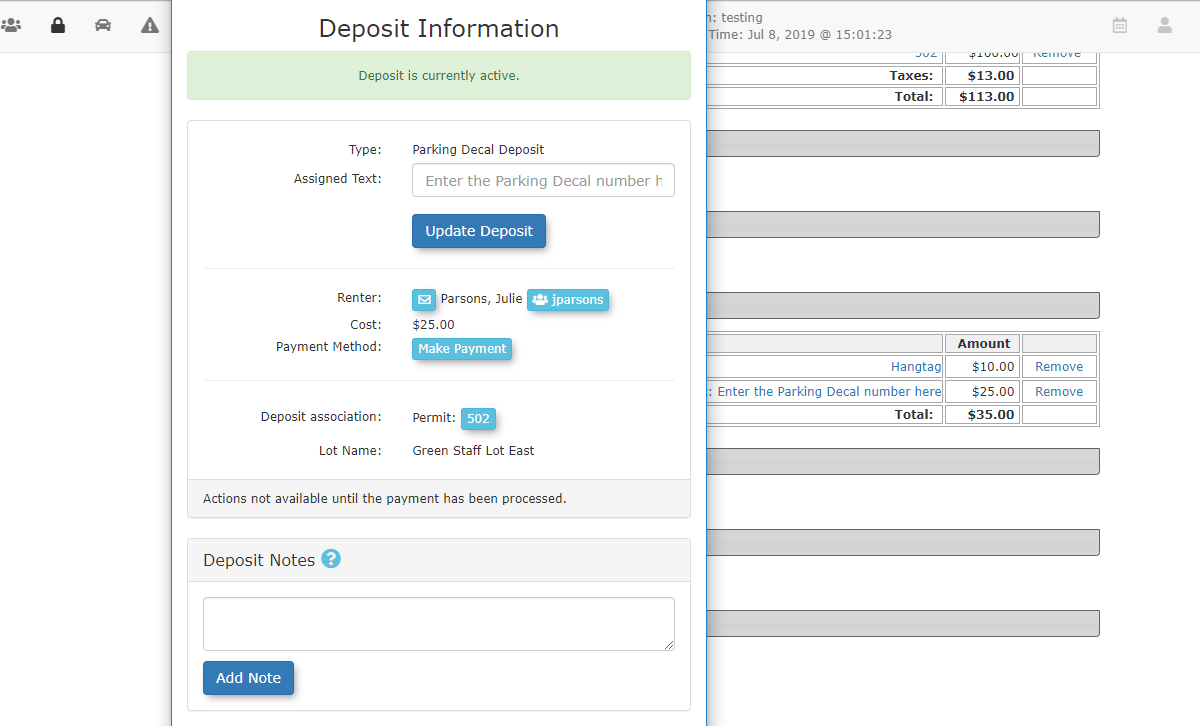
In this step,During the adminpayment process, administrators can record specific identifiers for the physical items being handed out (such as an access card andnumber or a hang tag numbers.number).
-
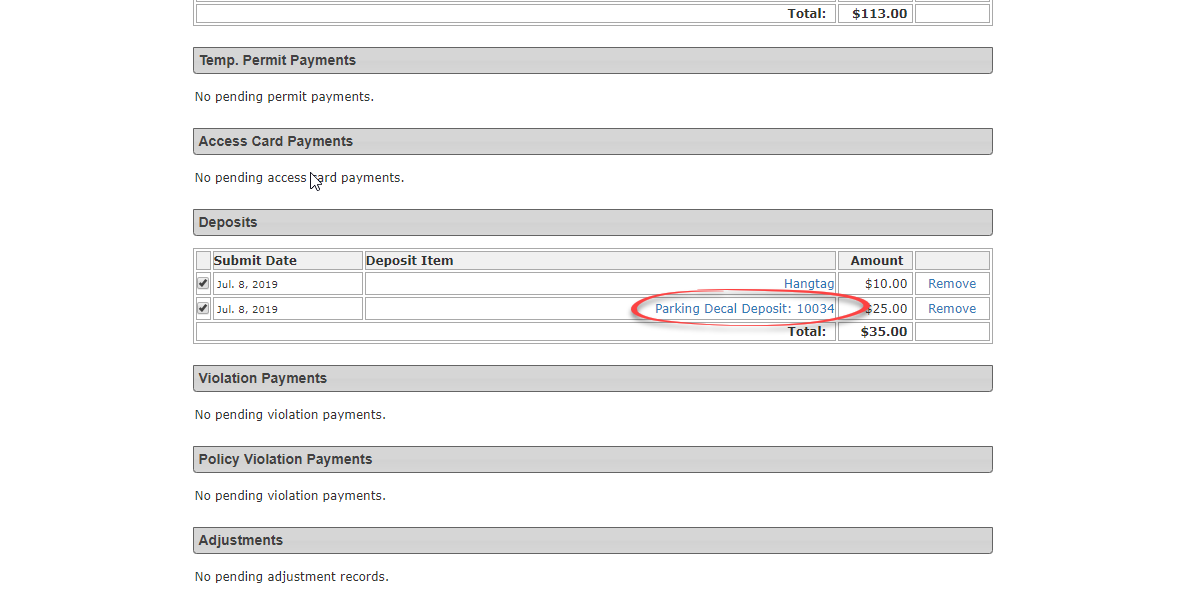
so, click onClick the specific Deposit Item
namename.In(e.g.,this case click onAccess CardDeposit:Deposit)Enter access card number here.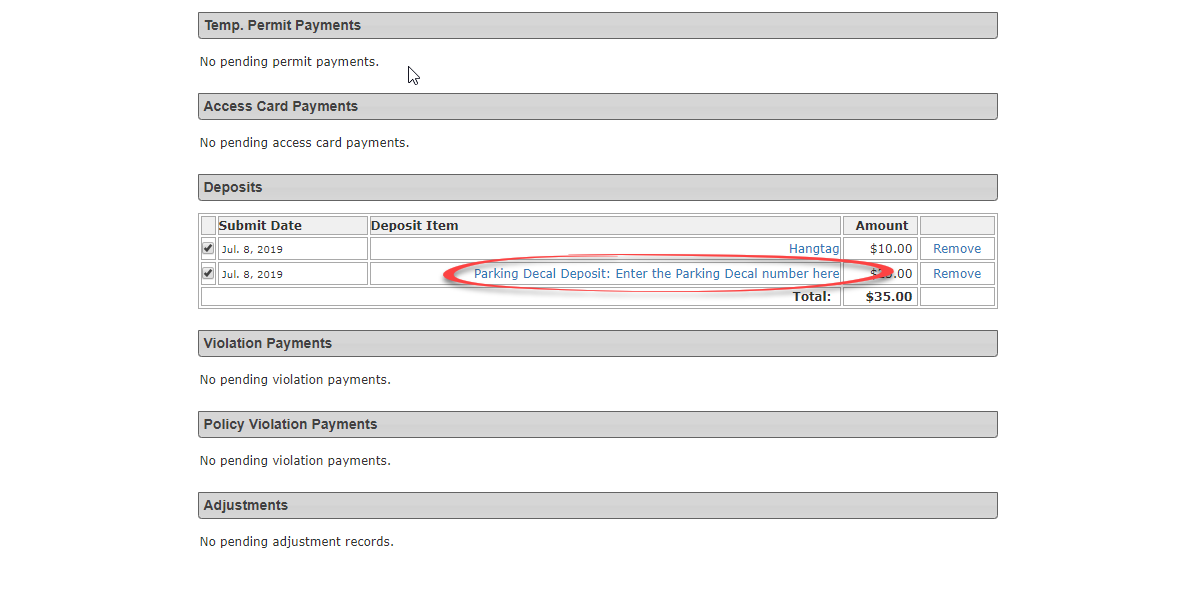
Inon theDepositpaymentsInformationscreen.pop-up -
enterEnter the
accessphysicalcarditem's number in the Assigned Text fieldandwithinclickthe Deposit Information pop-up window. -
Click the Update Deposit
.button.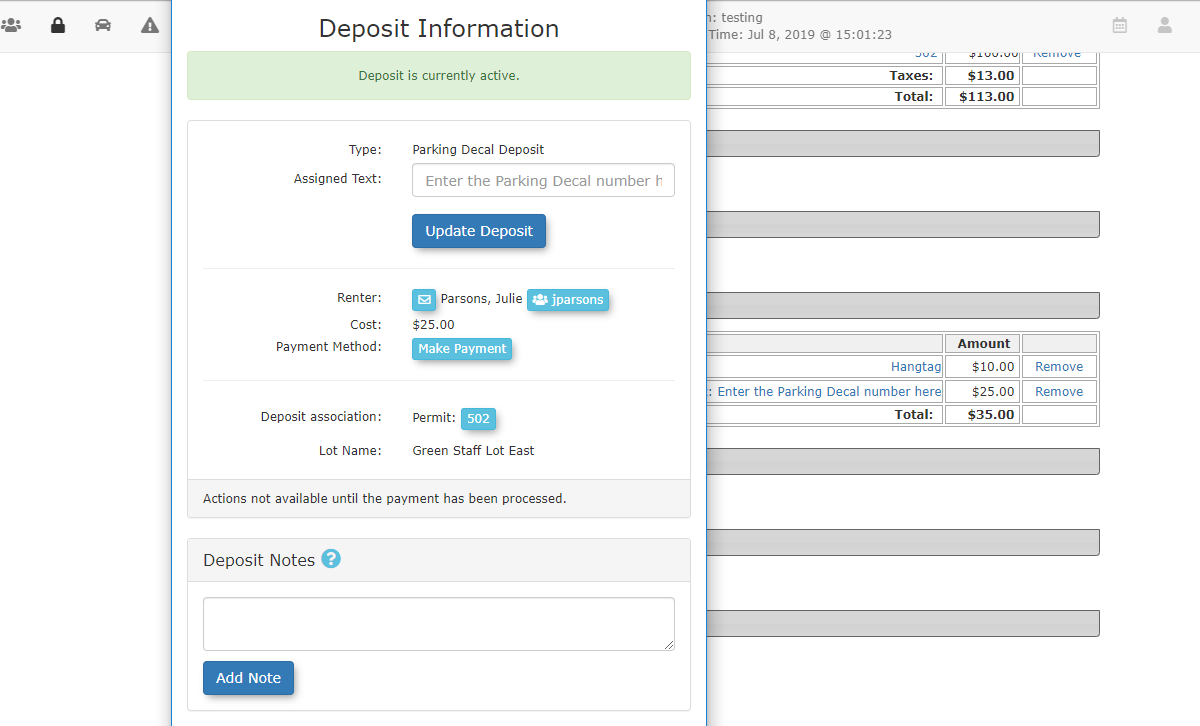
-
VerifyOnce entered,that the assigned numberwillnowappearappears on theDDepositseposits.section.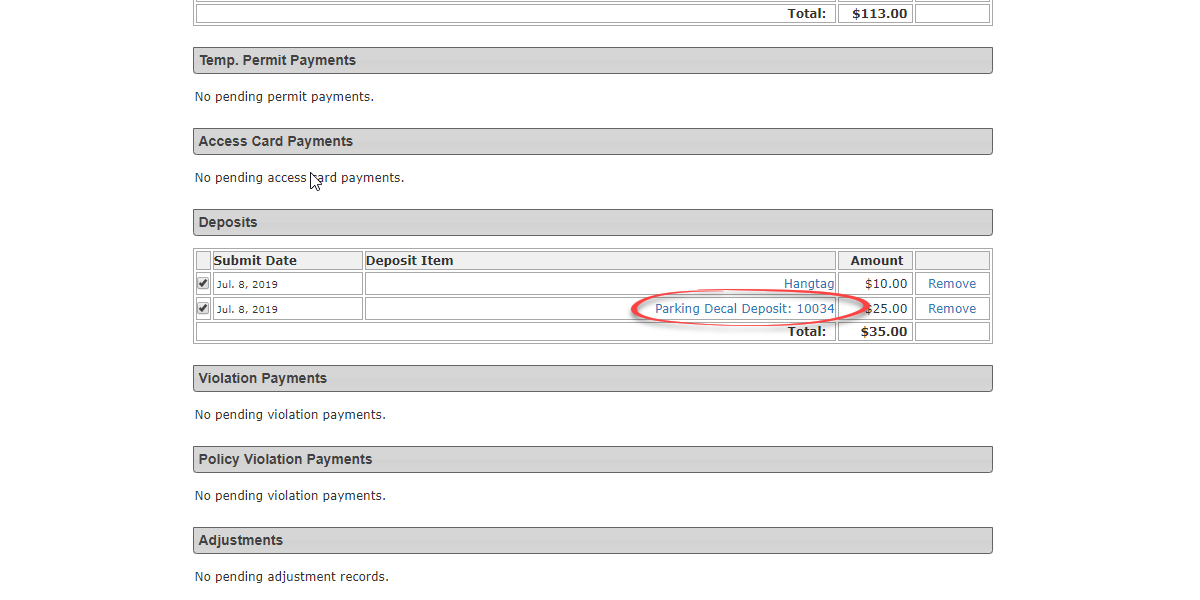
-
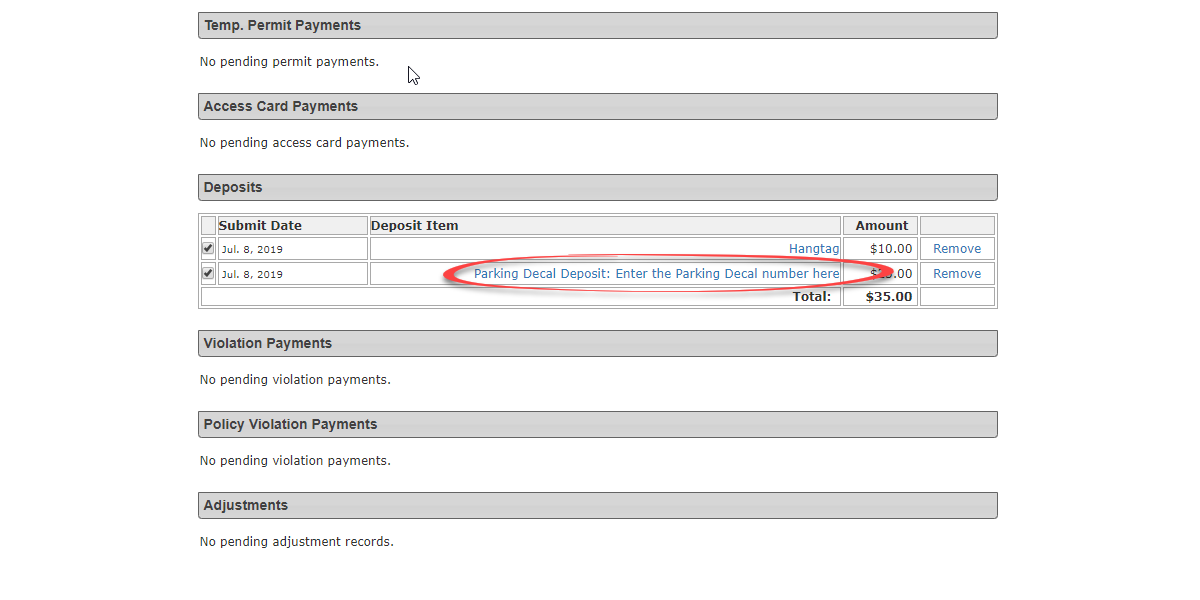
You may now proceedProceed with completing the purchase and processing the payment in the usual manner.
Best Practices and Considerations
-
Understand administrative limitations: Remember that deposit types associated with a lot are only included in the purchase of a permit when processed by an administrator. They are not automatically applied to self-service purchases made by end-users on the public portal.
-
Utilize assignable text: Always use the assignable text feature to record access card or hang tag numbers at the time of sale. This practice maintains accurate inventory records and is essential for properly processing the eventual refund when the physical item is returned.