Related Occurrences
Setup and Configuration
There is no special module configuration required to use the Related Occurrences feature, as it is a standard component of the incident management system. However, administrators must have the appropriate permissions to view and edit incidents to create and modify related lists.
Using this Feature
Administrators can link incidents by creating a named list and adding the relevant incident numbers to that group.
Creating a Related List and Linking Incidents
-
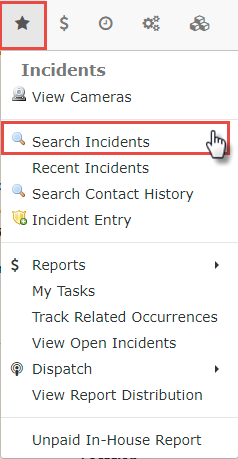
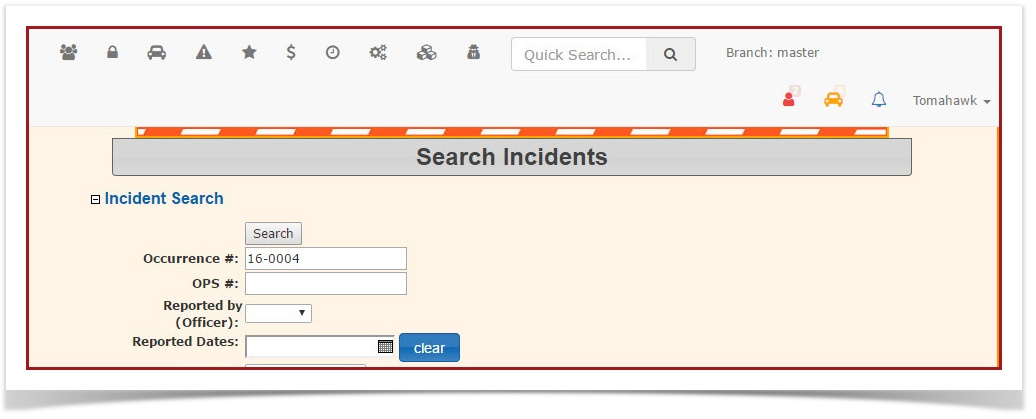
Hover over Incidents and click Search Incidents.
-
Enter the target incident number in the Occurrence# field and execute the search to open the Incident Information screen.
-
Click the
'Incidents Menu'Relatedselect 'Search Incidents'.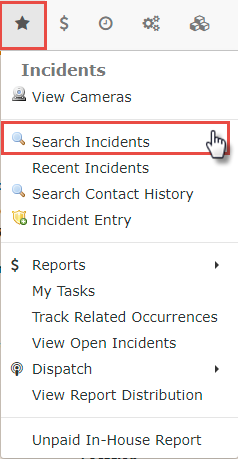
In the Occurrence# field enter theIncident Numberyou wish to relate to another.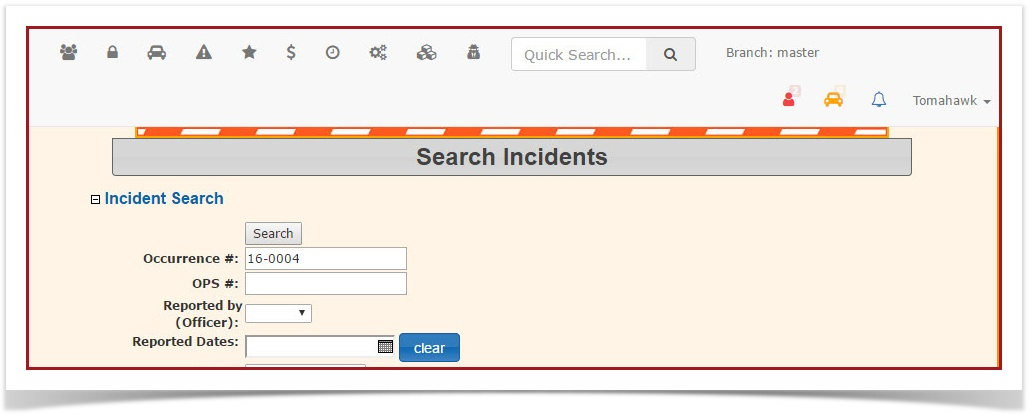
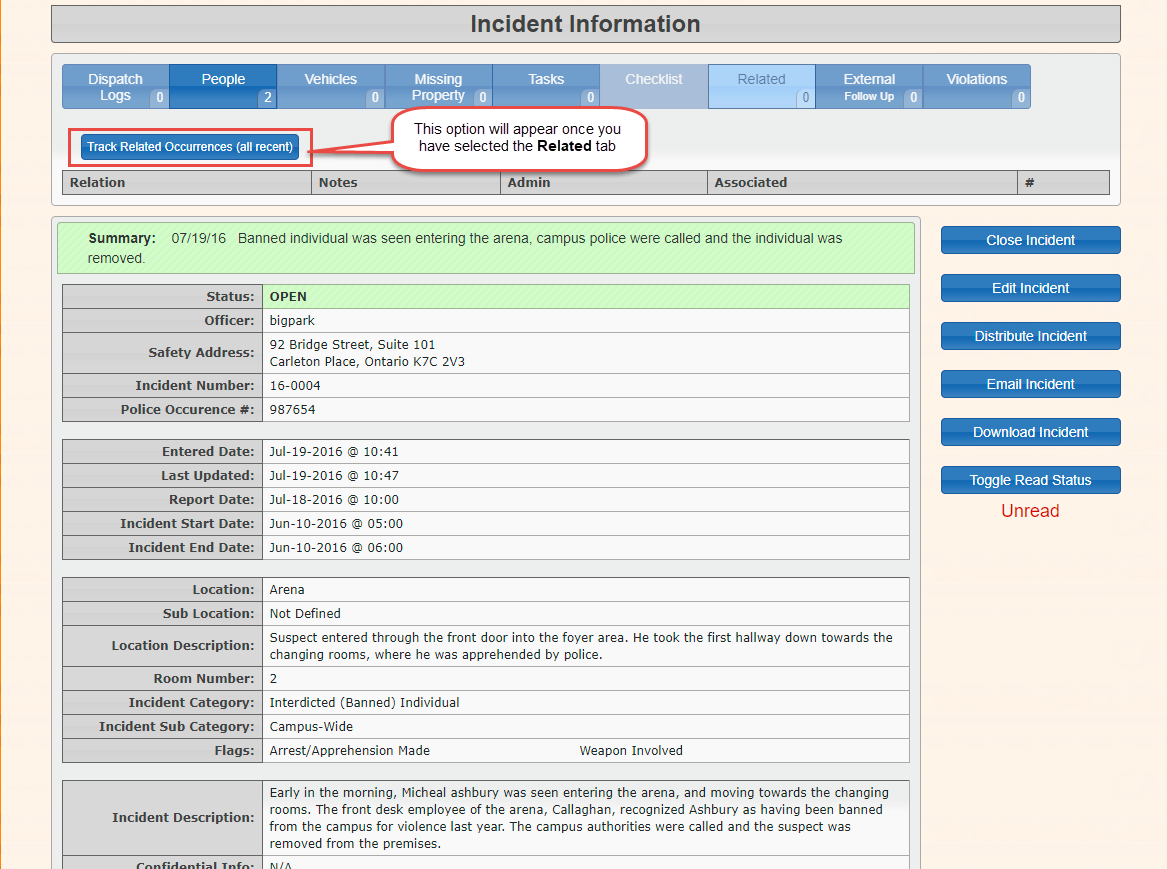
TheIncident Informationscreen displays.Note: the tabstab along the top of theform,form.they-
a quick summary of information.UnderClick the
'Related'tab we currently see the numeral 0 indicating that there are no incidents related at this time. When you select theRelatedtab, the button toTrack Related Occurrenceswill appear.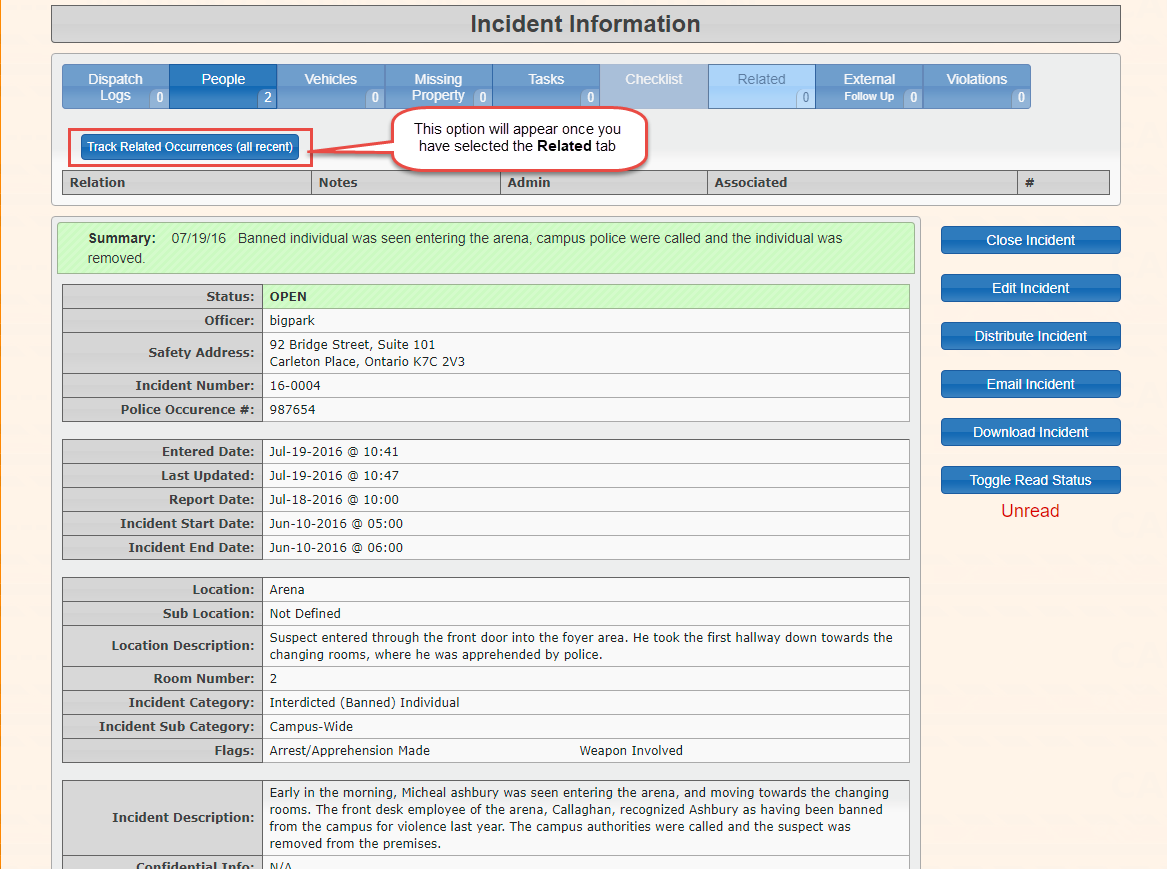
-
Click
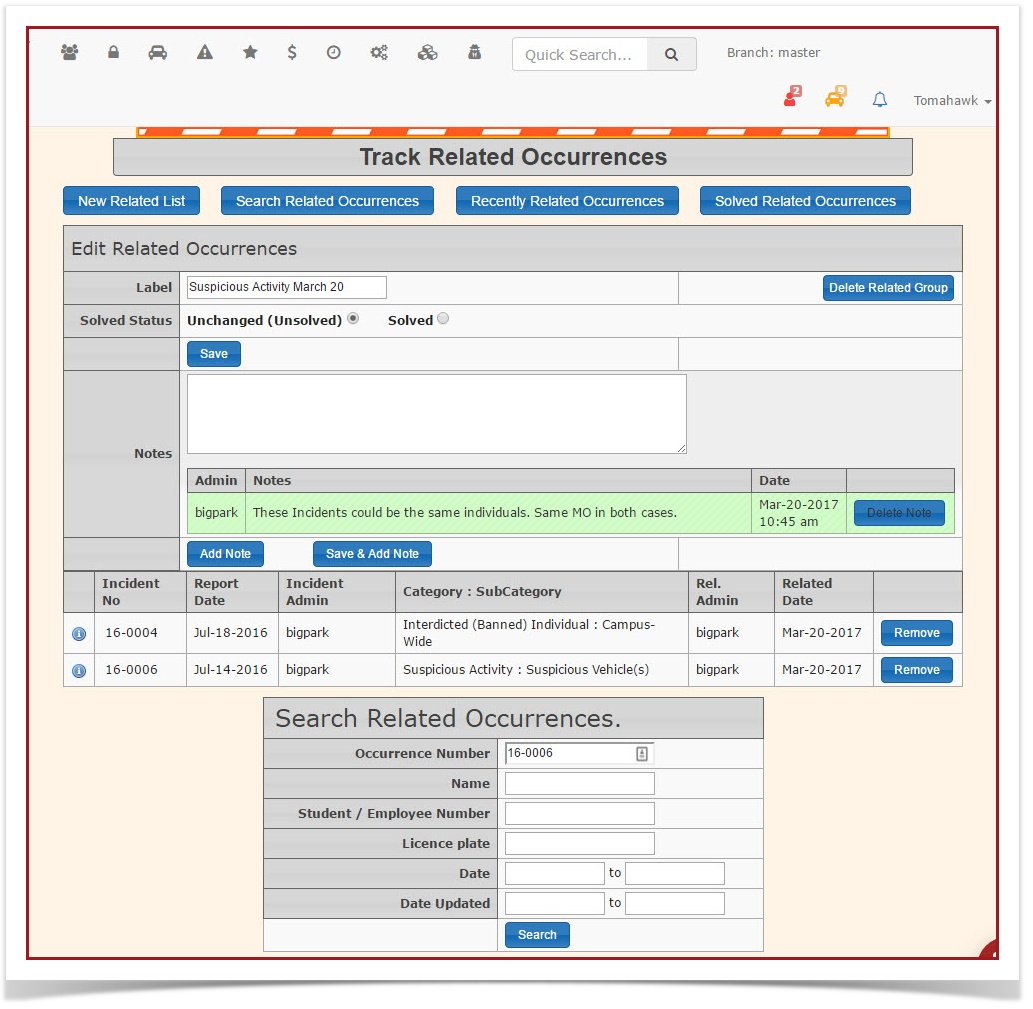
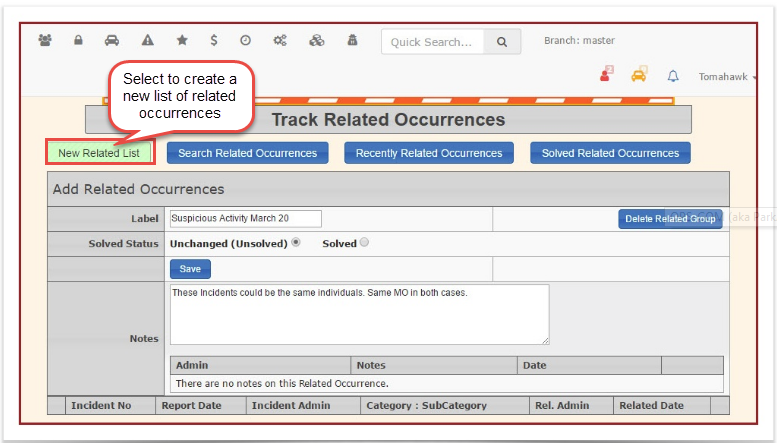
the'Track Related Occurrences' button to display the'Track Related Occurrences'screen. The buttons across the top allow different options to search for. The 'Add Related Occurrences' form is now available, by selectingNew Related List.
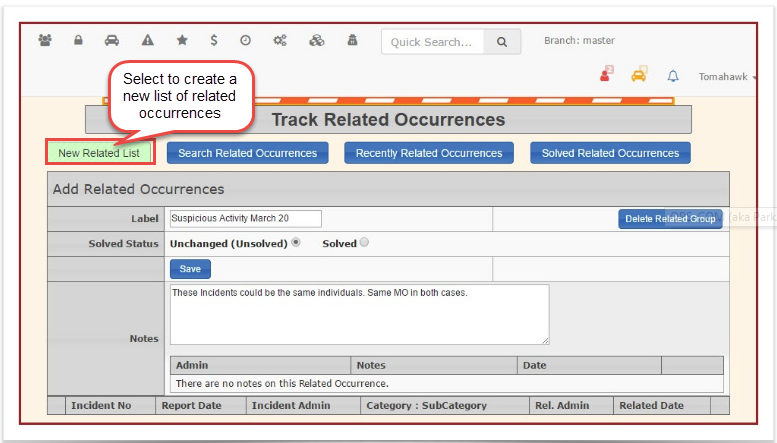
ThefirstEnter
stepaisdescriptivetoname in the NameandfieldCreate(e.g.,the list. In our example, we are naming the list "Suspicious Activity March20".20)Inand provide context in thenotesNotesfield,field.you-
add a description of whatClick the
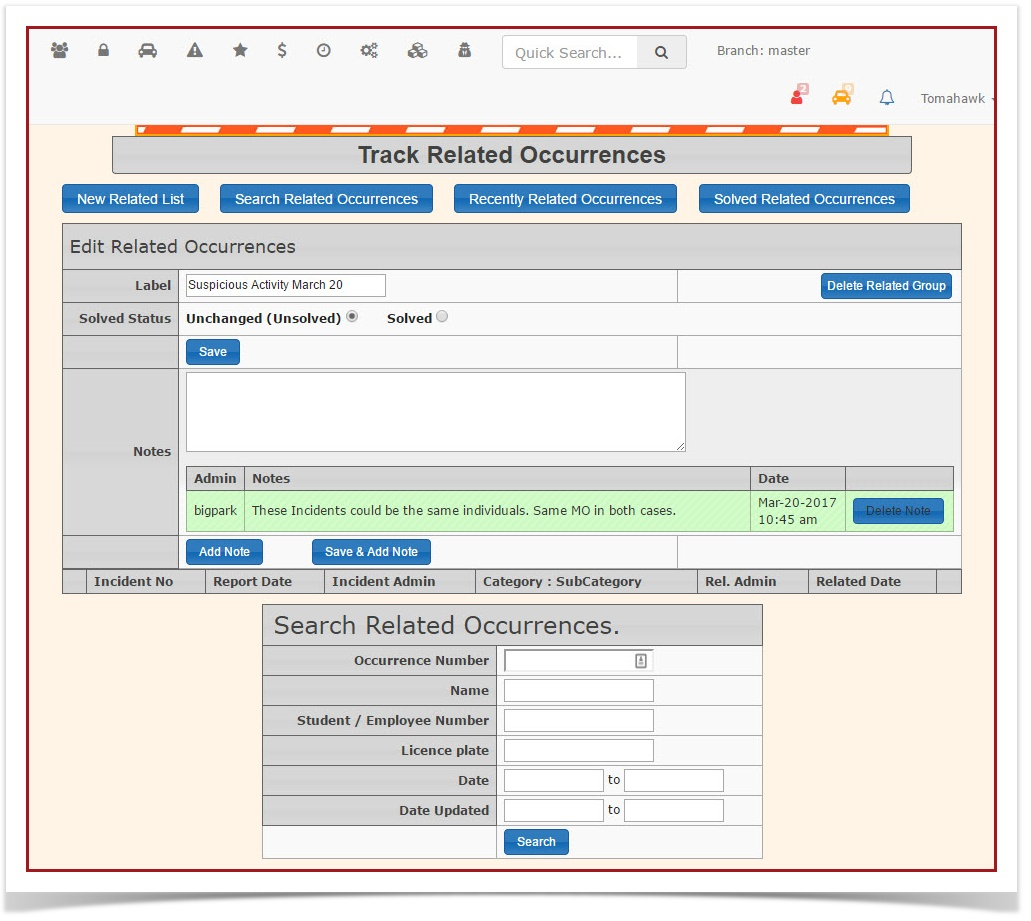
purposeSave button. A search box will now appear at the bottom of thelist is. Click 'Save' to save the list name and information. The screen will refresh with aSearchbox now showing at the bottom.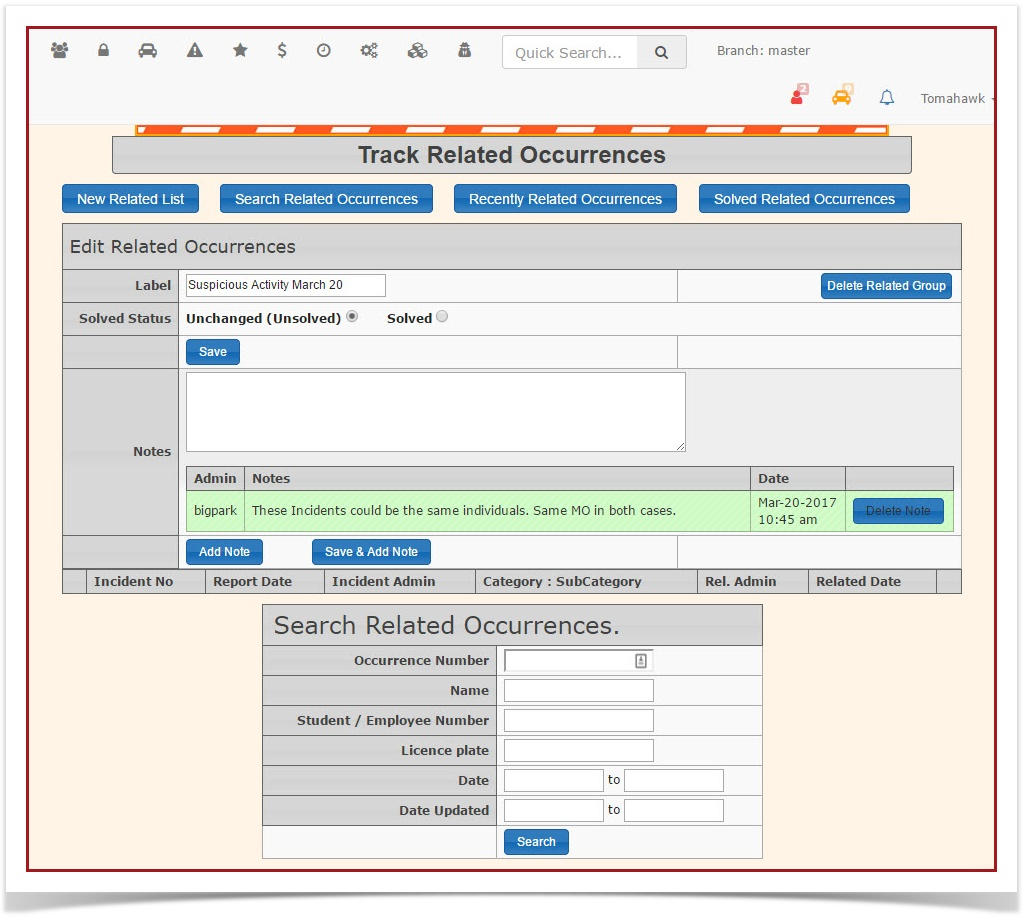
-
Enter the
CurrentcurrentIncidentincidentNumbernumber you areworkingviewingwith.intoForthethissearchexampleboxweandare using16-0004. Clickclick'Search.'Search
-
Click
'the Add'button next to the result to add it to your new list. -
Enter the second incident number you wish to relate into the search box and click Search.
-
Click the Add button to add this
incident to the list entitled'Suspicious Activity March 20th'. Repeat the search process by entering theIncident numberyou would like to relate to the first incident.For example, Incident 16-0004 as 16-0006 and click'Search'. Add thissecond incident to the same list.

You can return to the Track Related Occurrences screen at any time to add additional incidents to an existing list as an investigation develops.
Visual Cues and Status Indicators
Best Practices and 16-0005Considerations
-
Standardize List Names: Organizations should establish a standardized naming convention for related occurrence lists (e.g., by date, location, or specific event type) to ensure they are
listed.
easily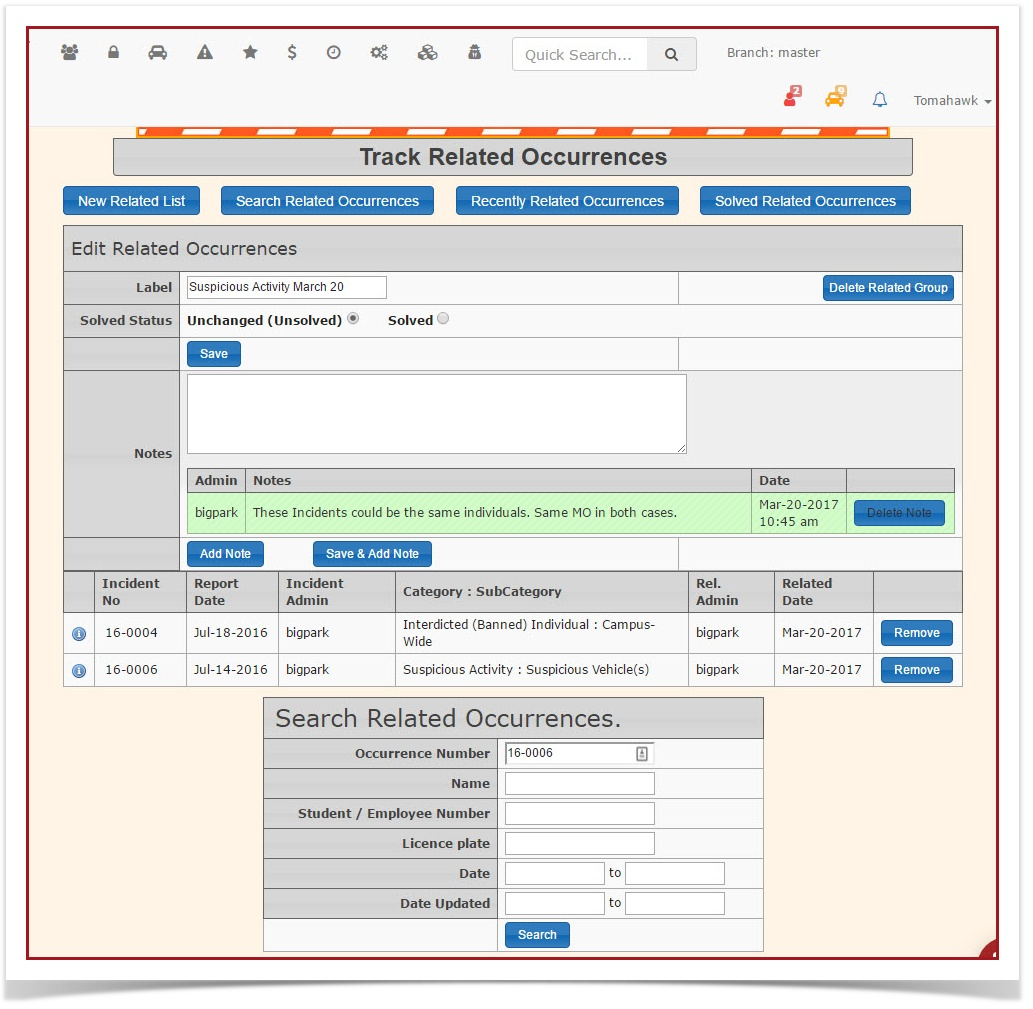
ToseeProvide Context: Always use the
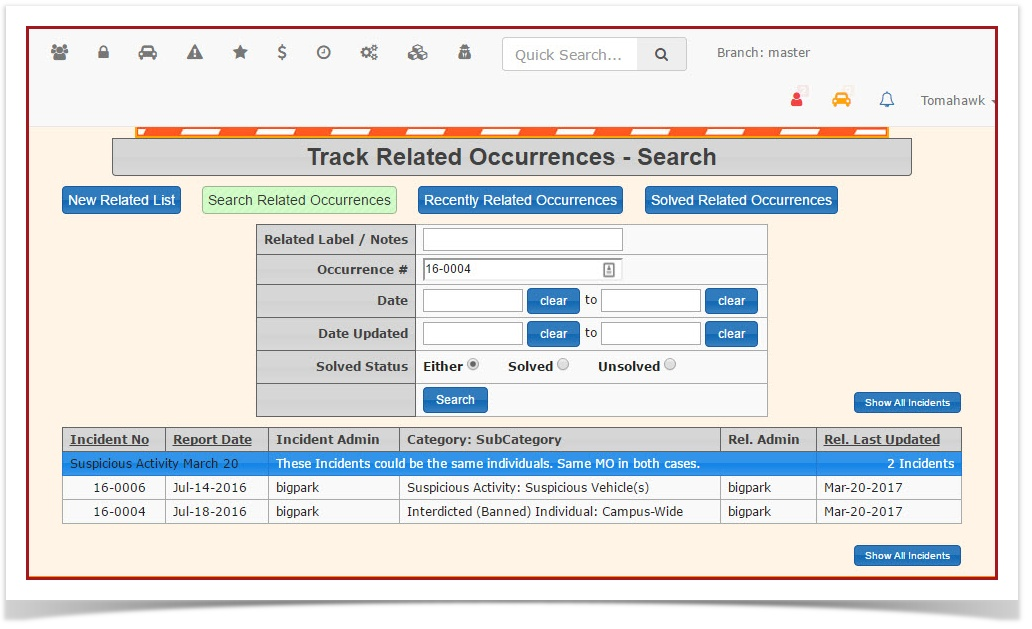
resultnotesoffieldthiswhenprocess,creatingsearchaoncenewagainrelatedforlist to briefly explain why theoriginalincidentsIncidentare16-0004being linked, especially if the connection is not immediately obvious from theSearch Incidentsmenu. Note the change in the Related Tab now indicates 1 related occurrence.
Click onRelatedto see theRelated Incident Information. Note: the relatedindividual incidentisdescriptions.now listed. This information will show up on the incident information for both incidents in question.