
Retrieving Uploaded Files
ThisThe articleRetrieving providesUploaded instructionsFiles forfeature OPSCOMallows administrators onto howlocate, view, and delete documents or images submitted by end-users. Its primary purpose is to help administrators easily manage files uploaded by users. It covers the process of locating, viewing, and deleting user-submitted filesdocumentation directly from within the administrative portal.portal while maintaining strict data governance. This article is intended for OPS-COM administrators responsible for reviewing user profiles and managing file submissions.
UsingSetup thisand Feature
Configuration
File management is a standard feature whichthat requires thespecific appropriatesystem administratorrole permissions:
View User Uploads:Lets the administrator view the files that have been uploaded by a user.Delete User Uploads:Lets the administrator delete the files uploaded by users.
Additionally, it is importantpermissions to understand the roles for uploadingaccess and managing files:utilize.
Admin Side: Administrators
canmustonlyhave the View User Uploads and Delete User Uploads permissions enabled on their role to viewandordeleteremovefilesfiles.from the admin portal. TheyAdministrators cannot upload files on behalf of a user directly from this administrative interface.User Side: Only end-users can upload files to their own
profiles.profiles through the public-facing portal.
Using
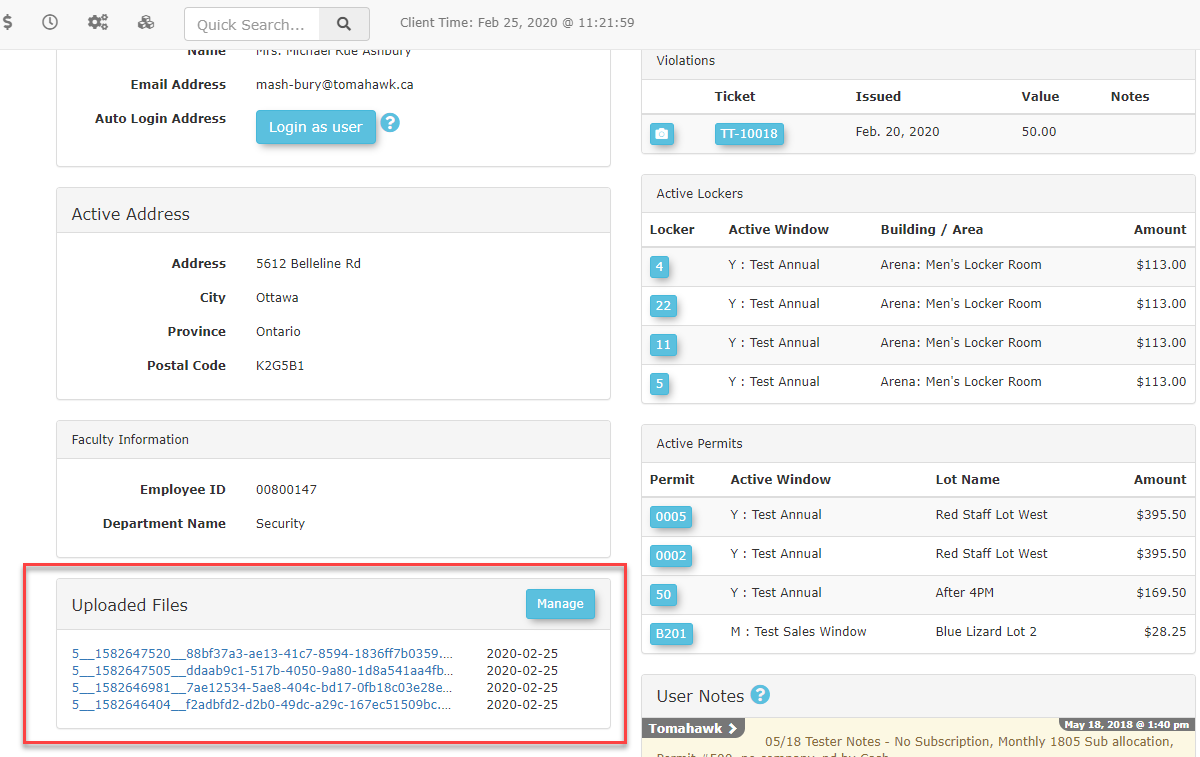
can use the following instructions to locate, view, and remove files from a specific user's account. All file management tasks forbegin a specific user begindirectly from theirthe user's profile page in the admin portal.page.
Viewing Uploaded Files
This section displayssee a preview of the five most recently uploaded files.-
ToClick the hyperlinked file name to view a specificfile, click on the hyperlinked file name.file. -
ToClick the Manage button to view all uploaded files for theuser, click the Manage button.user. This will take you to the user'smaincomprehensive Uploaded Files page.
Deleting an Uploaded File
-
FromClick theuser's profile, click theView All button in the Uploaded Files section of the user's profile to access the full list of files. -
OnLocate theUploaded Files page, locate thespecific file you wish toremove.remove on the Uploaded Files page. -
Click the Delete button associated with that
file.file to remove it from the system.
Best Practices & Considerations
Uploading Files for a User:Administrators cannot directly upload files to a user's profile. To upload a file on behalf of a user, you must use the Login as User feature and follow the user-side workflow. Instructions can be found in the Uploading Files from the User-side article.Viewing/Deleting User Files:To view or delete user-uploaded files, ensure you have the appropriate permissions to perform these actions.
File Deletiondeletion is Permanent:completely permanent. Once a file is deleted,deleted from the system, it cannot be recovered. Always verify you are deleting the correct file before confirming the action.
Best Practices and Considerations
-
Uploading files for a user: Use the Login as user feature and follow the user-side workflow if you must upload a file on behalf of a user. Administrators cannot directly upload files to a user's profile from the backend interface. Detailed instructions can be found in the Uploading Files from the User Side article.
-
Verify administrative permissions: Ensure you have the appropriate permissions to perform these actions. If you cannot view or delete user files, verify that your administrative role has the required file management permissions actively enabled.
-
Audit files carefully: Always verify you are deleting the correct file before confirming the action. Accidental deletion may require the user to resubmit important documentation, causing delays in permit approvals or appeals.