
Rollover: Auto Selection and Automatically Processing Payments
UsingThis Creditarticle Cardsoutlines how to automatically process payments for recurring permits (rollovers) using user credit cards stored on Filefile. Its primary purpose is to Purchasehelp Recurringadministrators Permitsstreamline the permit renewal process by batch-processing payments for the upcoming term. This guide is intended for OPS-COM administrators.
Setup and Configuration
ThereBefore utilizing this feature, ensure the following system and user requirements are twomet:
-
Payment Gateway: Your system must utilize a payment gateway that allows you to
thischarge client cards directly. This feature will not functionworkingifcorrectlyyour system is configured forcreditHostedcardPaymentspurchasesonly.on -
User Requirements: The user must have a valid credit card registered in the system, and
thethat card must be explicitly designated as the Prime Credit Card.
Using this Feature
IfThe youRollover arePayment acceptingProcessing Credit cards that you wish to charge on rollover, you must have a Gateway thattool allows you to chargeselect clientand cardsprocess directly.recurring Thispermit cannotpayments workin for a system that is set for Hosted Payments only.batches.
PerformingProcessing PermitRollover RolloversPayments
-
Hover over Permits
,thenandselectclick Process Payments for Rollovers.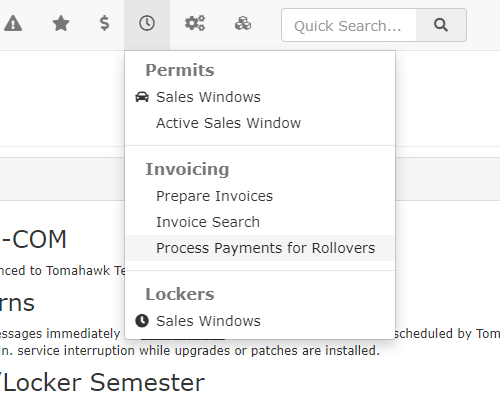
-
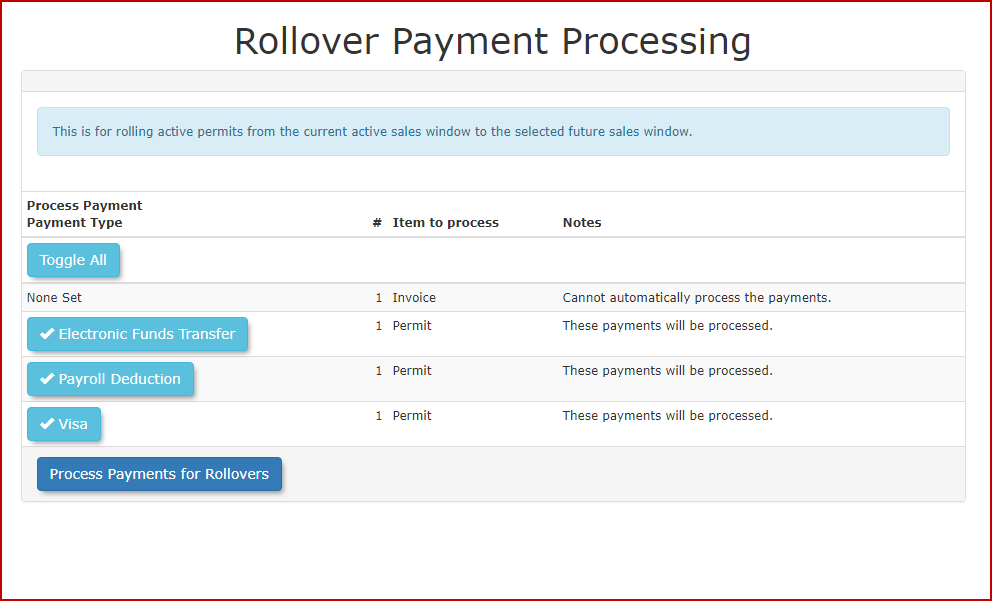
listTheRollover Payment Processingpage will be displayed as seen inReview theimagegeneratedbelow.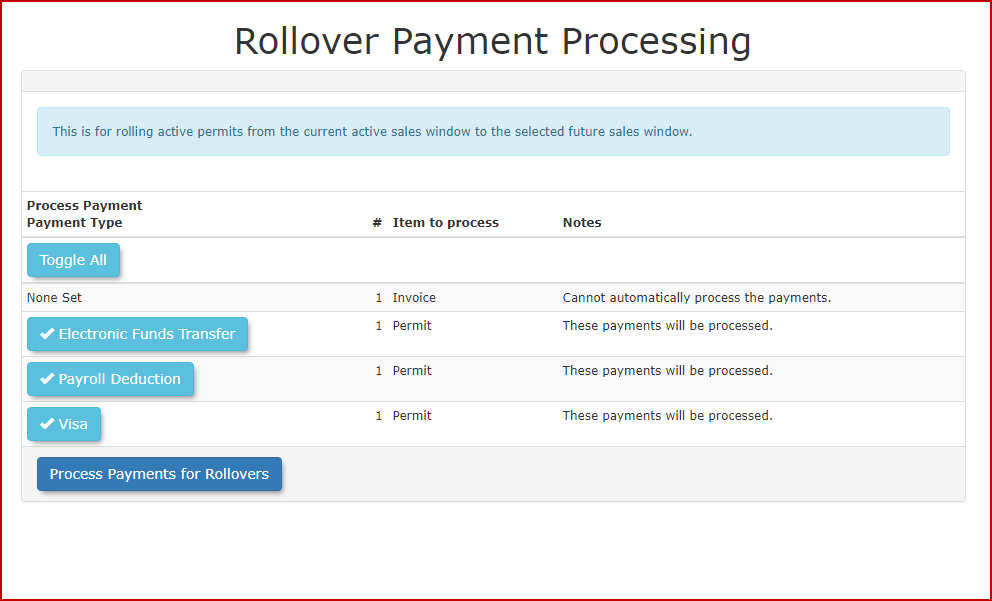
To select which payments will be done clickon thecheckrolloverboxpage.with -
Enable the checkbox for the payment
type.types you wish to process.-
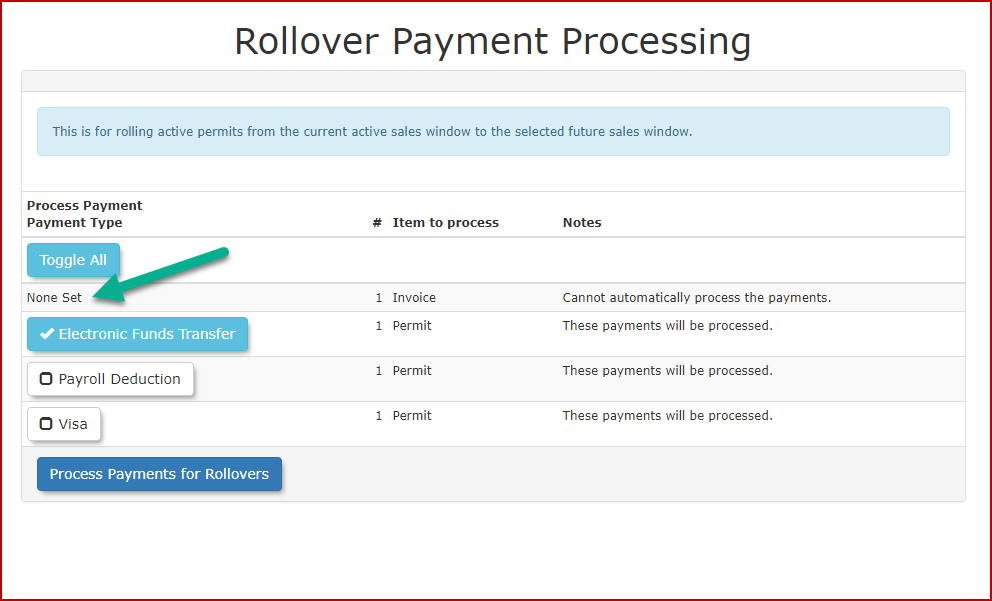
Note: If
thean invoice or permitsaysdisplays"NoneSet" thenSet, the user must manually log in and process the payment togetsecure the permitinfor the next sales window.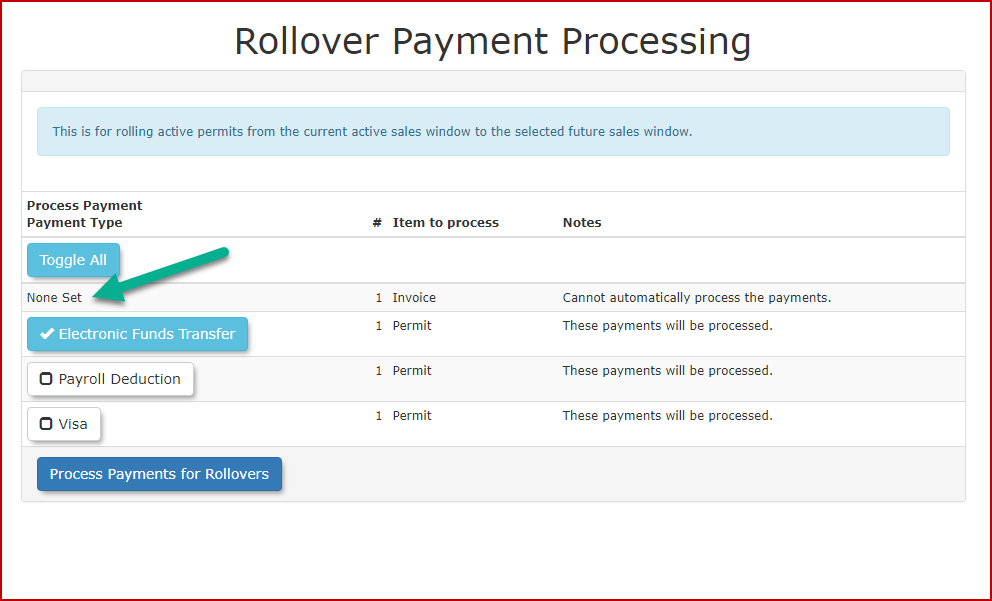
-
-
SelectClick the'Process Payments for Rollovers'button to initiate the batch transactions.
Visual Cues &and Status Indicators
-
Lock Pad
IconIcon::Displayed on the right side of theProcess Payments for Rolloverscreen. This indicates that a previous payment attempt was initiated but did not reach a finalized "Paid" or "Cancelled"state,state. This is most often due to a Declined - Retry later response from the payment processor.
Resolving a Locked Permit
If a permit is locked and(displaying the lock pad icon), it cannot be processed through the standard rollover screen,screen. followFollow these steps to clear the lock and complete the transaction:
Best Practices &and Considerations
Do not attempt to re-process a locked permit through the rollover screen. A locked permit indicates an incomplete transaction. Do not attempt to re-process the payment through the rollover screen until theThe lock hasmust beenbe cleared via manual intervention through the user's account,cart asto thisavoid mayprocessing result in errors.errors.
-
Monthly Monitoring: Monitor rollover reports monthly to identify any lock pad icons, ensuring that all recurring permit payments have
beenbeen successfullycaptured.captured and no users slip through the cracks. -
Investigate Declines: Investigate "Declined" messages immediately by contacting the user to verify their credit card information or by suggesting they contact their
bank.bank to authorize the transaction. -
Redirect payment to the User Profilewhen a lock occurs; manual intervention through the user's cart is the primary method for clearing a processing lock. Allow for
processingProcessingtimeTime:ifIf a generic erroroccurs,occursasduring processing, allow some time before trying again. Certain records maytakerequire a short period to clear the payment gateway's communication buffer before they can be successfully re-attempted.-
ConfirmVerify Transactions: Always confirm a successful paymentinwithin the user's transaction history before attempting any further administrative actions on the permit toensuremaintain data integrity.