
Search Repeat Offenders Report
The Search Repeat Offenders report allows administrators to identify vehicles and users that have accumulated multiple parking violations. Its primary purpose is to help enforcement teams track chronic offenders, manage warnings, and apply appropriate penalties or towing actions. This article is intended for OPS-COM administrators.
Setup and Configuration
There is no specific system setup or configuration required to use this report. Access to the Search Repeat Offenders page is a standard administrative feature available to users with the appropriate violation management and reporting permissions enabled on their profile.
Using this Feature
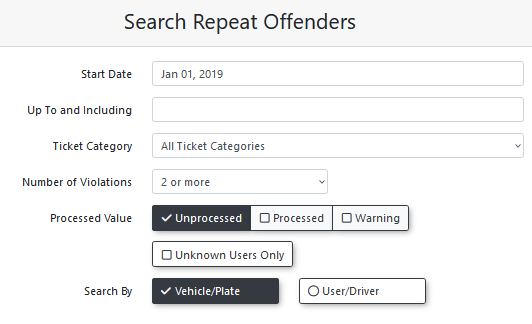
Administrators can use this reporting tool to filter violation data and output specific counts based on either the vehicle or the user profile.
-
Hover over Violations and click Search Repeat Offenders.
-
Enter specific dates into the Start Date and End Date fields to specify the date range in which the violations were received.
-
Click the Ticket Category drop-down menu and choose a specific violation category to narrow the results.
-
Enter a numerical value into the Number of Violations field to set the minimum threshold a user or vehicle must meet to appear on the report.
-
Click the Processed Value drop-down menu and choose Unprocessed, Processed, or Warning Only to categorize violations based on their current status.
-
Enable the Unknown Users Only checkbox to exclusively show violations assigned to vehicles without a known user tied to them.
-
Click the Search By drop-down menu and choose Vehicle/Plate or User/Driver to determine how the output data will be grouped.
-
Click one of the green export buttons located at the top right of the search results to export the data in your chosen format.
Key Information Displayed
The data grouped in the output varies depending on whether you selected Vehicle/Plate or User/Driver in your search parameters.
-
Vehicle/Plate Grouping: Shows the number of violations on each specific license plate and lists any associated drivers of the vehicle.
- User/Driver Grouping: Shows the total number of violations given to the user, including any violations assigned to vehicles where the user is the registered driver.
- Individual Violations: In either grouping view, you can click on the hyperlinked violation count number to view the individual ticket details.
Visual Cues and Status Indicators
-
Warning Icon: When searching by vehicle, a warning icon next to the username will show a targeted list of the violations associated specifically to that user.
-
Breakdown Icon: When searching by user, an icon next to the total violation count displays a breakdown of the total amount (showing the number of violations assigned directly to the user versus the number of violations assigned to that user's vehicles).
Best Practices and Considerations
-
Targeted Reporting: Utilize the Search By filter strategically based on your goals. Searching by Vehicle/Plate is ideal for identifying unregistered cars or scofflaws that frequently violate lot rules, while searching by User/Driver is best for evaluating the overall compliance of a registered permit holder across all of their listed vehicles.
-
Reviewing Warnings: Use the Warning Only option under the Processed Value filter to evaluate if past warnings have been effective, or if a repeat offender has exhausted their leniency and now requires a fine-bearing ticket.