Sending Invoices in Advance of Payment
This process allows OPS-COM administrators to roll over active permits and issue formal invoices to users or companies prior to capturing any automated payments. This feature is essential for accommodating clients who require a generated invoice to process payments through their internal accounting departments before authorizing a transaction.
Setup and Configuration
This workflow utilizes the standard permit rollover functionality. Ensure that your target users or companies are already configured to receive invoices within their profiles before beginning this process.
Using this Feature
The process involves initiating a permit rollover, deliberately bypassing the automated payment trigger, and then manually generating the invoice for the reserved permits.
Generating Invoices During a Rollover
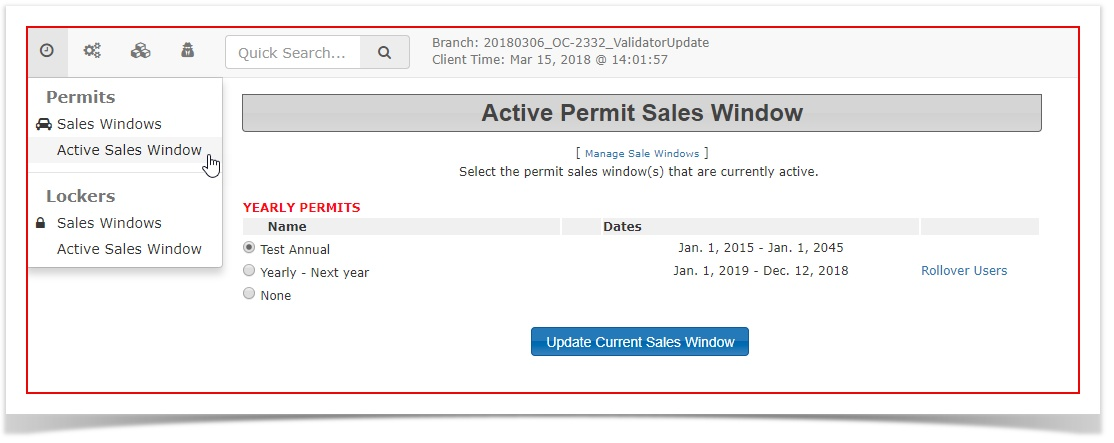
Tobegin,Hover
start a regular rollover process, by going intoover the Permits menu andselectingclick Active SalesWindow.Window.-
Click
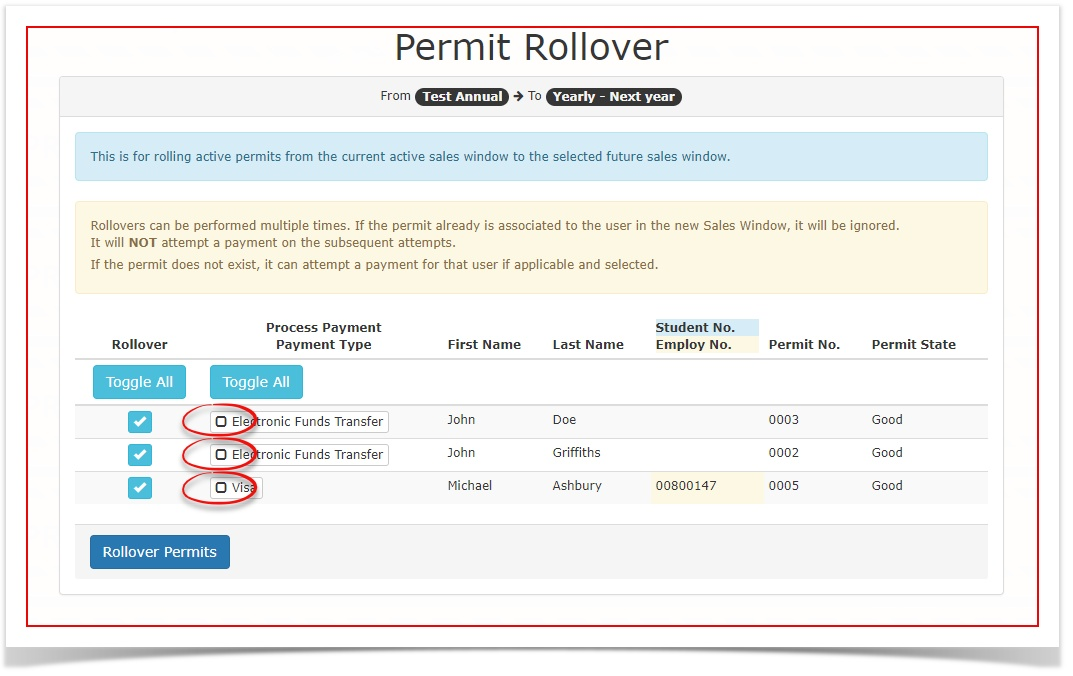
onenteropen the permit rollover wizard.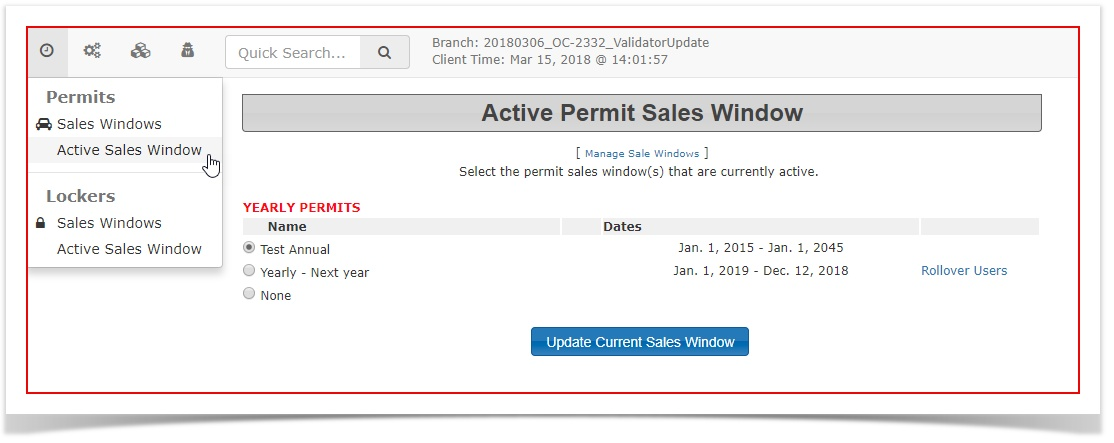
BydeselectingDeselect the preferred payment method
herewithinyouthecanwizardperformsetup.aThis critical action ensures the rolloverthatcompleteswillwithoutnotautomaticallyprocesschargingautomatedthepayments.
user's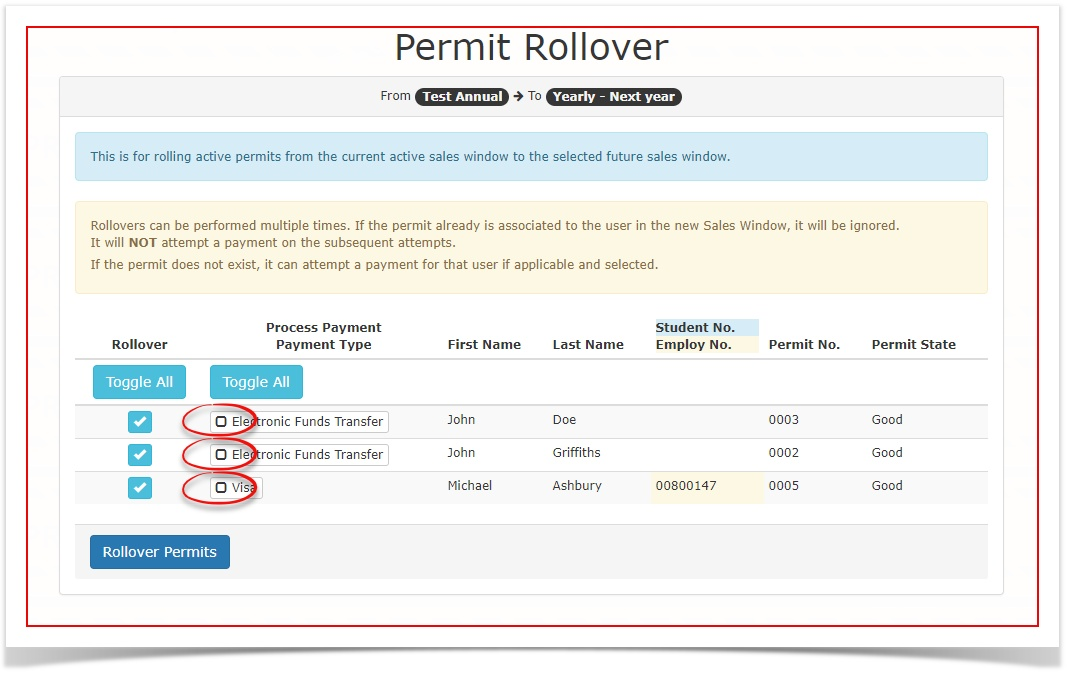
ByclickingClick Rollover
Permits,Permits.theThe system willenterprocessthesethe renewal and place the permitsinintoaanstate of"awaitingpaymentpayment"andstate,allowmaking them eligible foraninvoicing.invoice-
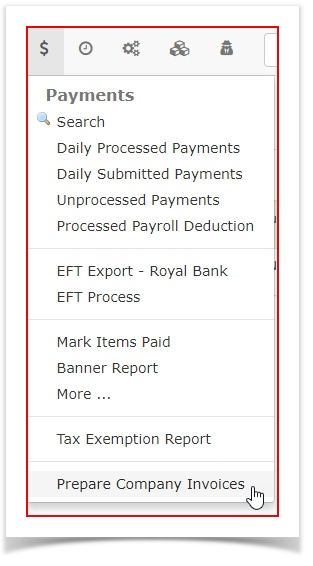
beHover
created.To access the invoicing tool, go intoover the Payments Menu andselectclick Prepare Company Invoices.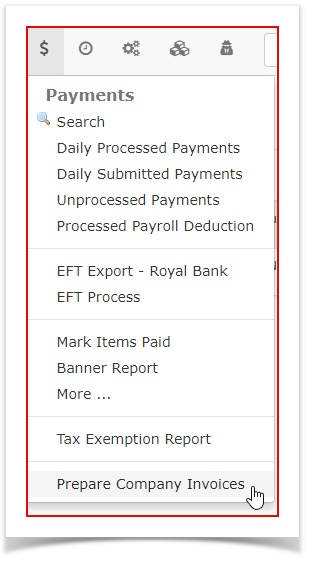
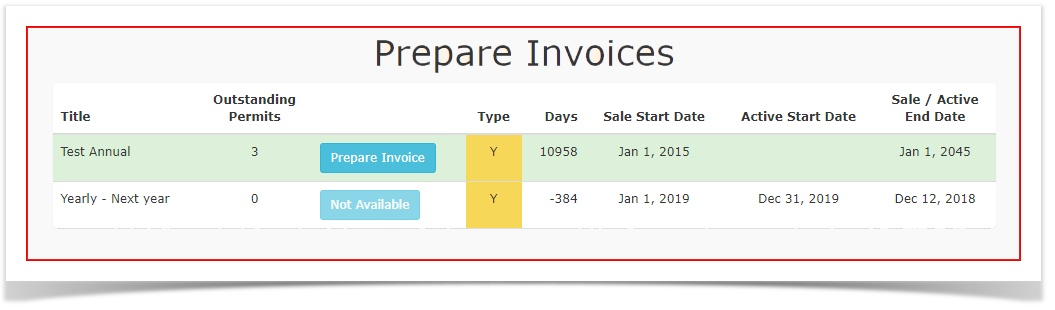
TheReview the list of users and companies in the Prepare Invoice window
will open showing the userswhohavearebeennowset upqueued forinvoicing through the rollover process.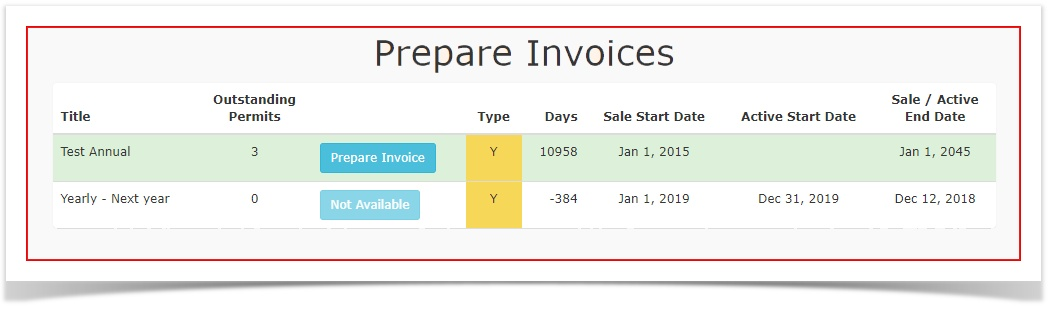
ByclickingClick
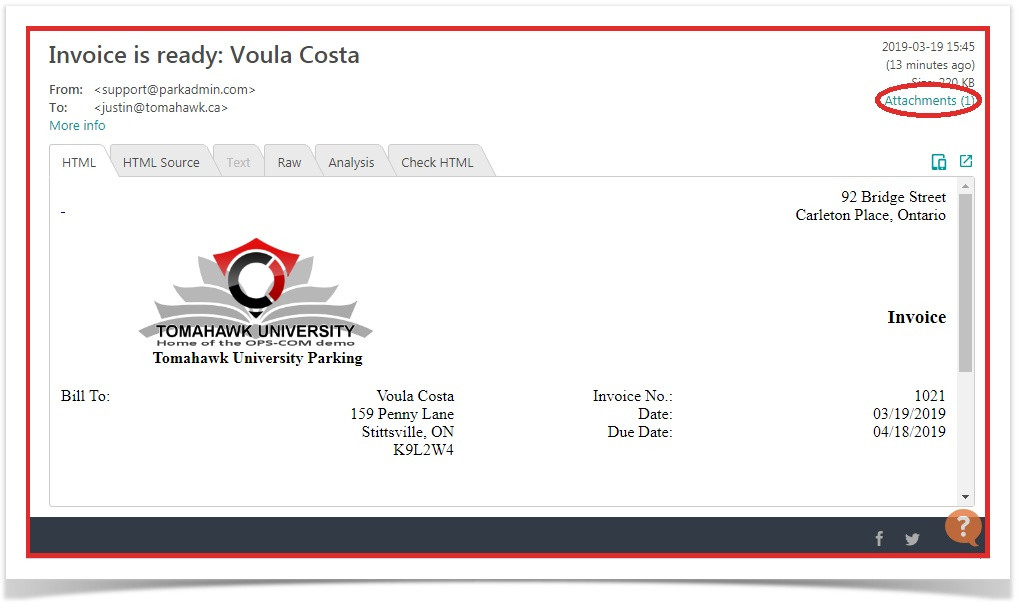
onthe Prepare Invoice,thebutton. The system will generate an email with the invoiceasincluded in the body ofmessage.
Re-Sending an Invoice
When do we use this?
It is also possible to change the email and re-send or just resend an invoice if the client requests a second copy sent.If for example the client mistakenly deleted the email, the admin has the ability to search up the original invoicemessage and send it again.to the designated contacts.
Re-Sending an Invoice
If a client mistakenly deletes their invoice email or requests a duplicate copy, administrators can easily resend the document using one of two methods.
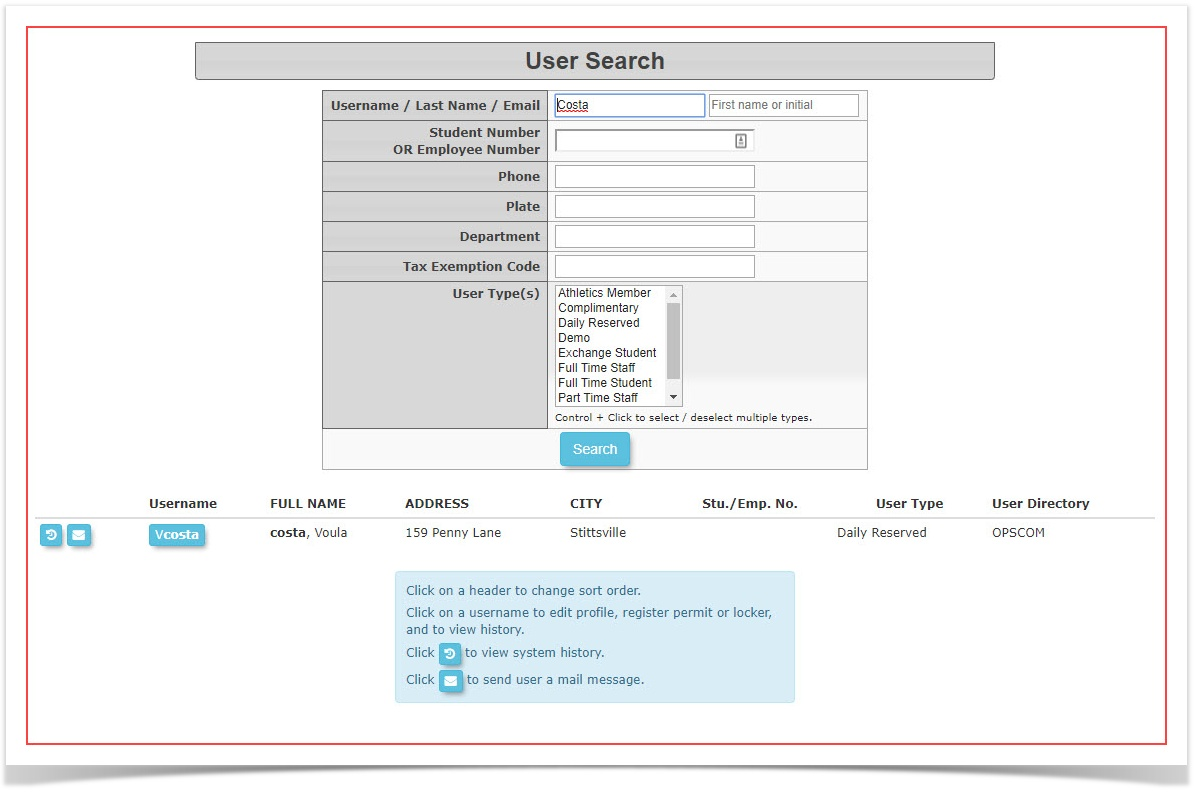
InMethod our1: sampleThrough hereUser we are looking for an invoice for Voula CostaHistory.
Todo so there are two different methods. You can find the invoice in theuser's profile under Historyor you can searchSearch for the
invoice through theSearch Invoiceutility.Firstly let's search thespecific userin question: In this case using the last nameCosta.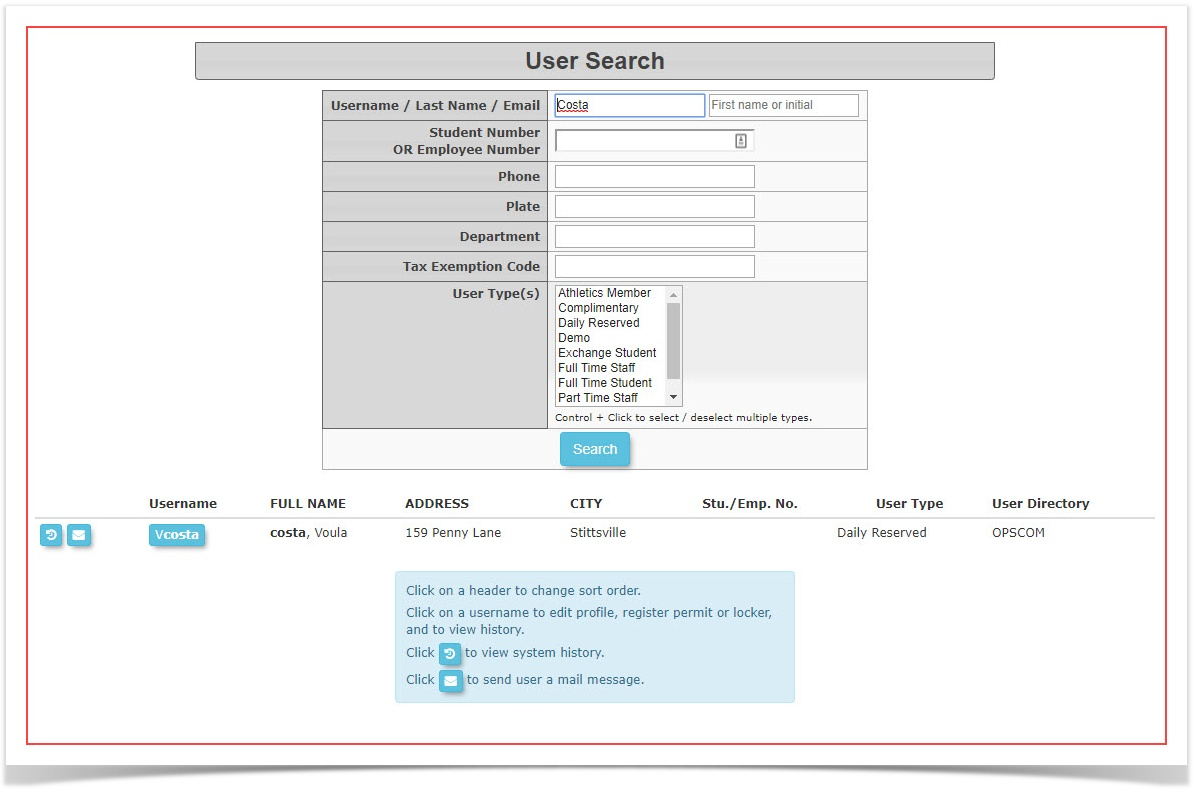
Click on theusernameto access the user's profile.
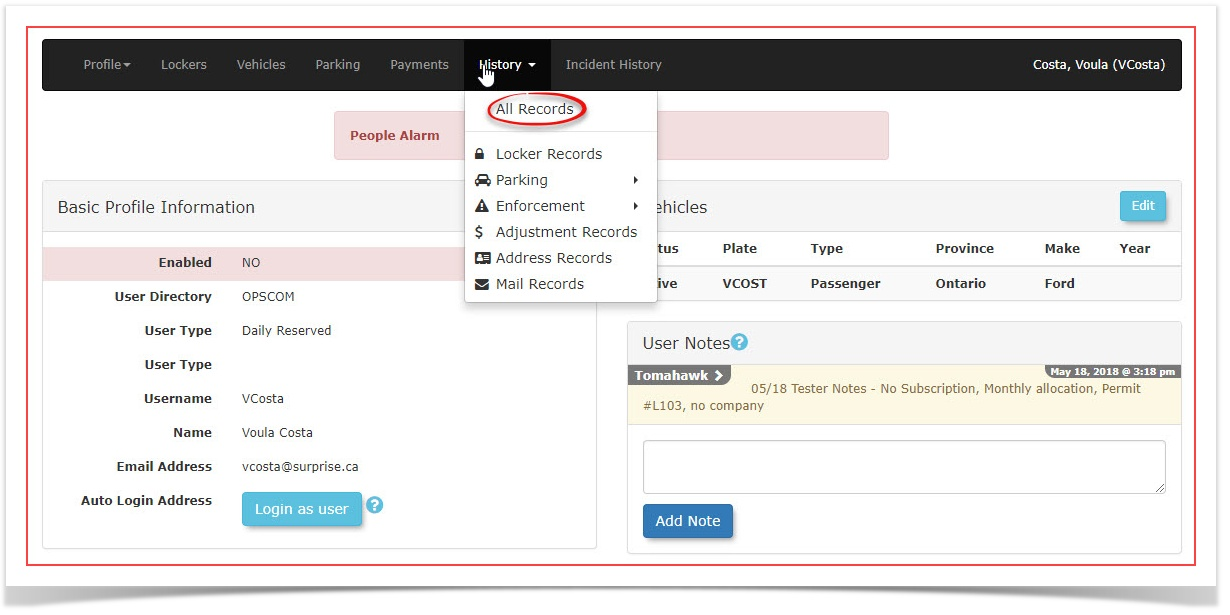
Once in the user's profile hover overHistoryand clickontheir username to open their profile.-
Hover over the History tab and click All Records to
accessviewthe list of this user'stheir transactions.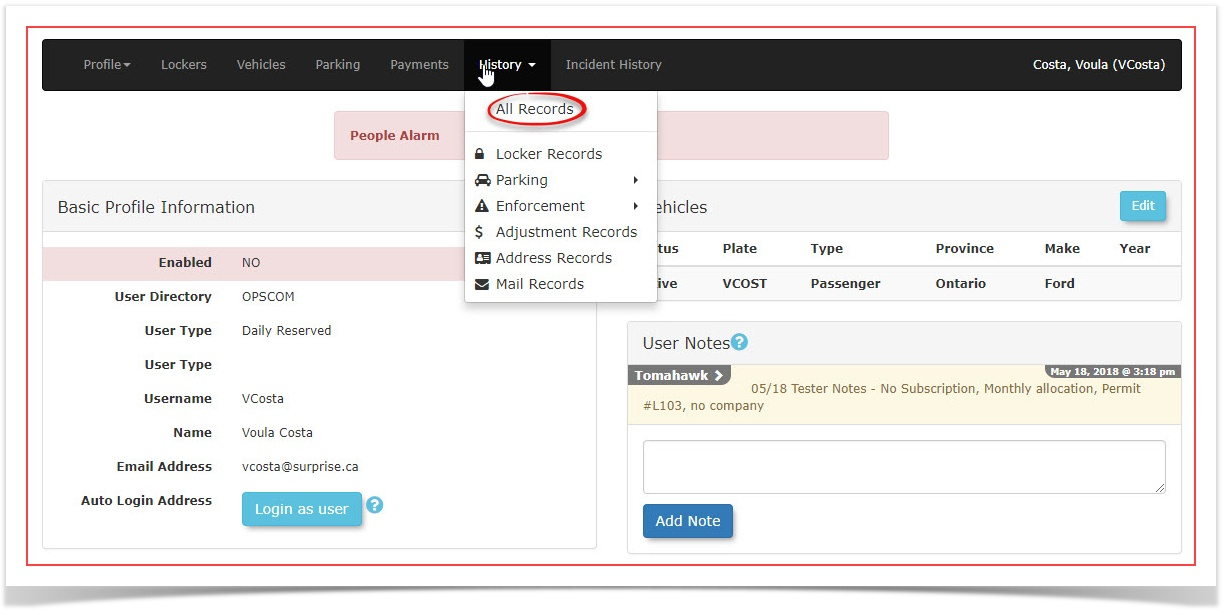
-
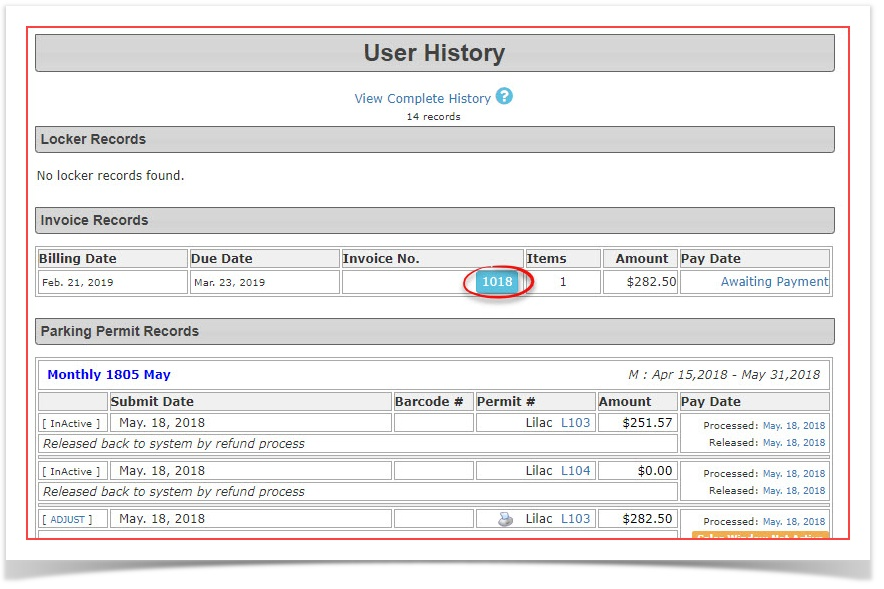
Locate and click
onthethespecific invoice numberthat you wishtoresend.
open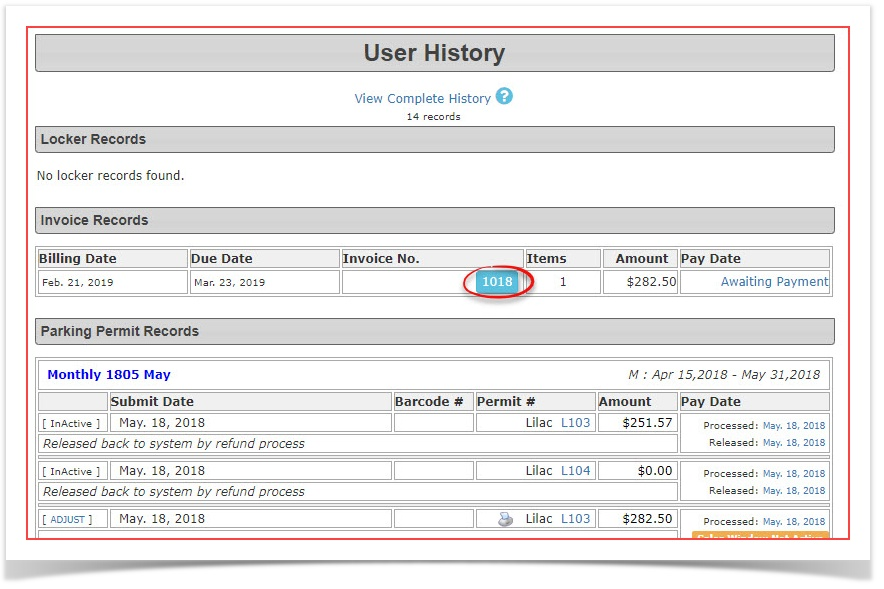
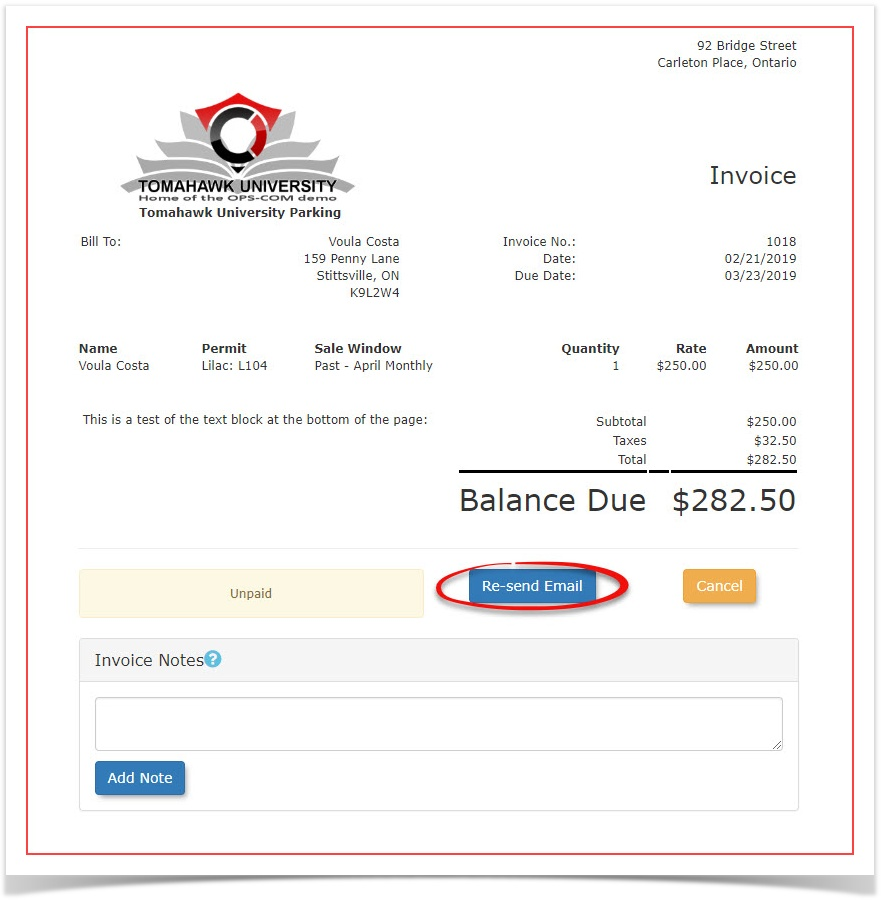
Oncein the invoice preview you will noticeClick the Re-Send Email button.
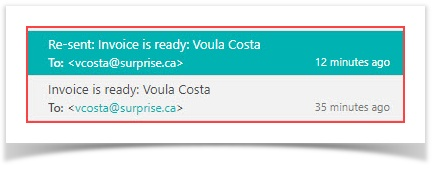
ClickTheonsystemthiswillbuttondispatchtoare-sendnew email featuring a "Re-sent" prefix in theinvoice.
subject line.

2:
-
doHover
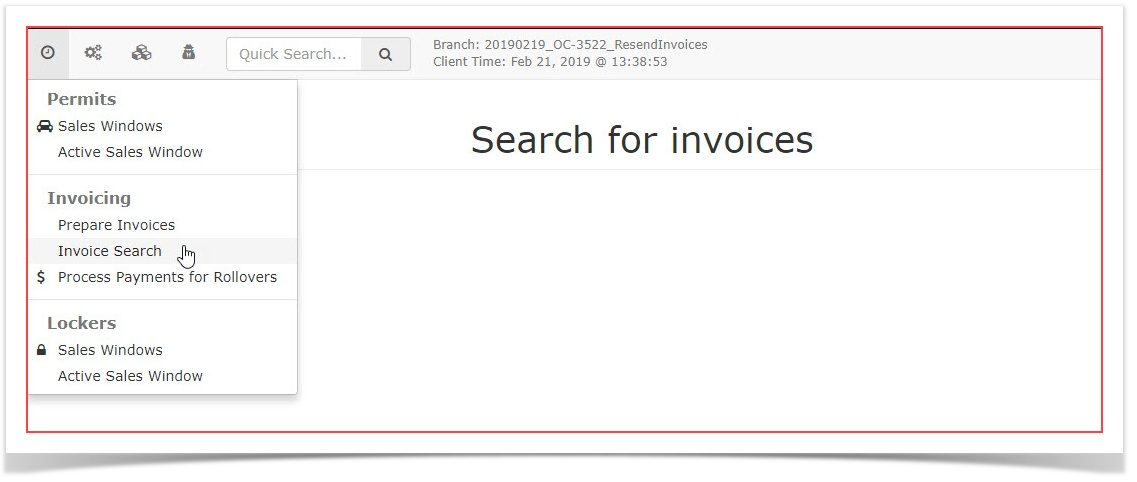
so access thetool underover the Permitsmenu.Hover overPermitsmenu and clickonInvoice Search.in -
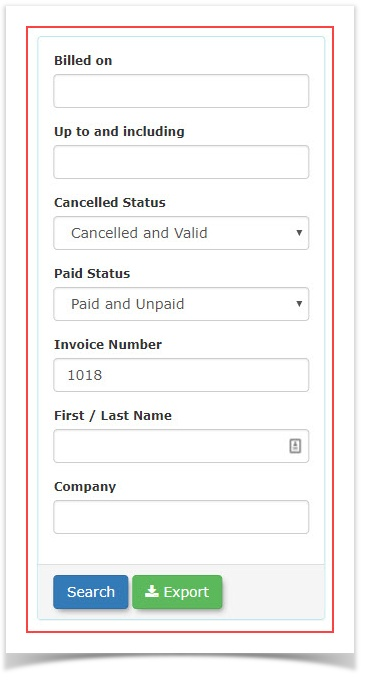
Enter the
droptargetdowninvoicemenu.
number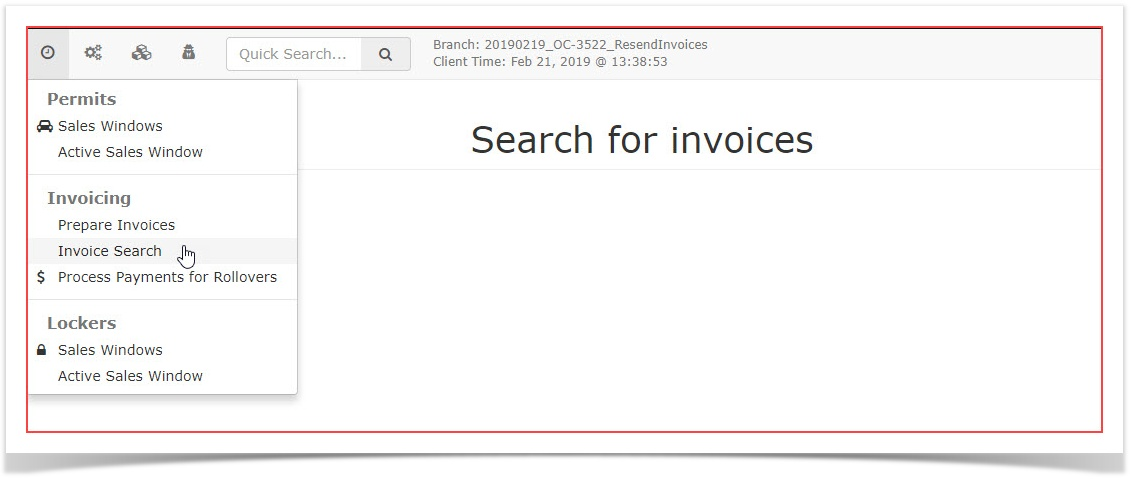
Inin the search criteriawindowandenterclick the search button.-
Click the
question and click search. In this caseInvoice Number 1018.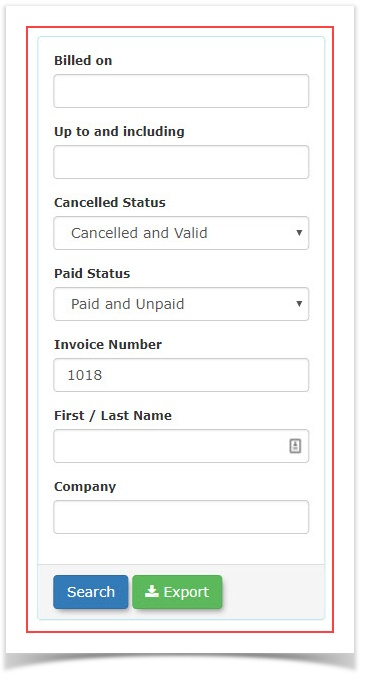
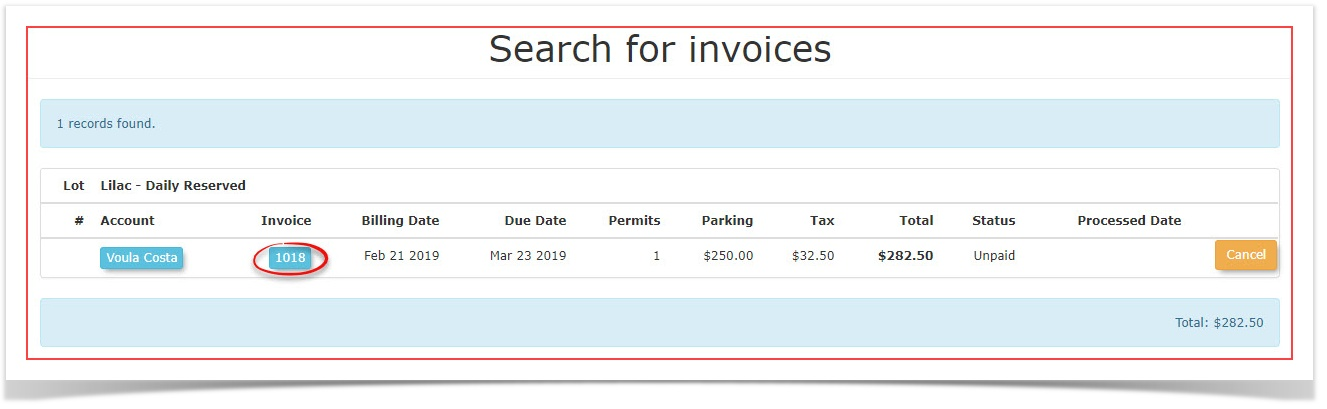
Fromtheresultingresultssearch result click on theInvoice Numberlist to access theInvoiceinvoicePreviewpreviewWindow.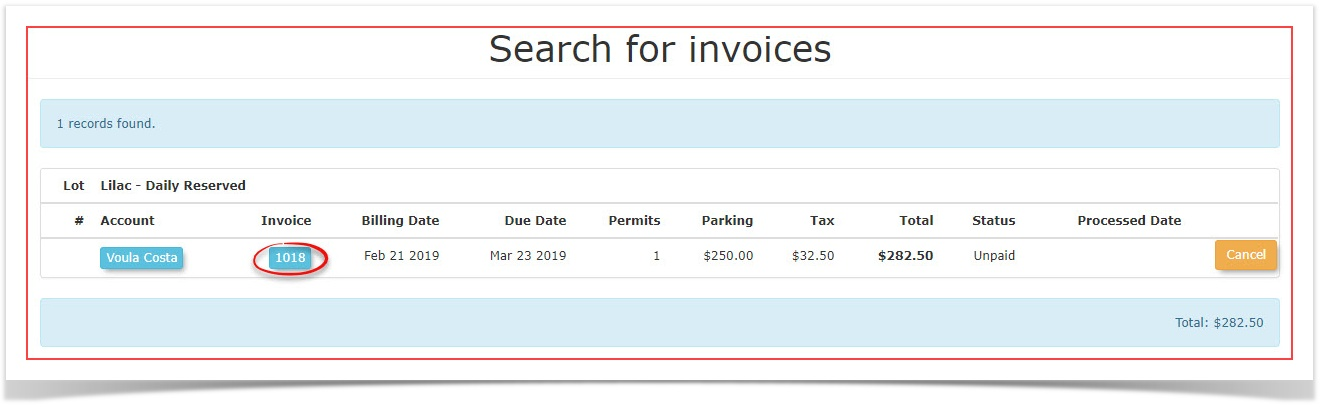
TheprocessClick
afterthe Re-Send Email button.
Best Practices and Considerations
-
Verify Payment Toggles: Always double-check that automated payment methods are explicitly deselected during the rollover wizard when preparing advance invoices. Leaving this
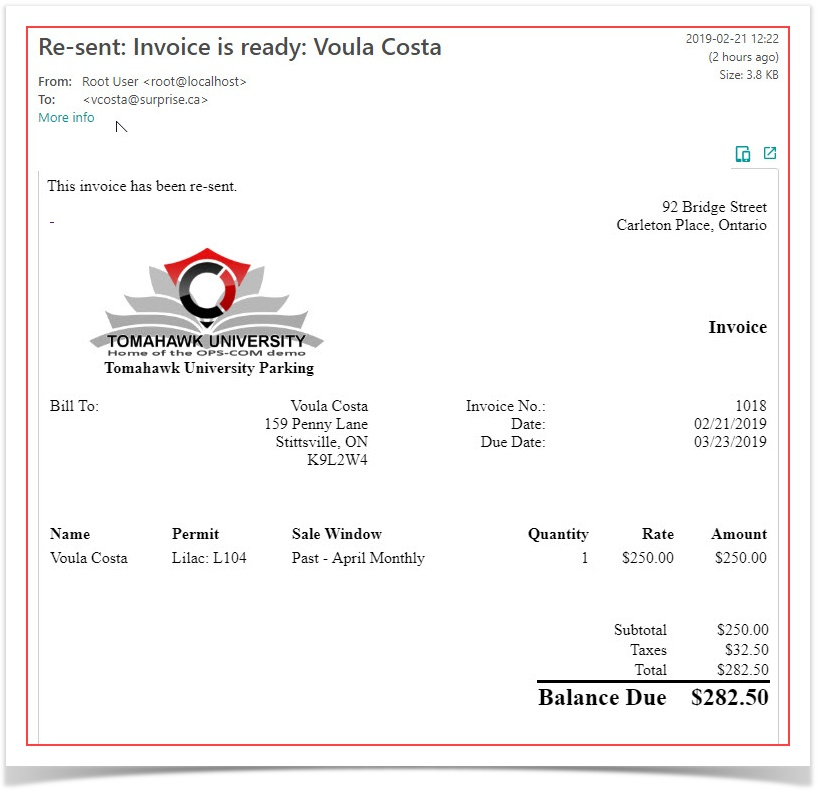
pointselectediswillidenticalresulttoinstepunintended6automaticandcharges.7above. The Re-Sent Invoice will look identical the original invoice format:
Printing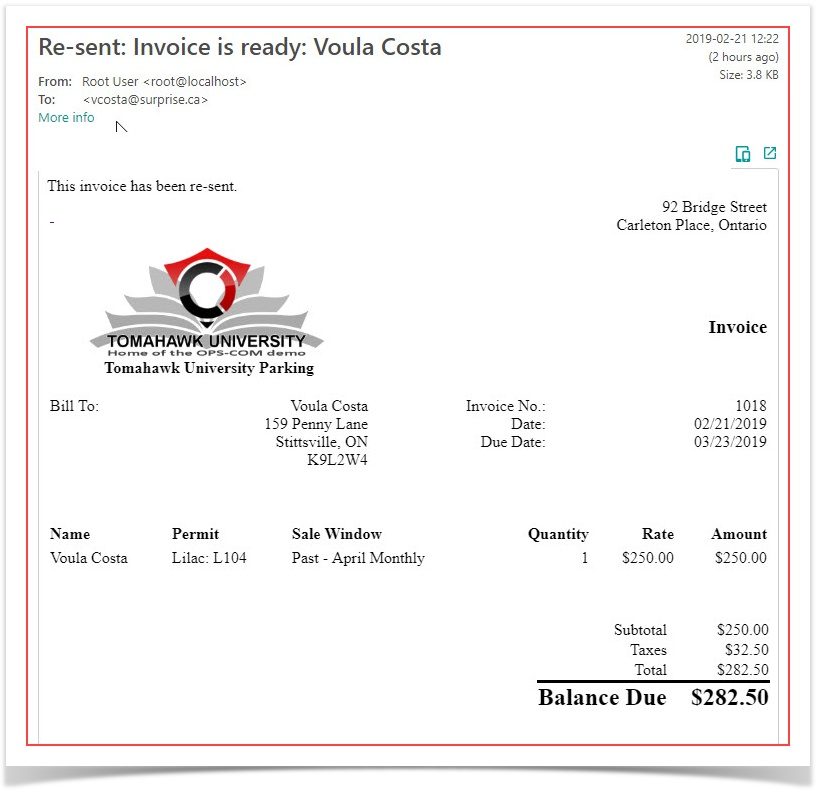 PDF
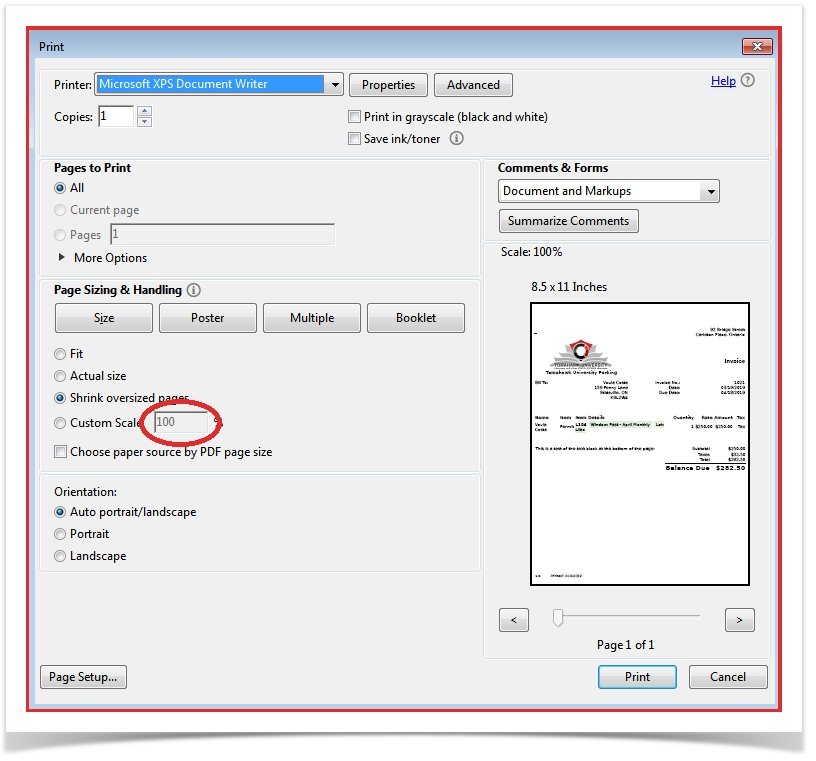
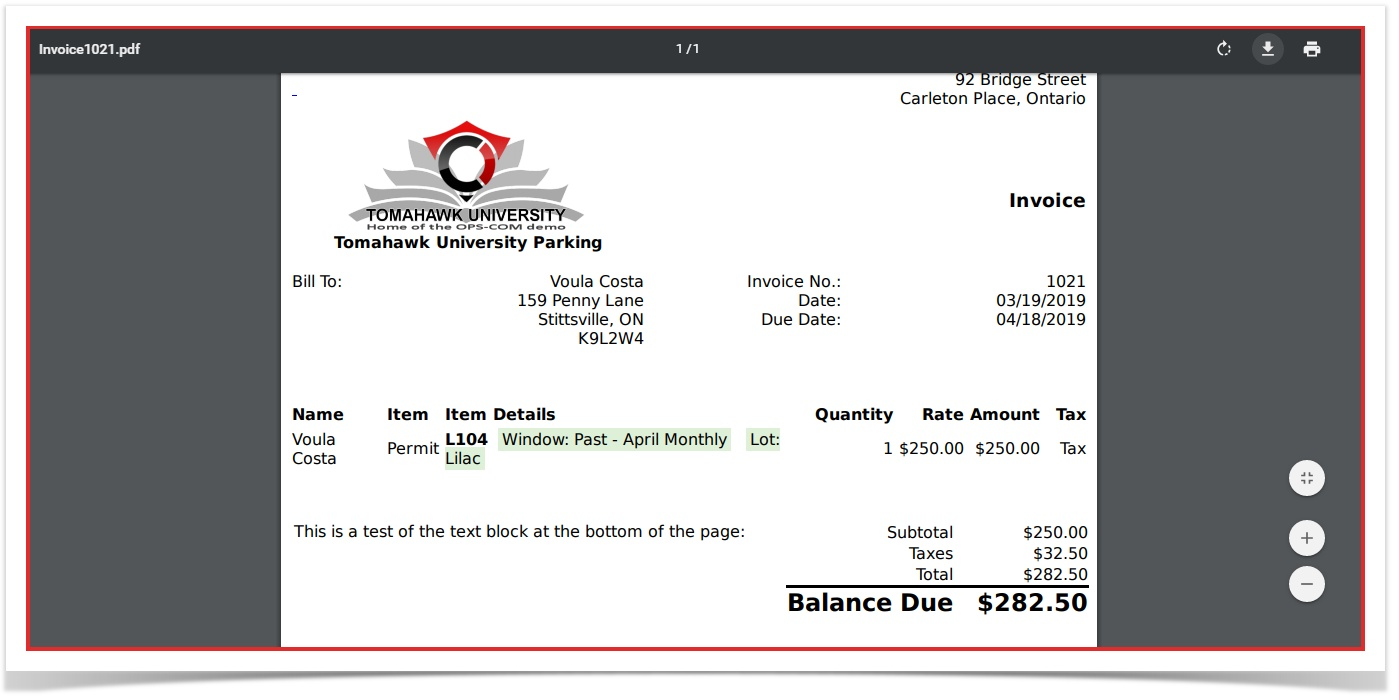
PDF ItAttachments:isIfimportantusersto note that in orderwish to printthisthe PDFdocumentversionyouofshouldtheirfollowinvoicethese next stepsYou must first navigateattached to theaforementionedemail,emailinstructwhere you will find an attachments link circled below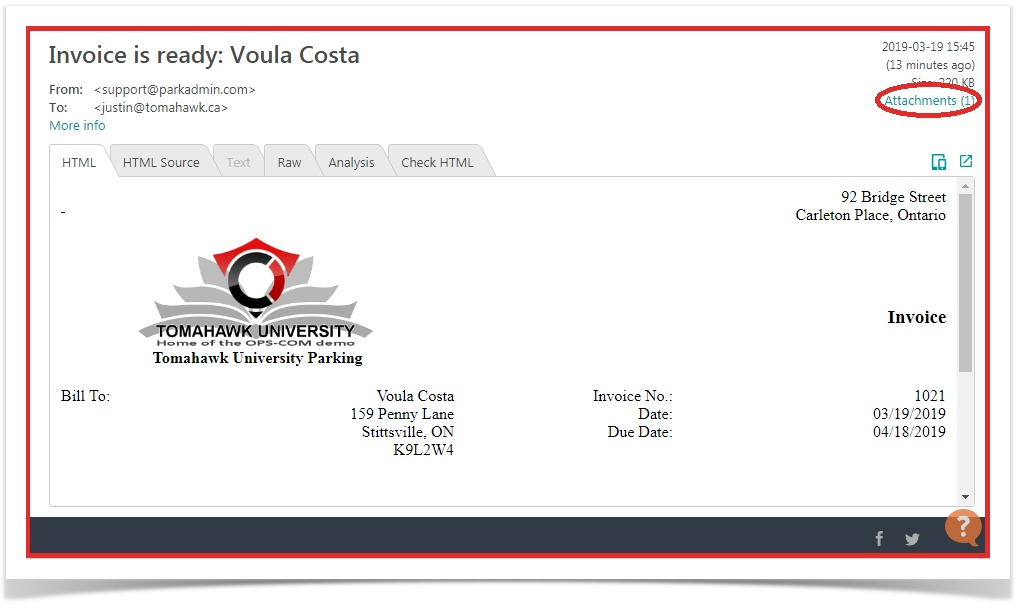
After opening the attached PDF file you will be broughtthem tothe file opened in the web browser.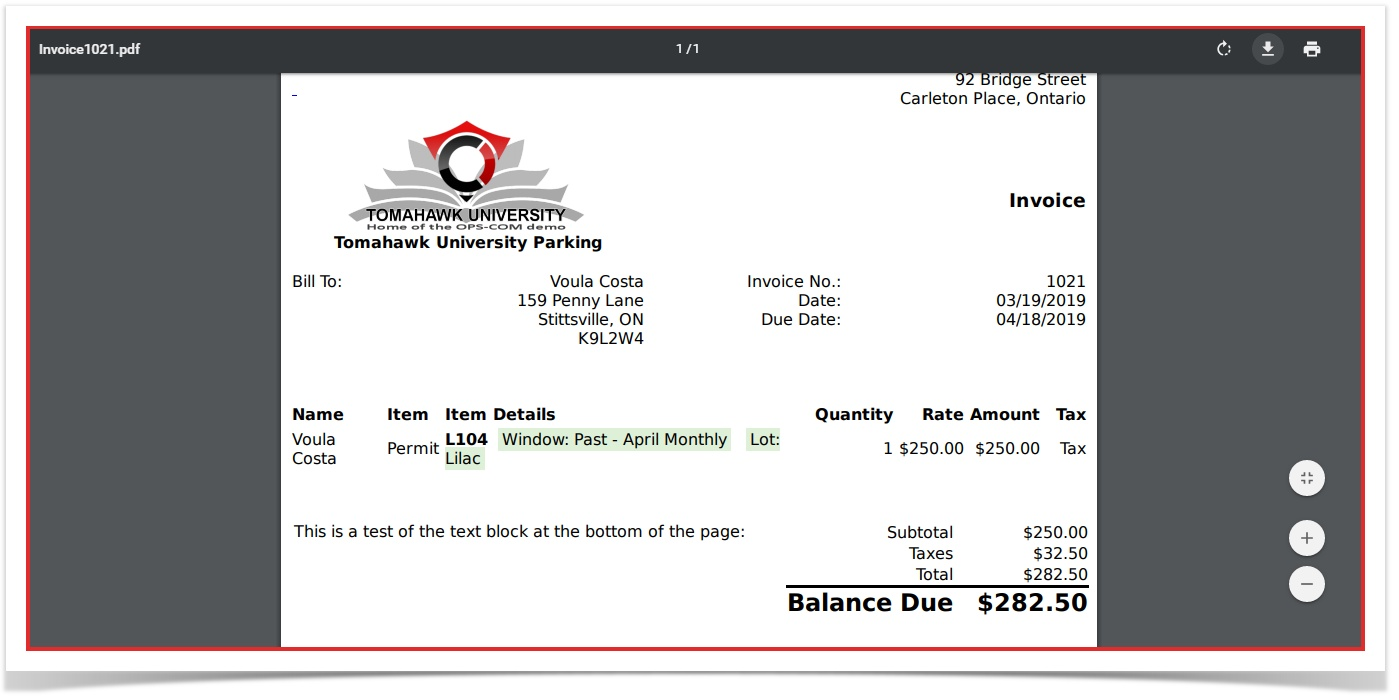
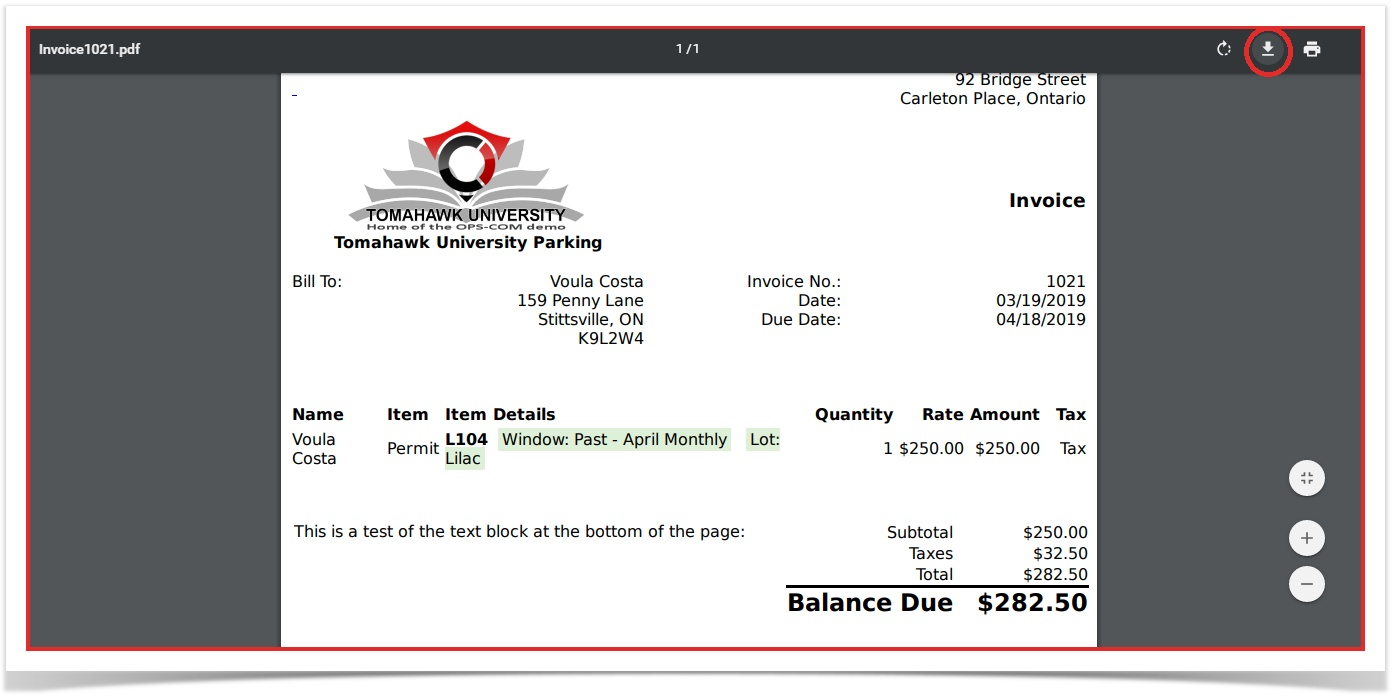
If you print form here you will receive a cut off version of this PDF. In order to prevent this you shoulddownload the filebytopressingtheirthiscomputerbutton:
first
rather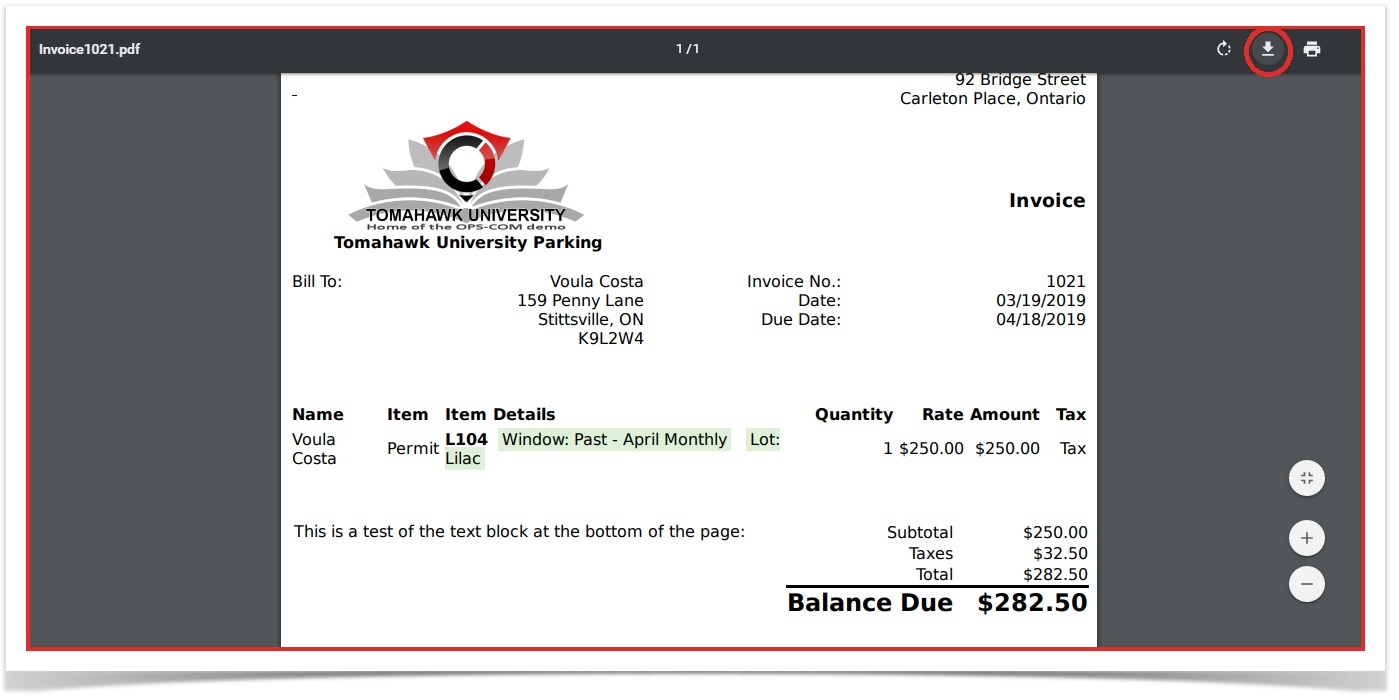 than
than - printing
Savedirectlyitfrom the web browser's previewer. Browser previews frequently cause the document margins toyourbepreferredcutlocationoffandduring printing.
Advise users to open itthe withdownloaded thePDF in a dedicated PDF reader ofand yourensure choosing
their
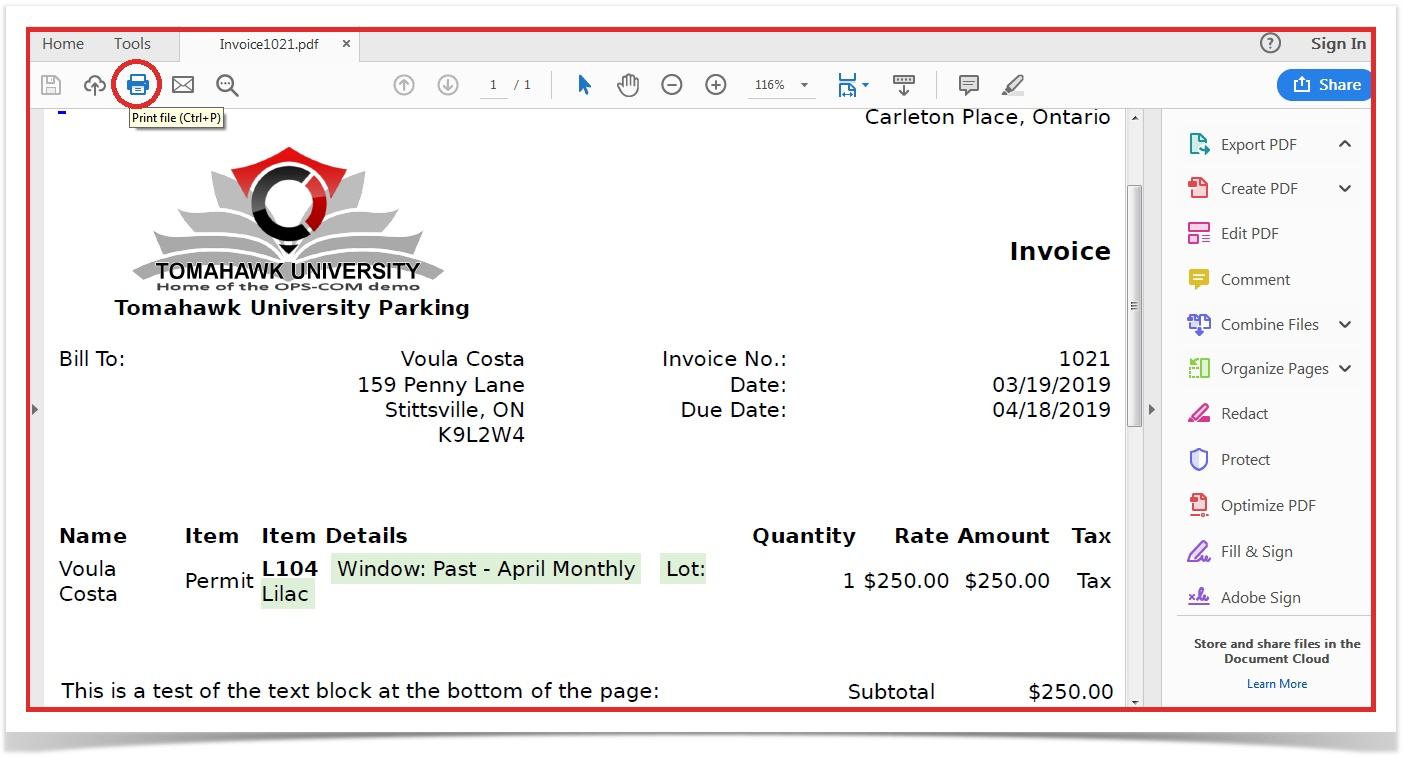
settings
.