The Validator - a Parking Validation Utility
YouThe Validator tool allows administrators to quickly issue temporary parking validations for specific lot zones based on vehicle license plates. Its primary purpose is to help manage guest or temporary parking permissions efficiently, ensuring compliant access for authorized visitors without requiring a full permit purchase. This article is intended for OPS-COM administrators and designated parking validators.
Setup and Configuration
Before staff can use the validation utility, administrators must createconfigure the appropriate roles, assign users, and ensure lots are properly zoned.
Configuring Roles and Users
-
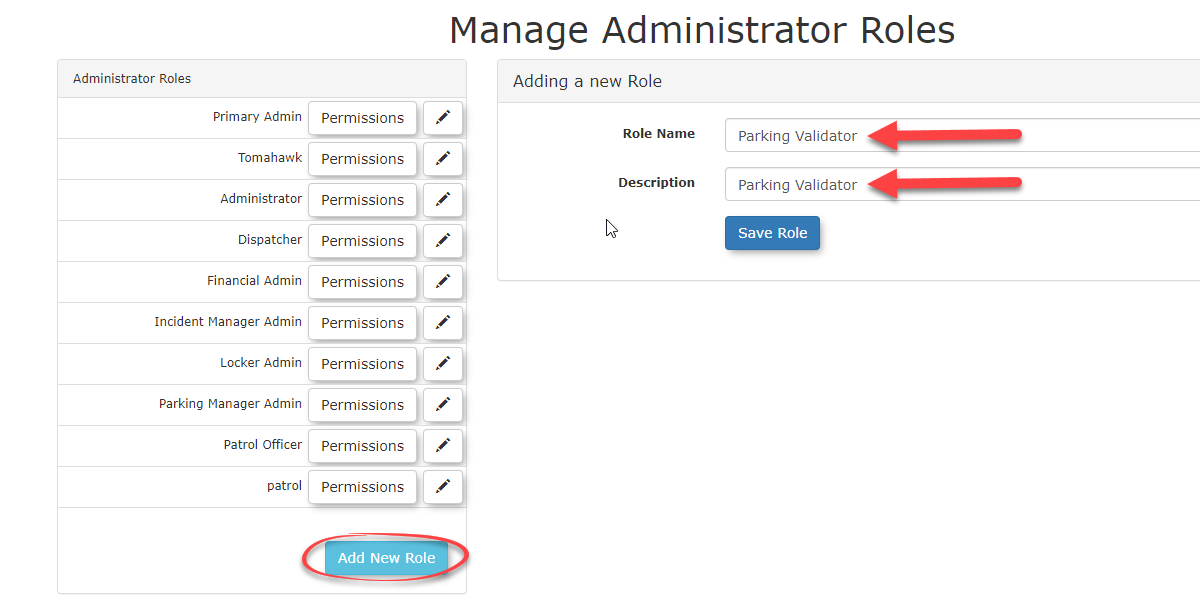
Create a new role
tospecificallyapplyforthevalidationpermissionsstaffcorrectly.(e.g., "Parking Validator"). Formoredetailedinformationinstructions, refer tothisthearticleManagingonmanaging rolesRoles andpermissionsPermissions.page.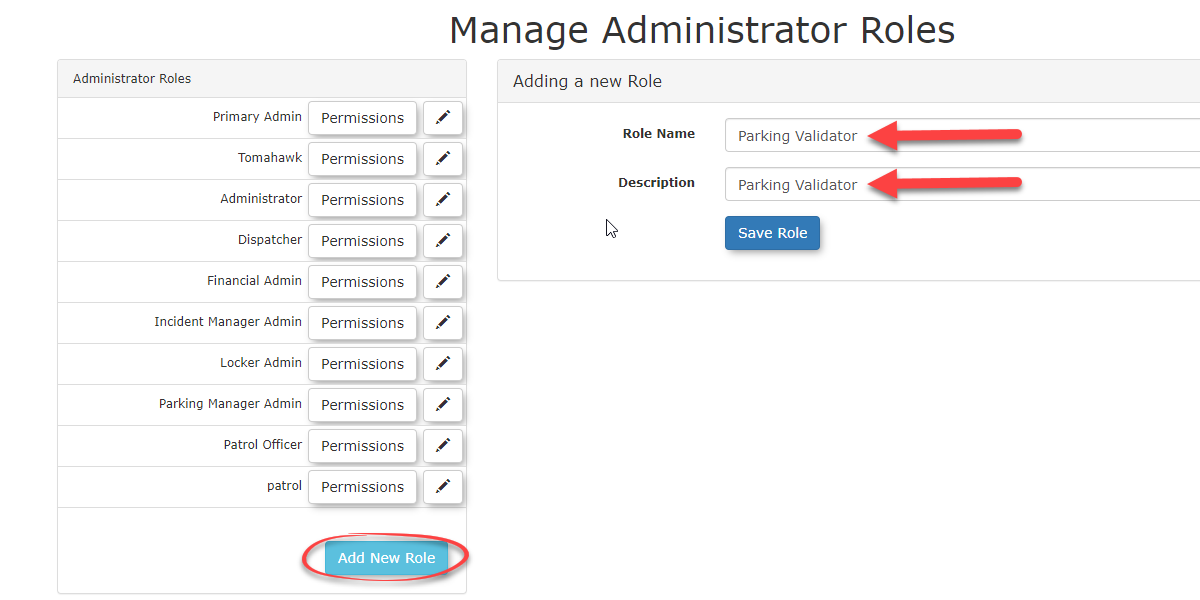
-
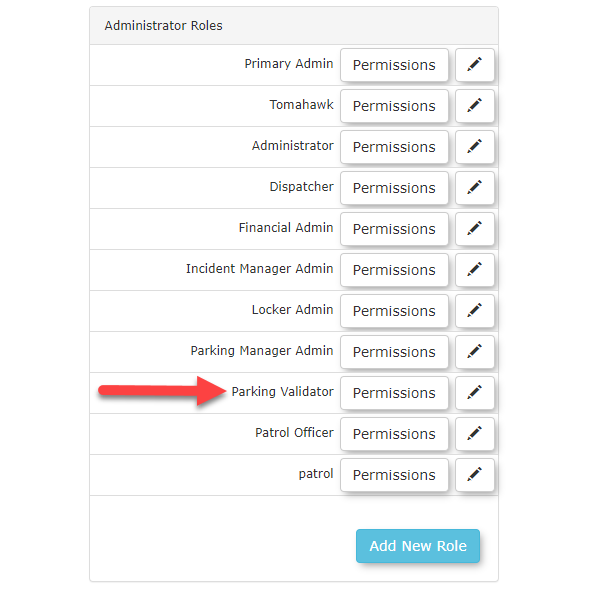
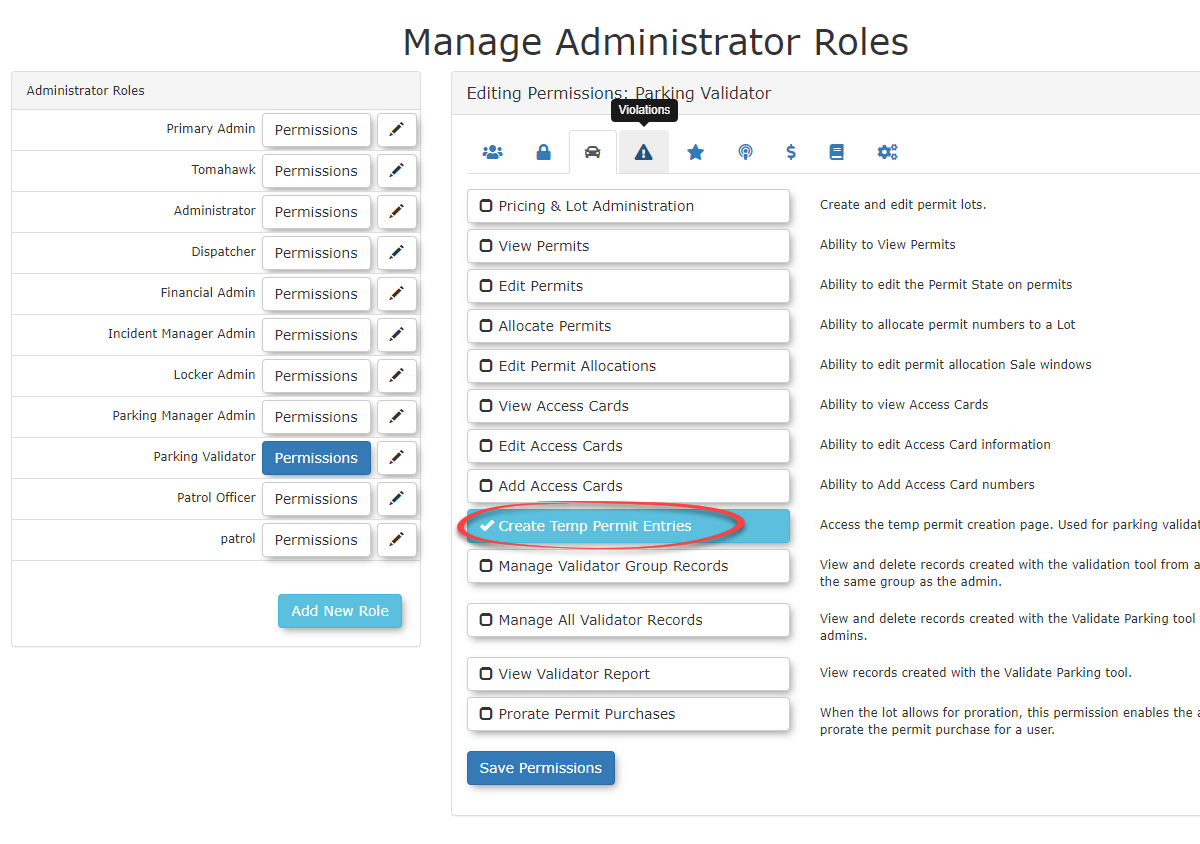
In our example, we created a role entitledParking Validator. The new role will appear inAdd thelist of roles.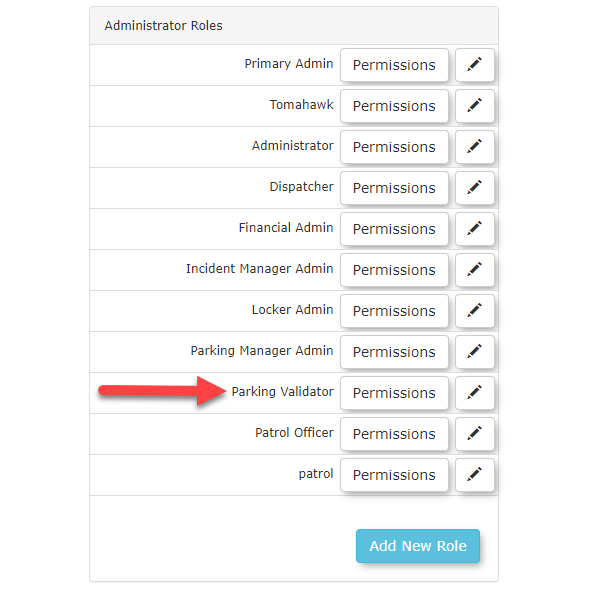
You must add the "Create Temp Permit Entries"permission tothethisrolenewyou just created.role.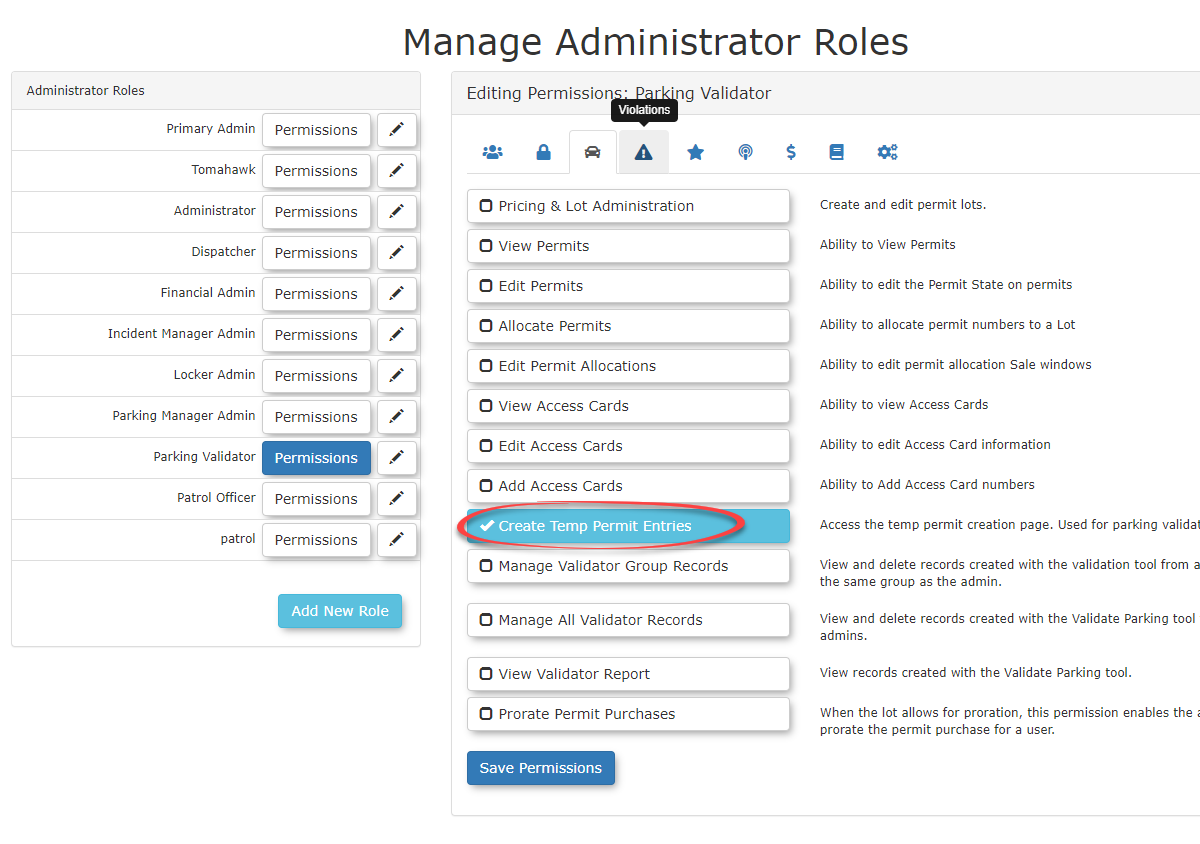
-
Create or edit an
Adminadministrative user profile for the staff member who will manage validations. -
Assign the
parkingnewlyvalidation.created validation role to the user.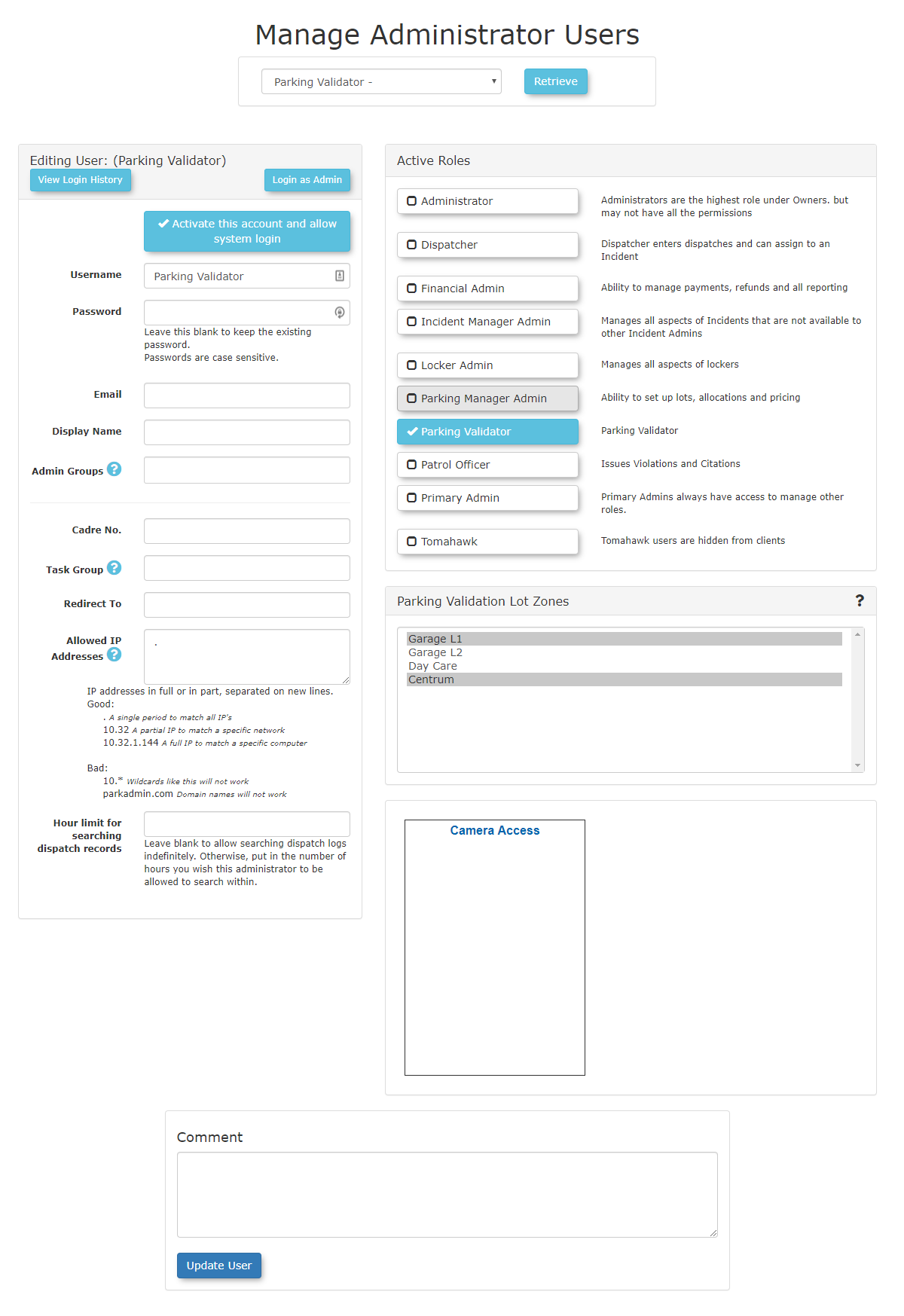
-
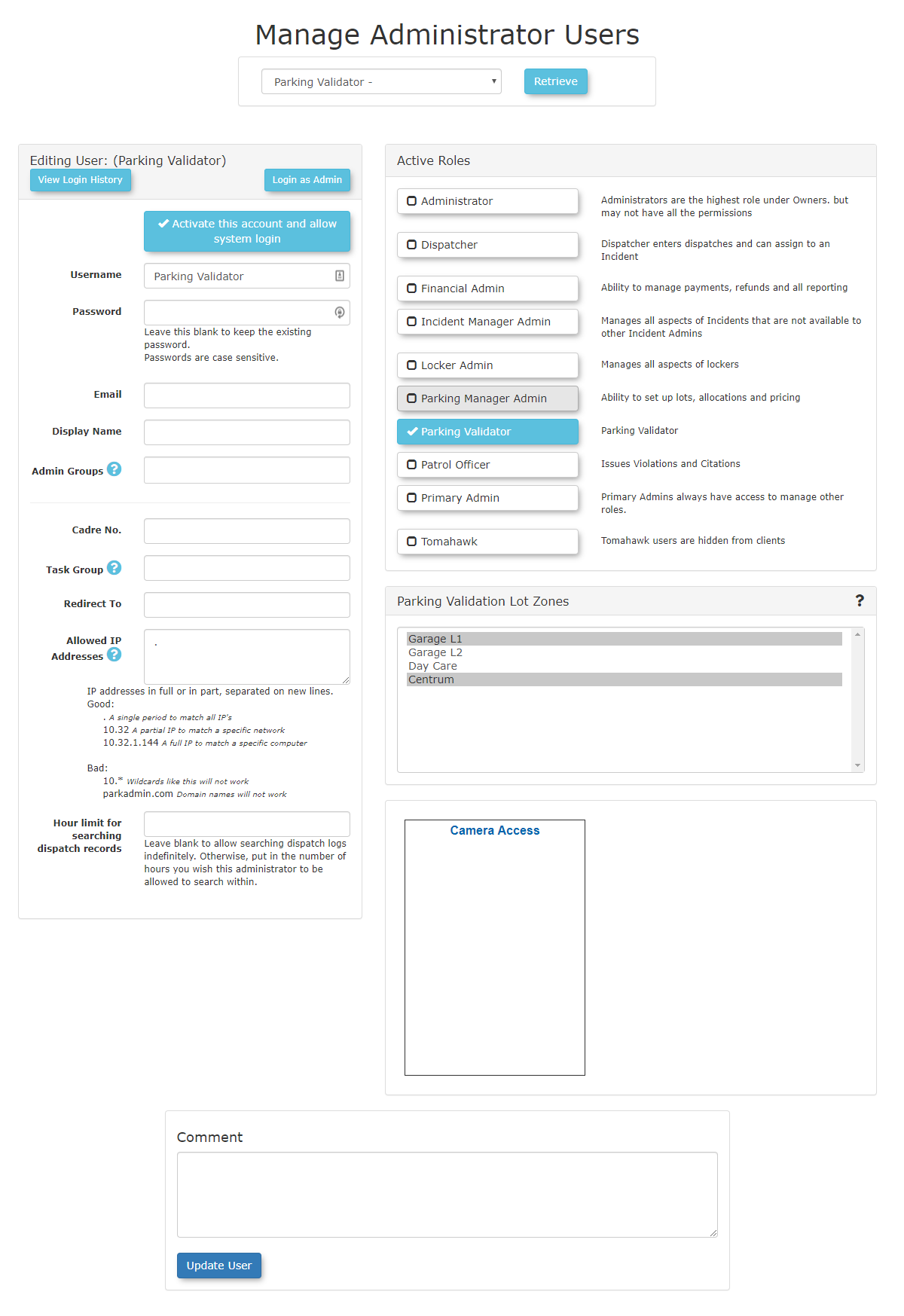
Select the specific lot
zone(s)zones thisAdminuserwillis authorized to manage and save theuser.profile.These
Configuring Lot Zones
-
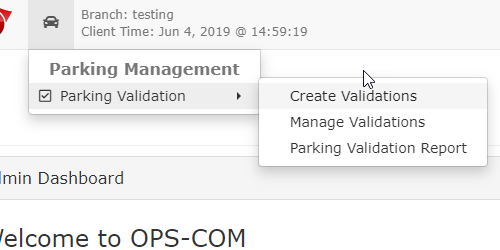
Hover over Parking Management and click Lot Administration then Pricing & Lot Admin.
-
Click the
lotsspecificthatlotyou intendname touseopenwithits settings. -
Click the
Parking Validatorutility.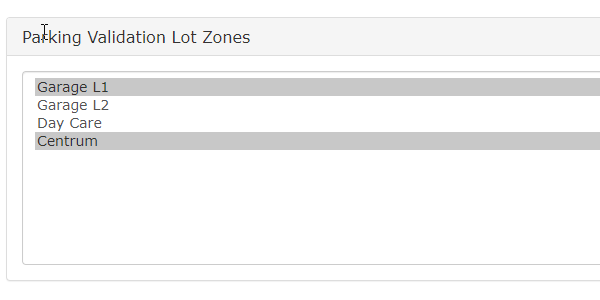
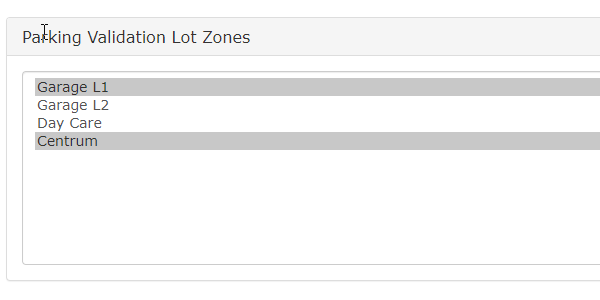
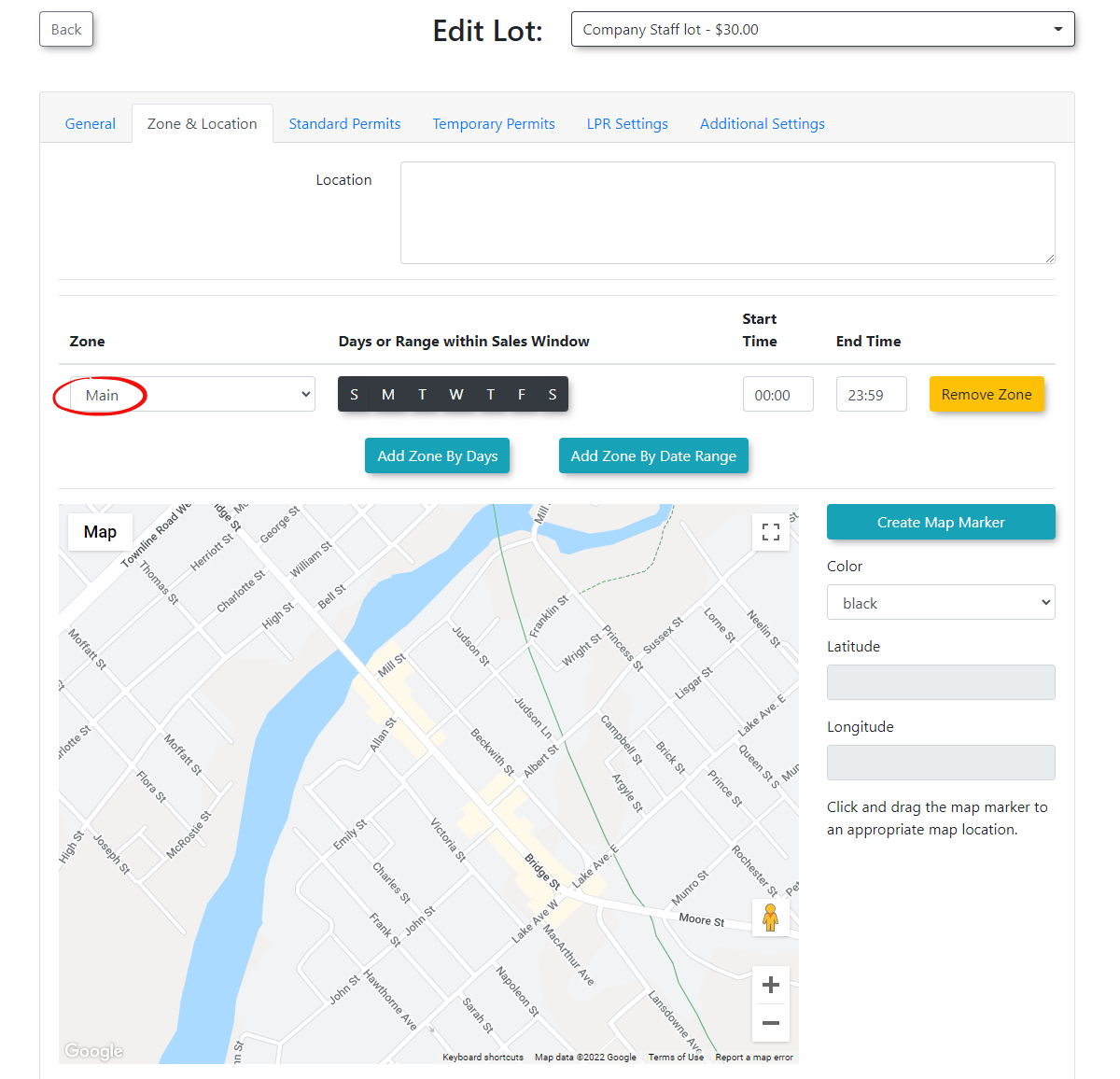
Note:These zones have to be set in the lots you wish to validate. In Lot Administration go to theZone & Location tabtoand select the zone associated with thelot.
lot to link it to the validator utility.
AccessingUsing this Feature
The validation tool can be accessed via the Validatordesktop Toolportal, and the resulting permissions are verifiable in real-time by enforcement officers using the Android handheld application.
Creating a Validation Record (Desktop)
-
Log in
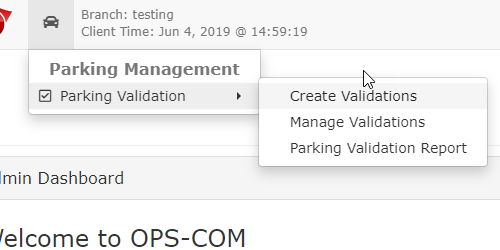
astothistheuser.OPS-COMOnlyadminoneportal.menuUsersitemwithentitledrestricted,'validation-only access will only see the Create Validations'willmenube available.
item.Note: -
Click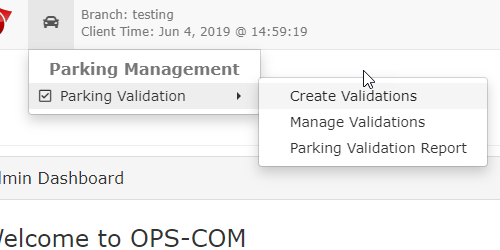
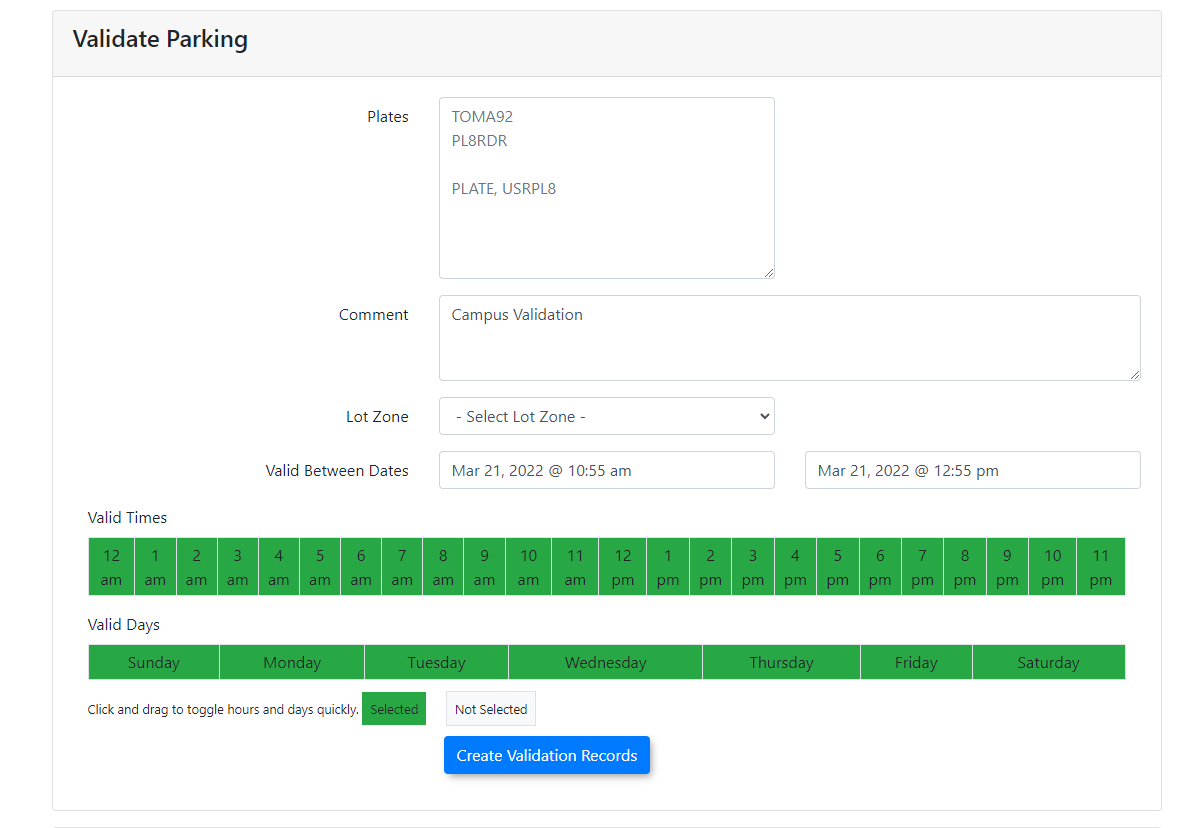
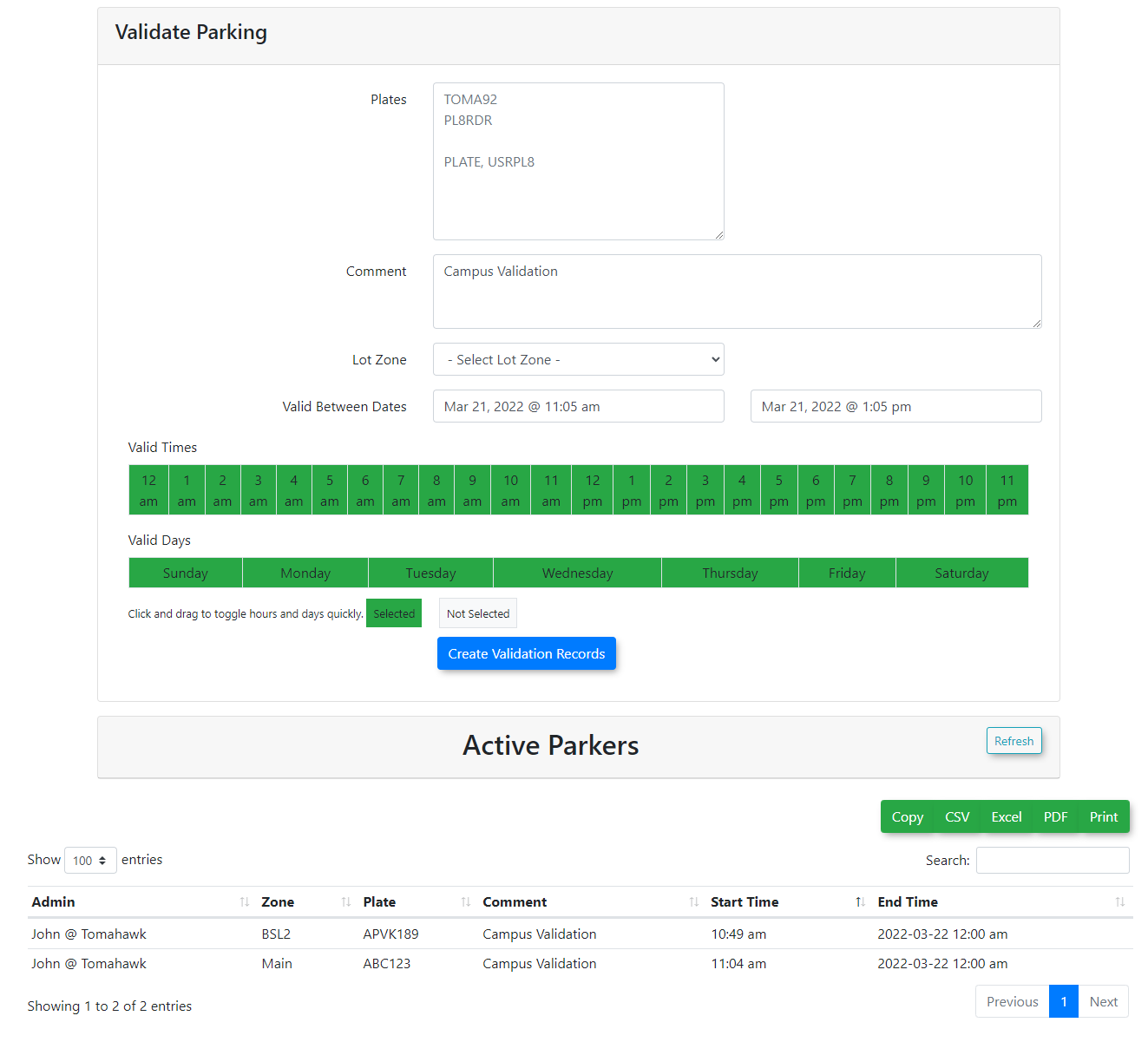
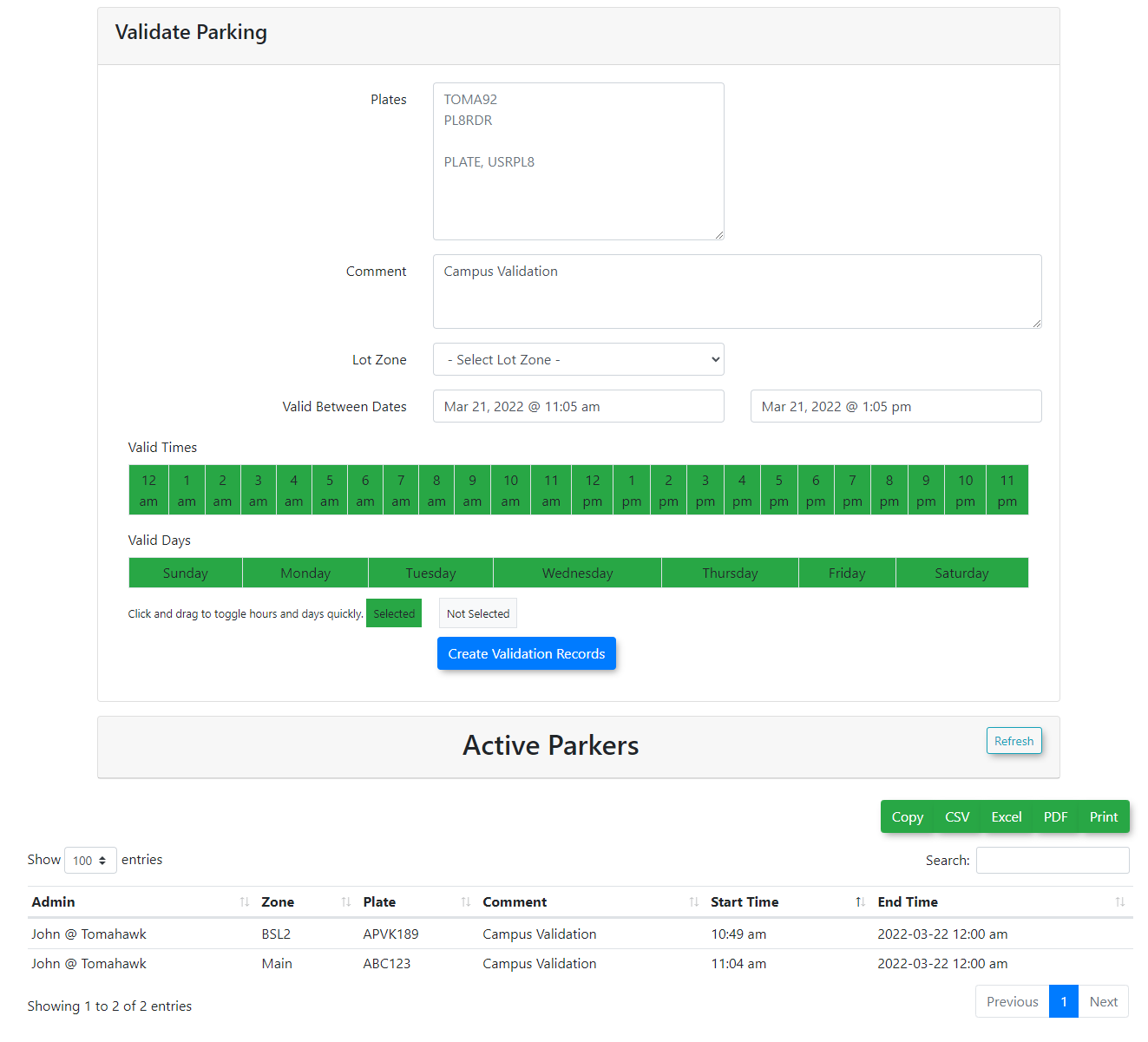
The Validate Parking screen will appear as below, click 'Create Validation Records'.to open the utility.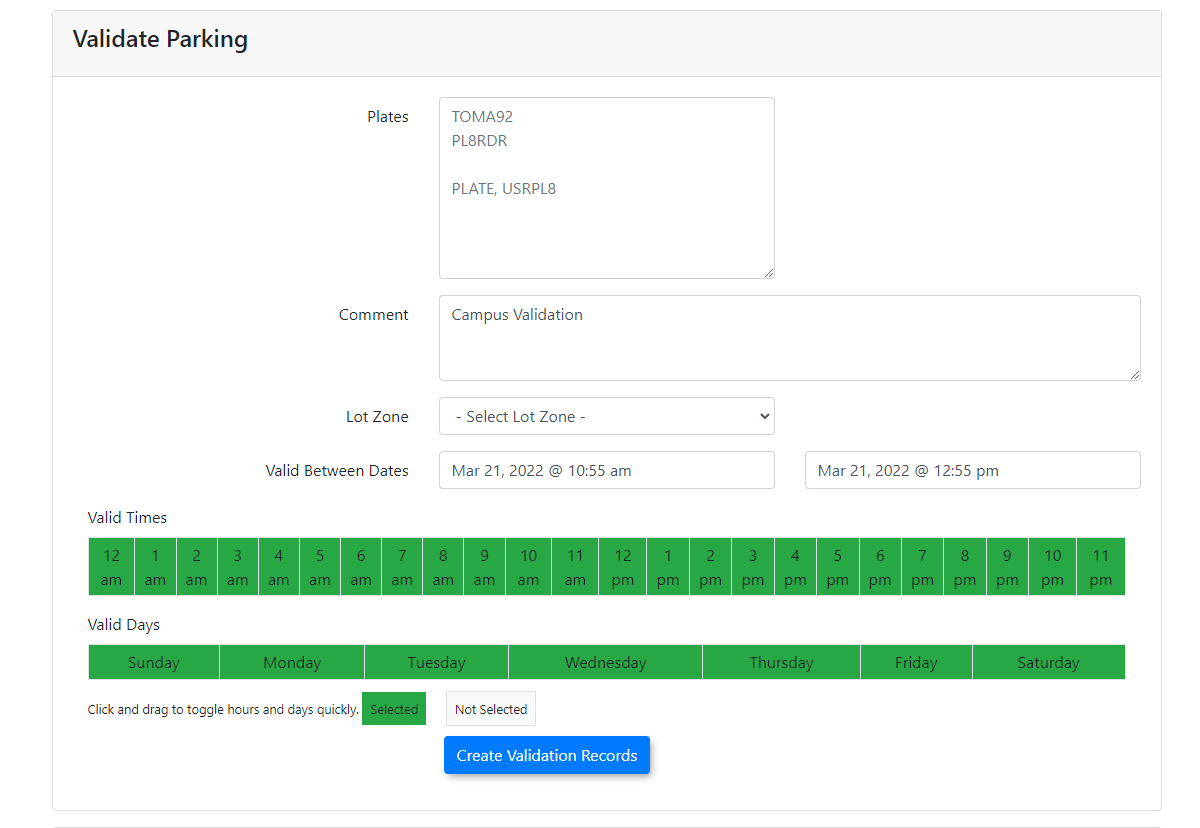
-
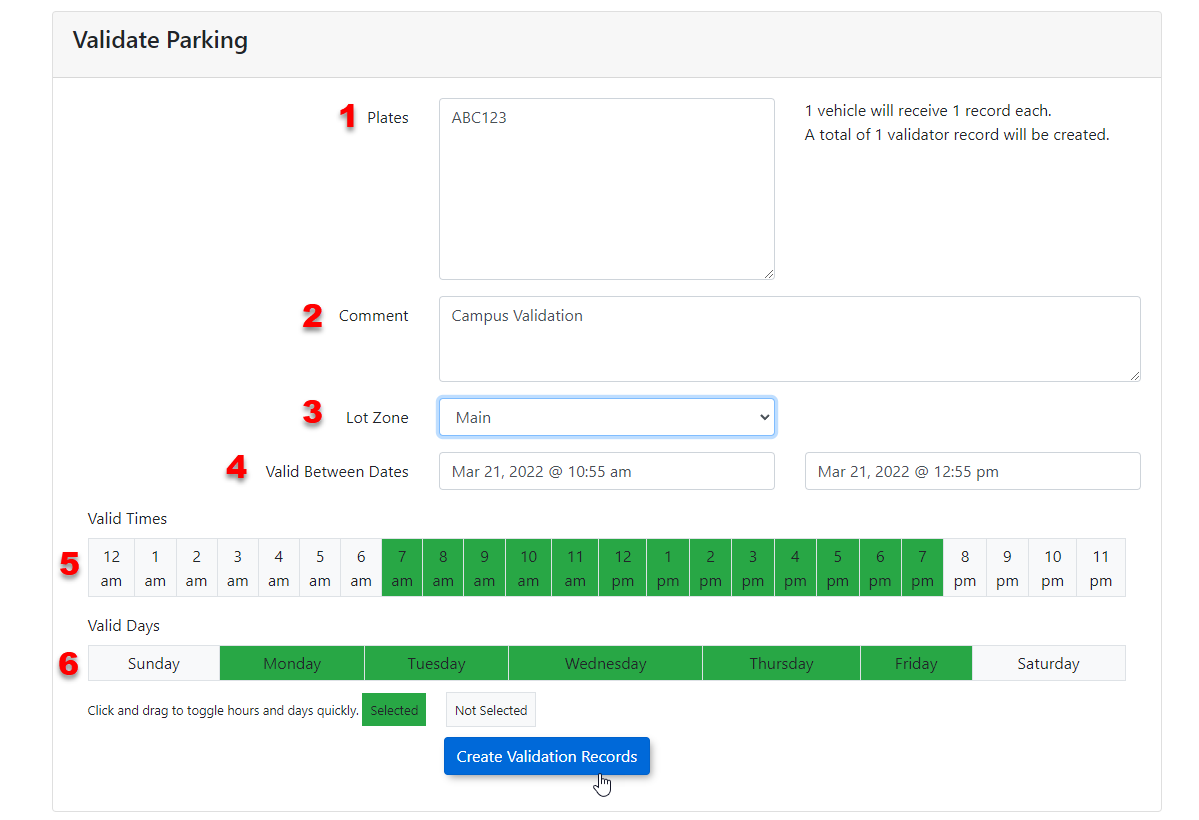
FromEnterthisthepagerequiredyou can:Enterlicense platenumber(s)numbers into the provided field.-
Enter a comment for record-keeping purposes.
SelectClick the lot zone
indrop-downwhichmenuyouandwantchoosetothevalidatearea where the vehicle is permitted to park.-
Select the valid date range for the permission to be in effect.
-
Set the valid time frame by selecting the appropriate hourly blocks (e.g., selecting blocks from 7 AM to 7 PM).
-
Select the specific days of the week you wish the validation to be in effect.
SetClick the
ValidValidateTime Frame (These blocks represent a full hour. In our example below we are setting the Valid times between 7am and 7pm).Select the Valid Days you wish to have the validation in effect.Click Validatebutton to apply thevalidation.permission.
InKey
thisInformationexampleDisplayedwe&areAdvancedvalidatingFeaturesthe-
Validation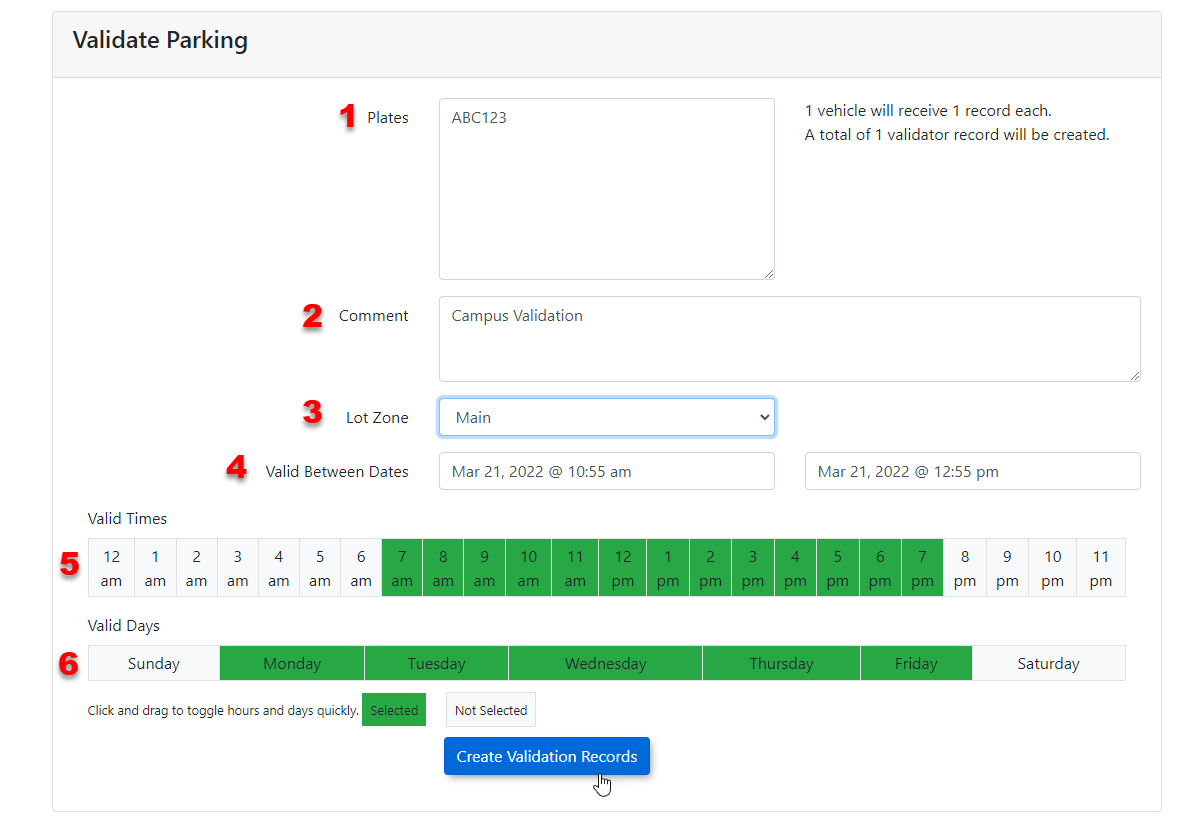
A list of all successfully validated vehiclesTheList:appearswill appear directly below the submitform.form for quick reference. -
Advanced
Access:FeaturesWithAdministrators with full system accesstowillthe tool within OPSCOM there are severalsee additional featuresto take into account. Not only do you havebeyond thevalidatorbasic creation tool,you also haveincluding the ability to run validation reports andManagemanagevalidations.
existing validation records.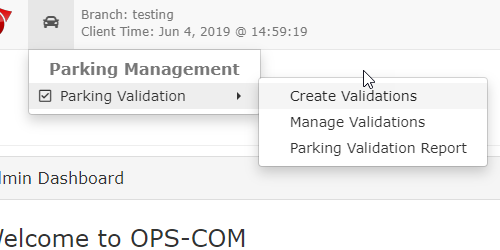
plate ABC123 on March 21st, between 7am and 7pm, if the day happens to fall on a weekday. If the Valid Between Dates was set from March 21st, to March 26th, it would be valid from Monday to Friday, during that week, 7am to 7pm.HowViewing
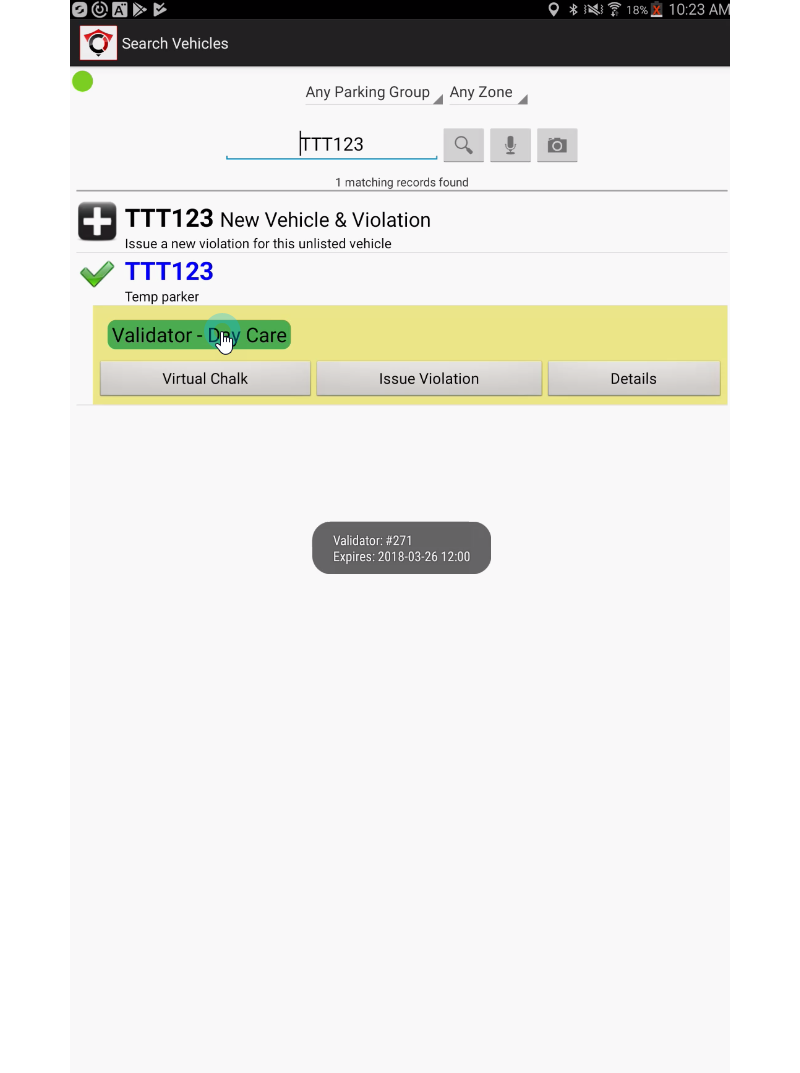
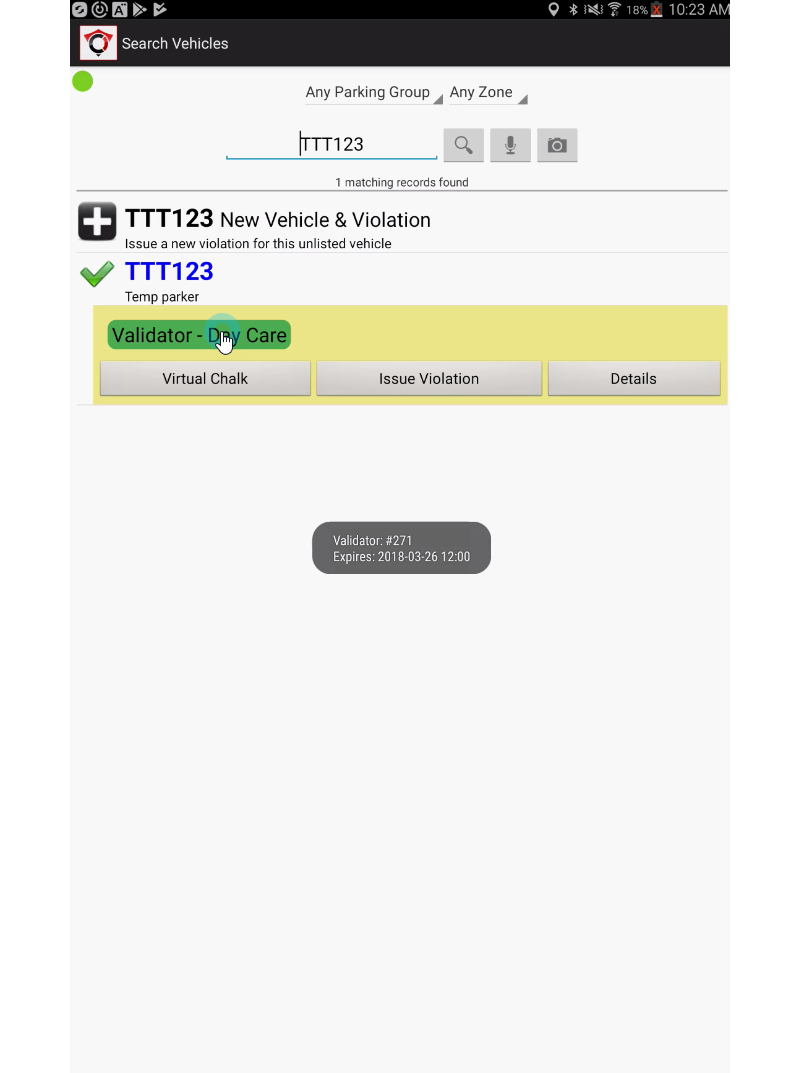
Do Temporary Validated Parkers AppearValidations on Android HandheldsEnforcement officers can verify these temporary permissions directly from the
Handheldfield.Devices-
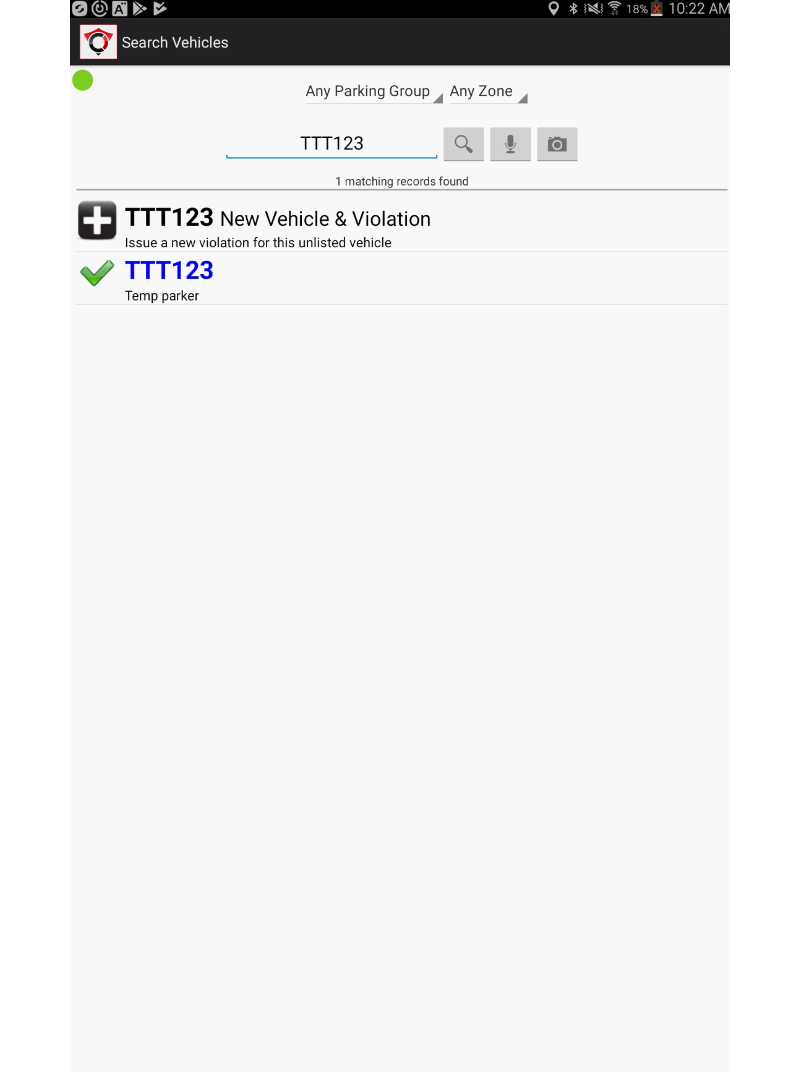
View the active vehicle list. Parkers who are validated through this tool will appear as a
"Temp Parker"on the Android version of OPS-COM.
COM.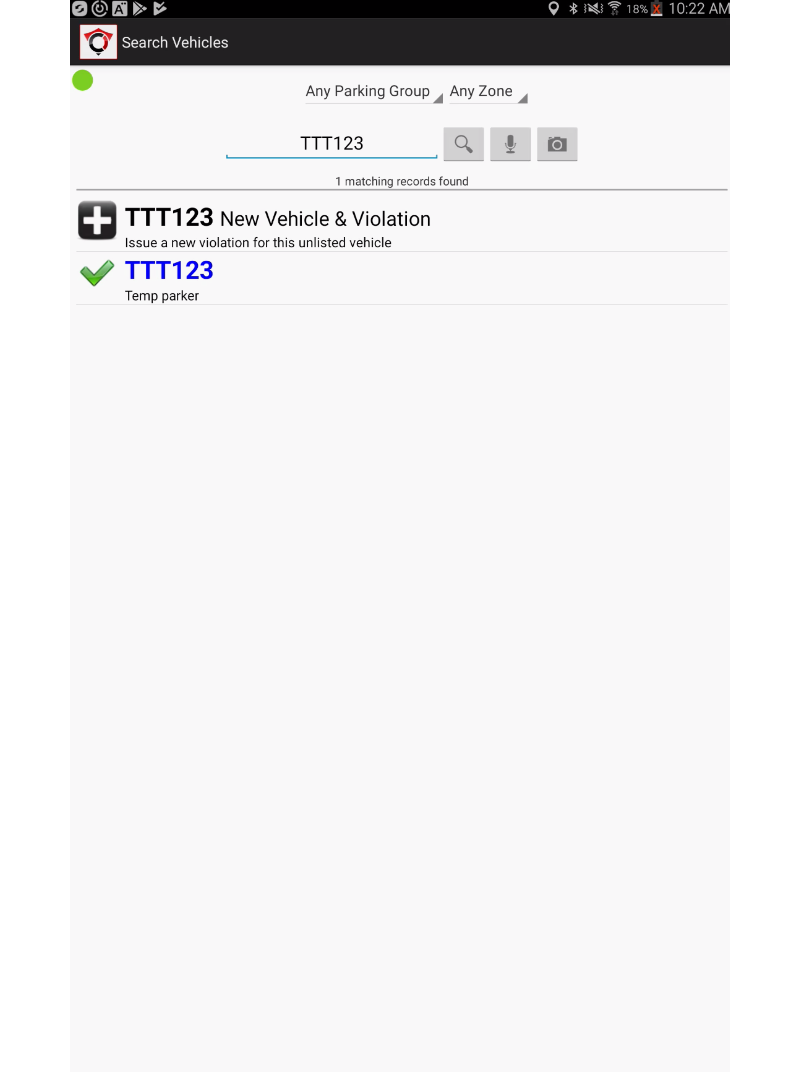
-
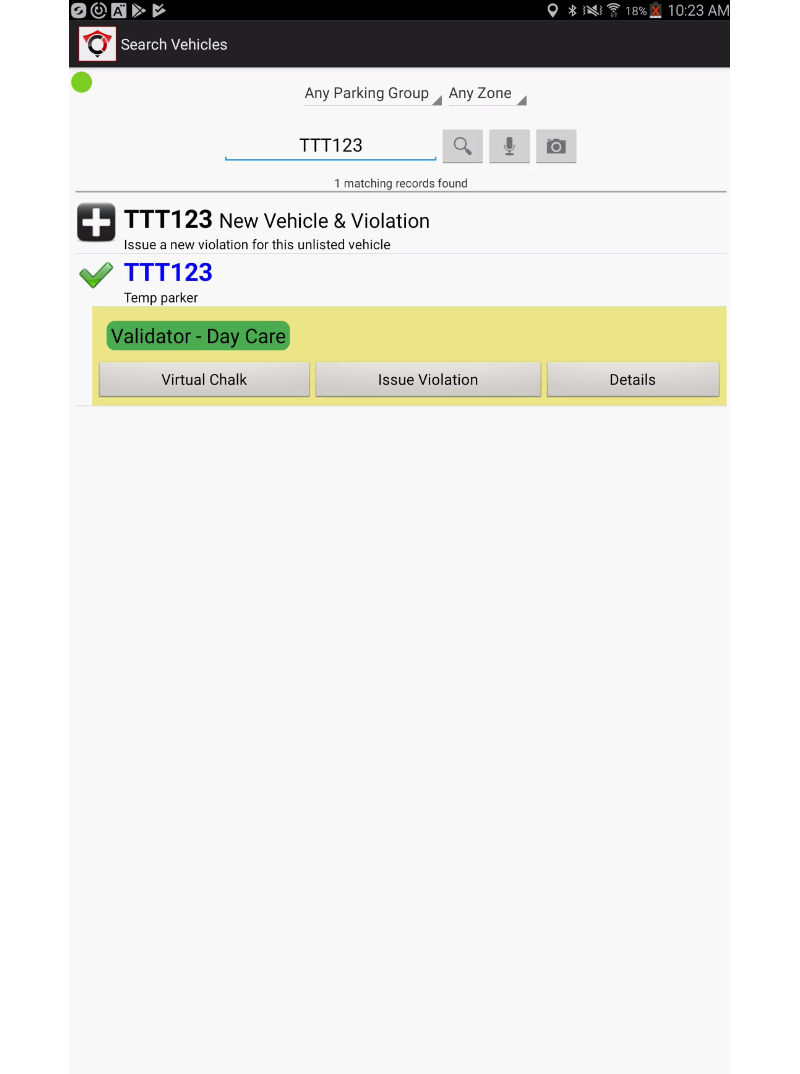
By tapping onTap the specific plate numberyoutowill getopen an expanded viewwith further detailed information. In our example, we seedetailing theparkervalidator-createdhaspermissionaand the associated lot zone. -
Tap the green Validator
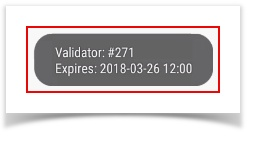
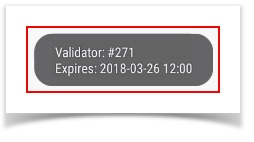
created permissionrectangle toparktriggerina pop-up showing theDayvalidationCare Lot Zone.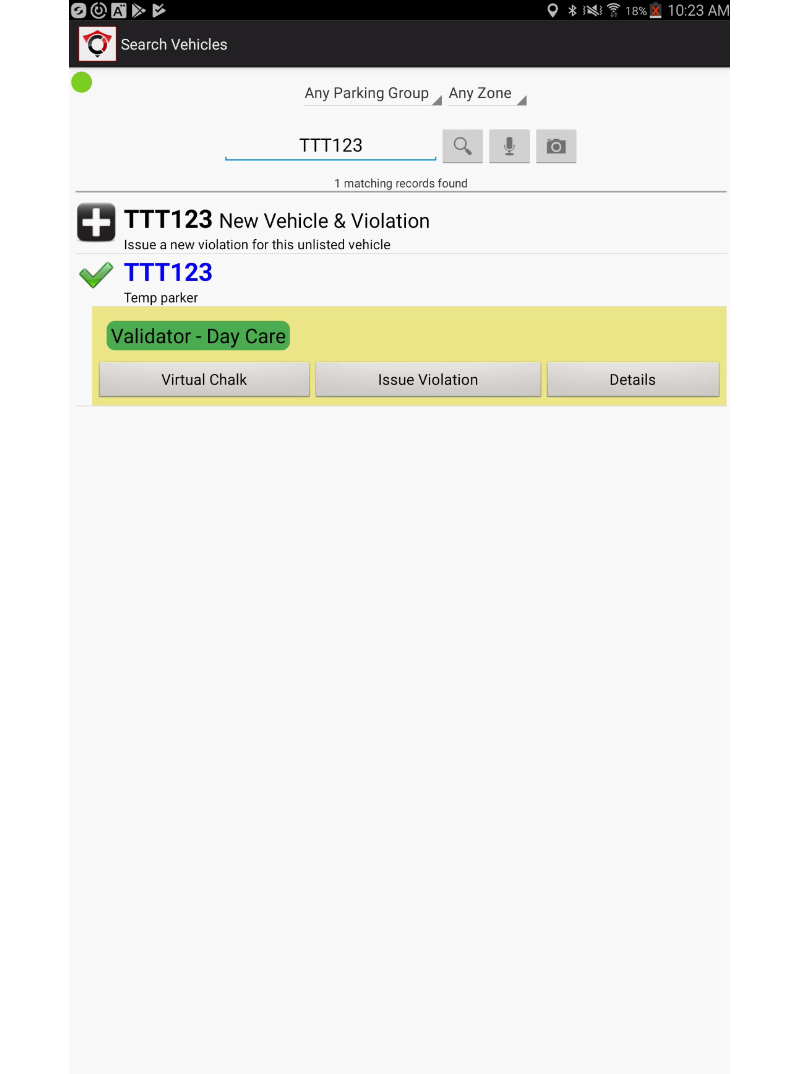
To see even finer detail on this permission, tap the green rectangle labelledValidator - Day Care. A pop up will appear showing areference number and theExpiryexact expiry date of the permission.
Best Practices and Considerations
-
-
ATimecloserFramelook:Blocks: Remember that the time frame selection blocks represent full hours. Always verify your selected blocks completely cover the intended visit duration to avoid accidental citations.