
Validator Admin Groups
This article outlines how to configure, manage, and assign permissions for the Validator Tool. This feature is designed for OPS-COM administrators to organize validation groups, assign roles, and define management zones for permit validation operations.
User Level Capabilities
The Validator Tool utilizes distinct roles to manage access to system data and deletion capabilities.
| Role | Access & Deletion Capabilities |
| Super Admin | Has full access to all groups. Can view all current, pending, past, and archived validations, and delete entries at any time. 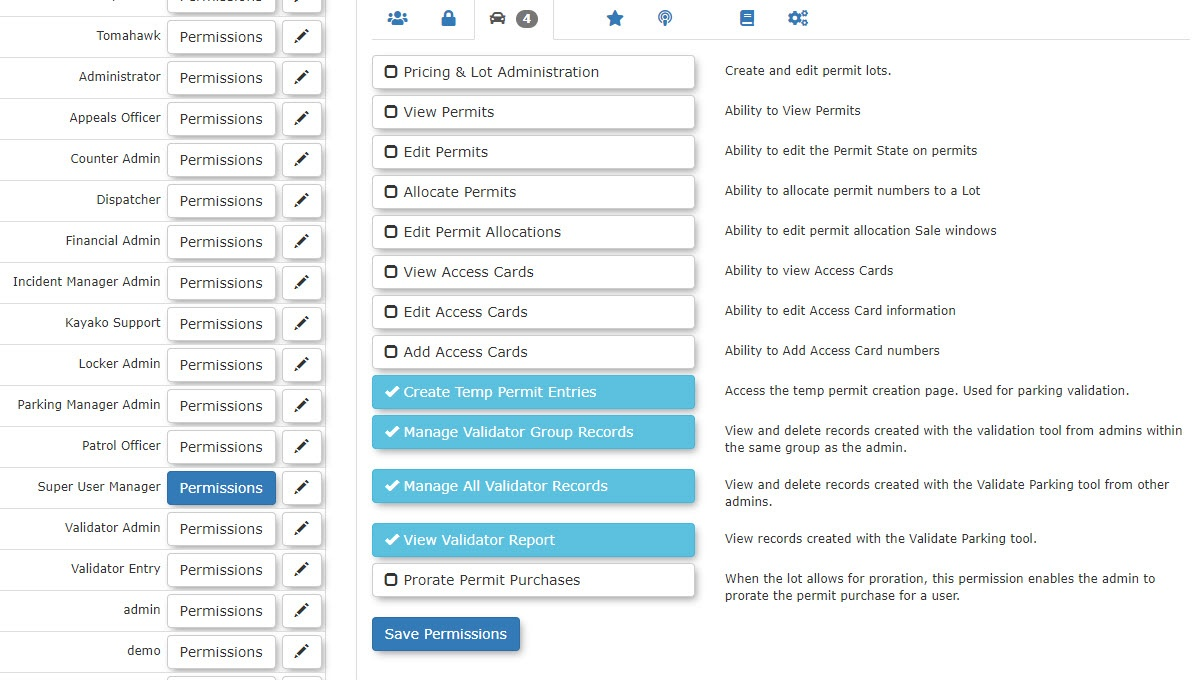 |
| Group Manager | Can view their own groups and associated current/pending validations. Can delete entries pre-validation and up to 15 minutes past the start date. |
| Validator Admin |
Can view and delete their own entries pre-validation or within the 15-minute grace period.
|
| Validator Entry |
Can delete any future, current, or past validations.
|
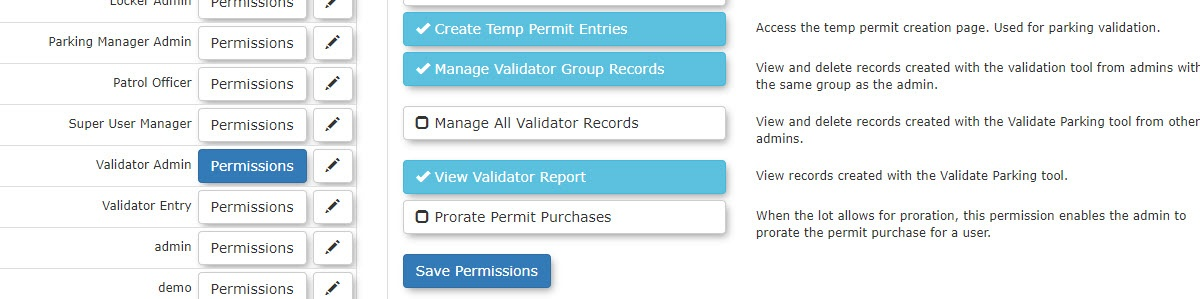
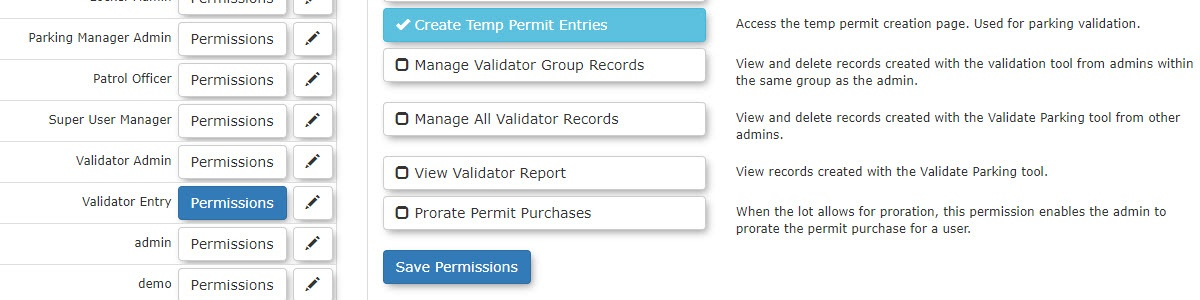
Enable a 15-minute grace period in system settings to allow administrators to correct input errors by deleting validations up to 15 minutes past the start time.
Archived information is not purged from the system. While archived entries are considered deleted, the data is retained to maintain system data integrity.
Creating a Validator Group
The Default Validation Hours value serves only as an automatically populated preset. There is currently no way to enforce a strict limit, and administrators may manually override this duration.
Adding Members to a Group
Zones and How They are Assigned
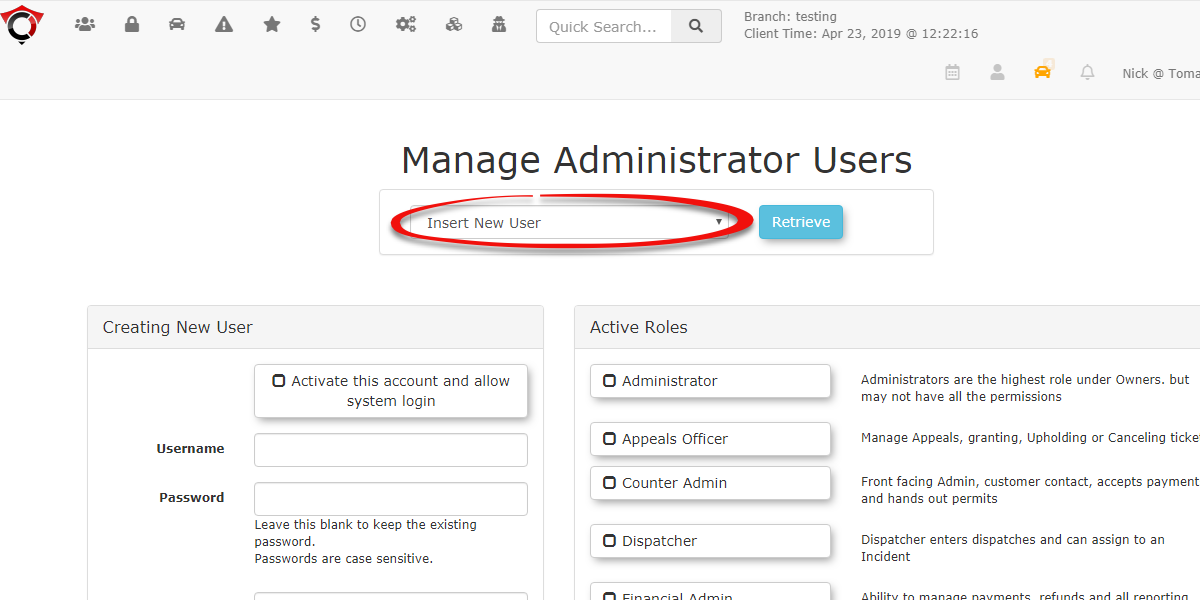
- Navigate to System Configuration, select Admin Management, and click on Edit Admin Users.
- Select the specific Admin User you wish to edit.
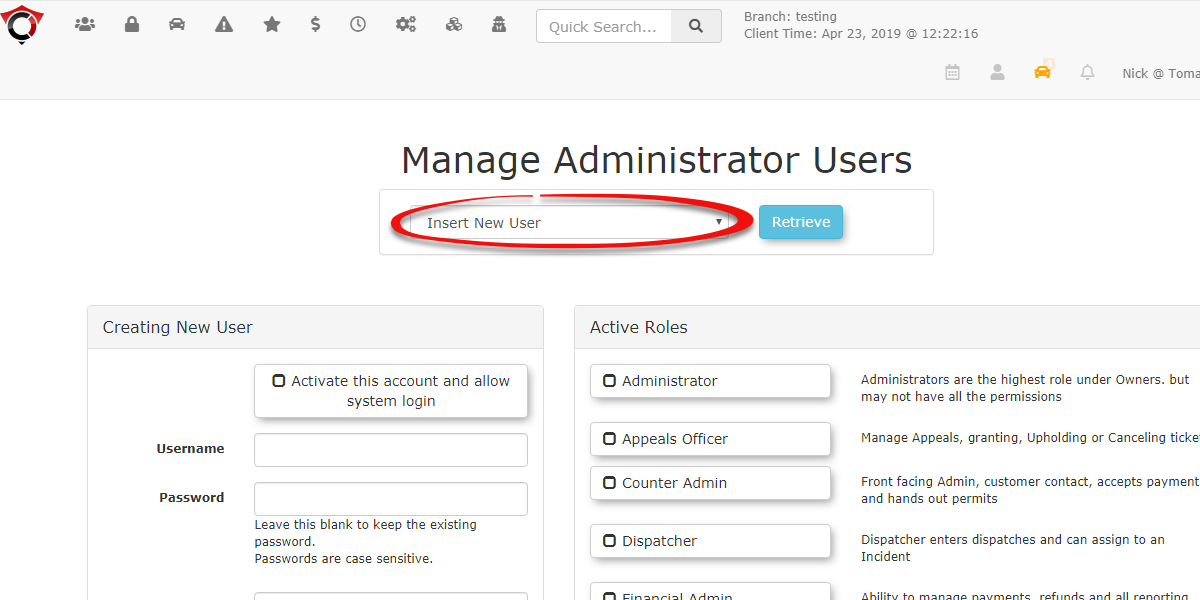
- Scroll to the bottom of the page to the Parking Validation Lot Zones window.
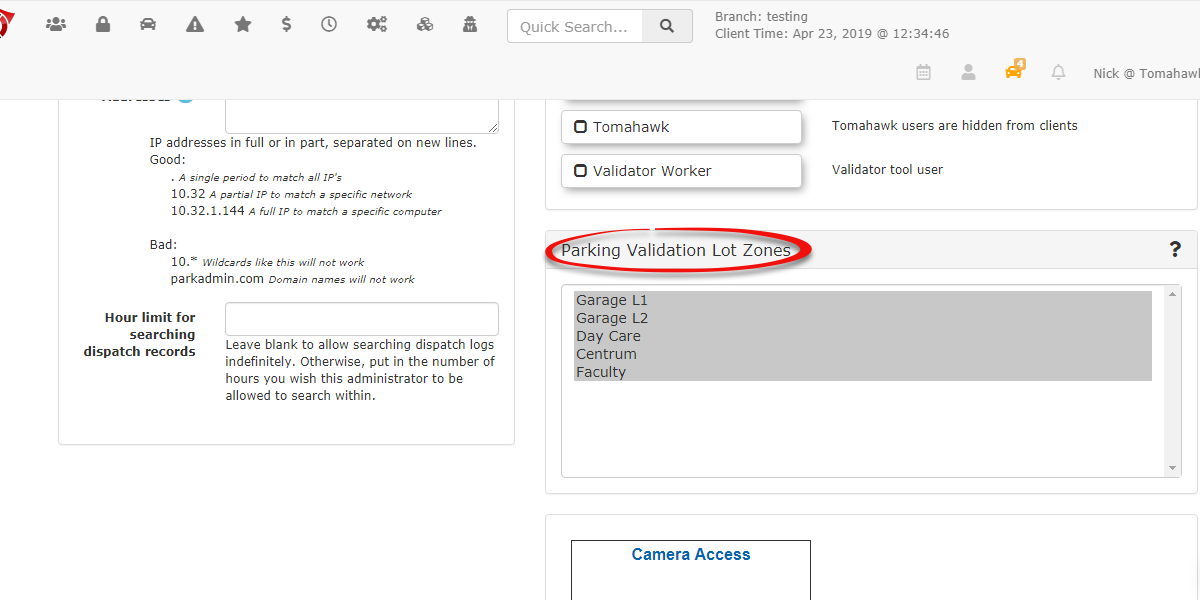
- Select the Zone(s) that this administrator will manage. Click the Update User button to finalize the changes.
Best Practices and Considerations
-
Enable Grace Periods: Set up a 15-minute grace period on deletions. This allows a current validation to be deleted up to 15 minutes past the start date in the event of an input error.
-
Data Integrity: Note that archived information is not purged from the system. Records are retained to maintain system data integrity.
-
Preset Durations: The Default Validation Hours value serves only as an automatically populated preset. There is currently no way to enforce a strict limit, as administrators may manually override this duration.
-
Visibility Rules: If an Admin name is required for searches, ensure All Admins or individual admins within their group are correctly configured to ensure accurate search results.