
Validator Admin Groups
UserThis Levelarticle Capabilitiesoutlines withinhow theto Validatorconfigure, Tool
Hereand isassign apermissions description of what each user level can do withfor the Validator Tool. This feature is designed for OPS-COM administrators to organize validation groups, assign roles, and define management zones for permit validation operations.
- Level Capabilities
The
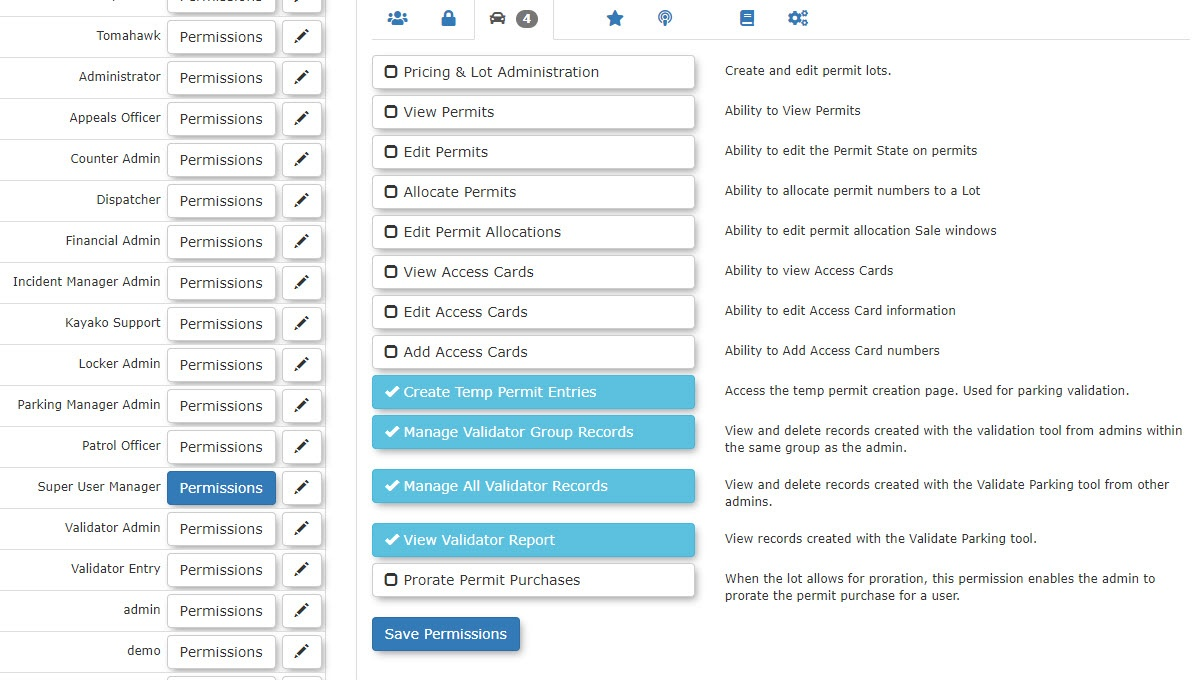
SuperValidatorAdminToolcanutilizessetdistinctup newGroupswith aGroup Name, as well as assignManagersandGroup Members. Only the Super Admin can add Managers and Admins.Definition: The Super Admin will also be any Primary Admin with permissions in OPSCOMroles to managetheaccessValidator;totheysystemcan create groupsdata andhavedeletionthecapabilities.abilityRole Access & Deletion Capabilities Super Admin Has full access to addallusersgroups.toCanthe group. The permissions that the Super Admin assigns to the individual group members will determine their access level on the system. All permissions must be added or removed by the Super Admin and cannot be done by any other user.The Super Admin will be able to seeview all current, pending,pastpast, and archived(deleted) validations.These are the permissions required to use theSuper User Managerrole.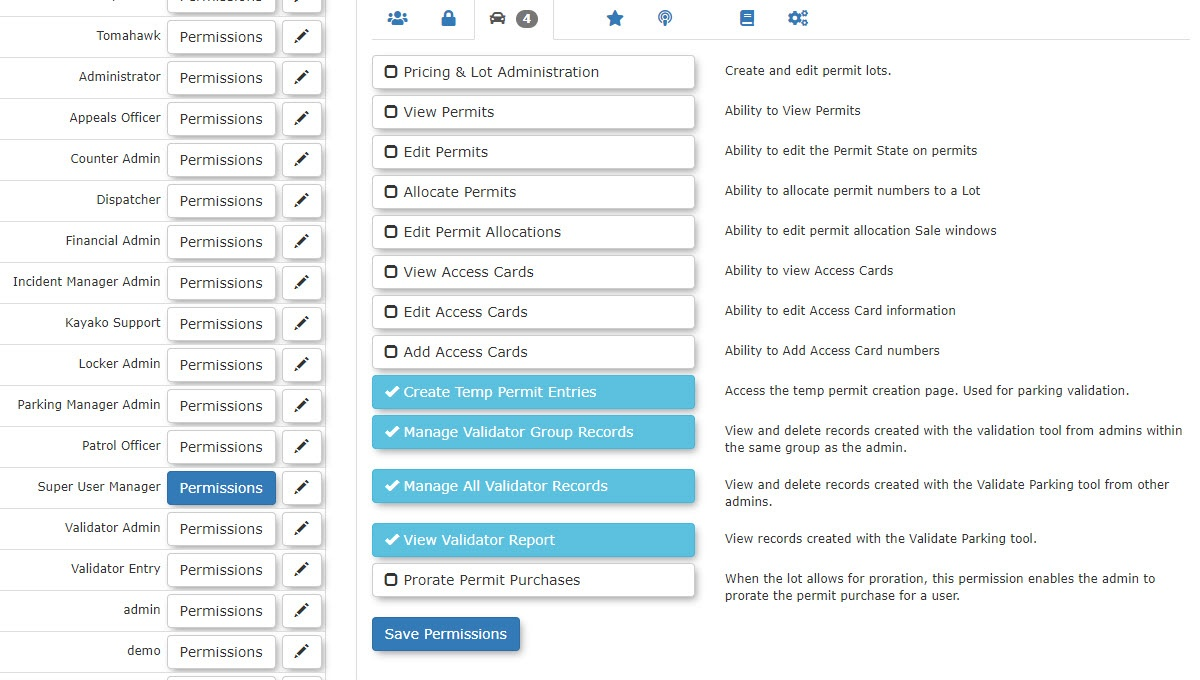
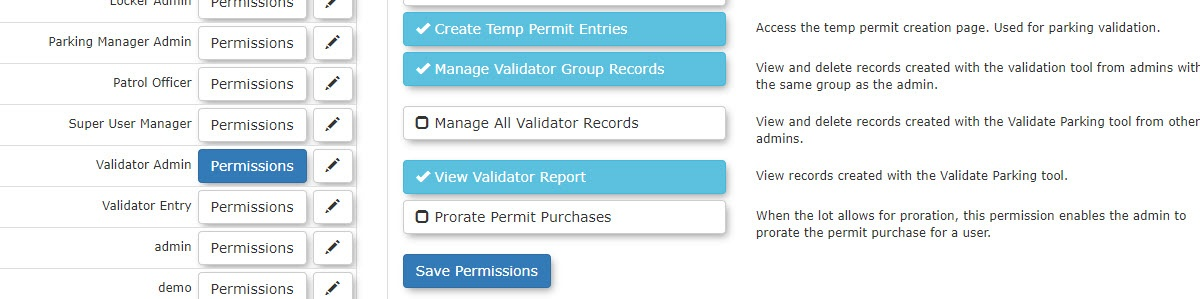
Group Managers and Admins will be able to see all of their Groups, current/pending validationsvalidations, and deletefuture/currententriesvalidationsat any time.Group Manager Can view their own groups and associated current/pending validations. Can delete entries pre-validation and up to the1515-minuteminutesmark ofpast theStartstartDate.date.GroupManagerscan only manage one group at a time.Please note that deletions would only be available from the Manage Validations page.These are the permissions required to be theValidator Admin role: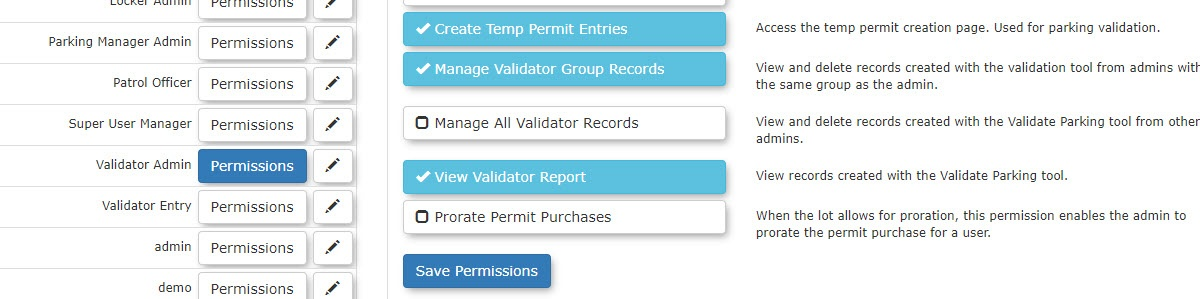
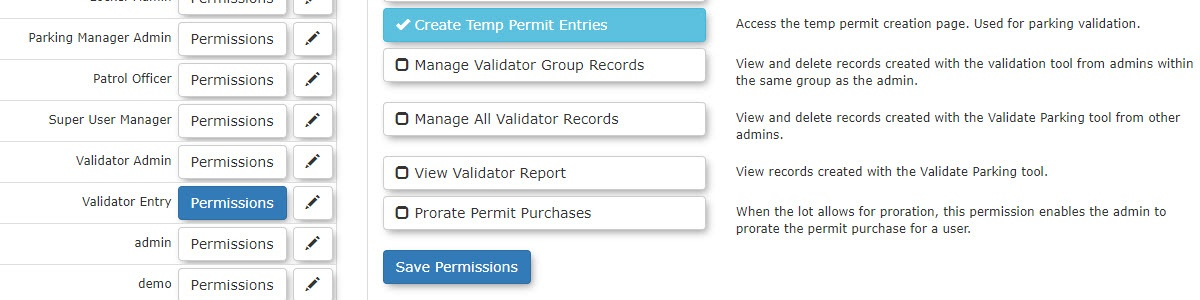
The Super User will be able to delete any future, current, and past validations.Please note that archived is considered deleted. Archived information is not purged from the system. This is due to the need to keep system data integrity.These are the permissions required to be theValidator Entryrole: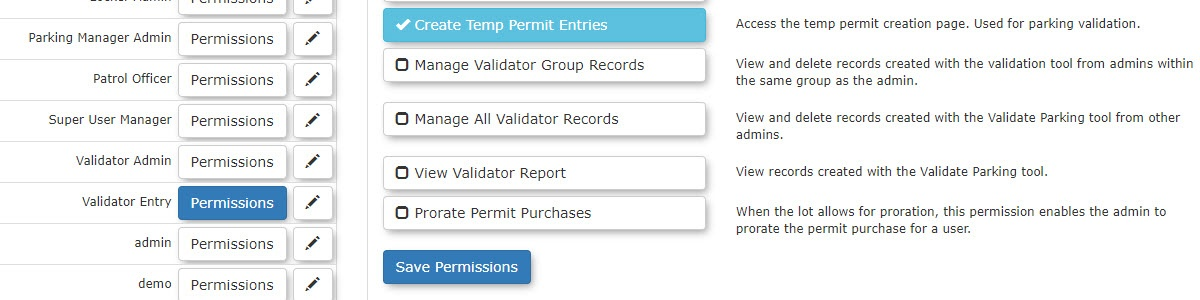
User Level Display within the Validator ToolHere is the description of what each user level can see in the Validator Report and Manage Validations tools.TheCanSuper Adminwill be able to see allValidator Groupsvia the drop-down menu ofAll/IndividualValidatorswithin each group. The Super Admin should be able to delete any entry at any time, pre or post validation.Group Managers will only be able to see their own Validator Groups within a drop-down ofAll/Individual Validatorswithin their group. They will also be able to delete any entry pre-validation.Adminswill only be able to seeview and delete their own entries pre-validation or withinathe 15-minuteleewaygrace(as described below).
period.
Validator Entry PleaseCanset-updelete any future, current, or past validations.Enable a 15-minute grace period
onindeletions.systemThissettingswillto allowa current validationadministrators tobecorrectdeletedinput errors by deleting validations up to15-15 minutes past the startdate, in the case of an input error. (Setting)
time.-
UsersArchived information is not purged from the system.willWhilebearchivedableentries are considered deleted, the data is retained tosearchmaintainforsystemadatapartial or full plate, by entering the time period. No admin name or lot should be required. If the entry was made within the appropriate time period, it should show accordingly. If an Admin name is required then anAllAdmins option, and individual admins within their group are required.integrity.
Creating a Validator Group
-
Navigate to System Configuration,
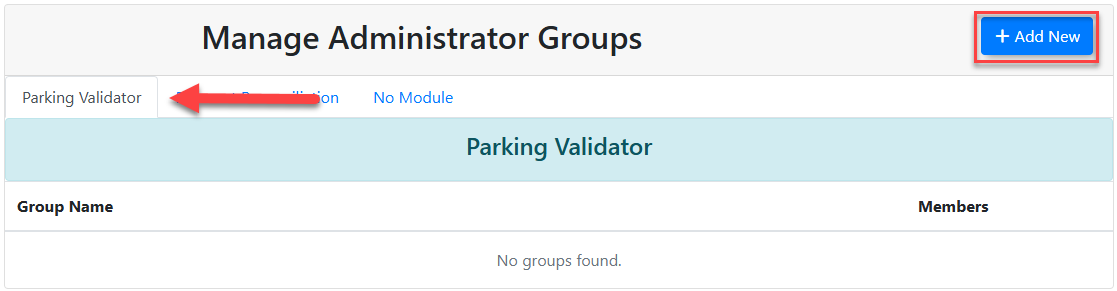
thenselectonManage Groups. Thisbrings you to theManage Administrator Groupspage.To create a Validator group click onClick the Parking Validator
modulemodule.and-
clickClick the Add New button in the top right
cornercorner.under. -
Complete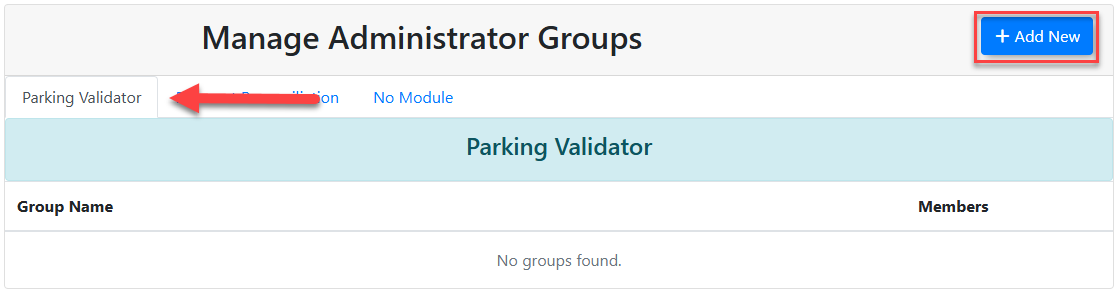
the
followingThefields in the Adding New Groupwindow will appear with the following options:window:the Save Group button.-
:1.Group Name -
2.Module:ModuleThe Module is where you can setSelect the purpose of the group. -
3.Validator Comment:The Validator Comment is a spot where you can addAdd anycommentsnecessarythatinternalyounotes.needto. -
5.Default Validation HoursThe Default Validation Hours is where you can setSet a default permit duration. - Click
OptionsInfoThe Group Name is how you setDefine the name ofathe group.4.Admin MembersThe Admin isAdd theareadesiredin which you can add admin membersadministrators to thegroupgroup. -
thenThe
Note:Default Validation Hours value serves only as an automatically populated preset. There is currently no way to enforce a strictlimit or prevent admins from overriding the default duration. The value serves only as an automatically populated presetlimit, andcanadministratorsbemay manuallyadjusted.override this duration. When you are finished click theSave Groupbutton. You will see your group added to the bottom of the Administrator Groups.
User
Adding Members to a Group
Zones and How They are Assigned
- Navigate to System Configuration,
thenselect Admin Management, and click on Edit Admin Users. - Select
anthe specific Admin Userwhichyouwantwish toedit and apply theParking Validation Lot Zonesthey will manage.edit.
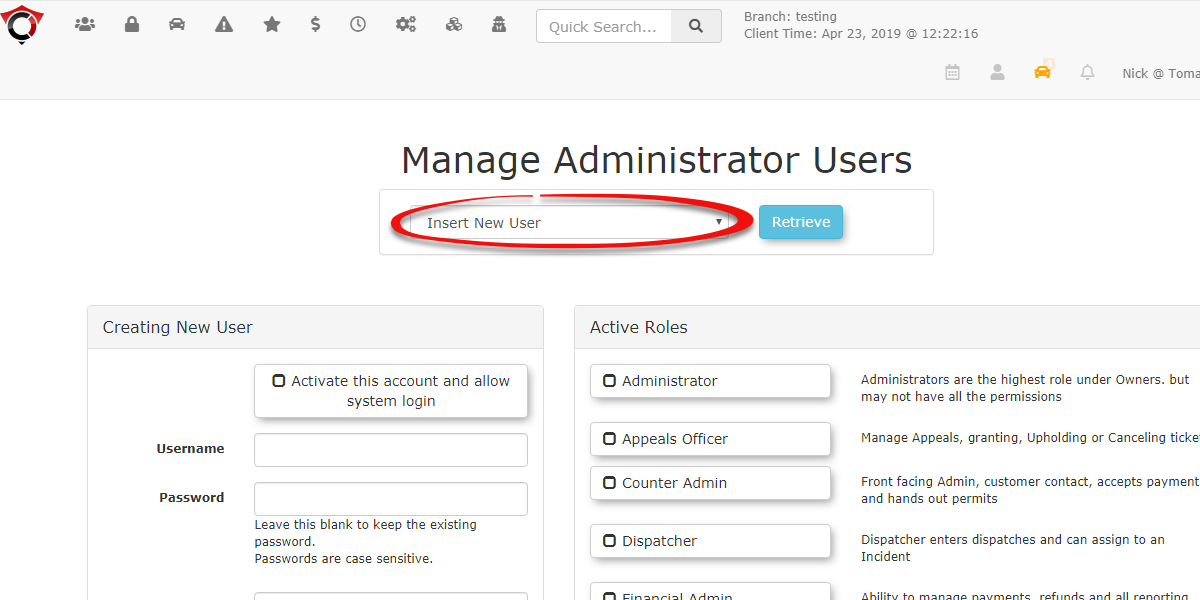
- Scroll to the bottom of the page to
findthe Parking Validation Lot Zones window.Select theZone(s)in which this admin will be managing validations.
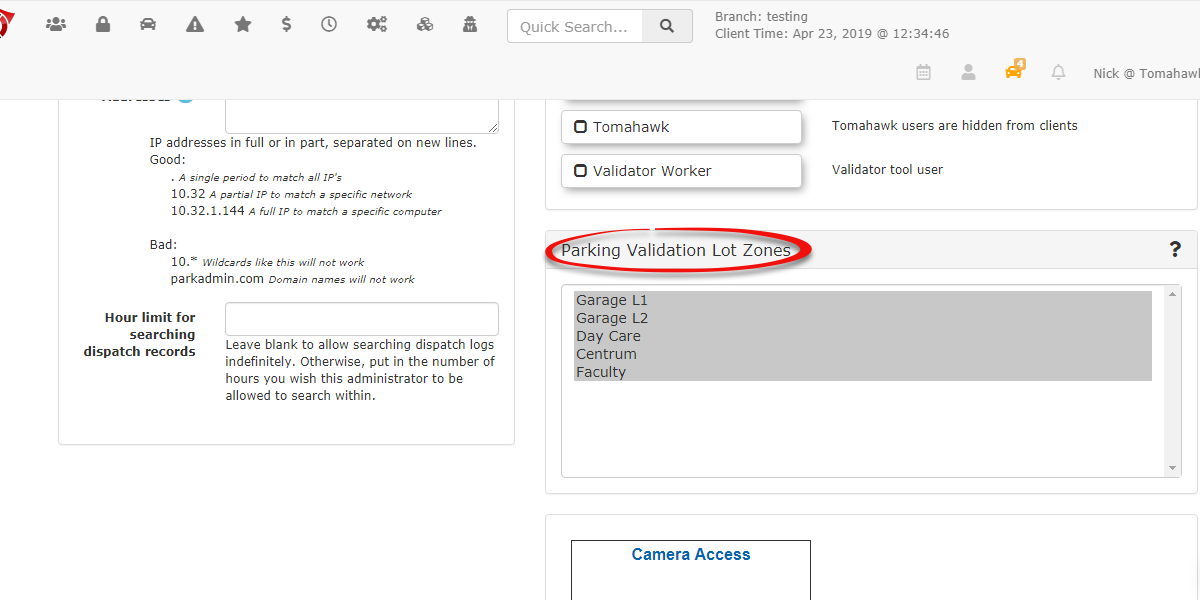
ClickSelectanytheZonesZone(s) thatapply tothisAdminadministratorandwillclickmanage. Click the Update Useratbutton to finalize thebottomchanges.
Best Practices and Considerations
-
Enable Grace Periods: Set up a 15-minute grace period on deletions. This allows a current validation to be deleted up to 15 minutes past the start date in the event of an input error.
-
Data Integrity: Note that archived information is not purged from the
pagesystem. Records are retained tofinish.
maintain system data integrity. -
Preset Durations: The Default Validation Hours value serves only as an automatically populated preset. There is currently no way to enforce a strict limit, as administrators may manually override this duration.
-
Visibility Rules: If an Admin name is required for searches, ensure All Admins or individual admins within their group are correctly configured to ensure accurate search results.